Product sales
On the Sales page you follow your product sales and your balance, and you see who bought each product. This guide is for the platform admin.
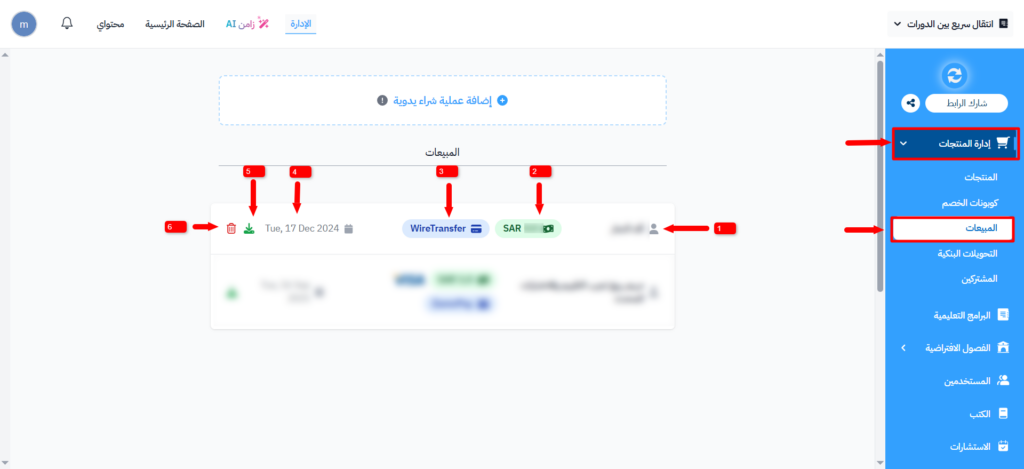
Open the Sales page
-
From the dashboard, click Product Management.
-
Click Sales.
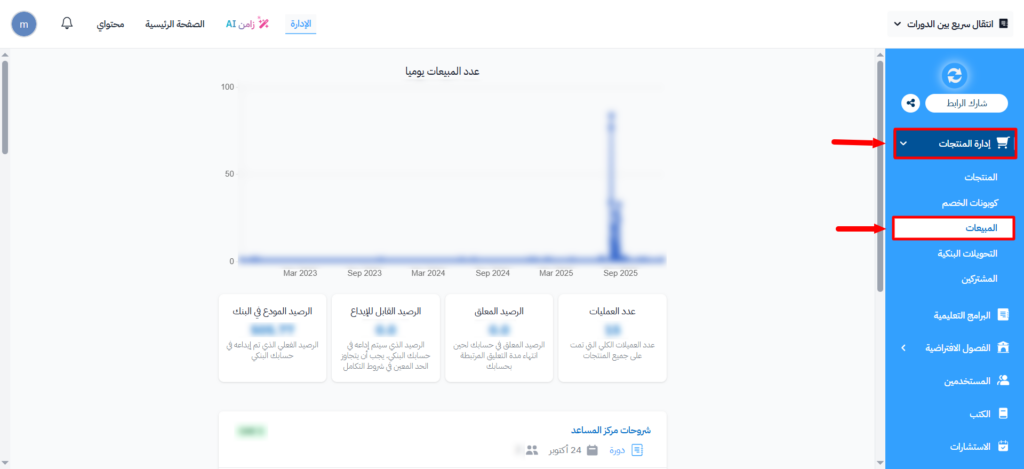
Sections of the Sales page
The Sales page has a few sections that help you follow your business.
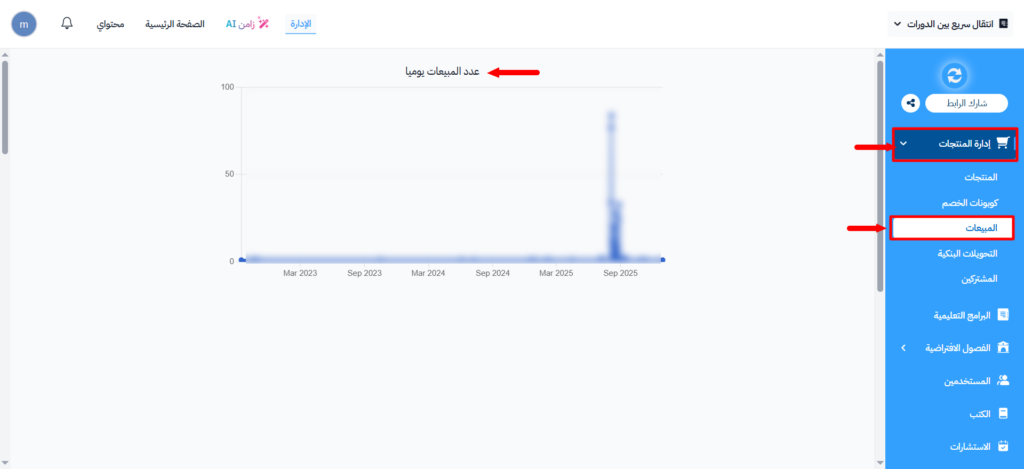
Chart
A chart called Sales Count Daily shows the number of sales on each day. It helps you see your busiest days and follow your sales clearly.
Statistics
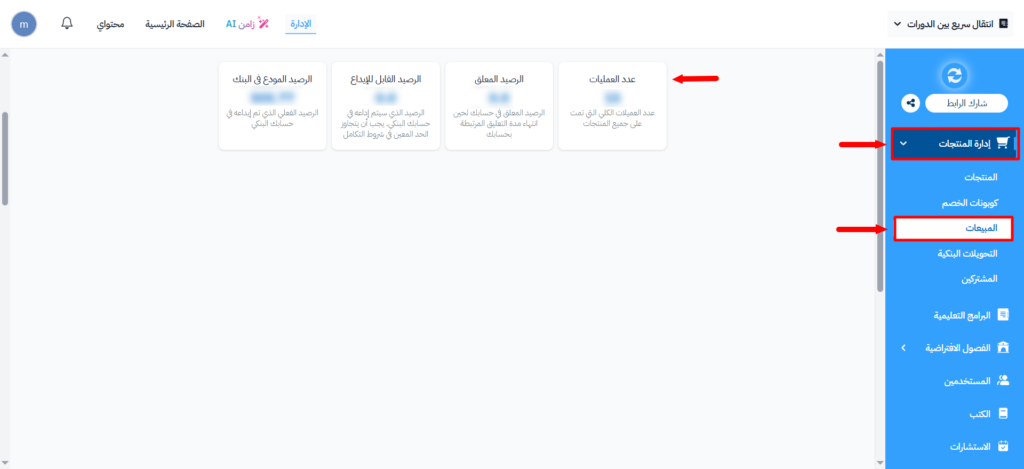
Under the chart you see these numbers:
- Total Number Of Transactions: the total number of purchases made on all your products.
- Total Awaiting Balance: the amount held in your account until the hold period set for your account ends.
- Total Awaiting To Transfer: the balance ready to be sent to your bank account. It must be more than the minimum set in the integration terms.
- Total Deposited Amount: the total amount that was actually sent to your bank account.
Sales table
Under the statistics you find a table of all the sales of your platform.
- To find a buyer, type their name, email or phone in the search box.
- To see the sales of one product, click Filter, then choose the product in Product. Or click the product name in any row.
You find the number of sales and the price of each product on the Products page.
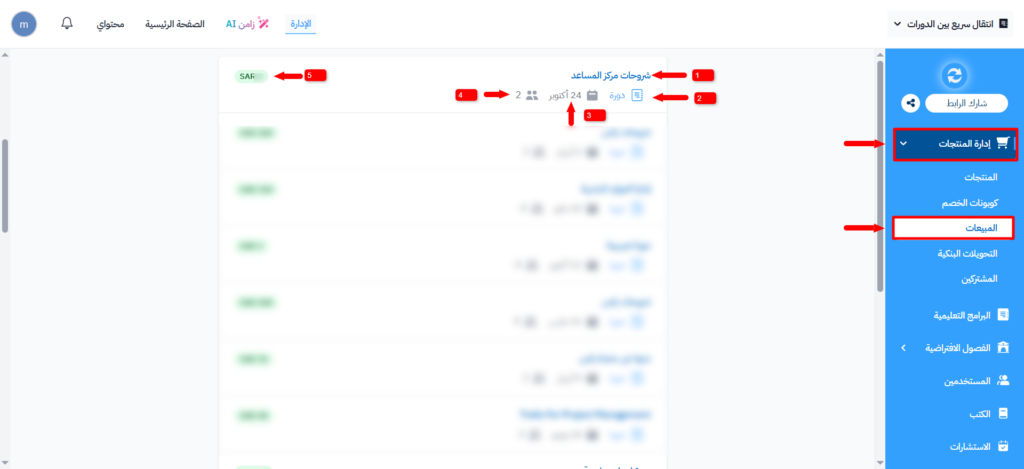
Purchase details
Each row in the table is one purchase. It shows:
- Date: the purchase date.
- Customer: the buyer name, and their email or phone.
- Product: the product they bought.
- Amount: the purchase price.
- Payment: the payment method.
- Coupon: the discount coupon code, if the buyer used one.
- Receipt: the receipt icon, to generate the purchase receipt and then download it.
To delete a purchase that you added by hand, click the ⋯ (Actions) button at the end of its row, then click Delete. Other sales cannot be deleted.
The Receipt column shows only if you added your platform's VAT Registration Number in the Saudi Business Center integration.
You can add a buyer who paid for a course another way, such as a bank transfer. Click Create manual sale above the sales table, then choose the course in Course.