Reports and exports
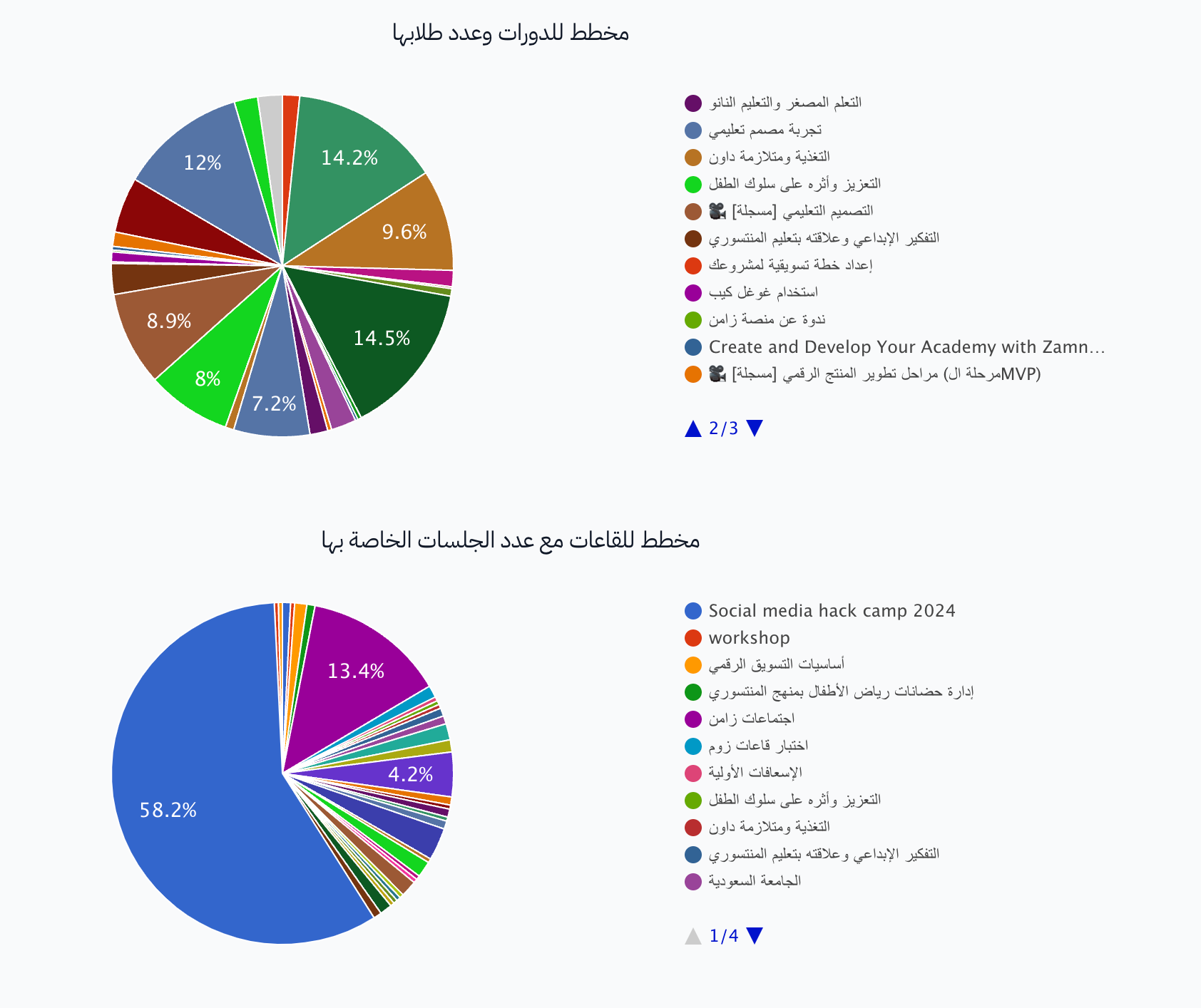
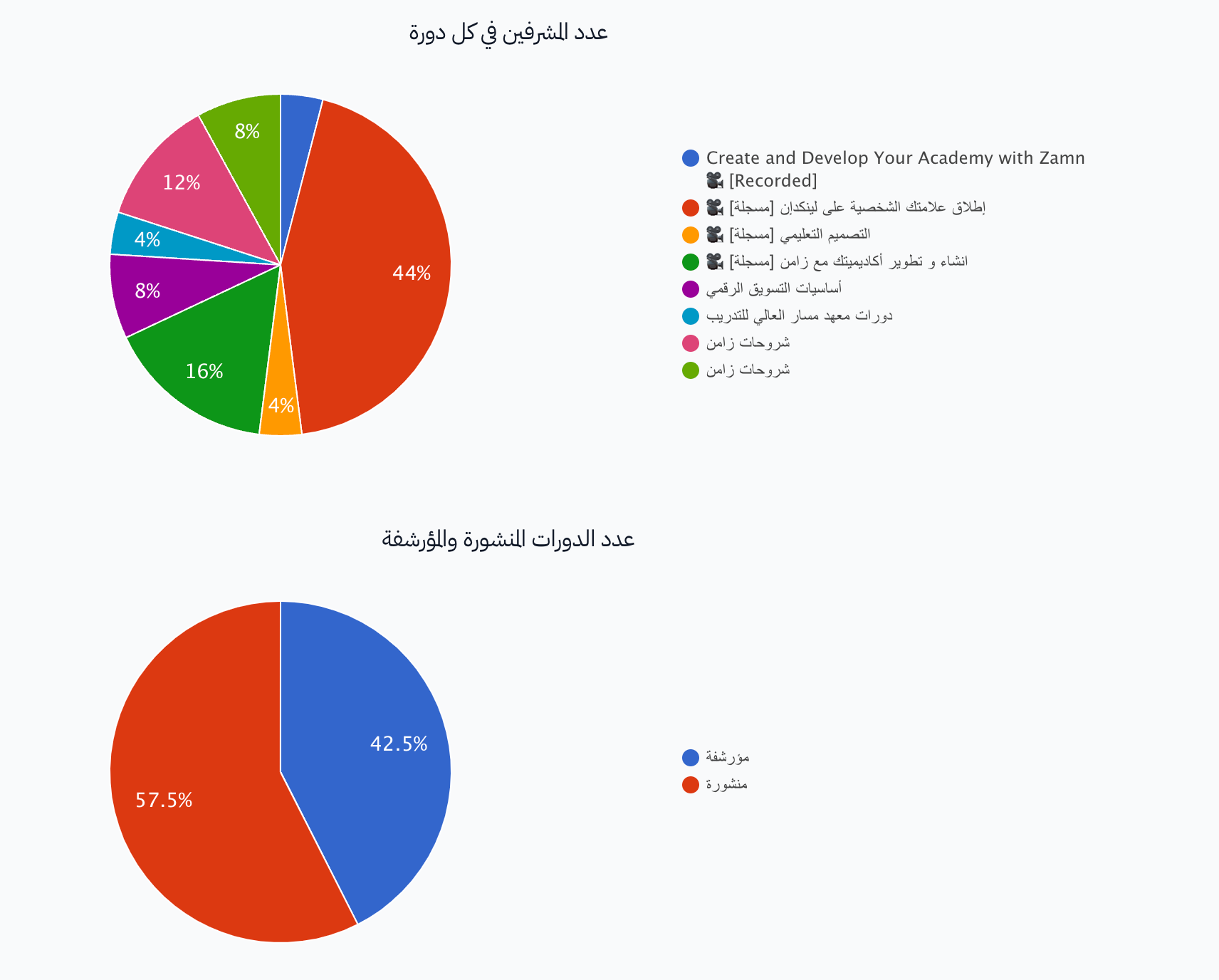
From the Data menu in the dashboard, you can export your platform's data to files, and see charts that sum up your platform's data.
Steps to export
-
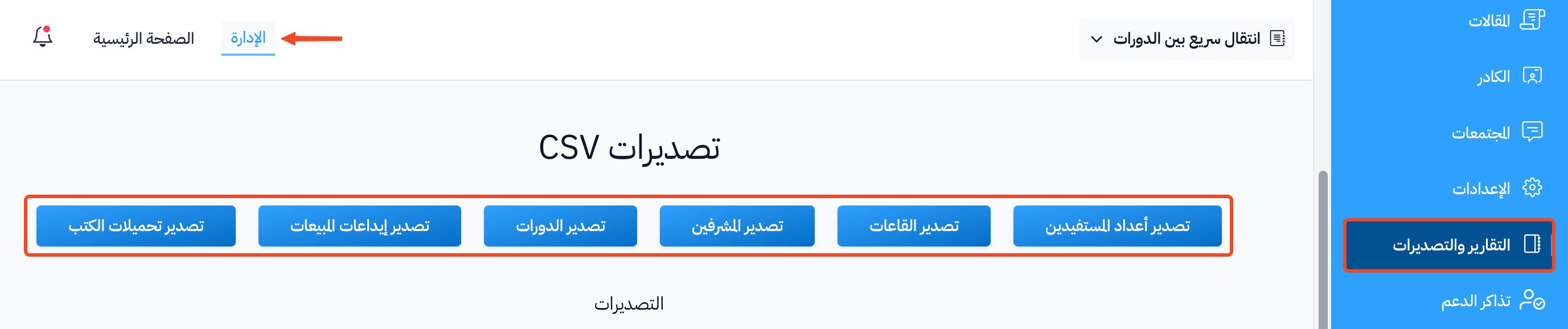
From the dashboard, click Data, then choose the Exports page.
-
Click New Export. A side panel opens with the export types in groups:
- People: Students, Coaches, Pending Users.
- Learning: Course Data, Student Surveys, Diploma Scores, Rooms.
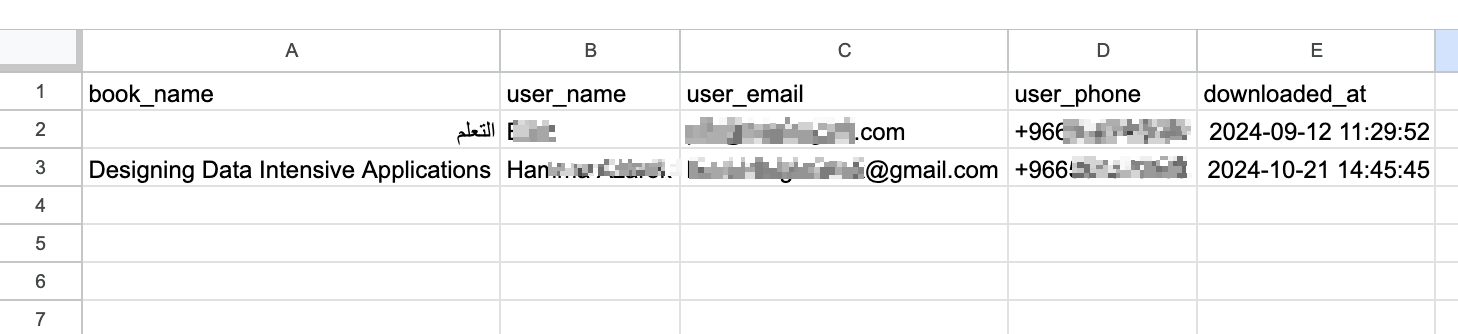
- Other: Book Downloads, Tickets.
- Money: Sales, ZamnPay Revenue.
 Note
NoteThe Money group shows only after Zamn Pay is turned on for your platform.
-
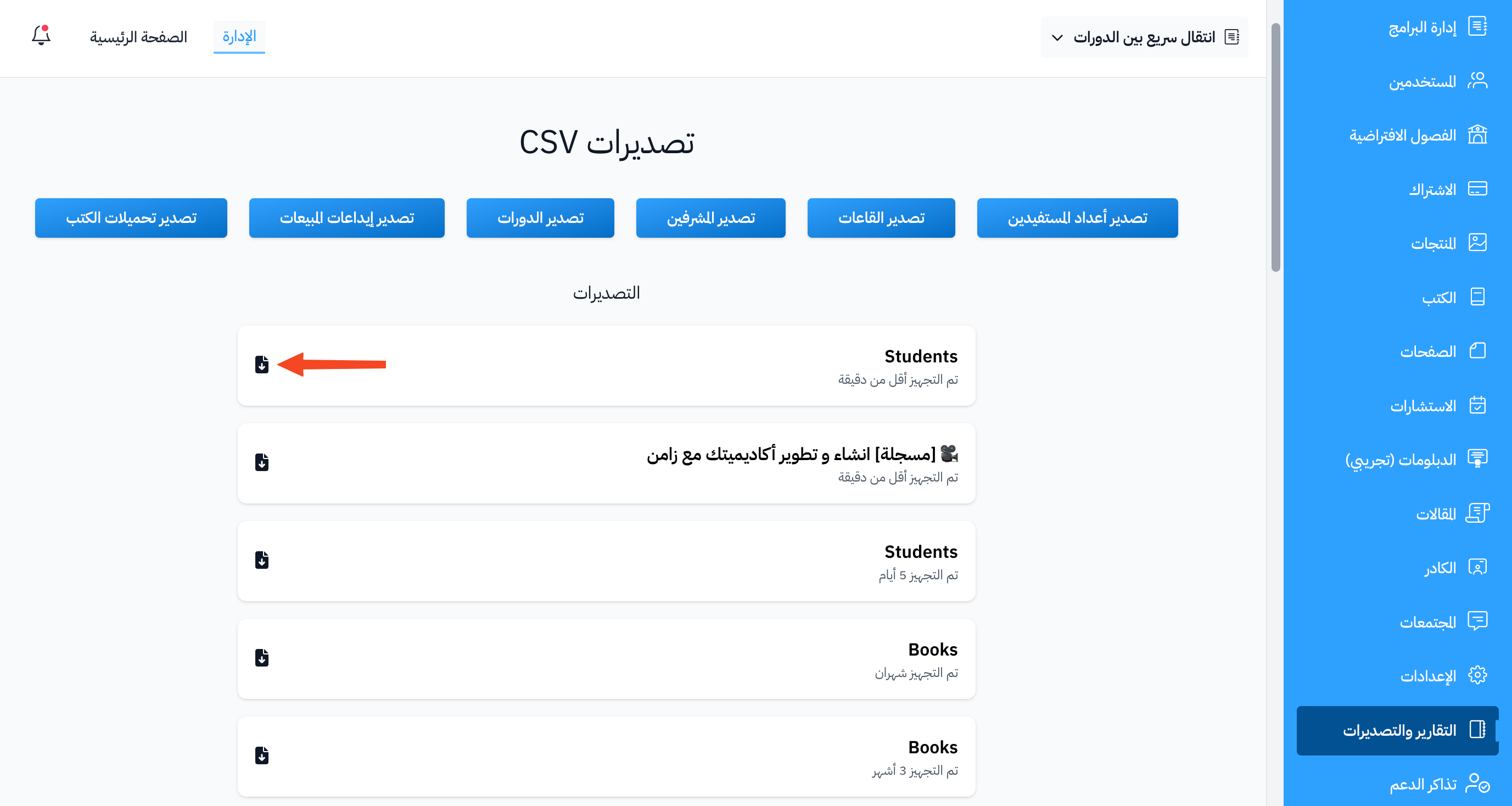
Click Export next to the type you want. Course Data and Sales have options, so click the type name instead:
- Course Data: pick the course from the Choose a Course list, then click Create Export.
- Sales: pick the Year and Month, or turn on All Sales, then click Generate Report.
-
The message Your export is being processed and will appear in the list shortly. shows. The file shows right away as a row in the exports table, with the status Preparing, then Ready when the file is ready.
-
To download the file, click the ⋯ (Actions) button at the end of its row, then click Download.
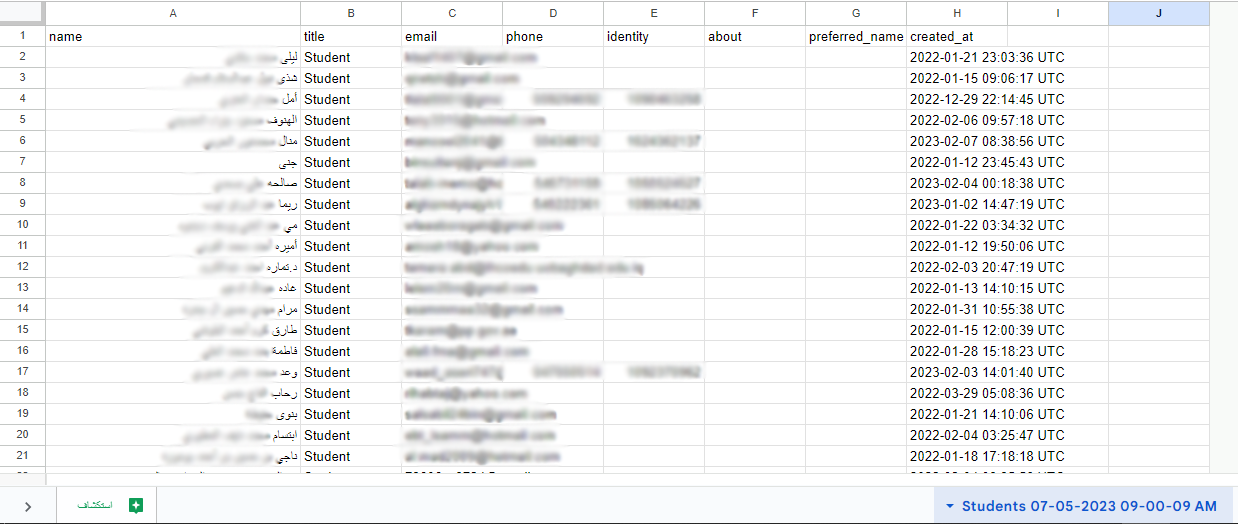
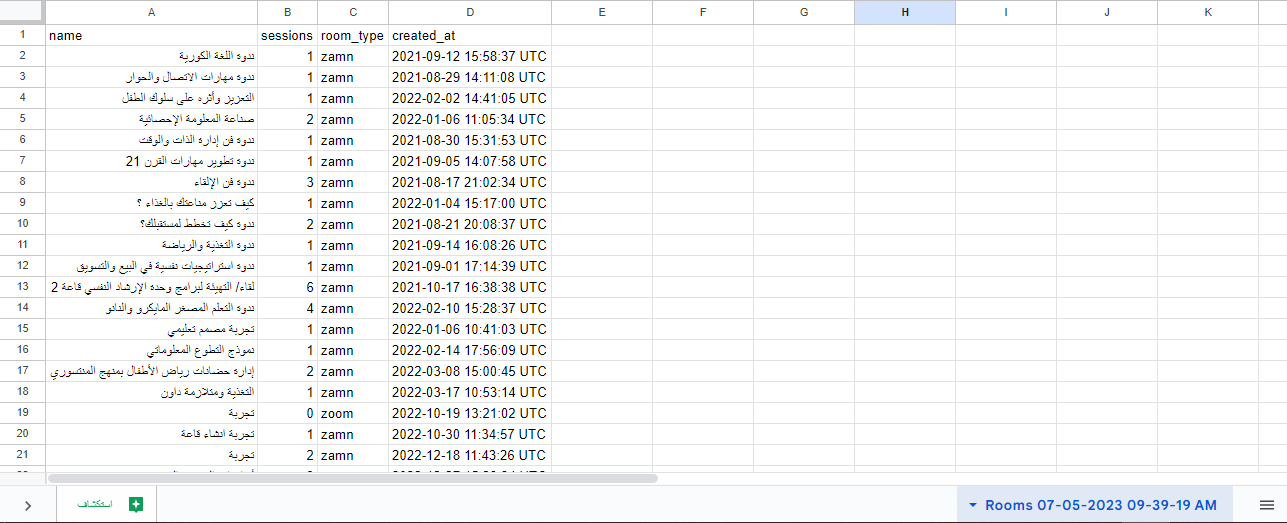
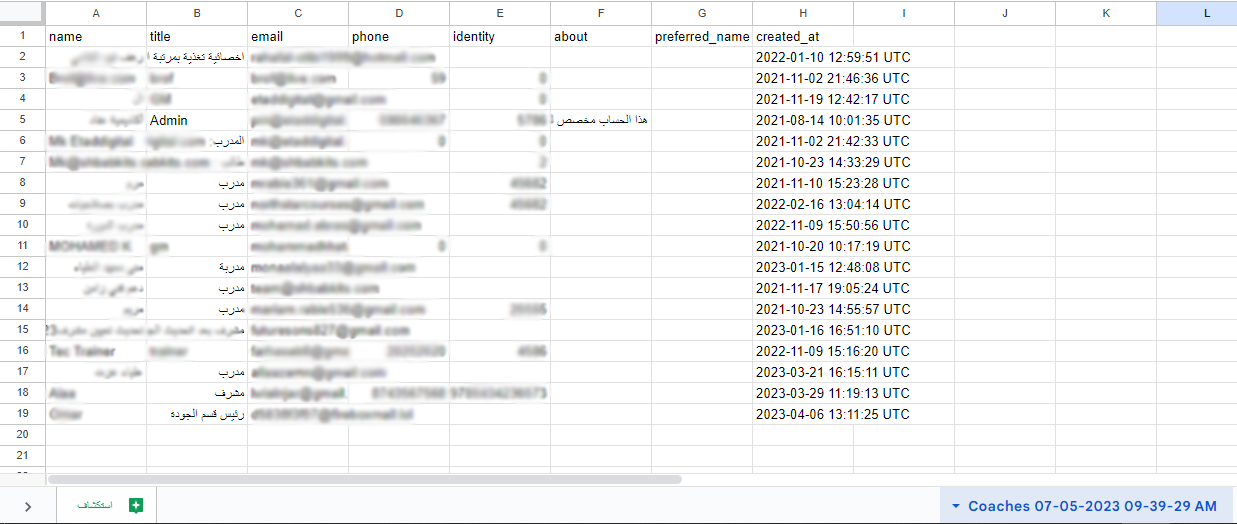
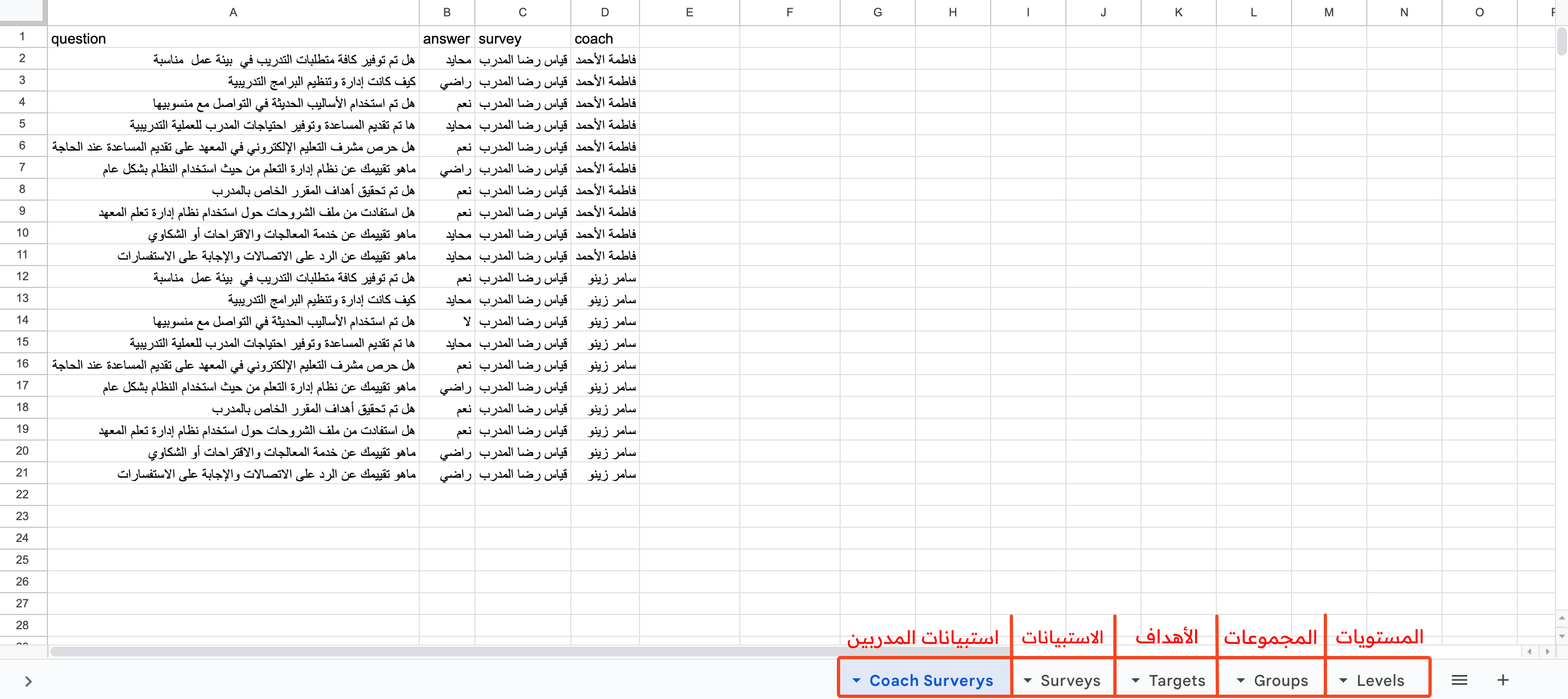
Samples of export file data
Students
Rooms
Coaches
Courses
Sales
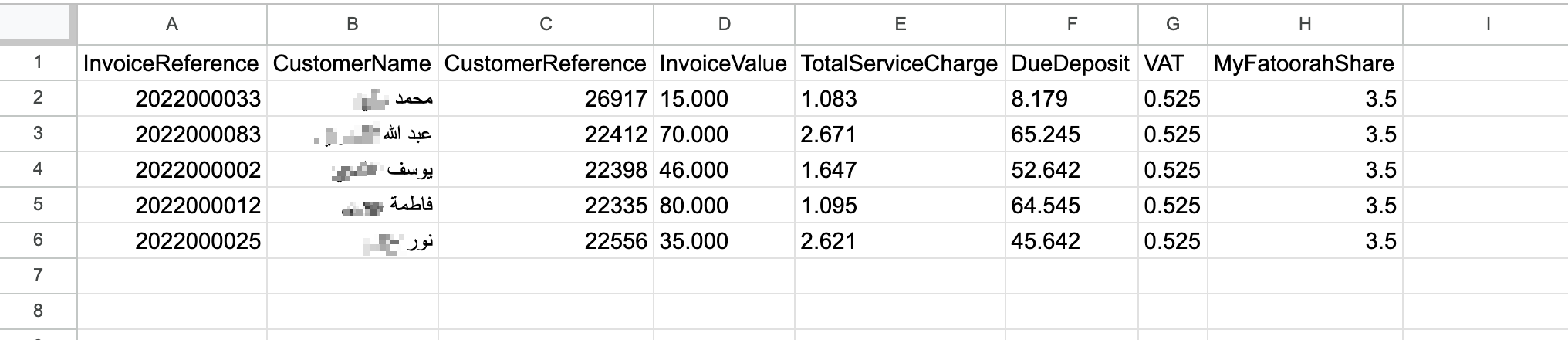
Book downloads
Reports
From the dashboard, click Data. The page shows:
- A pie chart of the courses and their number of students.
- A pie chart of the rooms and their number of sessions.
- The number of coaches in each course.
- The number of published and archived courses.