Change your profile picture (admin)
This article shows how a platform admin changes their profile picture.
Steps to change your profile picture
-
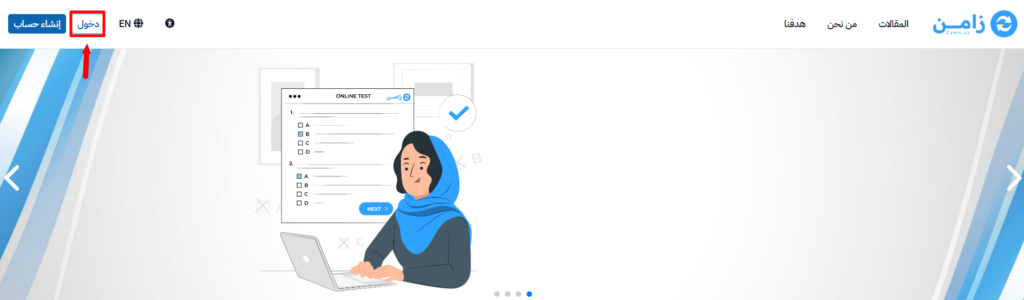
Sign in to the platform with the Login button.
-
Click your profile icon, then choose Edit Profile.
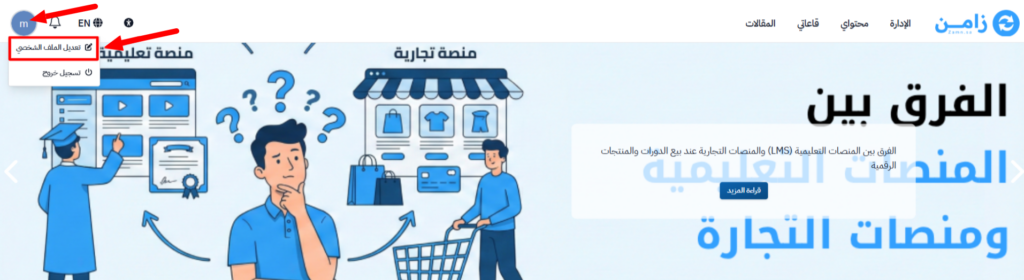
Or, from the admin panel, click your profile icon, then choose Edit Profile.

-
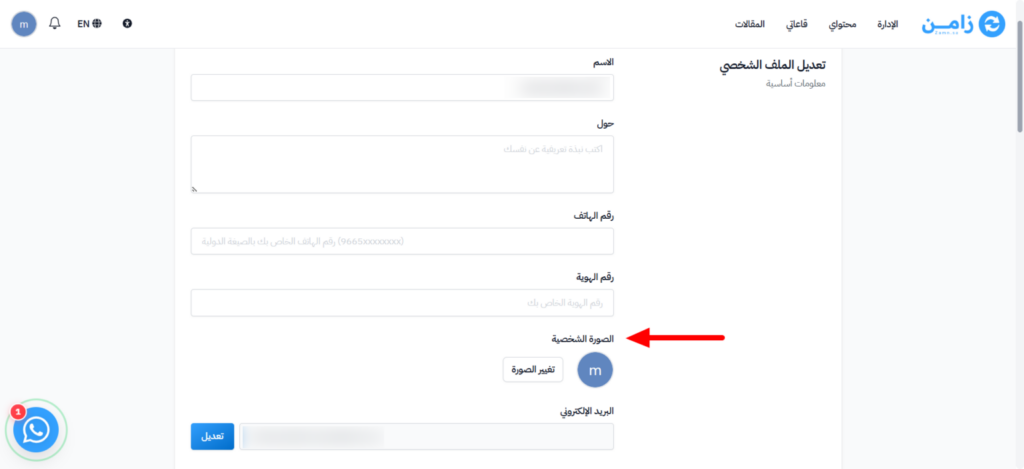
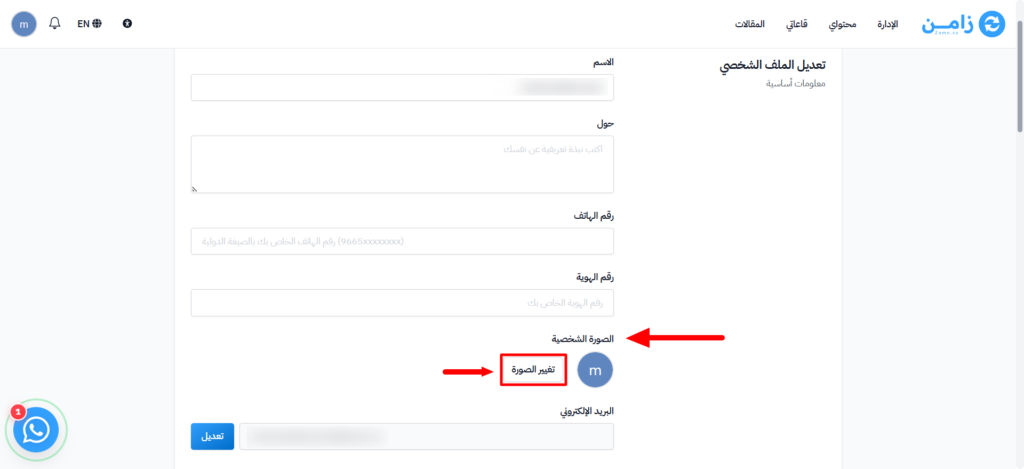
Go to the Photo section, and click Change photo.
-
Upload the new picture from your device.
-
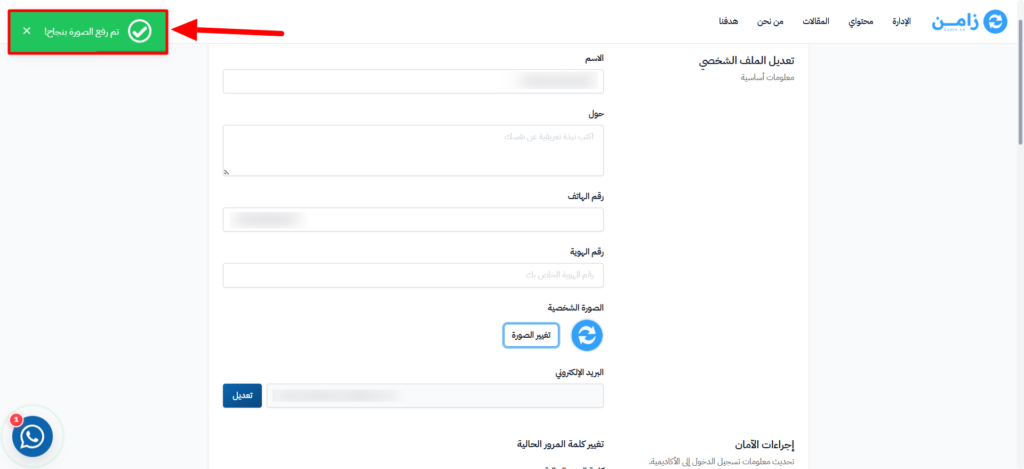
Wait a moment until the message Avatar uploaded successfully. shows.