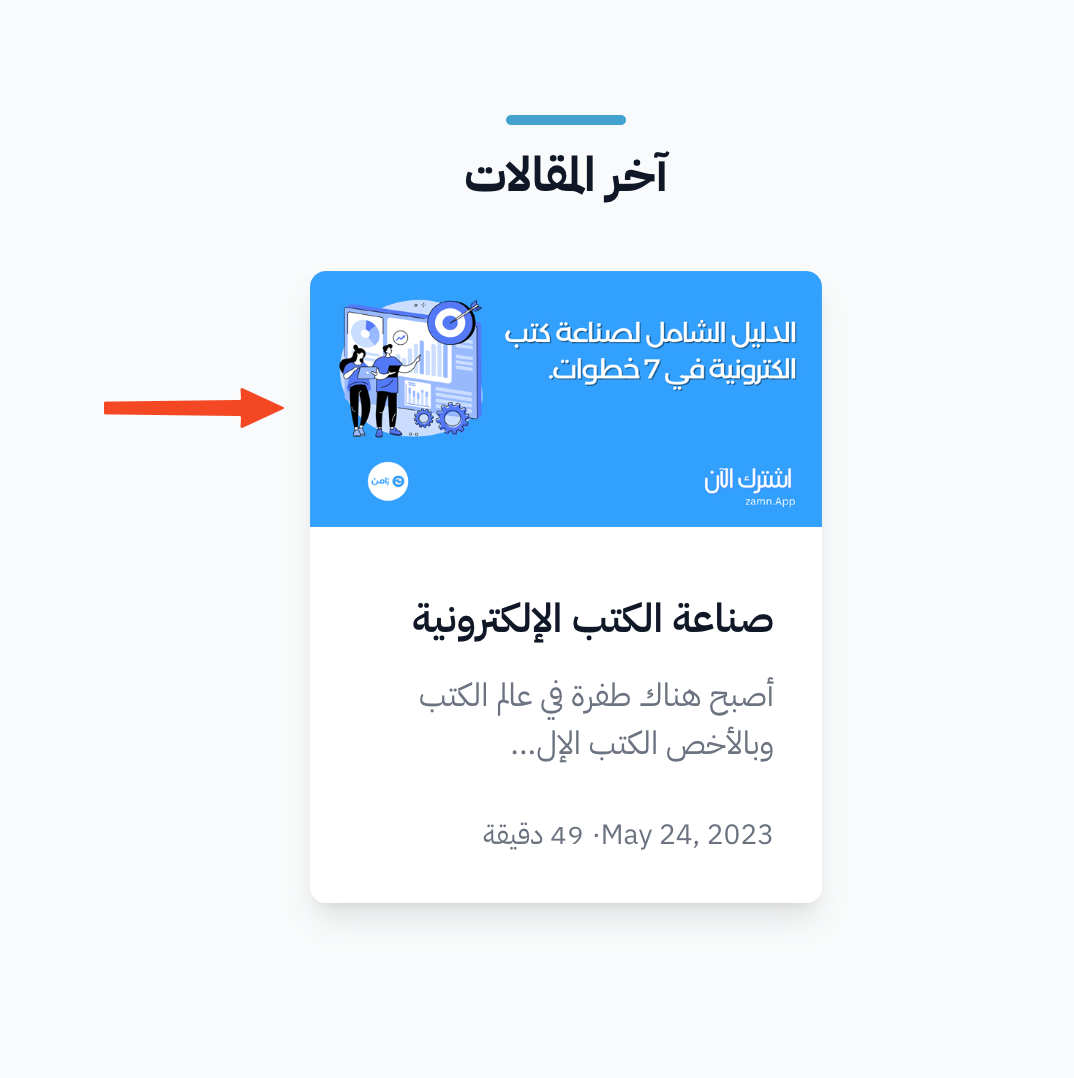
Recommended image sizes for your platform
This article explains the recommended image sizes for your platform, like the logo, the icons, and the images of courses, books, consultations and blog posts, and how to add each image.
Recommended image sizes
- Platform logo: 512 × 512 (1:1 ratio).
- Browser icon: 200 × 200 (1:1 ratio).
- Profile picture: 100 × 100 (1:1 ratio).
- Platform cover image and consultation cover image: 1920 × 480 (4:1 ratio).
- Course cover image: 1280 × 720 (16:9 ratio).
- Course thumbnail, book image, consultation thumbnail and blog post image: 700 × 350 (2:1 ratio).
You don't have to use the exact sizes. What matters is to keep the ratio between the width and the height.
How to add the images
Platform logo, browser icon and cover image
-
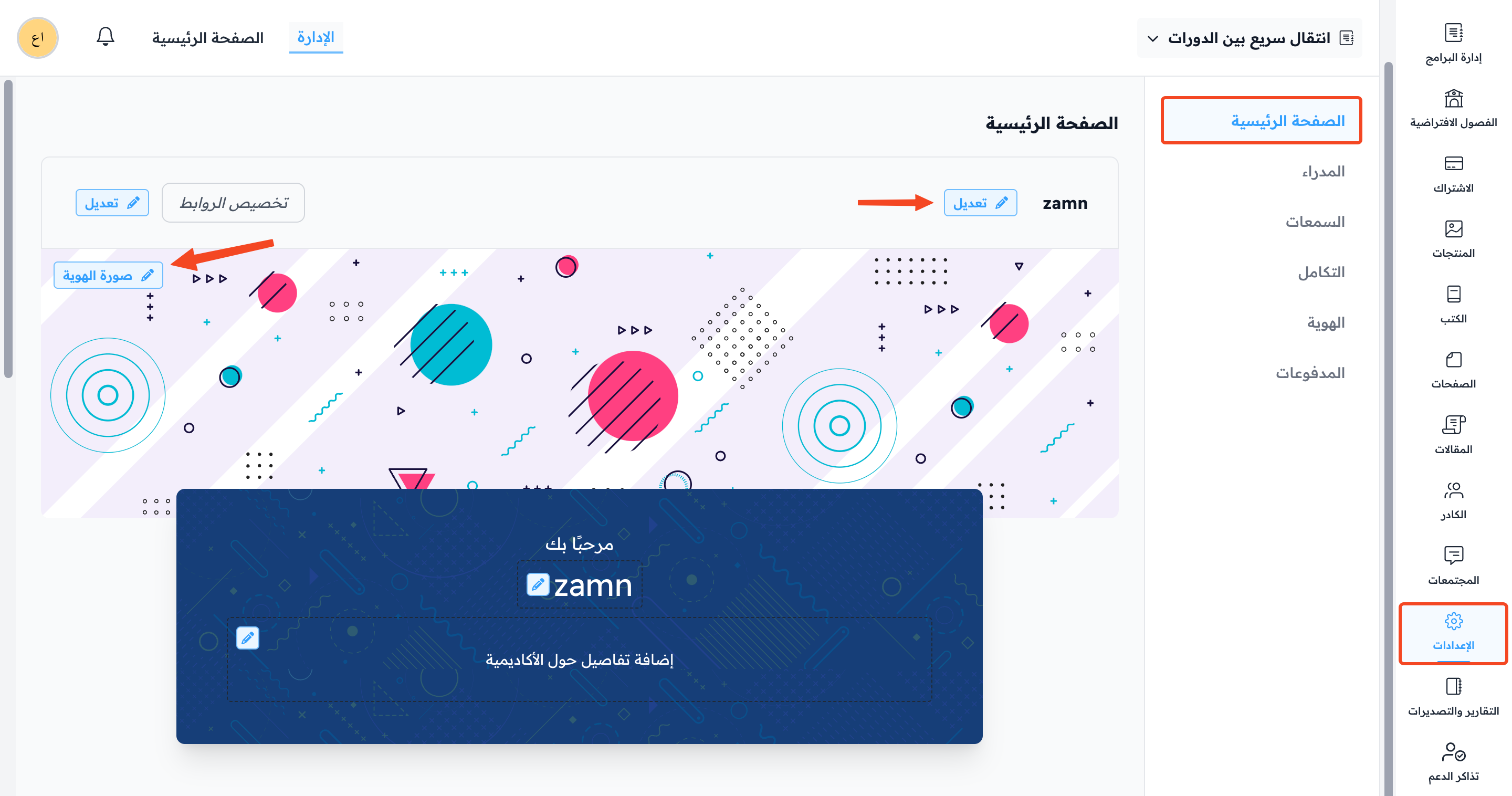
In the dashboard, go to Settings, then Customization.
-
Click Edit next to the logo, or click Change cover.
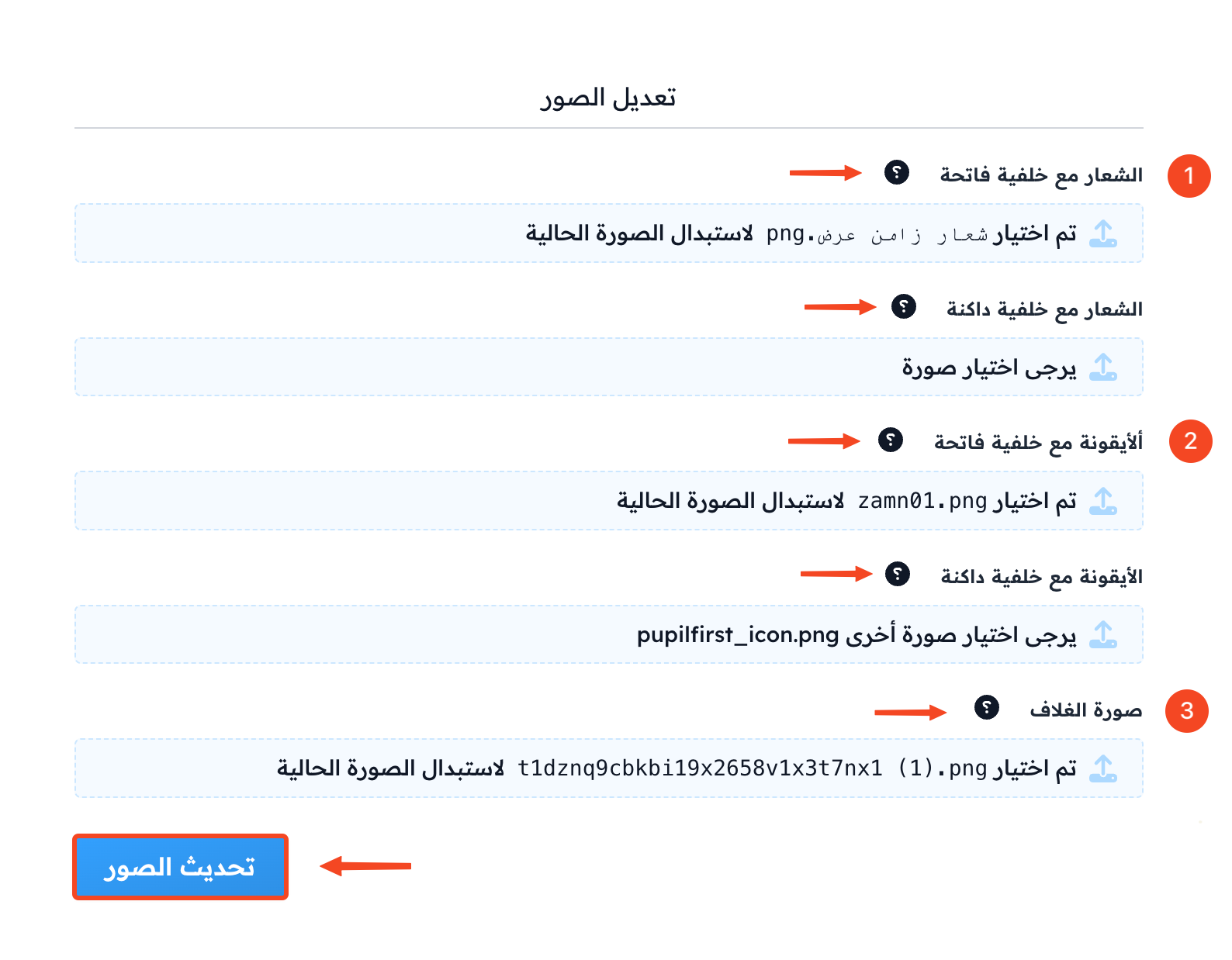
-
In the Manage Images window, add the logo at 512 × 512 (1:1 ratio):
- Logo on a light background: for light mode.
- Logo on a dark background: for dark mode.
-
Add the browser icon at 200 × 200 (1:1 ratio):
- Icon on a light background: for light mode.
- Icon on a dark background: for dark mode.
-
Add the Cover image at 1920 × 480 (4:1 ratio).
-
Click Update Images.
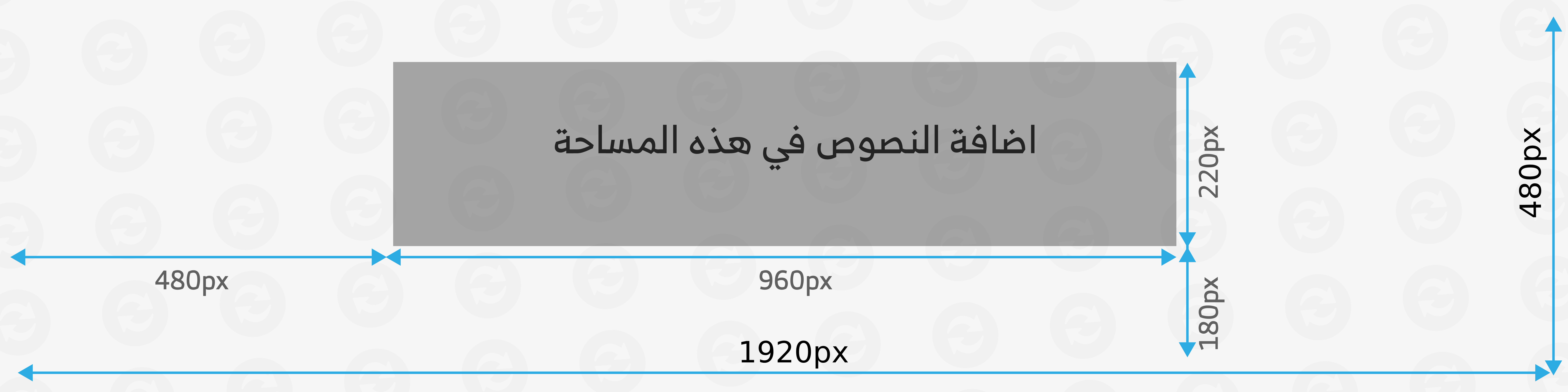
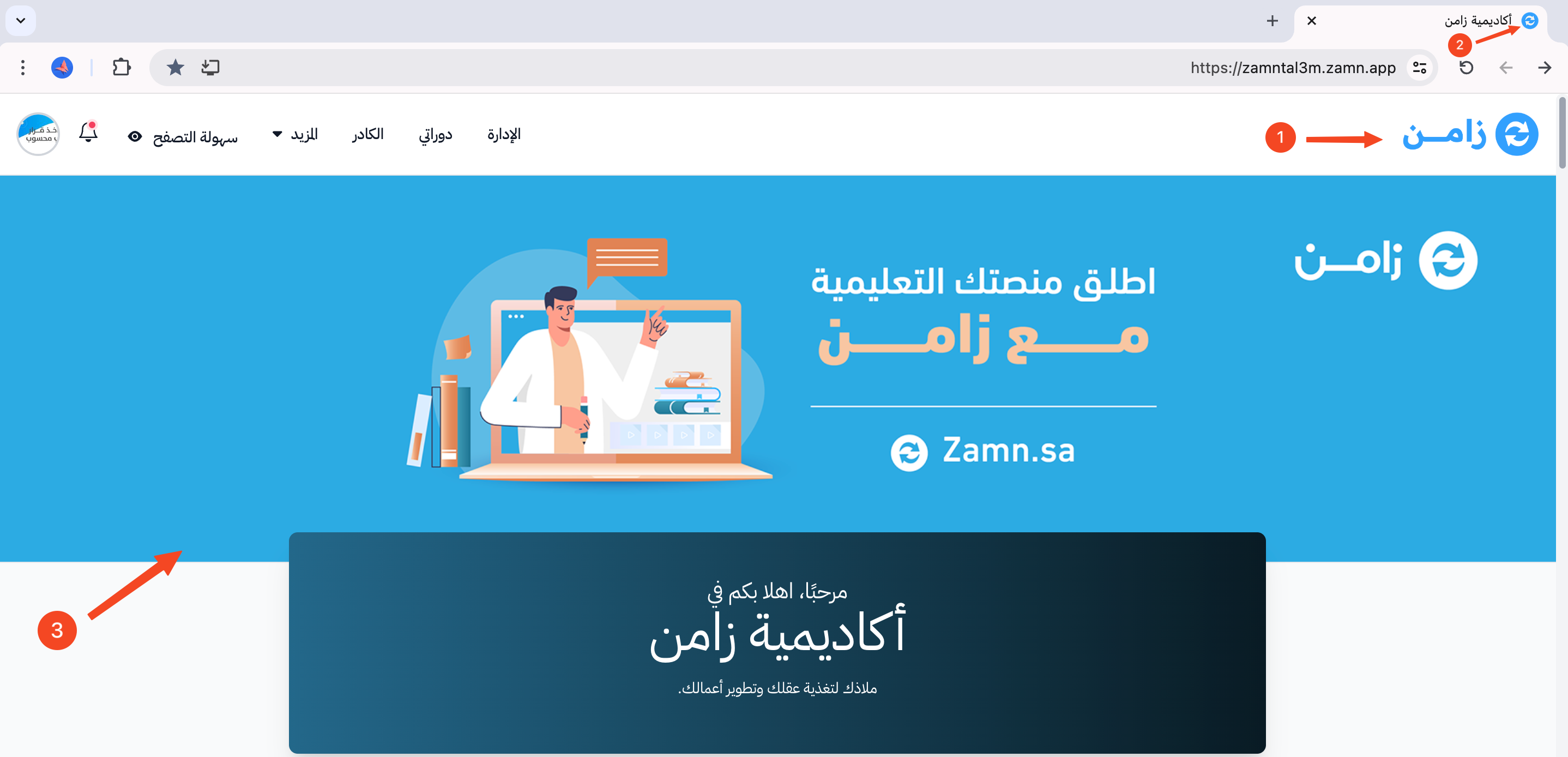
For the cover image to look its best on all screen sizes, put the text in the middle part of the image. The next image shows where to put the text in the cover image.
An example:
- Platform logo.
- Browser icon.
- Cover image.
Profile picture
-
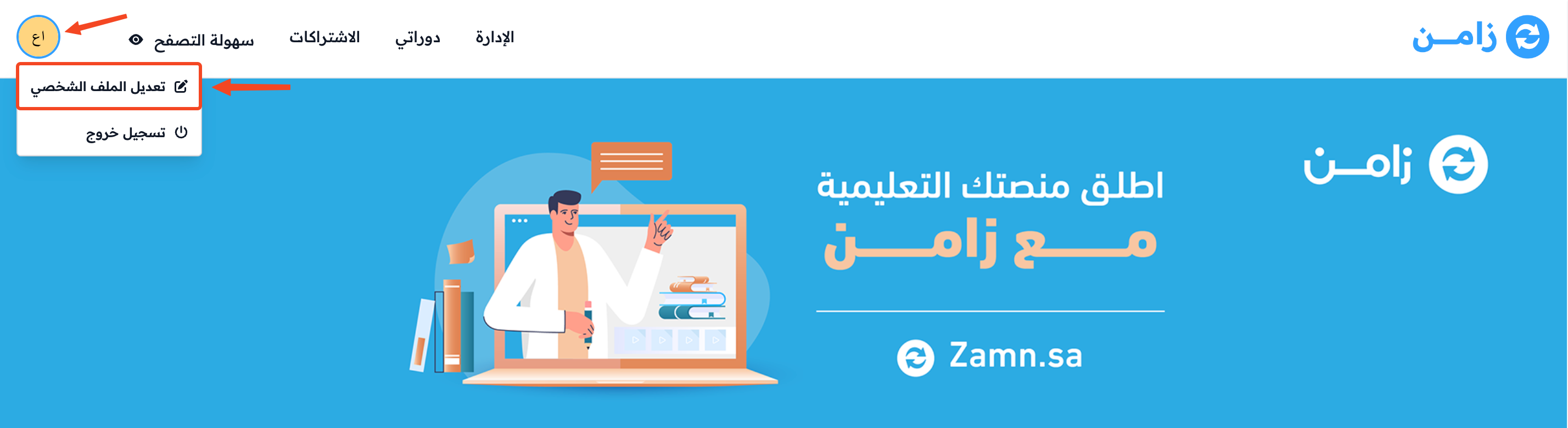
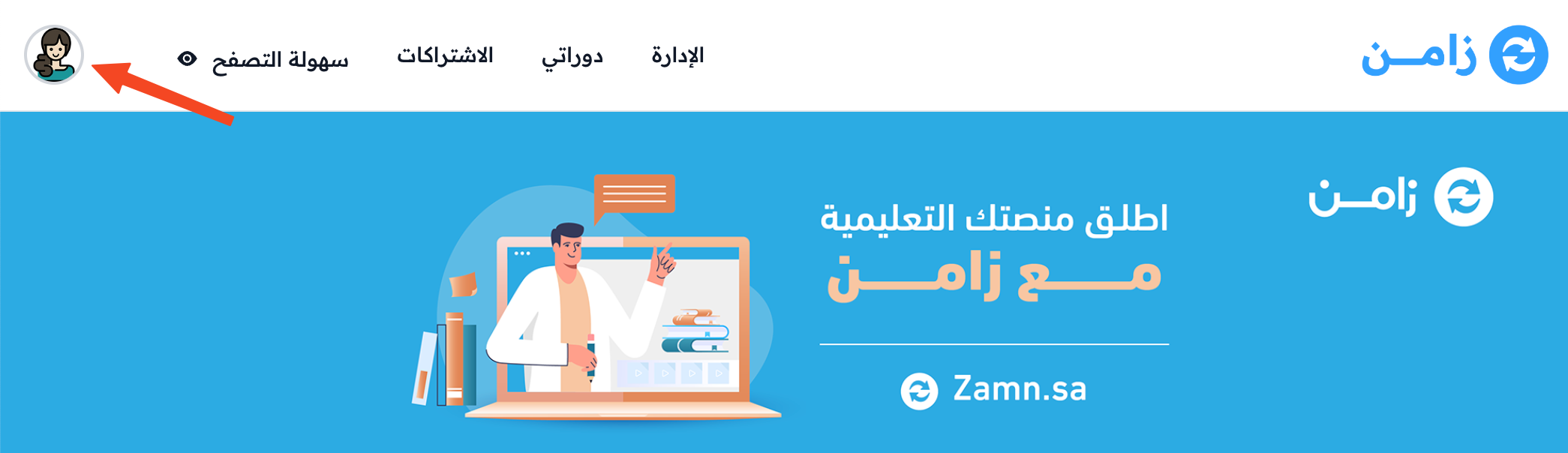
Click your account icon.
-
Choose Edit Profile.
-
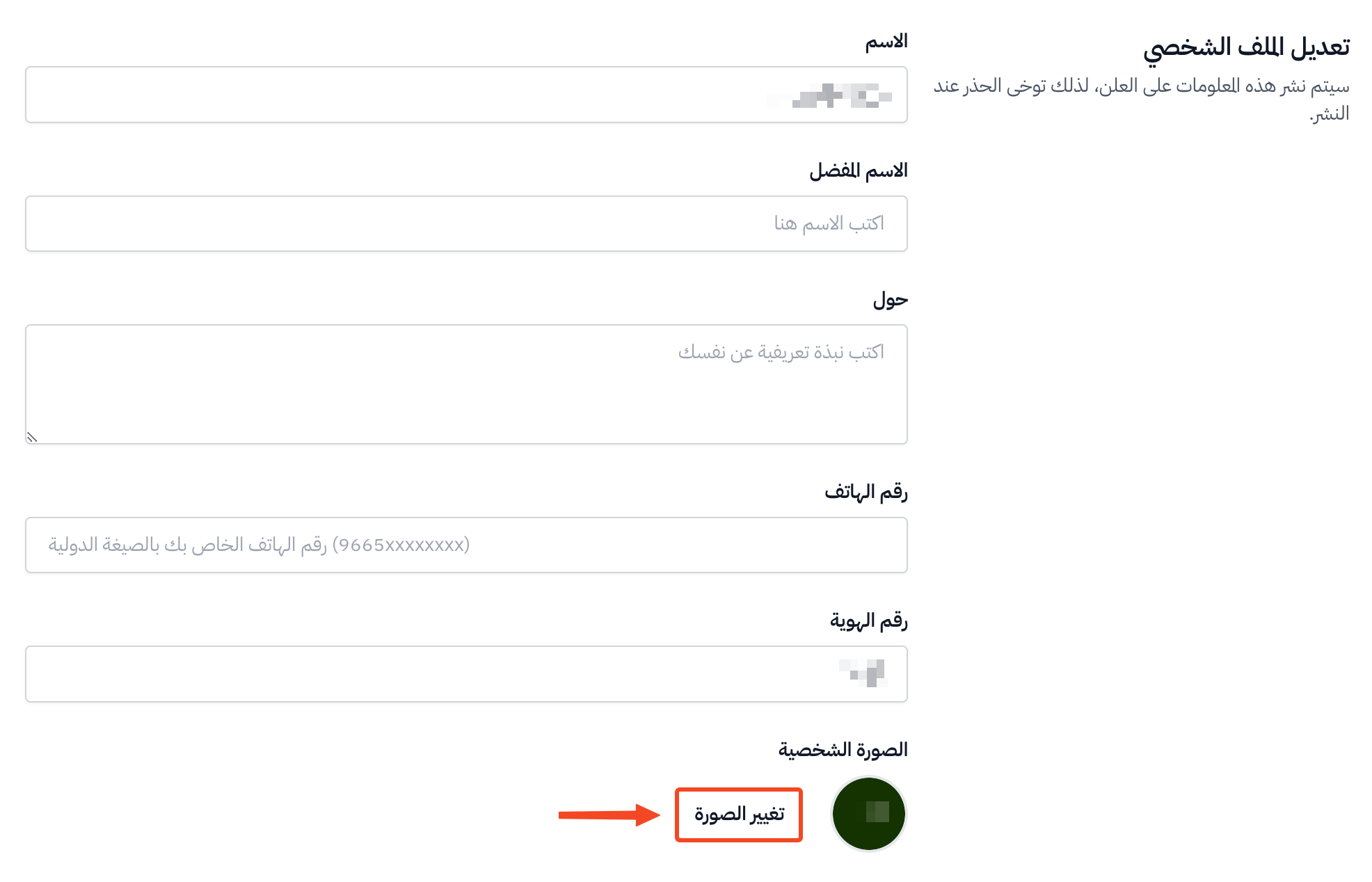
Click Change photo.
-
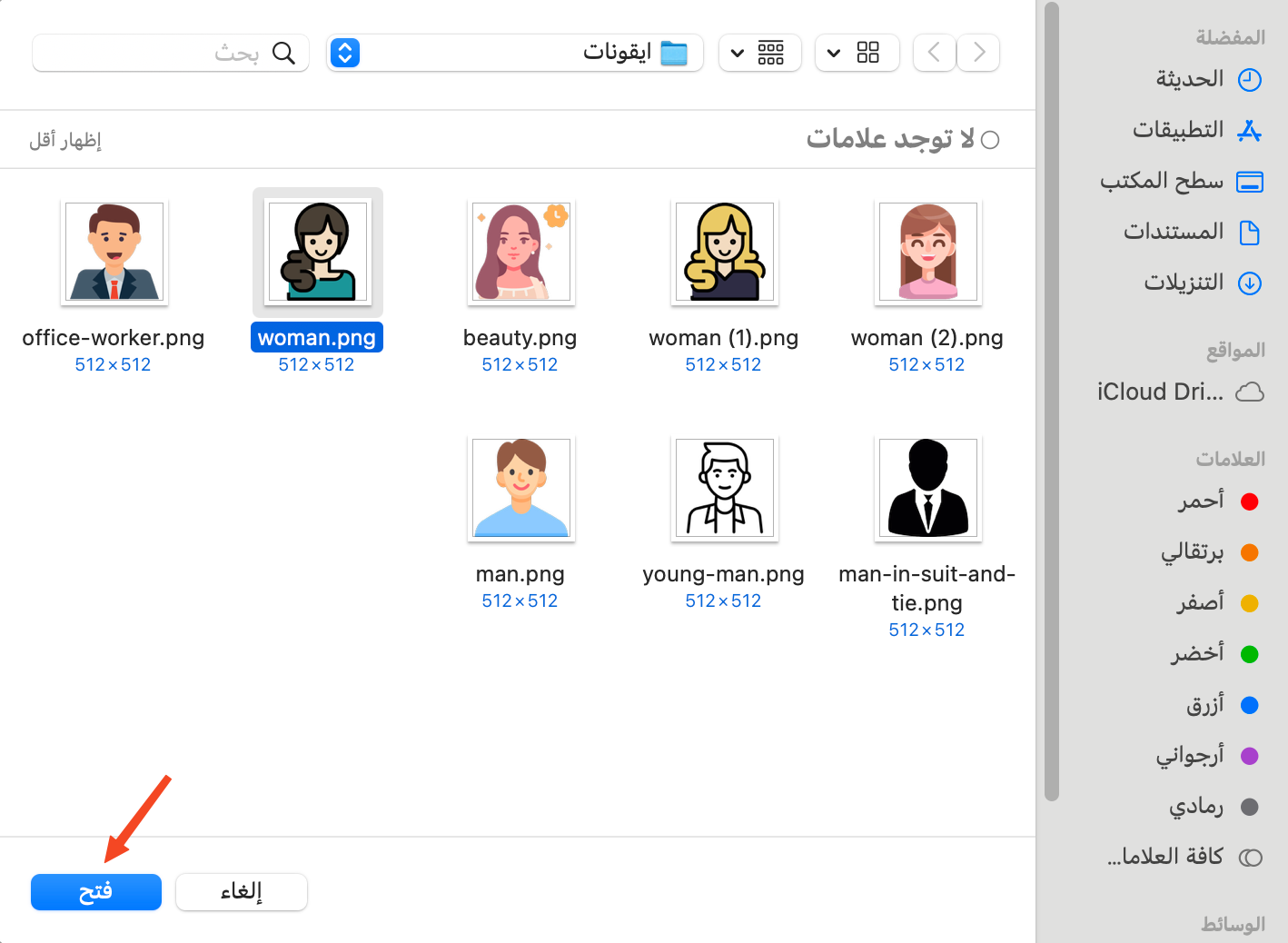
Choose the image, then click Open.
An example (profile picture):
Course images
-
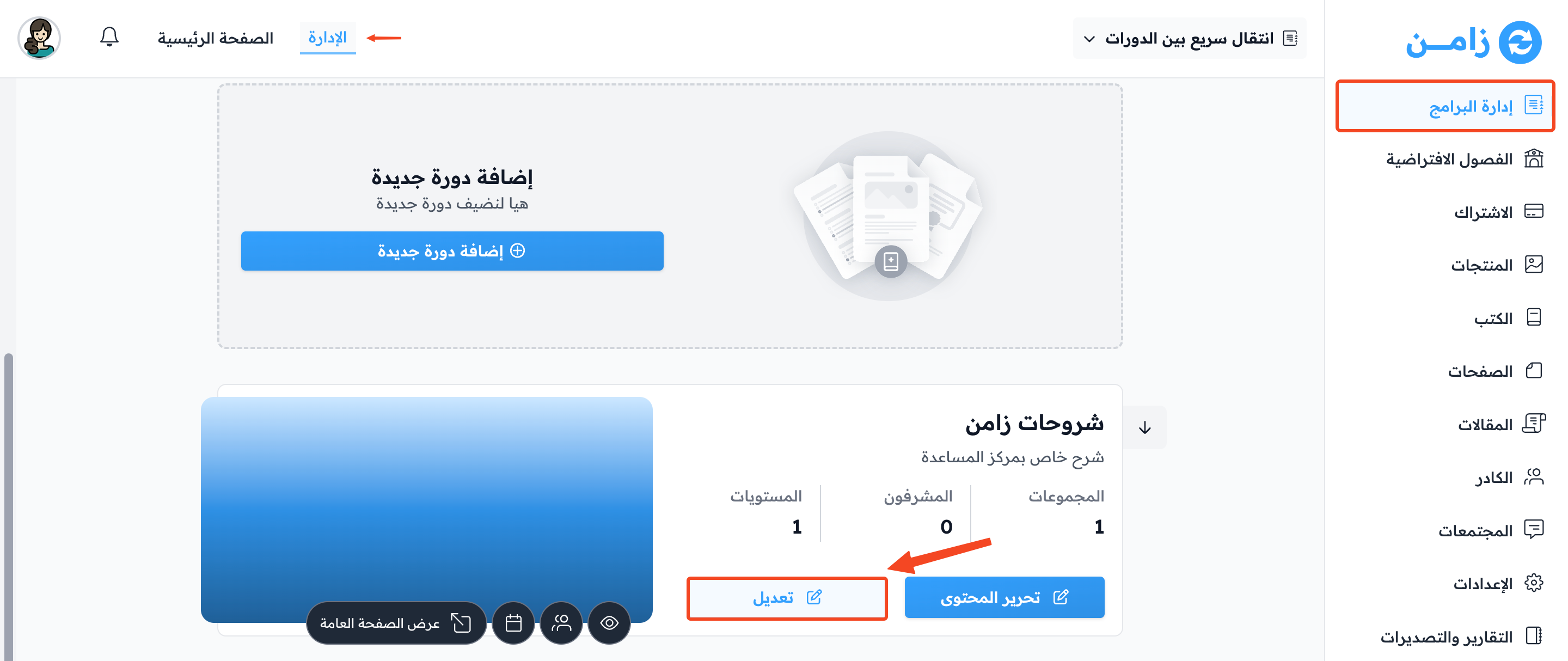
In the dashboard, choose Courses.
-
Click Edit Course Details for the course you want to add images to.
-
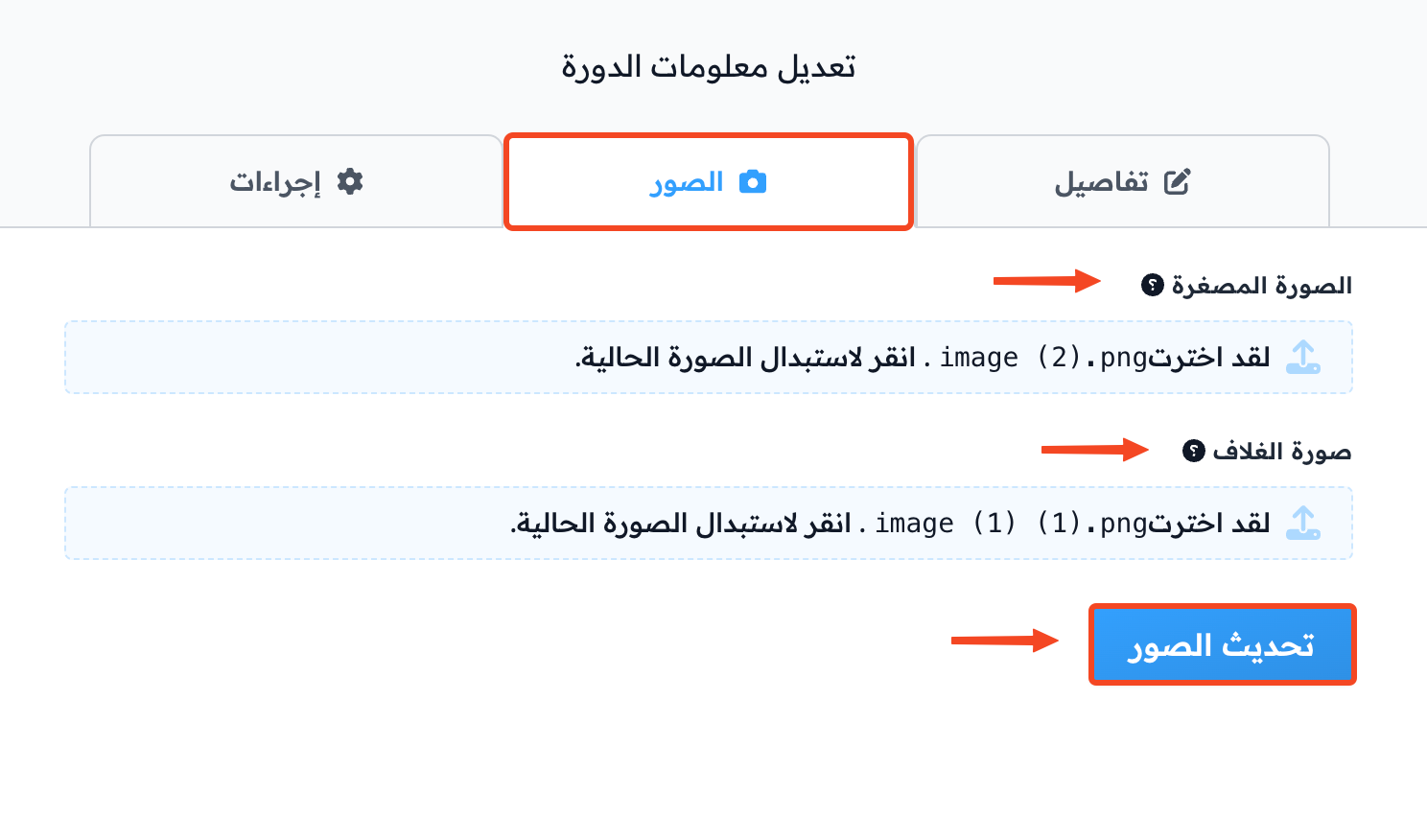
Go to the Images & Video tab.
-
Add the Thumbnail at 700 × 350 (2:1 ratio).
-
Add the Cover Image at 1280 × 720 (16:9 ratio).
-
Click Update Images & Video.
You can also add a YouTube video link in the Course Video (YouTube) field, to show the video instead of the cover image at the top of the course page.
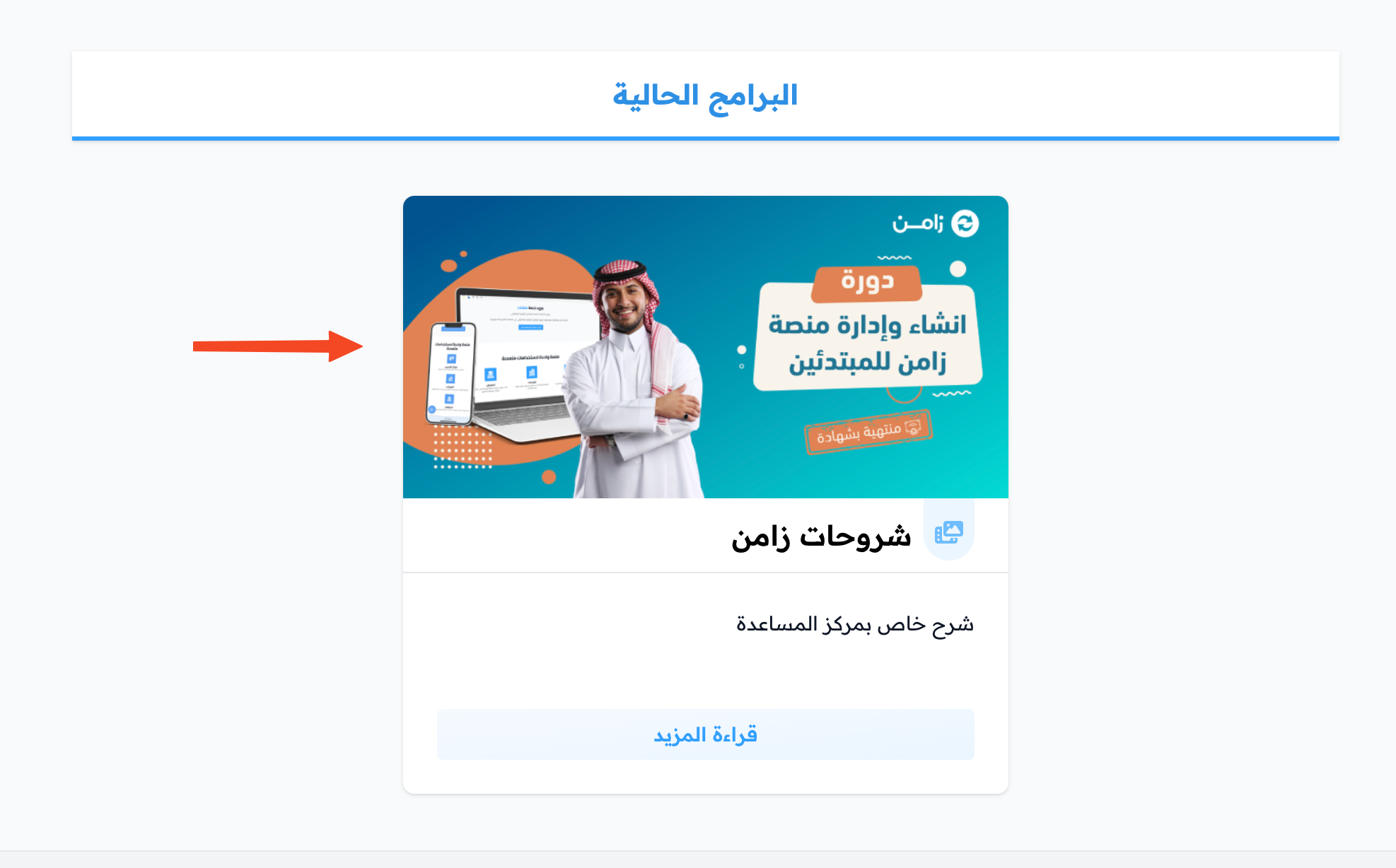
An example (course thumbnail):
An example (course cover image):
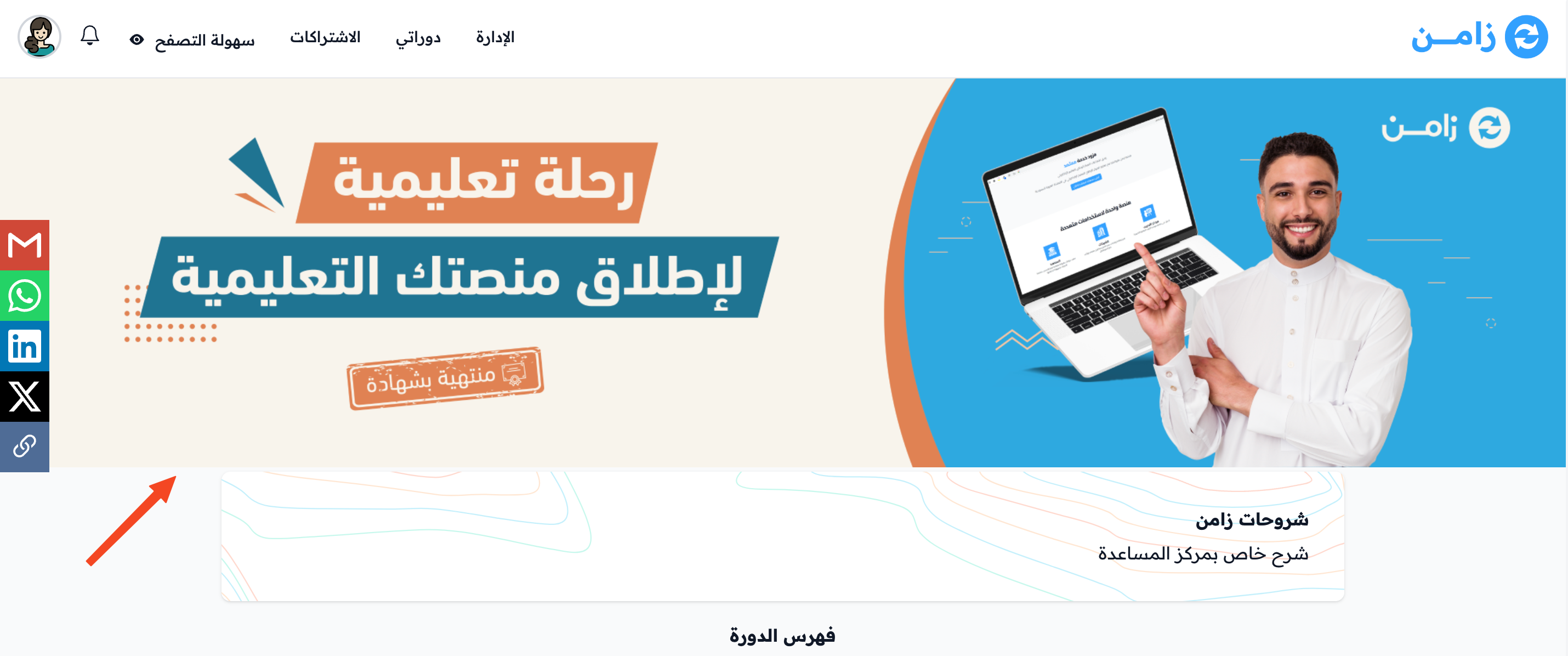
Book image
-
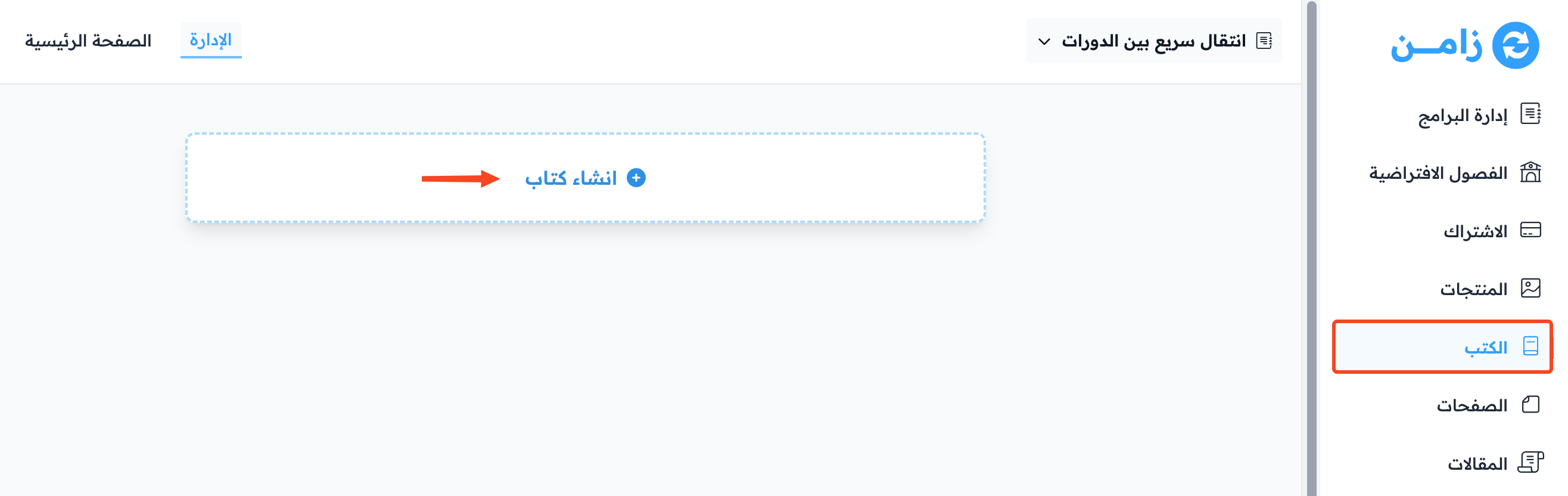
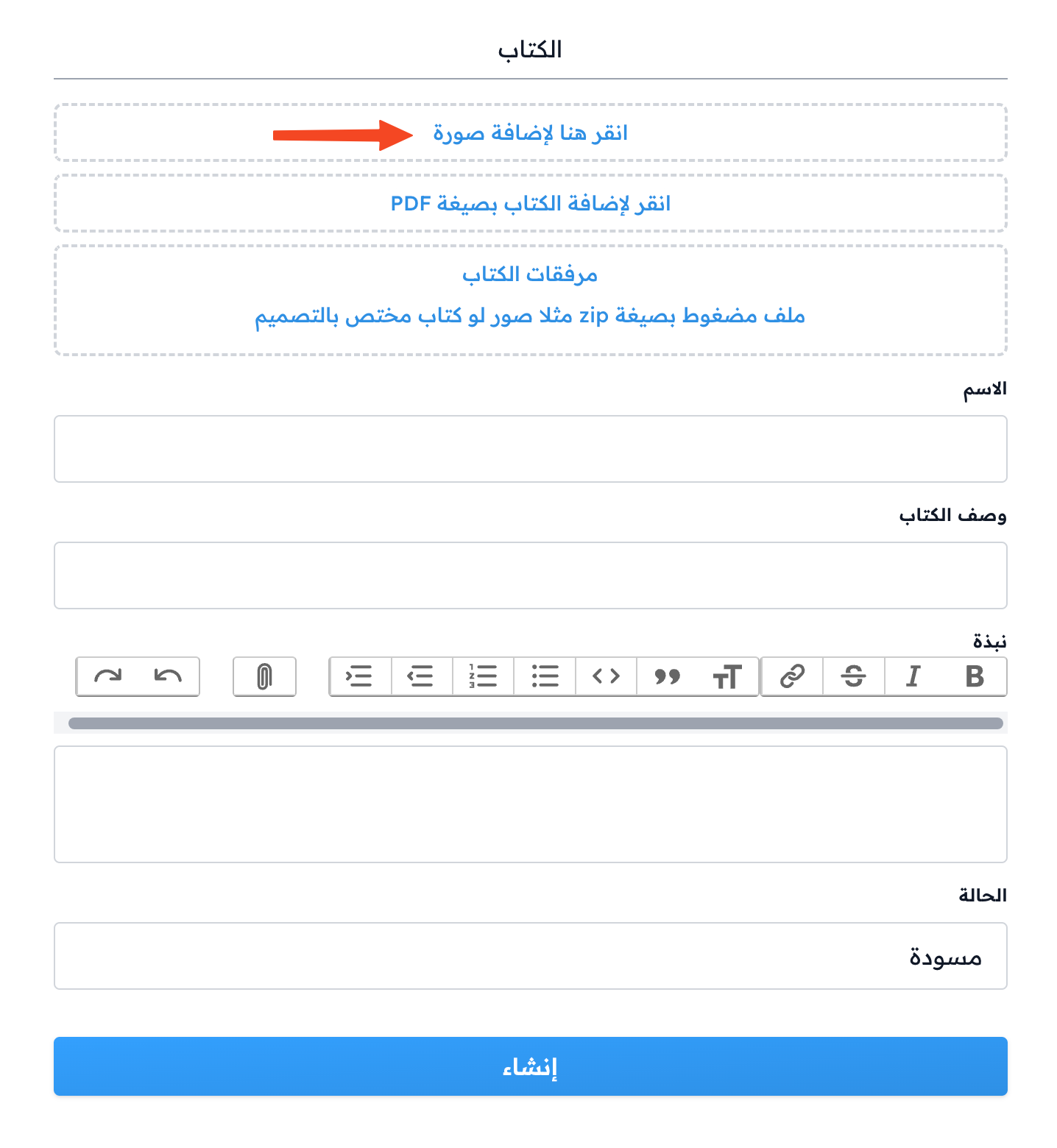
You add the image when you create the book, by clicking Click to add picture.
-
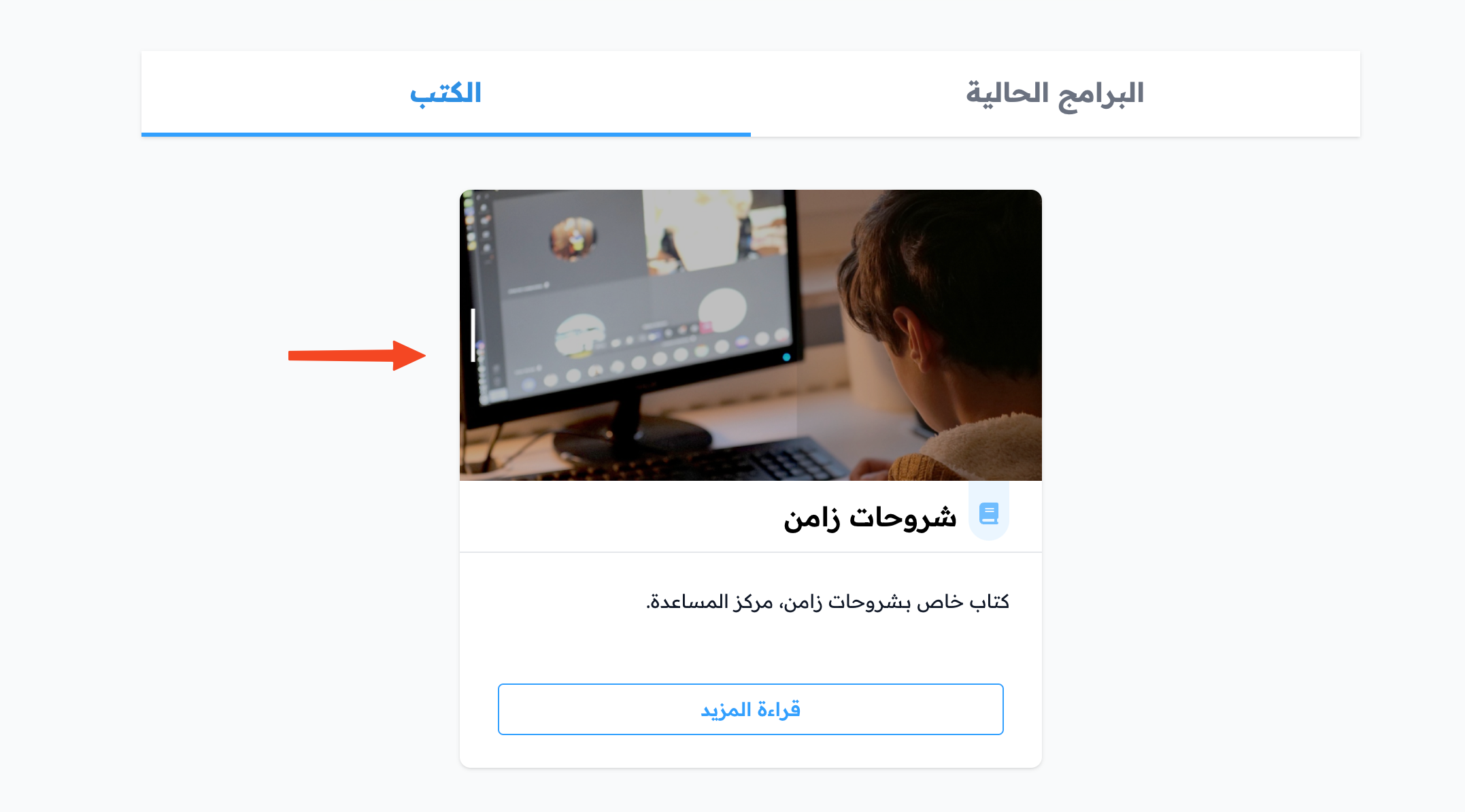
Choose a book image at 700 × 350 (2:1 ratio).
An example (book image):
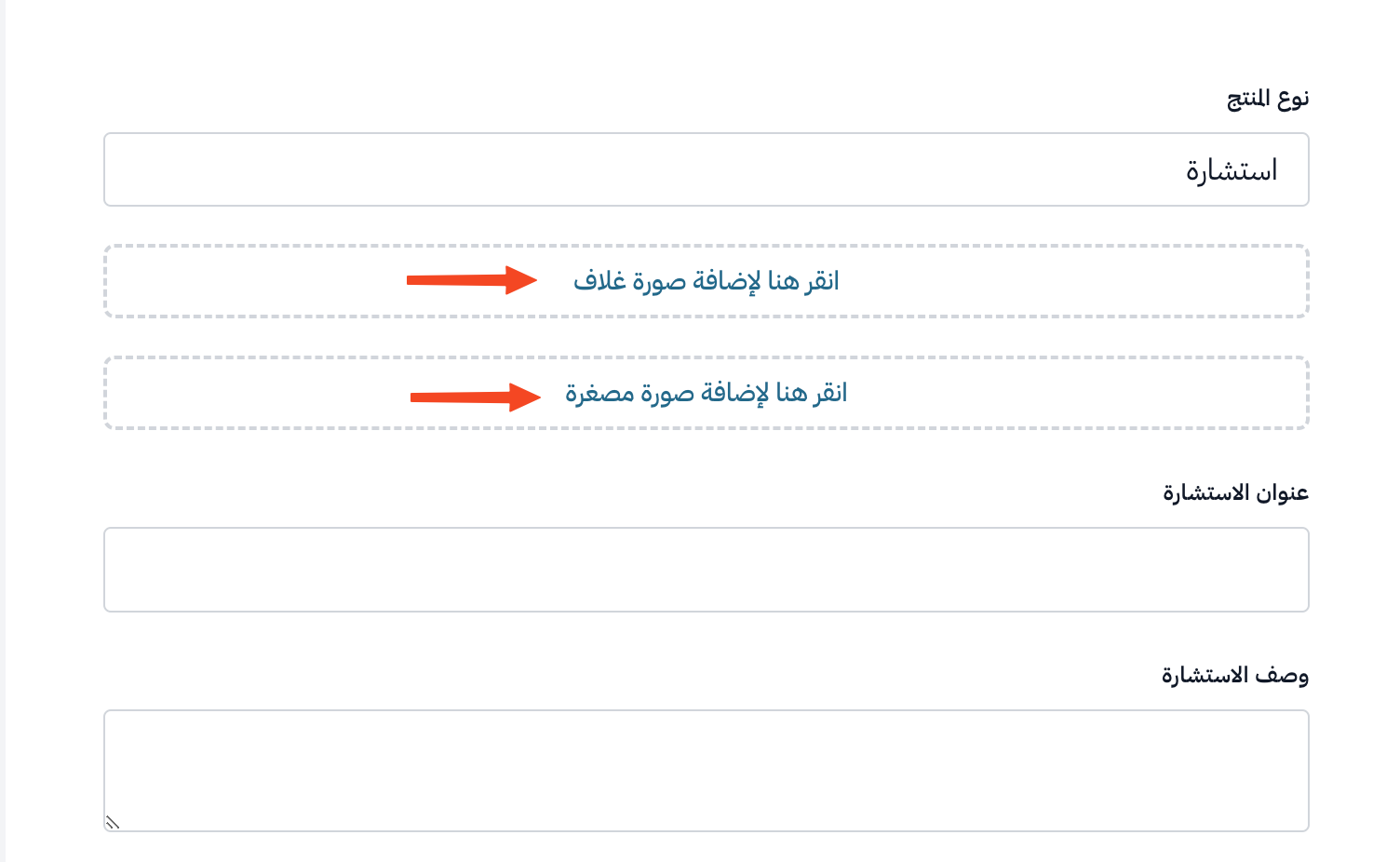
Consultation images
-
You add the images when you create the consultation.
-
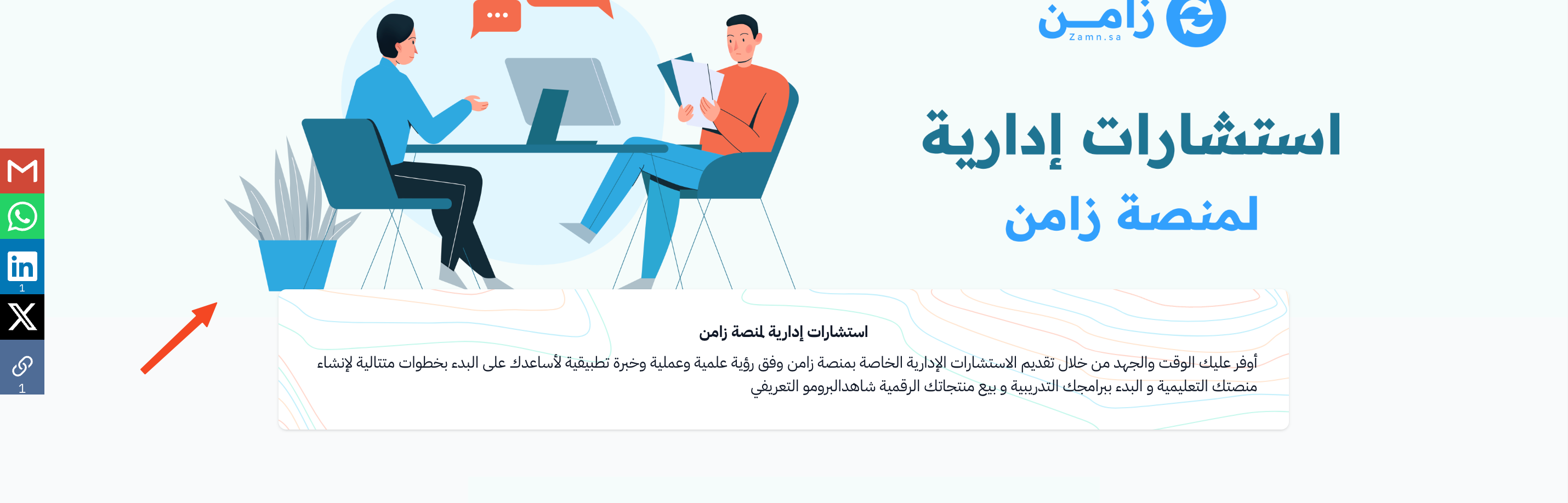
Add the cover image from Click here to add a Cover Image, at 1920 × 480 (4:1 ratio).
-
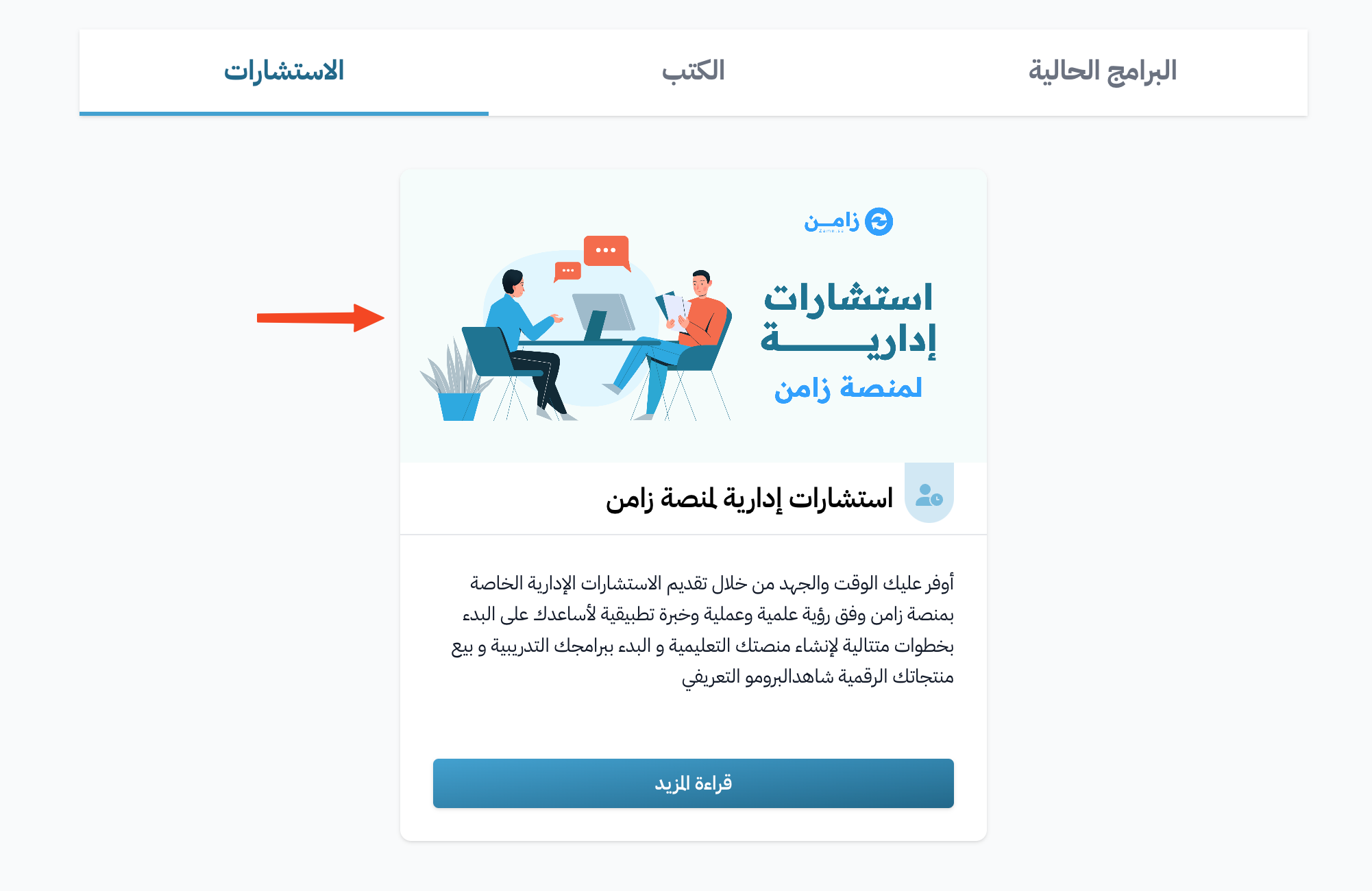
Add the thumbnail from Click here to add an Thumbnail Image, at 700 × 350 (2:1 ratio).
An example (consultation thumbnail):
An example (consultation cover image):
Blog post image
-
You add the image when you create the blog post, by clicking Add Image.
-
Choose a blog post image at 700 × 350 (2:1 ratio).
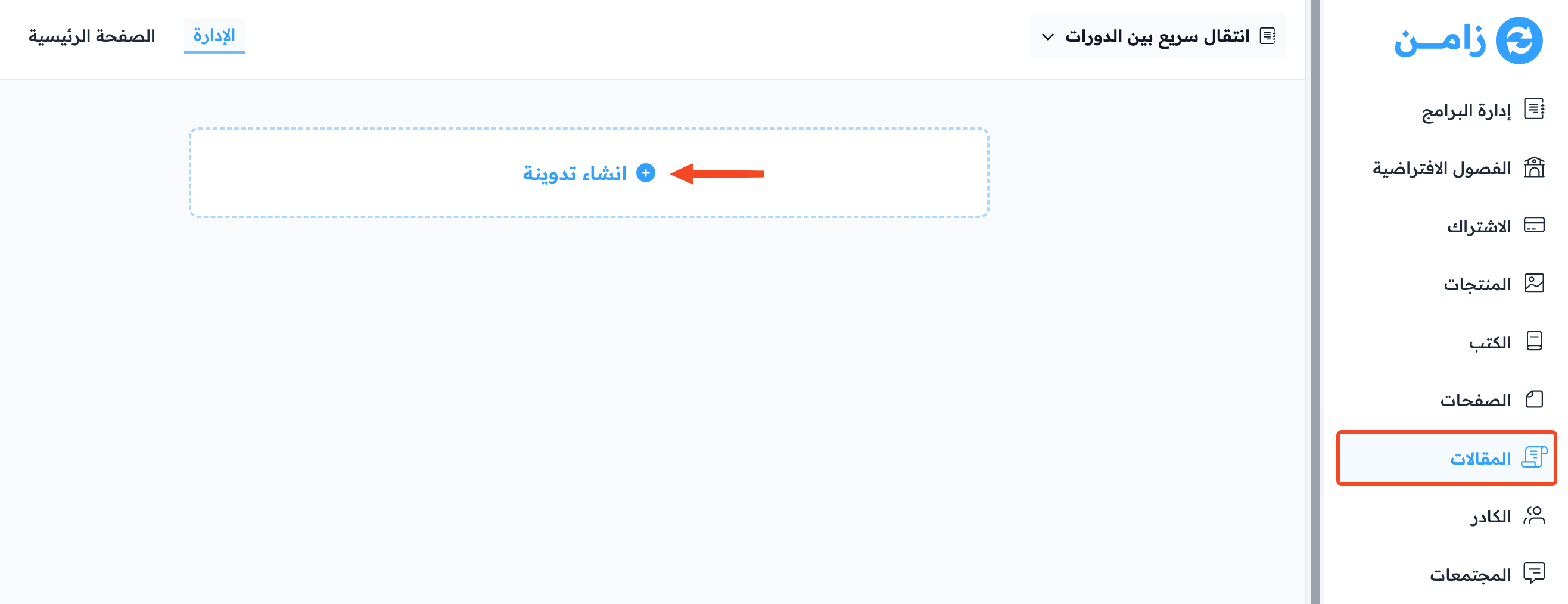
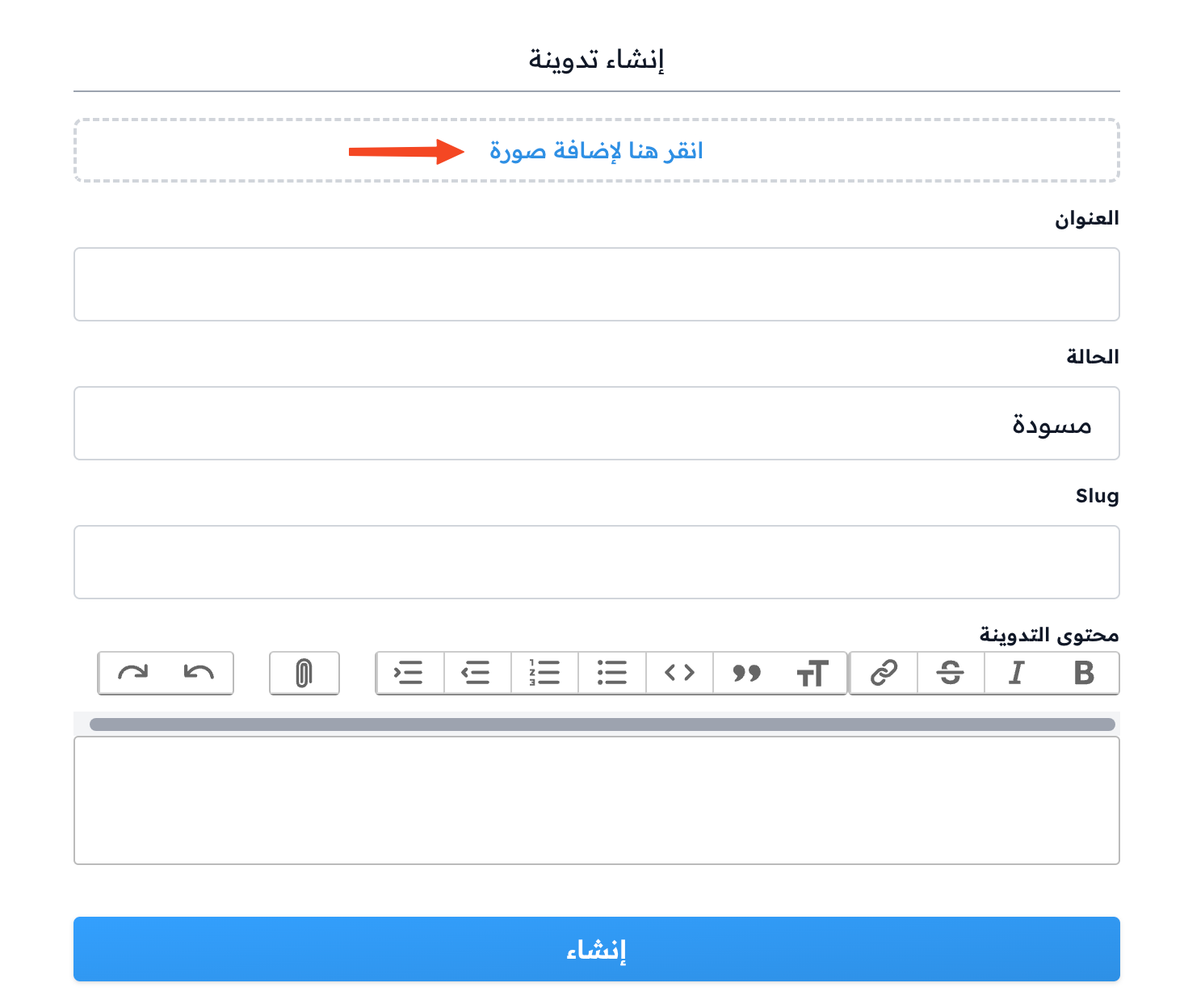
An example (blog post image):