Create a page without a header and footer
You can hide the header or the footer from any page of your platform, or hide both, by adding a custom CSS section to the page in the page builder.
Steps
-
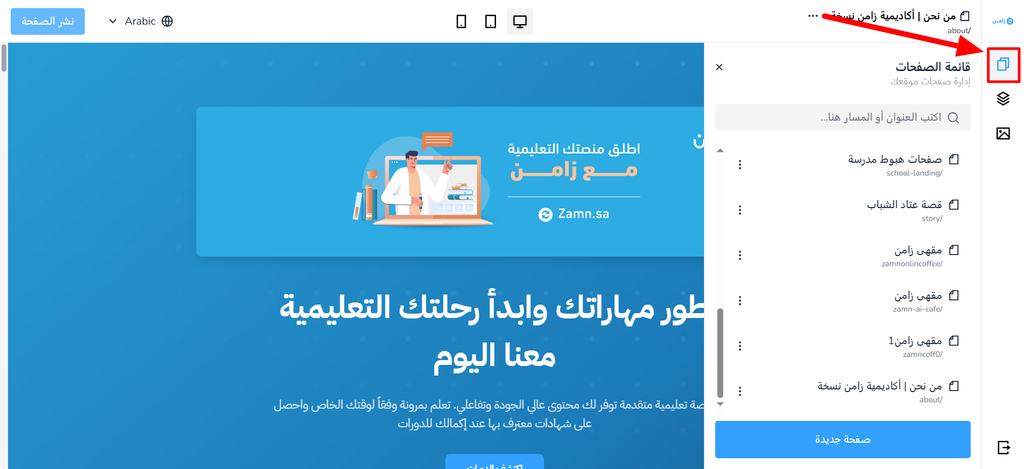
In the side menu, click Manage the pages of your site, then choose the page you want to hide the header or footer from.
-
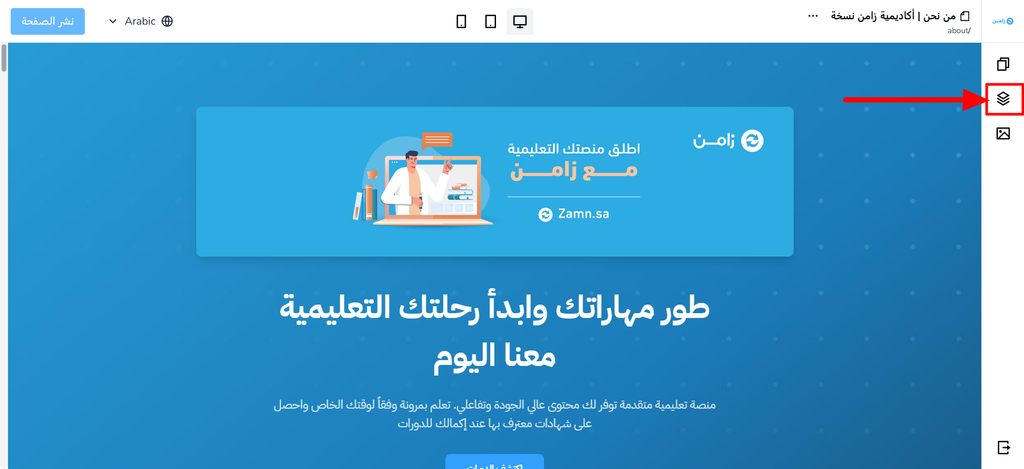
In the side menu, click Re-order / delete the sections of the page.
-
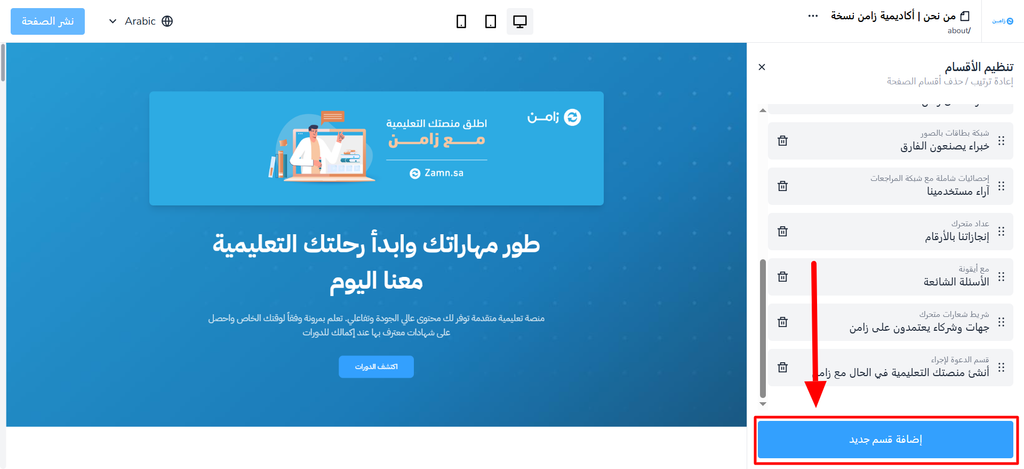
Click Add a new section.
-
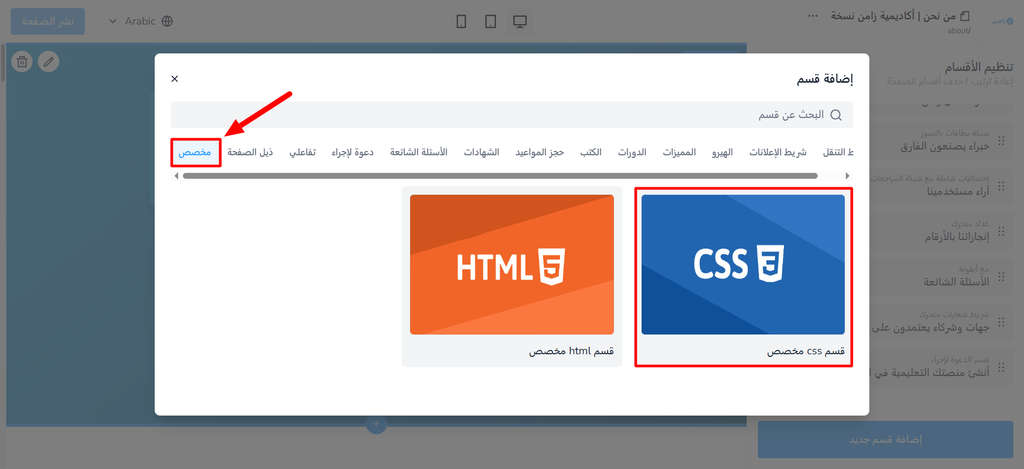
In the Add a section window, choose the Custom tab, then choose the Custom CSS section.
-
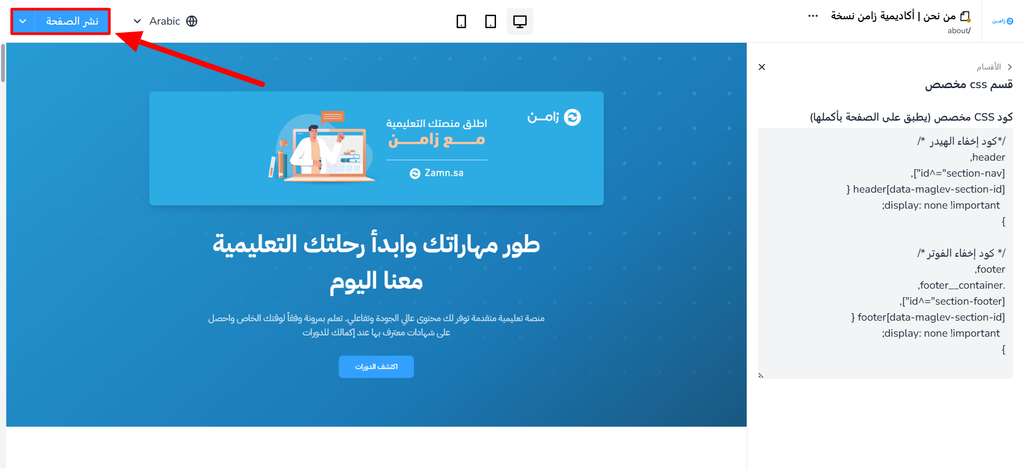
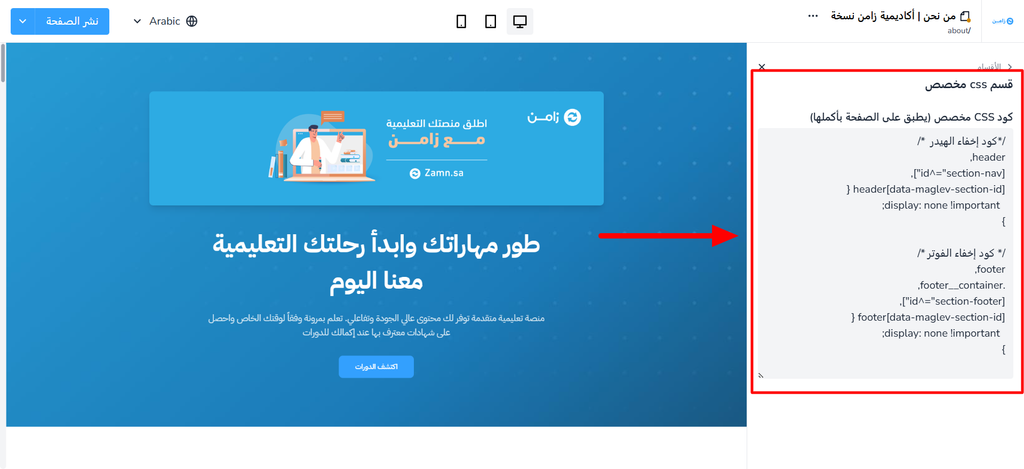
In the Custom CSS code (applies to the whole page) field, add the code for the part you want to hide.
To hide the header:
header,[id^="section-nav"],header[data-maglev-section-id] {display: none !important;}To hide the footer:
footer,.footer__container,[id^="section-footer"],footer[data-maglev-section-id] {display: none !important;}To hide both the header and the footer, add both codes.
-
Click the Publish page button to save your changes and apply them to the page.