Page builder
The Page Builder is a visual tool that lets you create pages inside your platform easily, with no technical skills. You can build a landing page, an about page or any other kind of page, with an attractive and effective design. Only the platform owner can use this tool.
Open the page builder
-
From your platform dashboard, go to the Pages section.
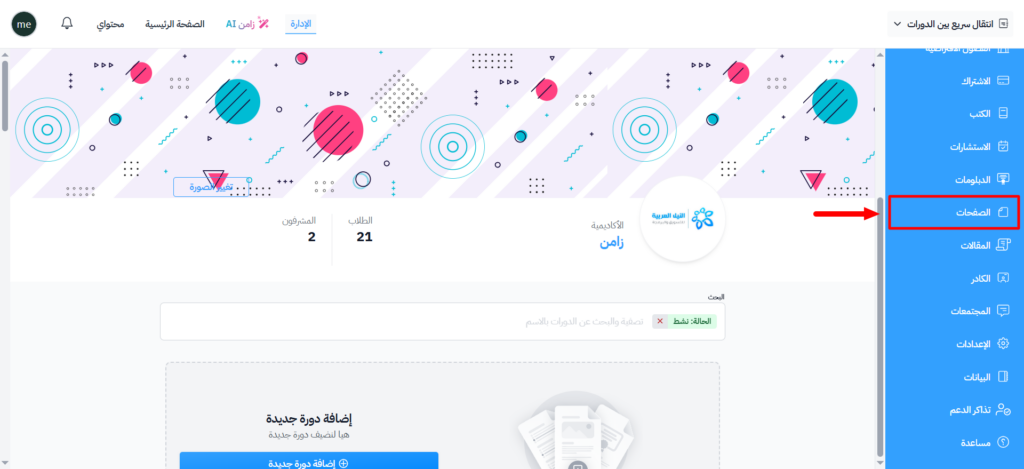
-
Choose Page Builder from the side menu.
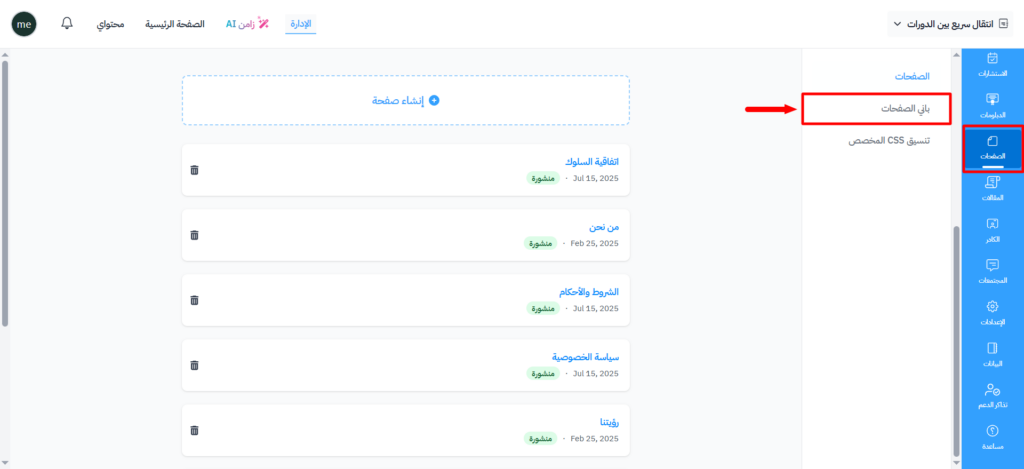
You are taken to the builder, where you can:
- Create a new page.
- Choose the sections.
- Edit the content and reorder the elements easily.
- Add images to the image library.
Page settings
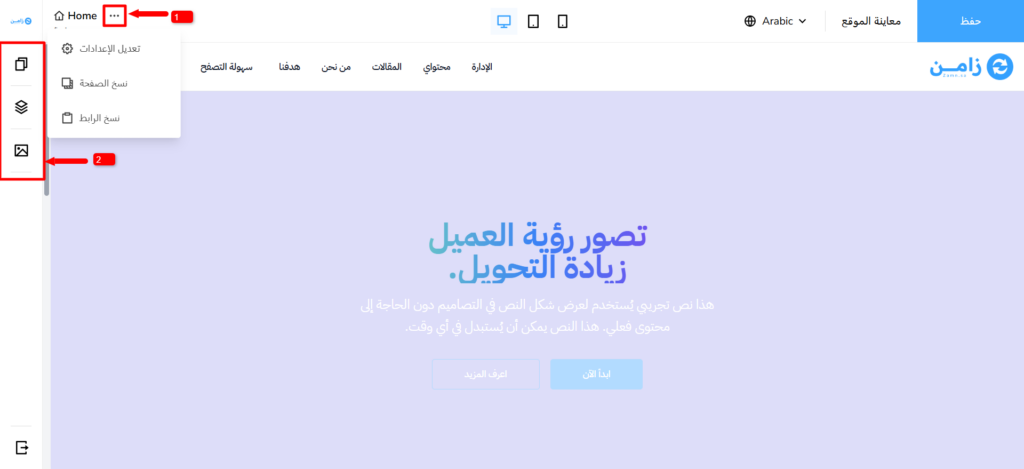
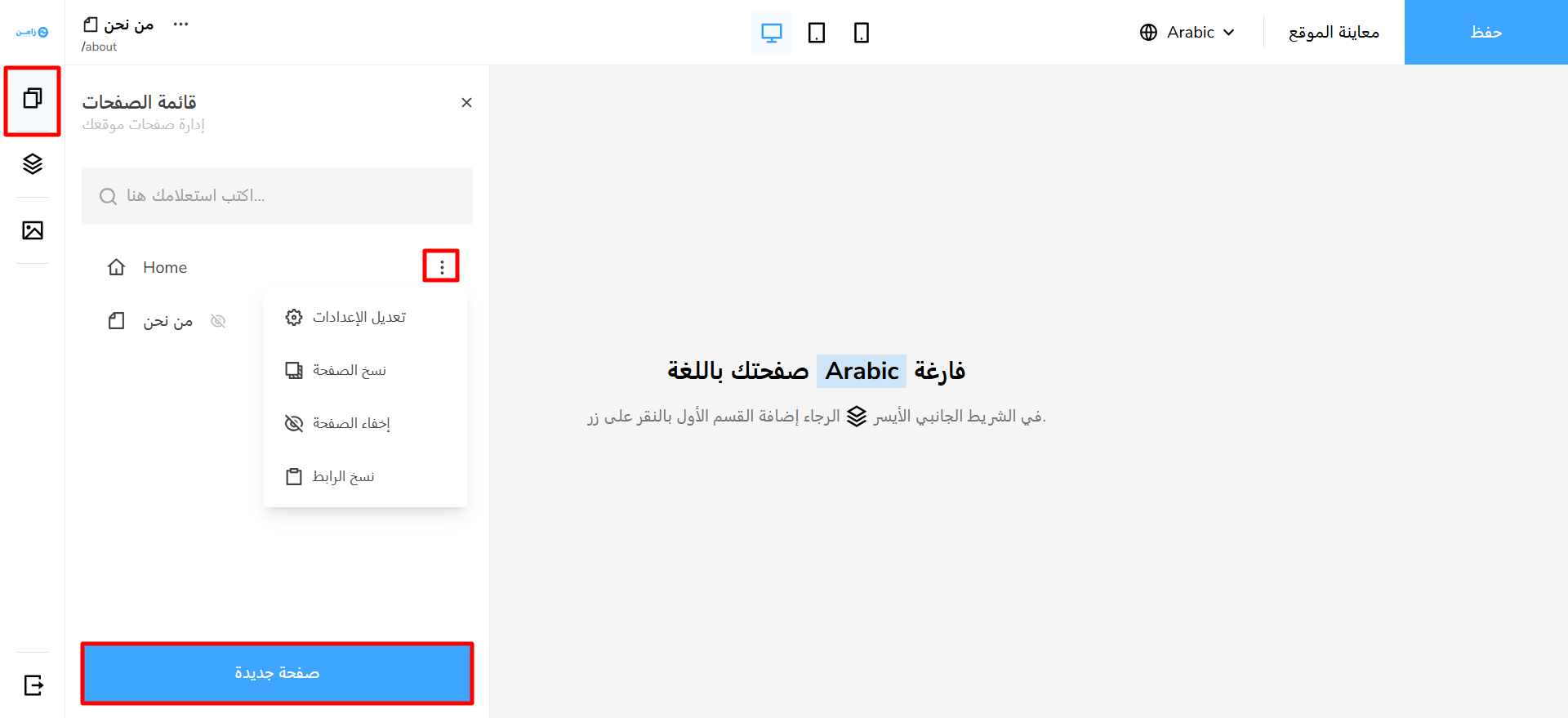
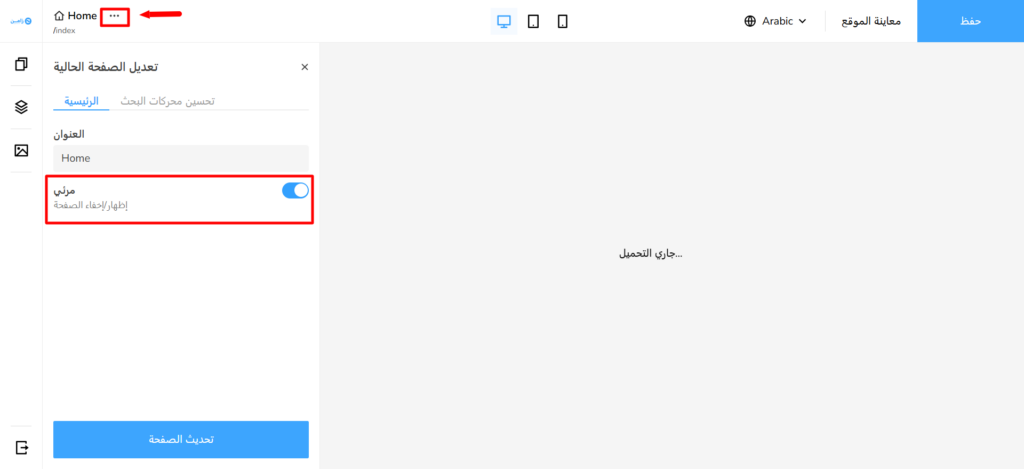
You control the page settings from the three-dot menu, shown at number (1) in the image. From this menu you can:
- Edit settings.
- Preview page.
- Copy URL.
- Clone page.
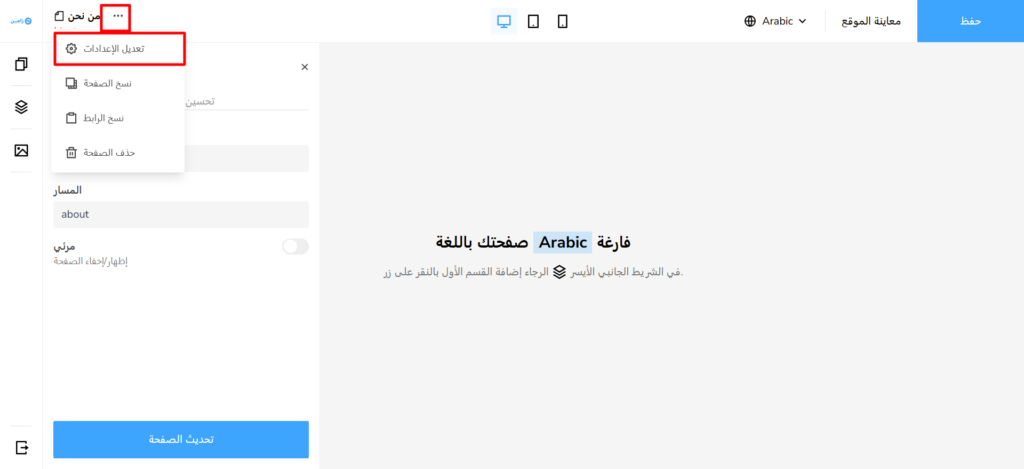
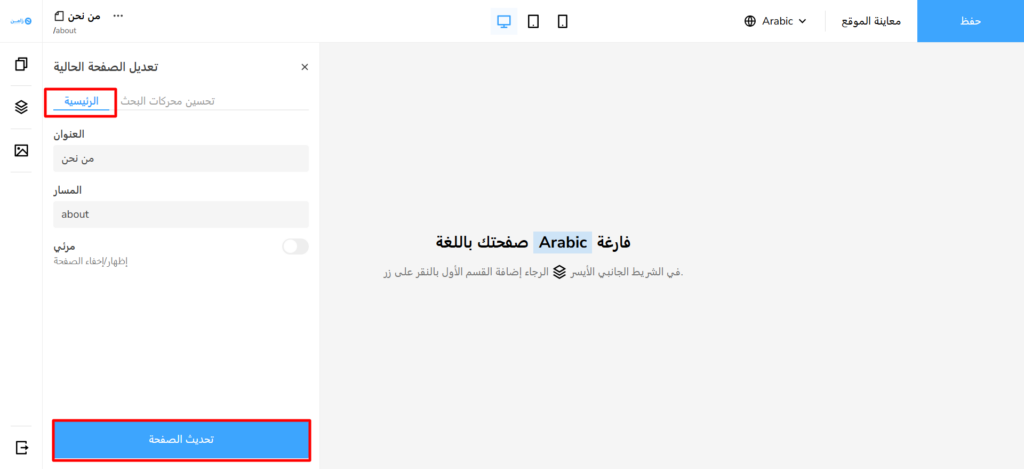
From the Main tab you can change:
- Title: the name of the page.
- Path: the page link (URL).
- Visible: show or hide the page.
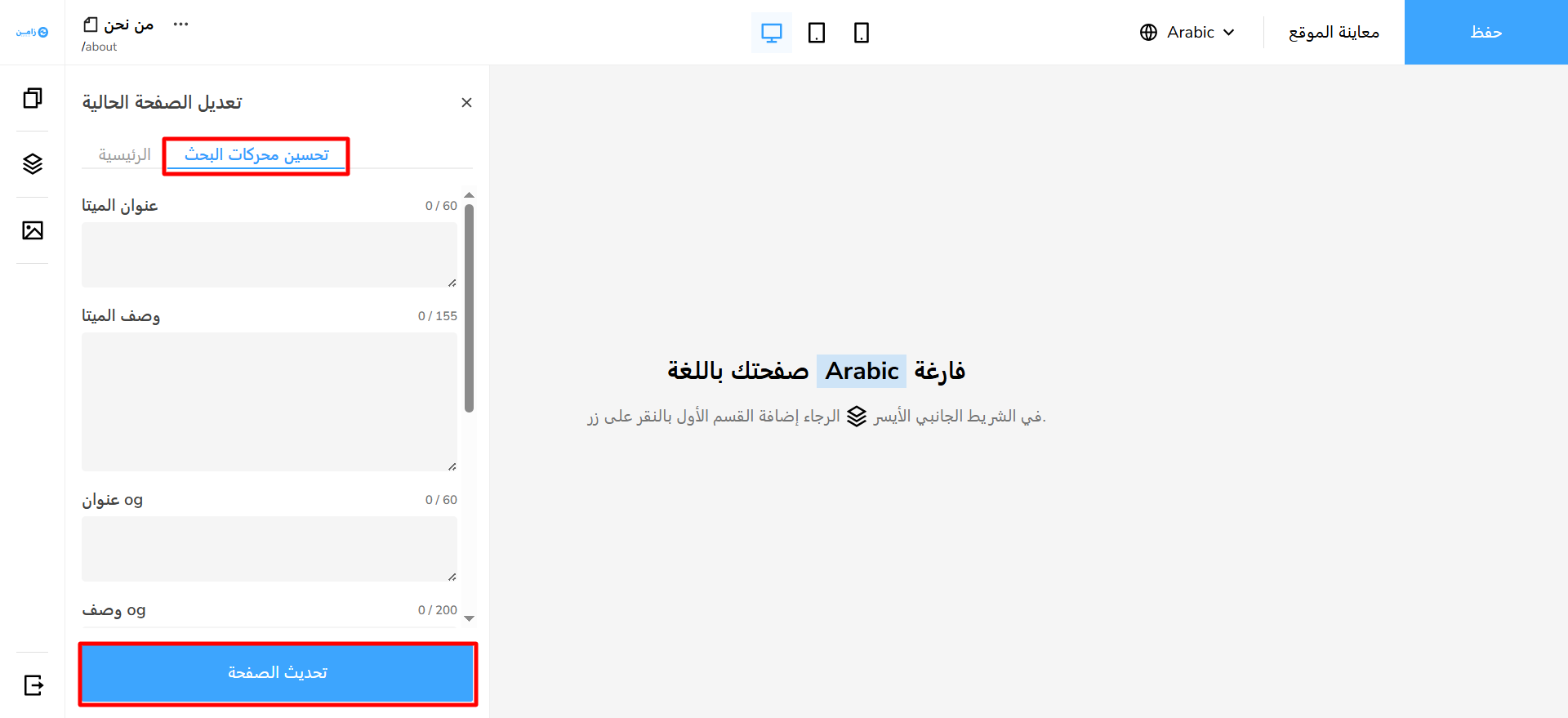
From the SEO tab you can set up the indexing data and improve how your page shows in search results.
The side menu
The side menu lets you manage pages, organize sections and manage images, shown at number (2) in the image.
List of pages
From the List of pages you can:
- Edit the pages you created with the page builder.
- Create new pages.
- Delete pages you do not need, from the three-dot menu next to each page. You cannot delete the home page.
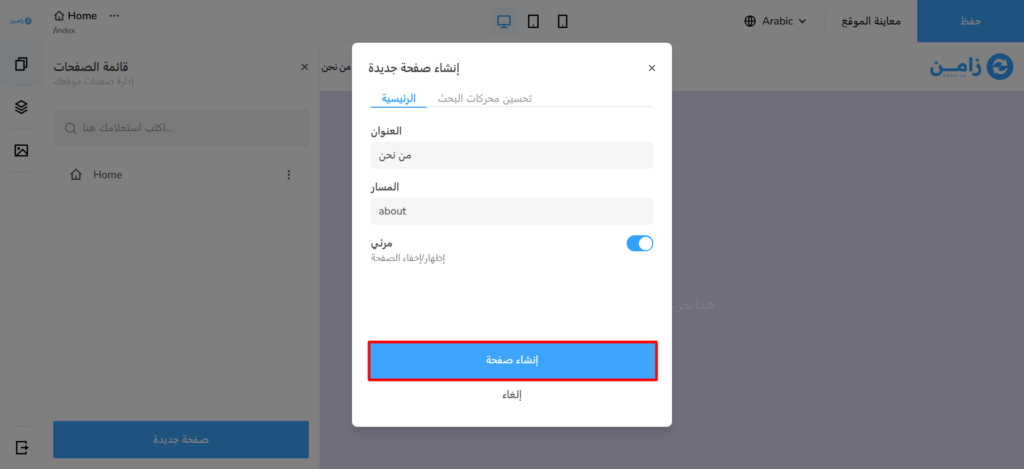
To create a new page:
-
Click New page.
-
In the Main tab:
- Enter the page name and its path.
- Choose whether the page is shown or hidden.
-
In the SEO tab, enter the SEO and indexing details of the page.
-
Click Create page to finish.
Organize sections
From Organize sections you can:
- Add a new section.
- Reorder sections by drag and drop.
- Delete sections.
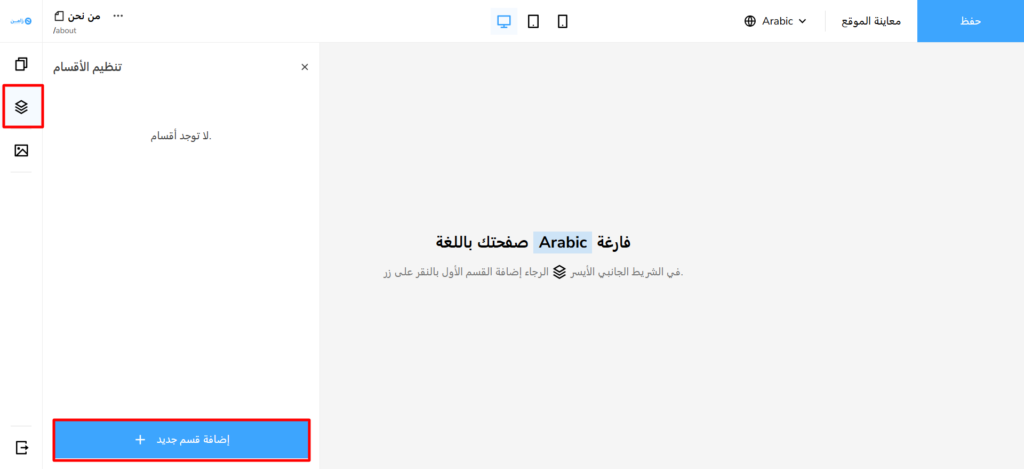
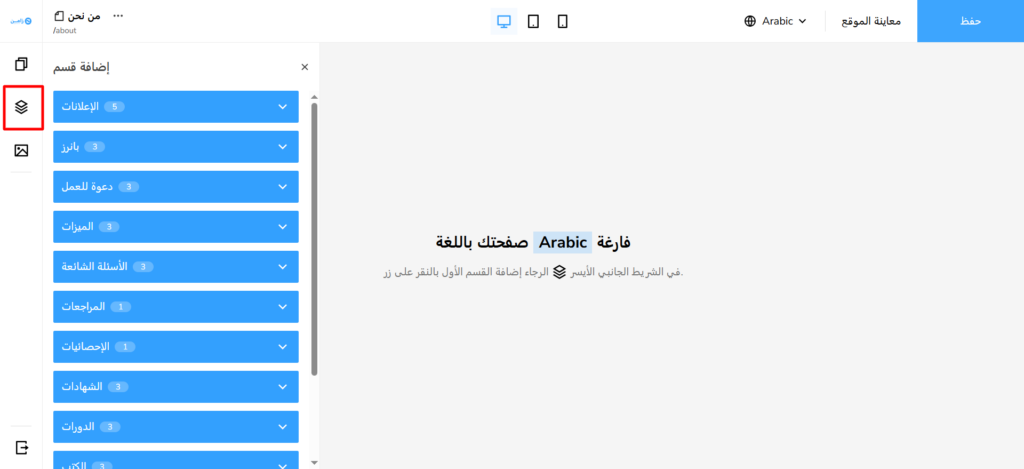
To add a new section, click Add a new section, then choose the section and the design that fits it best.
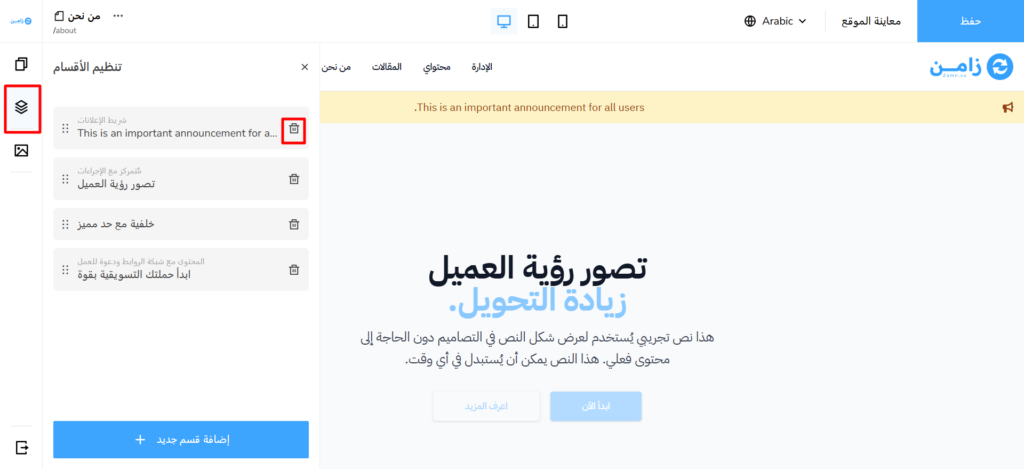
To reorder or delete sections:
- To delete a section, use the trash icon.
- To reorder sections, drag a section by the dots on its left side and drop it where you want.
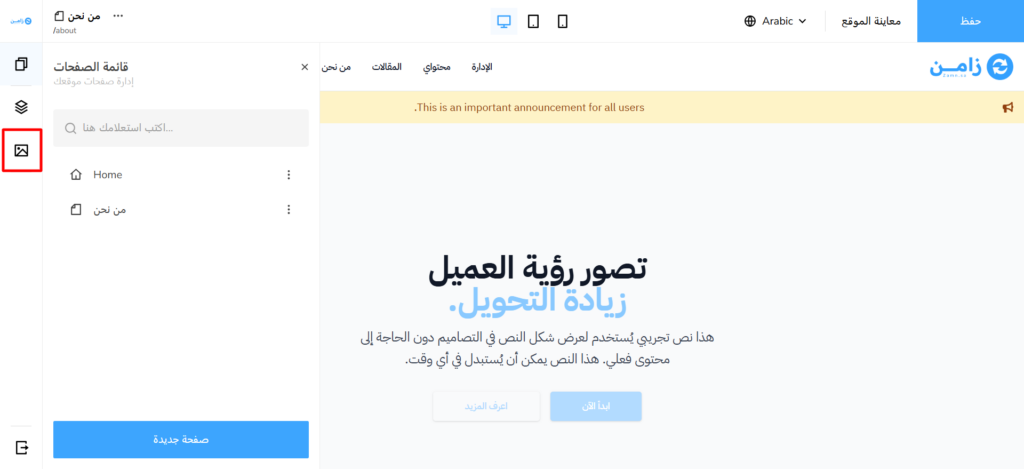
List of images
To upload new images, click Upload images. You can then use these images in any section or page.
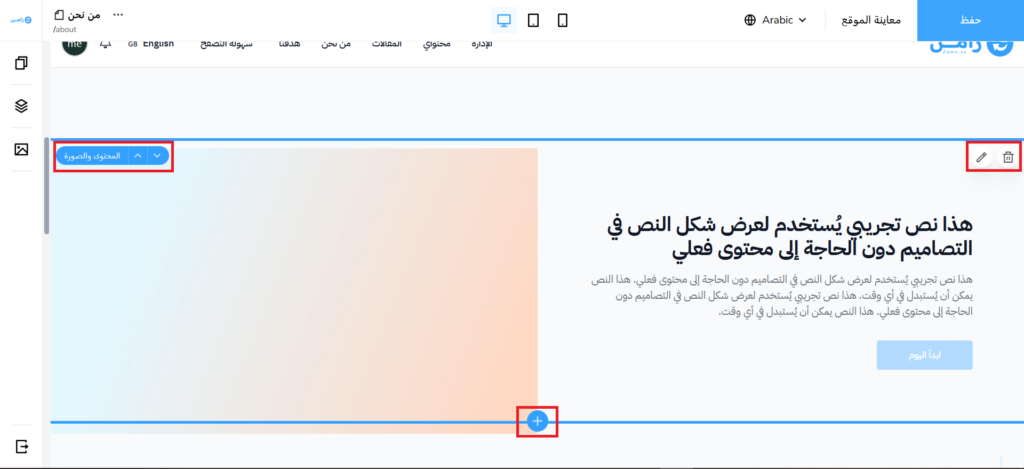
Manage page sections with the control icons
- Plus icon: add a new section.
- Pen icon: edit the section content.
- Trash icon: delete the section.
- Arrow icons: change the order of the section.
Link types
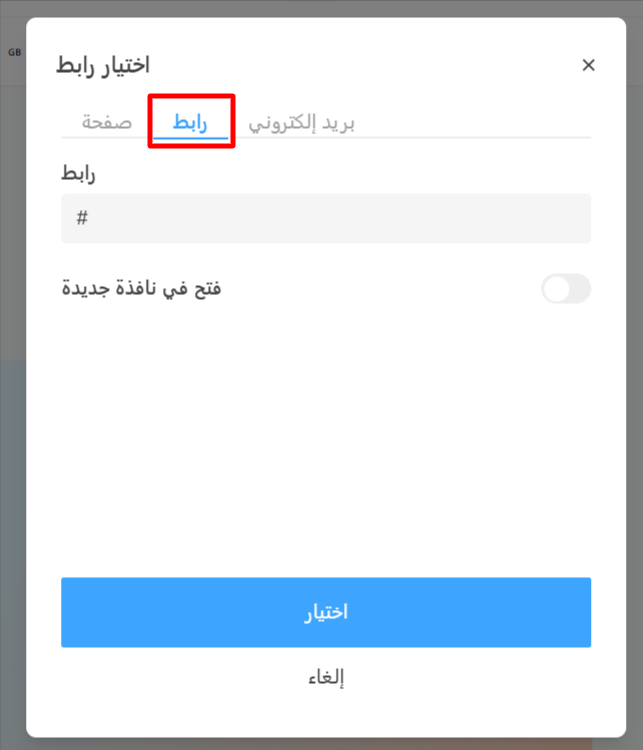
When you choose the Link option, you see three options to pick the type of link you want to use.
1. Page (internal page)
Best for:
- Linking between pages you created with the page builder.
- Keeping links in line with the site language (for example, English or Arabic). The site then sends the user to the right link for the current site language.
How to use it:
- Choose the page you want to link to from the drop-down list (pages built with the page builder).
- You can choose a specific section of the page, so the link opens right at that section.

2. Url (external or custom link)
Best for:
- Adding external links, such as another website, a PDF file or a link that is not in the page builder.
How to use it:
- Type the link yourself (for example:
https://example.com).
Make sure the link is correct and starts with http:// or https://.
3. Email (email link)
Best for:
- Creating links that open a window to send an email.
How to use it:
- Enter the email address (for example:
info@email.com).

Save, publish and preview the page
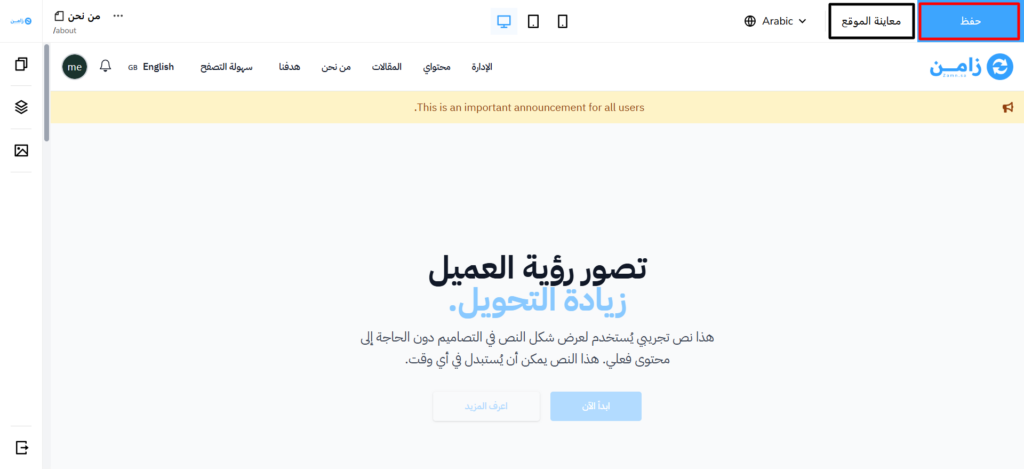
Your changes are saved automatically as a draft while you work, and visitors of your platform do not see them until you publish. When you finish the design and content, click Publish page at the top of the builder.
To preview the page, click the three dots next to the page name, choose Preview page, then choose Draft version to see your latest changes, or Live version to see what visitors see.
The platform home page
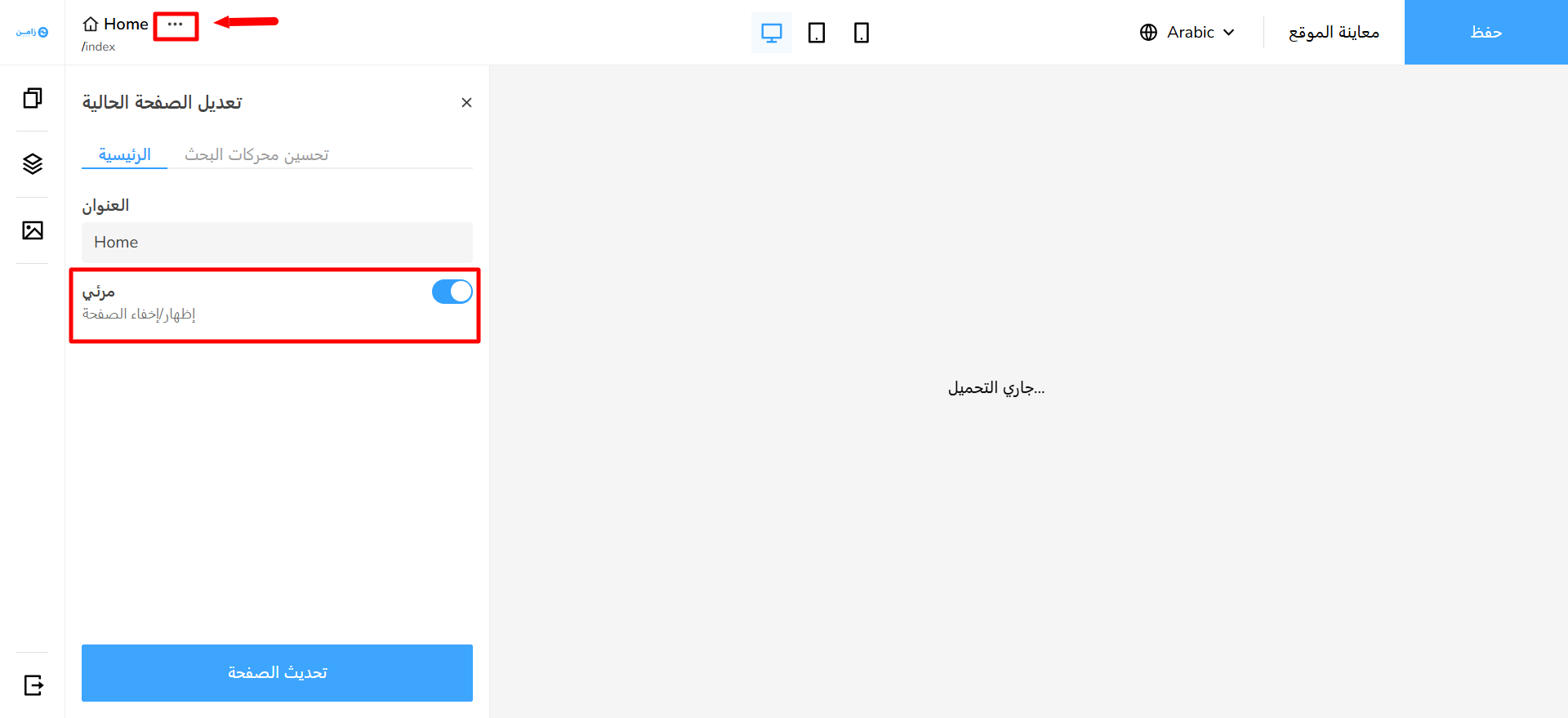
The default home page in the page builder (Home) becomes the home page of your platform when the Visible option is turned on.
You can create a separate English page with a different design from the Arabic version. To design the English version, choose English from the language menu at the top of the builder.
To open the settings of the page you are working on, click the three dots next to the page name, then choose Edit settings.
Video guide
Watch the video for more details on creating a page.