Connect MailerLite to your platform
Connecting MailerLite to your platform helps you with email marketing, such as sending newsletters, managing subscriber lists and following how your campaigns perform. This article is for platform admins.
The connection has three parts:
- Create a MailerLite account.
- Copy the connection key from MailerLite.
- Turn on the connection between MailerLite and your platform on Zamn.
Create a MailerLite account
-
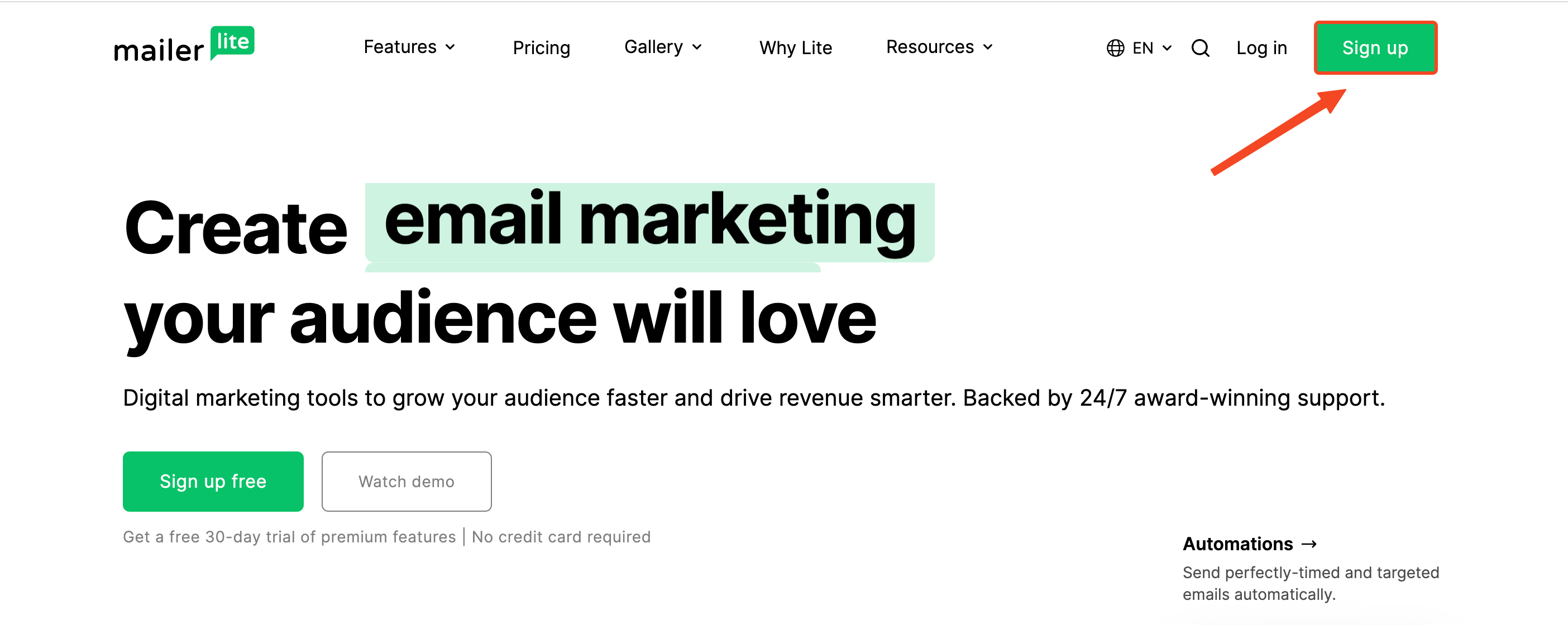
On the MailerLite website, click Sign up.
-
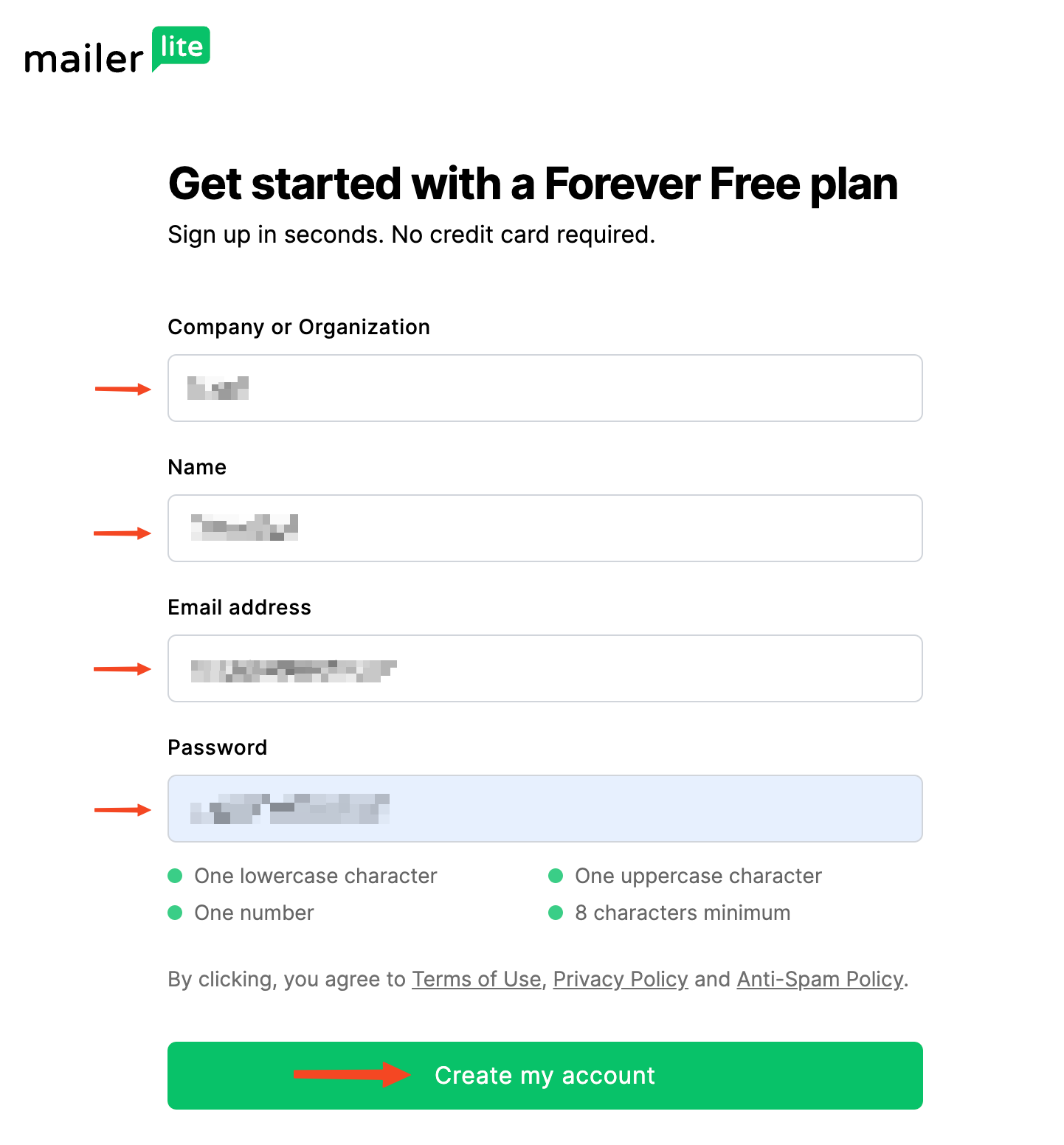
Enter the basic information:
- Your platform name.
- Your name.
- Your platform email address.
- A password.
-
Click Create my account.
-
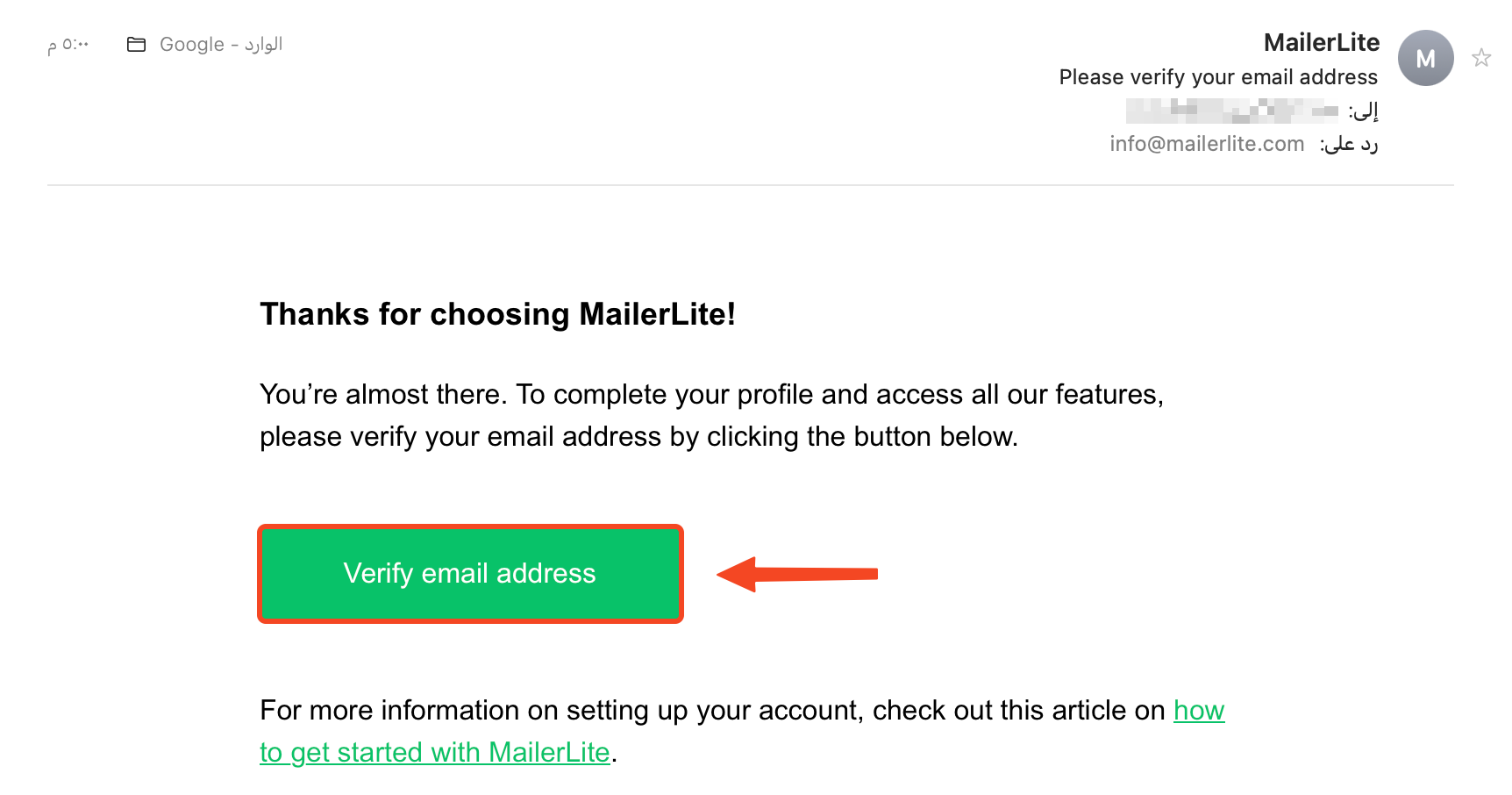
Confirm your email: MailerLite sends a verification email to the address you signed up with. Open the email and click Verify email address.
-
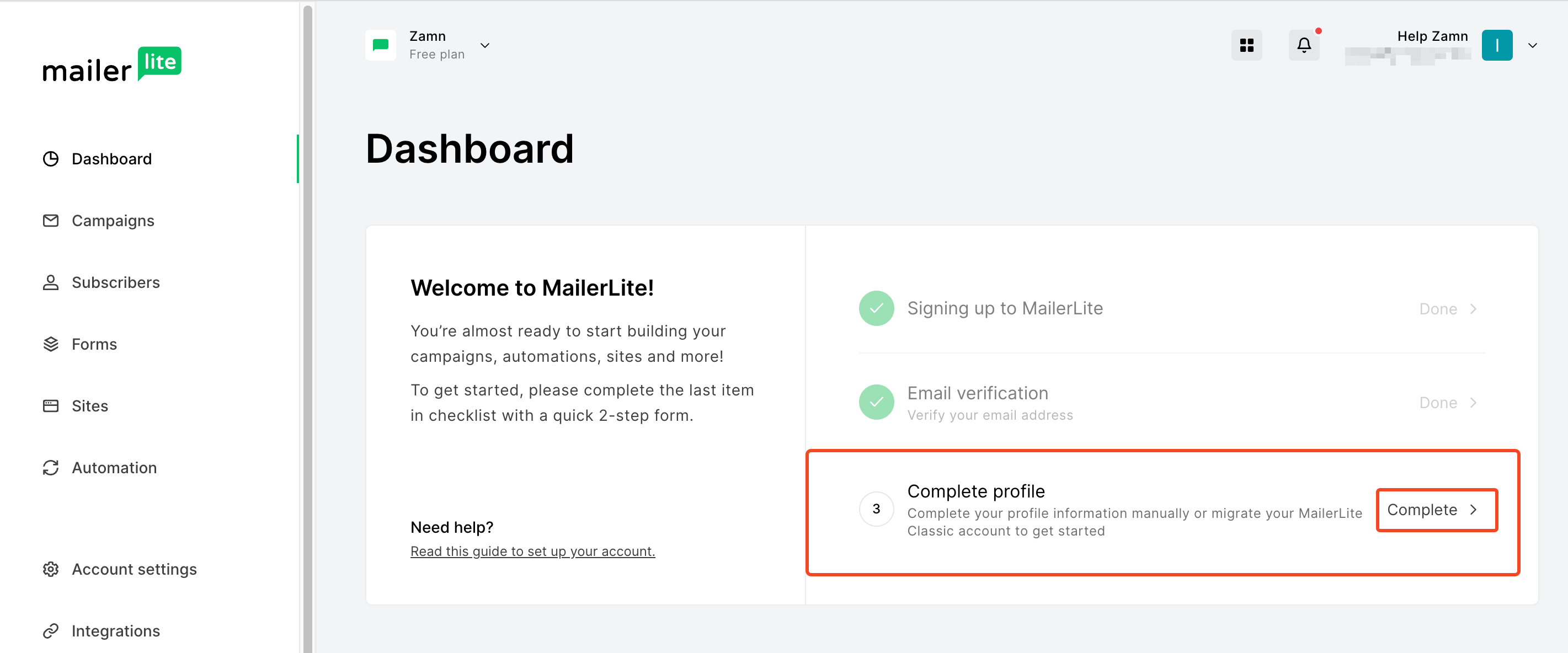
Click Complete to finish your profile.
-
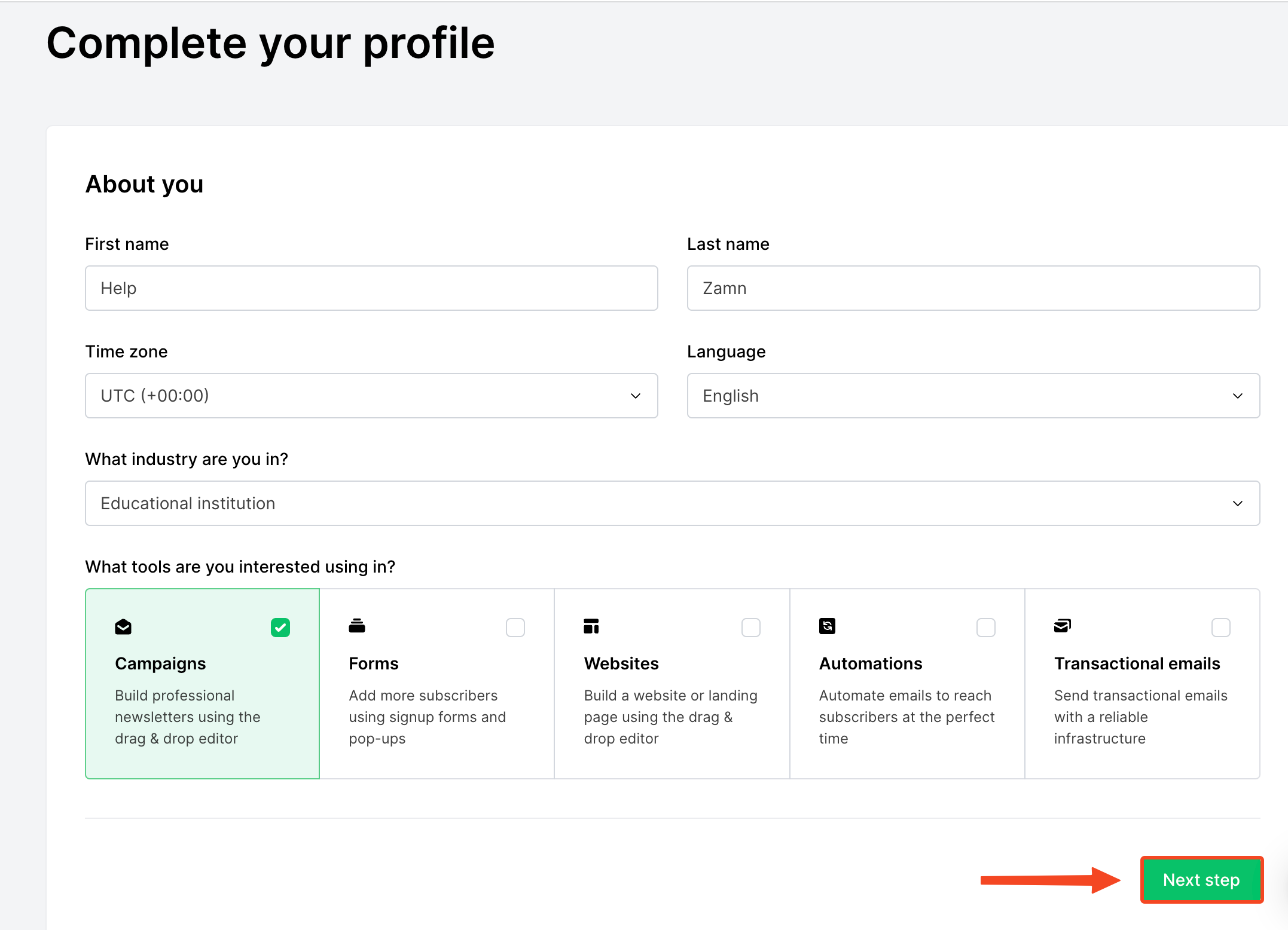
Enter the required information, then click Next step to go to the next page.
-
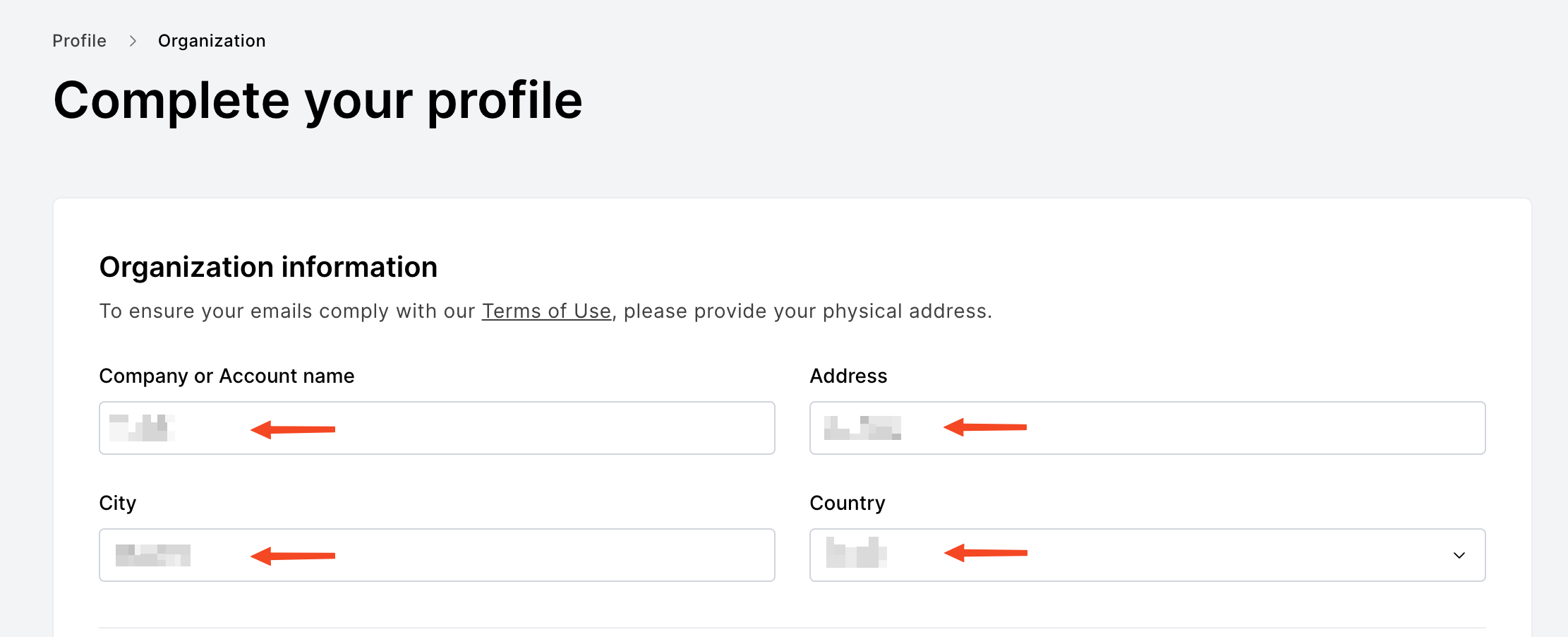
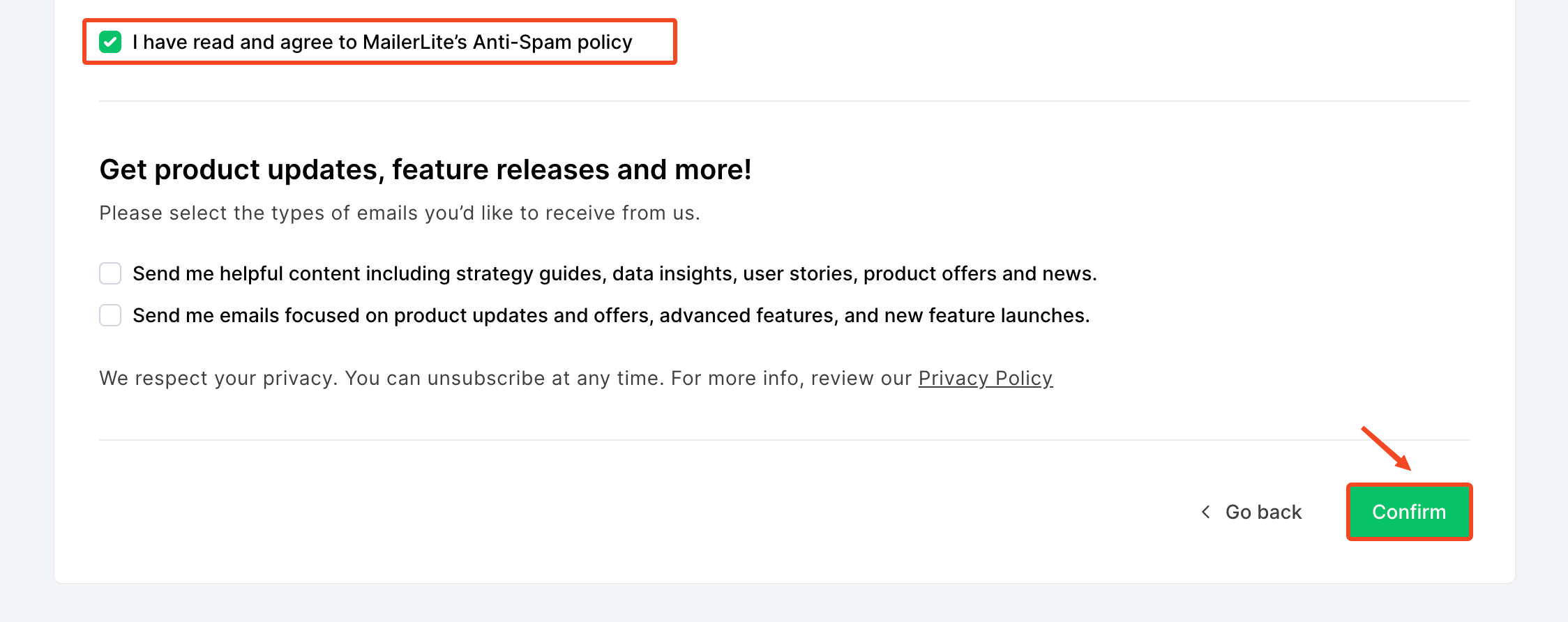
Enter the rest of the required information, accept the terms of use, then click Confirm to save it.
Copy the connection key from MailerLite
-
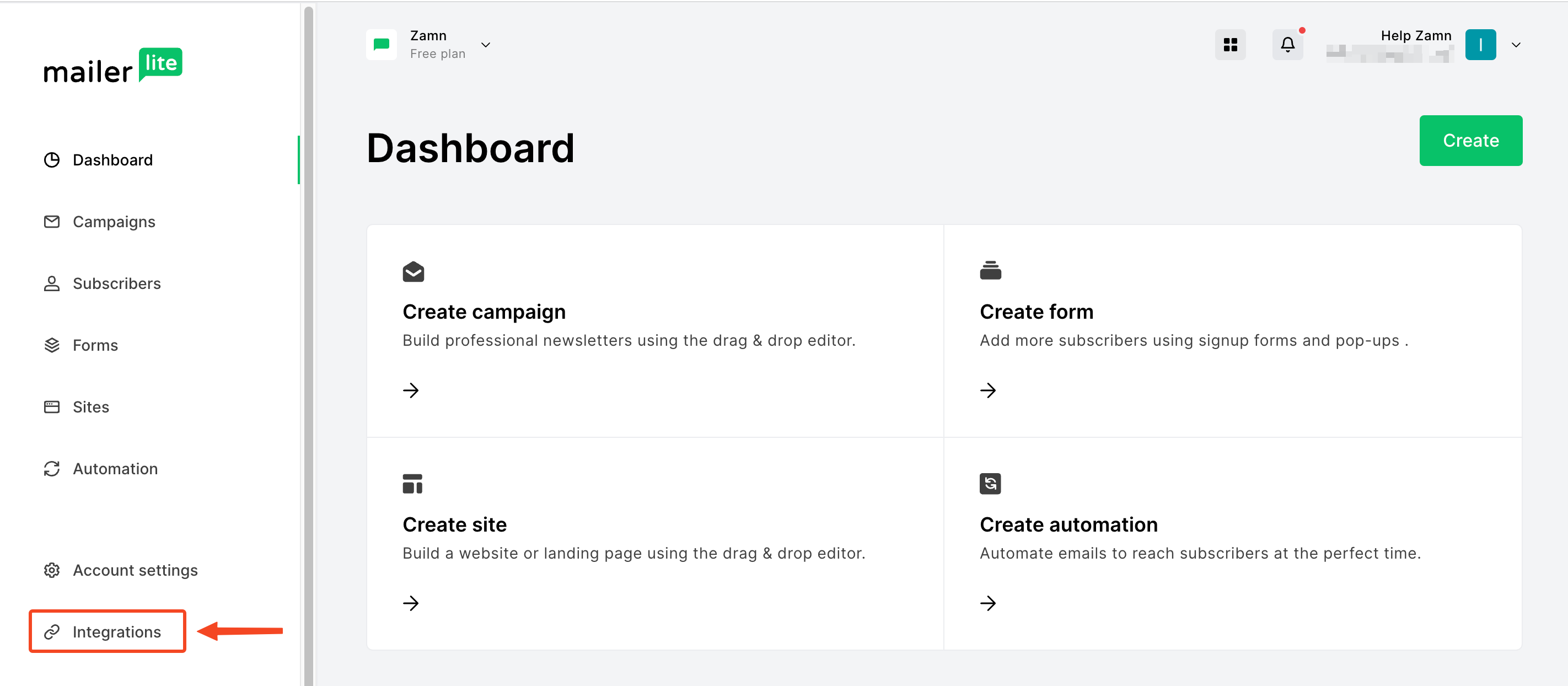
From the MailerLite dashboard, choose Integrations.
-
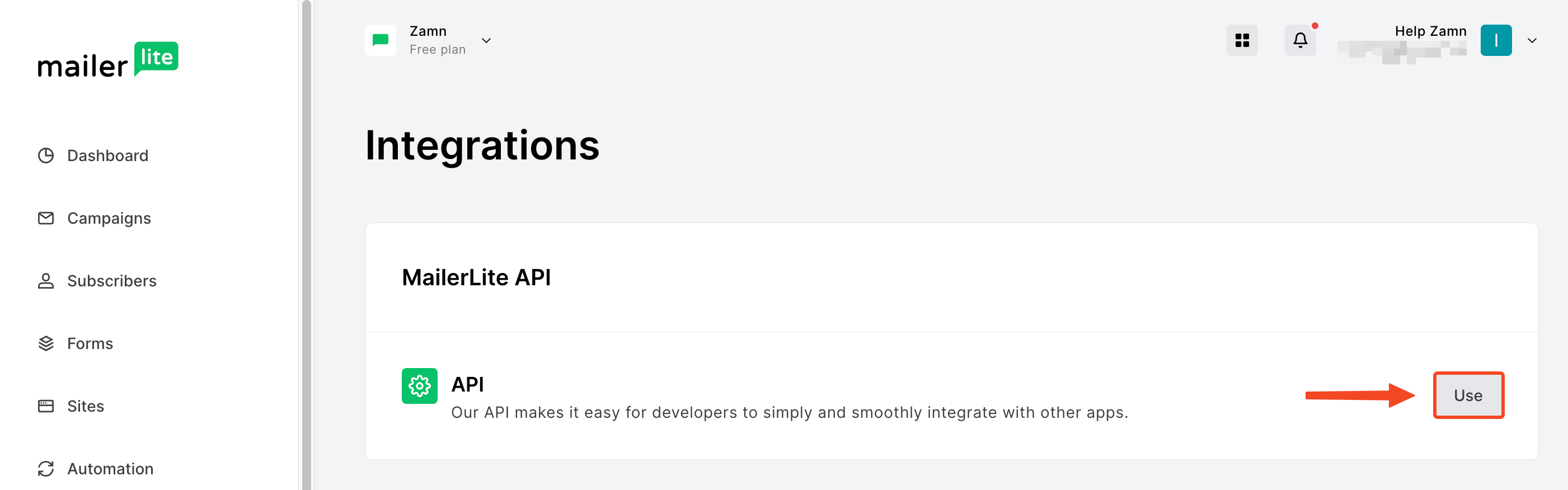
Under API, click Use.
-
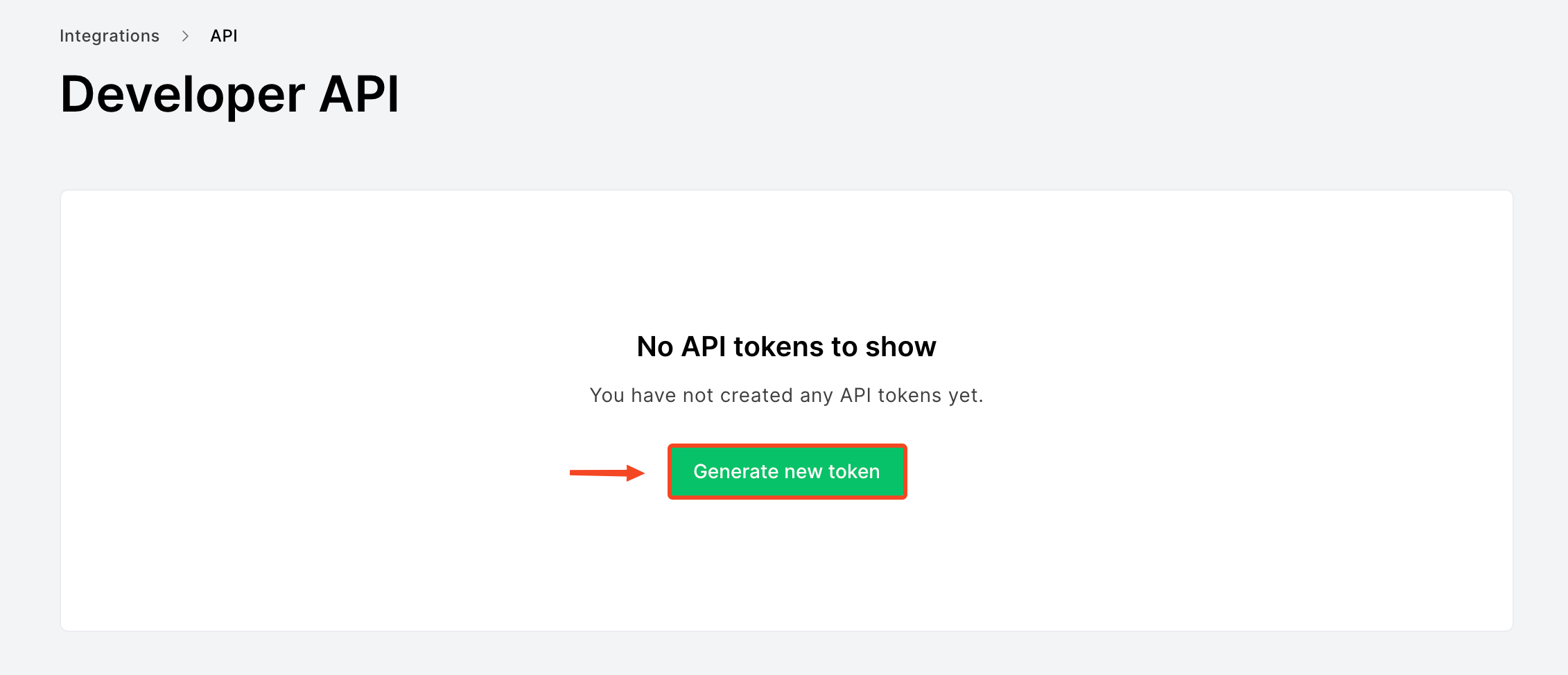
Click Generate new token.
-
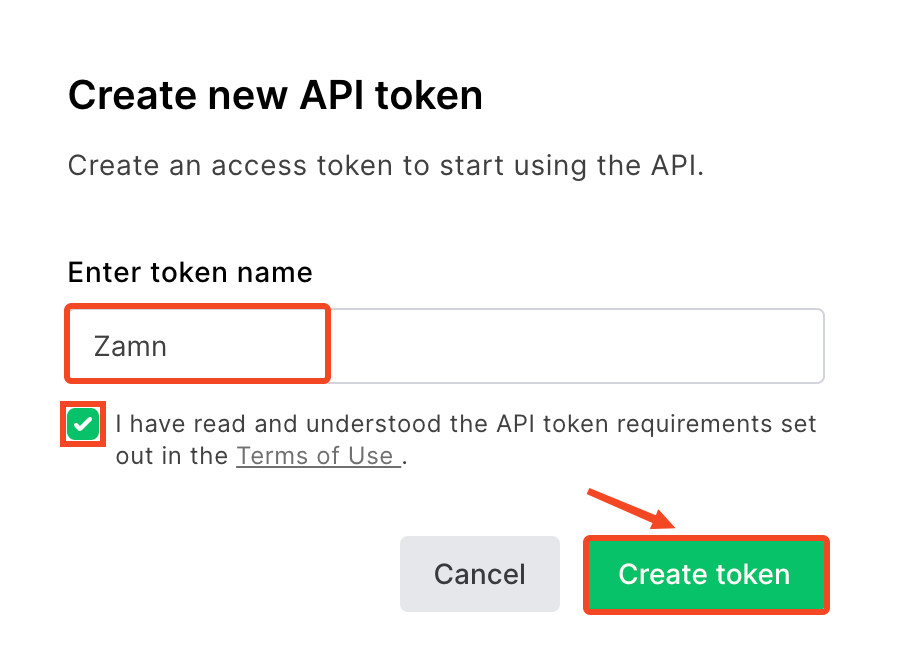
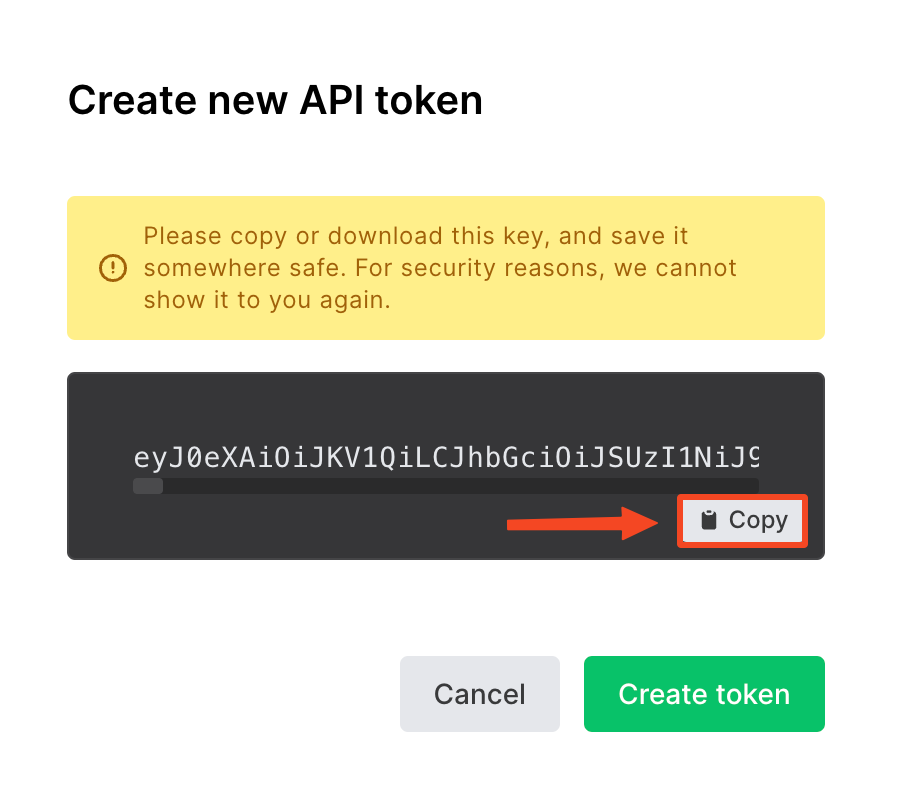
Enter a name for the token, accept the terms, then click Create token.
-
Click Copy to copy the key, then go to your platform on Zamn.
Turn on the connection between MailerLite and your platform on Zamn
-
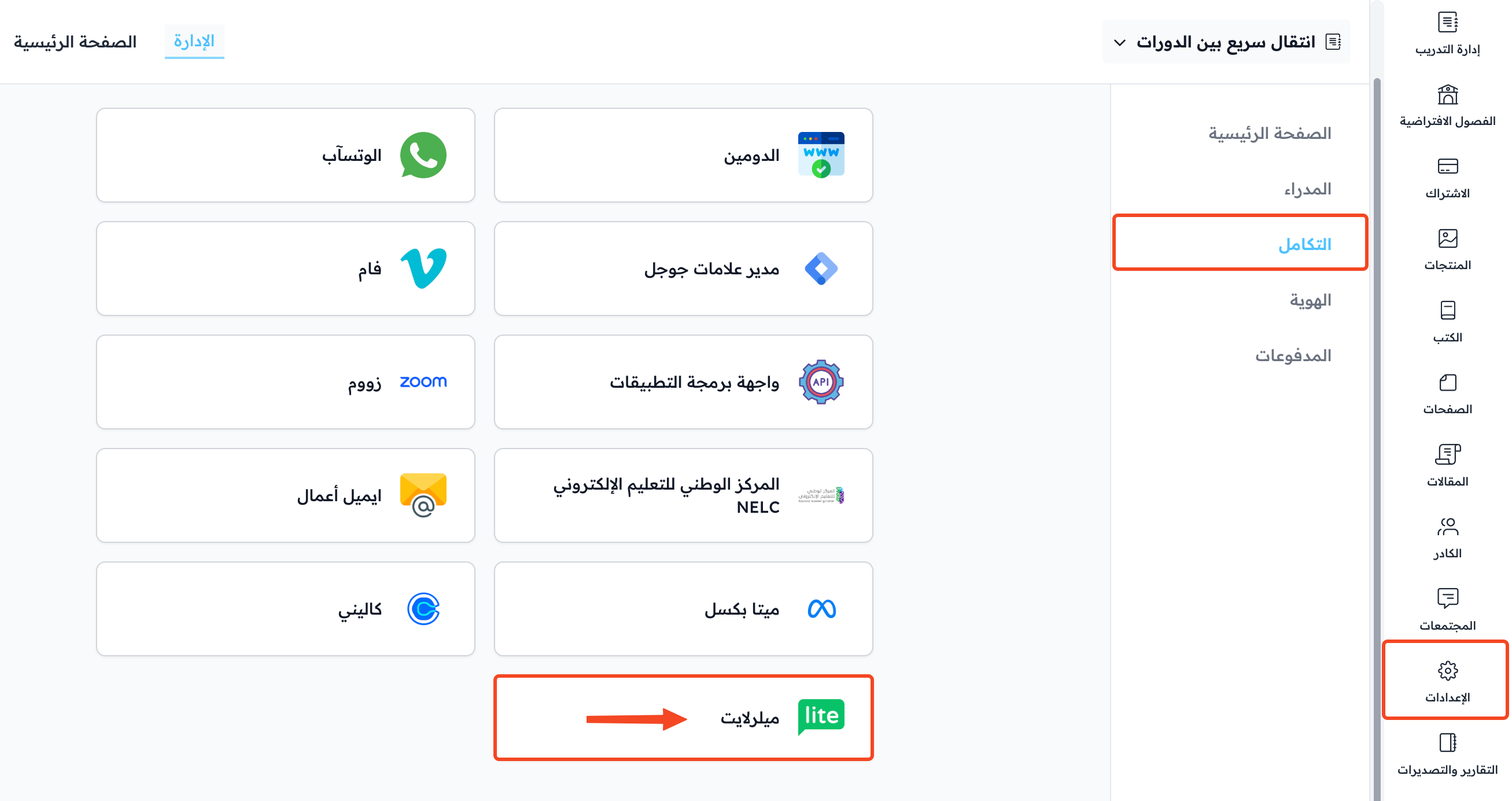
From your platform dashboard, choose Settings.
-
Go to the Integrations page.
-
Click Mailerlite.
-
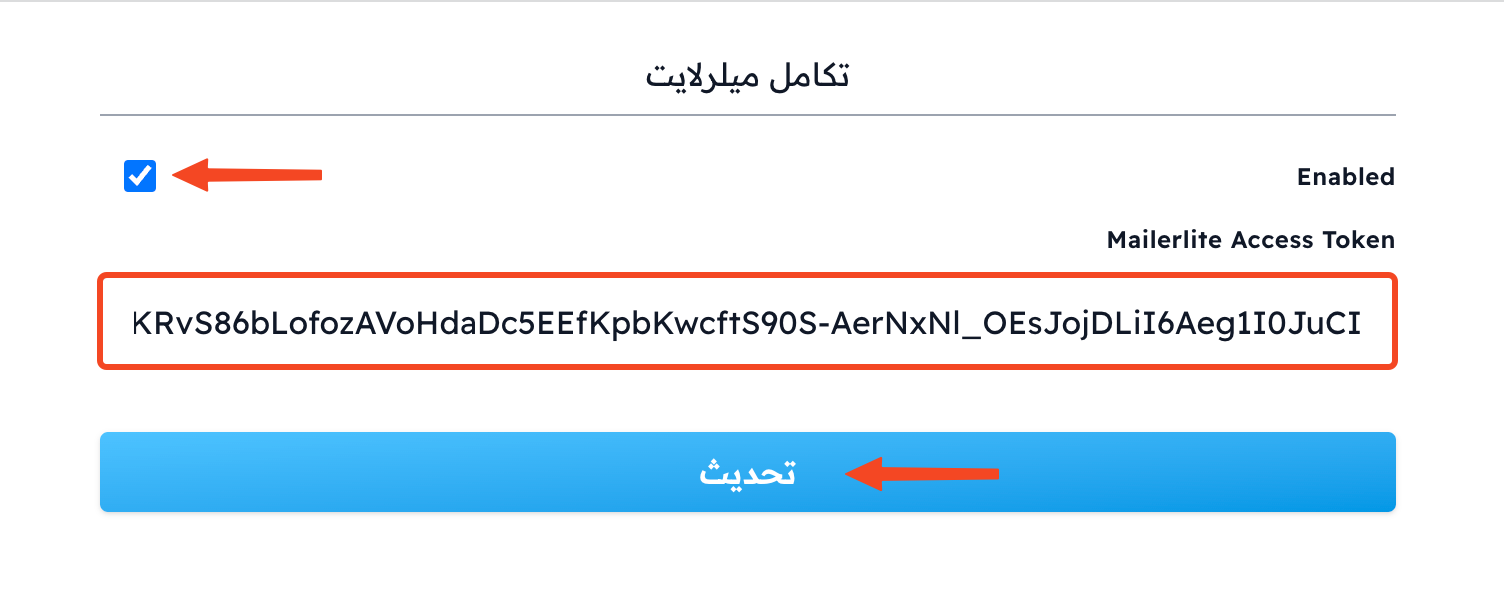
Turn on Enabled.
-
Paste the key you copied from MailerLite in the Mailerlite Access Token field.
-
You can also enter a Default Group ID for New Users, so new users are added to this MailerLite group by themselves. Leave it empty if you do not need it.
-
Click Create to save the connection. If you are changing a connection you saved before, the button says Update.