Add a live session to the course content
You can add a live lesson (a live session) to your course content. Your students use it to join a Zamn room or a Zoom room. This article is for platform admins.
Steps to add a live lesson to the course content
-
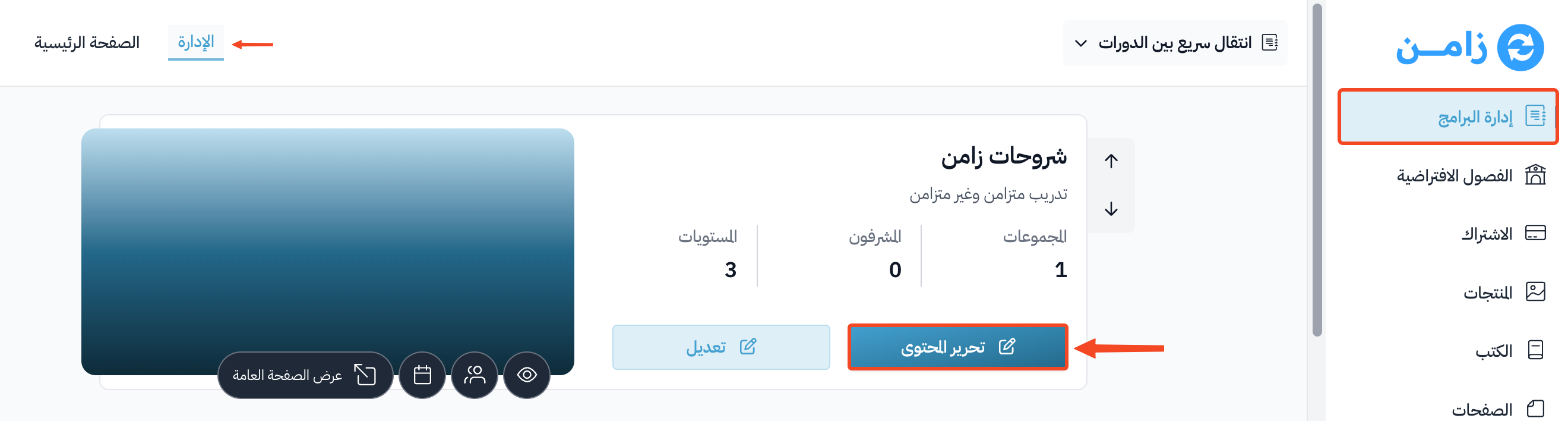
Go to the Courses page, then click Edit Curriculum on the course you want.
-
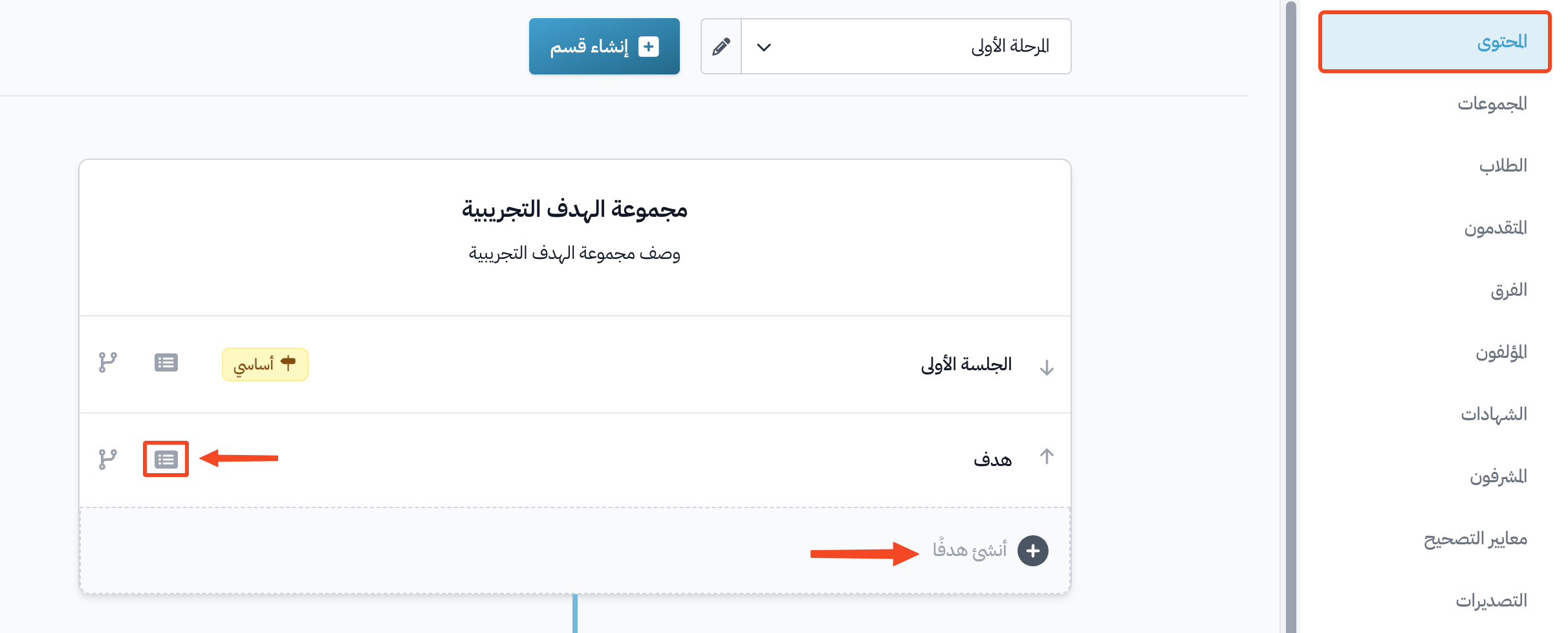
On the course Curriculum page, click Create target to make a new target, or click the edit button next to a target you already have.
-
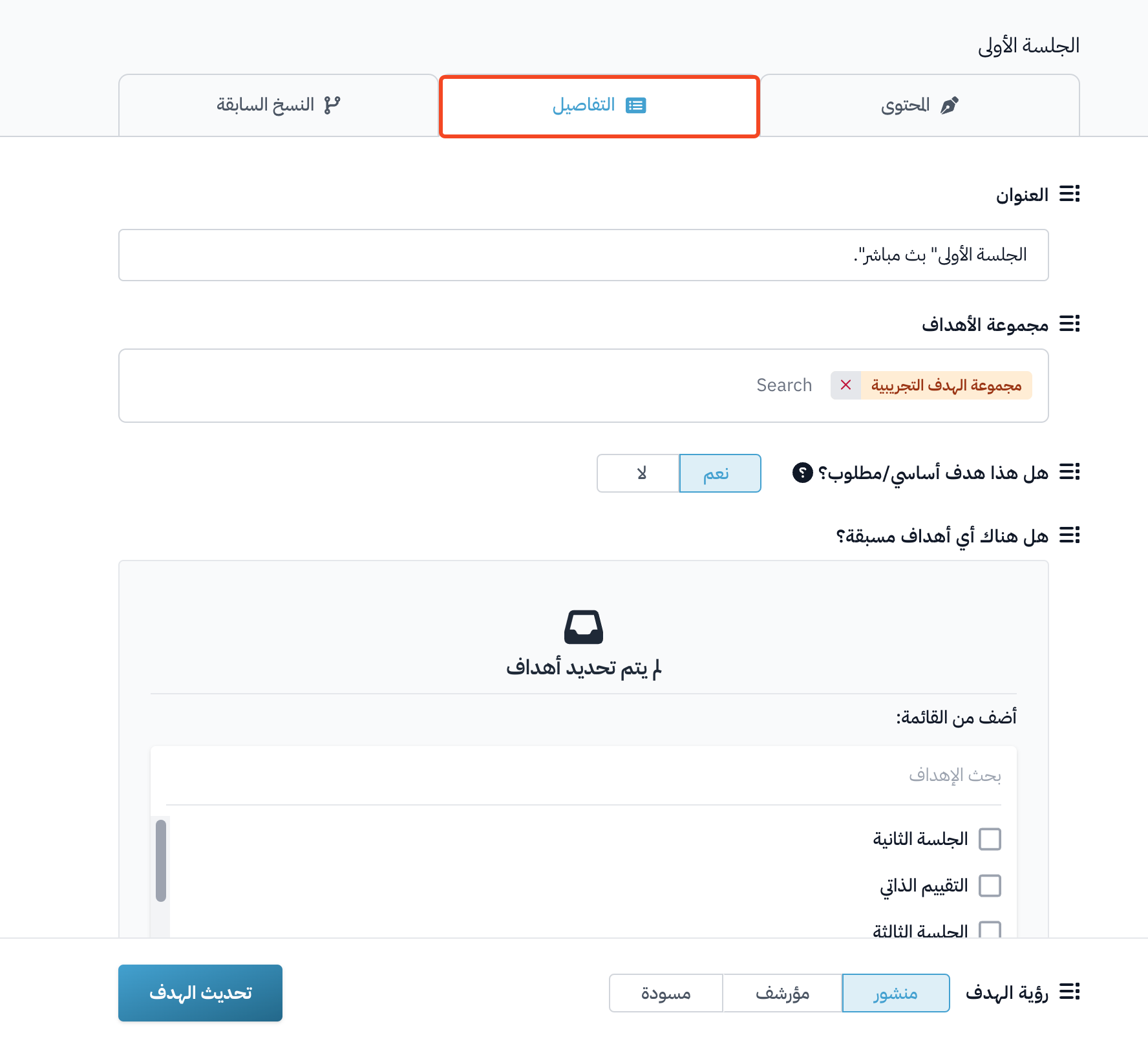
Go to the target's Details tab. Here you can change the Title, turn on Milestone target, and pick prerequisite targets from Are there any prerequisite targets? if you need them.
-
Under How do you want the student to complete the target?, choose Visit a link to complete the target.
-
From the Choose room link or paste a custom link list, choose a Zamn room or a Zoom room. The room link is added to the Link to complete field for you.
NoteTo choose a Zoom room, you must first link your Zoom account to your platform.
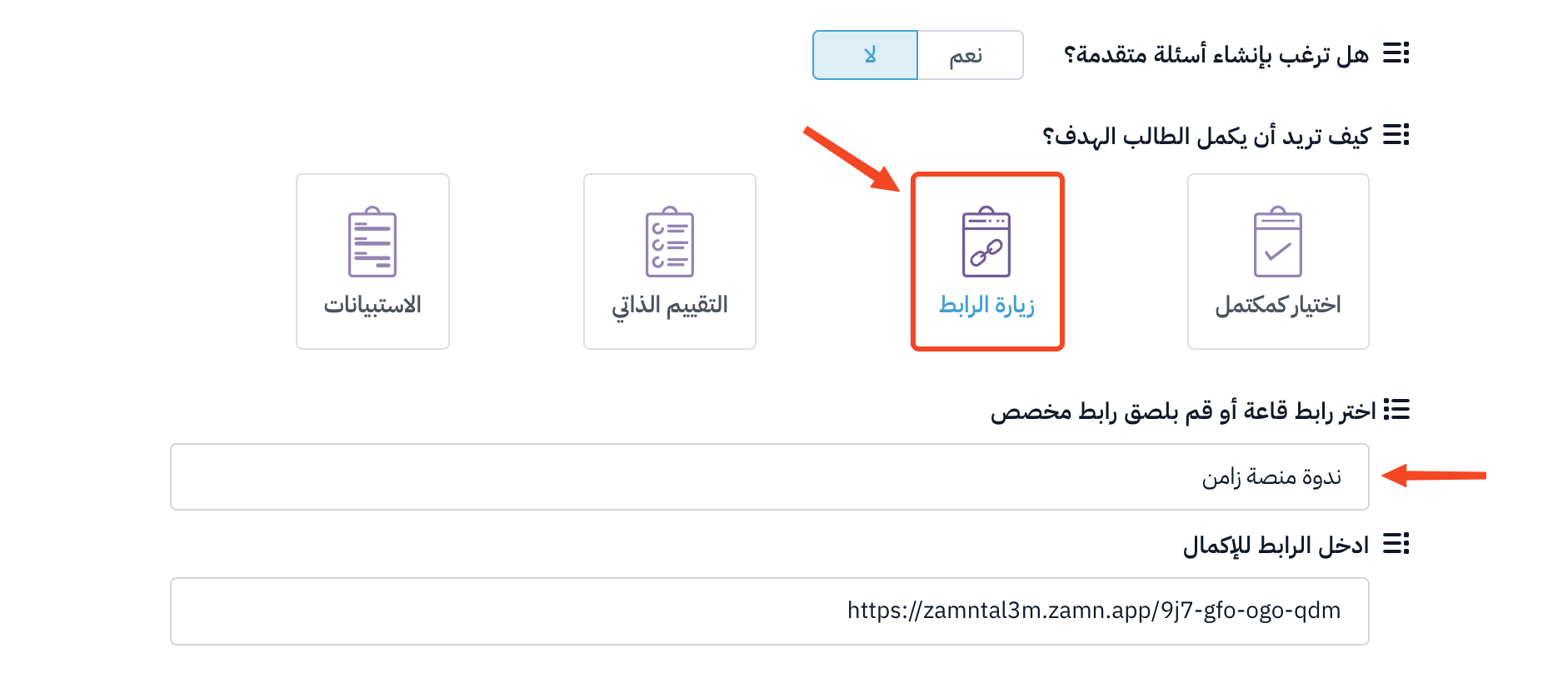
-
You can add instructions for your students in Do you have any completion instructions for the student?.
-
Make sure Target Visibility is set to Live, then click Update Target to save.
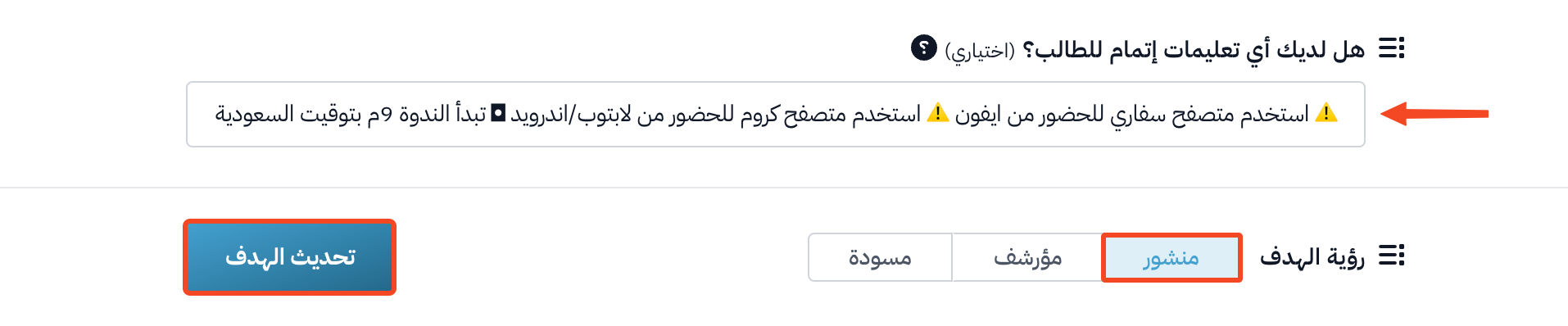
Example
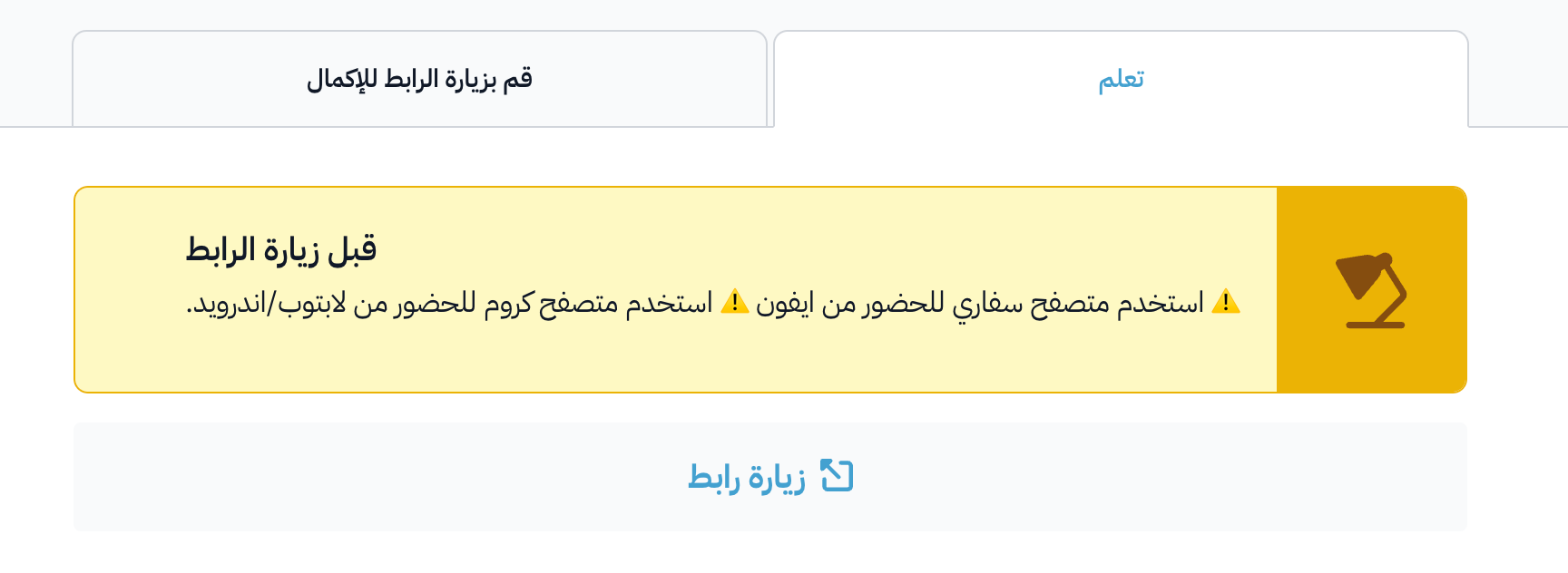
This is how the target looks to the student: