Connect a Hostgator domain to your platform
If your domain is registered in Hostgator, follow these steps to open your platform on a custom domain (such as online.class.app). These steps are for the platform admin.
Steps to connect a custom domain to your platform
Before you connect, you must have a registered domain, or register one.
Many websites let you register a custom domain, such as:
and many others. In this guide, we show how to connect a domain from the hostgator website.
The steps may be different from one domain provider to another, but the idea is the same.
Steps to connect from the hostgator website
-
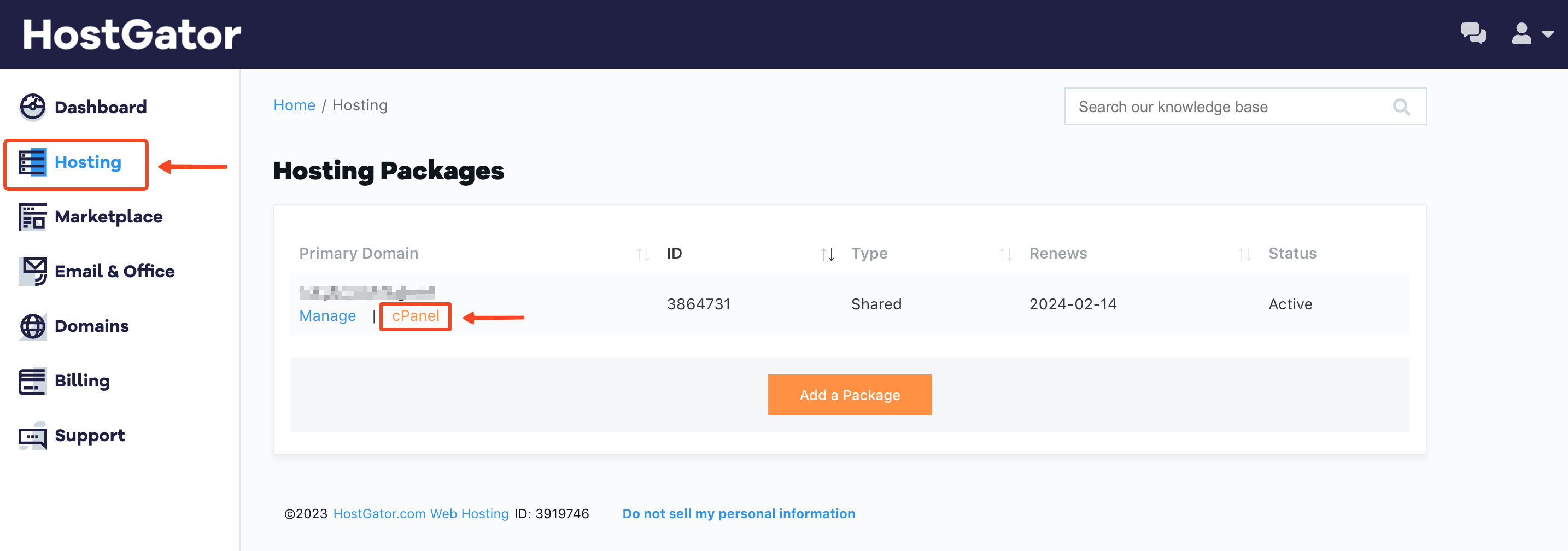
From the provider's dashboard, go to Hosting.
-
Click cPanel, as shown in the image.
-
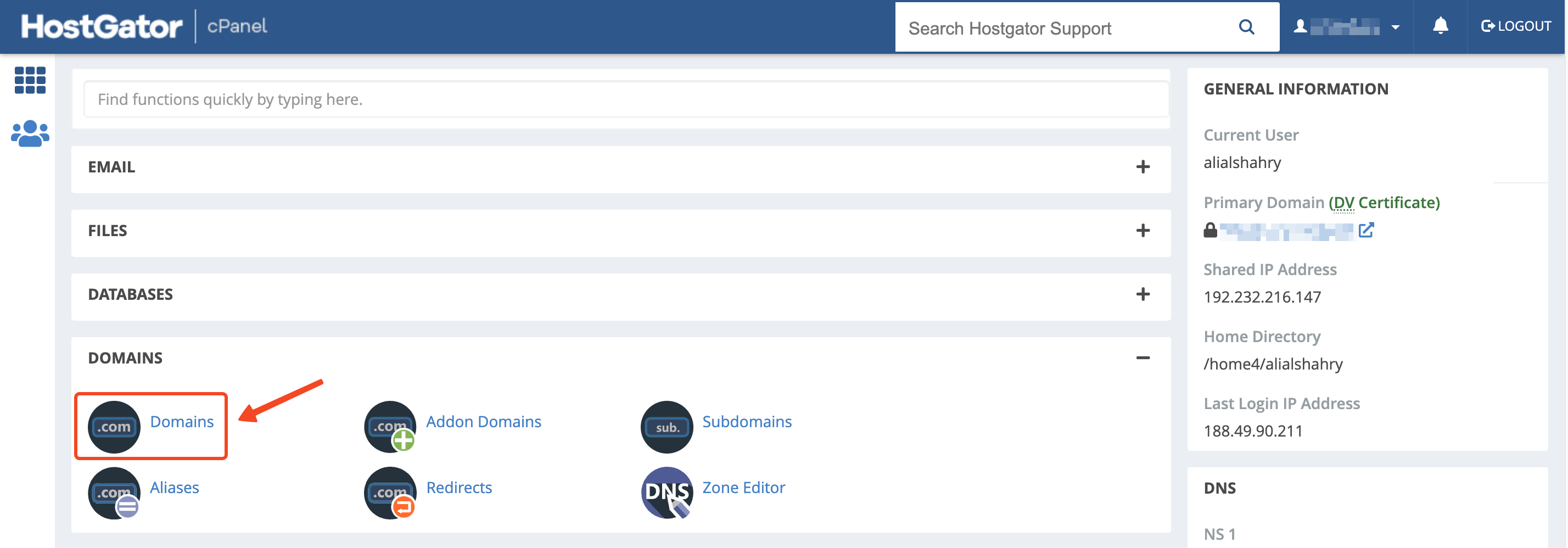
Choose Domains.
-
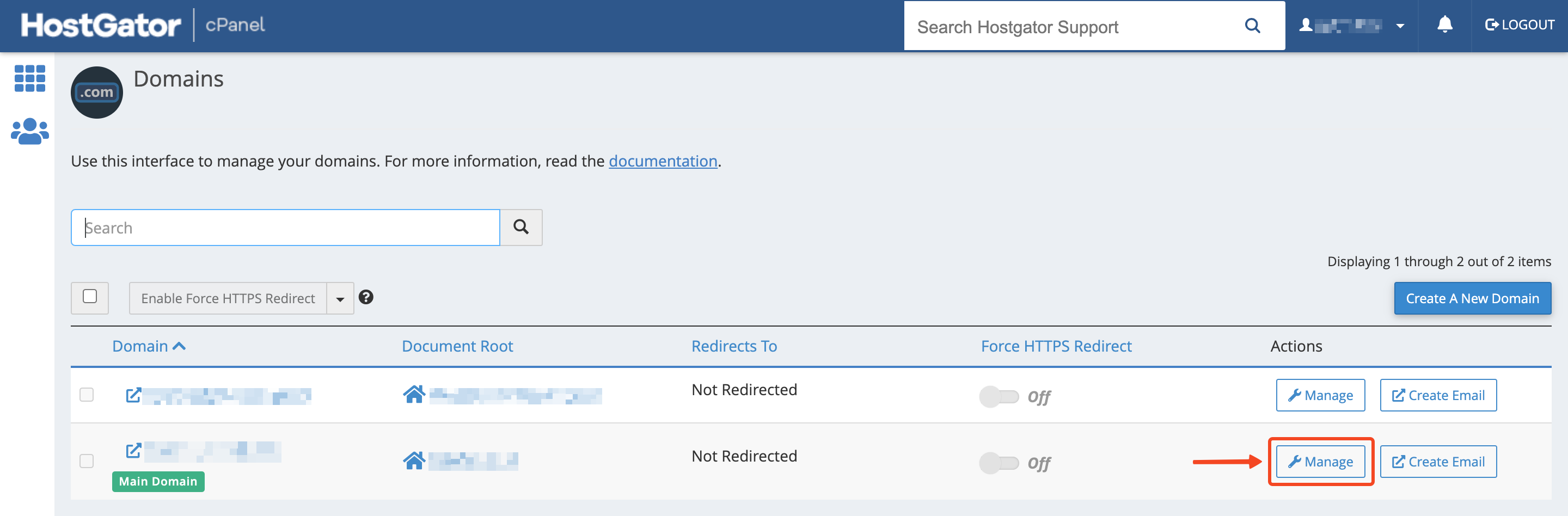
Click Manage next to the domain you want to connect.
-
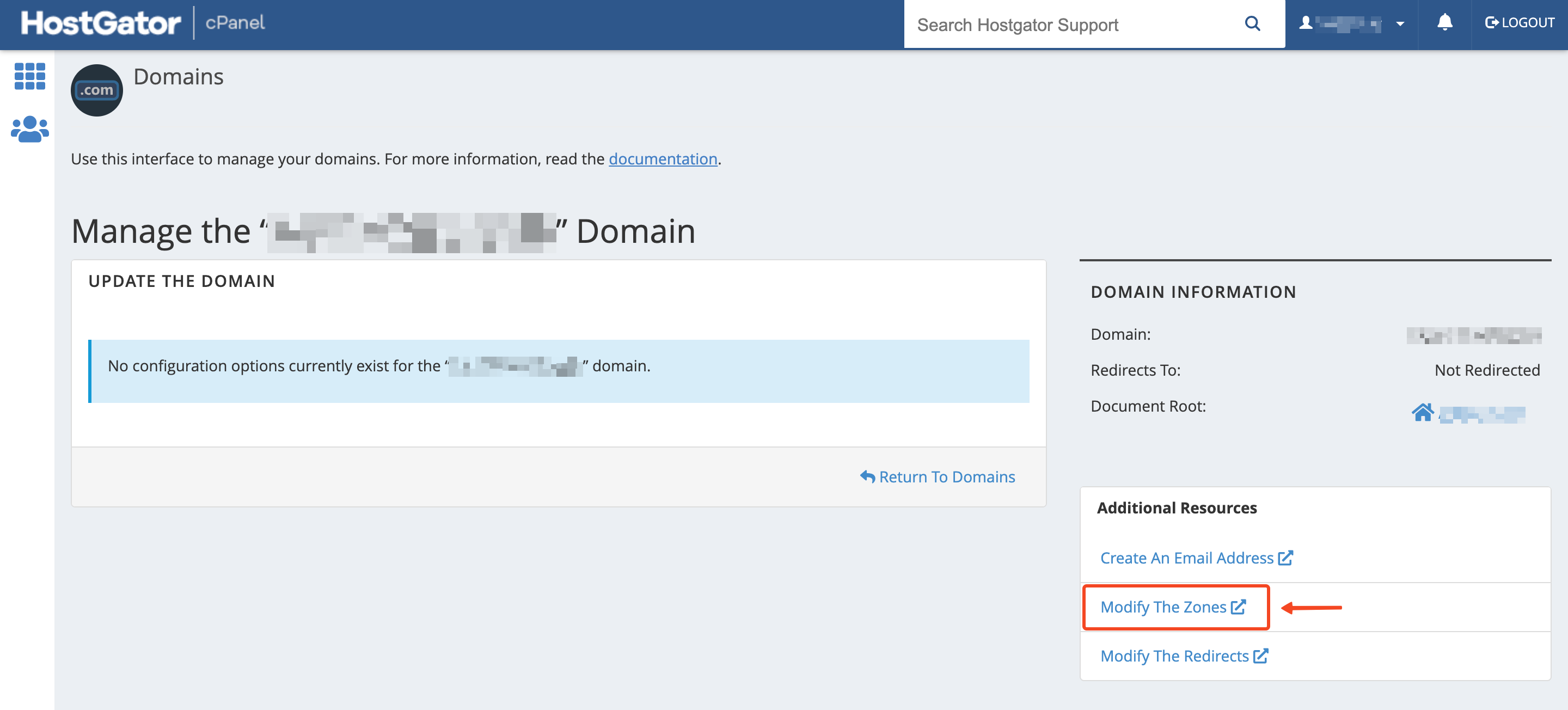
Choose Modify The Zones.
-
Click Add Record+.
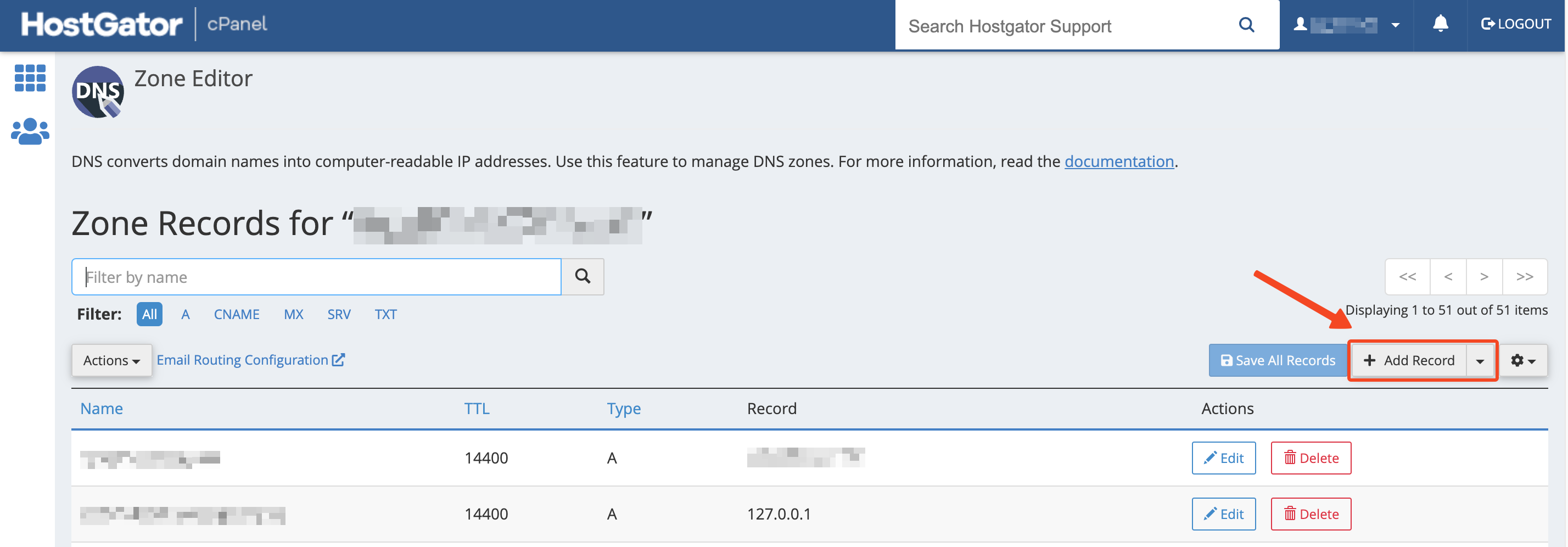
-
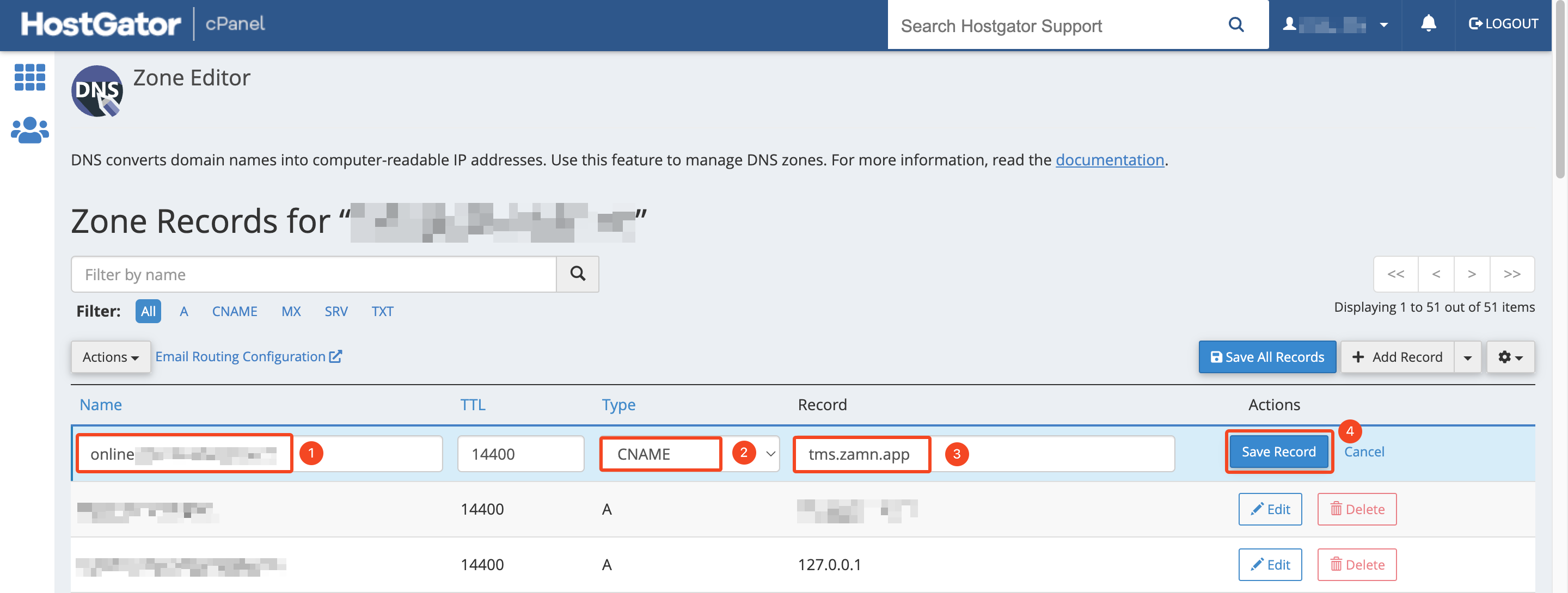
Fill in the needed details:
- Type your subdomain, such as
online. The site completes the domain address for you. - Choose CNAME from the list.
- Type the value
tms.zamn.appto connect with Zamn. - Click Save Record to save.
- Type your subdomain, such as
Connect the domain to your platform
-
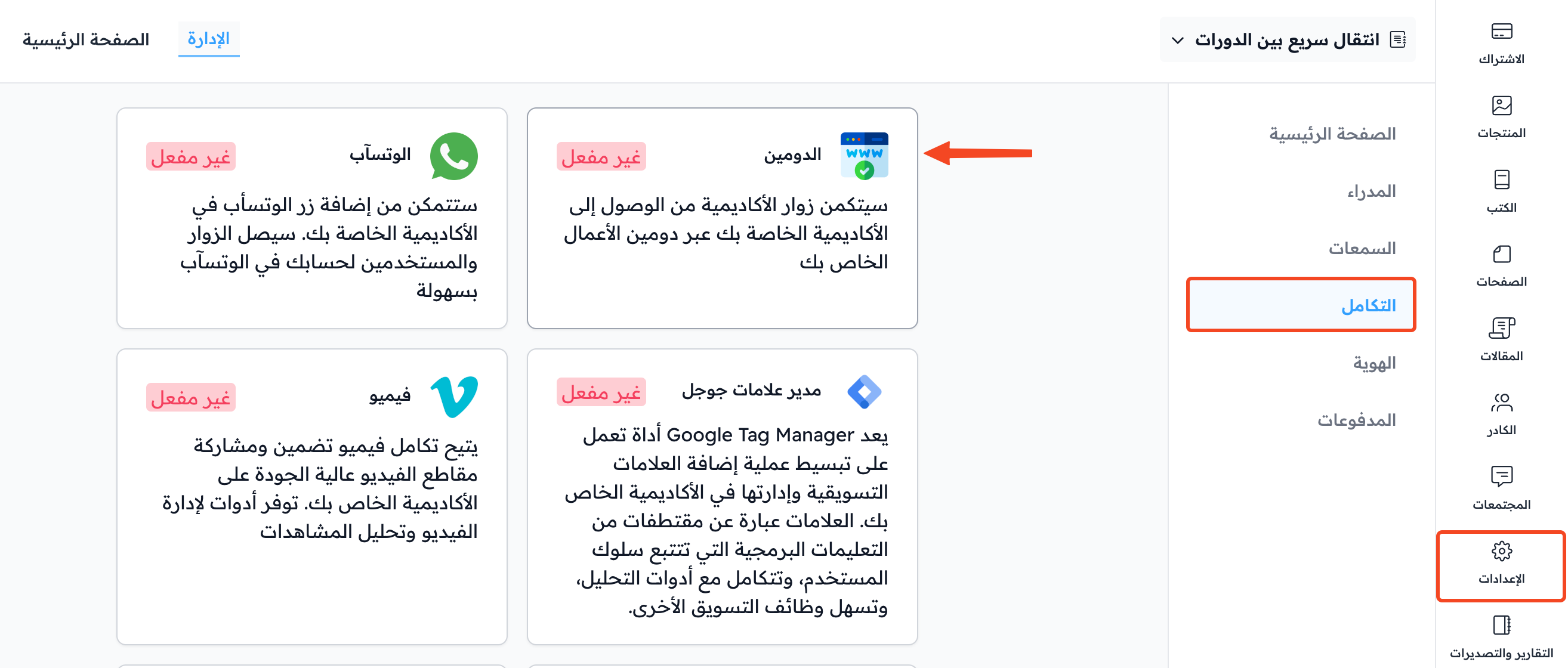
Go to your platform on Zamn, and from the dashboard click Settings.
-
Go to the Integrations page and click Domain.
-
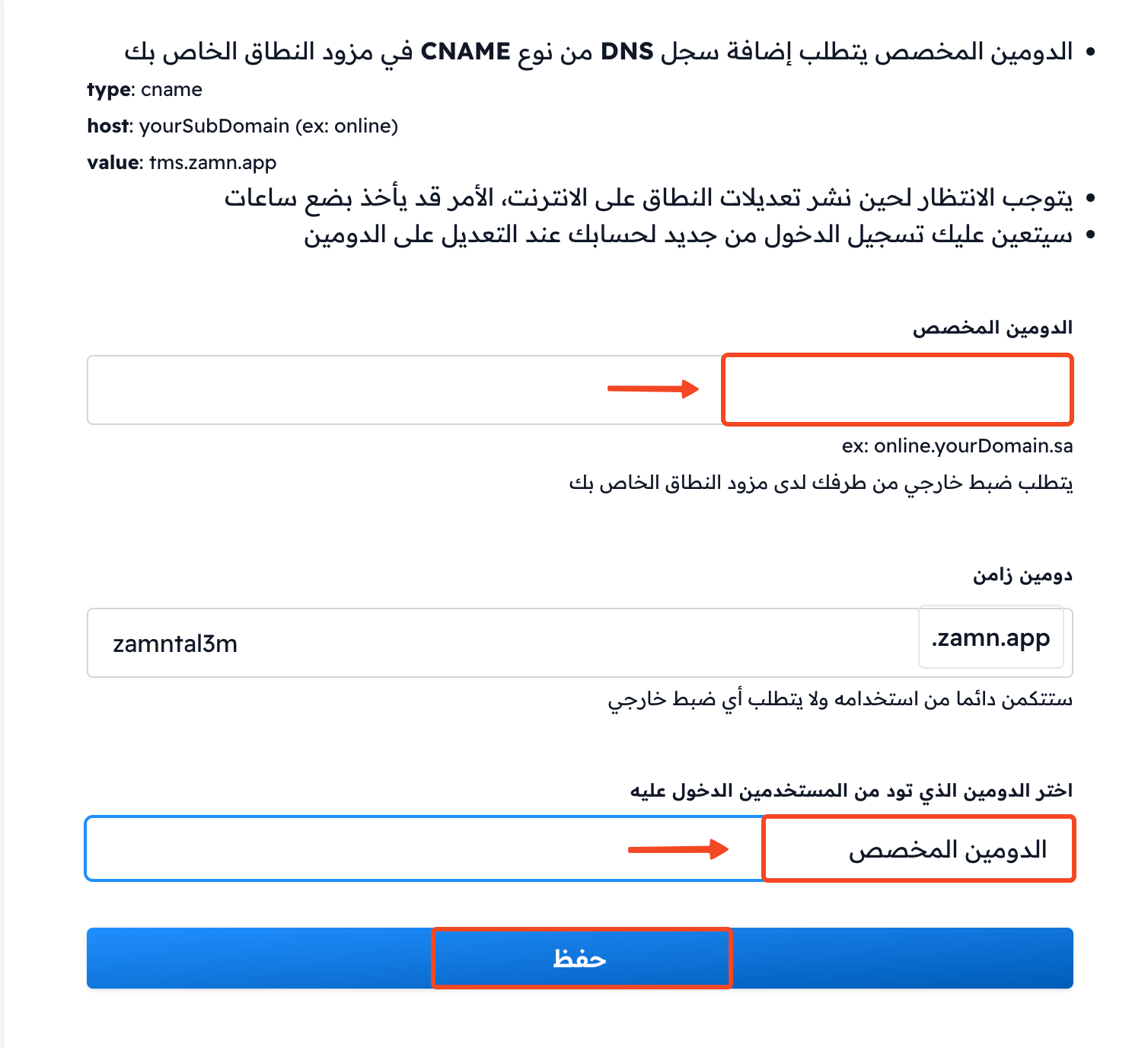
Type your custom domain address in the Domain field, such as
online.class.app. -
Click Submit.
-
Wait until the domain change spreads on the internet. When it is ready, a green check mark shows next to the waiting message in the Domain window.
-
Open the Domain window again, and choose Domain in the Primary Domain field.
-
Click Submit.
The domain may work right away, or it may take up to 24 hours.
Your custom domain is now connected, and everyone can reach your platform through it.
If this time has passed and you still cannot open your platform on the custom domain, contact technical support on WhatsApp.