Reply to support tickets
The support ticket system lets your customers create support tickets while they use your platform, and lets your admin team answer their questions.
Reply to support tickets
-
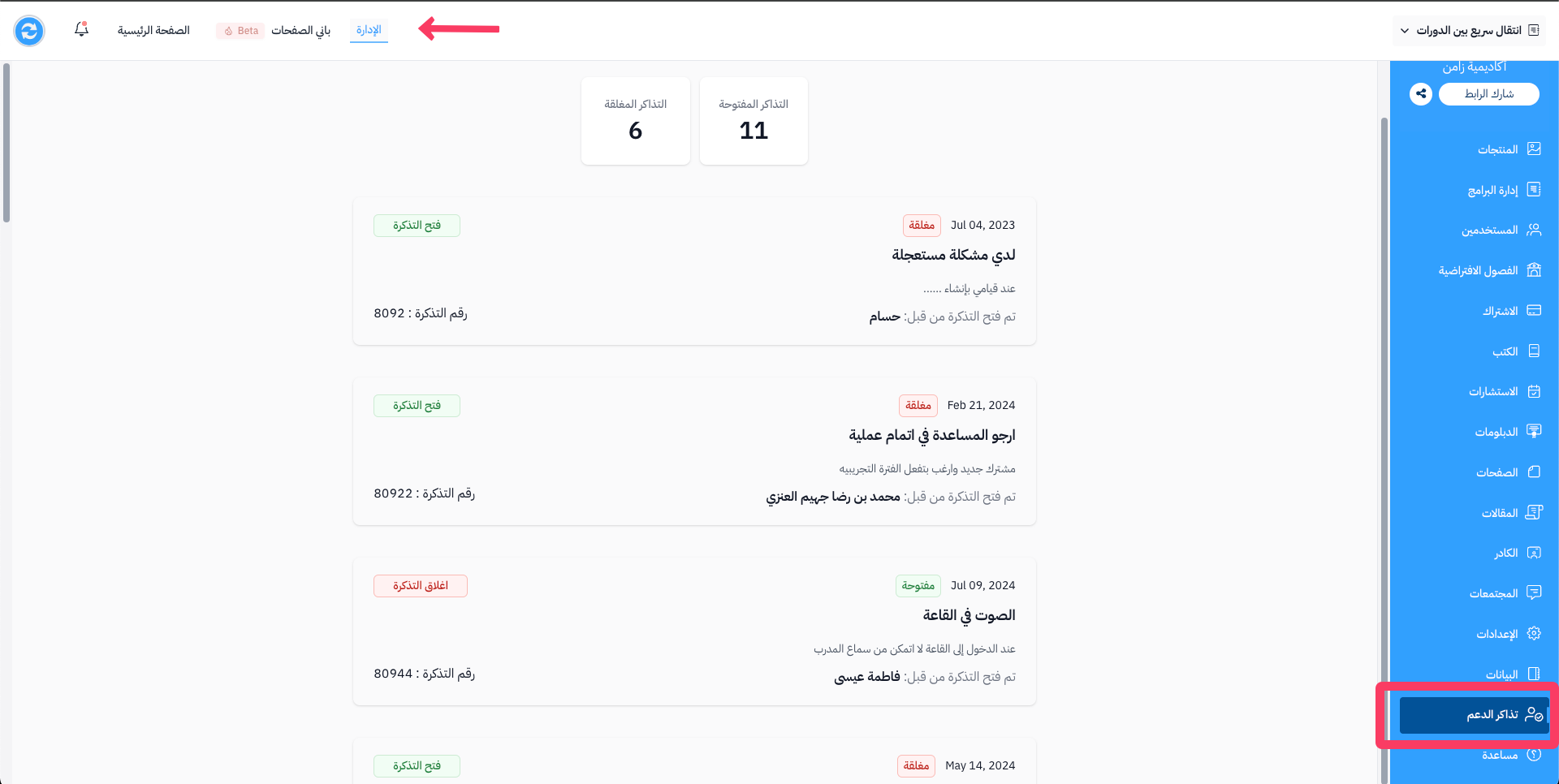
From the dashboard, click Helpdesk to see all tickets. Each ticket has its own number.
The number of Opened Tickets and Closed Tickets shows at the top of the page.
-
Click the ticket title to open it and add a reply, or click the ⋯ (Actions) button at the end of its row, then click View.
-
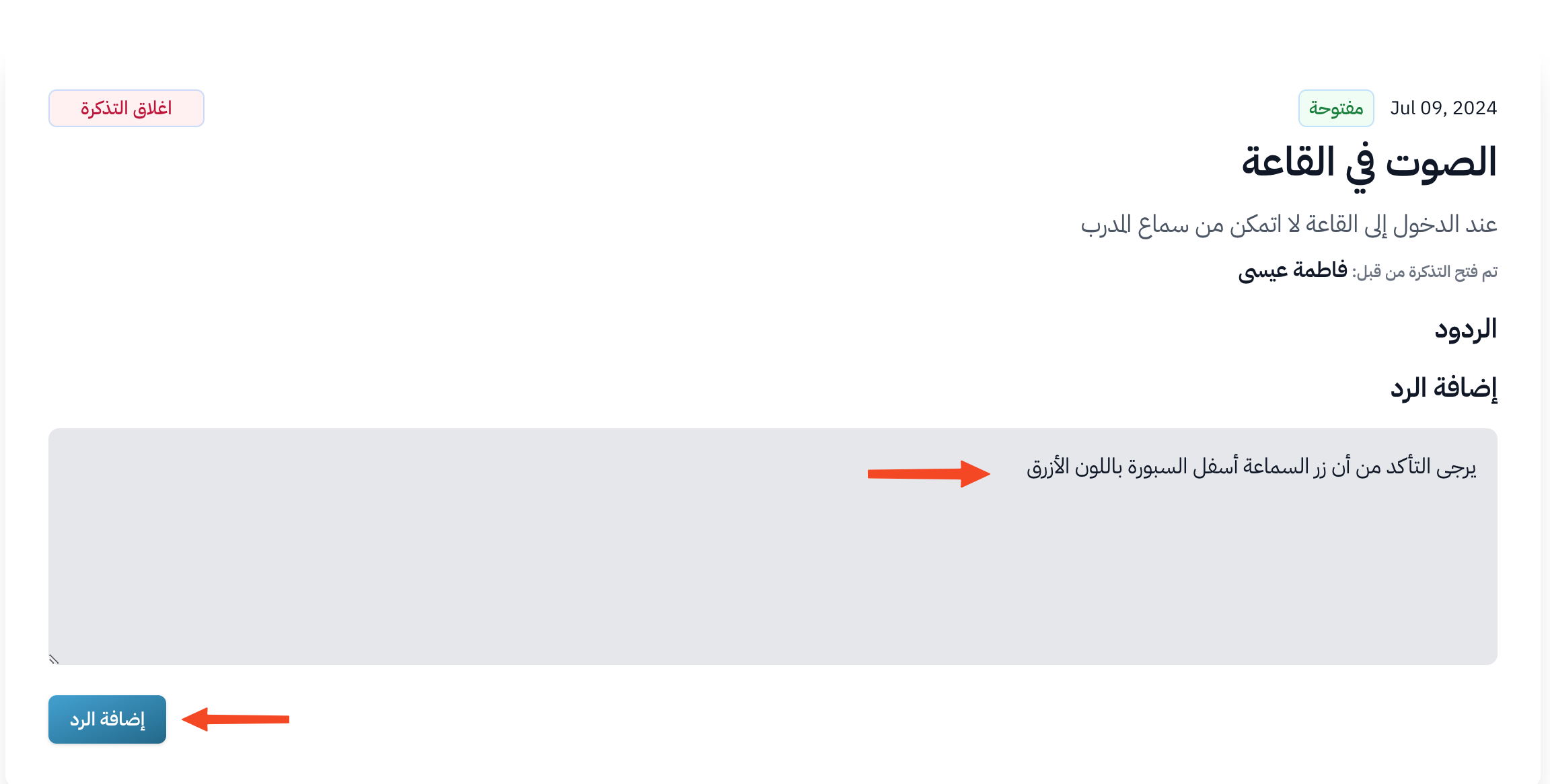
Write your reply, then click Send reply to send it to the student.
-
When you finish with the ticket, you can close it by clicking Close ticket next to the ticket title.
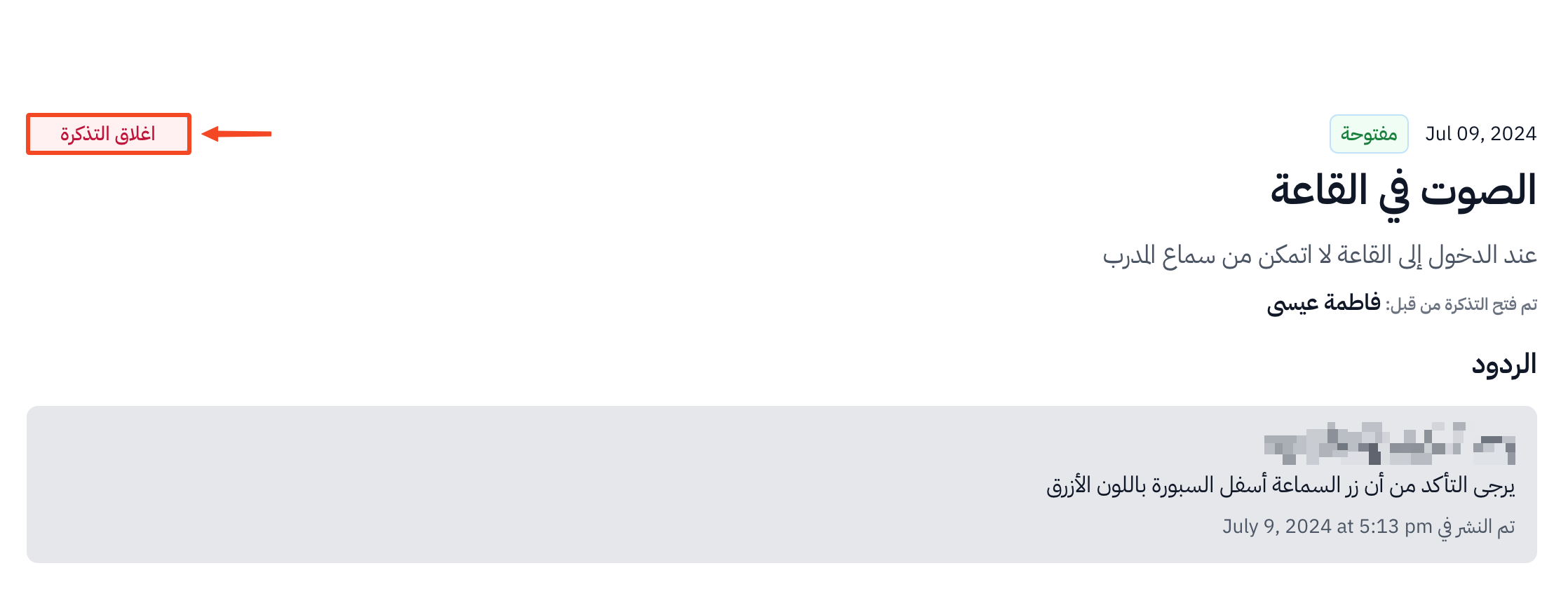
If an admin closes the ticket, the student can open it again just by adding a new reply. You can also open it again by clicking Reopen ticket.
Export support tickets
-
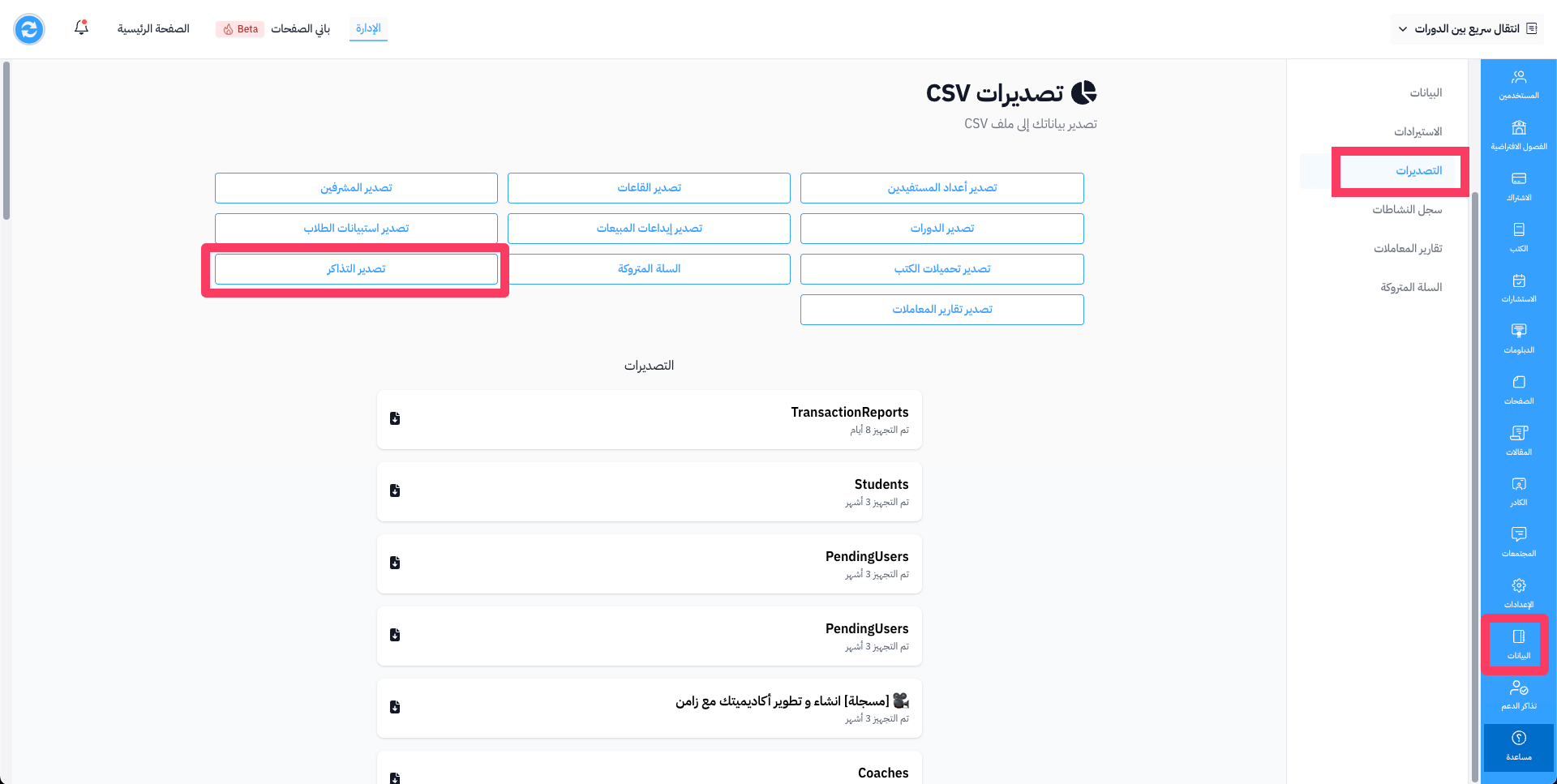
From the dashboard, click Data, then go to the Exports page.
-
Click New Export. A side panel opens with the export types.
-
Under Other, click Export next to Tickets.
-
The file shows as a row in the exports table. When its status is Ready, click ⋯ at the end of its row, then click Download.
The tickets feature is not in every plan. If your plan does not include it, the Helpdesk page shows a message that asks you to upgrade your plan.