Connect your platform with H5P
H5P offers a set of tools and services to create interactive learning content that is easy to use on the web. It is widely used in e-learning, schools, universities and more.
How to connect with H5P on Zamn
To connect H5P with your platform on Zamn, follow two main steps:
- Create an account on H5P.
- Turn on the connection between H5P and your platform on Zamn.
1. Create an account on H5P
-
On the H5P home page, click Create free account.
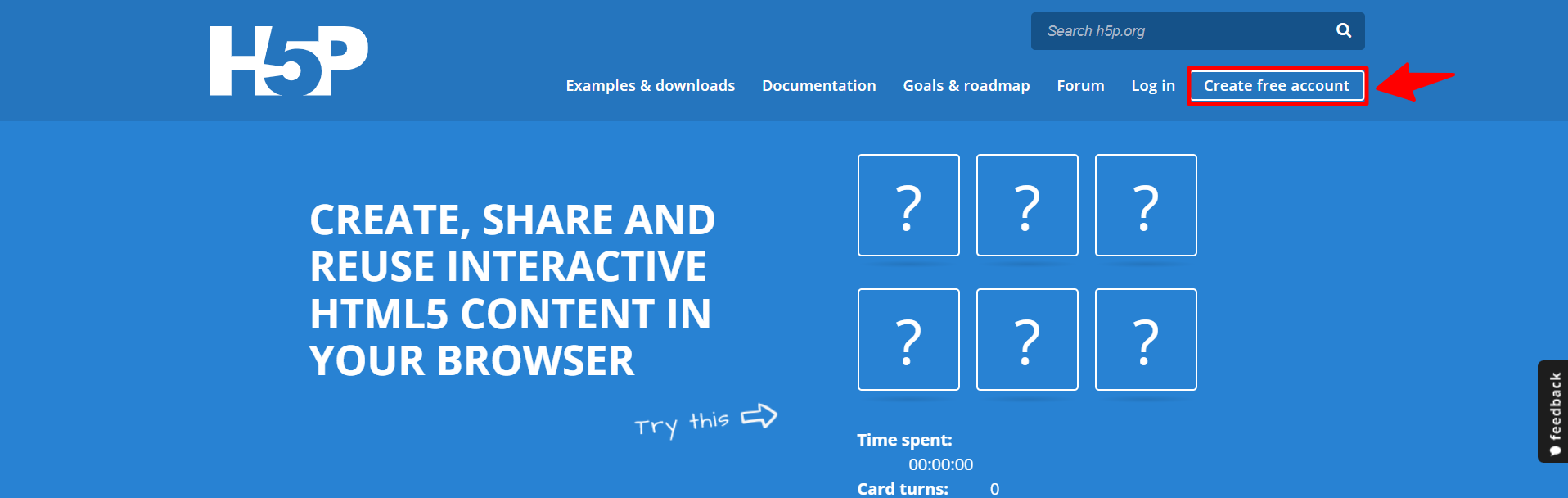
-
Enter the needed details:
- Username.
- The email address that H5P will use to contact you.
- Password.
- Confirm password.
- A description of the content you offer (optional).
- Subscribe to the H5P newsletter to get their latest news (optional).
- The CAPTCHA question, a test to check that you are a real visitor and to stop automatic spam.
-
After you enter all the details, click Create new account.
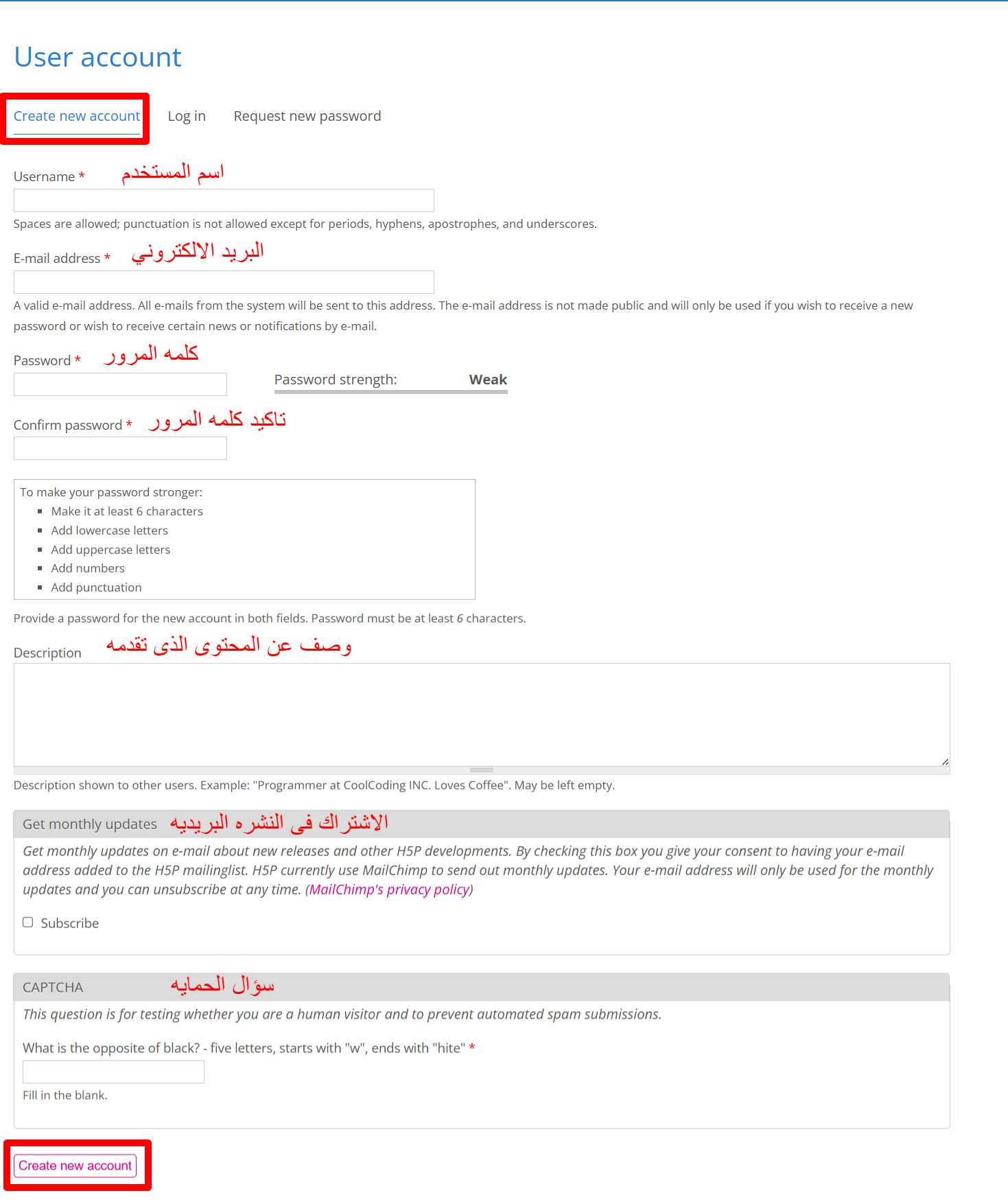
Make sure all the details you enter are correct and up to date.
You will get an email with more instructions.
2. Create interactive content on H5P
-
After you sign in to the site, go to your account, My account.
-
To create new content, click Try out H5P or the Contents tab.

-
Choose the type of interactive content you want to create from the list (such as quizzes, interactive videos…).
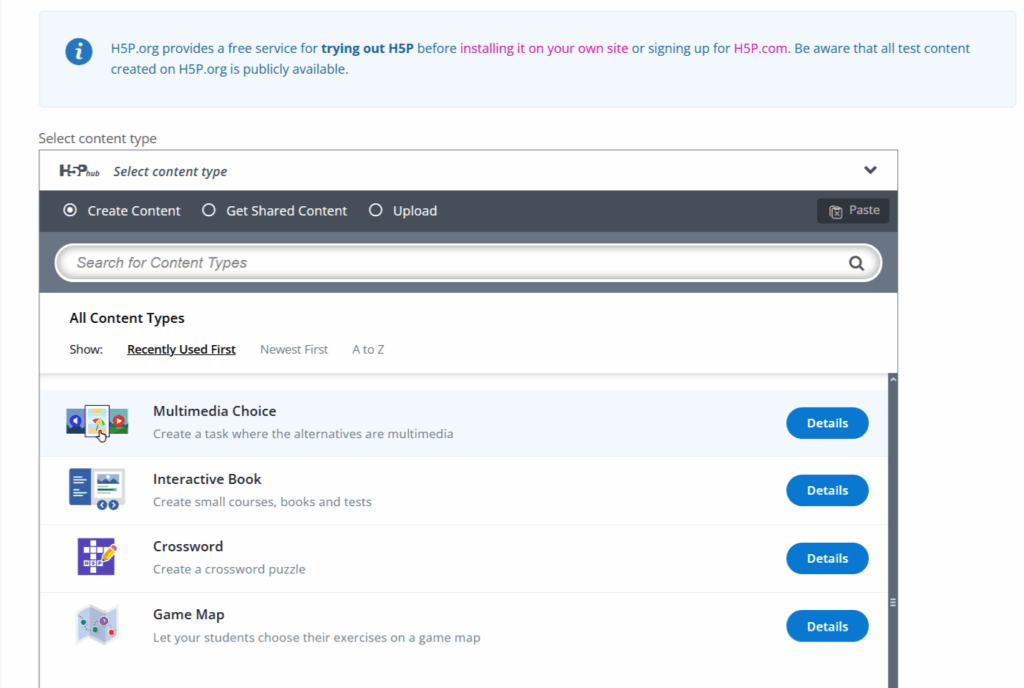
3. Embed the content in your platform
-
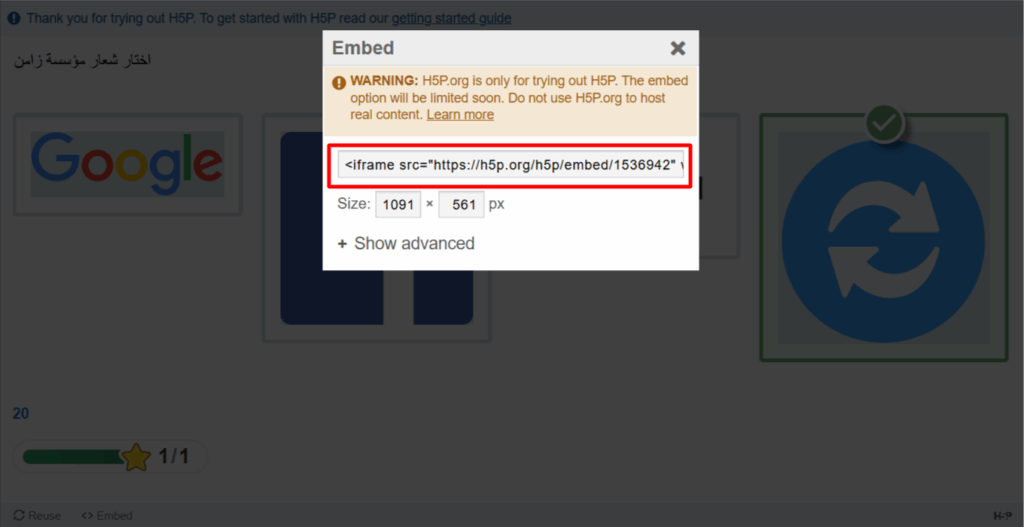
Click Embed under the content.
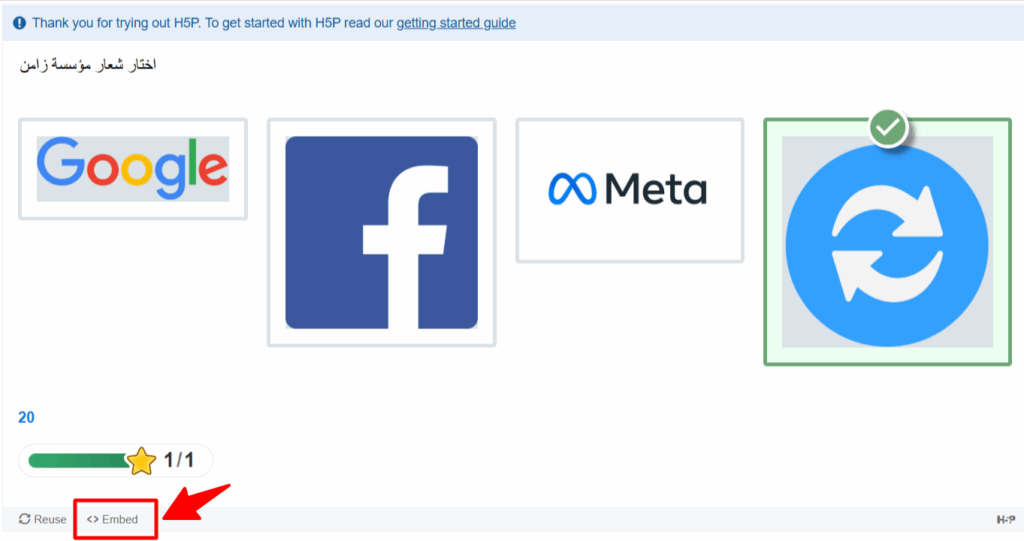
-
Copy the embed code (iframe) that shows.
-
Paste the code in your platform to show the interactive content in lessons or pages. For example, to add it to a lesson: from the Content tab of the target, click IFrame, paste the code in the Code to embed field, then click Save.
To show content with an embed code (iframe), your platform must use a custom domain. The embed does not work well if the platform uses a subdomain.
Sign up for H5P.com
You can sign up for h5p.com to get more interactive content.
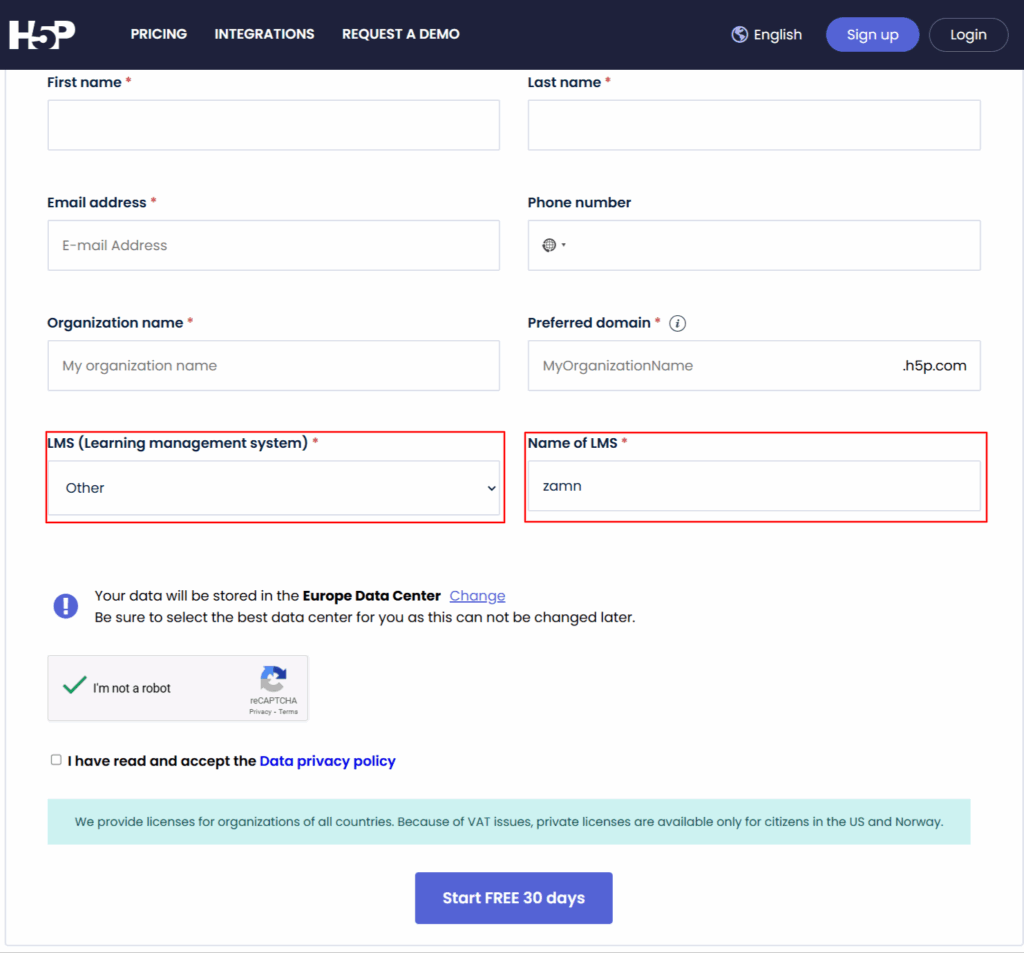
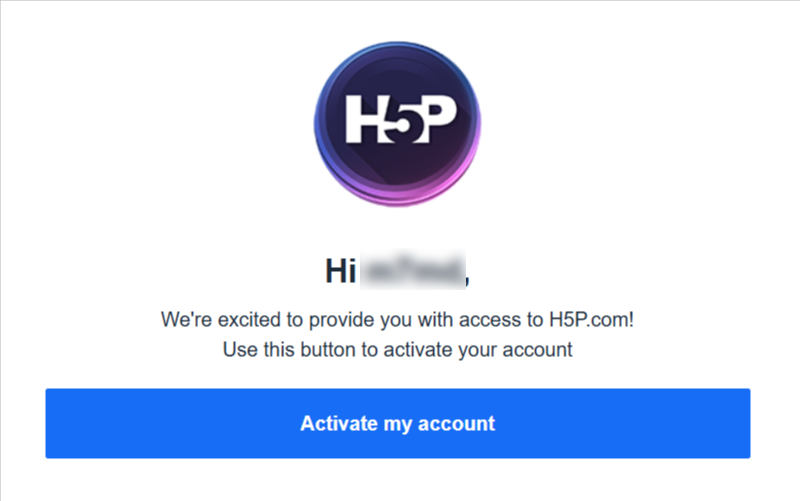
You will get an email with instructions to activate your account.
Create interactive content on H5P.com
-
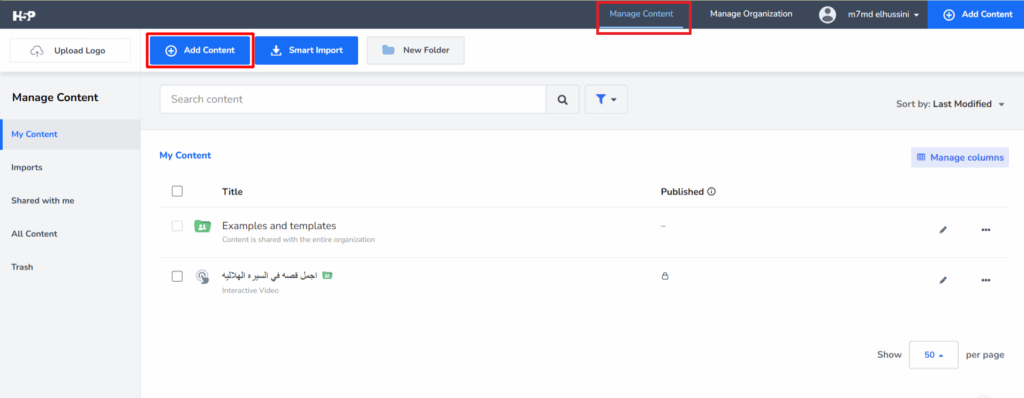
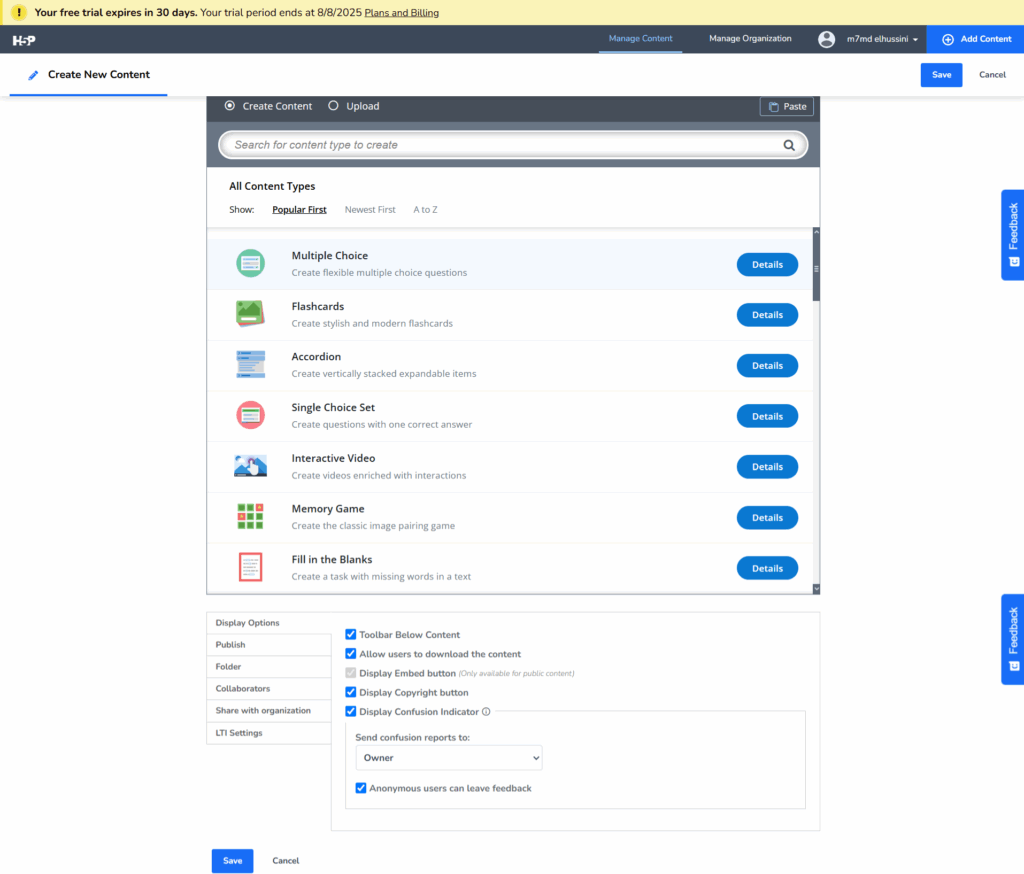
To create new content, choose Manage Content, then Add Content.
-
Choose the type of interactive content you want to create from the list (such as quizzes, interactive videos, learning games…).
Embed H5P.com content in your platform
- Click Embed, then copy the embed code (iframe) that shows.
- Paste the code in your platform to show the interactive content in lessons or pages, as in the steps above.