Connect with Google Sheets
Connect your platform with Google Sheets to export your students' data to a Google Sheets file, all the time and automatically. These steps are for the platform admin.
Steps to connect with Google Sheets
-
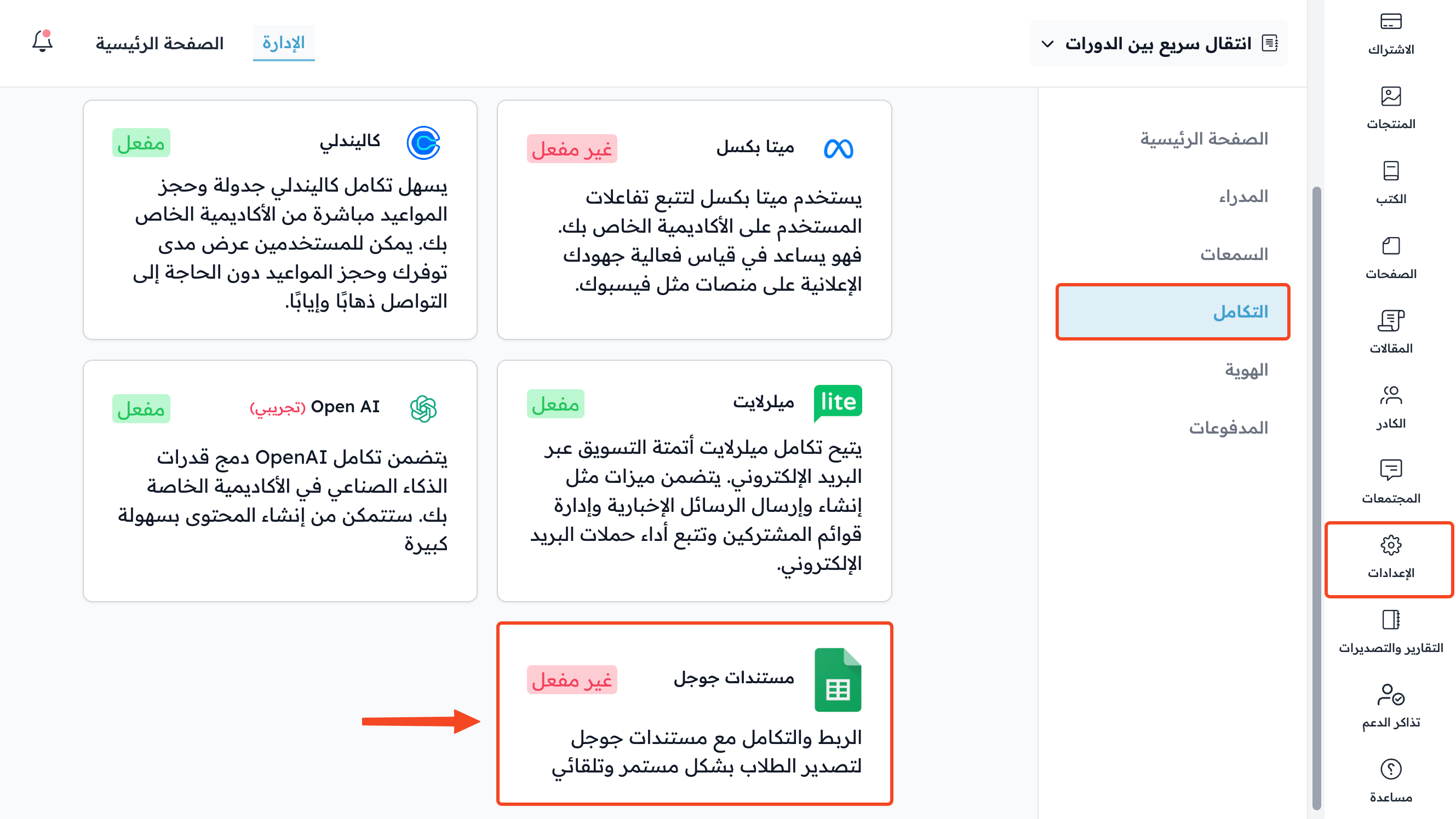
From the dashboard, click Settings.
-
Go to the Integrations page.
-
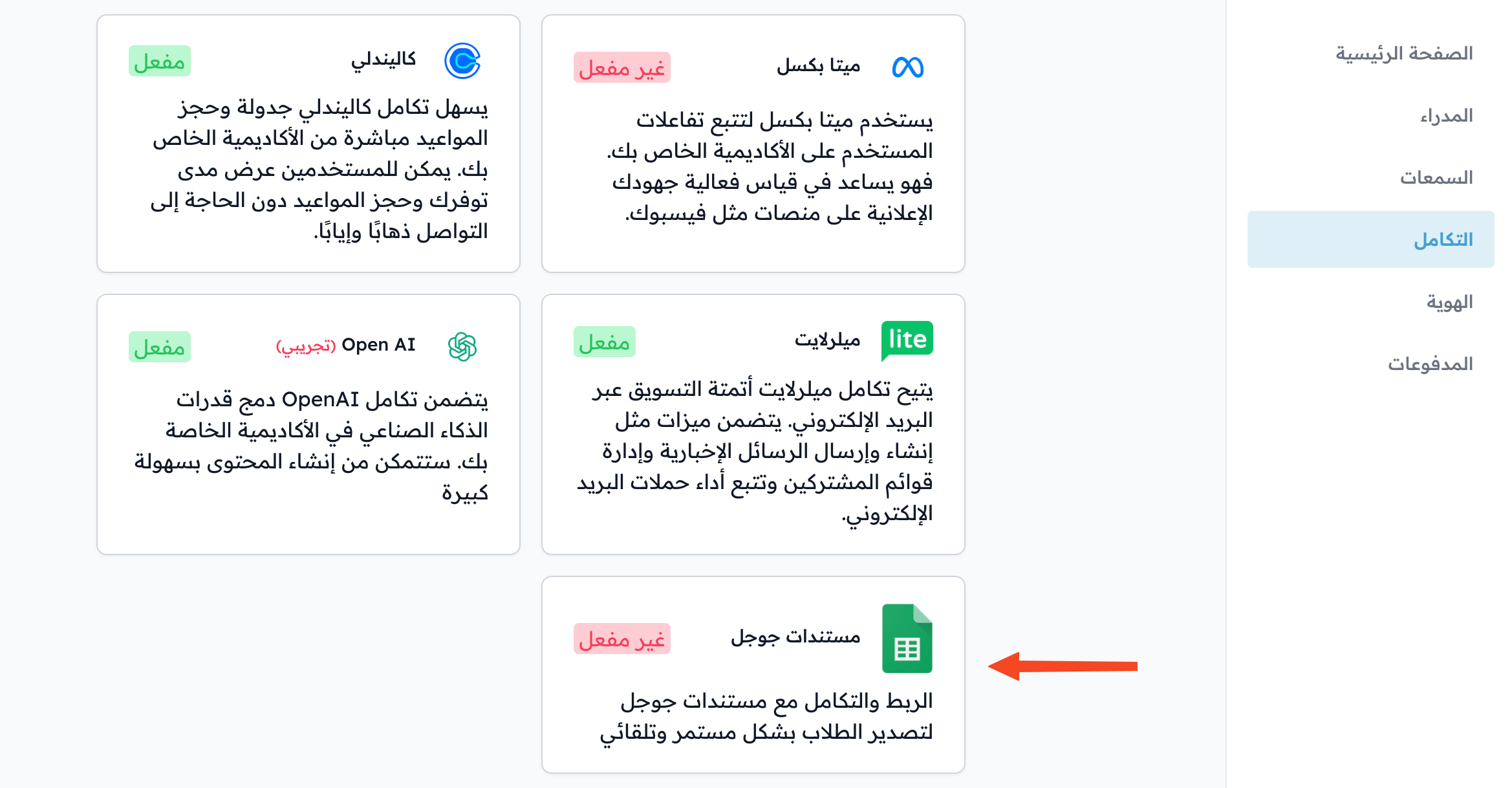
Click Google Sheets.
-
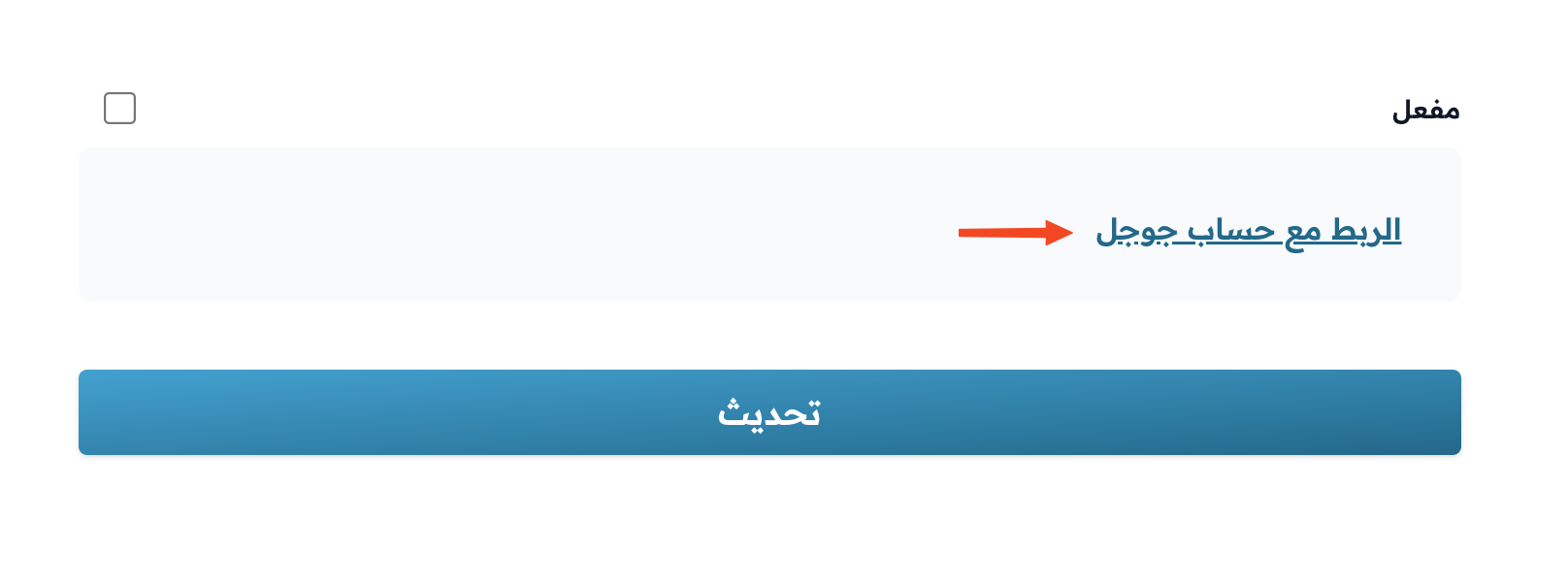
Click Authenticate with Google.
-
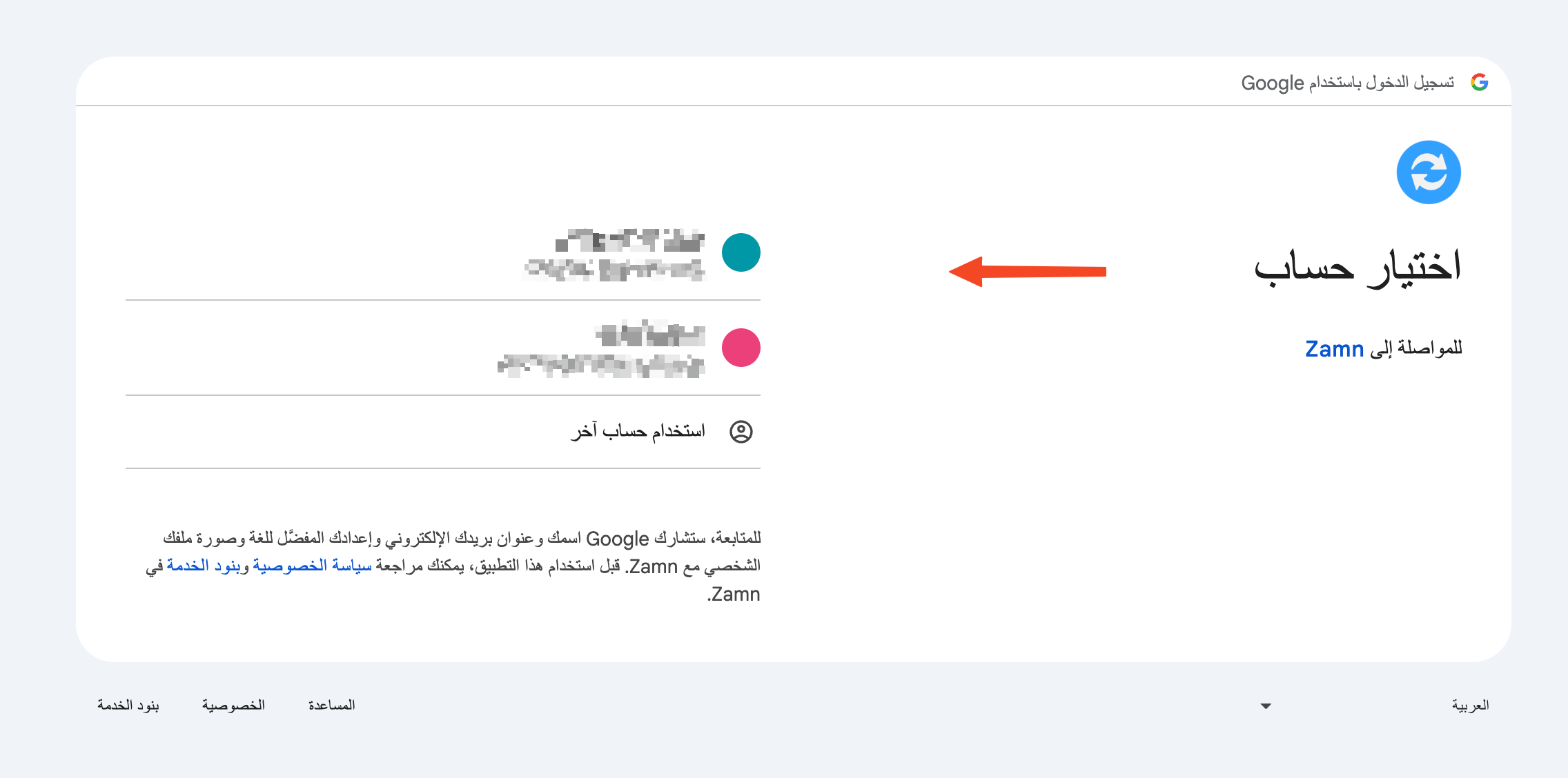
Choose the Google account (email) you want to connect.
-
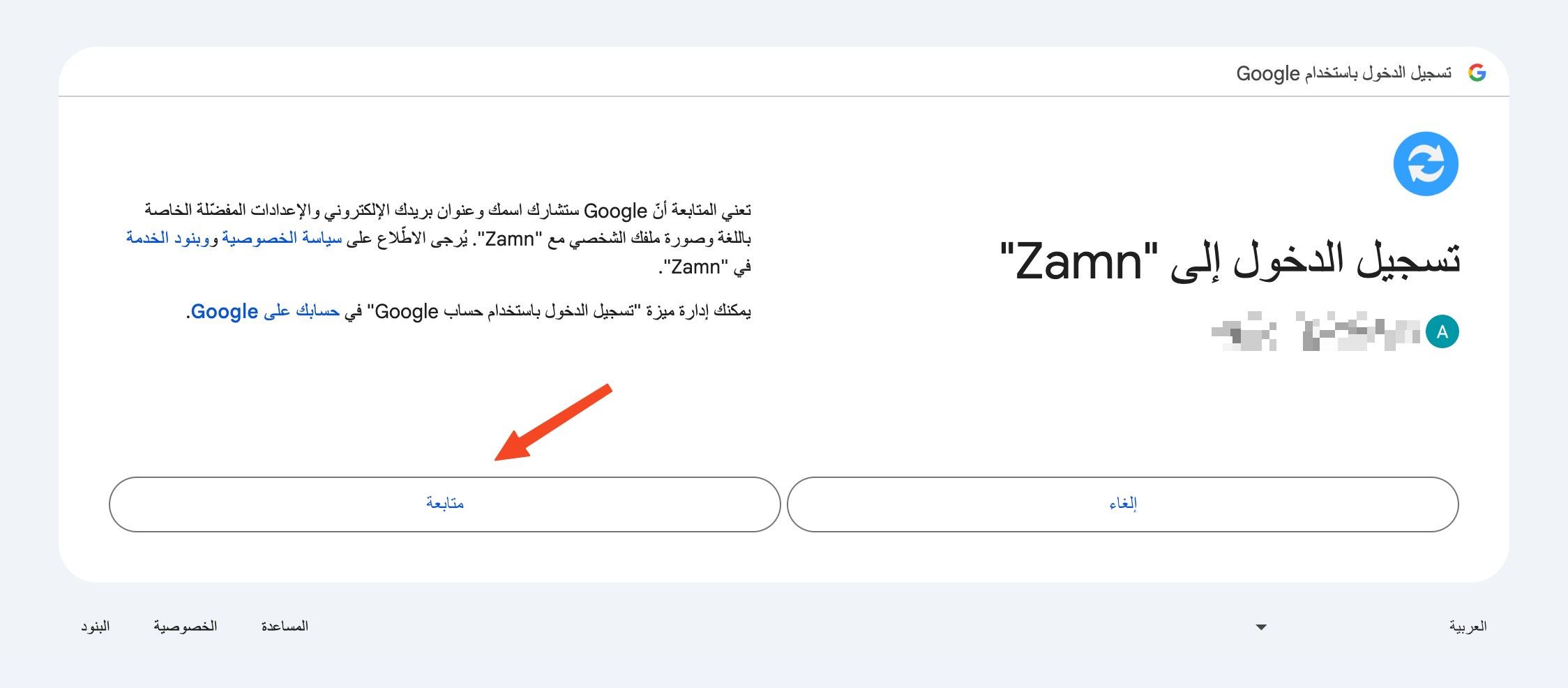
Click Continue to approve the sign-in.
-
Click Continue to approve the permissions request.
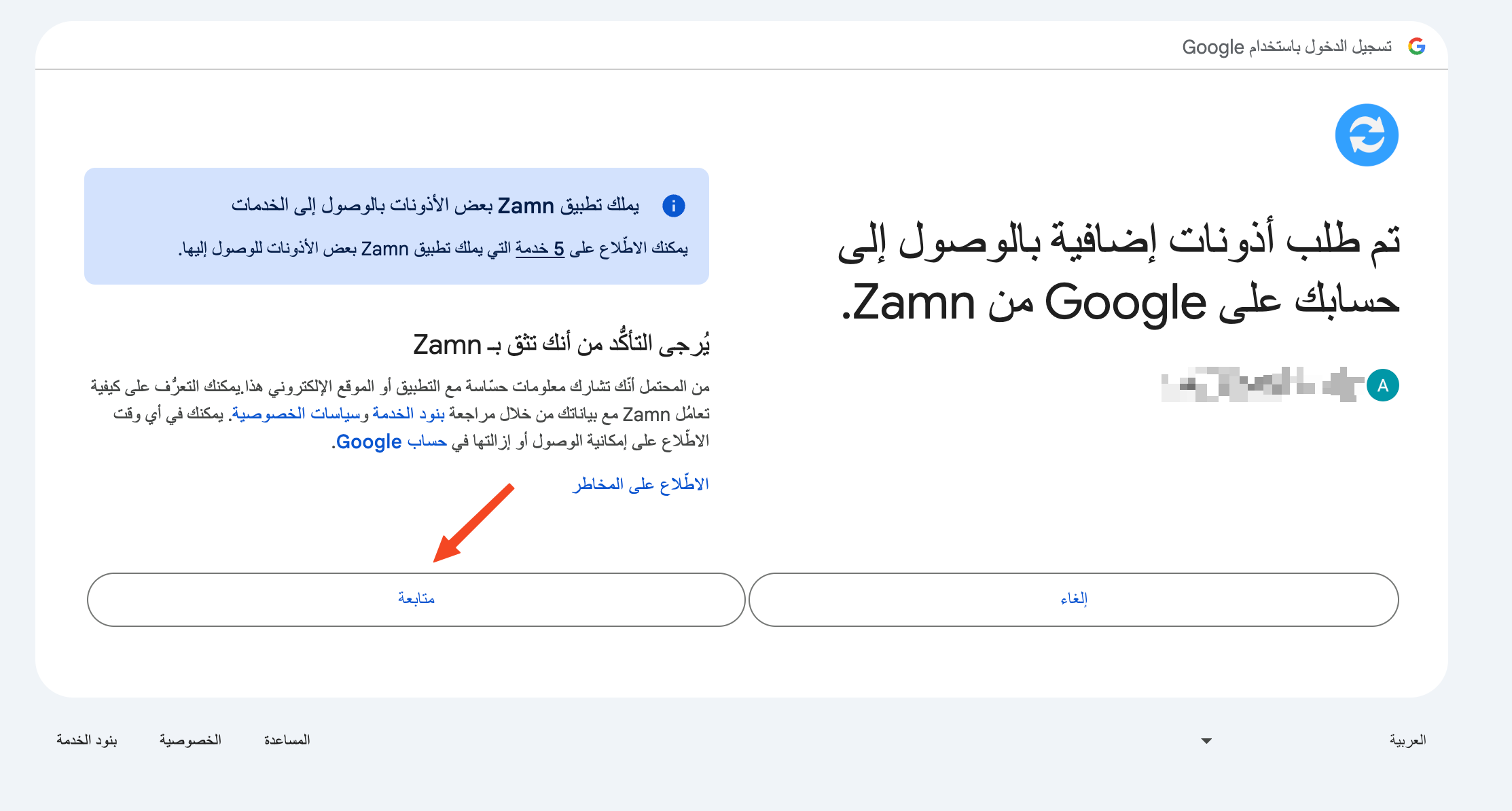
A message shows that the connection was successful.

-
To turn on the integration, click Google Sheets again.
-
Turn on the Enabled option, then click Update to save.
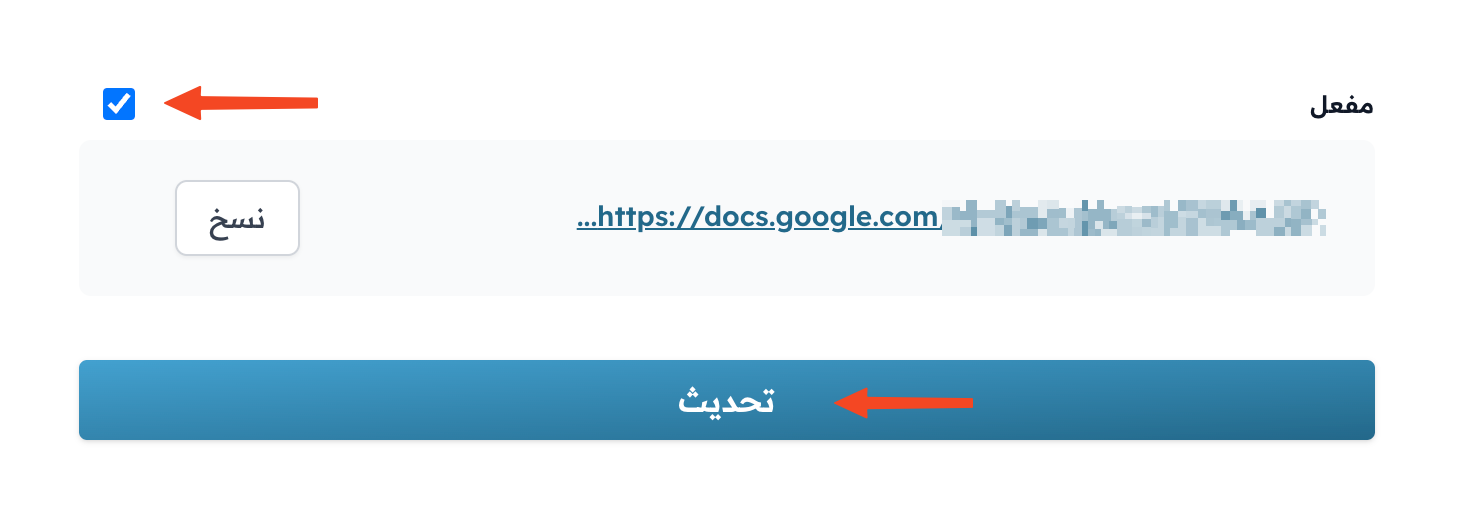
After you save, the link to the Google Sheets file shows in the window, and you can copy it with the Copy button.
Allow all the permissions that Google asks for. If you do not give the needed permissions, the connection fails and you need to try again.
This integration is not in every plan. If your plan does not include it, the window shows a message that asks you to upgrade your plan.