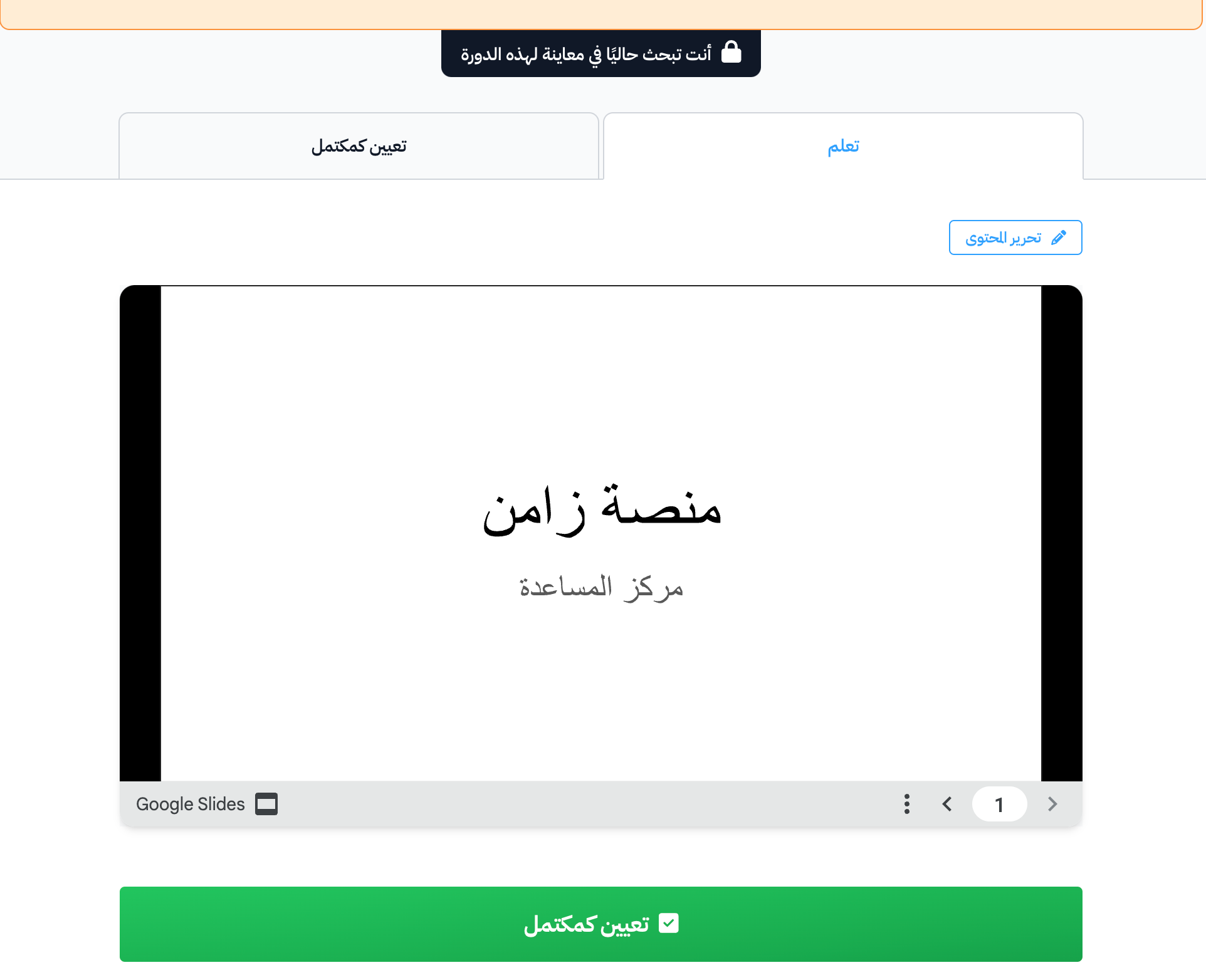
Embed a file from Google Drive
You can show a file from Google Docs, Google Slides or Google Sheets inside your course. Publish it to the web, then embed its link in the target content.
Steps to embed a Google Docs, Google Slides or Google Sheets file in a course
In the Google file
-
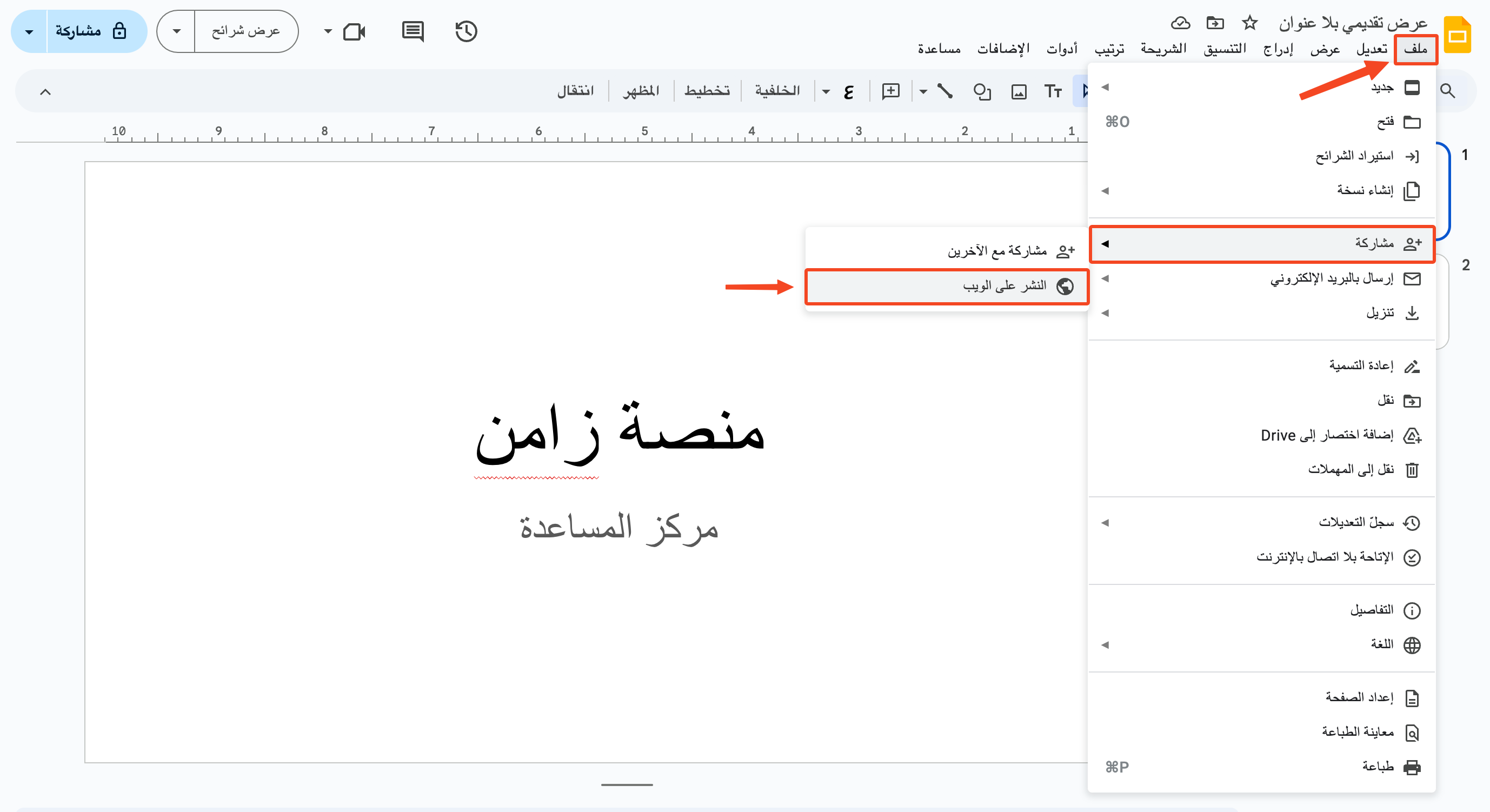
Open the file you want to share, then click File in the top bar.
-
Choose Share.
-
Click Publish to web.
-
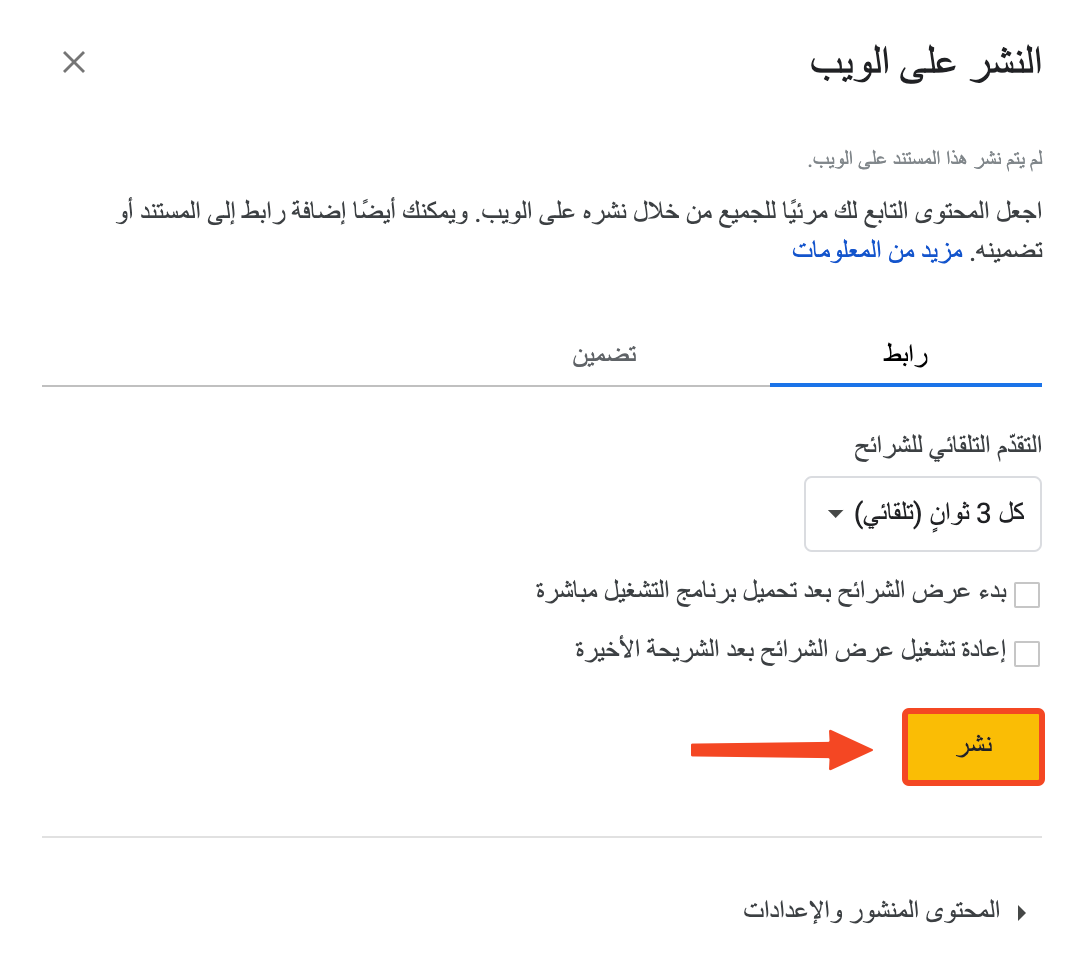
A window opens to confirm. Click Publish.
-
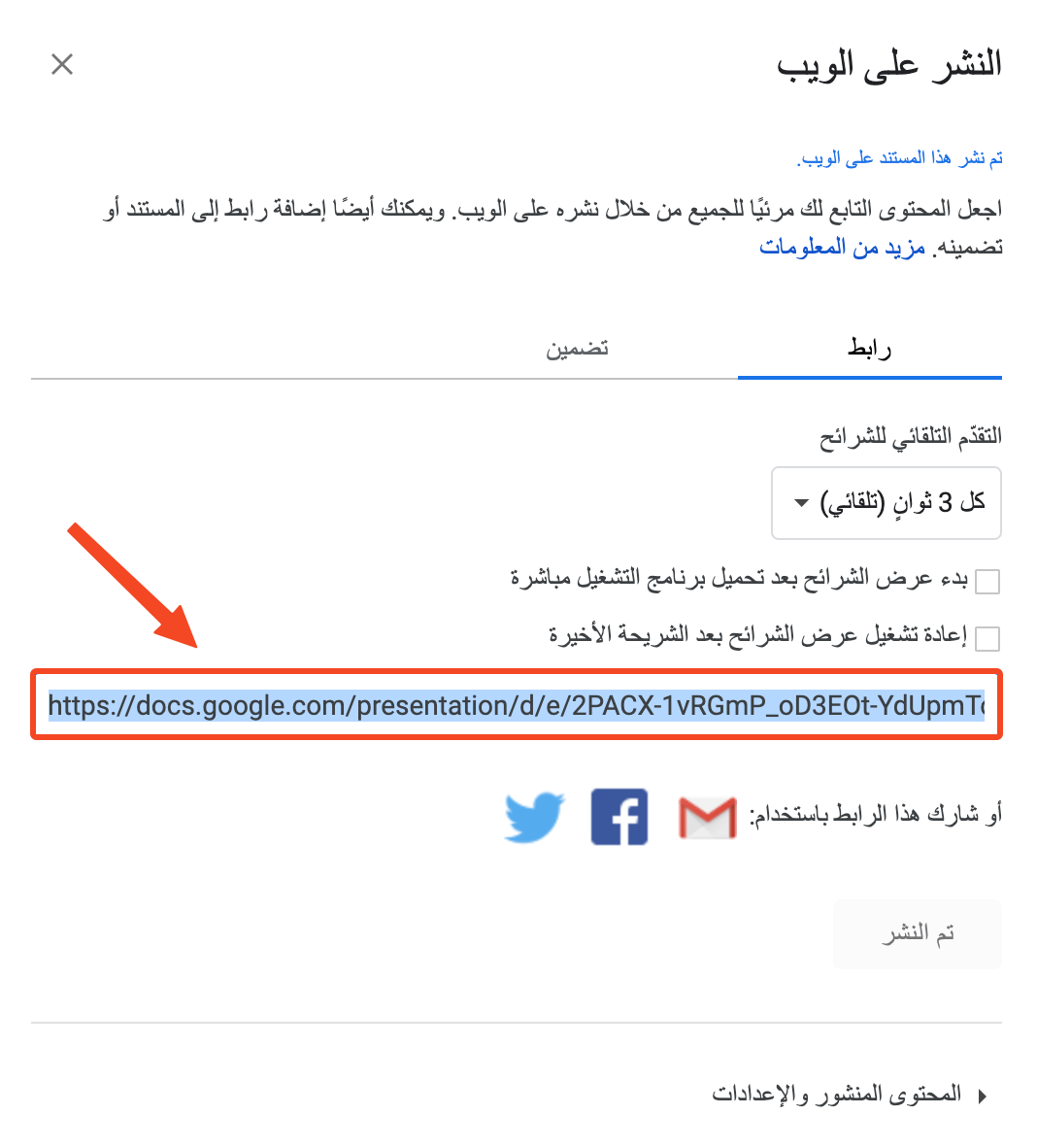
Copy the link that shows, then go back to your platform.
In your platform
-
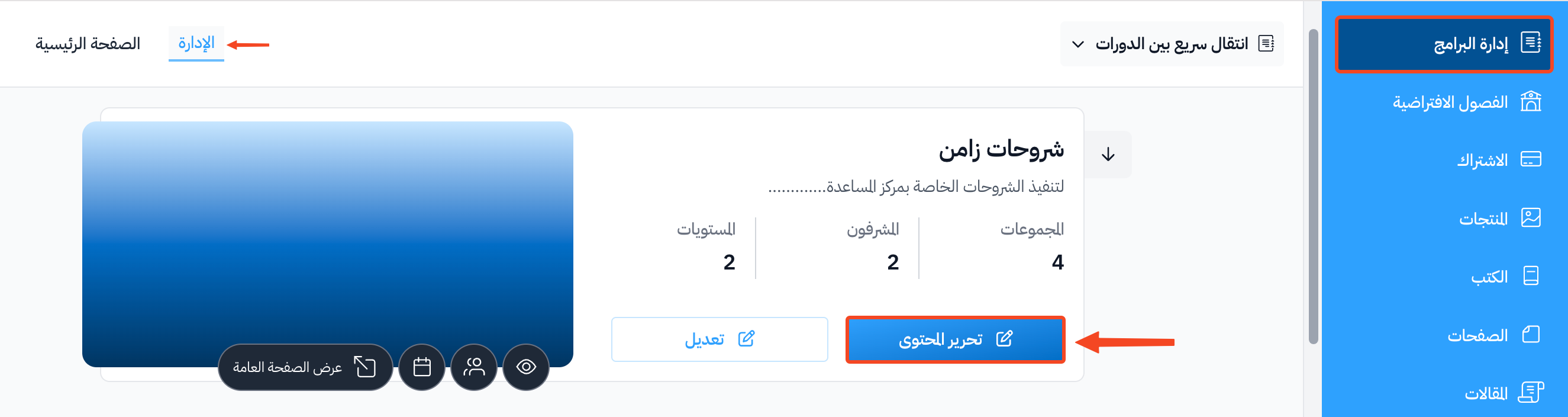
From the dashboard, click Courses.
-
Click Edit Curriculum for the course.
-
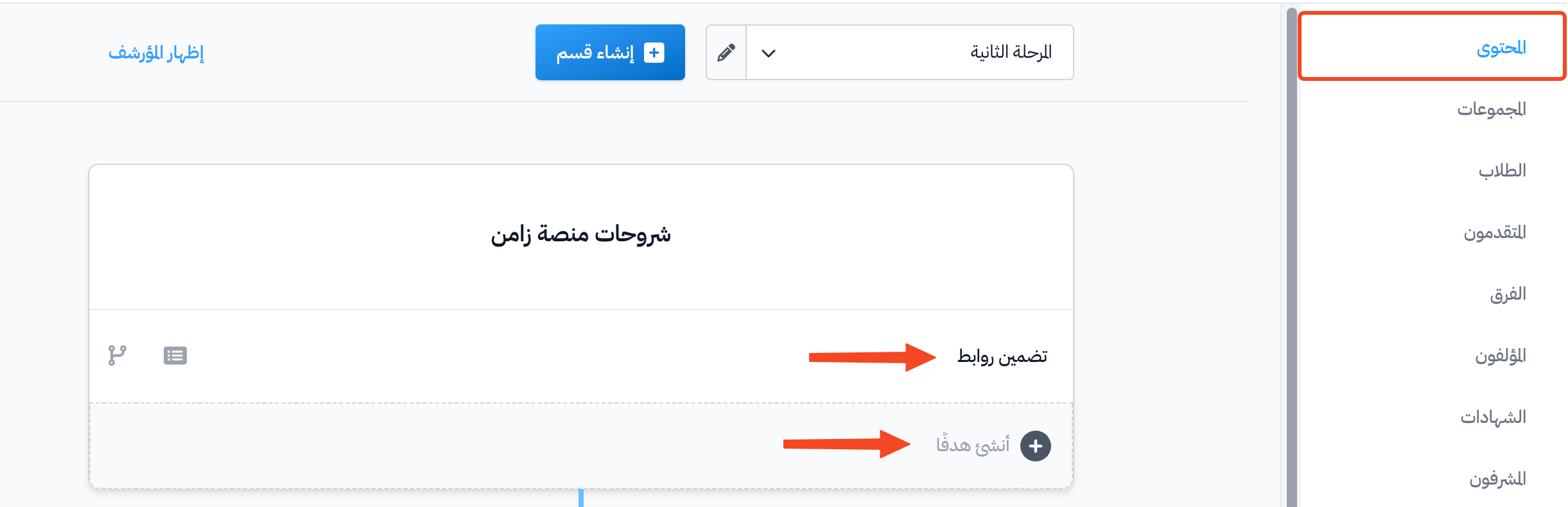
Click the target you want to edit, or type the title of a new target in the Create target field and click Create.
-
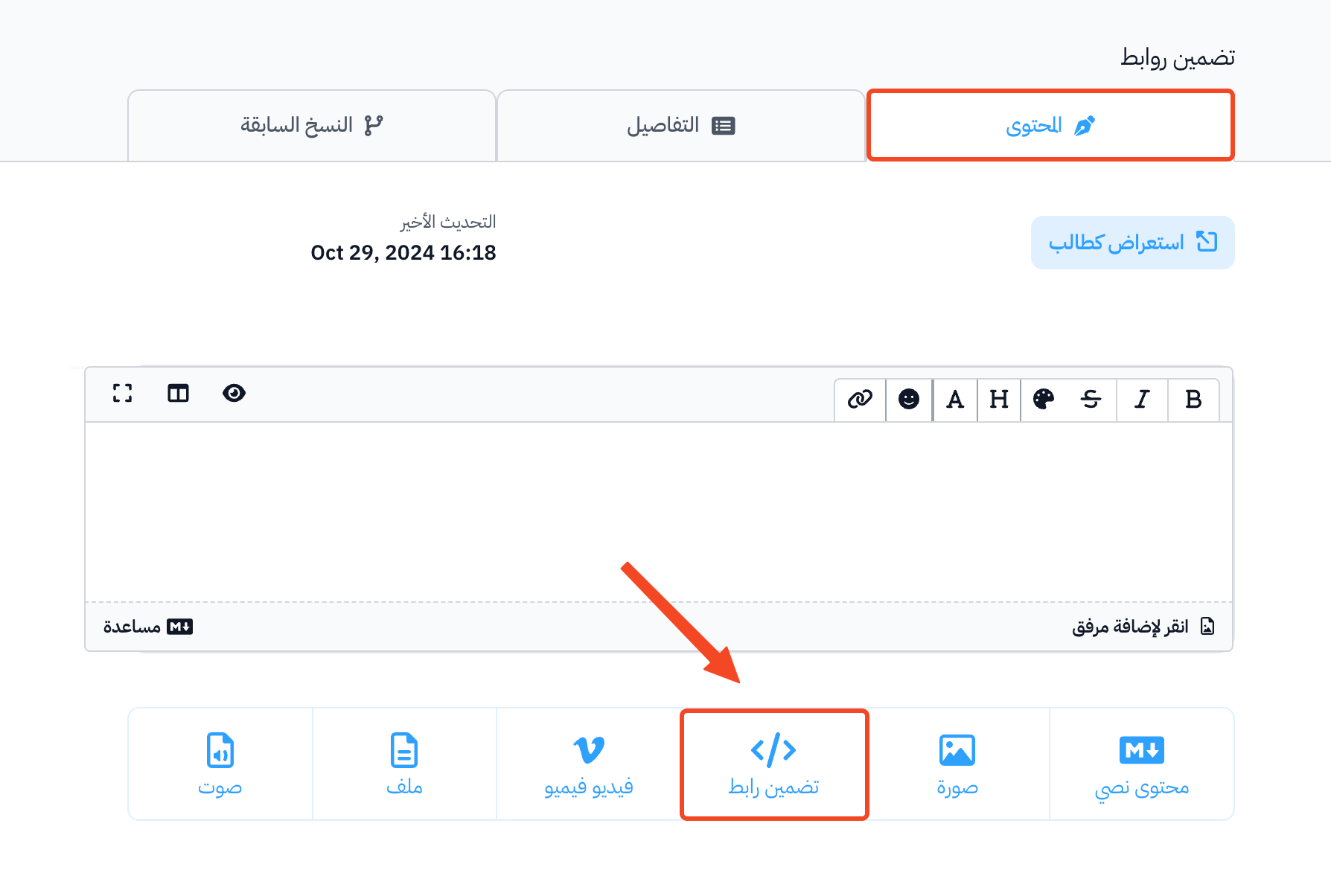
In the Content tab, click Embeded Link.
-
Paste the link you copied in the URL to Embed field, then click Save.
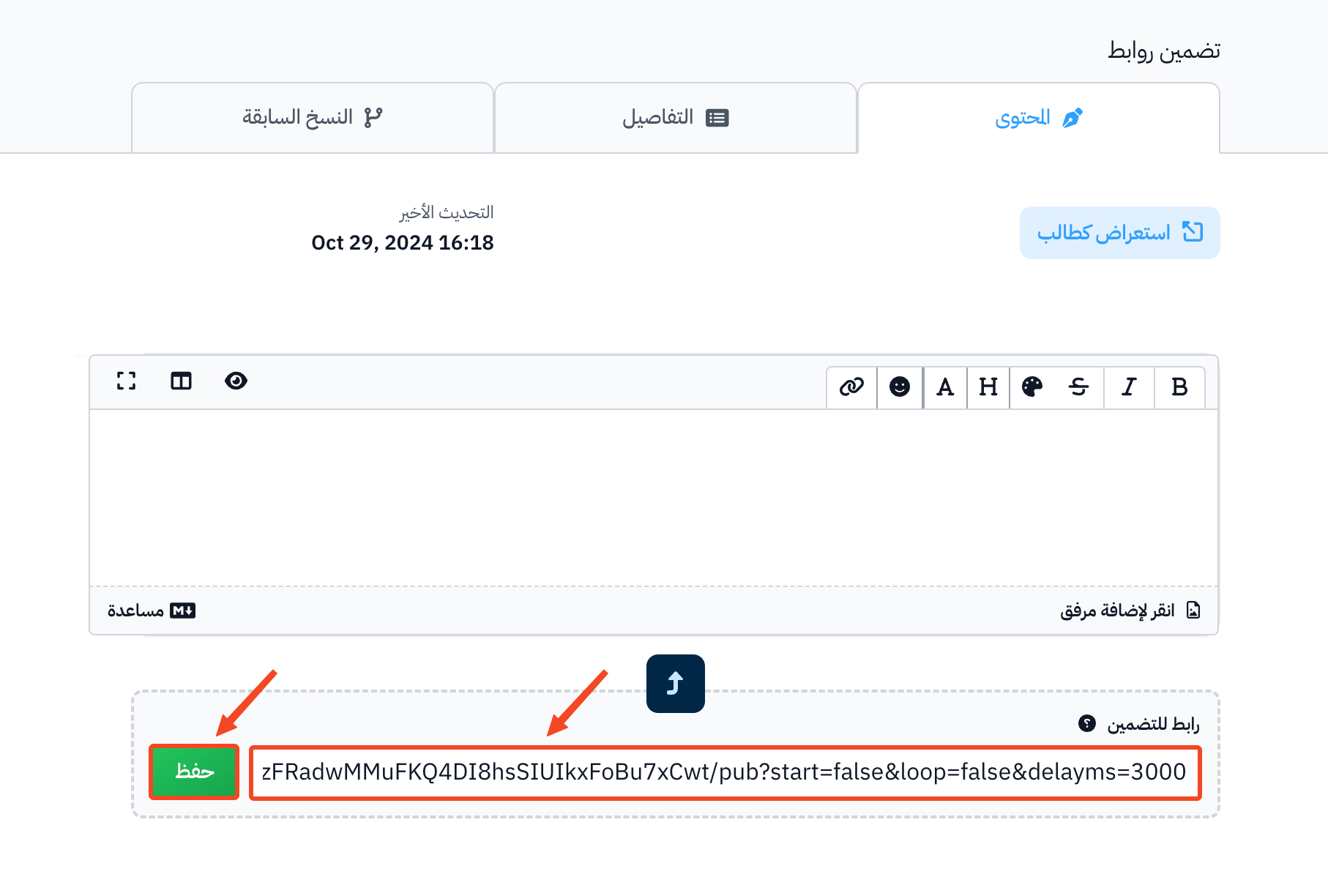
The file shows inside the target for students.