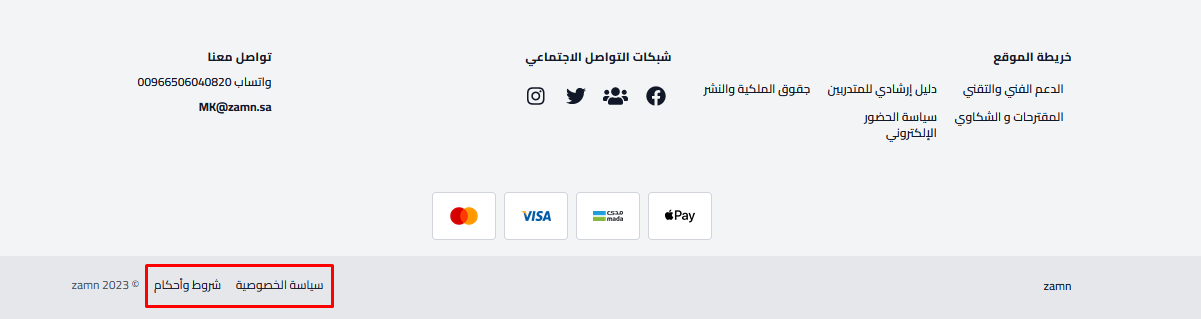
Footer links and contact details
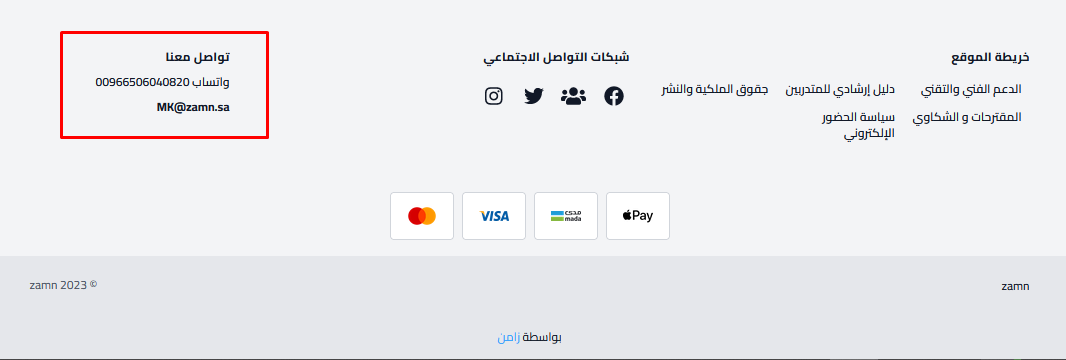
You can add links to the header and to the footer (the bottom of the page) of your platform, and add links to your social media accounts and your contact details. You can also add a privacy policy and terms and conditions, and their links show at the bottom of the footer.
Open the links window
-
From the dashboard, click Settings.
-
Choose Customization.
-
Click Edit next to Sitemap.
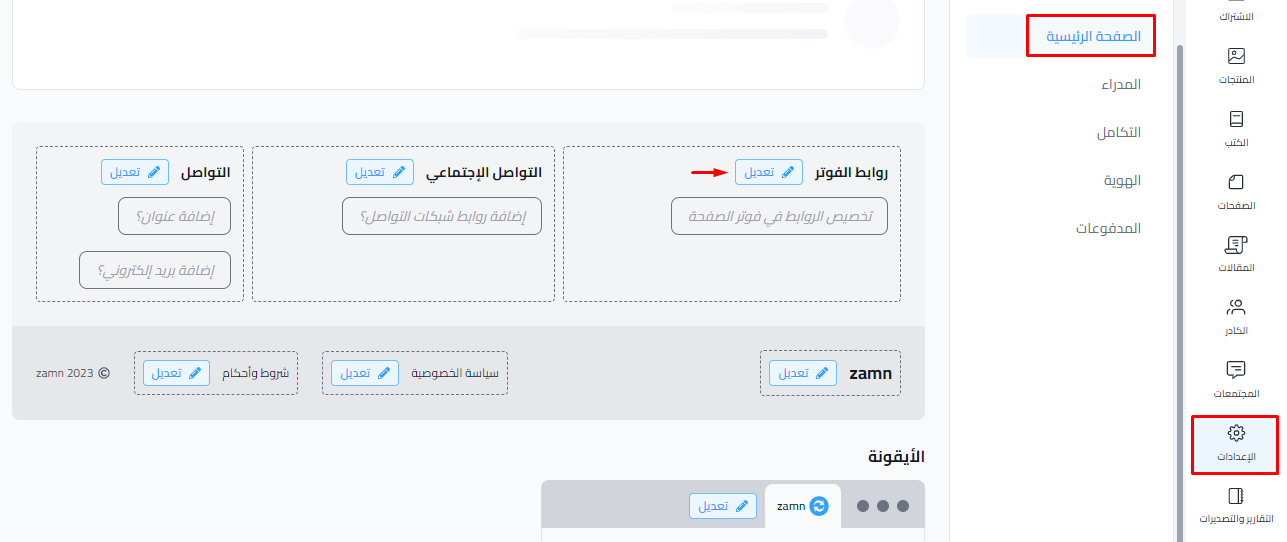
The Manage custom links window opens. Under Location of Link, choose where you want to add the link.
Header links
-
In the Manage custom links window, choose the Header tab.
-
Type the Title that visitors see, up to 24 characters.
-
Put the full link in the Full URL field, starting with
https://. -
Click Add a New Link.
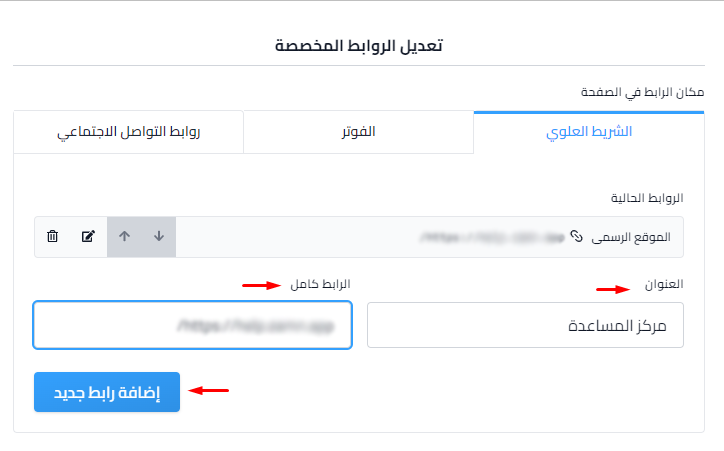
The link shows in the header of your platform.

Footer links
-
In the Manage custom links window, choose the Footer Sitemap tab.
-
Type the Title.
-
Put the full link in the Full URL field.
-
Click Add a New Link.
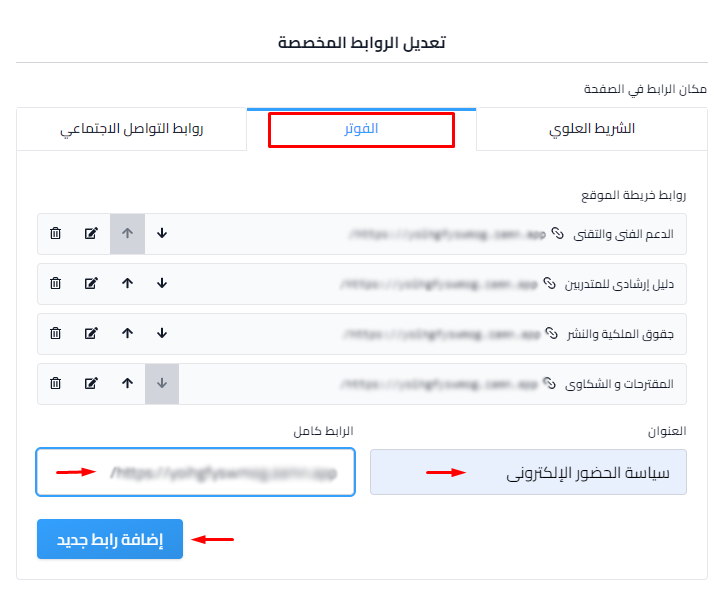
The link shows in the footer of your platform.

Social media links
-
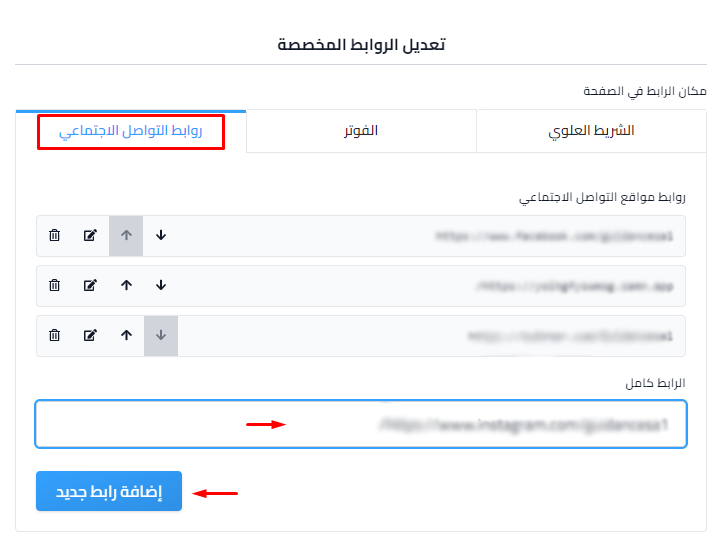
In the Manage custom links window, choose the Social tab.
-
Put the link to your platform's account on the social media site in the Full URL field.
-
Click Add a New Link.
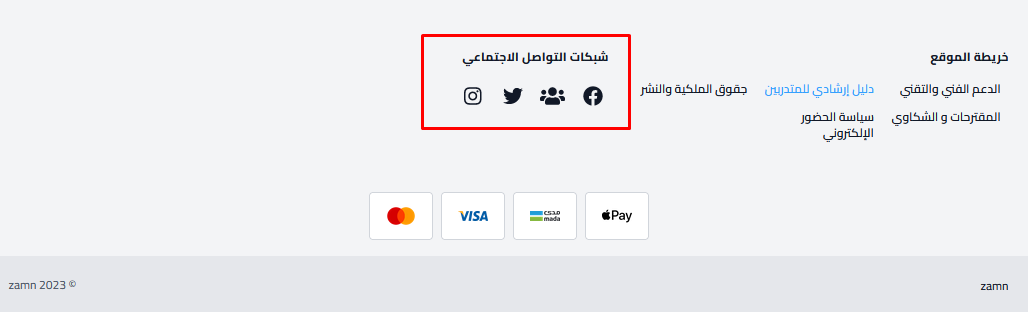
The social media icons show in the footer of your platform.
Contact details
-
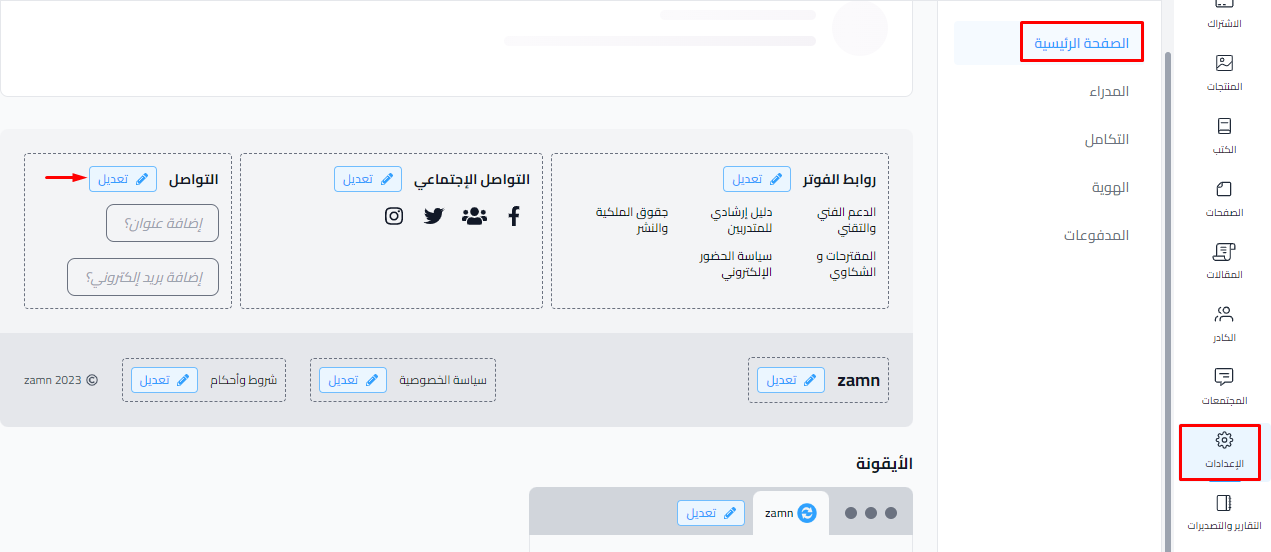
In the Customization settings, click Edit next to Contact.
-
Type your contact details in the Contact Address field, like a phone number or an email address.
-
Click Update Contact Details.
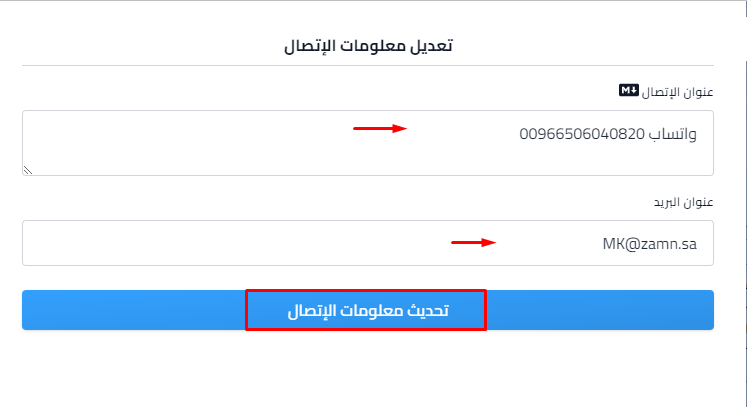
Your contact details show in the footer of your platform.
Privacy policy
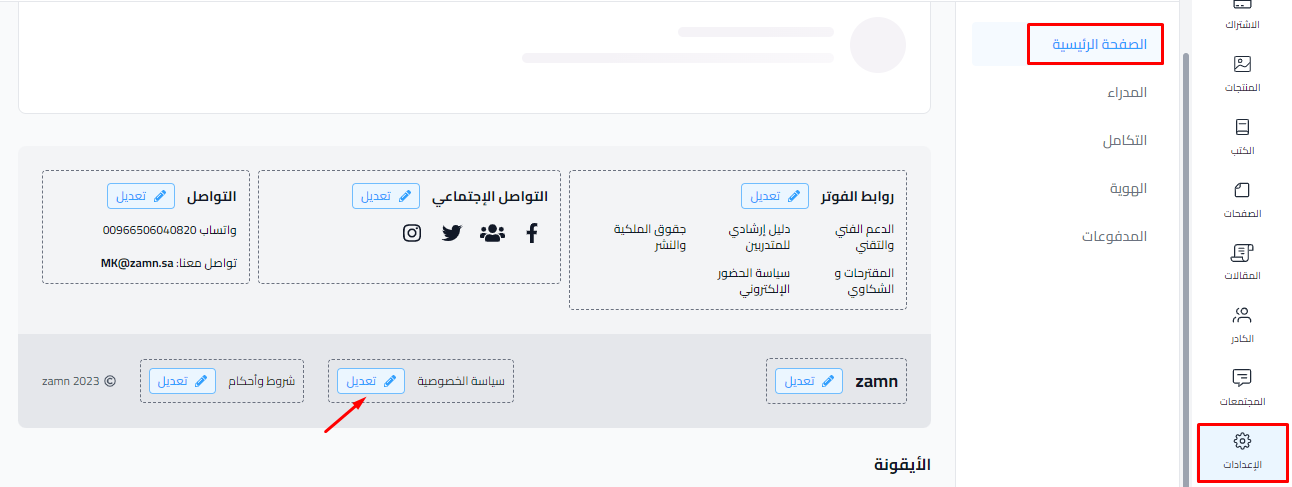
You no longer write the privacy policy in the Customization settings. Now you create it as a page of the Privacy Policy type, and its link shows at the bottom of the footer.
-
From the dashboard, click Pages, then choose Text Pages.
-
Click Create Page.
-
Type the Title, and choose Privacy Policy from the Type list.
-
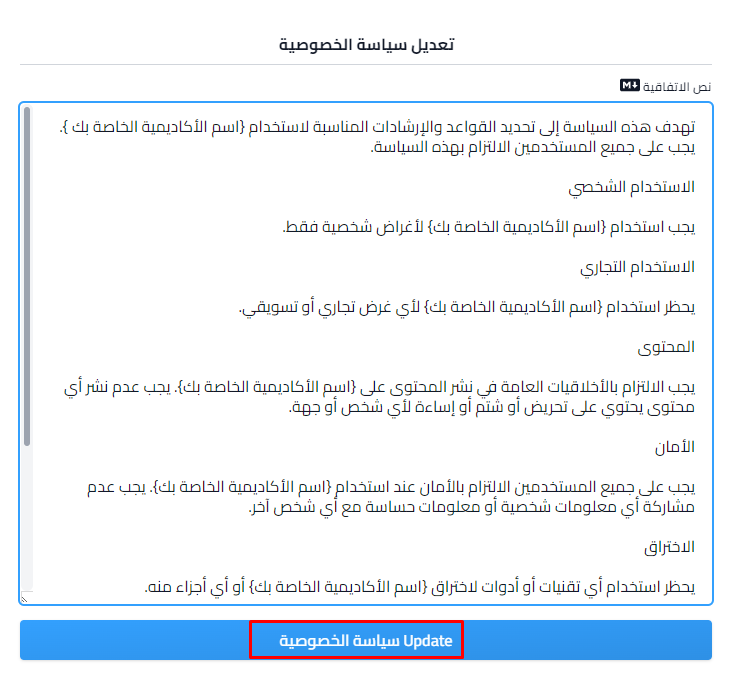
Write your privacy policy in the Content field.
-
Click Create.
See spaces and templates for your platform policies
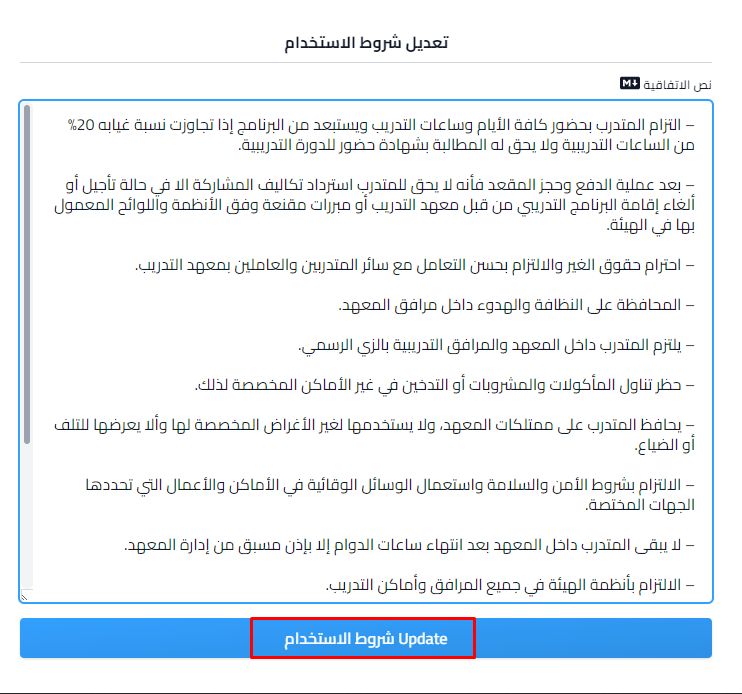
Terms and conditions
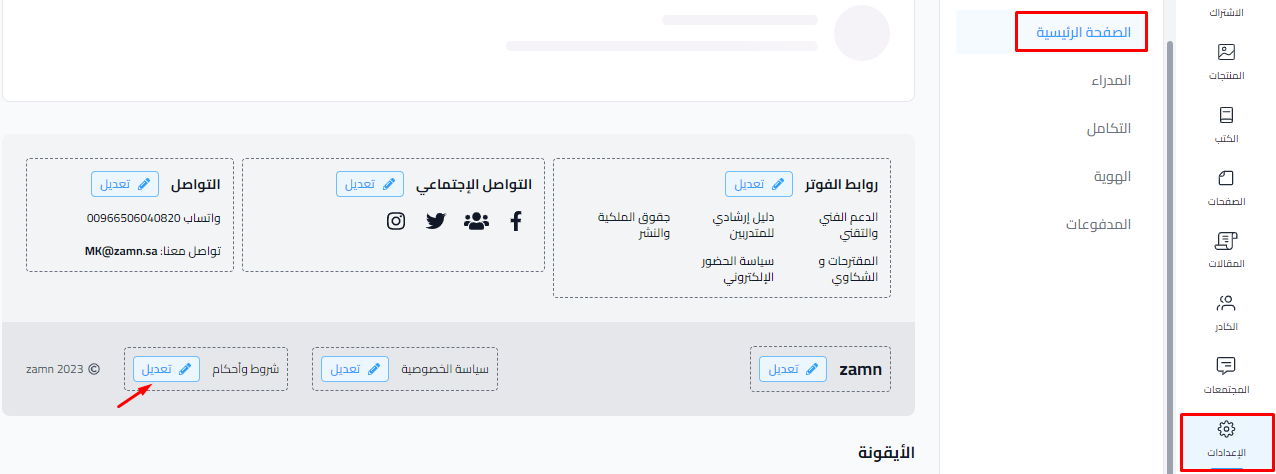
You no longer write the terms and conditions in the Customization settings. Now you create them as a page of the Terms And Conditions type, and their link shows at the bottom of the footer.
-
From the dashboard, click Pages, then choose Text Pages.
-
Click Create Page.
-
Type the Title, and choose Terms And Conditions from the Type list.
-
Write your terms and conditions in the Content field.
-
Click Create.
The privacy policy and terms and conditions links show at the bottom of the footer of your platform.