Export course reports
You can export the data of any course to one file with its targets, students and submissions, so you can follow the progress of your students outside the platform.
Steps to export course reports
-
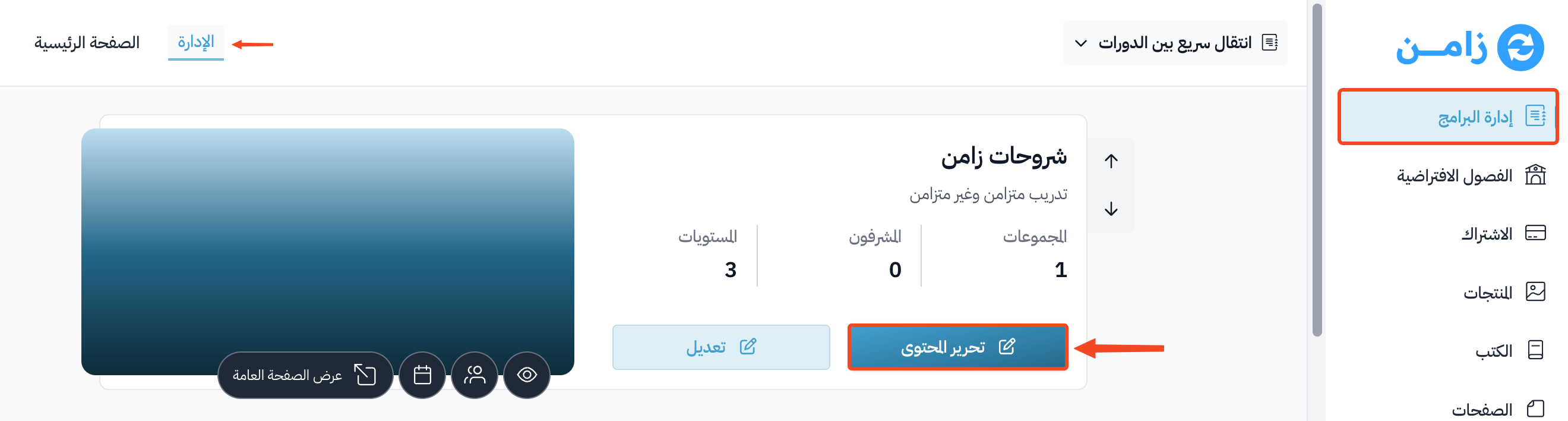
From Courses in the dashboard, click Edit Curriculum on the course you want to export reports for.
-
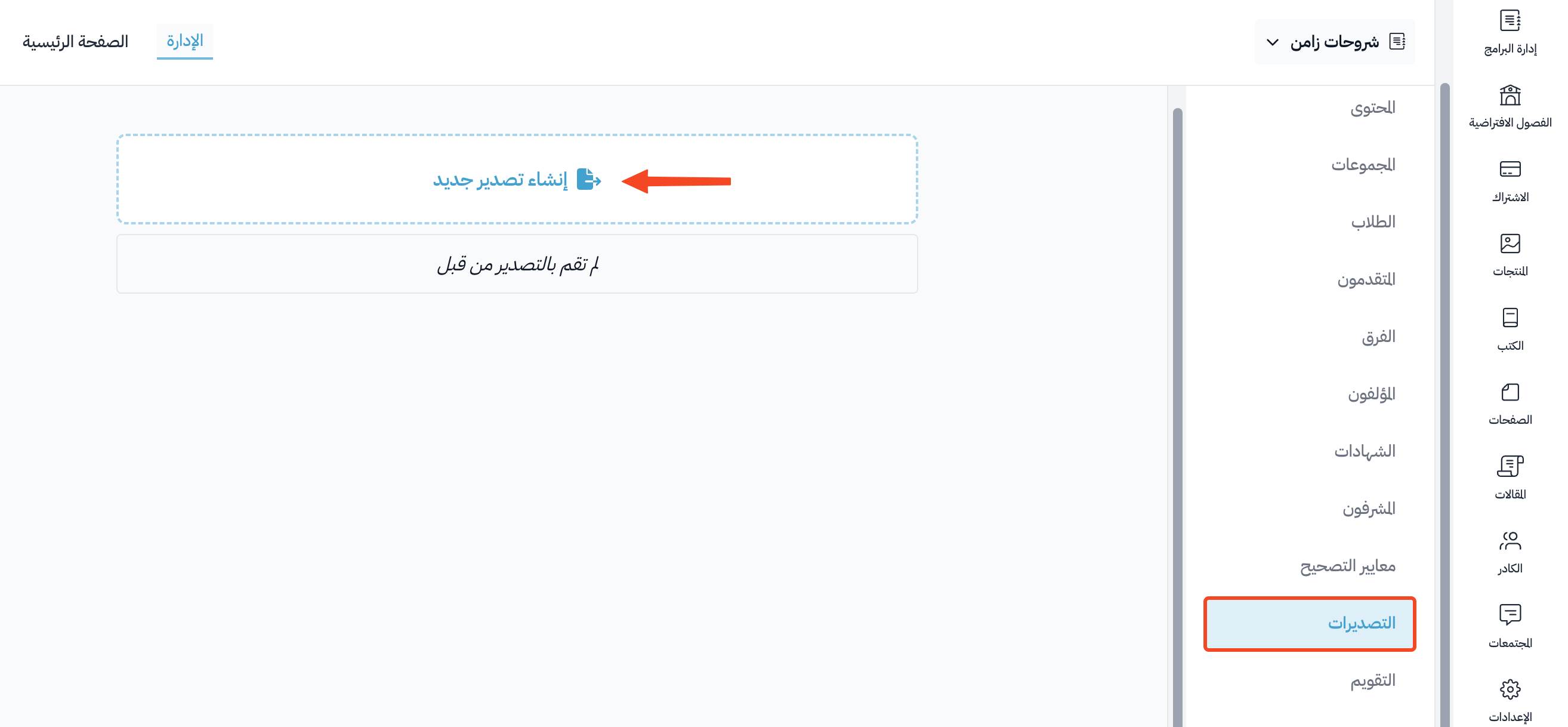
From the course side menu, go to the Exports page.
-
Click New Export. A side panel titled Export Course Data opens.
Choose what to export
-
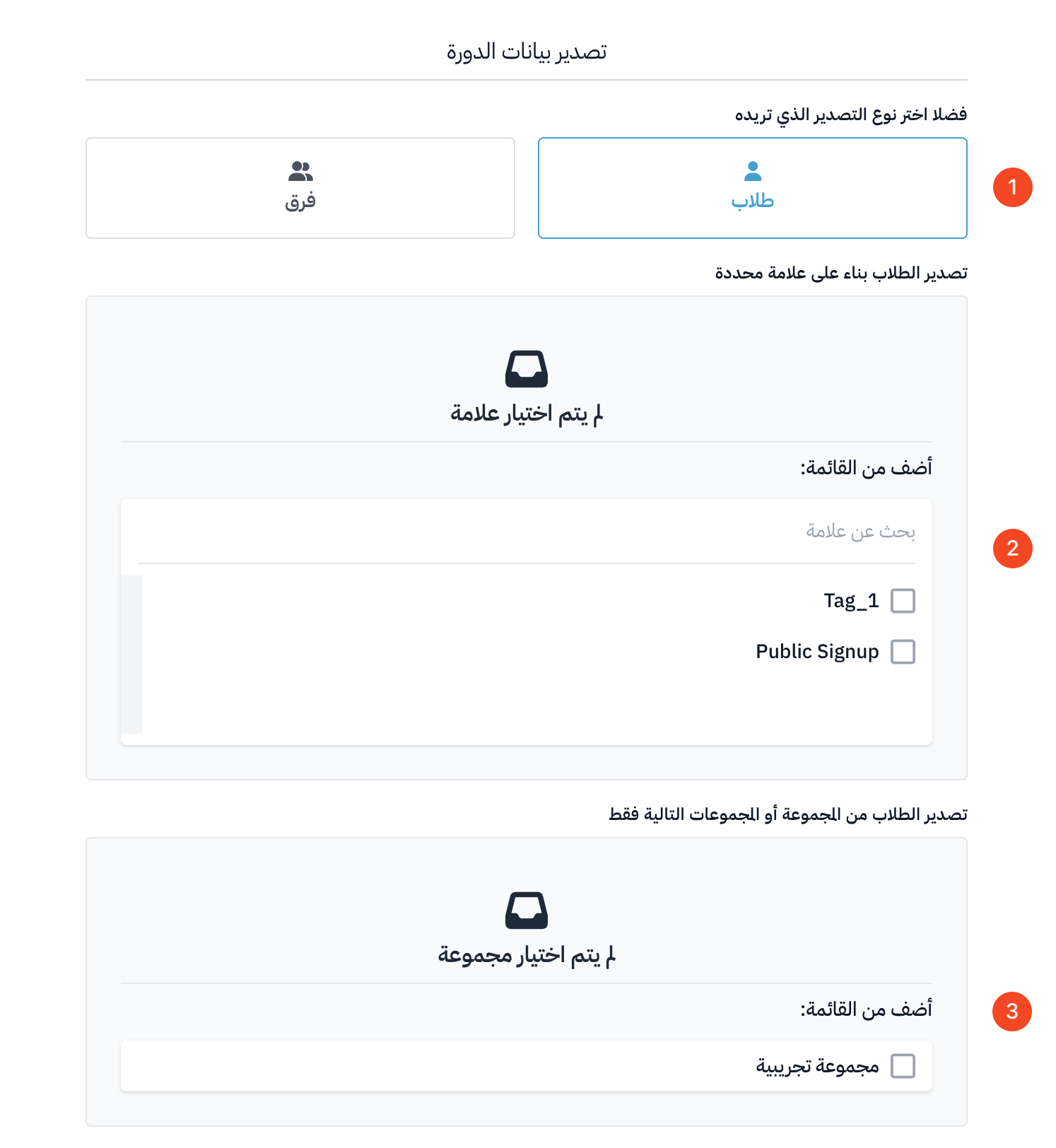
Choose the kind of export: Students or Teams.
-
You can export only the students who have certain tags, by ticking the tags under Only students with these tags. This list shows only if your platform has student tags.
-
You can export the students of one cohort or of several cohorts in the course, by ticking them under Only students in these cohorts.
-
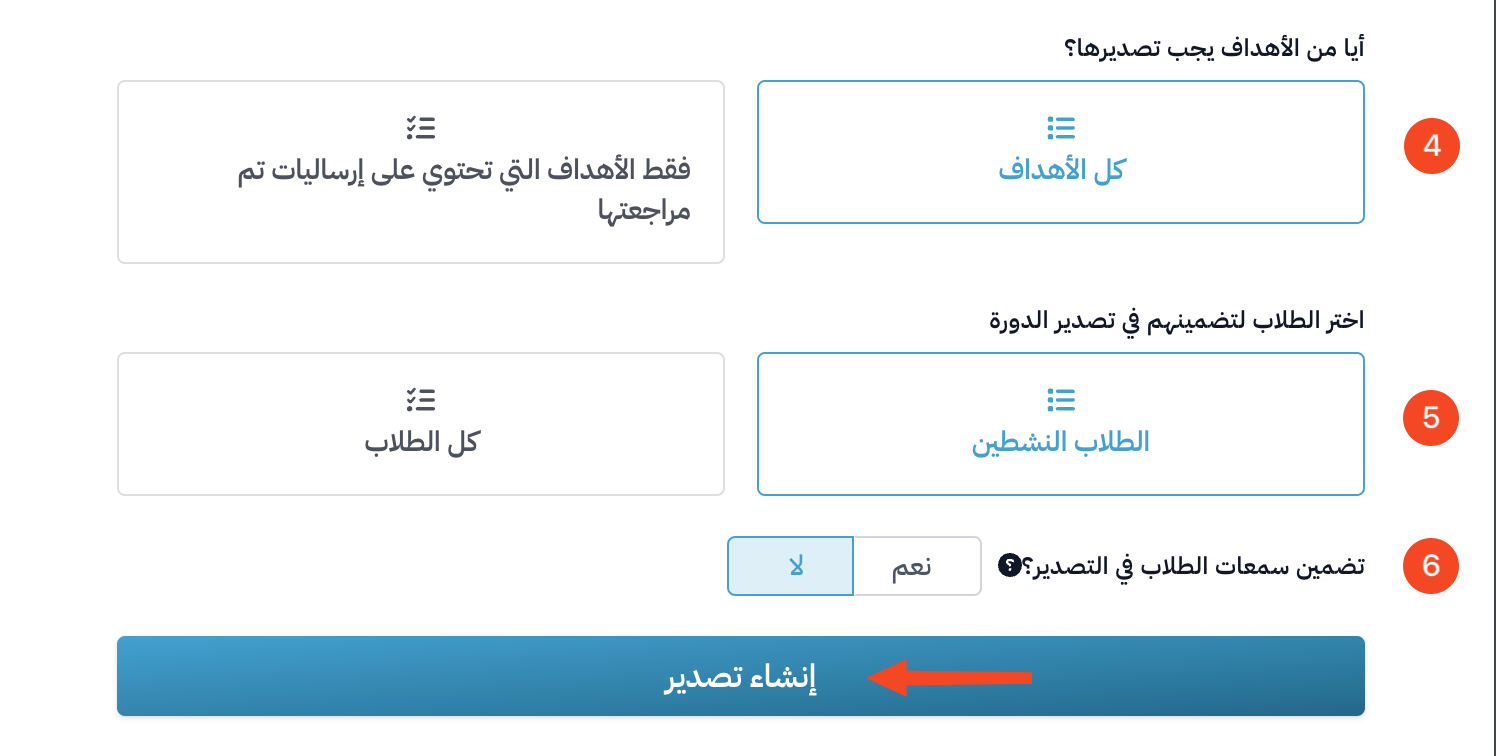
Under Which targets should the export include?, choose All targets or Only targets with reviewed submissions.
-
Under Which students should the export include?, choose Active students or All students.
-
You can add student standings to the export by turning on Include user standings. This option shows only when the export kind is Students.
-
Click Create Export.
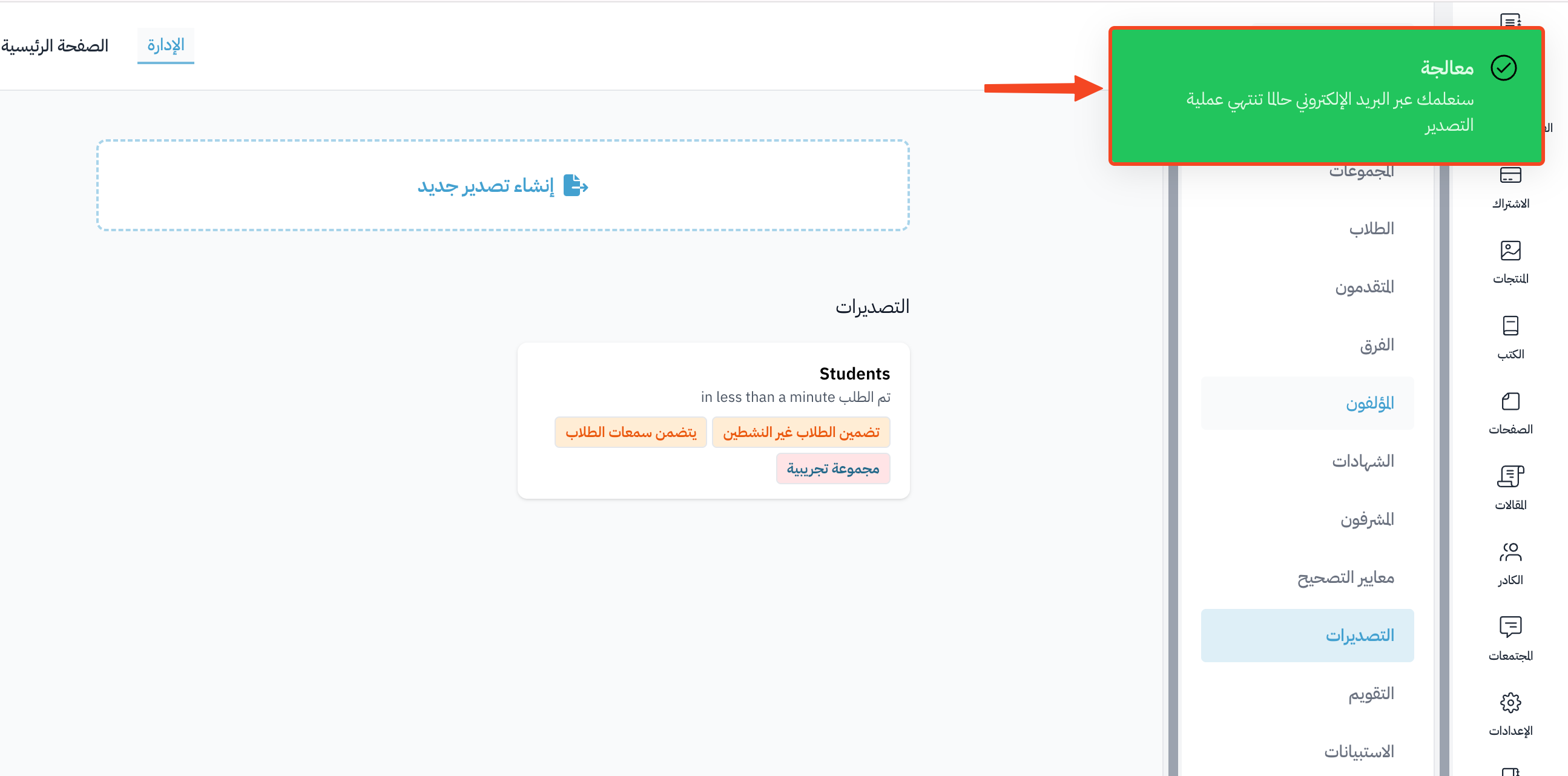
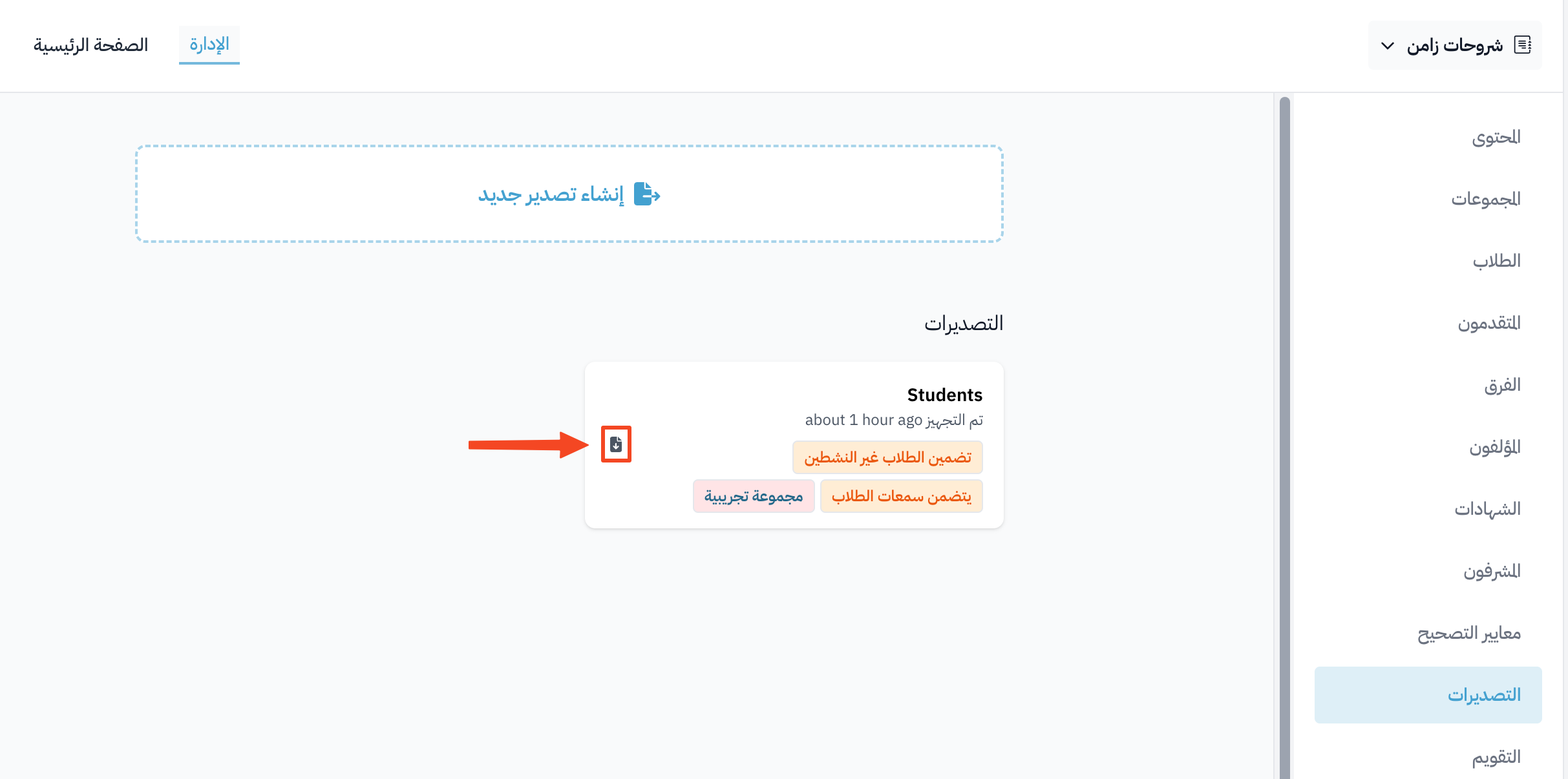
A message tells you that the export is being processed. The export shows right away as a row in the exports table, with the status Preparing, then Ready when the file is ready.
To download the file, click the ⋯ (Actions) button at the end of its row, then click Download.
What the export file contains
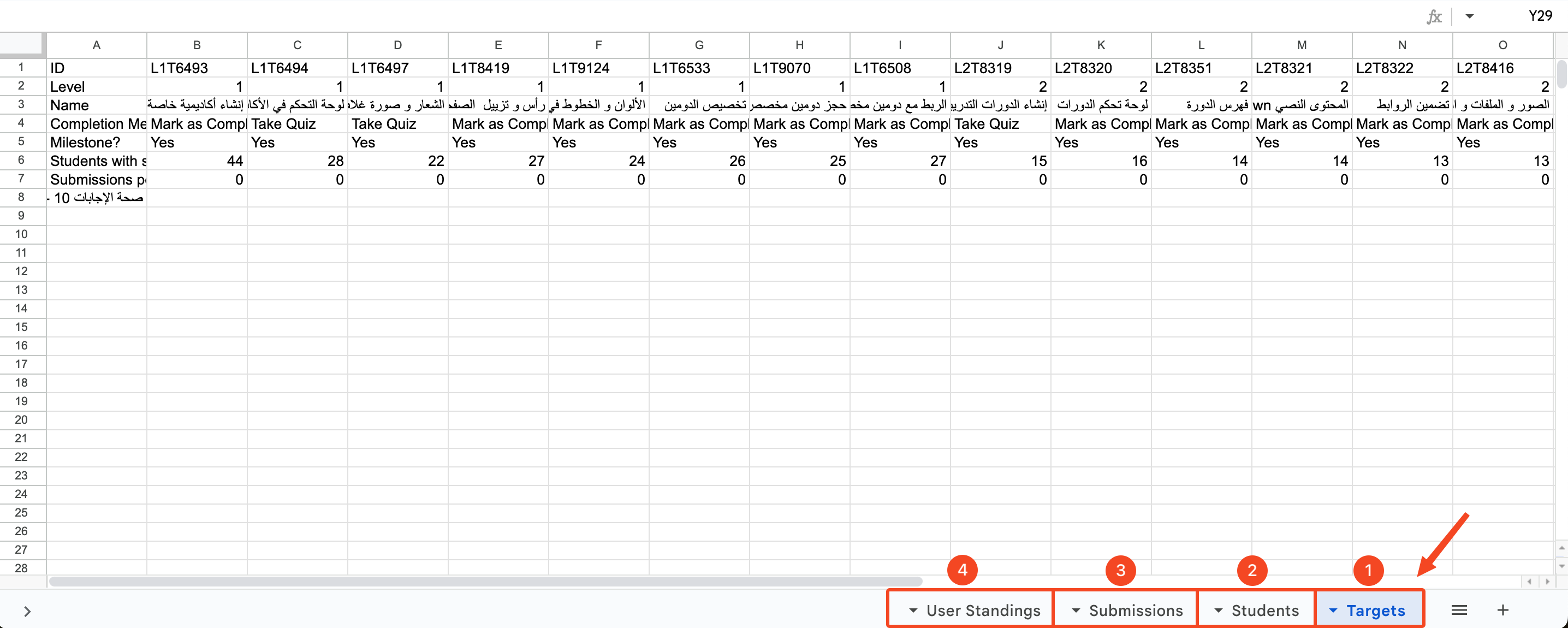
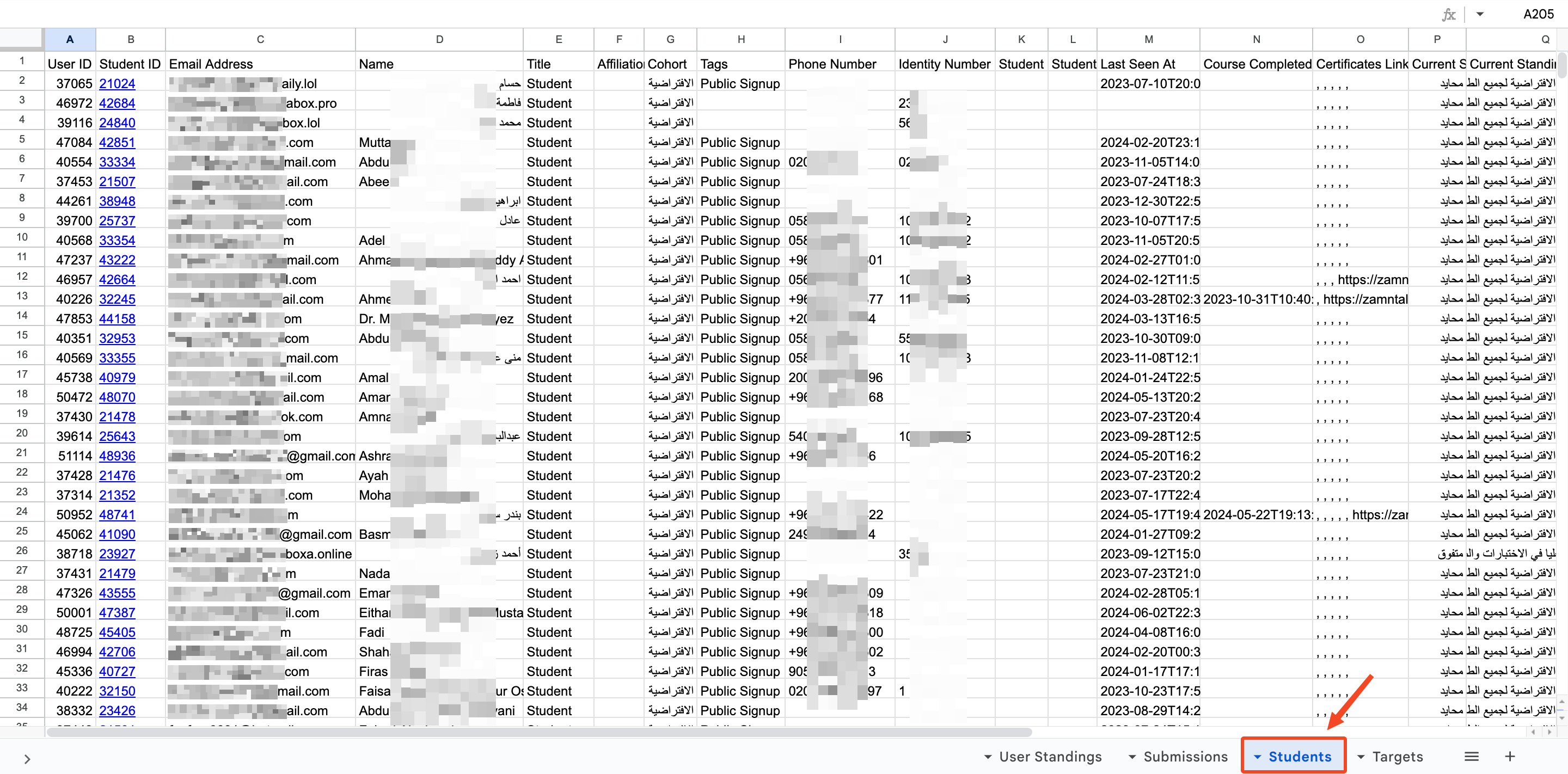
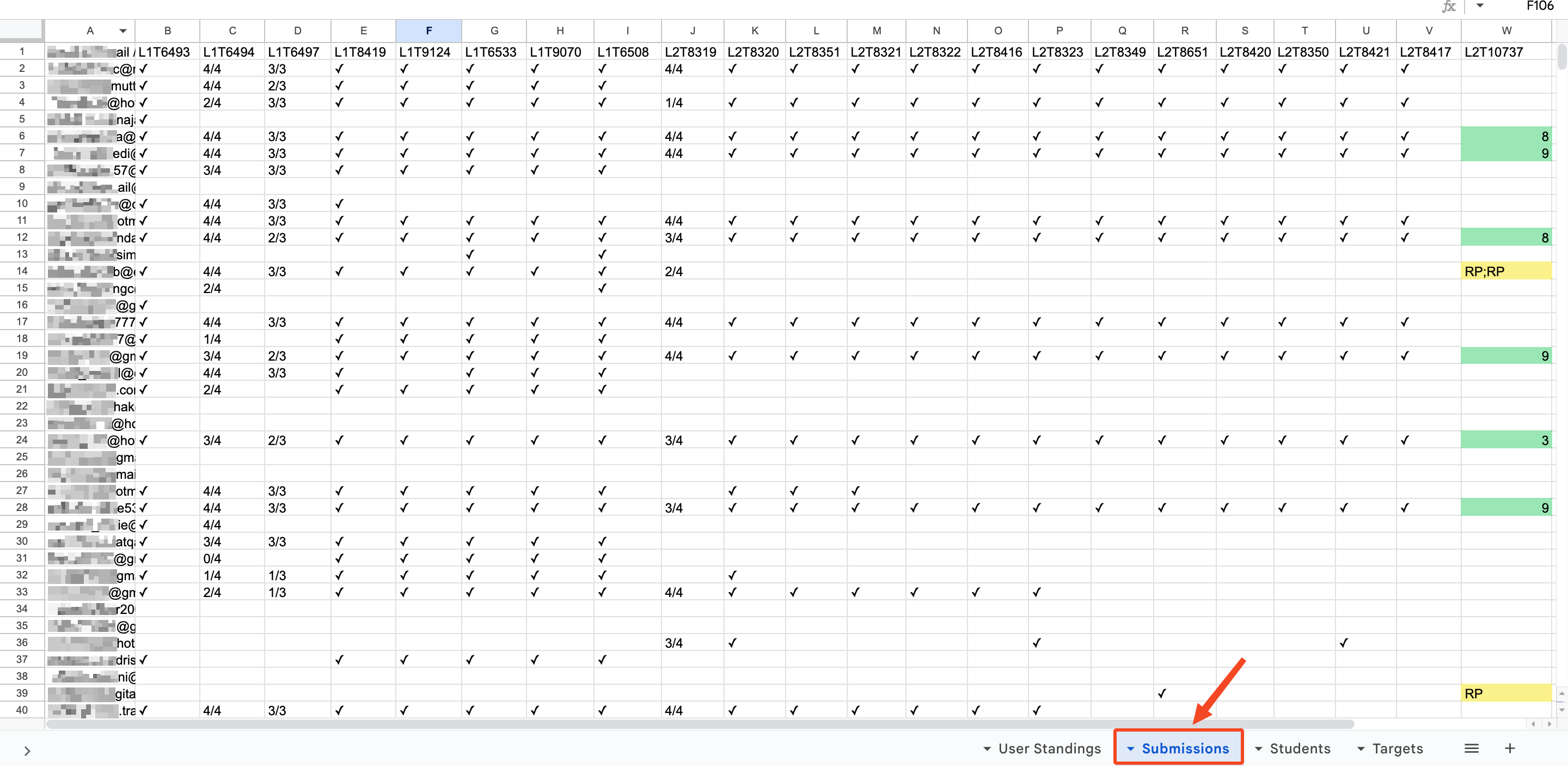
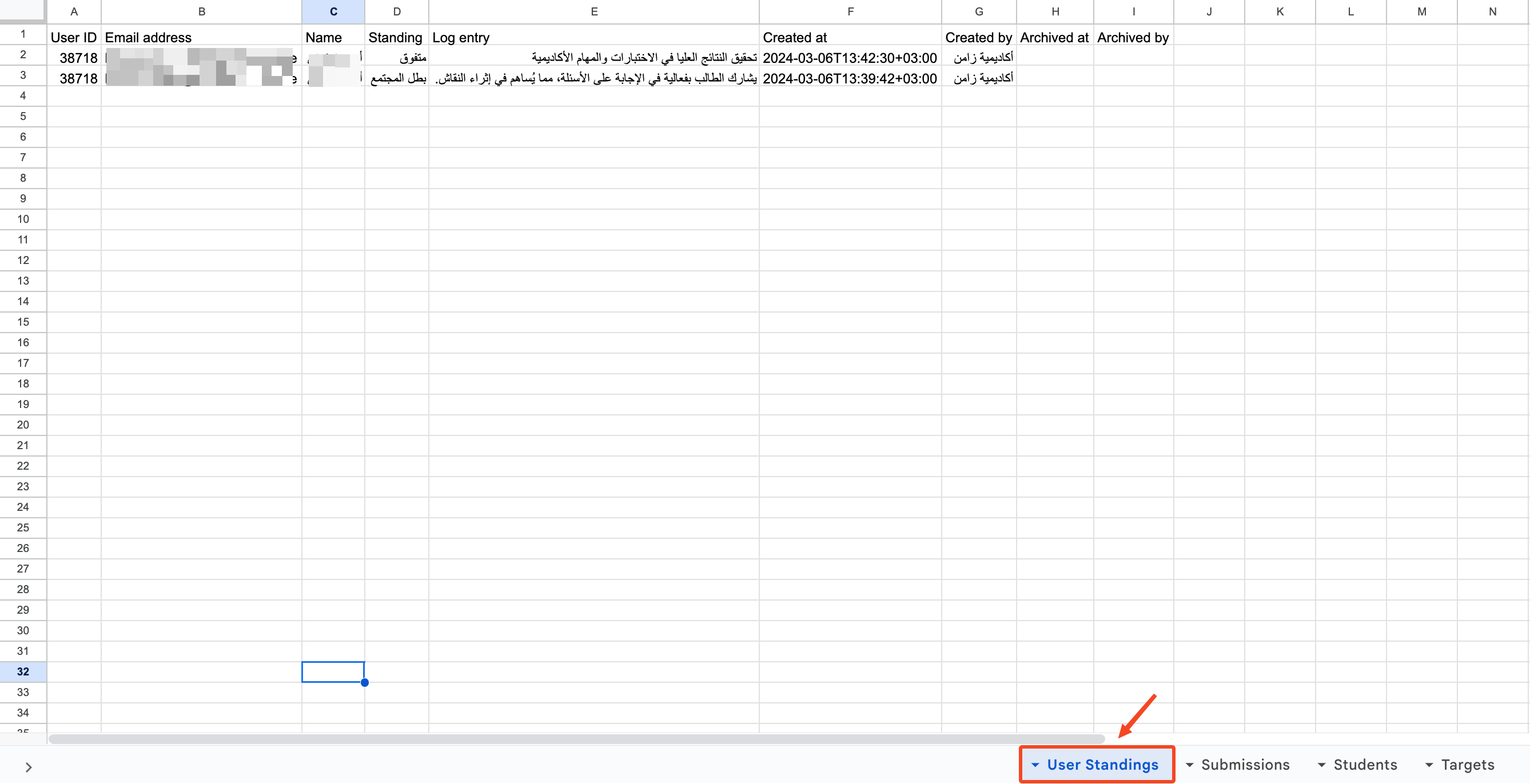
The students export file has these sheets:
- Targets: the targets.
- Students: the students.
- Submissions: the submissions.
- User Standings: the standings log. This sheet shows only if you chose to include user standings in the export.
The teams export file has the Targets, Teams and Submissions sheets.