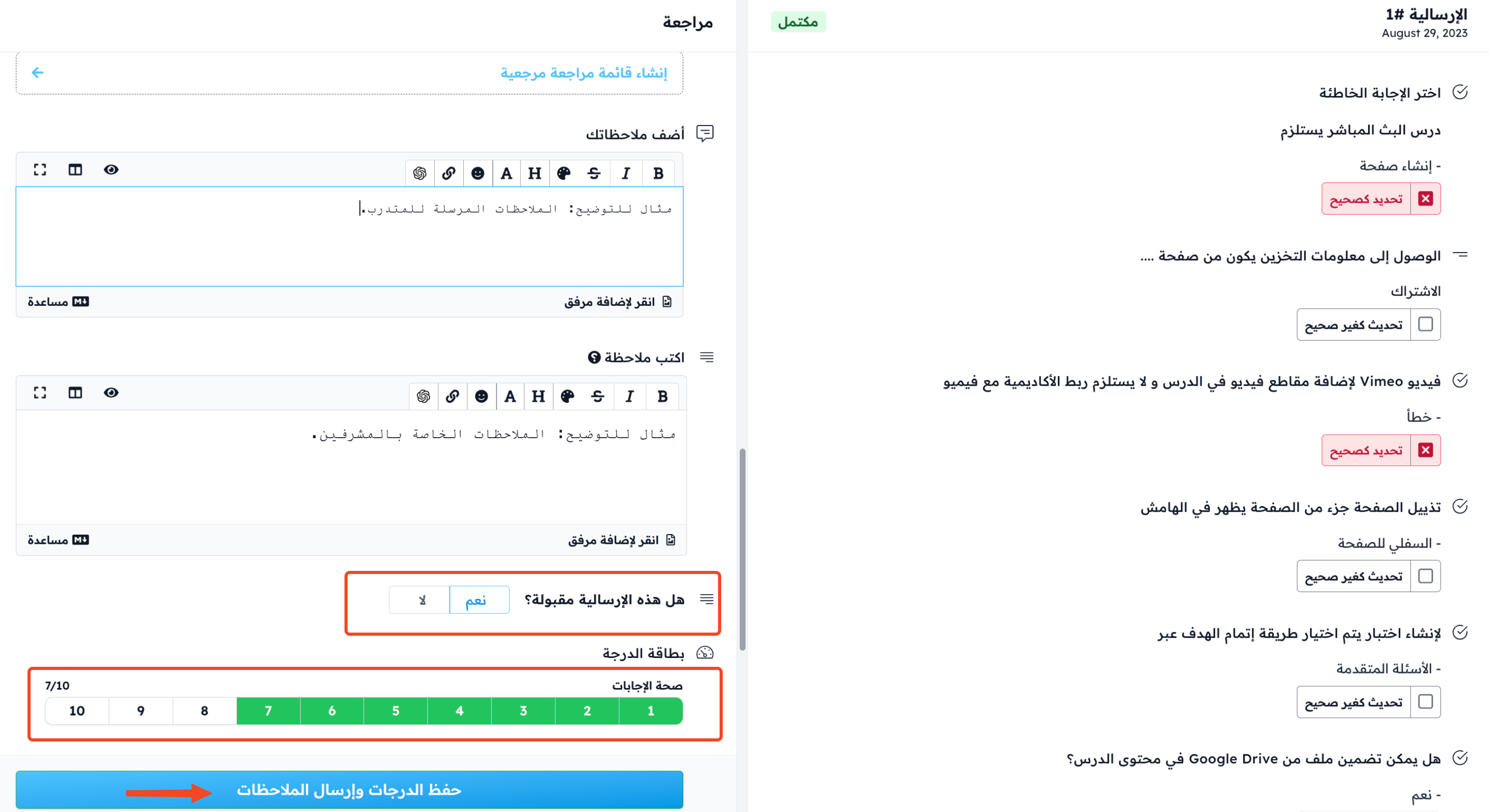
Evaluation criteria for assignments
An evaluation criterion is one or more standards that the coach uses as a reference to grade how well a student did in an assignment.
How to create an evaluation criterion
-
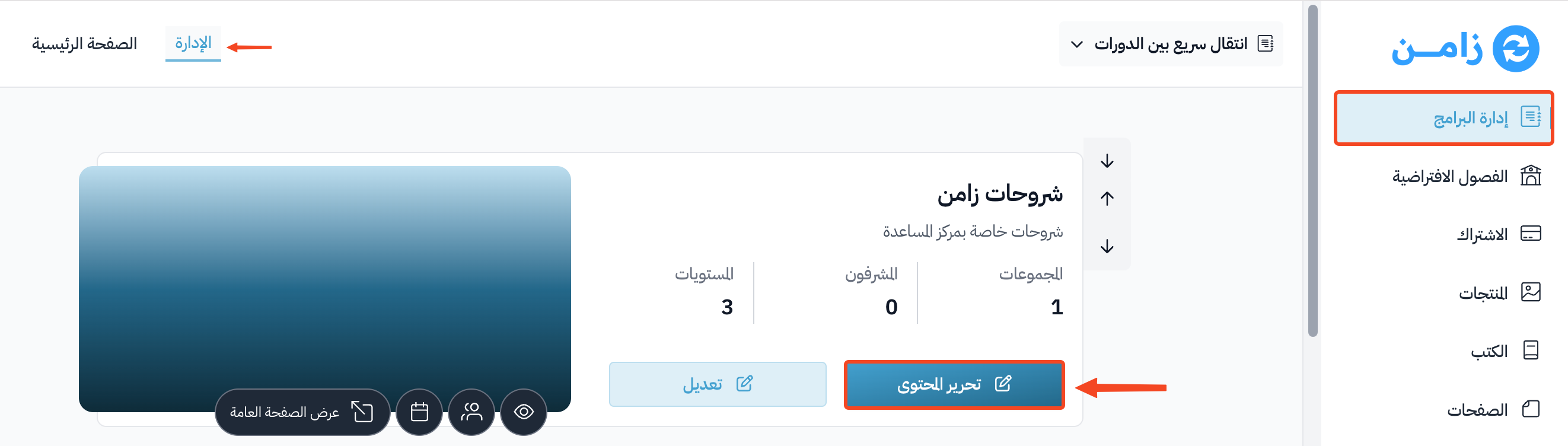
Go to the Courses page, then click Edit Curriculum on the course.
-
From the course side menu, go to the Evaluation Criteria page.
-
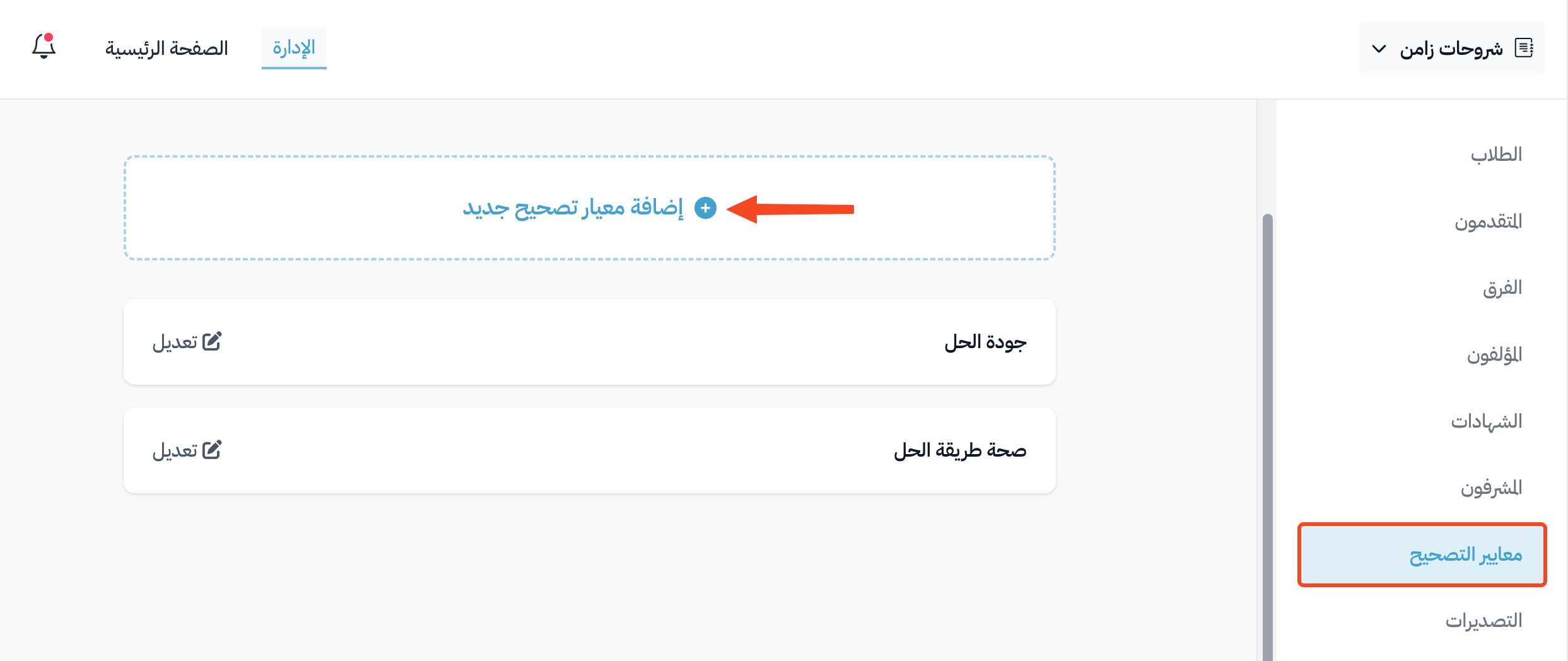
Click Add New Evaluation Criterion.
NoteThe demo course that is created with your platform has two ready evaluation criteria. New courses that you create yourself have no evaluation criteria, so add them from this page.
-
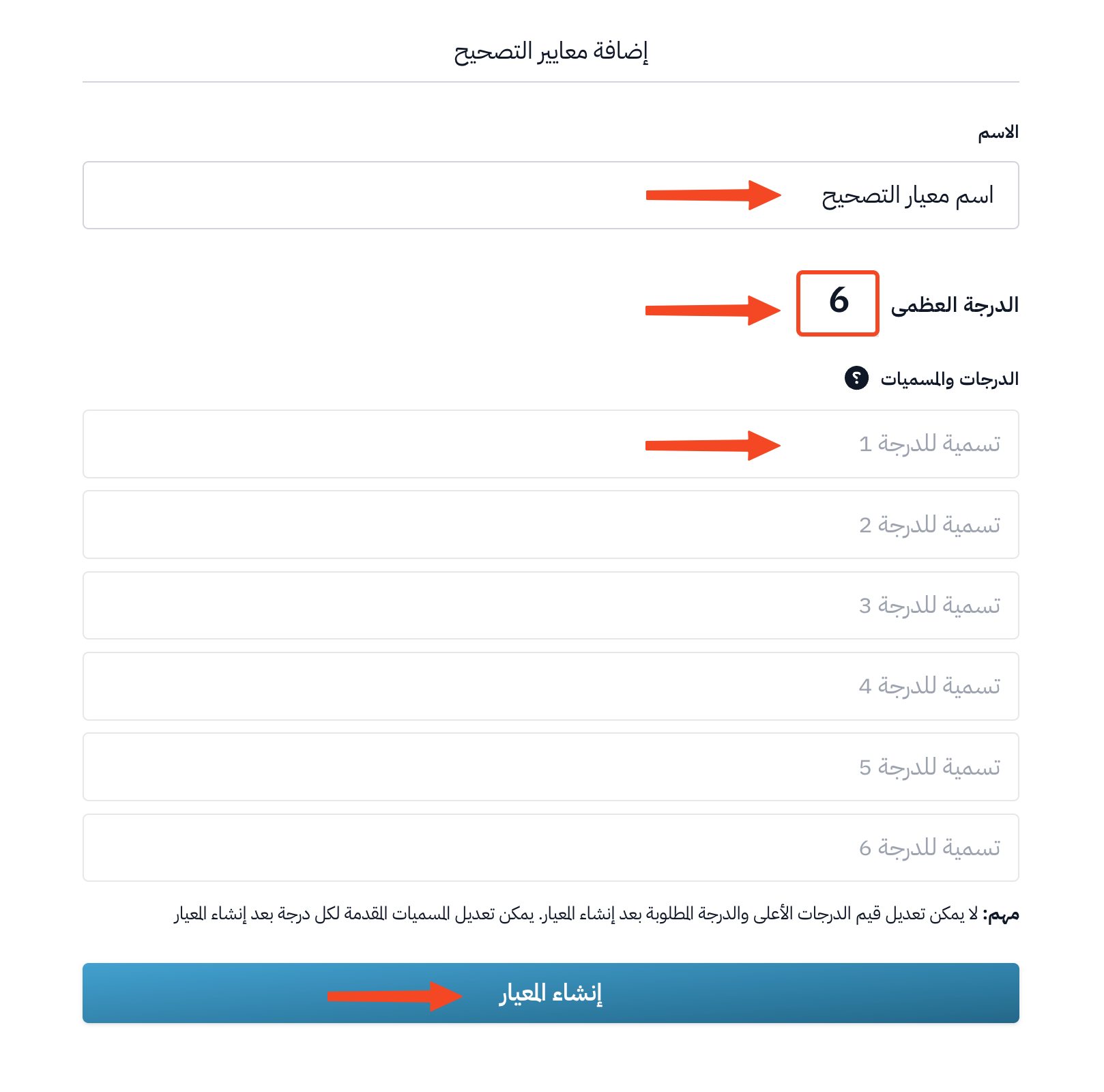
Fill in the Add Evaluation Criterion form:
- Write the criterion name.
- Set the Maximum grade.
- Write a label for each grade under Grade labels. This label shows in the grade card.
-
Click Create Criterion to save.
NoteYou cannot change the maximum grade after you create the criterion. You can only edit the labels you gave to each grade.
An example of how to choose grade labels:
- If less than 20% of the answer is correct, the grade is weak, which means fail.
- If 20% to 75% of the answer is correct, the grade is good.
- If 75% to 99% of the answer is correct, the grade is very good.
- If 100% of the answer is correct, the grade is excellent.
The labels, percentages and grades depend on the view of the person who creates the criterion.
How to add an evaluation criterion to an assignment
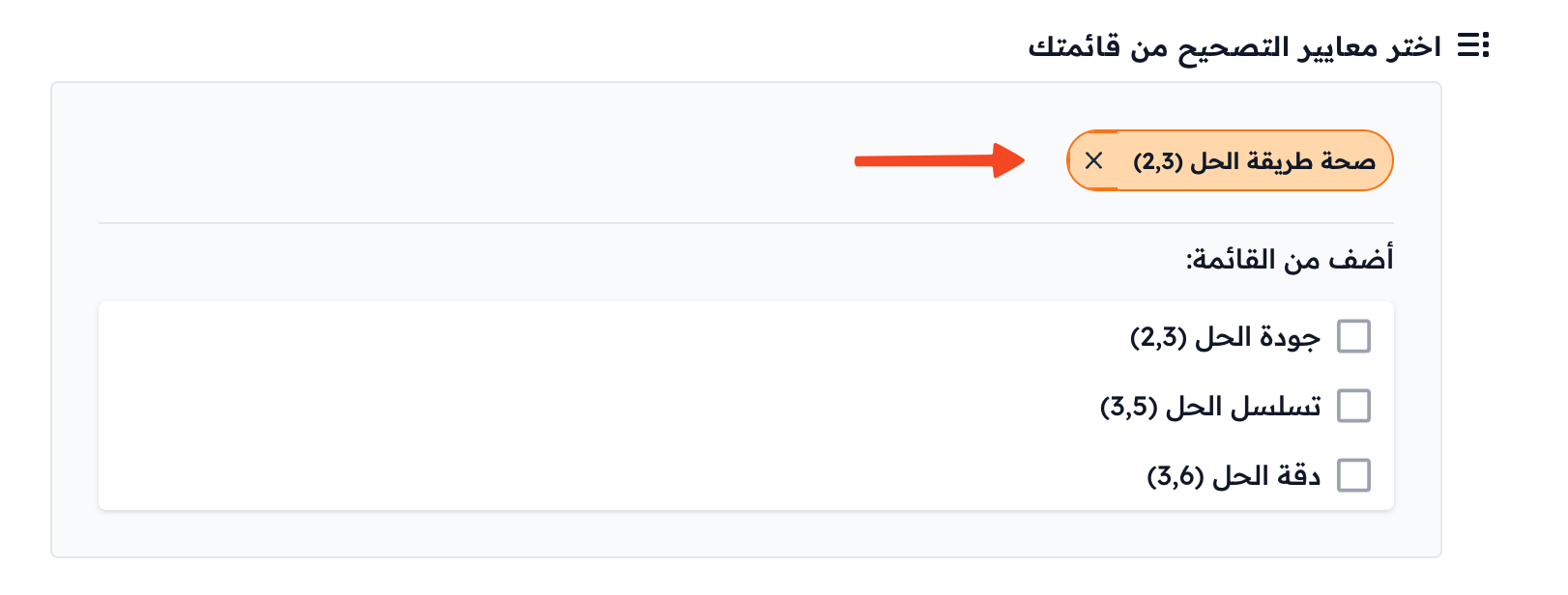
When you create an assignment, you must choose at least one evaluation criterion in the Choose evaluation criteria from your list field before you can finish adding the assignment.

How to use an evaluation criterion
After students send their answers to the assignment, the coach can start reviewing the submission by clicking Start Review.
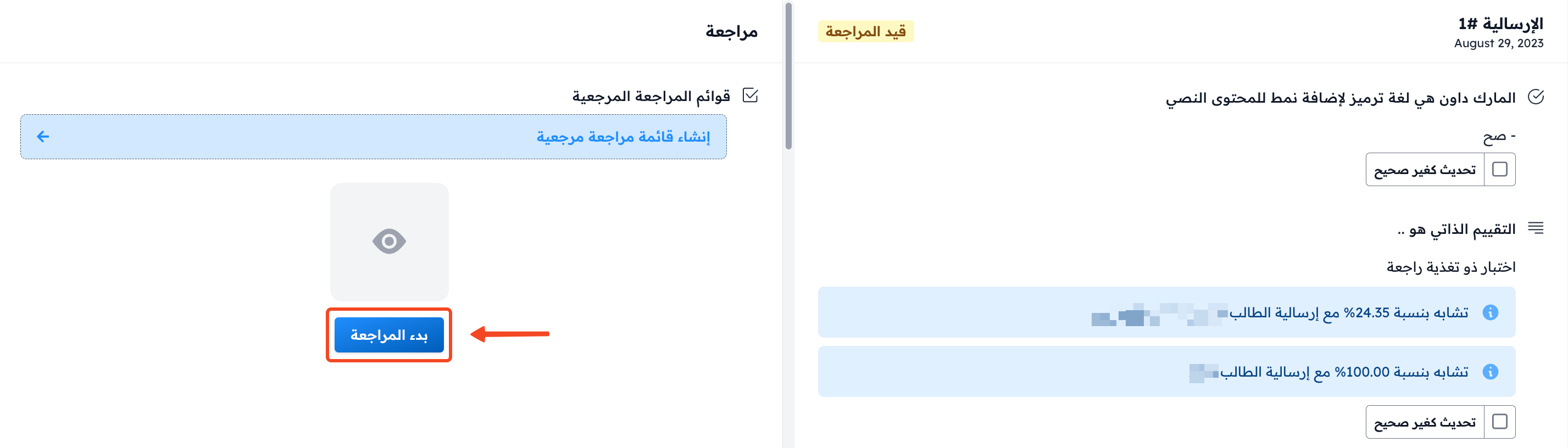
The evaluation criterion is one of the steps to finish the review. The coach grades the student based on the criteria set in the assignment:
- If the coach chooses No for Is this submission acceptable?, they click Reject Submission, and the student fails.
- If the coach chooses Yes, they pick the grade in the Grade Card based on the criterion, then click Save grades to send the result to the student. If the coach writes feedback for the student, the button becomes Save grades & send feedback.