Embed links in course content
The Embeded Link option lets you show content from other sites inside the targets of a course, so students can watch it without leaving your platform. You can embed links to:
- Zoom cloud recordings.
- Recordings of your rooms on Zamn.
- YouTube videos.
- SlideShare.
- Files from Google Drive.
- Files from Microsoft 365.
- Guides from scribehow.
Steps to embed a link
-
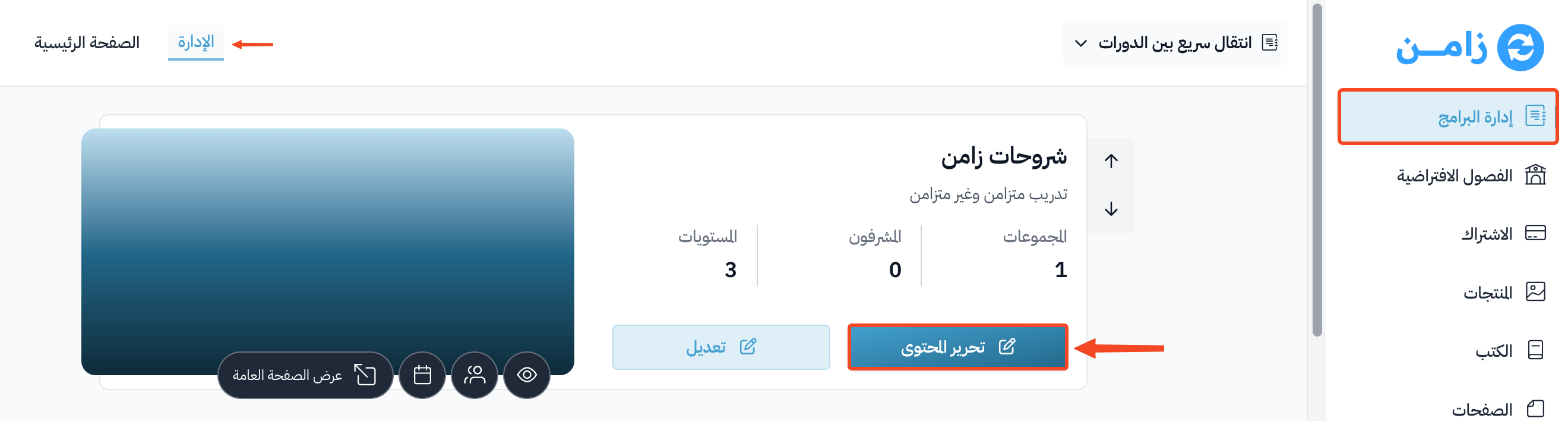
From Courses in the dashboard, click Edit Curriculum on the course where you want to embed links.
-
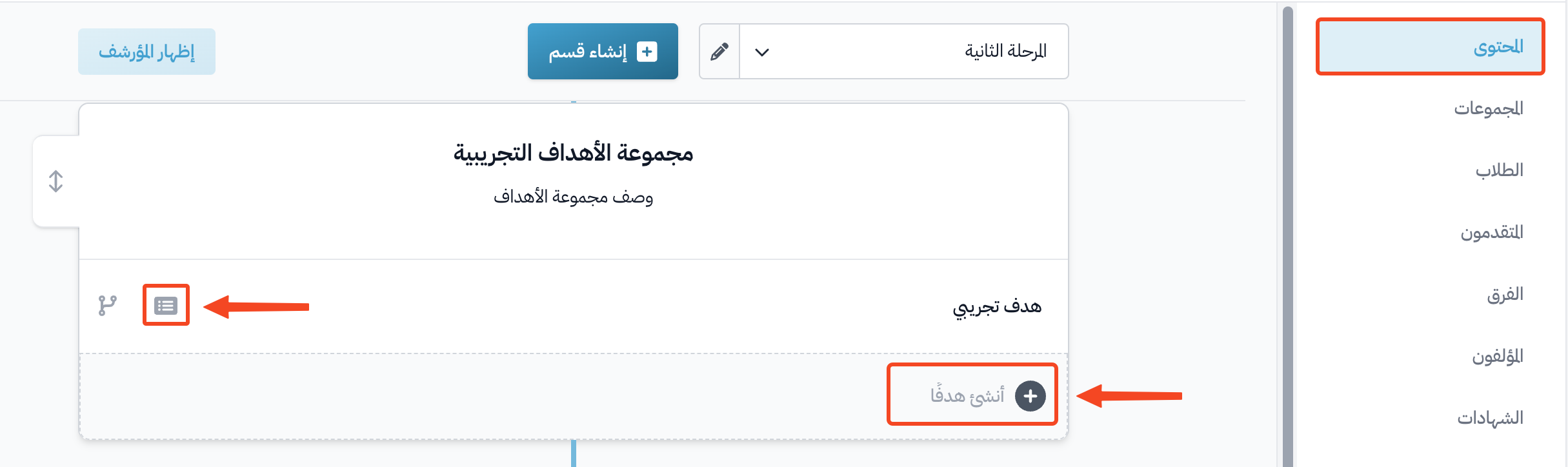
Click an existing target to edit it, or click Create target to make a new one.
-
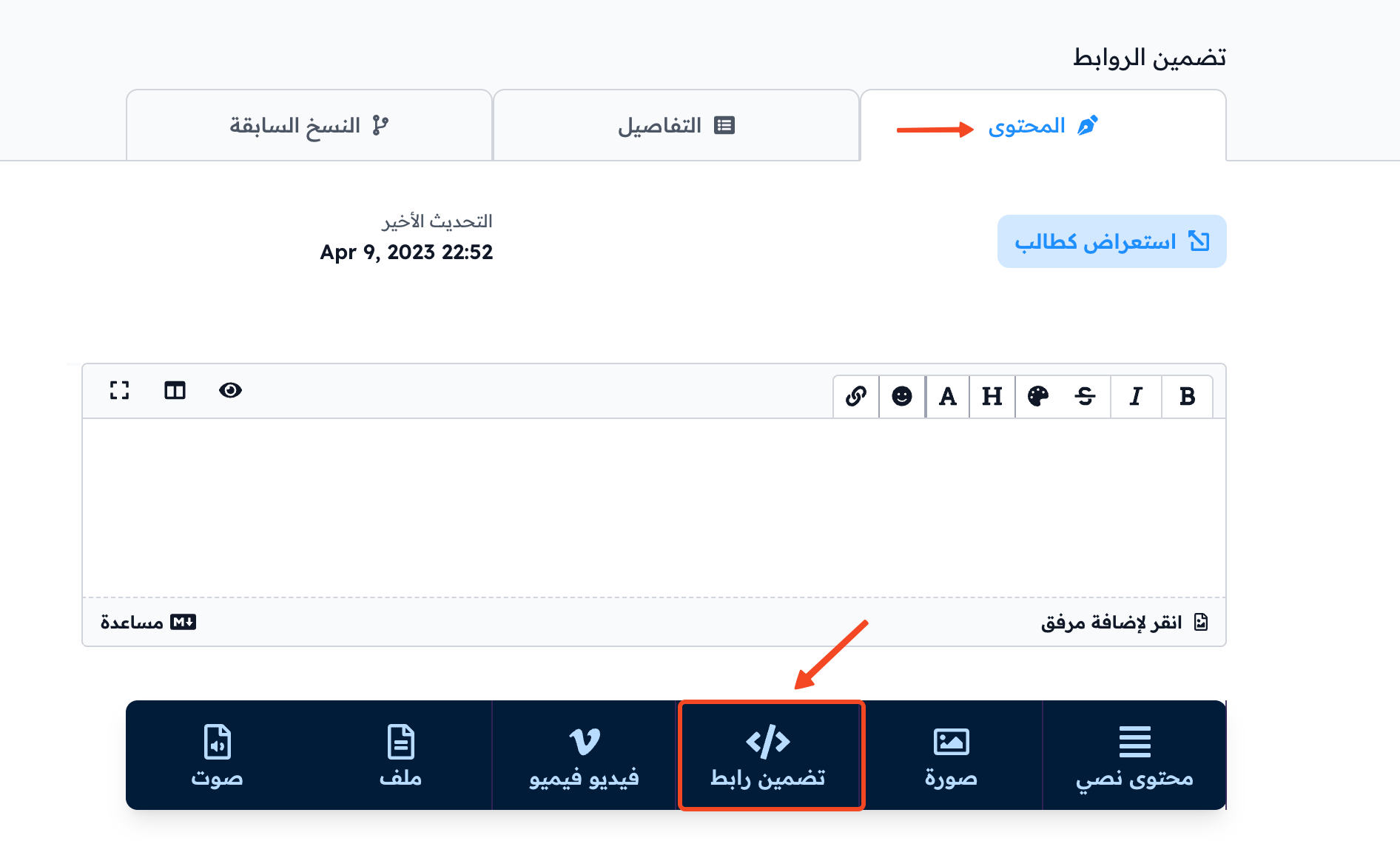
In the Content tab of the target, click Embeded Link.
-
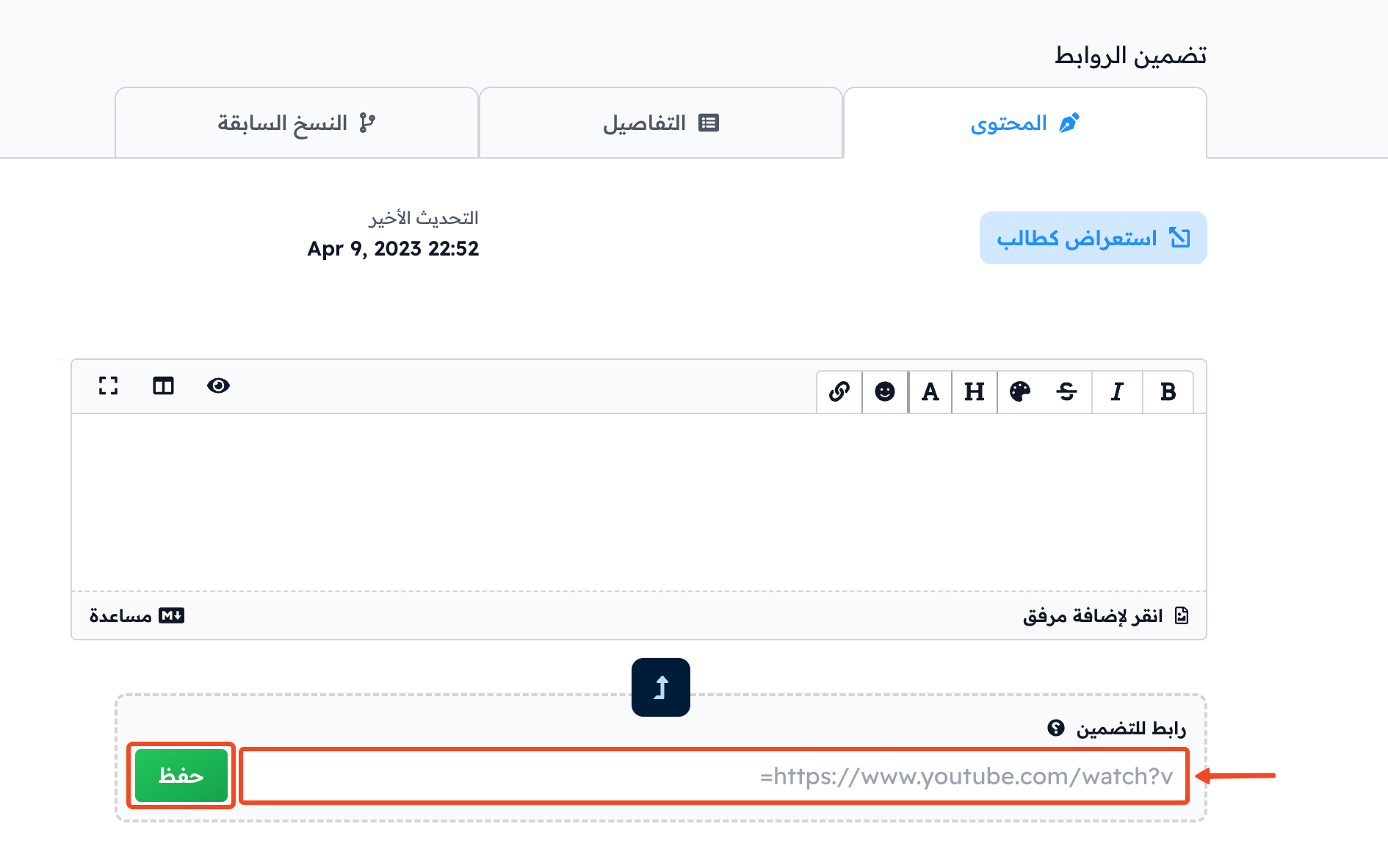
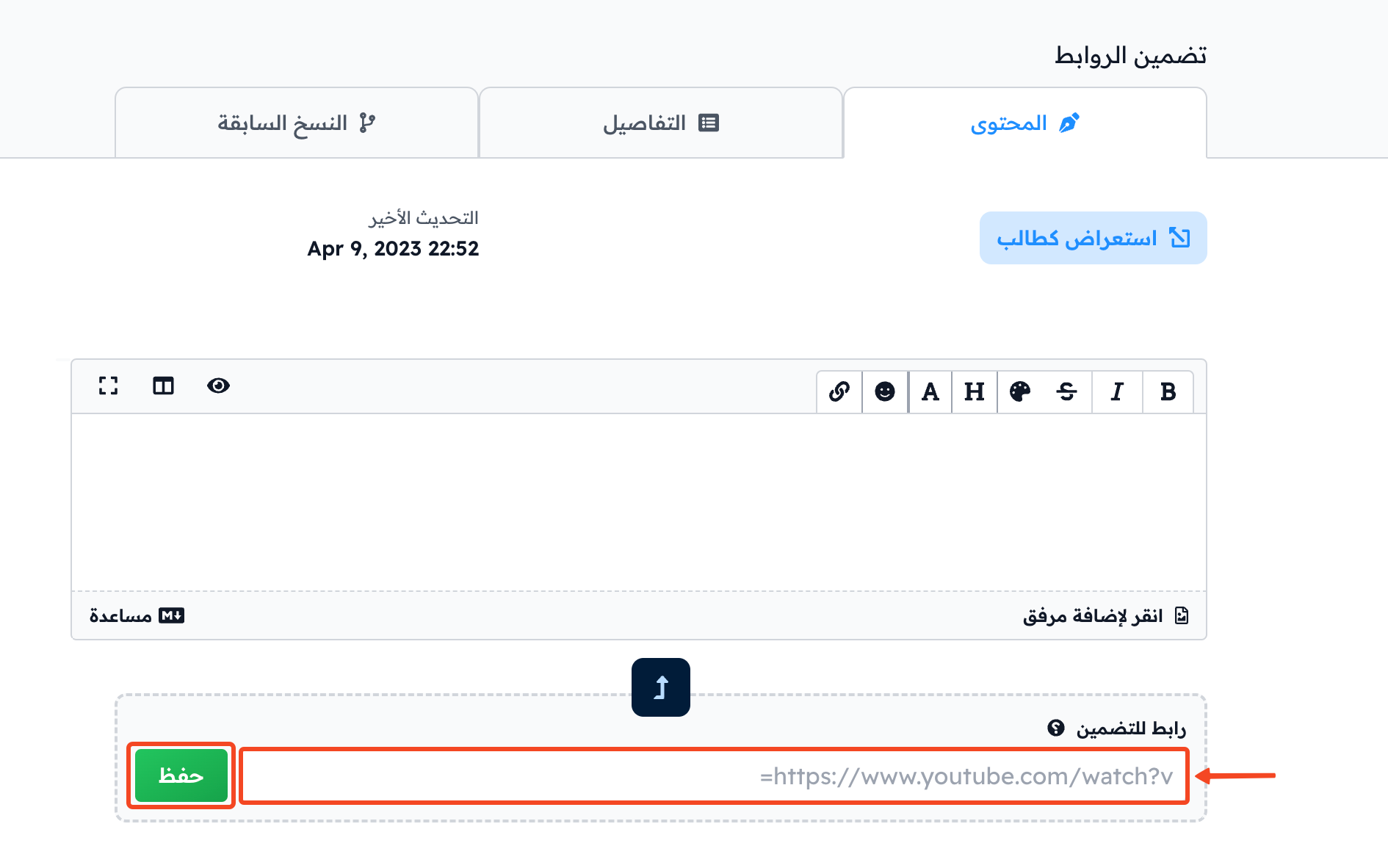
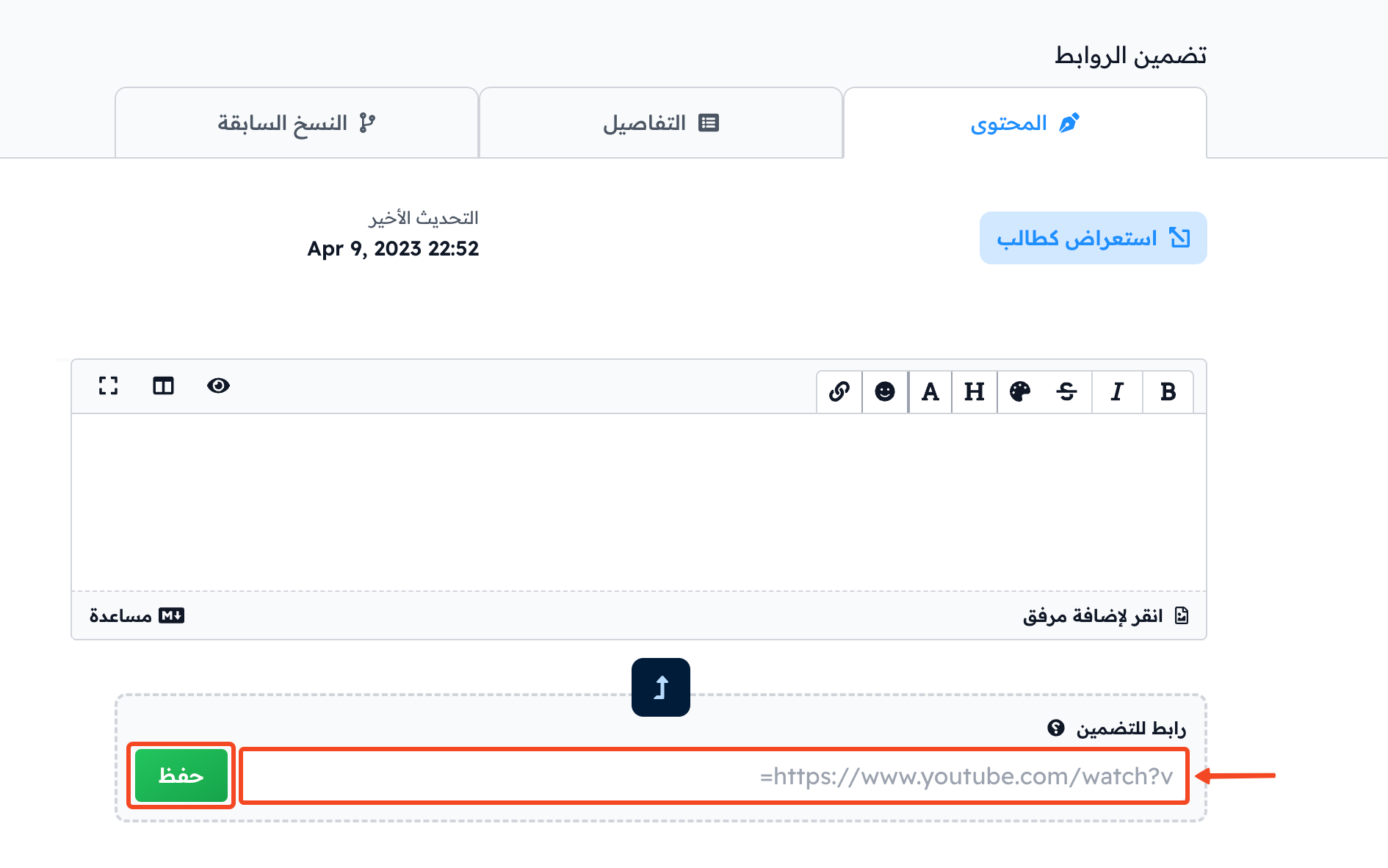
Put the link in the URL to Embed field, then click Save.
How to copy the link of a room recording on Zamn
-
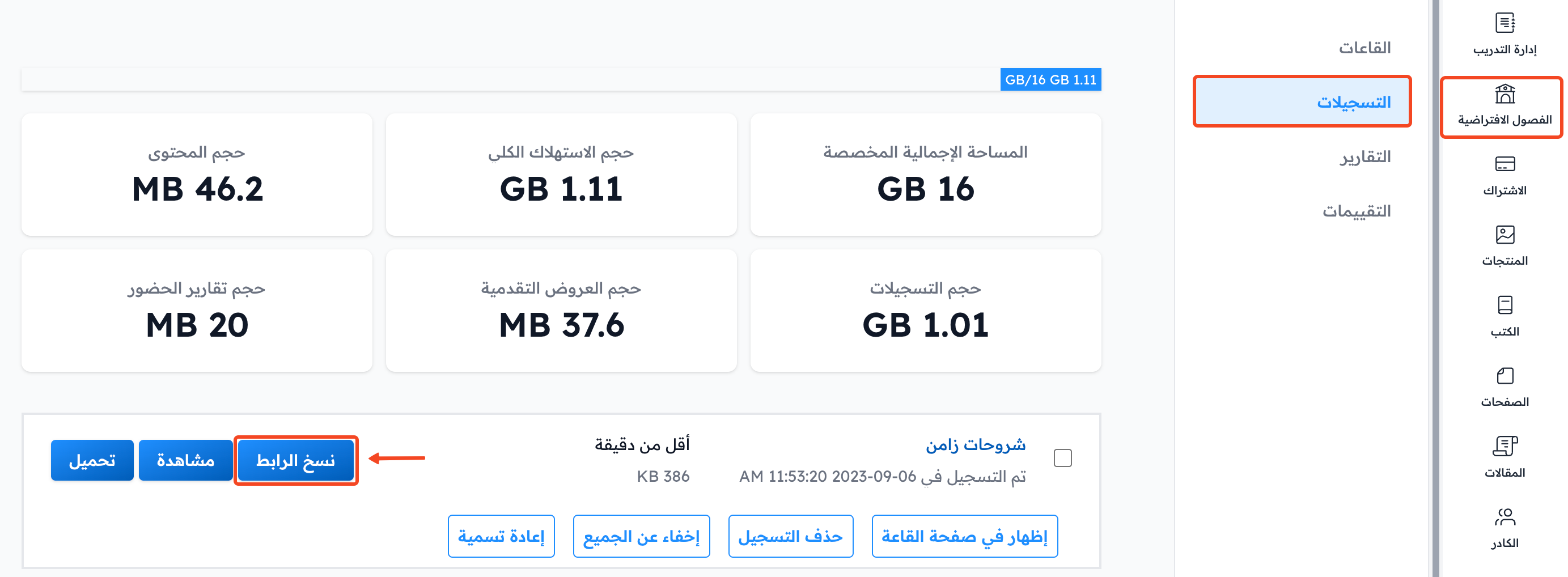
From Virtual Classes in the dashboard, choose Recordings.
-
Click the ⋯ (Actions) button at the end of the row of the recording you want to embed.
-
Click Copy link.
-
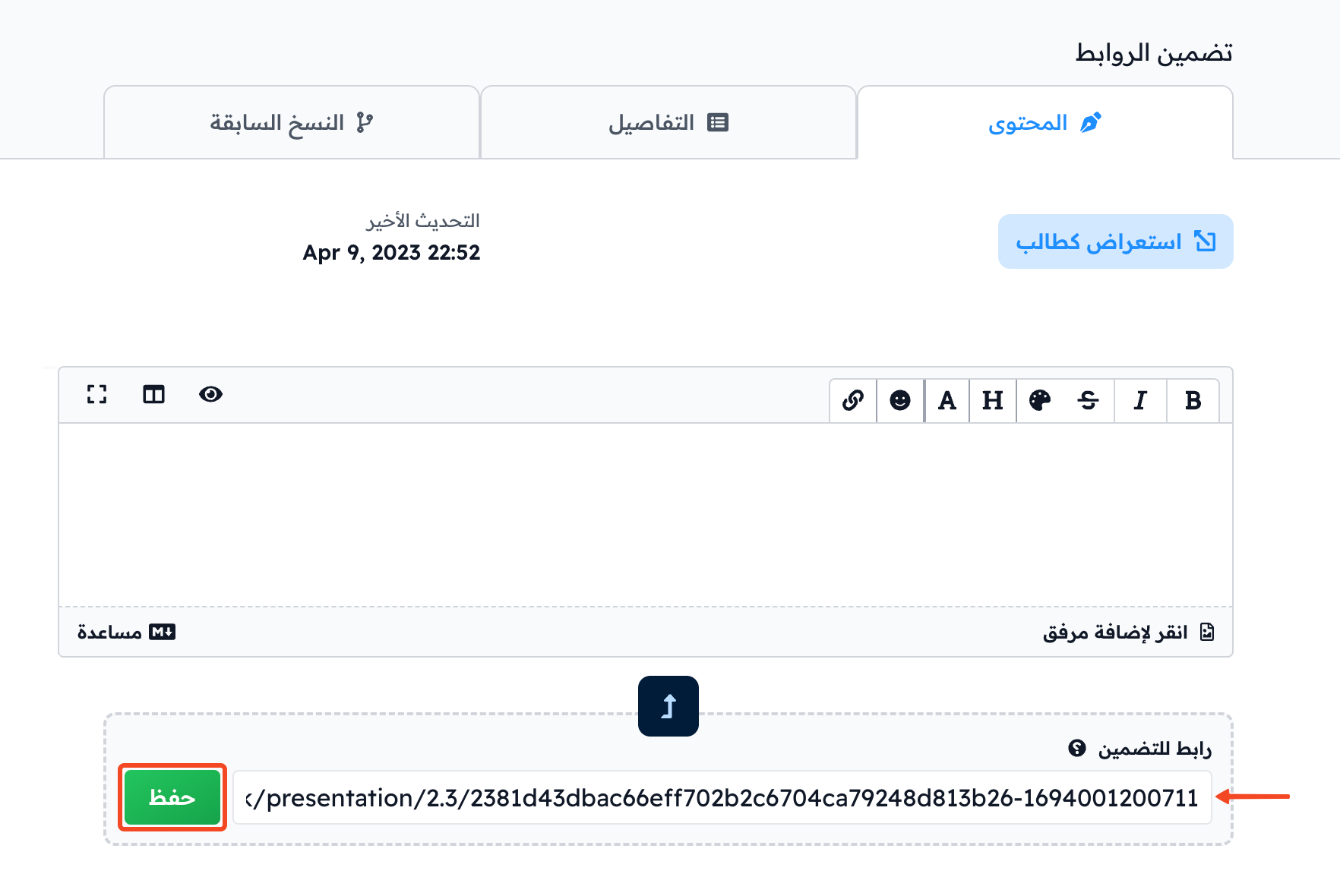
Open the target where you want to embed the recording.
-
Paste the link in the URL to Embed field in the Content tab, then click Save.
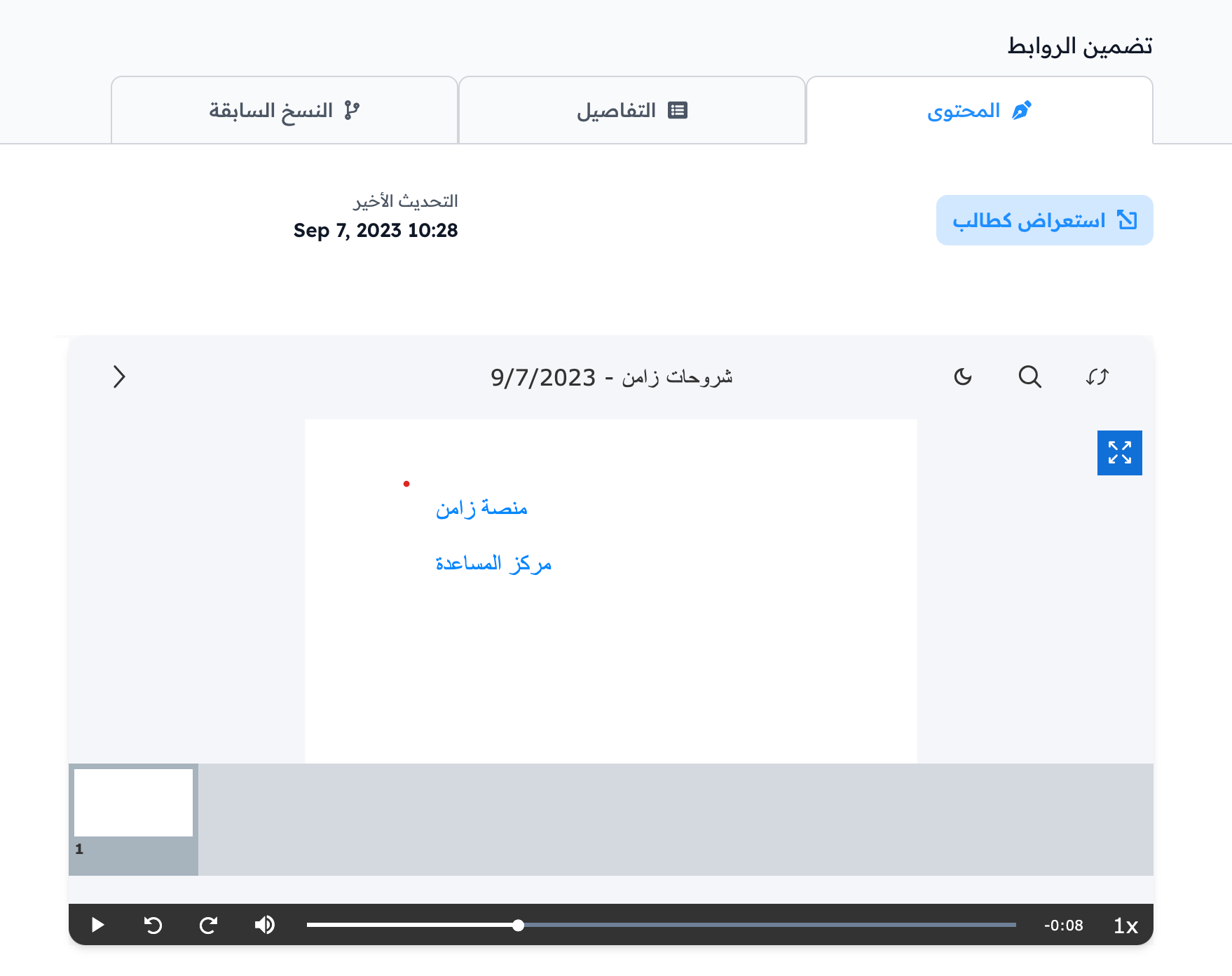
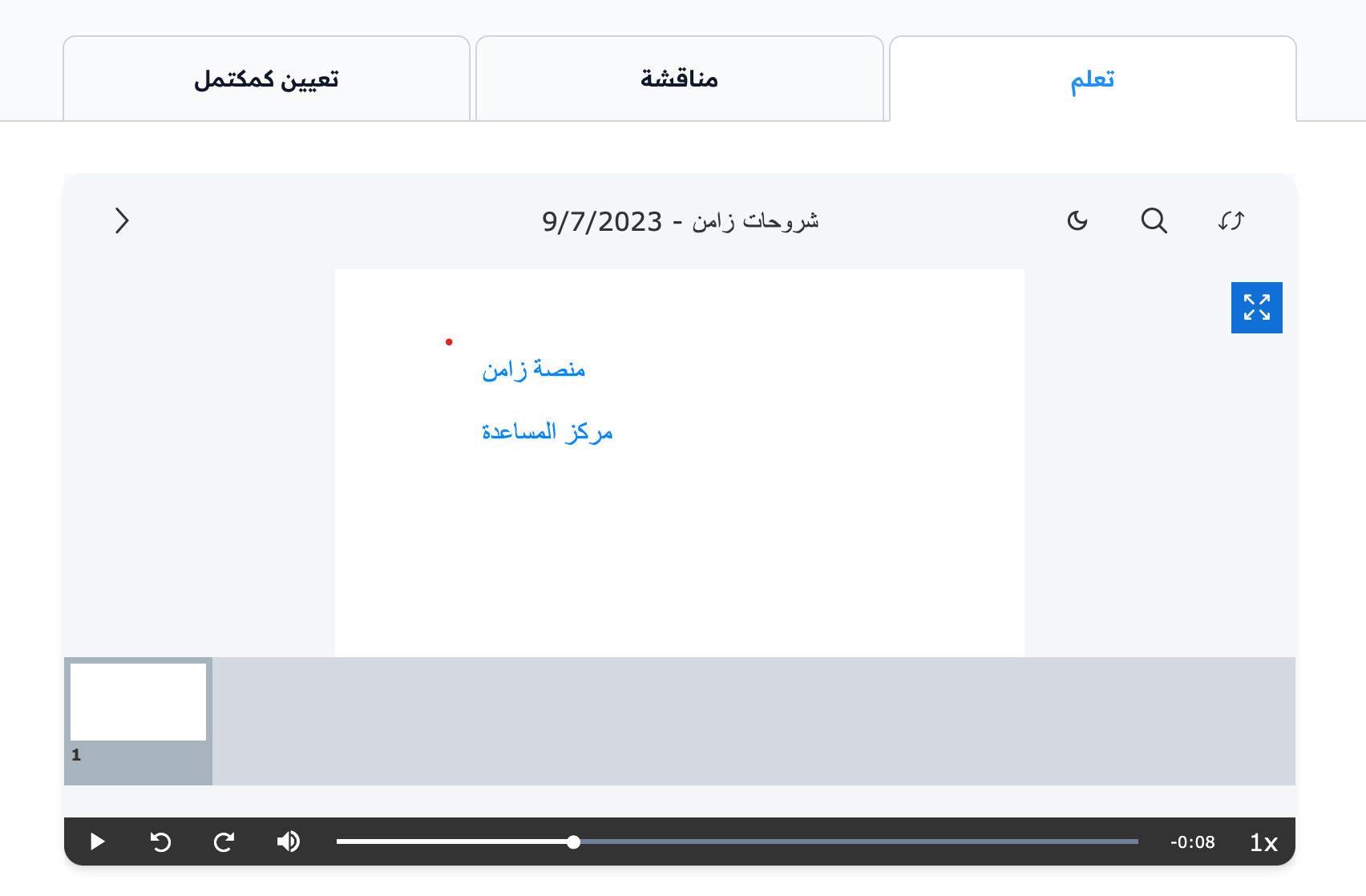
This is how the recording looks to the student:
How to copy the link of a Zoom cloud recording
-
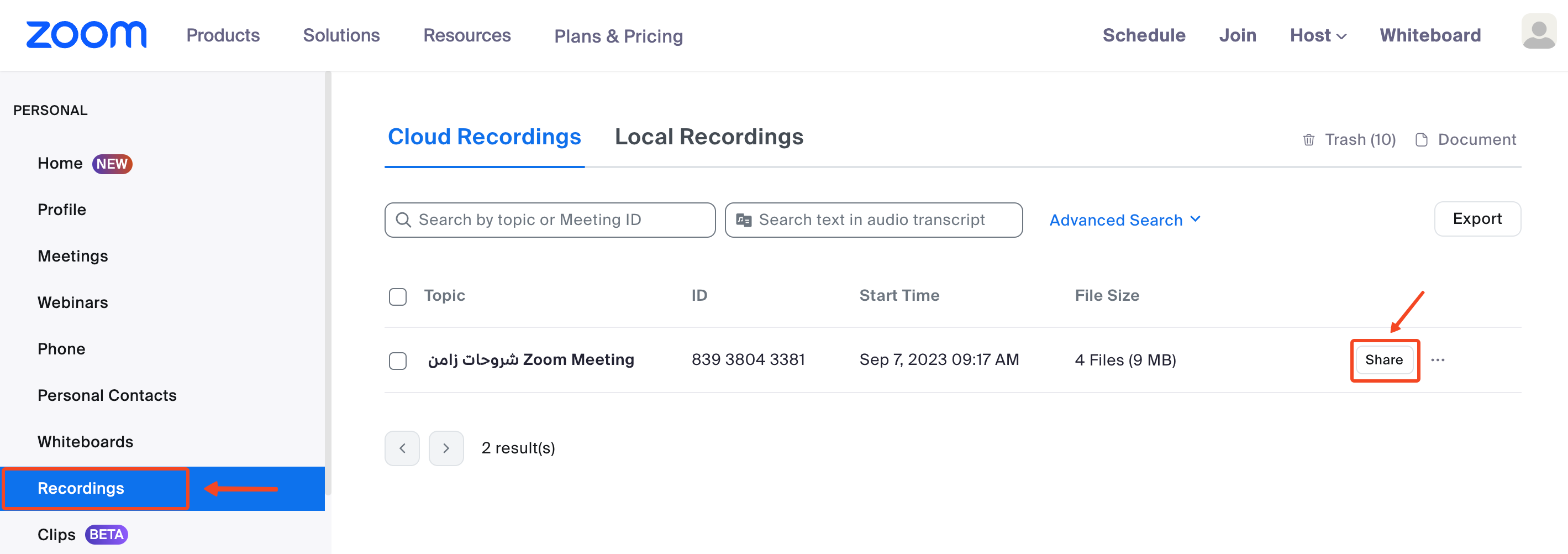
In your account on the Zoom website, click Recordings.
-
Click Share on the recording you want to embed.
There are two ways to embed the recording:
- Embed a recording protected with a passcode.
- Embed a recording without a passcode.
To embed a recording with a passcode
-
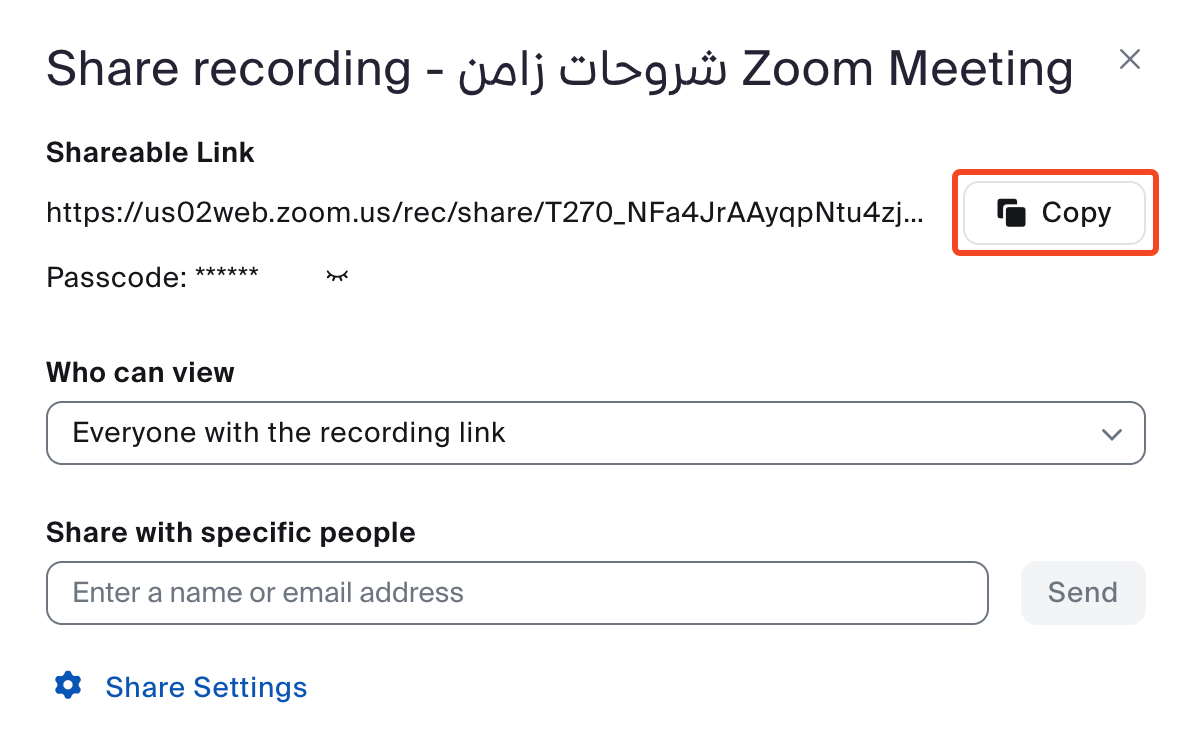
Click Copy.
-
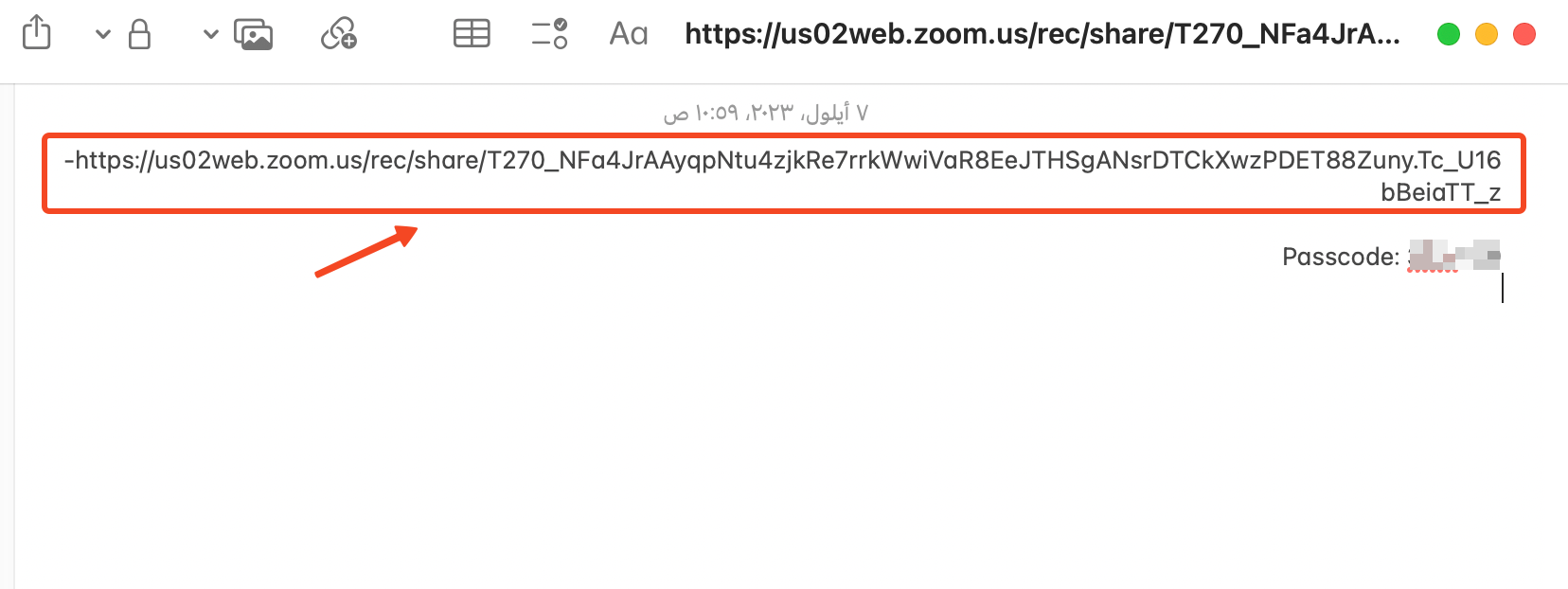
Paste what you copied in an empty page.
-
Select only the link, without the passcode, as shown in the image, then copy it.
-
Go back to your platform on Zamn.
-
Paste the link in the URL to Embed field in the Content tab of the target, then click Save.
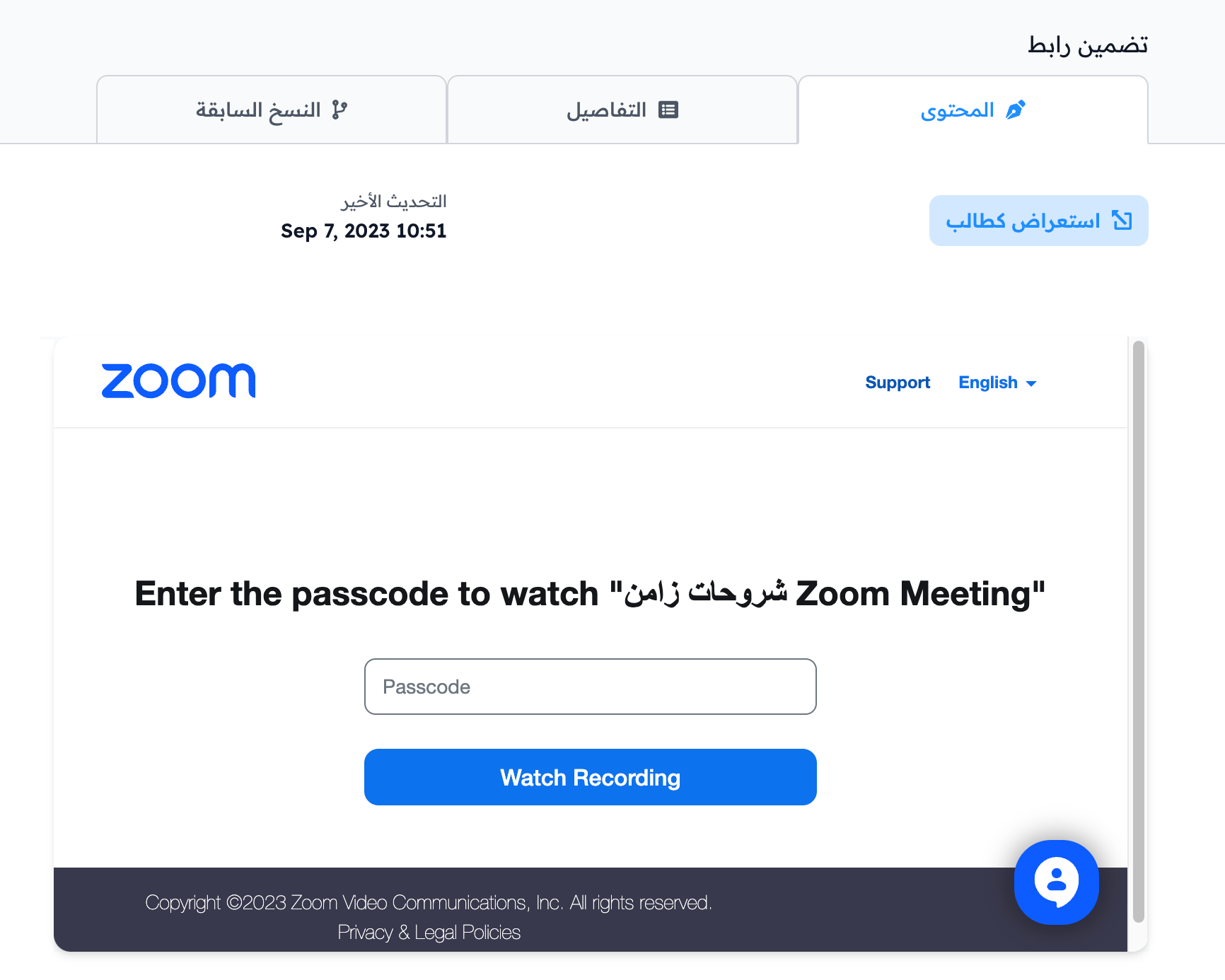
The student needs the passcode to open the recording.
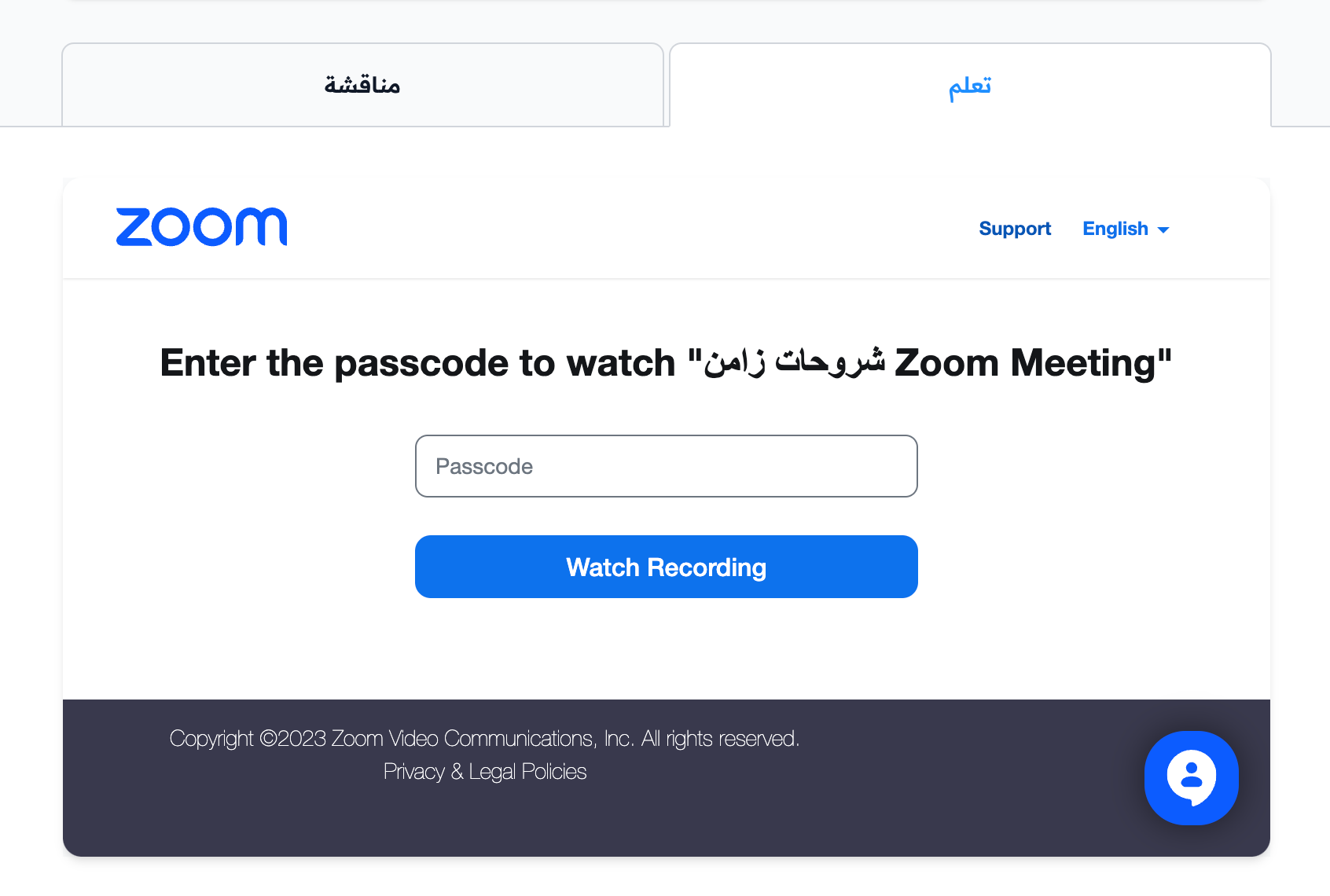
This is how the recording looks to the student:
To embed a recording without a passcode
-
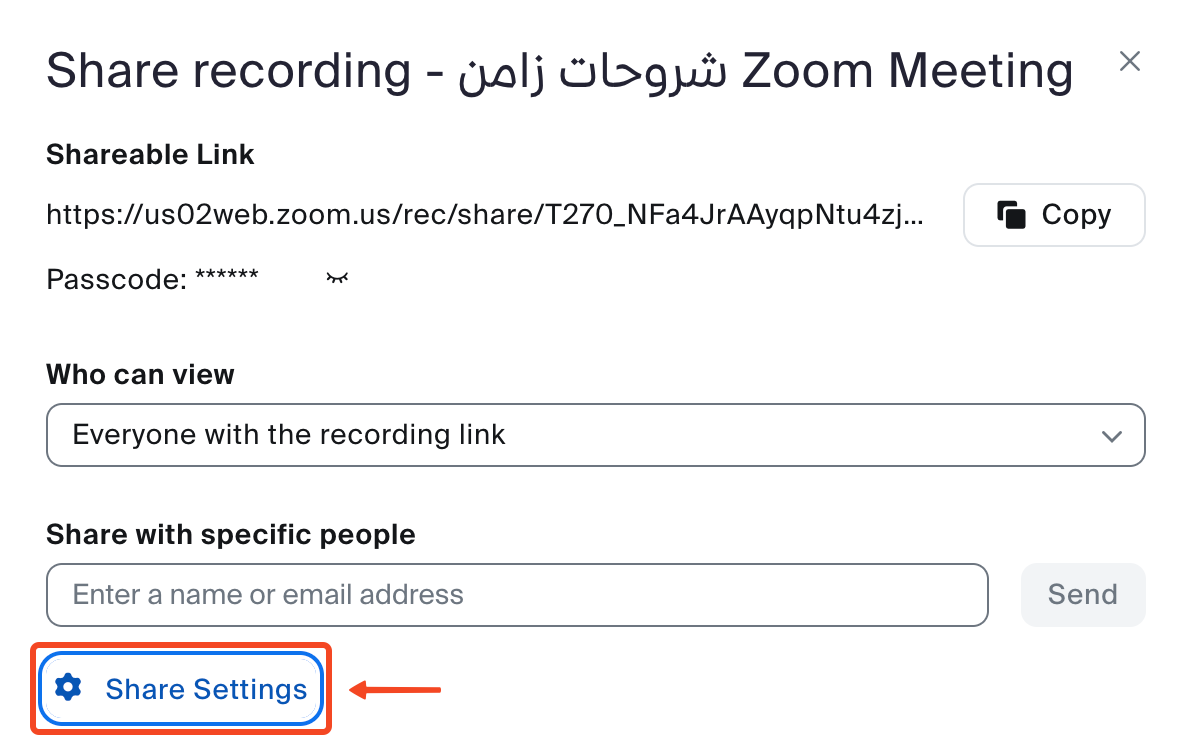
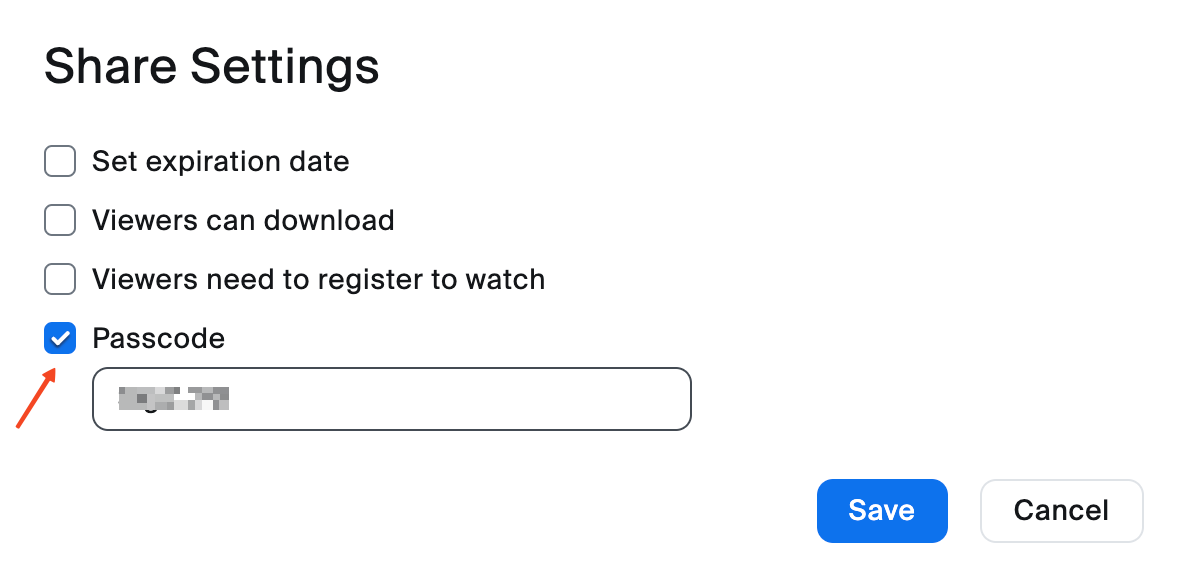
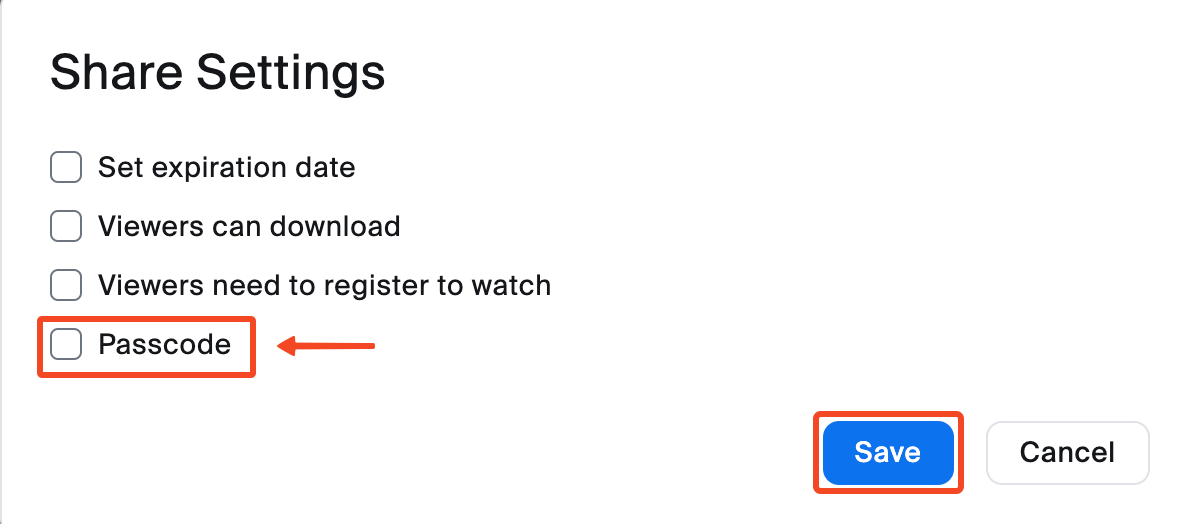
Click Share Settings.
-
Clear the Passcode option, then click Save.
-
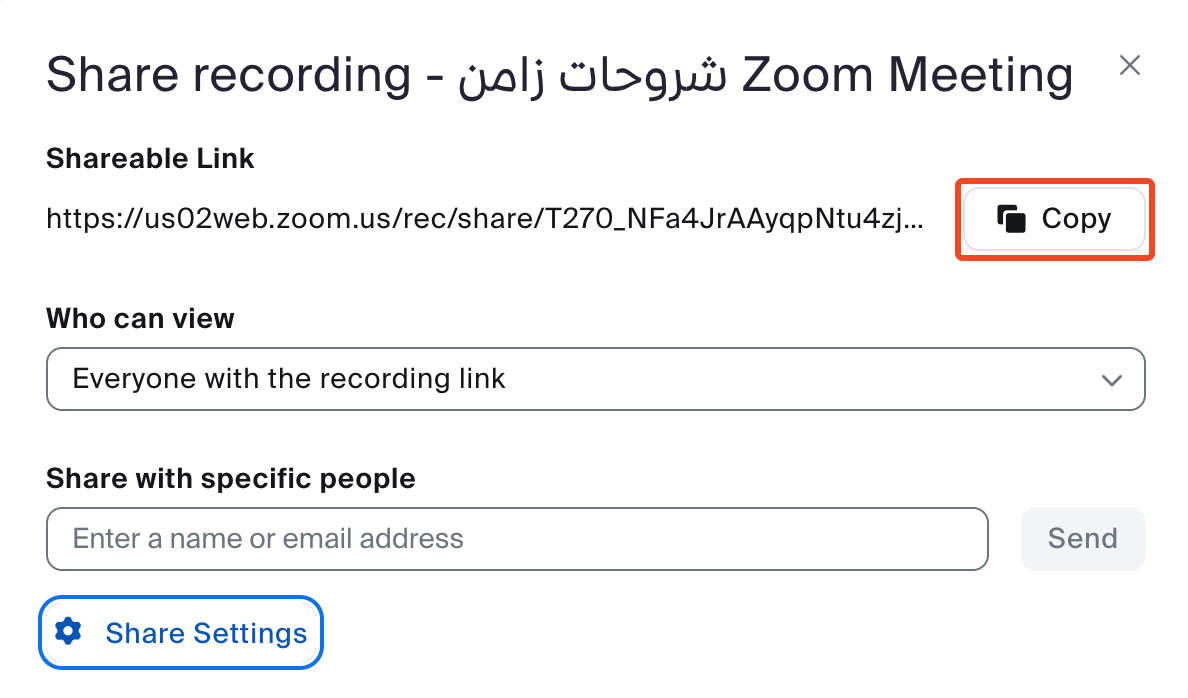
Click Copy to copy the link.
-
Go back to your platform on Zamn.
-
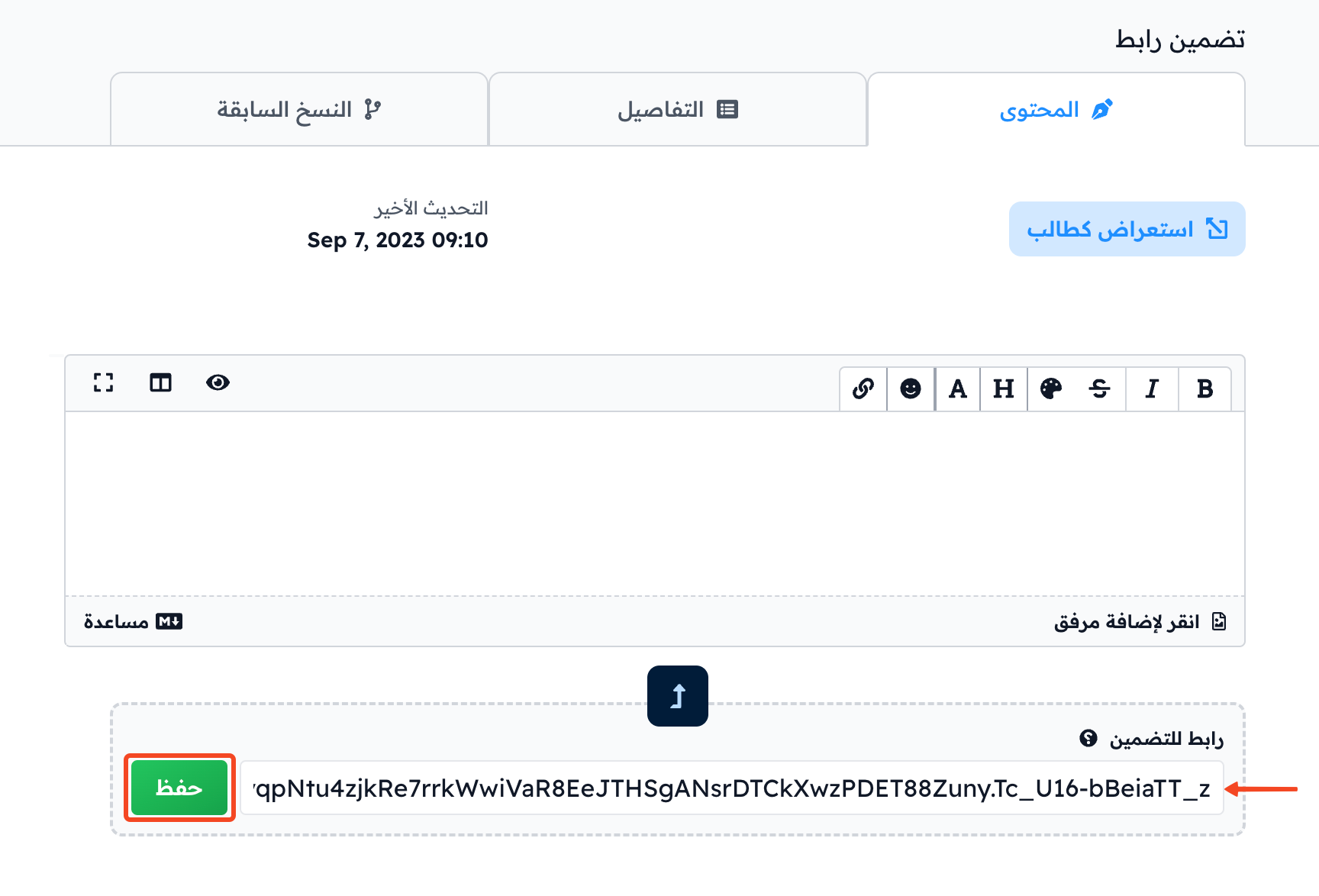
Paste the link in the URL to Embed field in the Content tab of the target, then click Save.
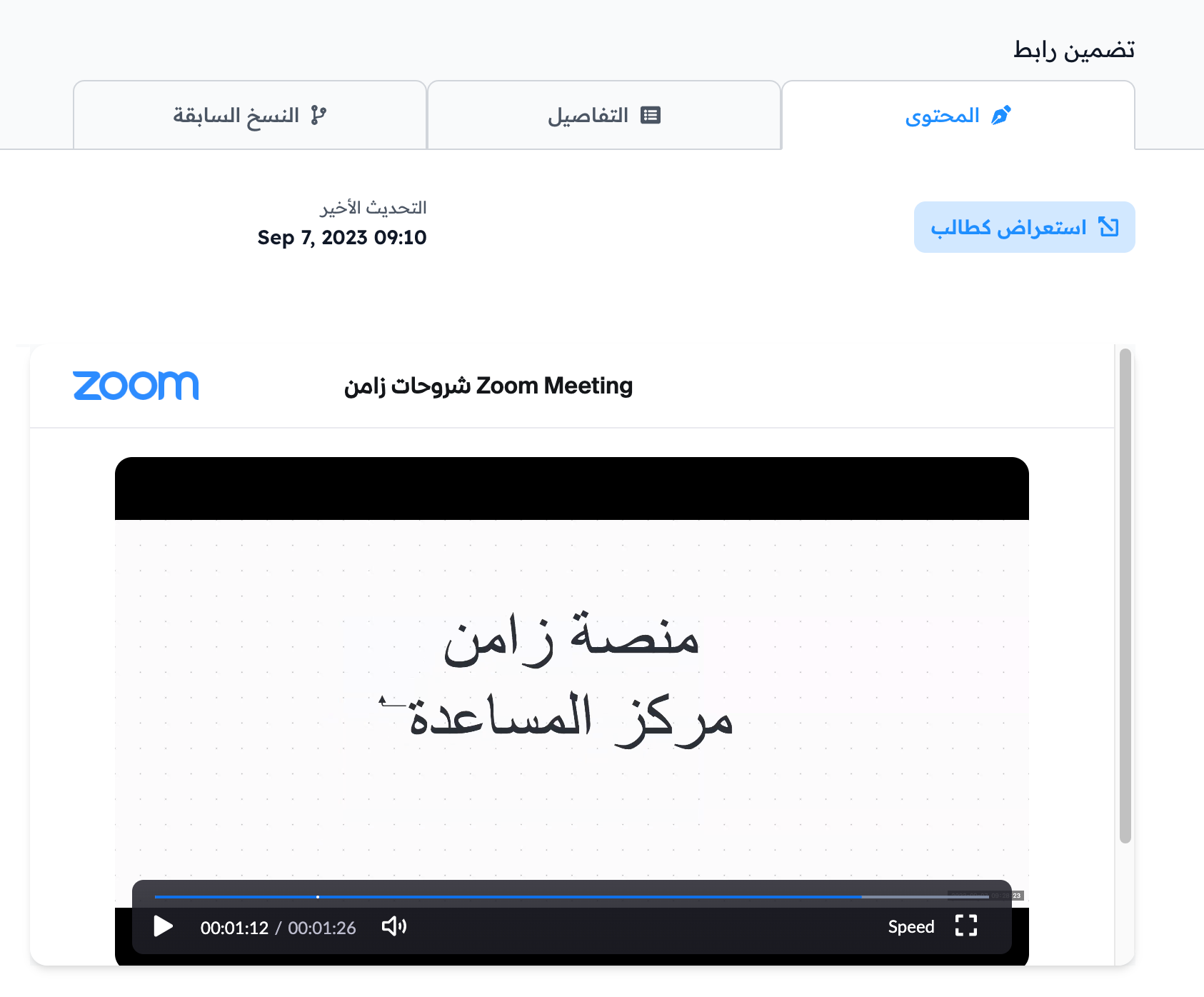
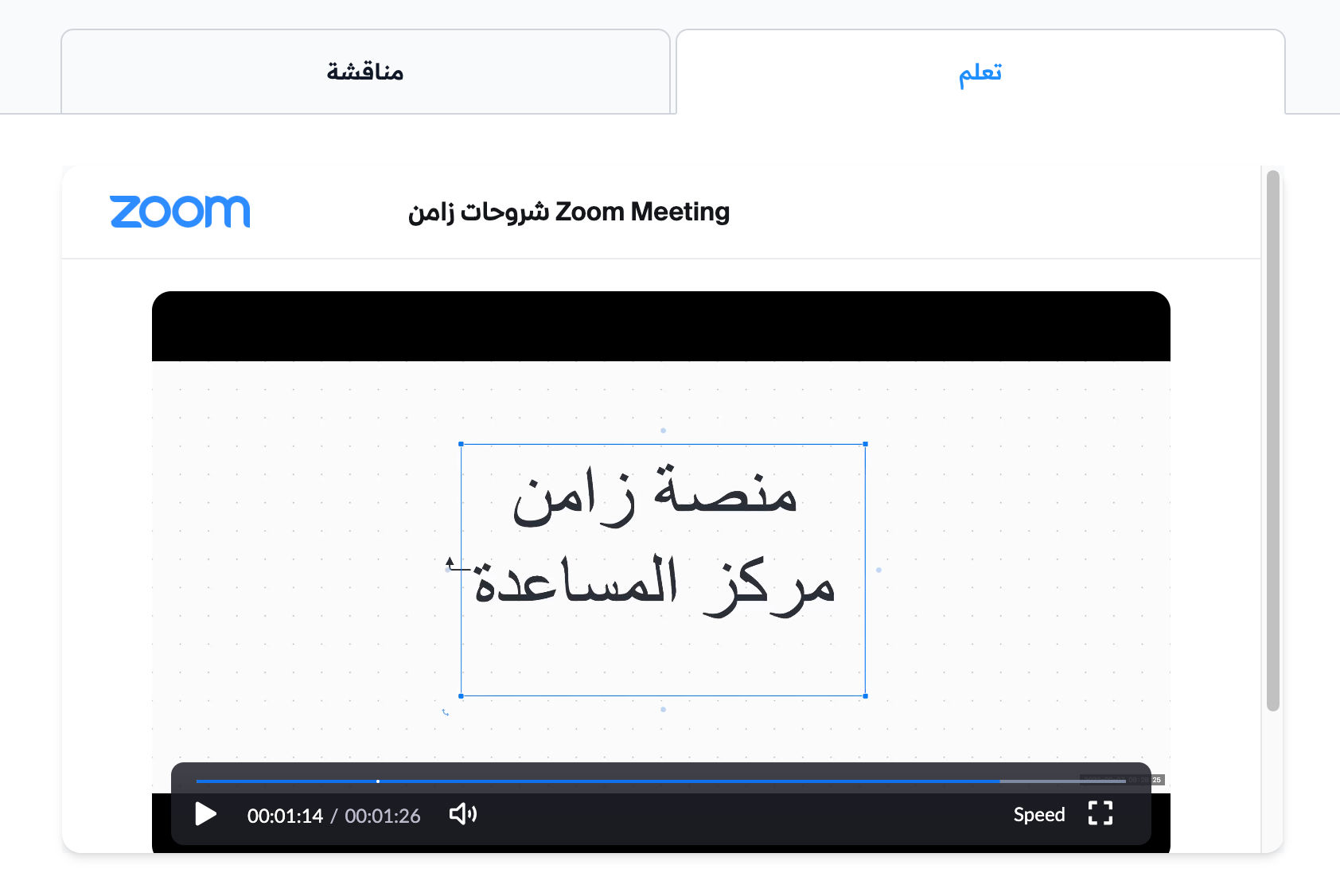
This is how the recording looks to the student:
How to copy the link of a YouTube video
-
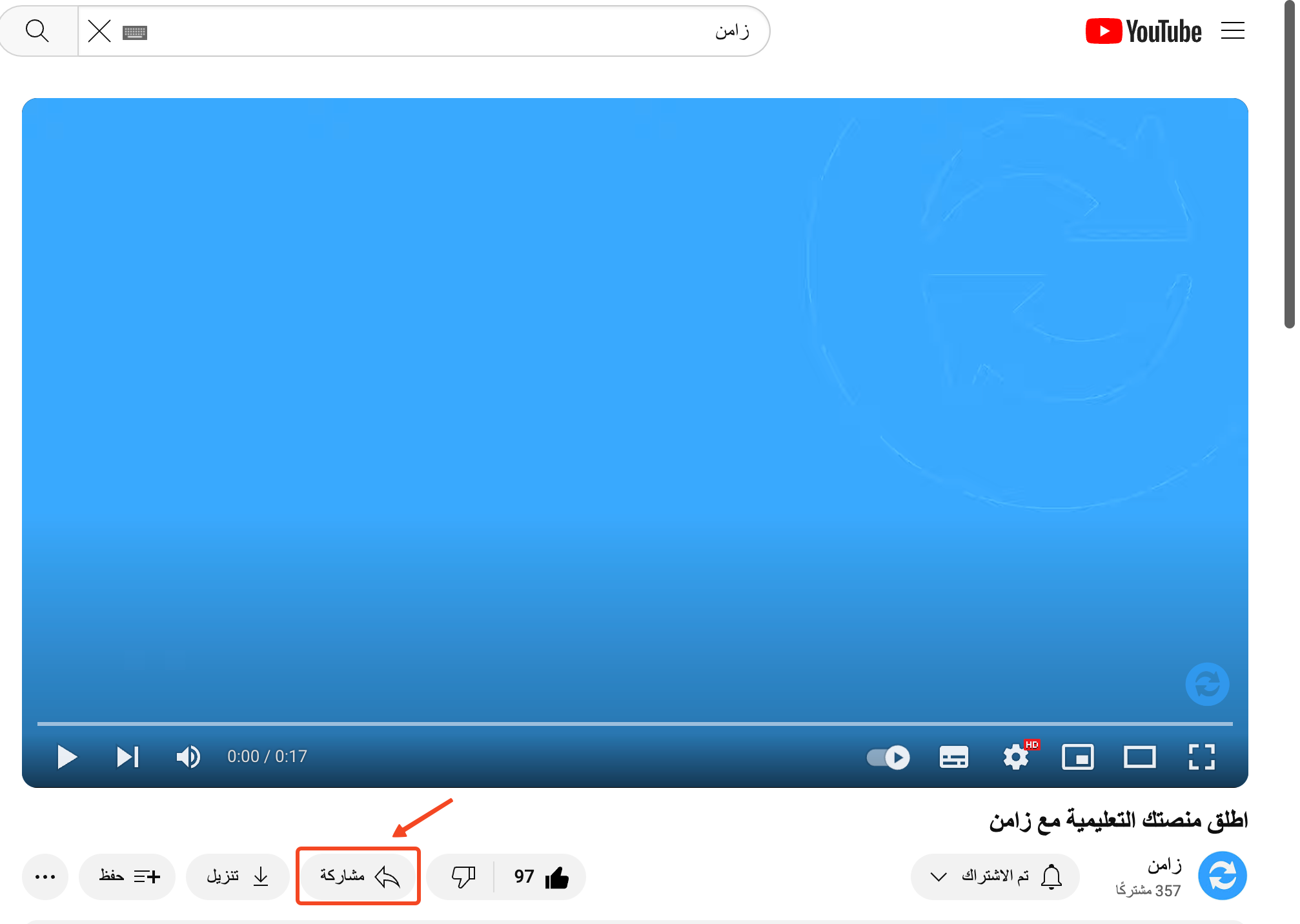
Click Share under the video you want to embed.
-
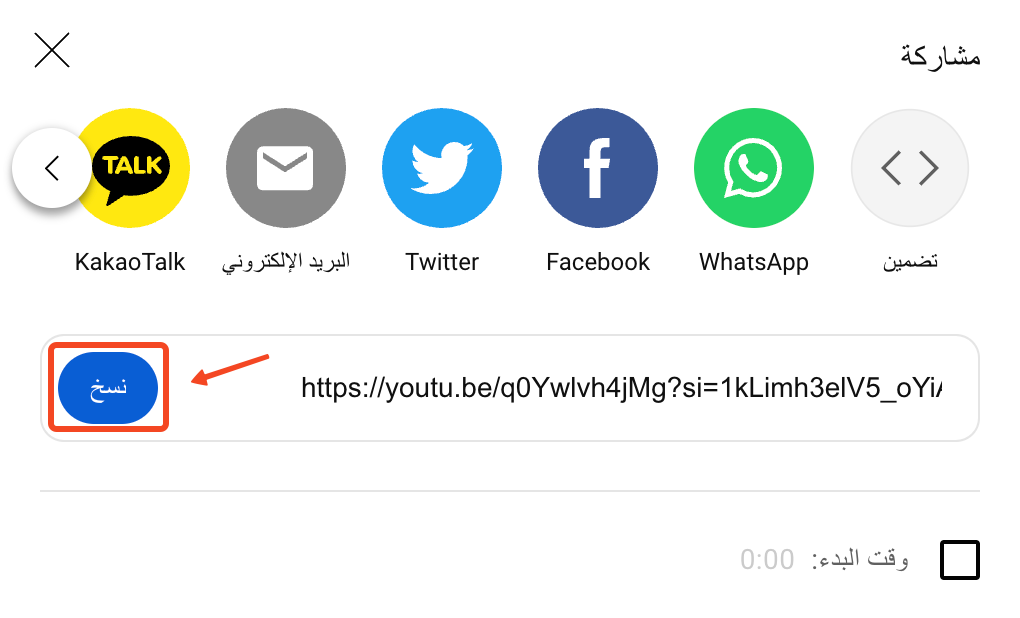
Click Copy to copy the video link.
-
Go back to your platform on Zamn.
-
Paste the link in the URL to Embed field in the Content tab of the target, then click Save.
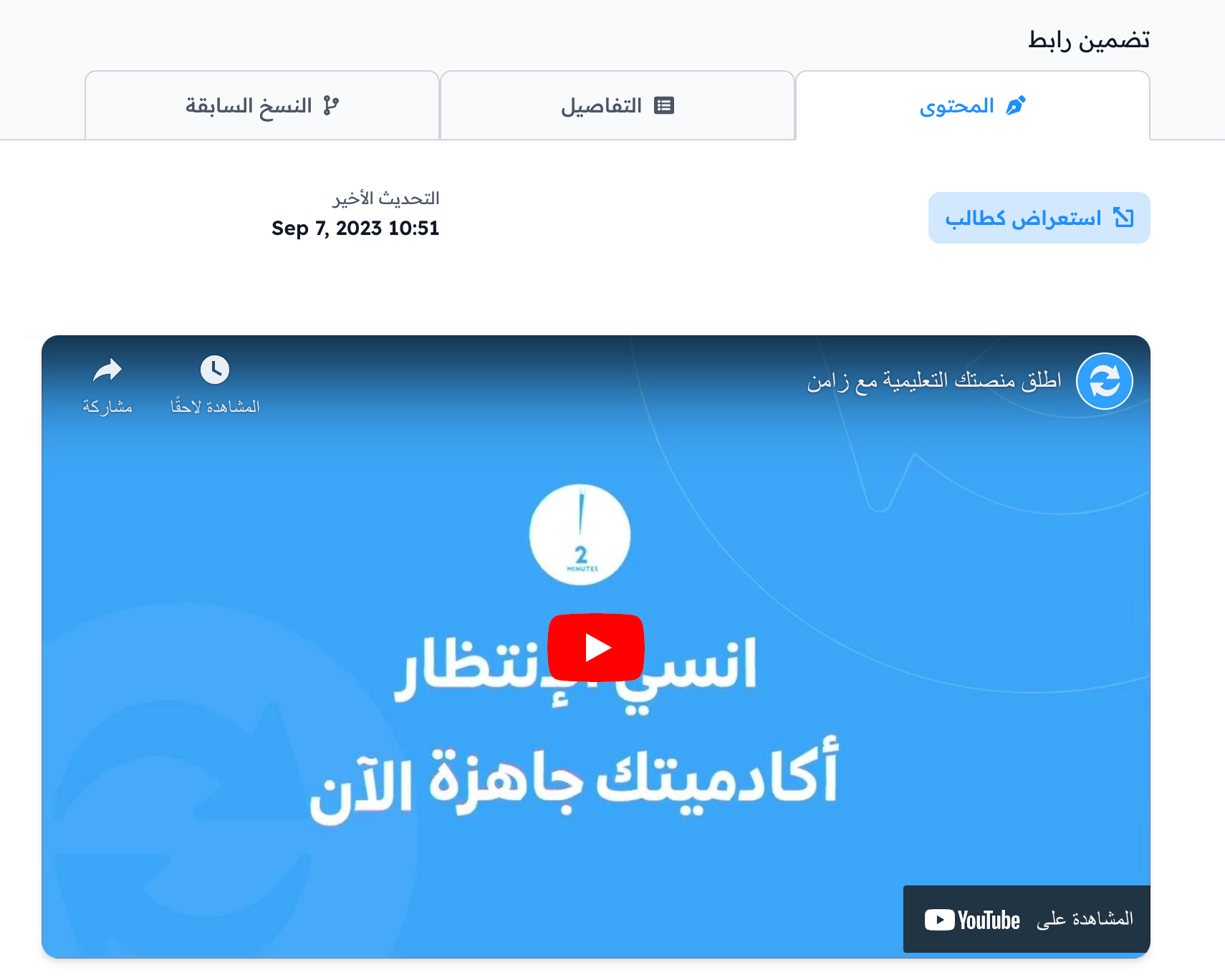
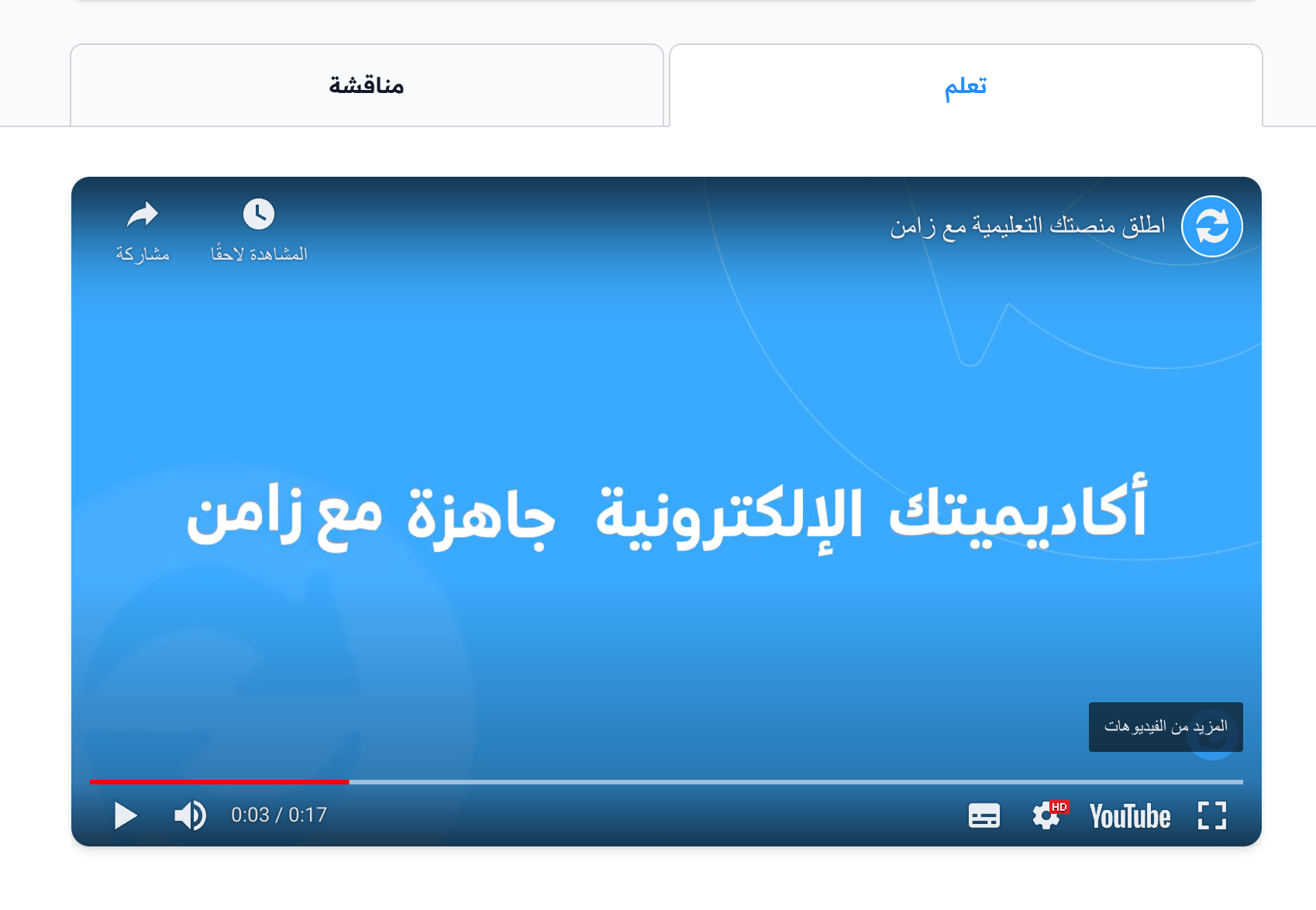
This is how the video looks to the student:
How to copy the link of a SlideShare file
-
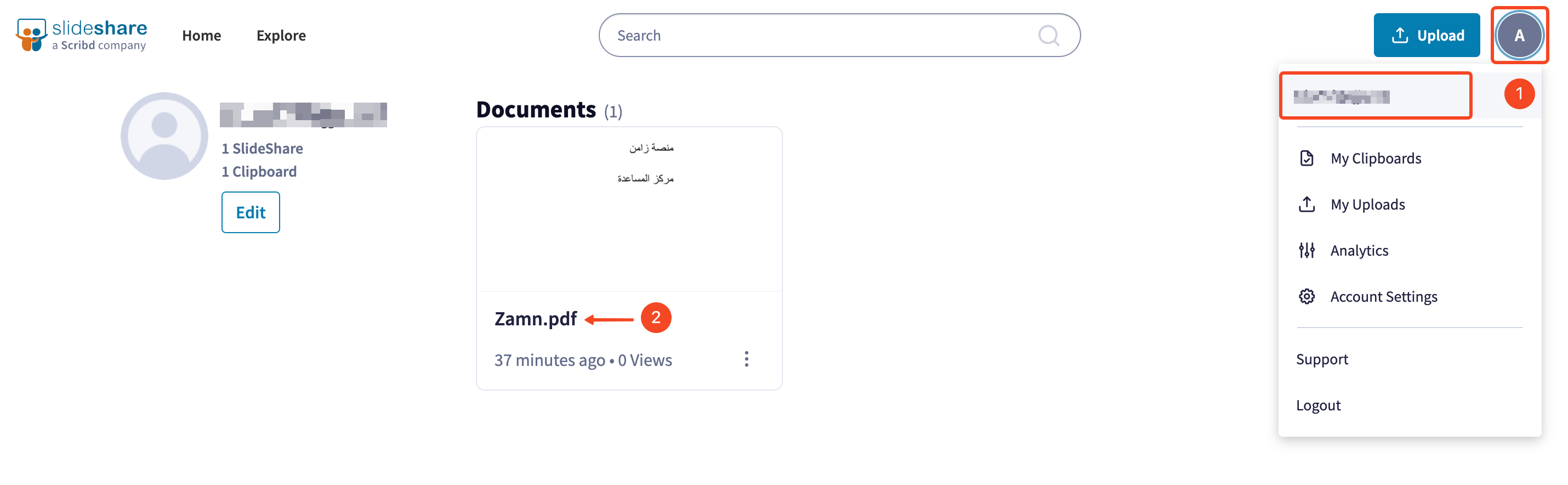
From the account icon, open your profile page.
-
Click the file you want to share.
-
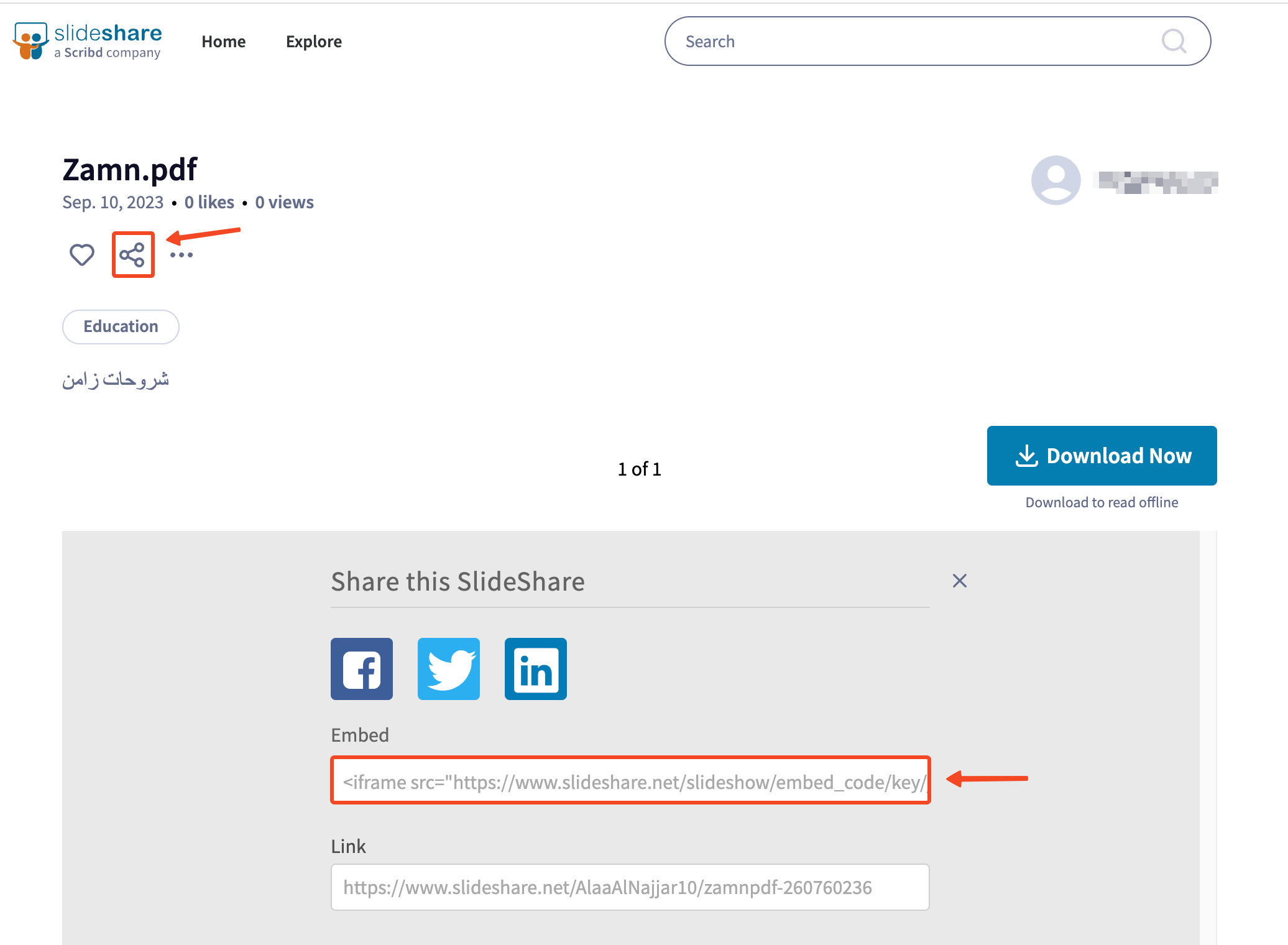
Click the share button.
-
Copy the embed code from the Embed field.
-
Go back to your platform on Zamn.
-
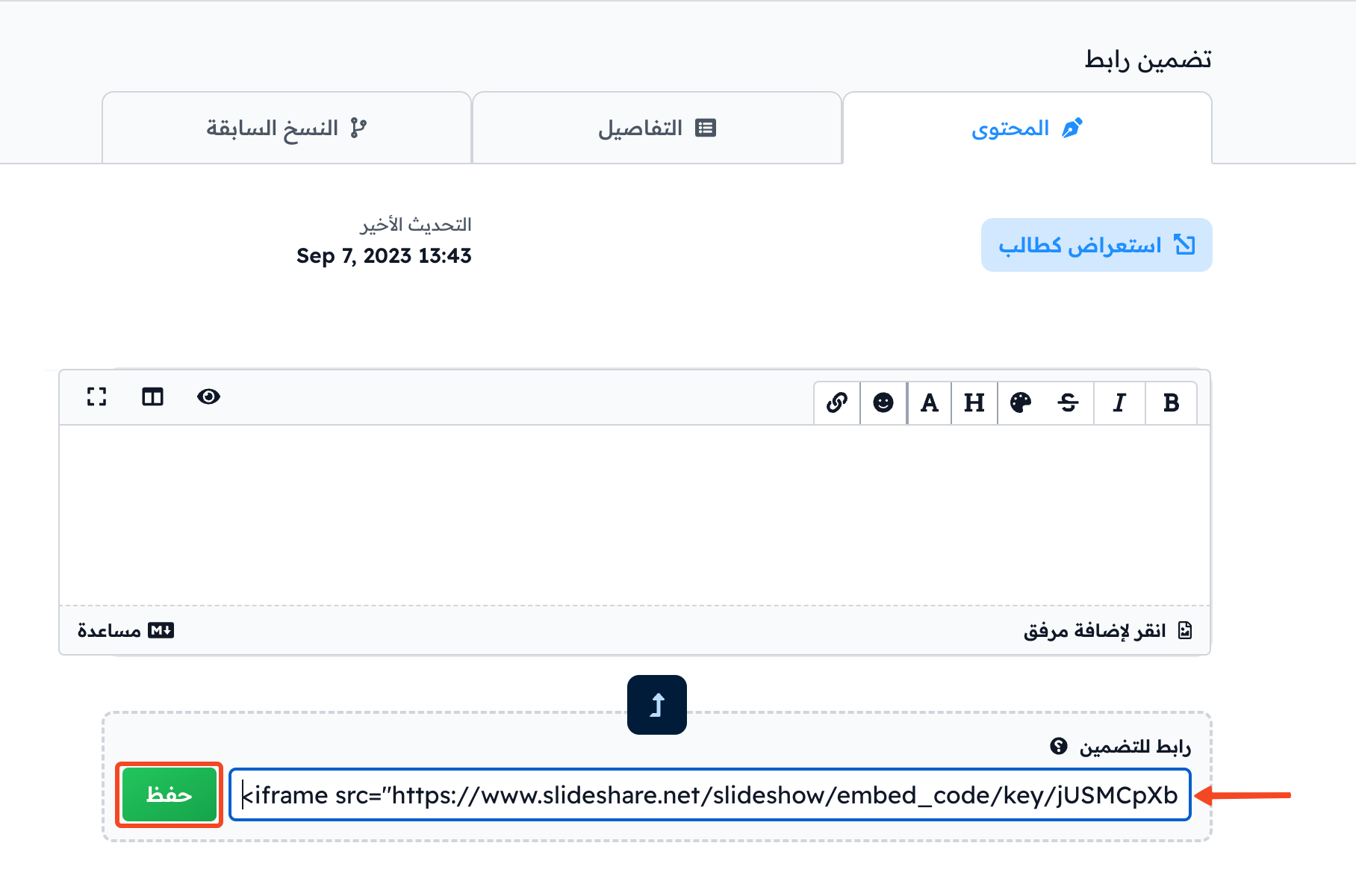
Paste the code in the URL to Embed field in the Content tab of the target, then click Save.
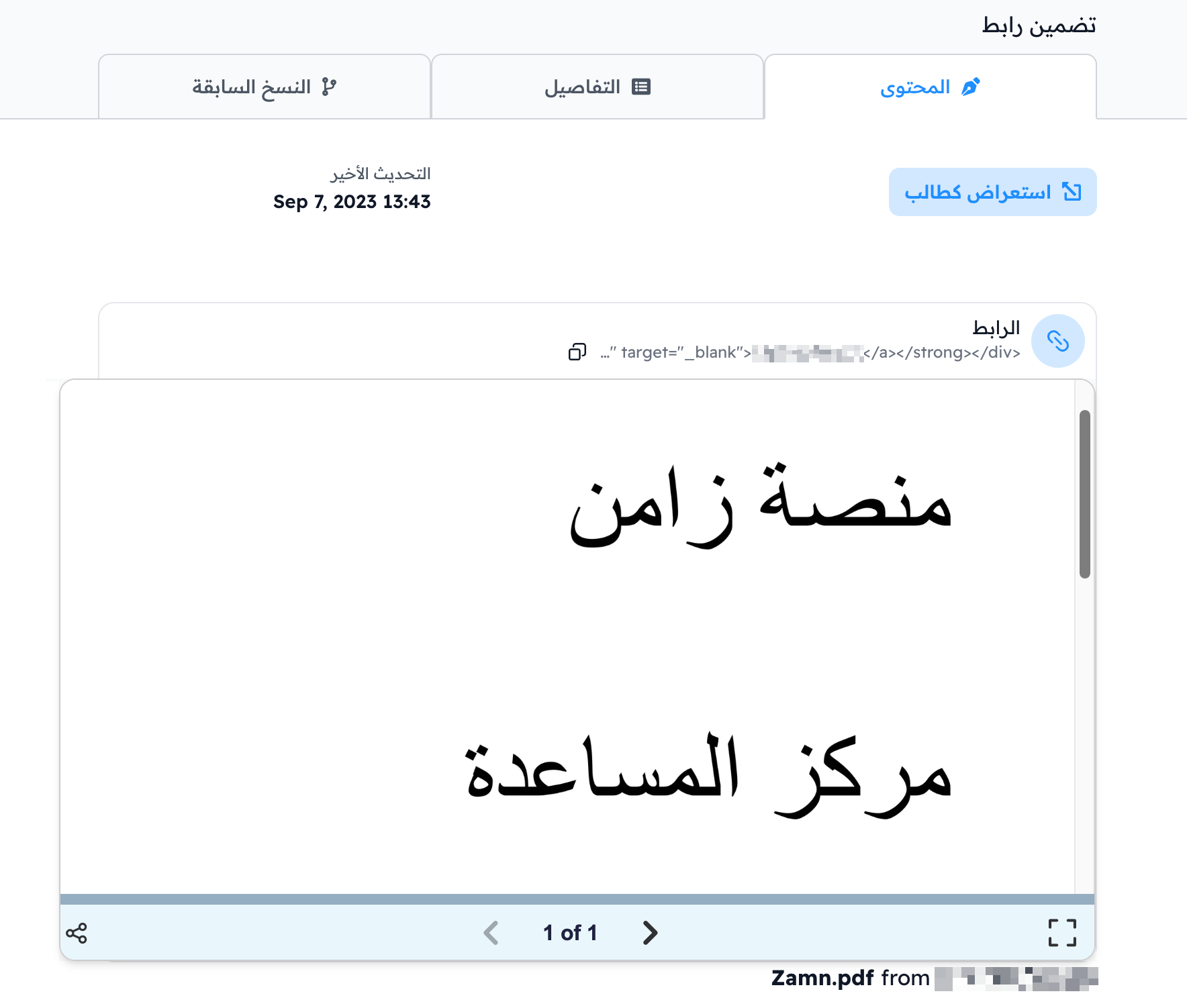
This is how the file looks to the student: