Add a business email to your platform
You can set a business email that the platform uses when it sends notifications to the users of your platform. This feature is not in every plan. If you see a message asking you to upgrade your plan, it is not in your current plan.
The business email must be a custom or paid email, and so must the reply email. Free emails such as Gmail or Hotmail are not accepted.
Steps to add a business email
-
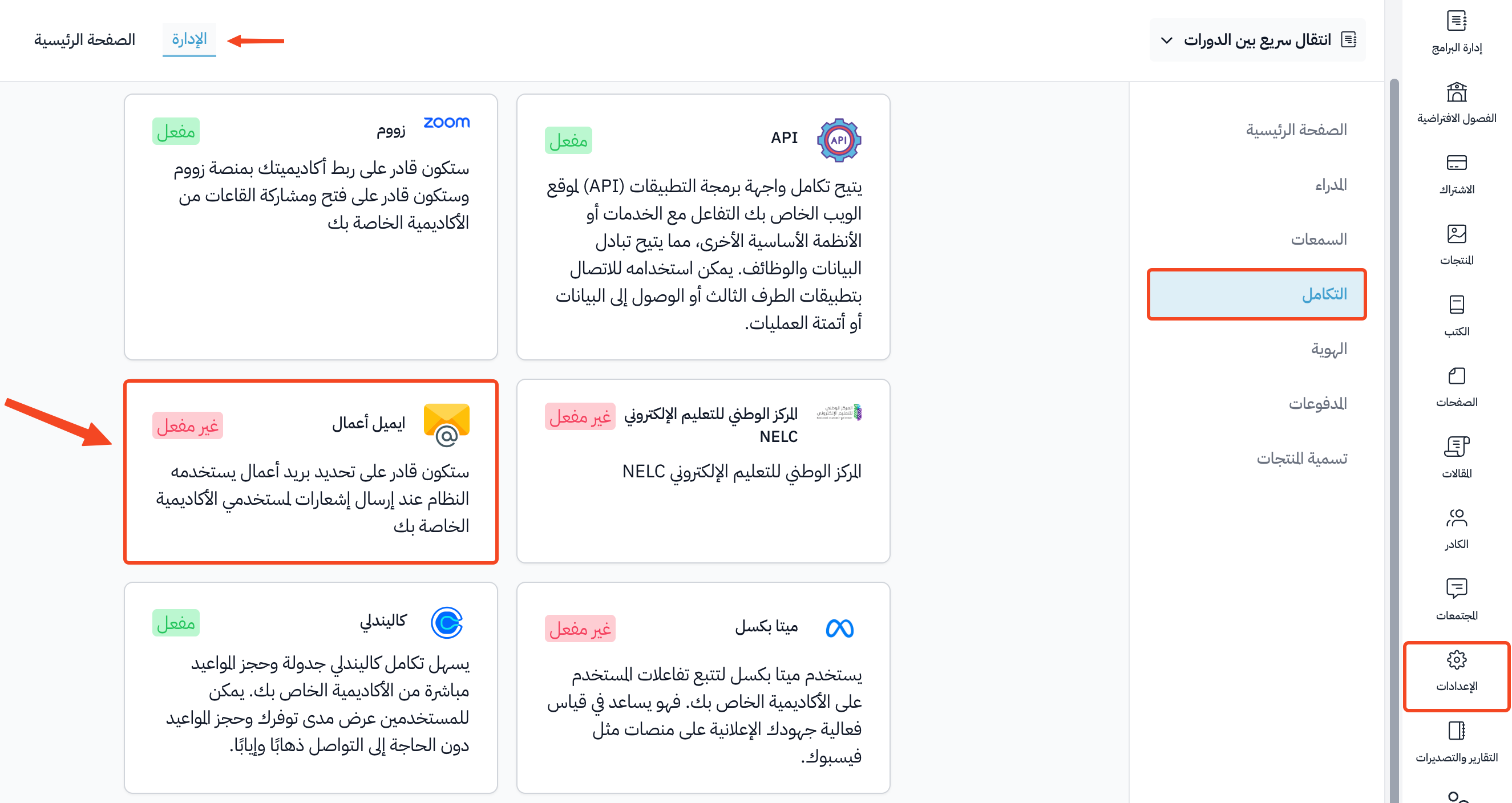
From Settings in the dashboard, click Integrations.
-
Choose Email.
-
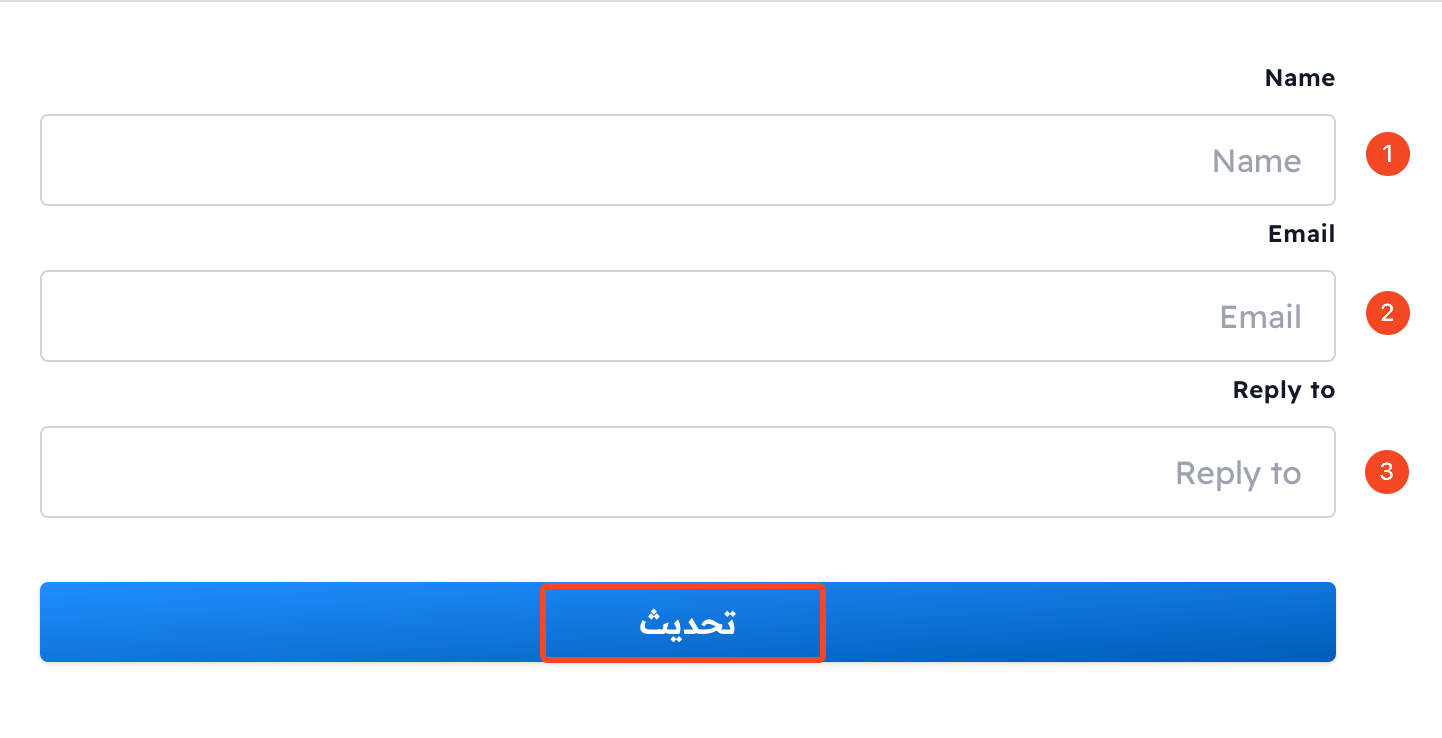
In the Name field, enter your platform name or any other name you want.
-
In the Email field, enter your business email address.
-
In the Reply to field, enter the email address where you want replies to arrive.
-
Click Update to save.
-
The form shows a message asking you to check your email. Open the business email you entered, and click the confirmation link in the message you get.
If you do not want to get replies to this email, type an email that starts with no-reply followed by your business email domain in the Reply to field, such as no-reply@yourdomain.com.