How to delete a section (level) from a course
This article shows how to delete a section from a course curriculum. When you delete it, all the targets and students in the section move to another section you choose, so the course needs at least two sections.
Steps to delete a section from a course
-
On the Courses page, click Edit Curriculum for the course you want.
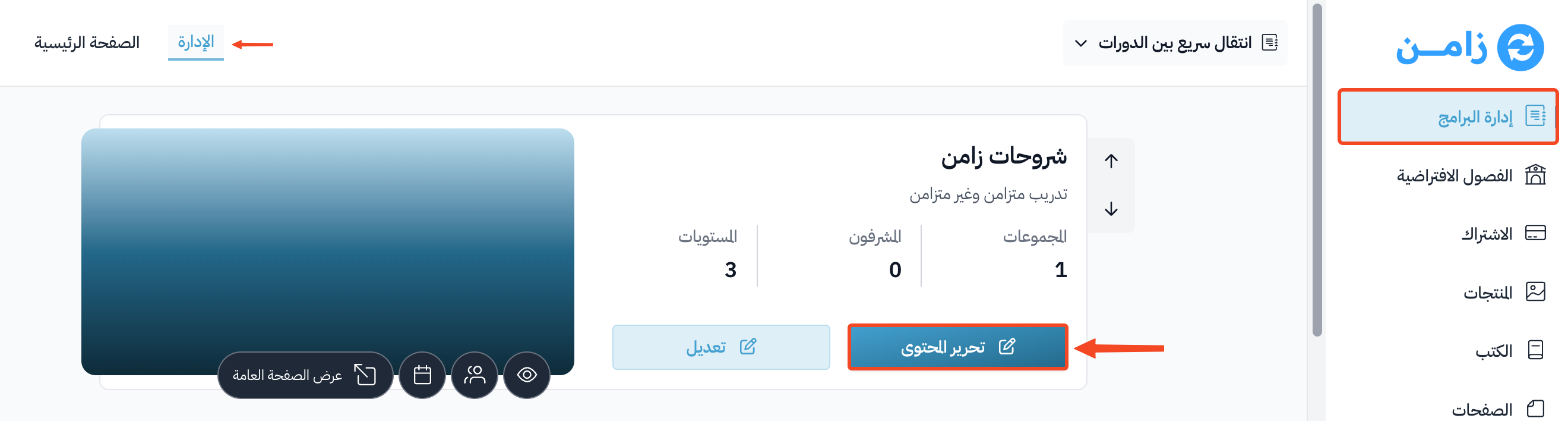
-
On the Curriculum page, choose the section you want to delete from the sections list at the top.
-
Click the edit button (pencil) next to the section name.
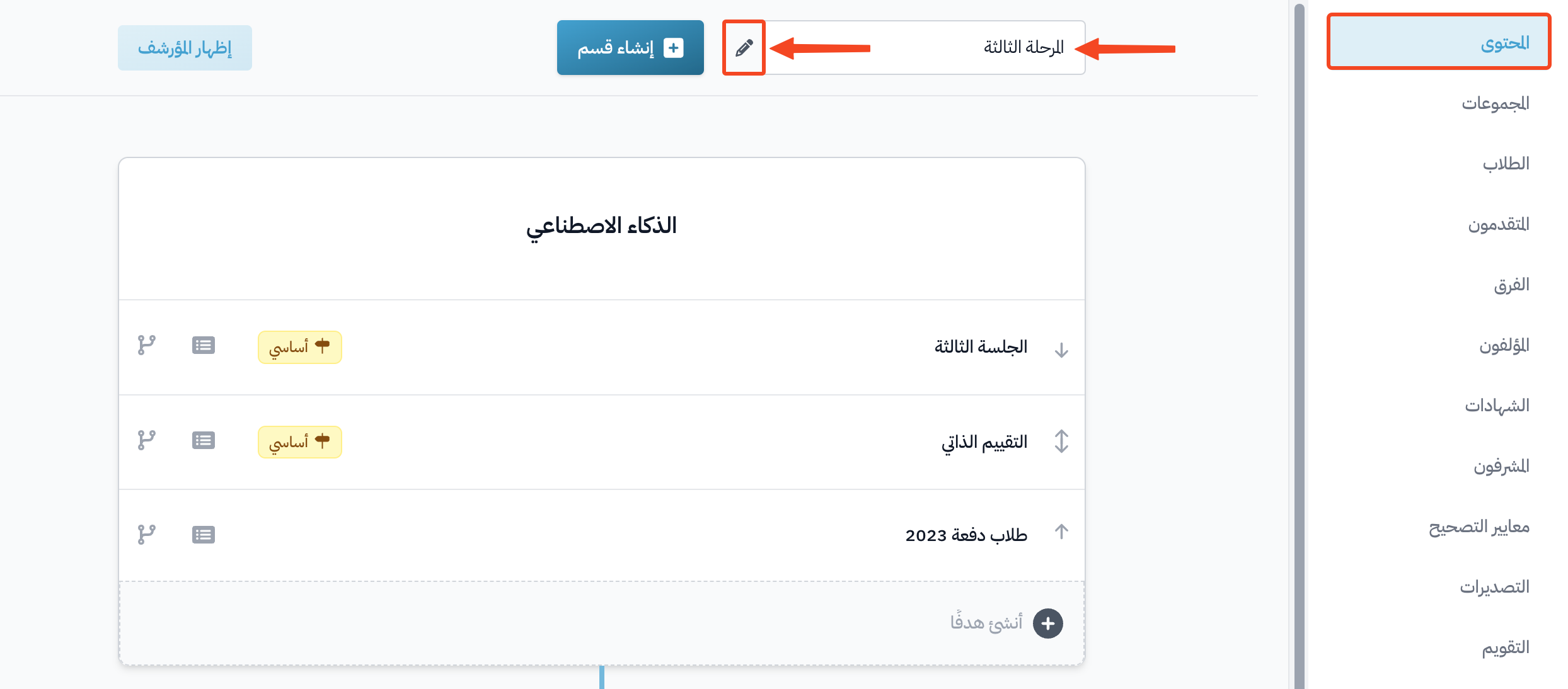
-
Go to the Actions tab.
-
In Delete & Merge Into, choose the section that the targets will move to.
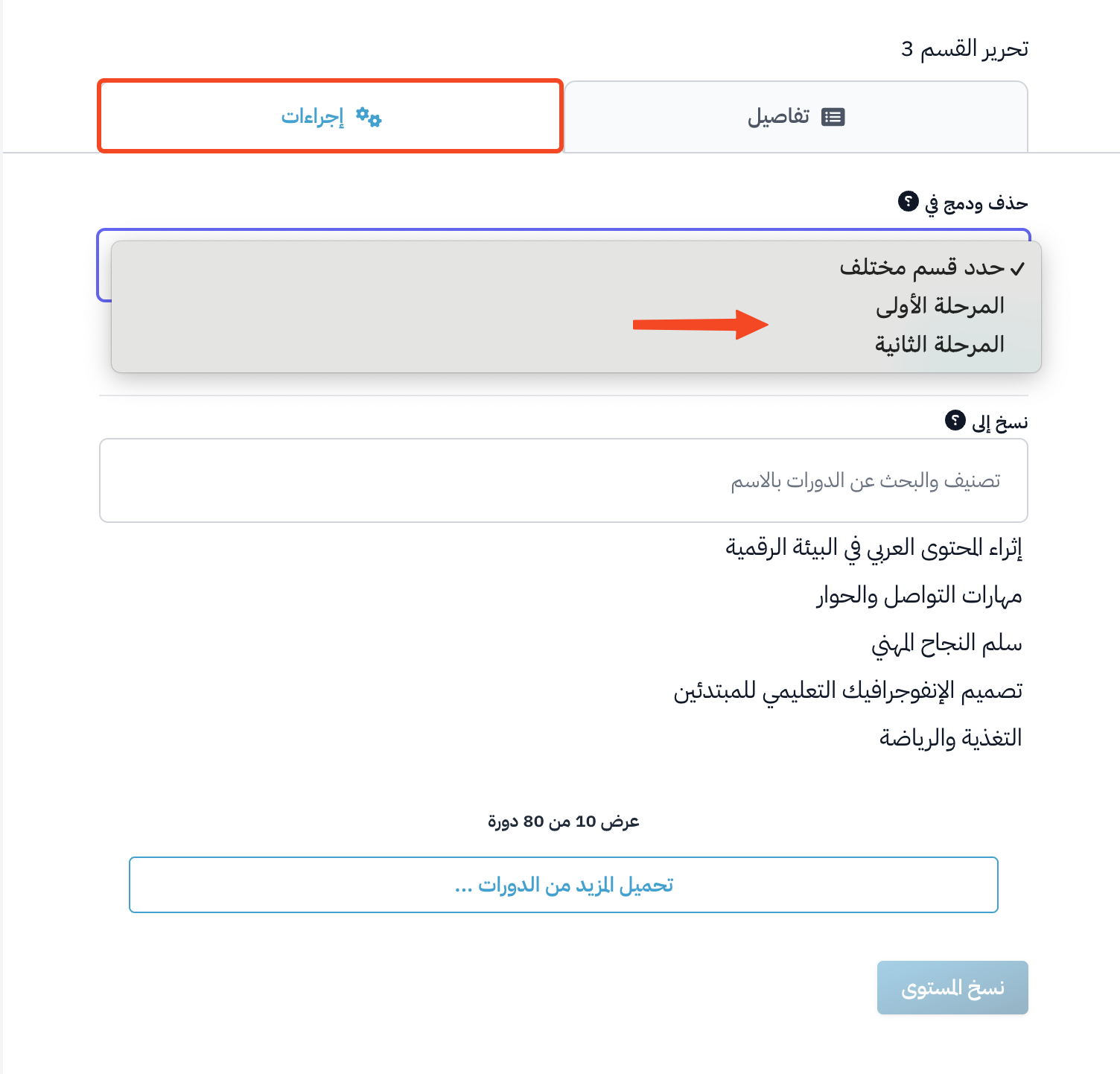
-
Click Merge and Delete. All the targets and students in this section move to the section you chose, and then the section is deleted.
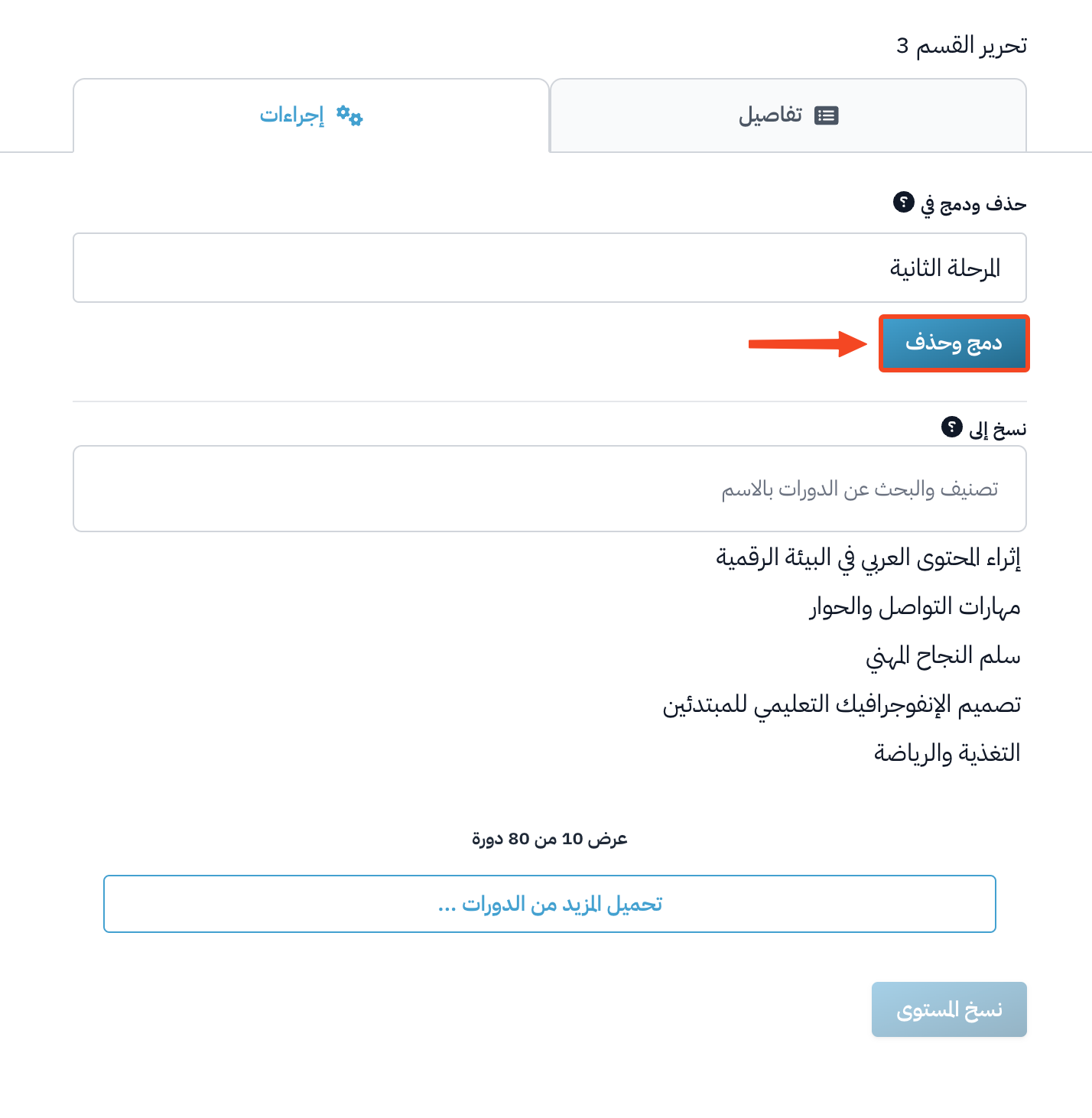
-
The message Are you sure? This action cannot be undone. shows. Click OK to finish.

You cannot undo deleting a section after you confirm.