Style page builder elements with CSS
This article shows how to add custom CSS code to change how your page builder pages look. This feature is for platform admins.
Steps to add custom CSS
-
In your platform dashboard, click Pages.
-
Go to the Advanced Settings page.
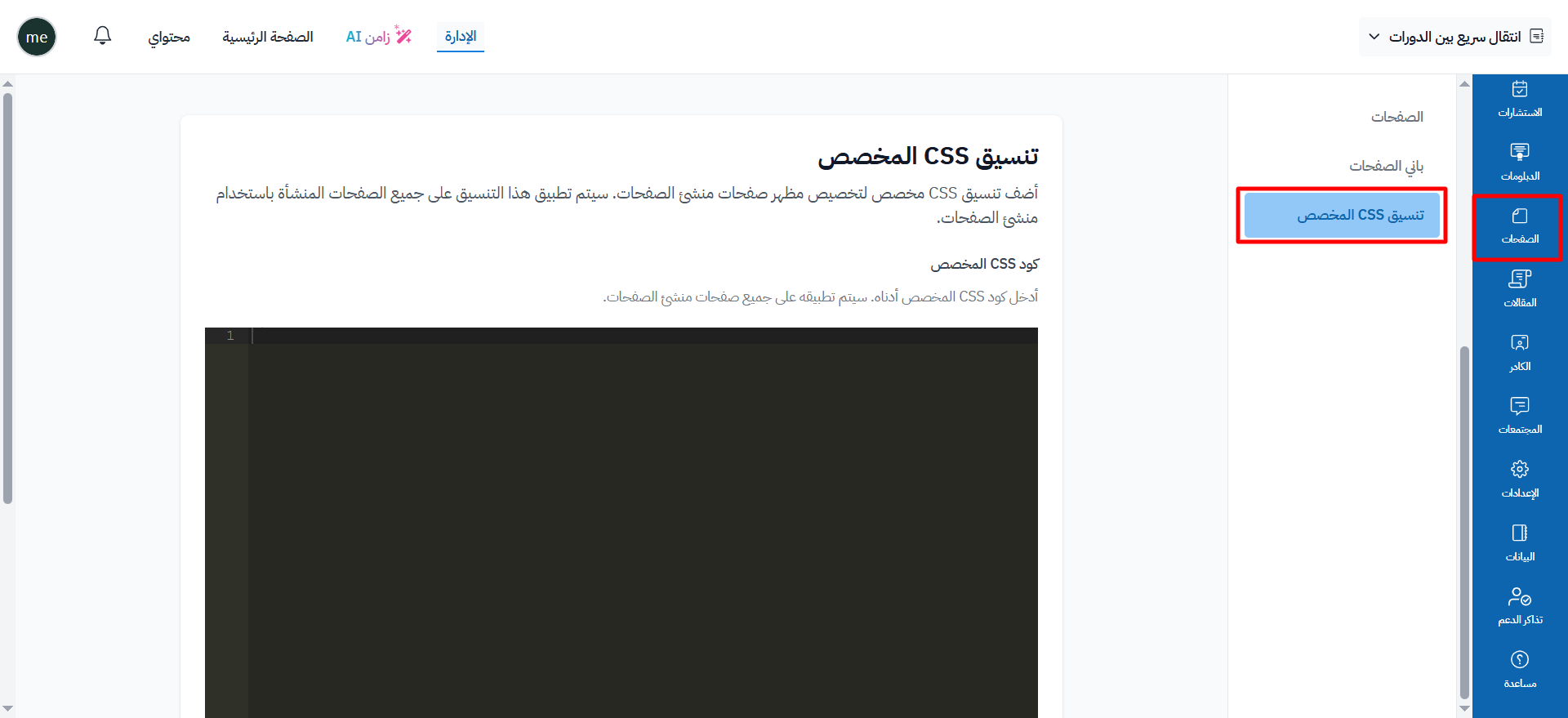
-
Type your code in the Custom CSS Code box.
-
Click Save Changes to apply the code.
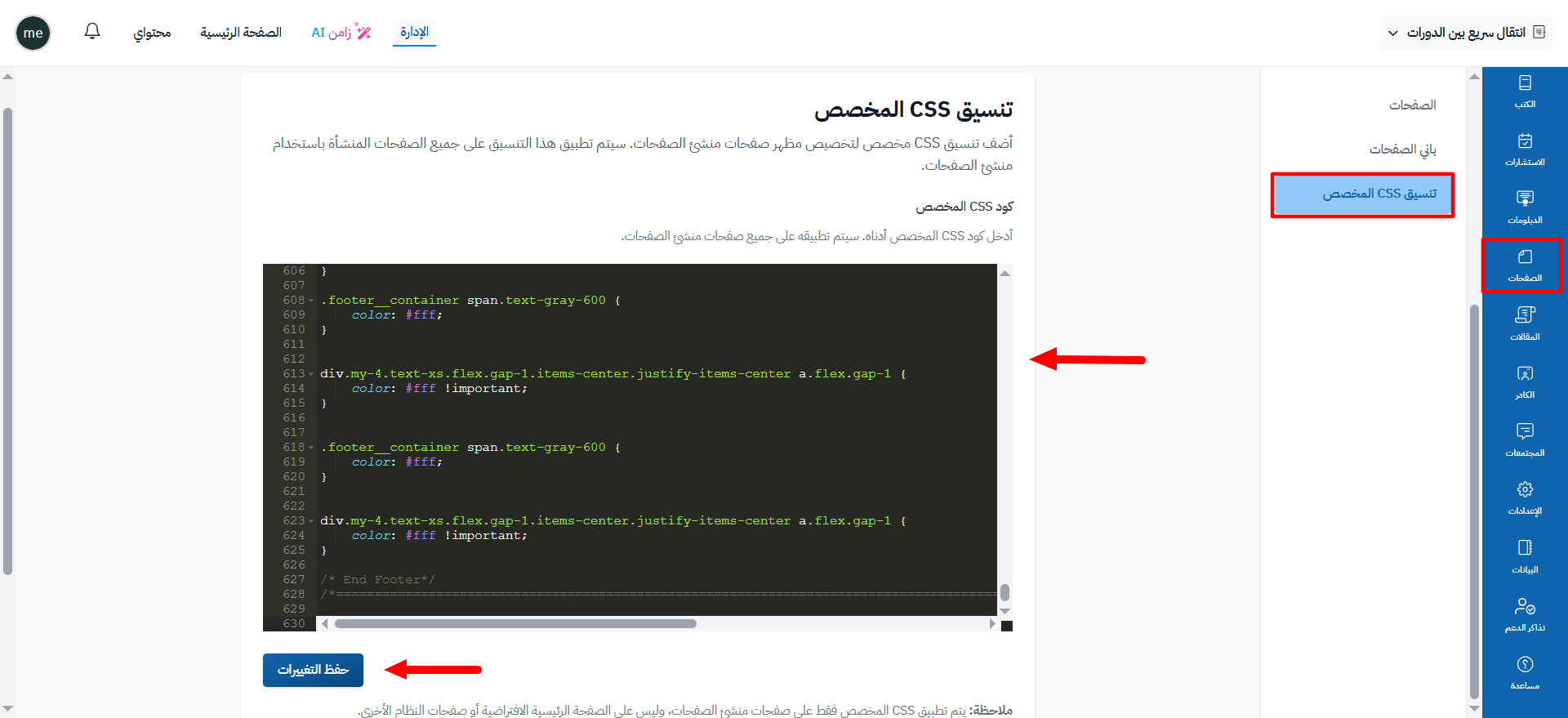
The code applies only to page builder pages, not to the default home page or other system pages.
You can save the code only if your subscription plan includes this feature, or if your platform is in its trial period.
Example
-
Open your page in the browser, then open the developer tools (Inspect), and copy the unique id of the element you want to style, like
block-EKyRzwKT.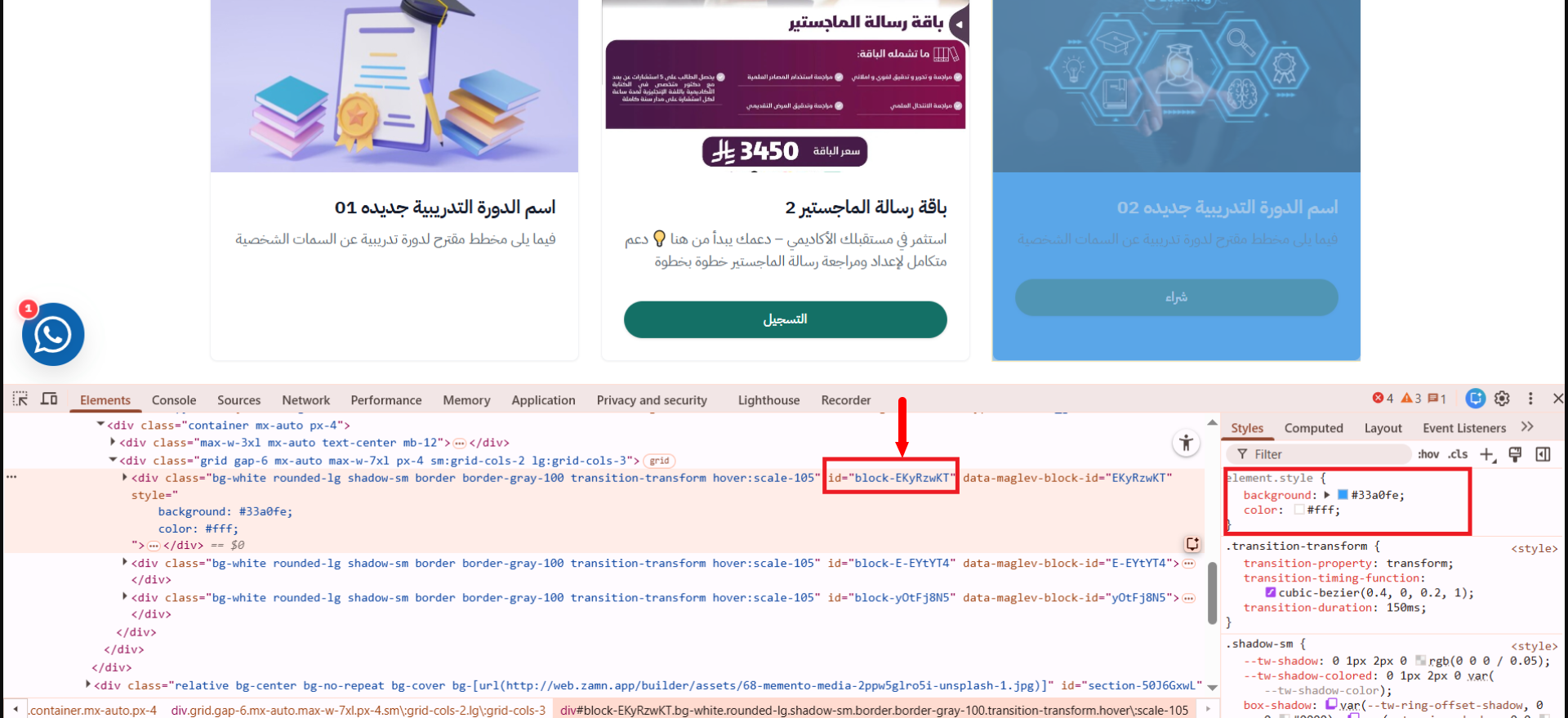
-
Type the id in the code, with a
#sign before it, then click Save Changes.#block-EKyRzwKT {background: #33a0fe;color: #fff;}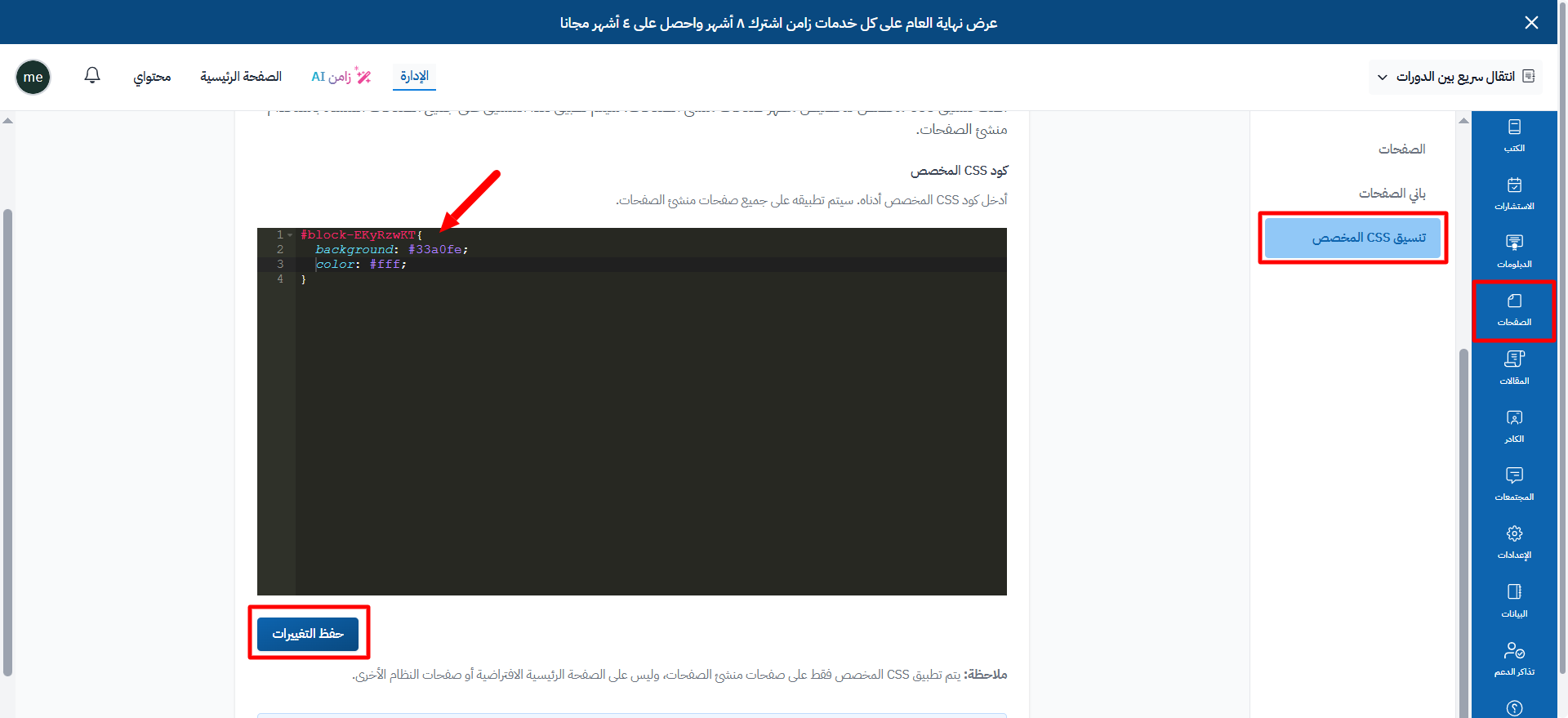
-
This is how the element looks after the code is applied.