How to create assignments (advanced questions)
This article shows how to create an assignment with advanced questions in a course. Students answer with text, a link, a file or an audio record, and then a coach reviews the answer.
Steps to create an assignment with advanced questions
-
On the Courses page, click Edit Curriculum for the course you want.
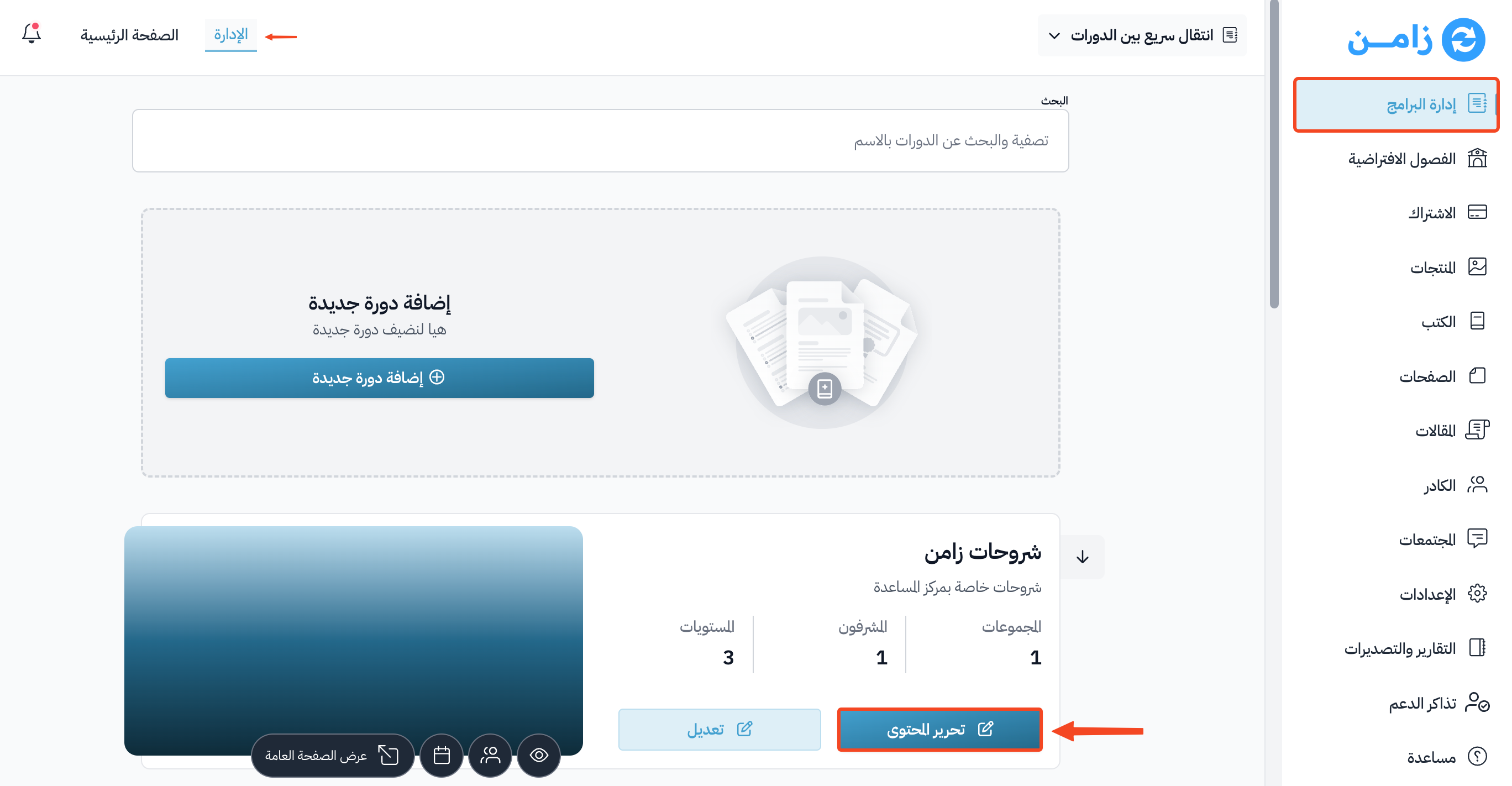
-
On the Curriculum page, create a new target, or open an existing one.
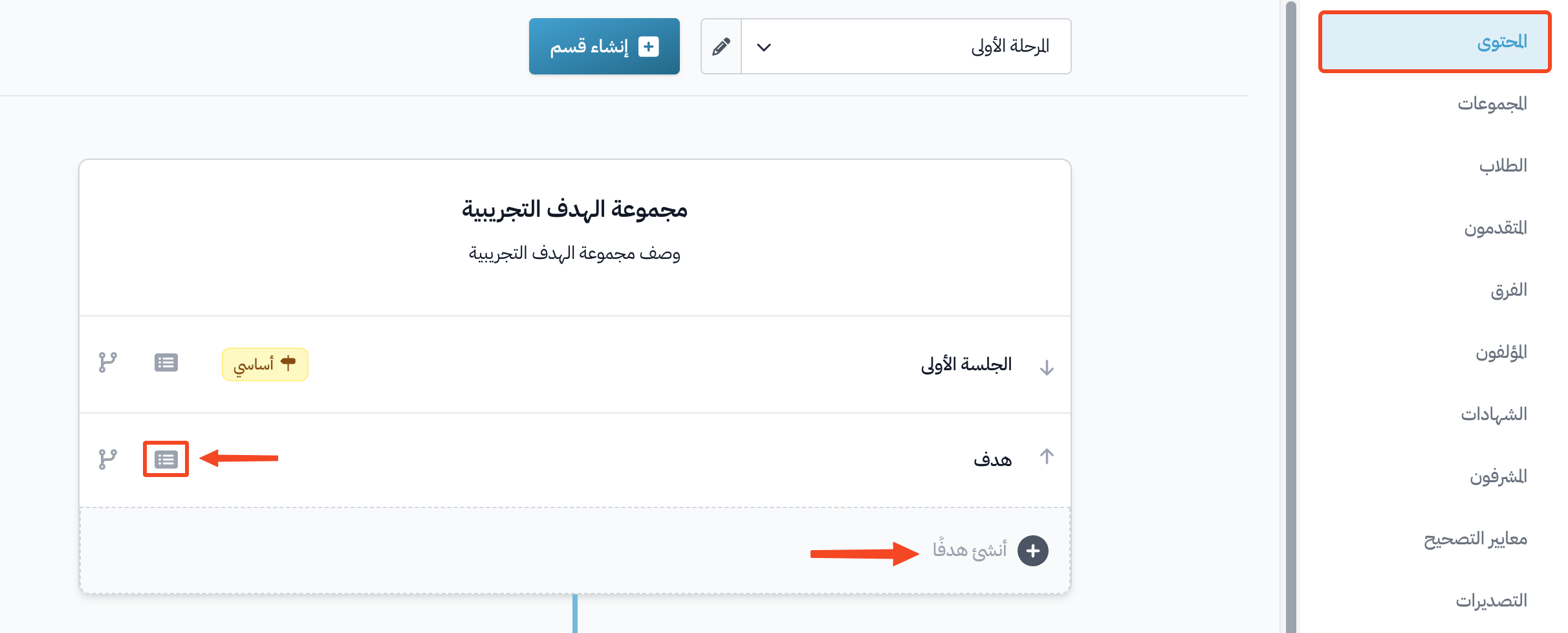
-
Go to the Details tab of the target.
-
You can edit the Title, turn on Milestone target, and choose prerequisite targets in Are there any prerequisite targets? if there are any.
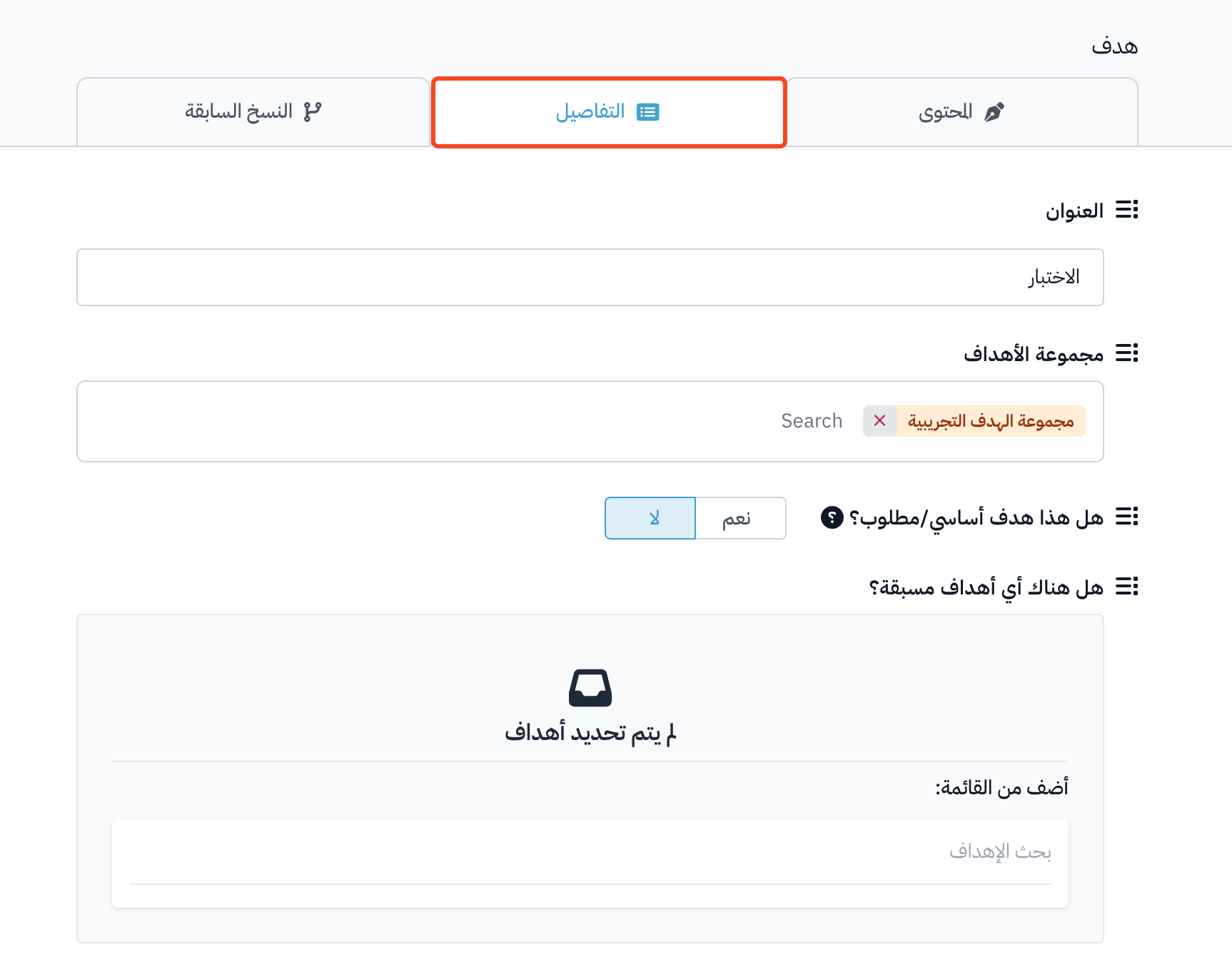
-
Under How do you want the student to complete the target?, choose Advanced questions reviewed by coach.
-
Under What steps should the student take to complete this target?, choose how the student answers: Write Short Text, Write Long Text, Attach a Link, Choose from a list, Record Audio or Upload Files. Then type the question.
-
To add another question, click Add another question.
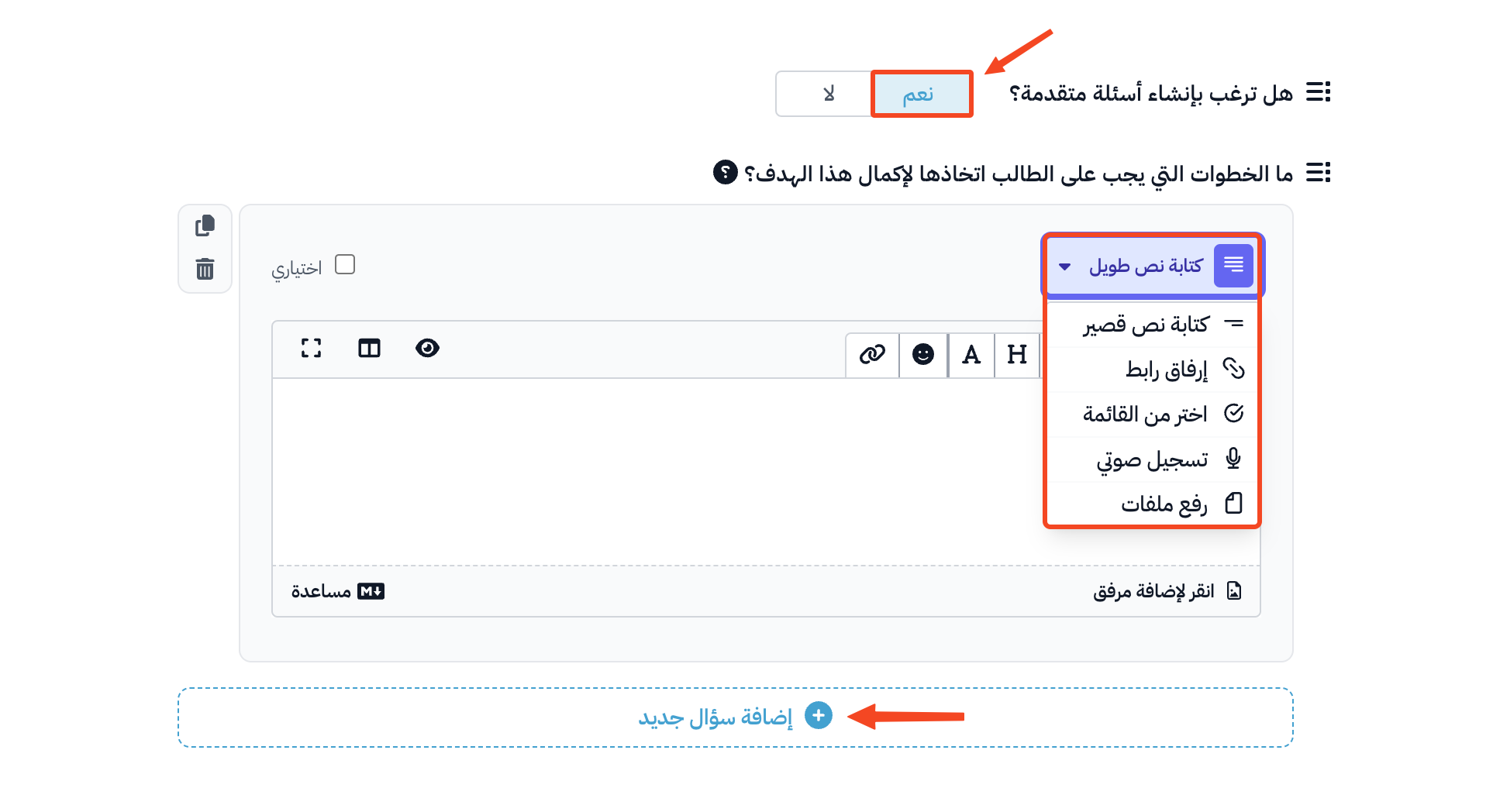
-
In Choose evaluation criteria from your list, choose the evaluation criteria. You must choose at least one.

-
You can write instructions for the student in the Do you have any completion instructions for the student? field (optional).
-
Make sure Target Visibility is set to Live.
-
Click Update Target to save.

When students answer the assignment questions, a coach must review and grade their submissions. The target is complete for the student only when the coach accepts the submission.