How to create exercises (self-evaluation and quizzes)
This article shows how to create a self-evaluation exercise in a course. Students answer the questions and see the result right away, with no review from a coach.
Steps to create a self-evaluation exercise
-
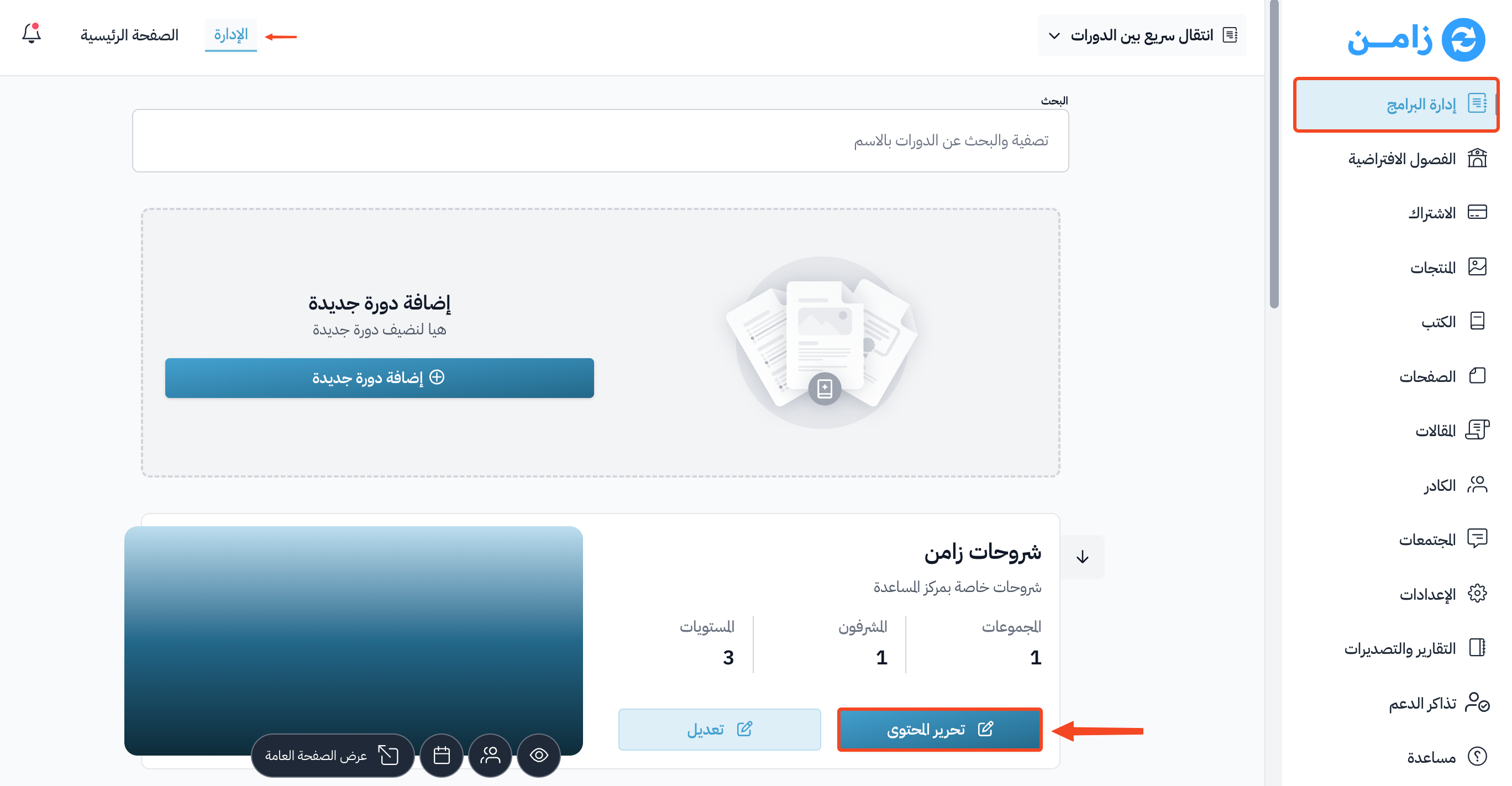
On the Courses page, click Edit Curriculum for the course you want.
-
On the Curriculum page, create a new target, or open an existing one.
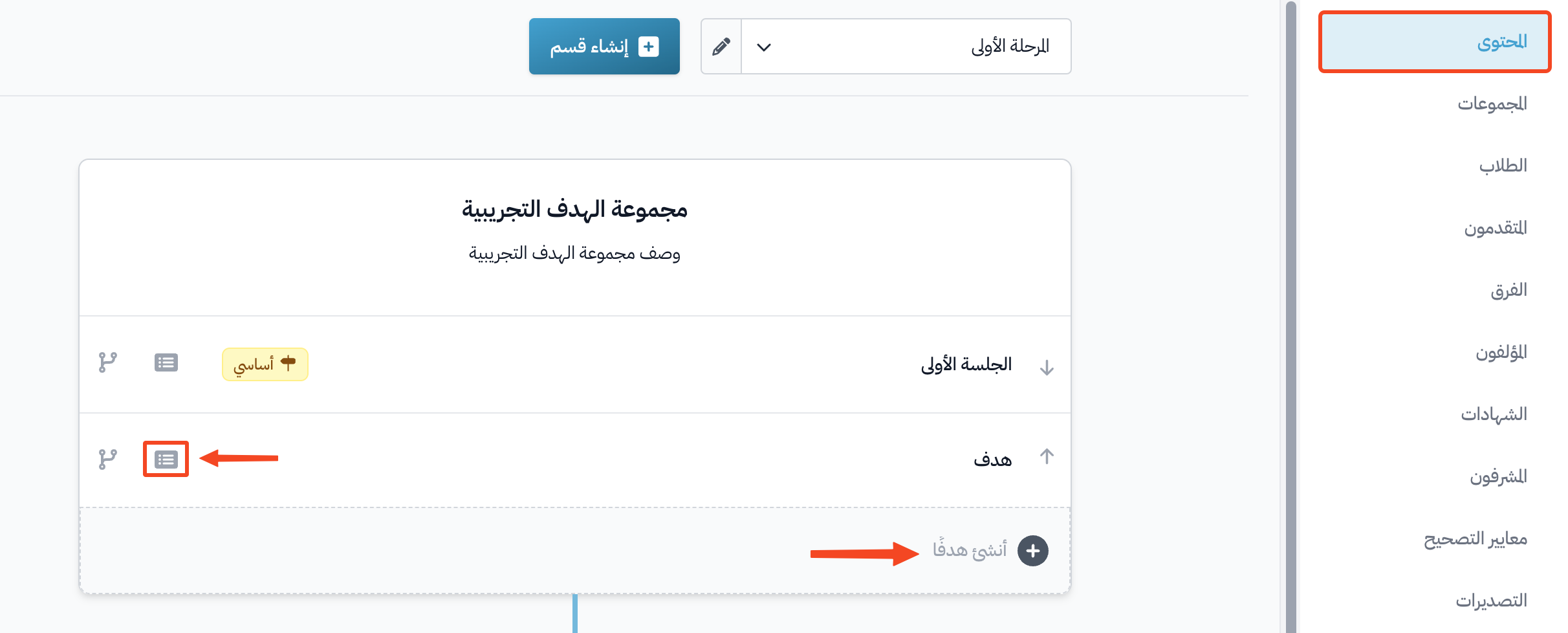
-
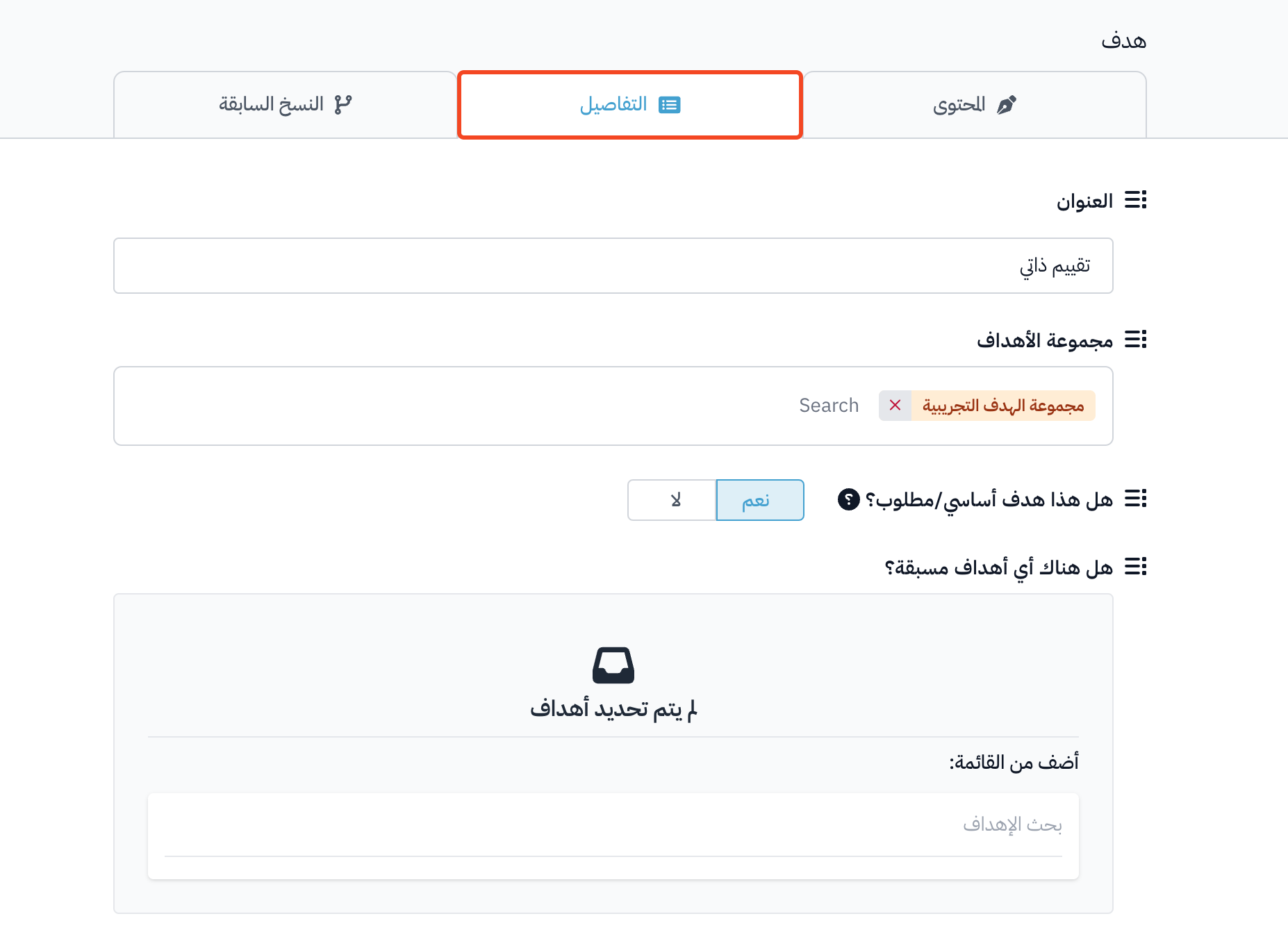
Go to the Details tab of the target.
-
You can edit the Title, turn on Milestone target, and choose prerequisite targets in Are there any prerequisite targets? if there are any.
-
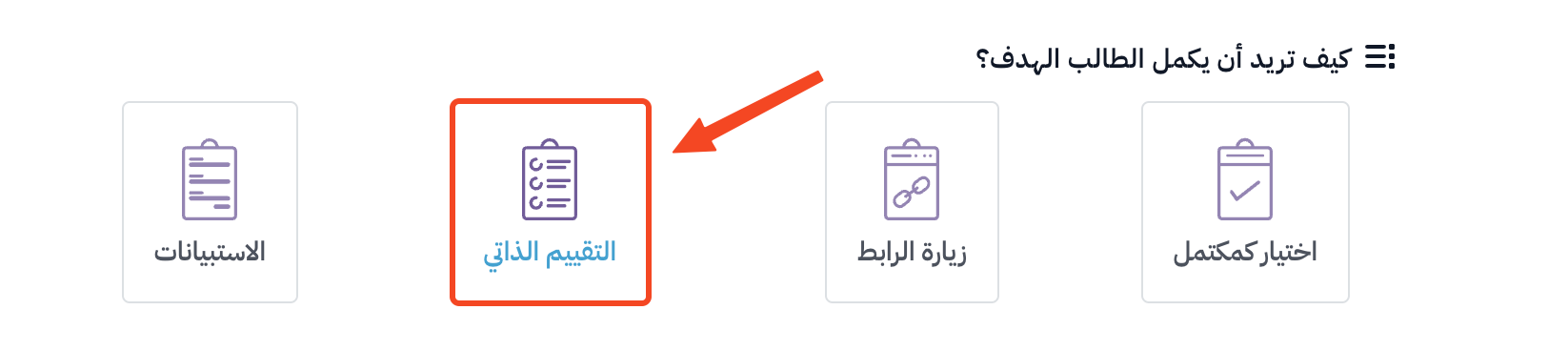
Under How do you want the student to complete the target?, choose Self-evaluation or Quiz.
-
You can set the Passing Percentage (%), which is the lowest score a student needs to pass. Leave it at 0 if no score is needed.
-
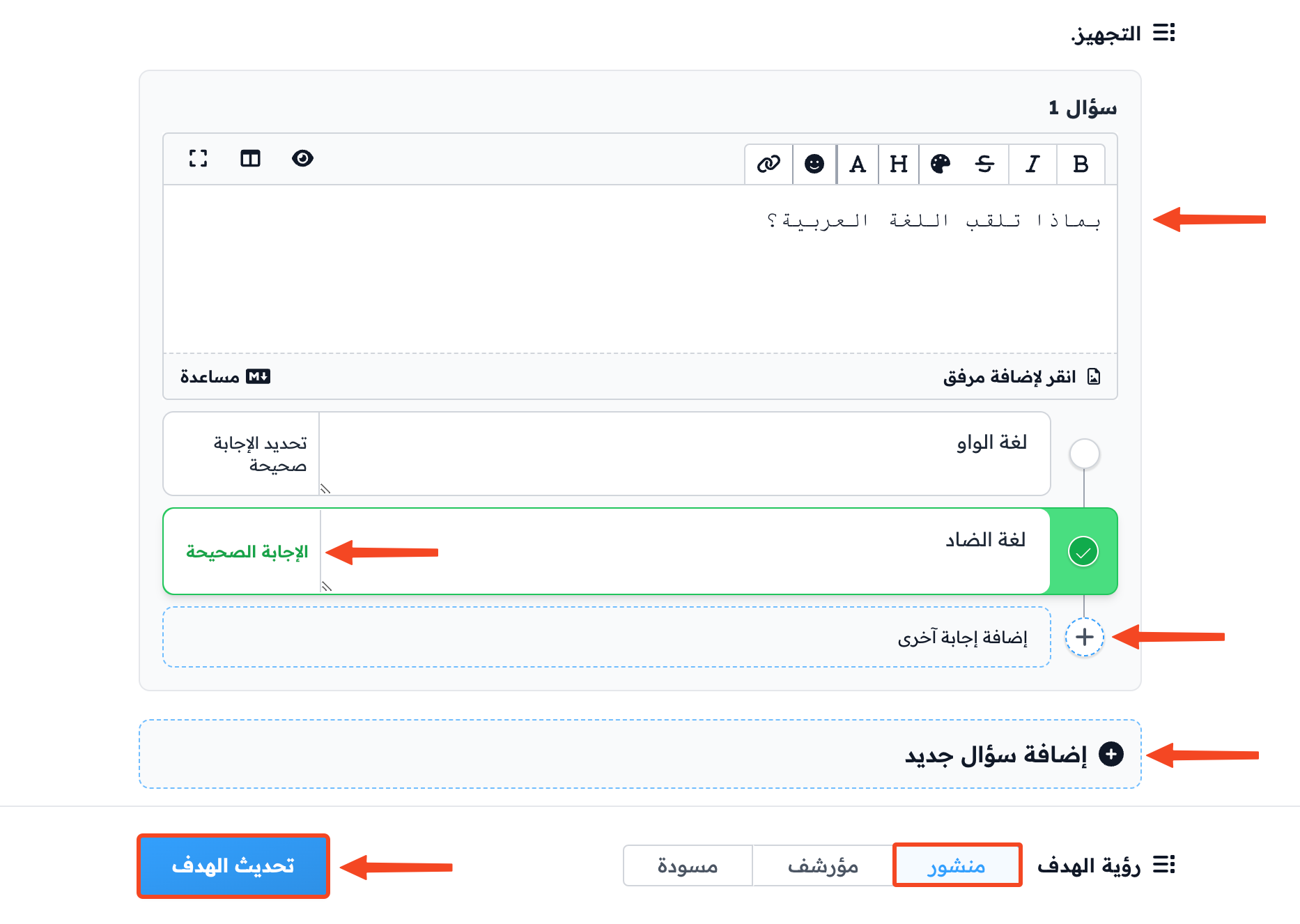
Type the question, and choose its type: Single Choice, Multiple Choice or Number. You can also set the question Points.
-
Type the answers, and mark the correct answer. For a Number question, enter the correct numeric answer.
-
To add another answer, click Add another Answer Option.
-
You can write Feedback that explains the correct answer to students. This field is optional.
-
To add another question, click Add another question.
-
Make sure Target Visibility is set to Live.
-
Click Update Target to save.
How students see the exercise
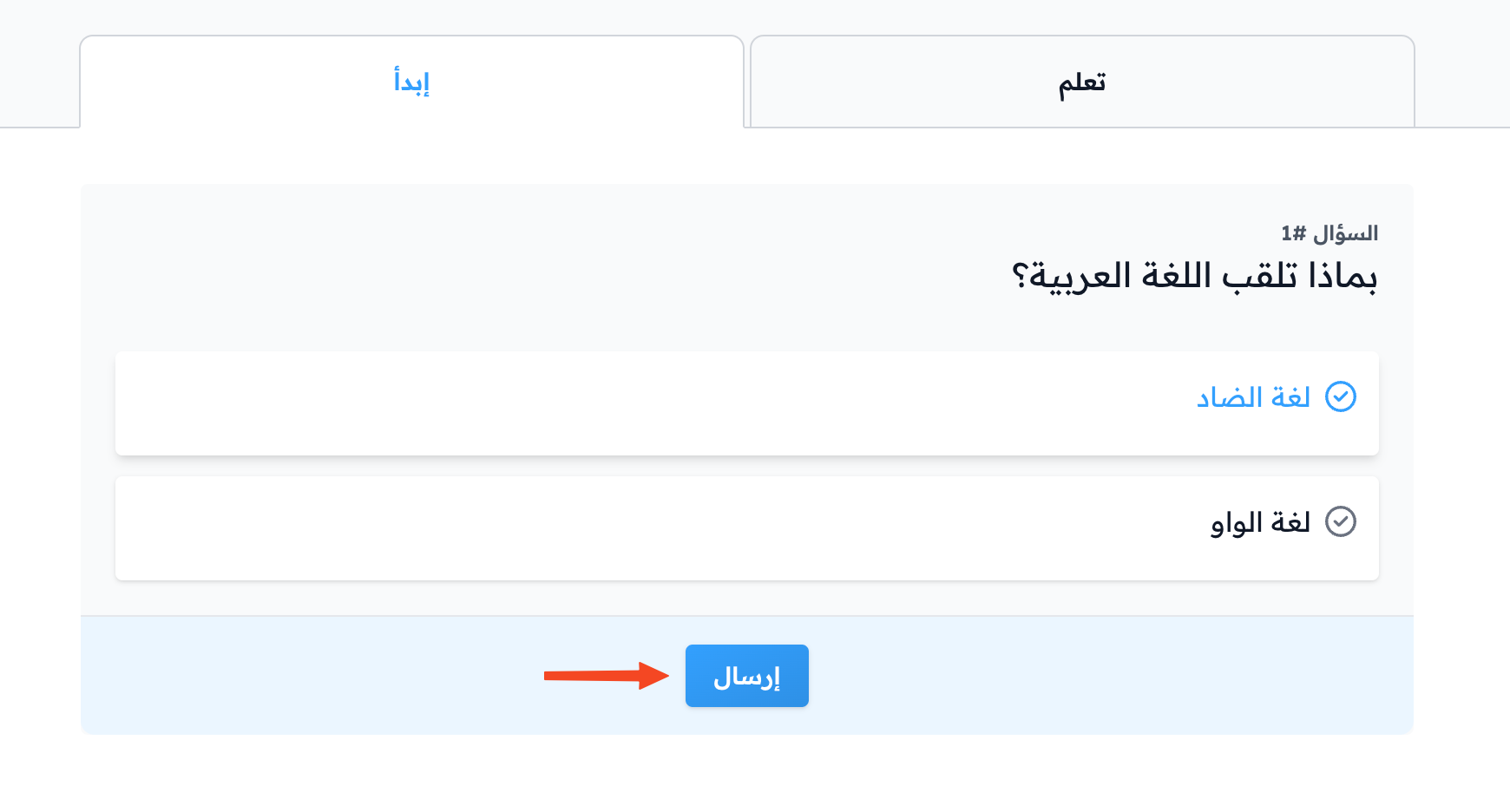
Students see the question like this:
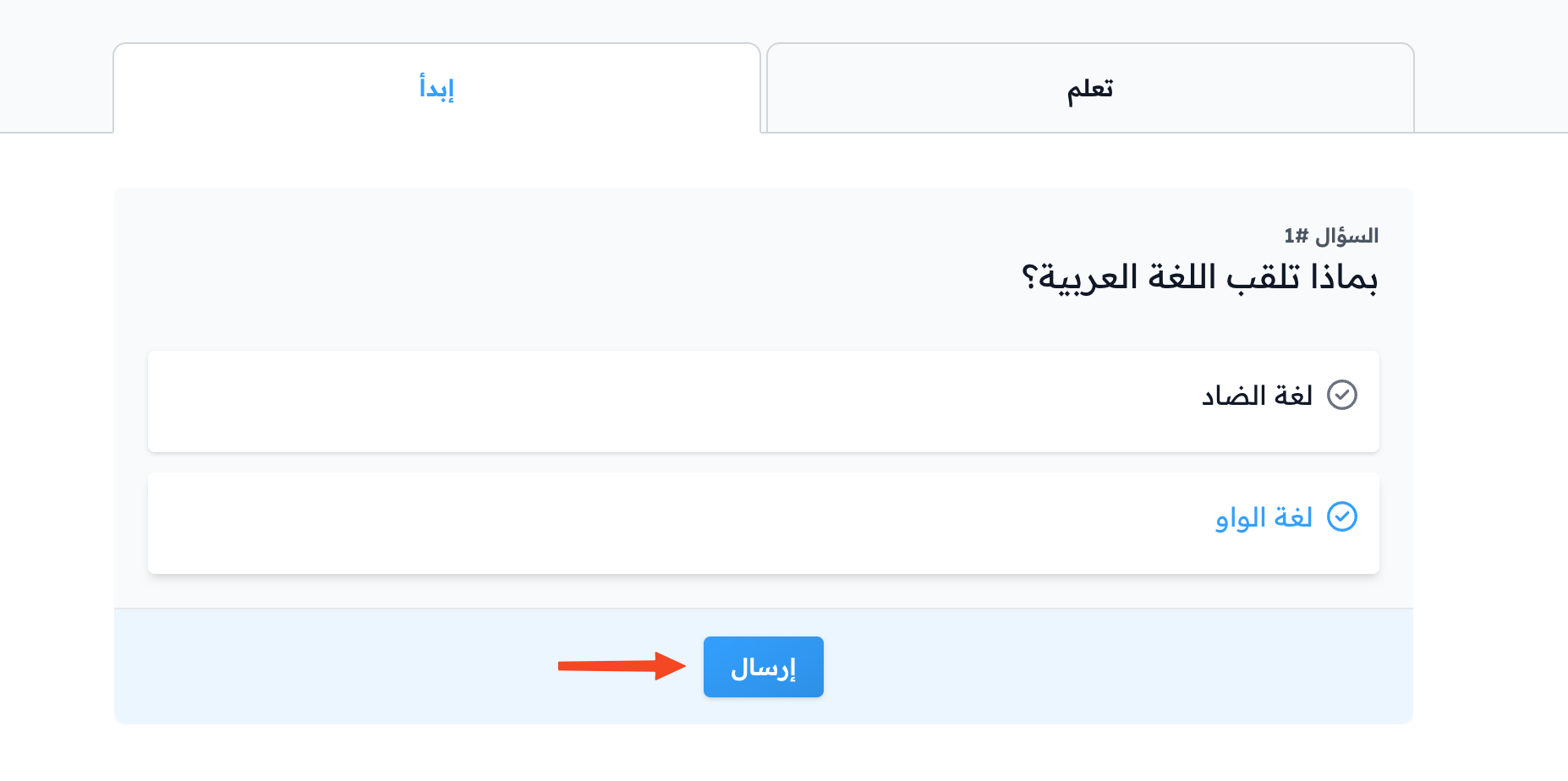
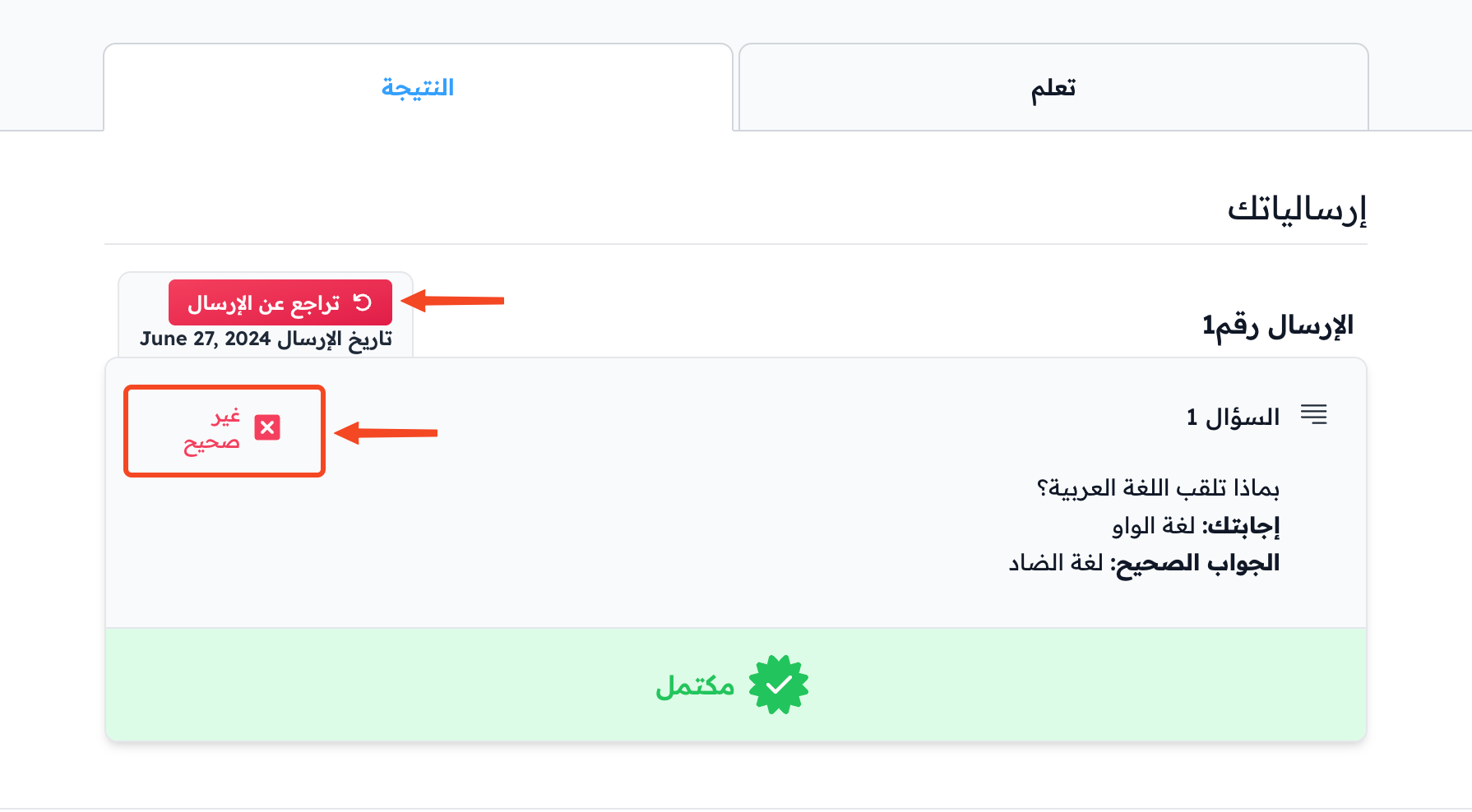
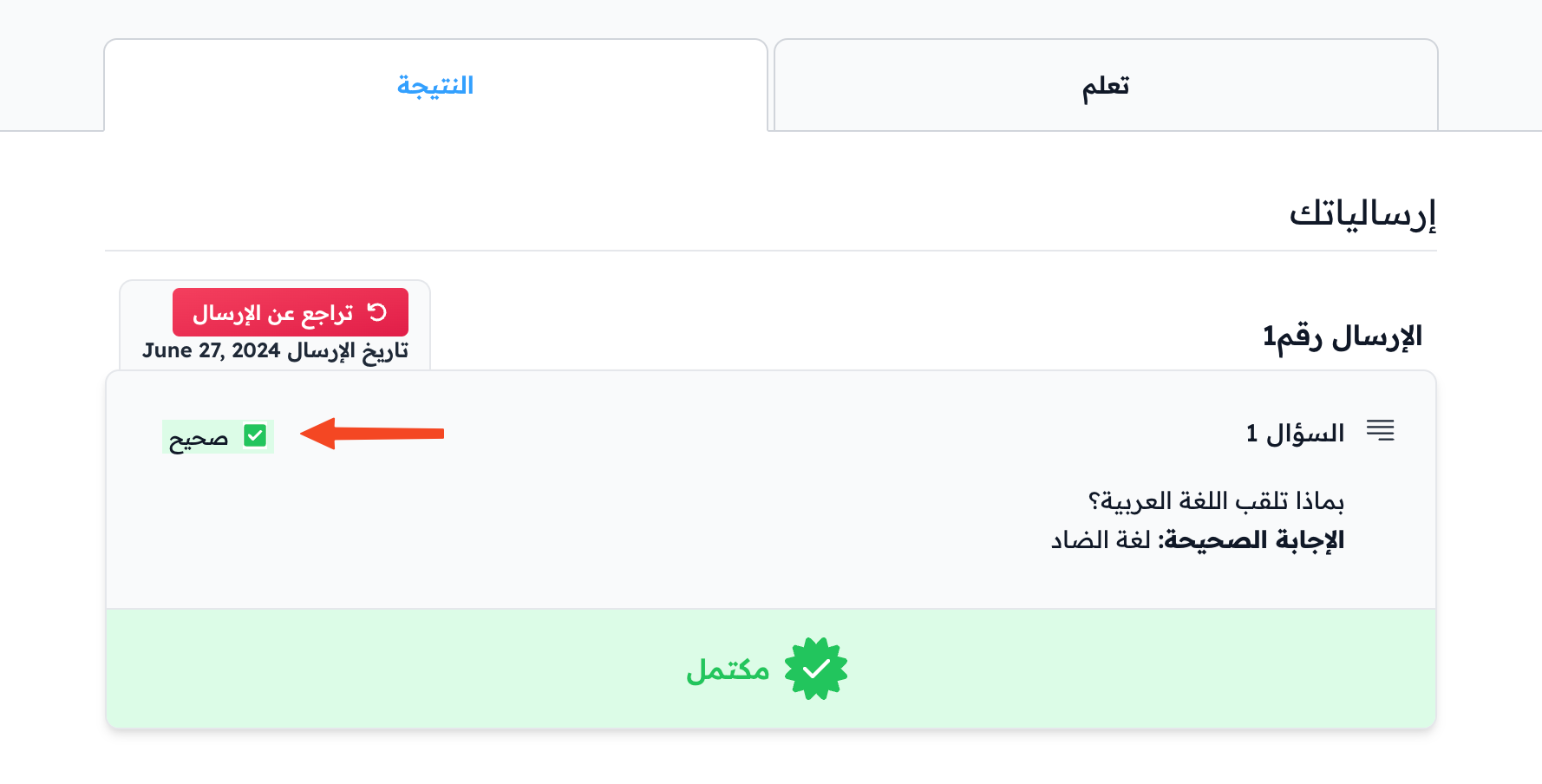
After submitting, the student sees their result and the correct answer right away. They can try again as many times as they want, by clicking Undo submission and then answering again.