Create teams in a course
You can split the students of a course into teams. This feature is for platform admins.
Steps to create a team in a course
-
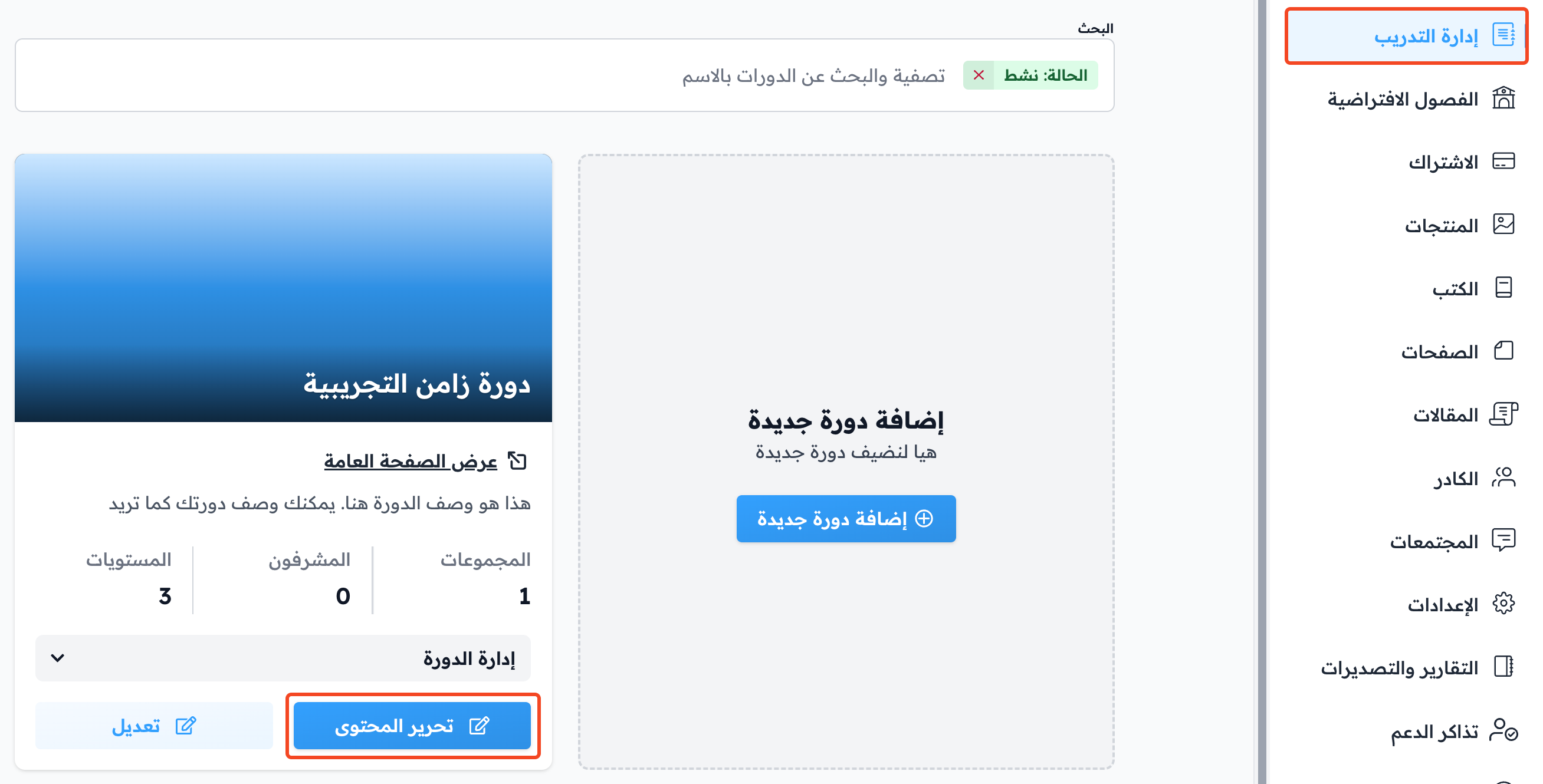
On the Courses page in the dashboard, click Edit Curriculum for the course you want to add a team to.
-
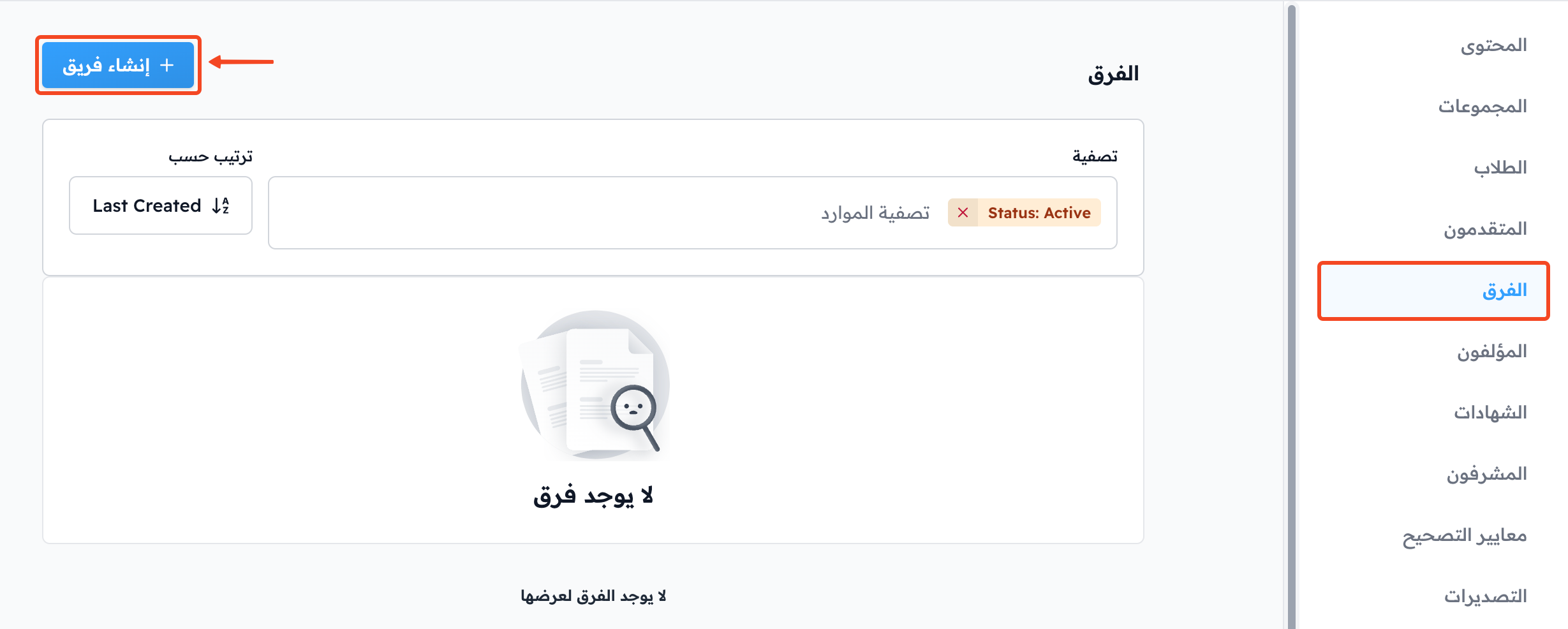
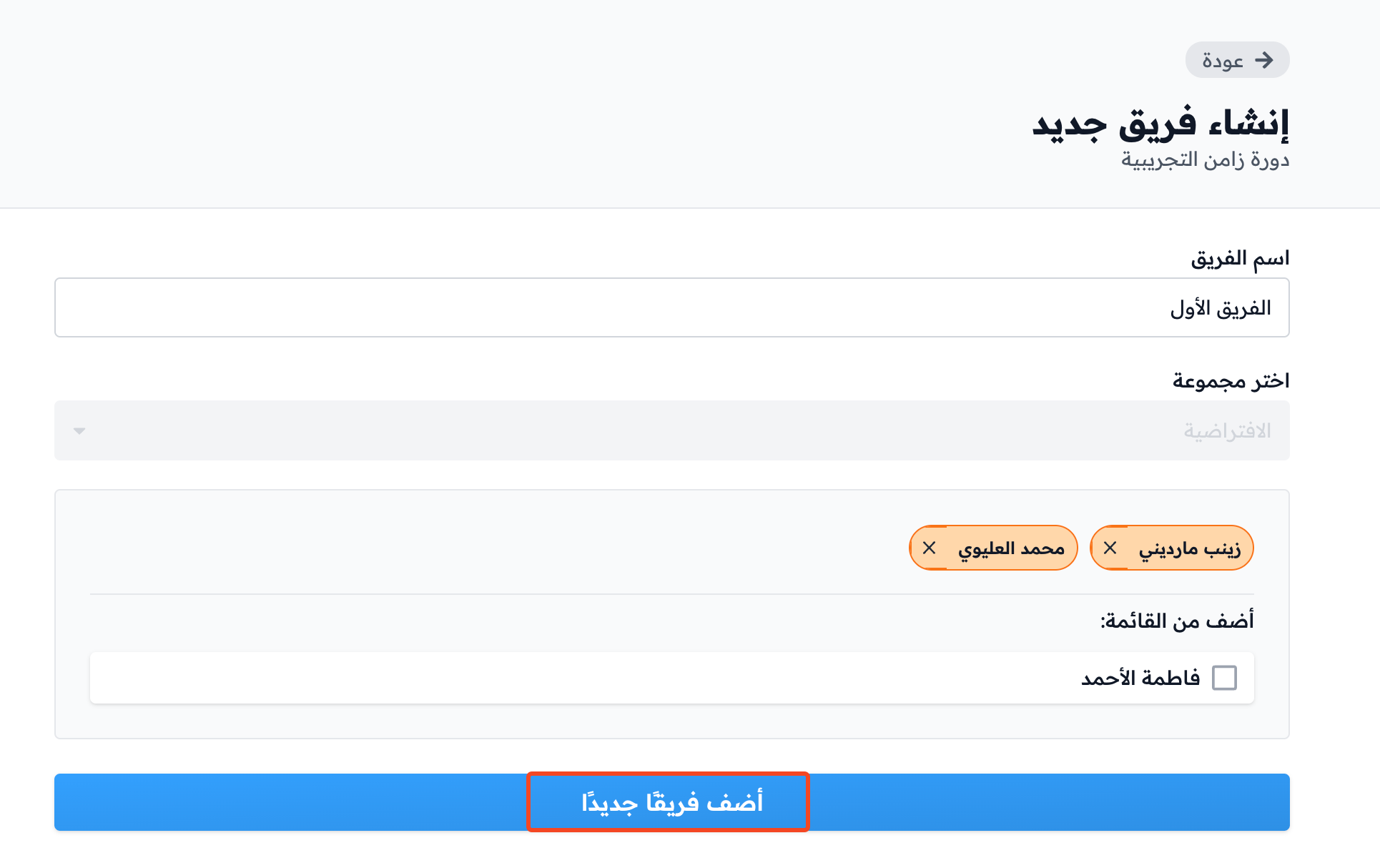
On the Teams page in the course dashboard, click Create Team. A side panel opens.
-
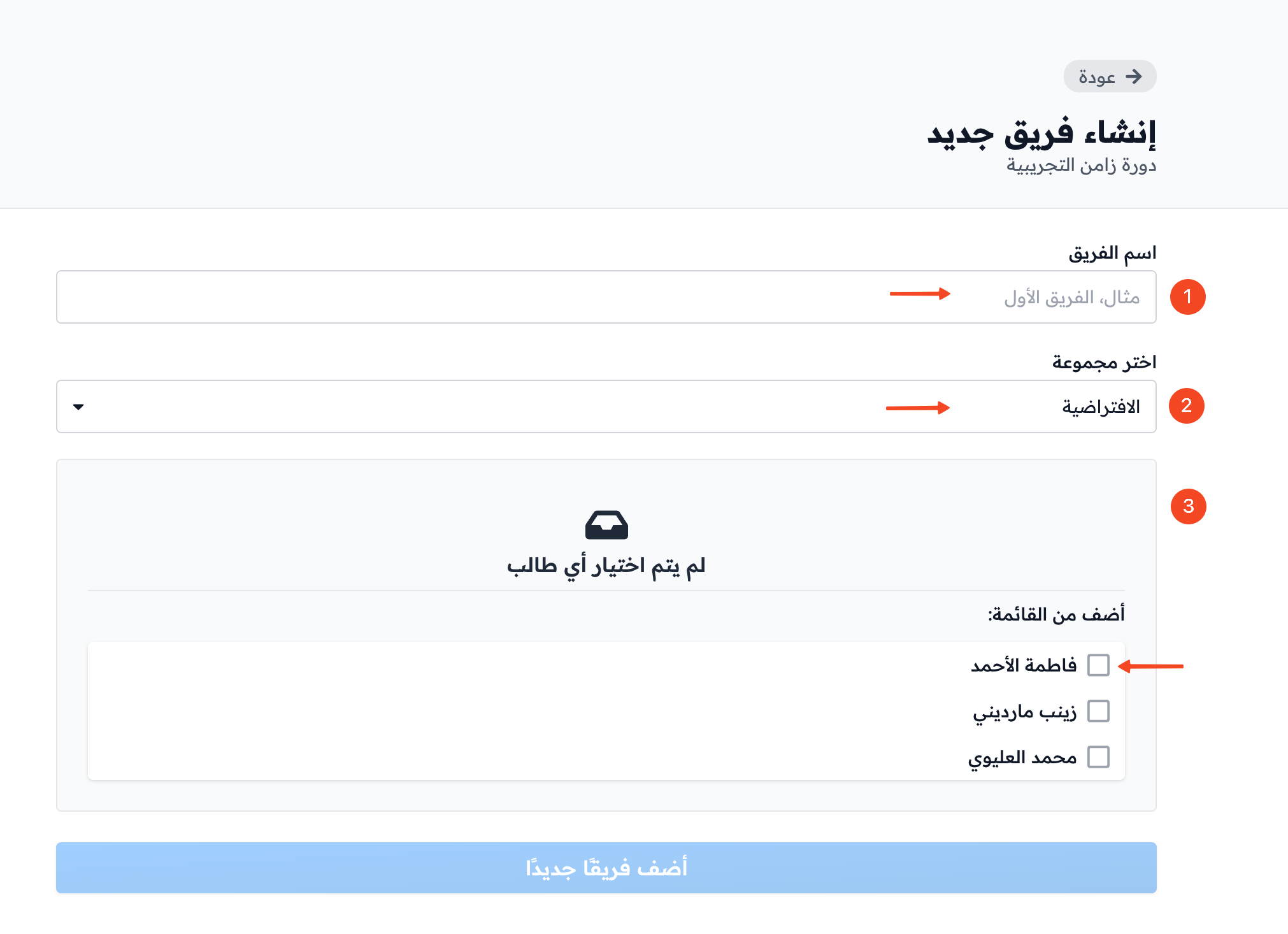
Type the team name in Team name.
-
In Cohort, pick the cohort you want to choose students from.
-
Under Students, tick the students you want to add to the team. Each team needs at least two students. The list shows active students who are not in another team.
-
Click Create Team to save the team.
Edit or delete a team
-
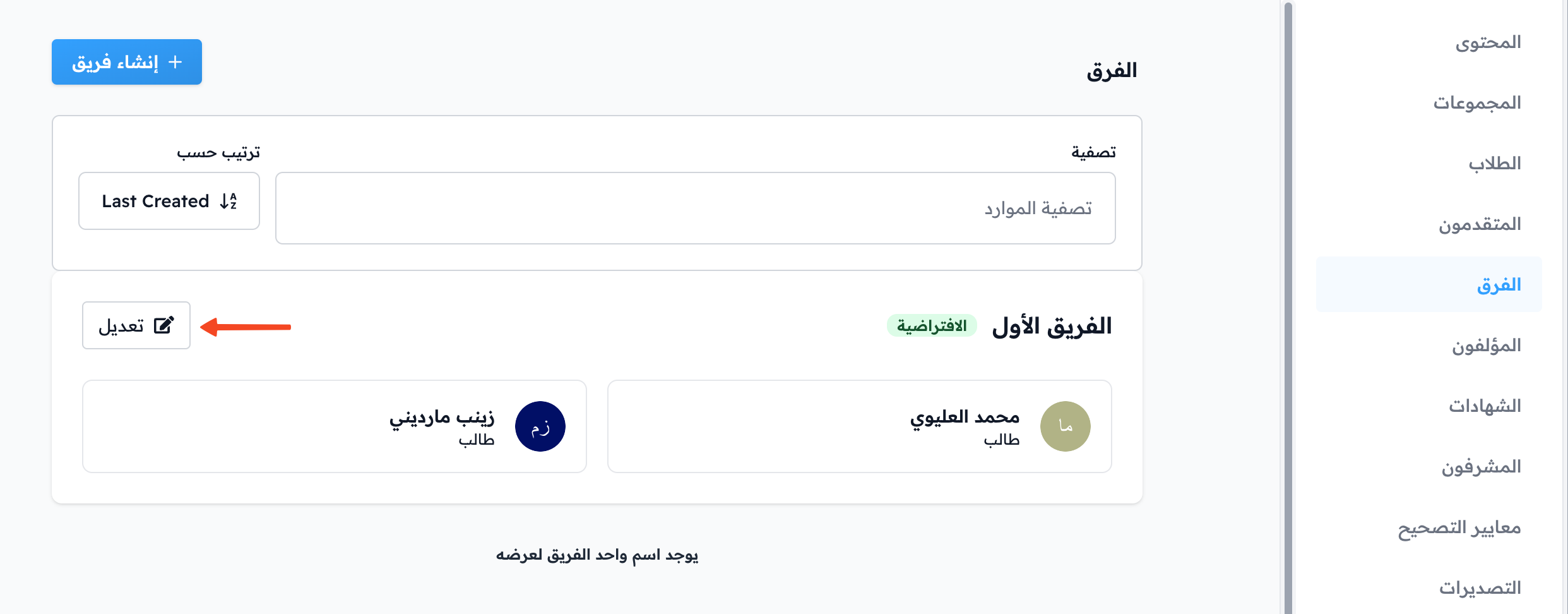
Click the team name, or click the ⋯ (Actions) button at the end of its row, then click Edit. A side panel opens.
-
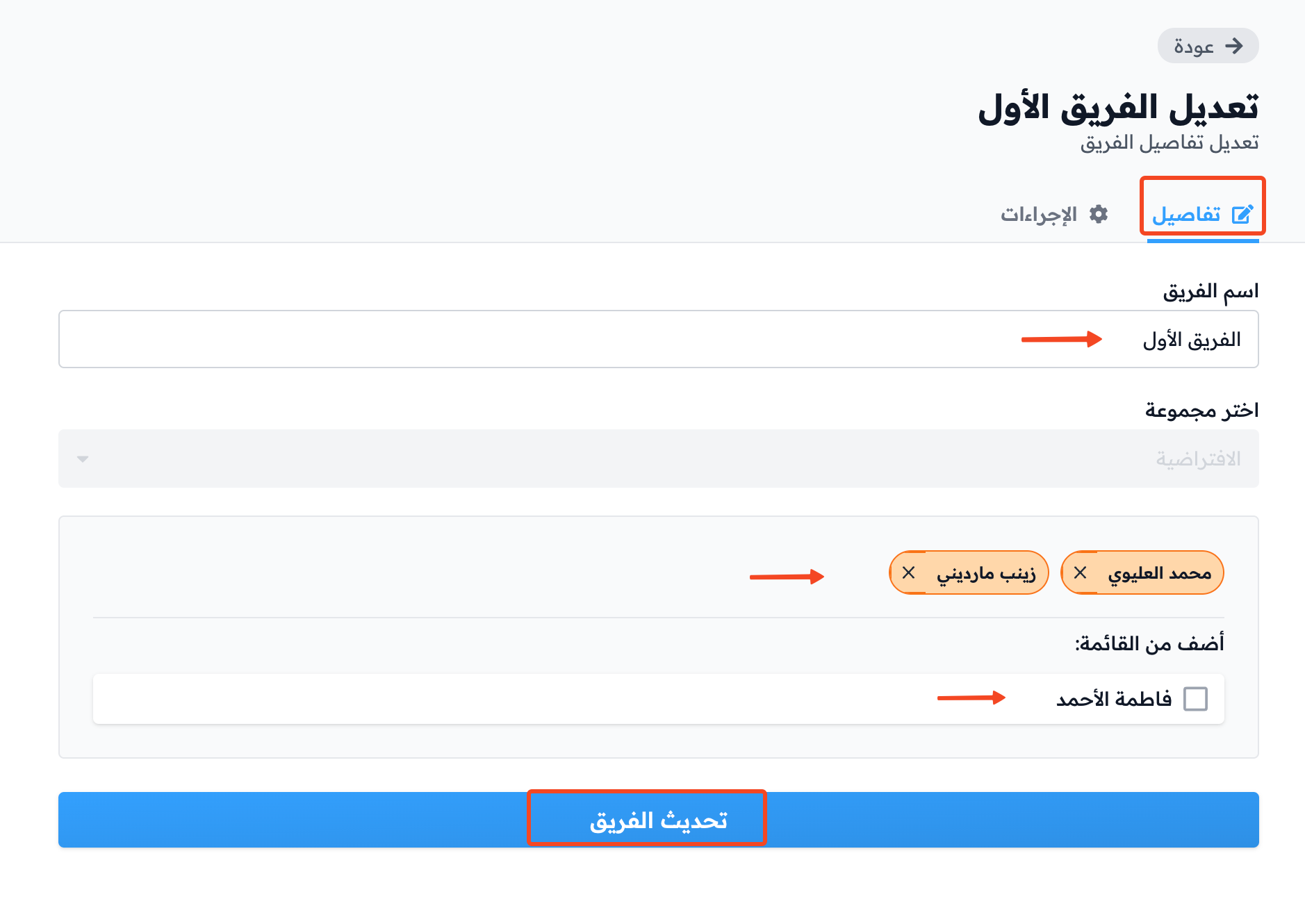
In the side panel you can:
- Change the team name.
- Remove members from the team or add new members.
-
Click Update Team to save your changes.
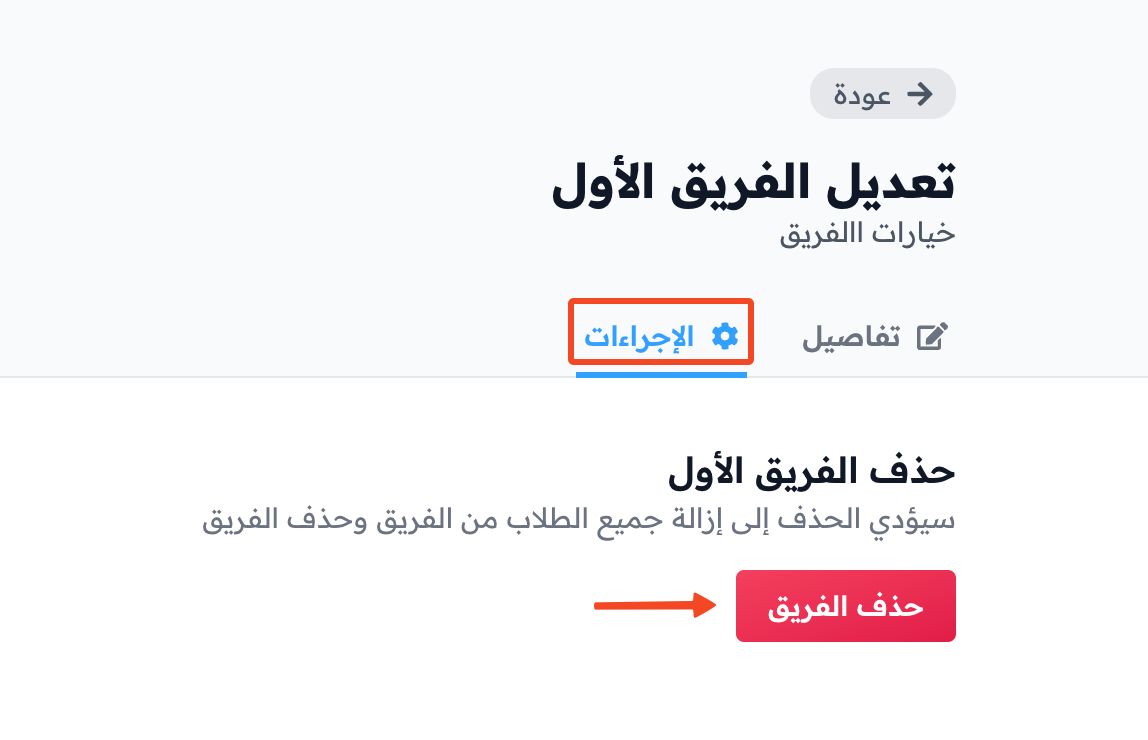
To delete the team, click ⋯ at the end of its row, then click Delete team, and accept the confirmation message. The team's students stay in the course.
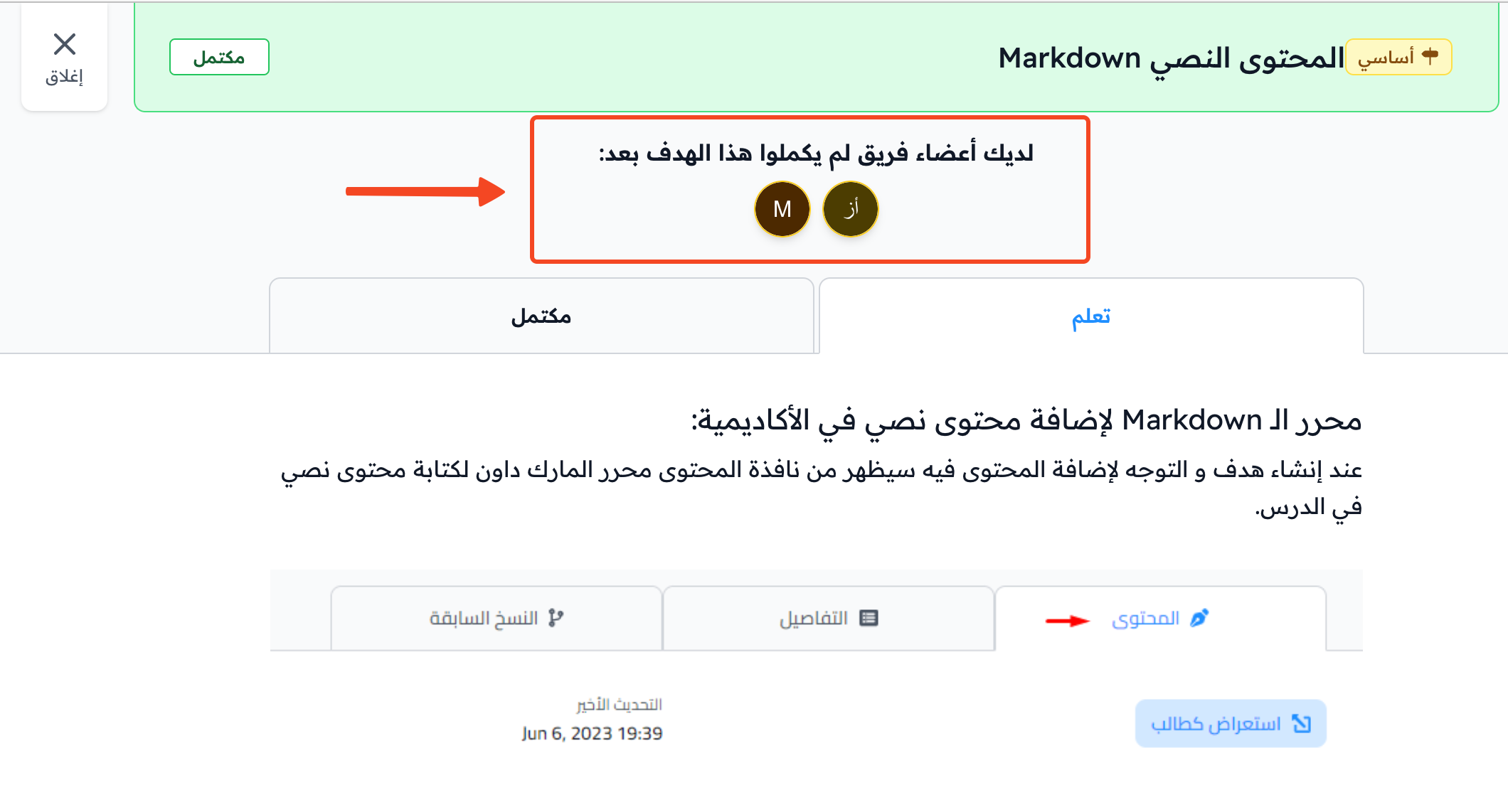
Follow team members
When a team member completes a target in the course, they see which team members have not completed it yet.