Create a book
You can add PDF books to your platform and publish them, so your visitors can read and download them. This feature is for platform admins.
Steps to create a book
-
In the dashboard, choose Books.
-
Click Create new Book.

-
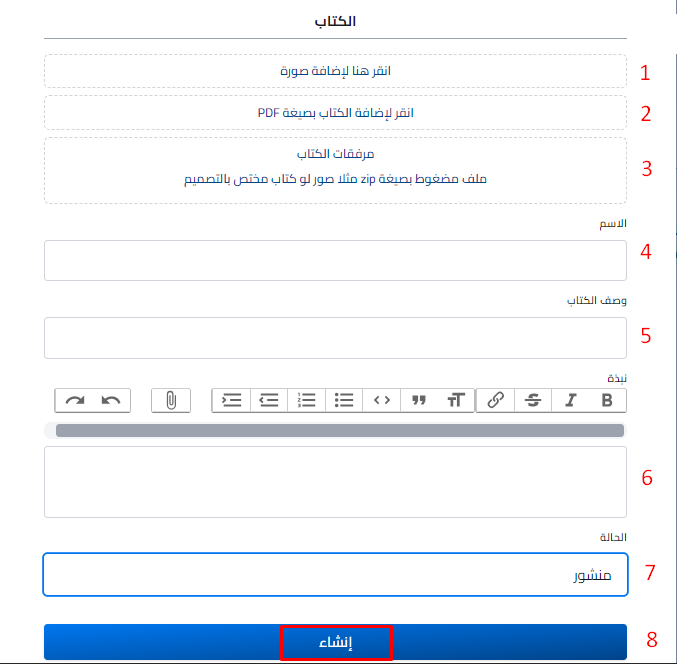
Add the book image (recommended size: 700 × 350 pixels).
-
Add the book as a PDF file.
-
You can add attachments to the book as a zip file.
-
Type the book name in Name.
-
Write a short description of the book in Book Description.
-
In About, write about the book content to help readers know it and want to download it.
-
Choose Published in Status.
-
Click Create to create and publish the book.
You can also fill in the SEO Settings in the same form. They are optional.
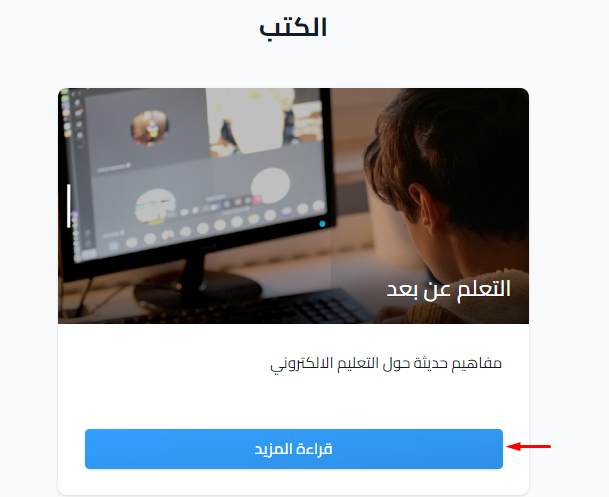
After you publish the book, it shows on the Books page of your platform.
Edit a book
-
In the dashboard, choose Books.

-
Click the ⋯ (Actions) button at the end of the row of the book you want to change.
-
Click Edit.

You can also click the book name to edit it.