Guide to the platform dashboard
The dashboard is where you manage your platform. This article is for platform admins and introduces its sections.
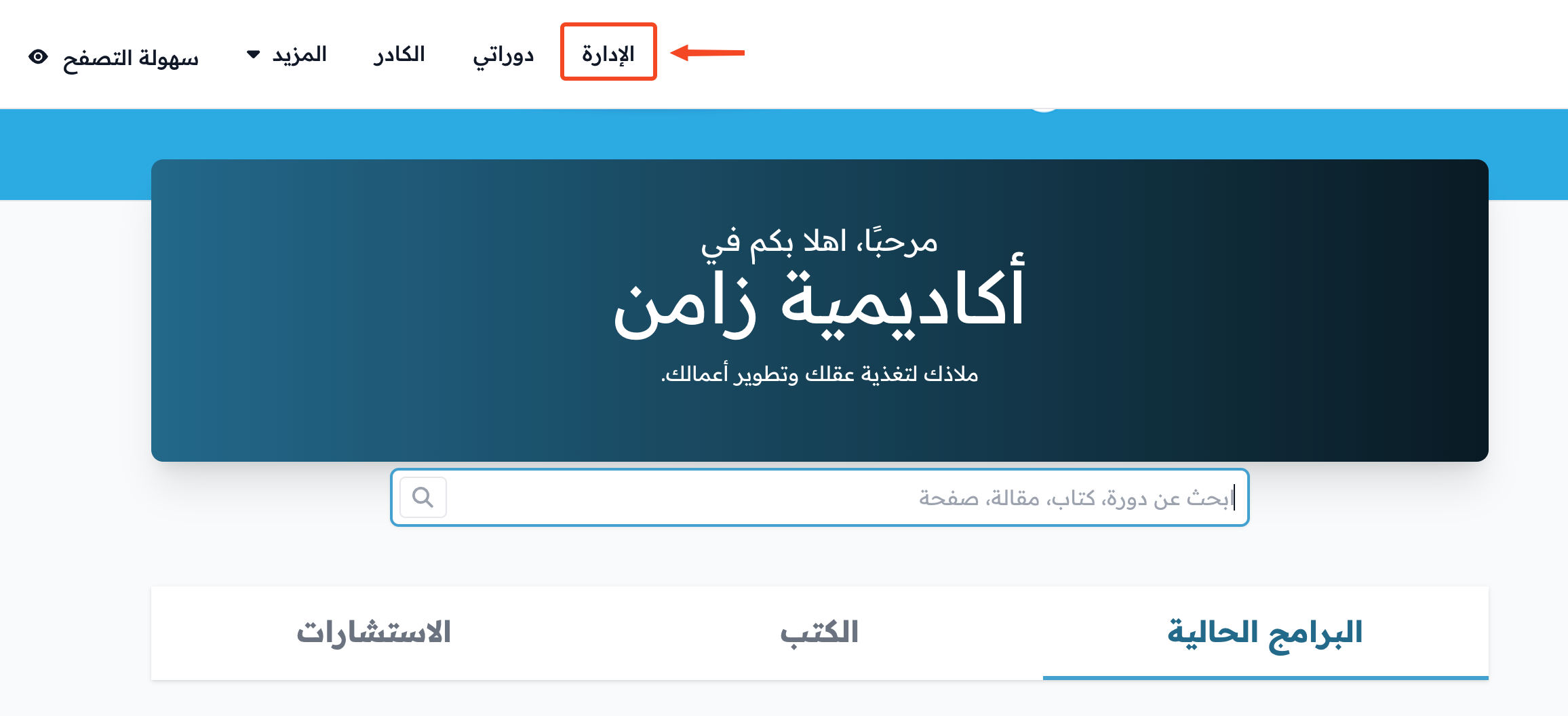
To open the dashboard, click Admin in the top bar of your platform home page.
Dashboard sections
-
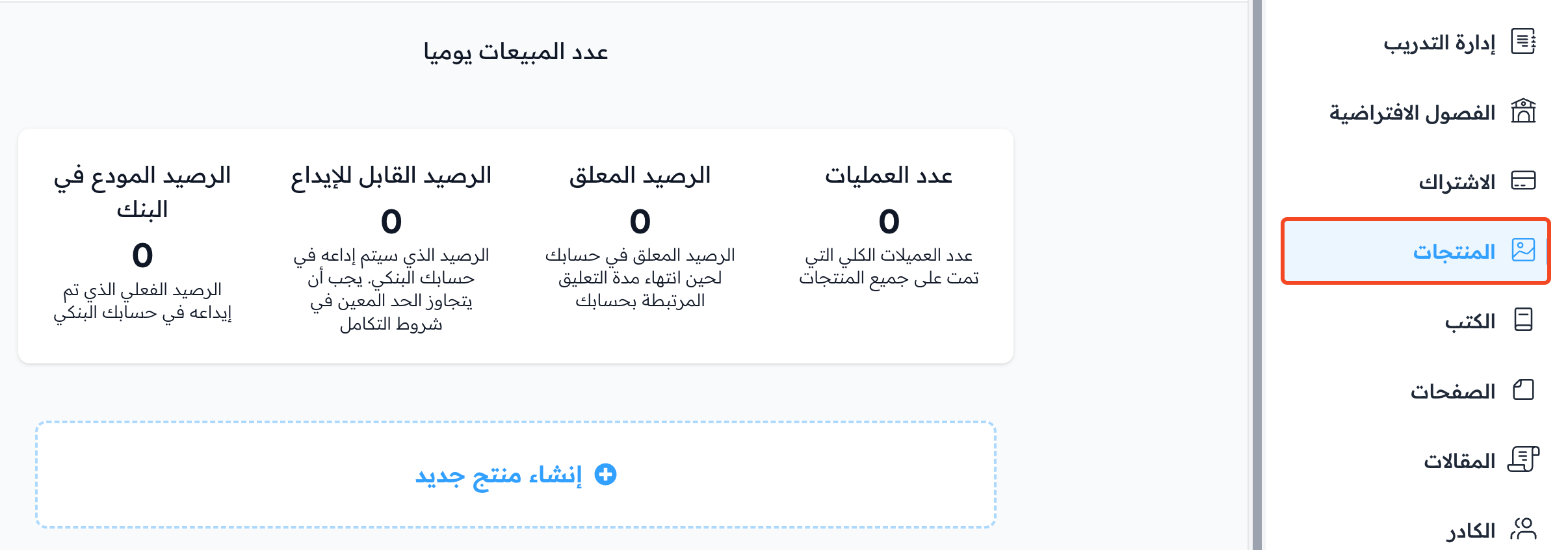
Product Management: add and view the products you want to sell on your platform (courses, books, consultations and diplomas), and see sales statistics and balances.
-
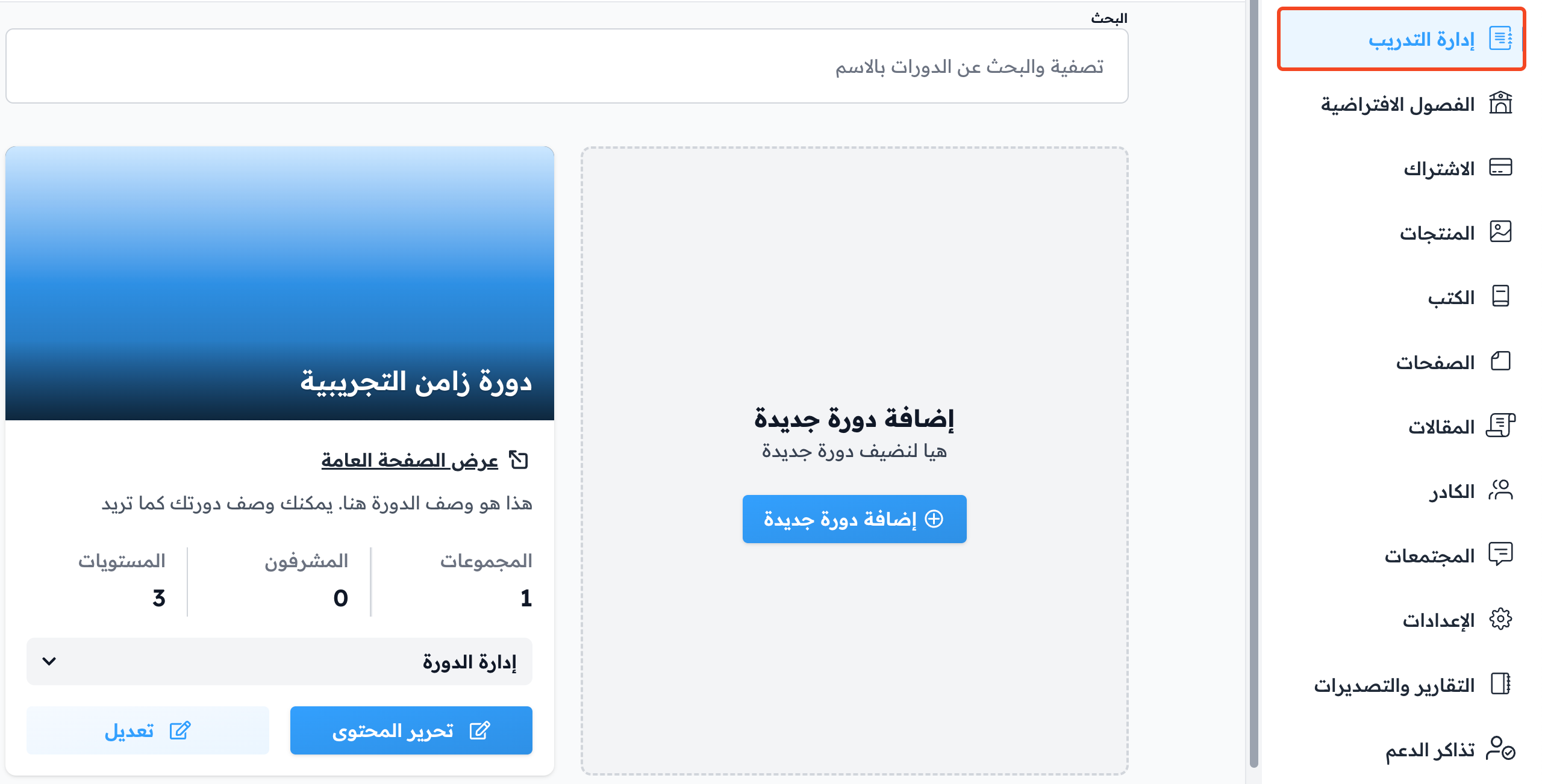
Courses:
- Here you can add your courses.
- Open your courses after you create them, to edit the curriculum and manage the course.
-
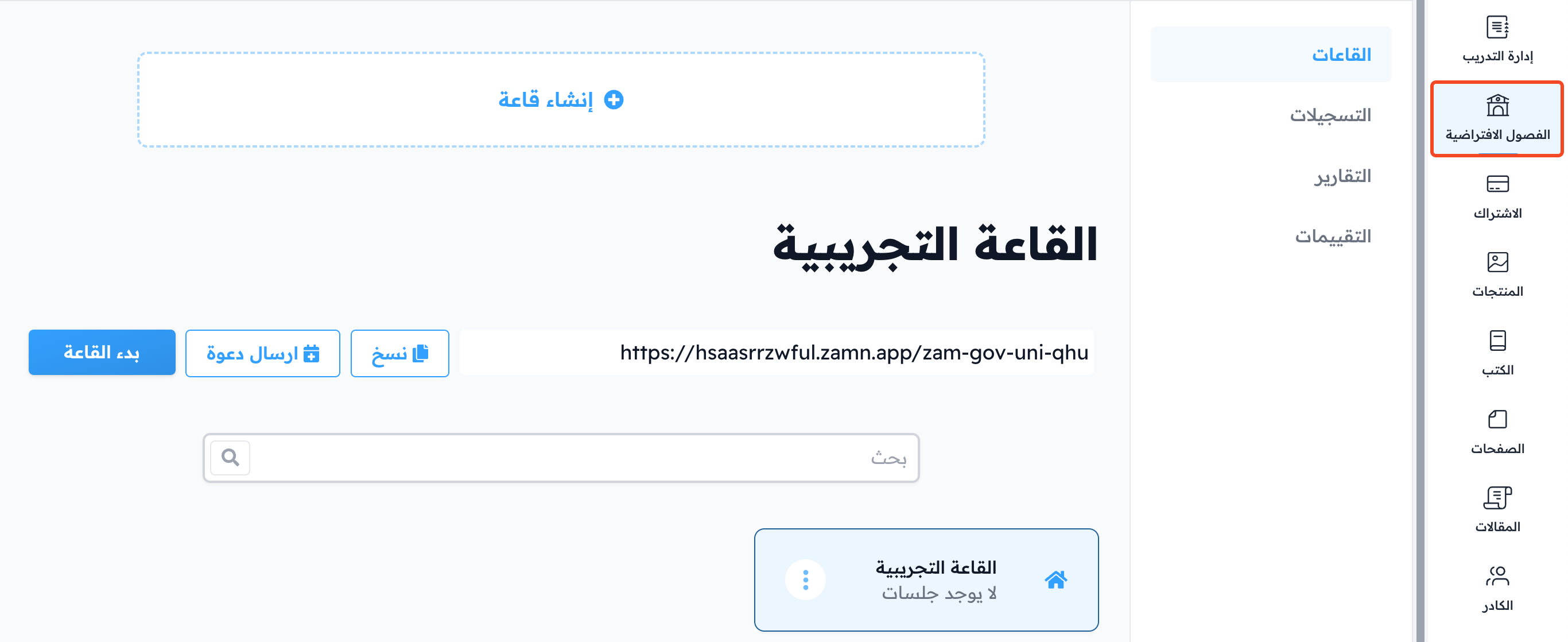
Virtual Classes, where you can open:
- Rooms: create rooms and open all your rooms.
- Recordings: open the recordings of your rooms.
- Statistics: a summary of all the events that happened in a room.
- Ratings: the ratings of your rooms.
-
Users: see all the users of your platform and search for them by name or email.
-
Books: add books and publish them.
-
Consultations: create the consultations your students book.
-
Diplomas: create diplomas made of several courses.
-
Pages: create and manage the content of your platform pages.
-
Posts: add your platform blog, where you create and edit posts and read the comments.
-
Coaches: manage the coaching staff of your platform, like adding or removing coaches and lecturers.

-
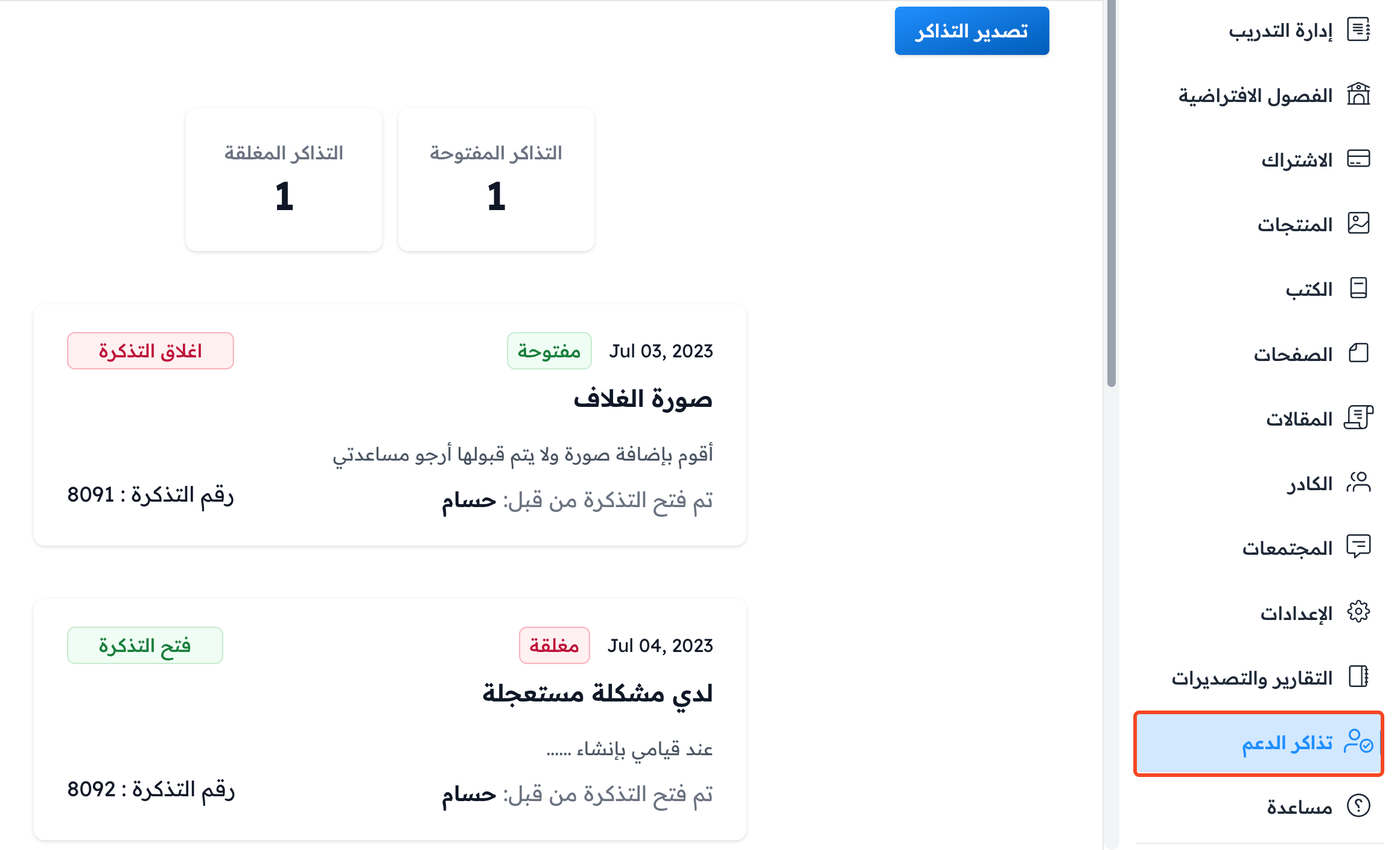
Helpdesk: lets your customers open support tickets while they use your platform, and lets your team answer their questions.
-
Communities: the strongest tool for engagement. You can create a private forum for your platform and courses.
-
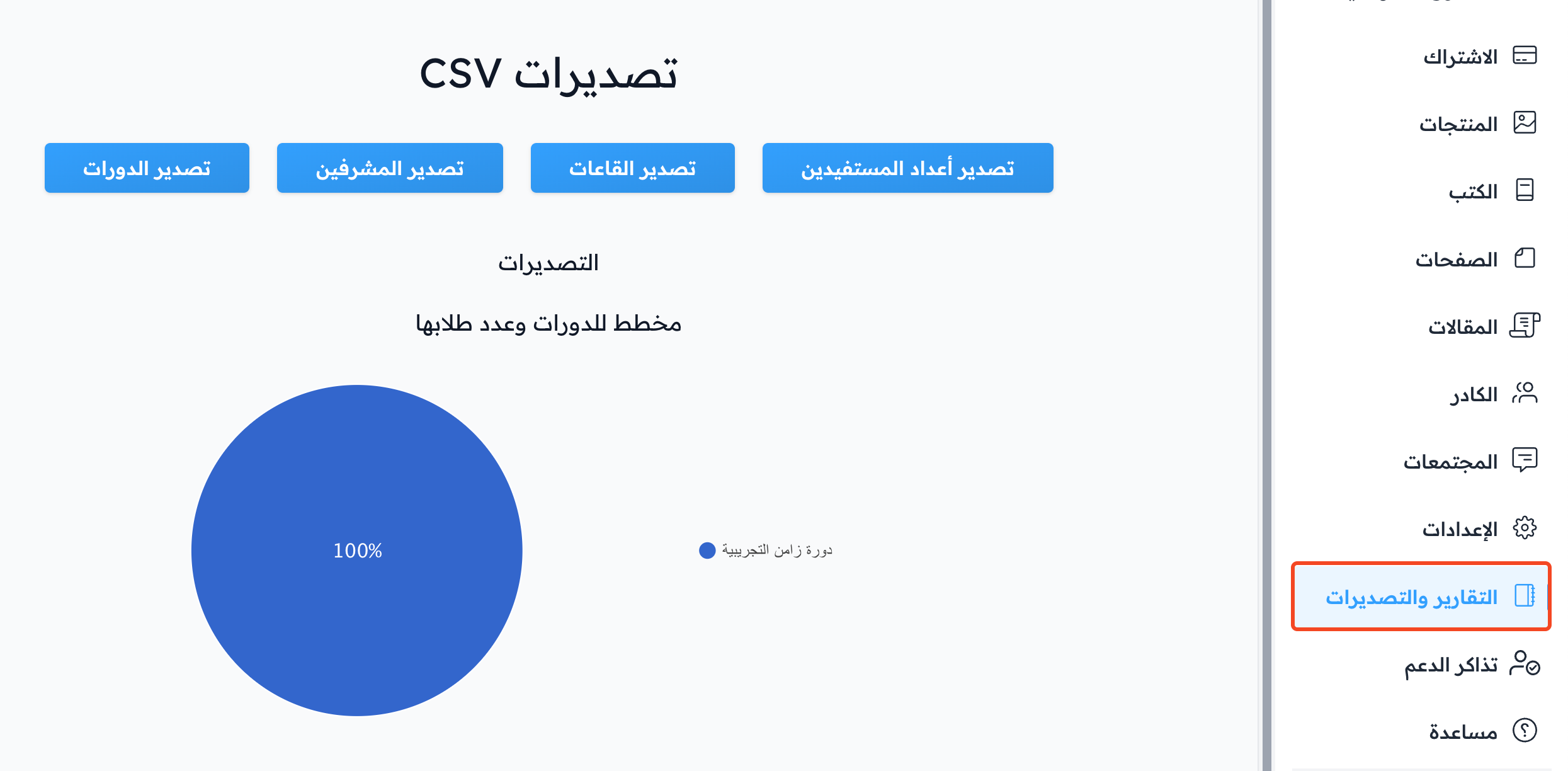
Data: see general reports about your platform, like courses, students, rooms and more, and export the reports.
-
Subscription: add a new subscription, and see your active and ended subscriptions and your storage details.

-
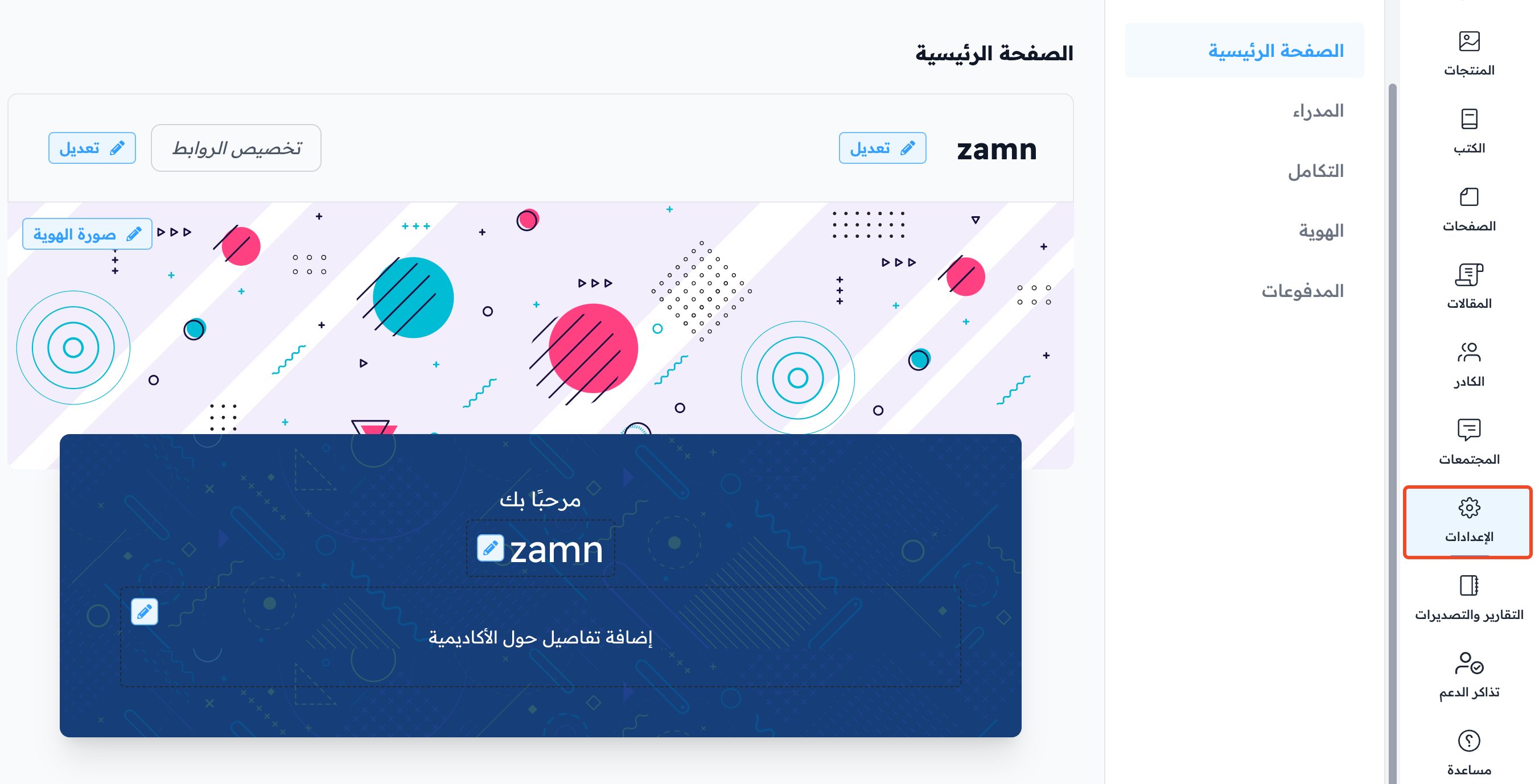
Settings: change the settings of your platform. Here you can open:
-
Customization: add the logo, the platform cover image, the footer and social links, testimonials and more on your platform home page.
-
Admins: add a new admin to your platform.
-
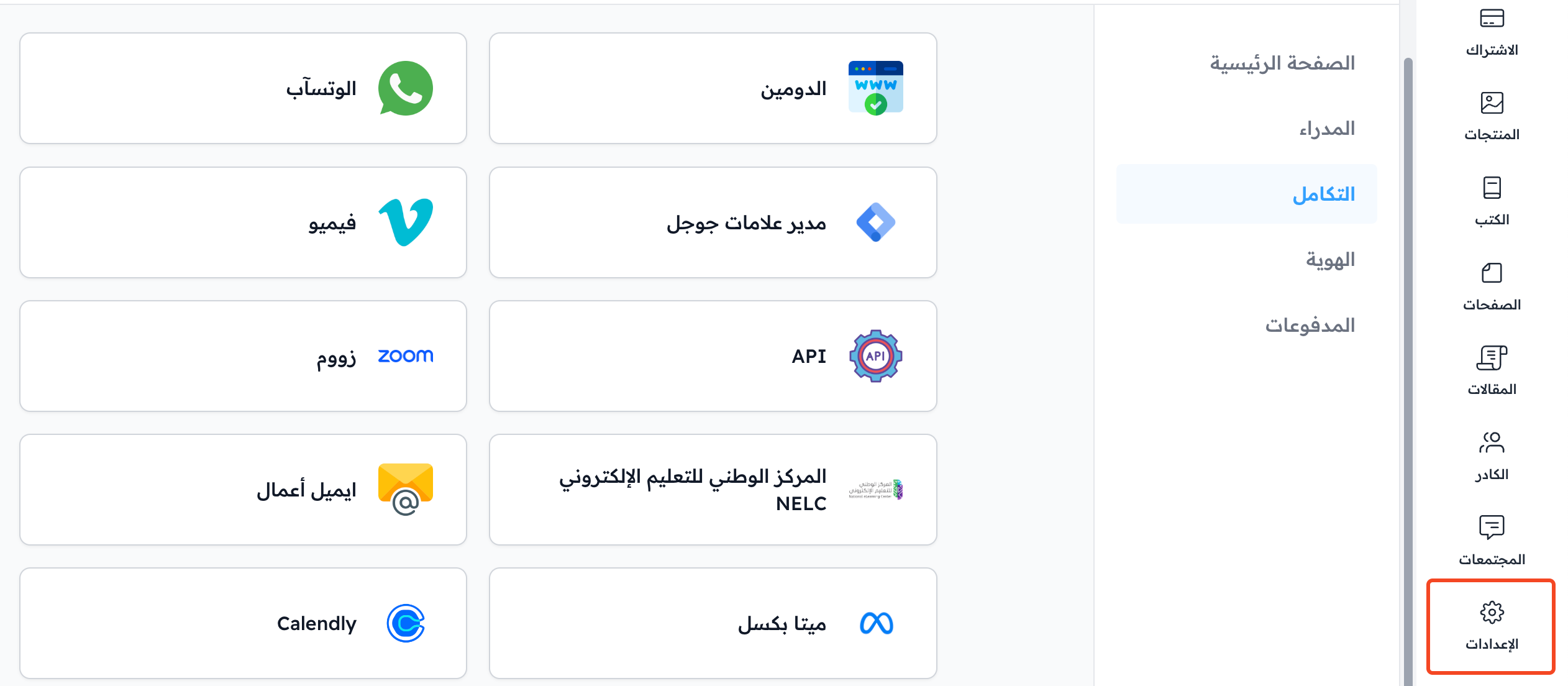
Integrations: connect your platform with other services.
-
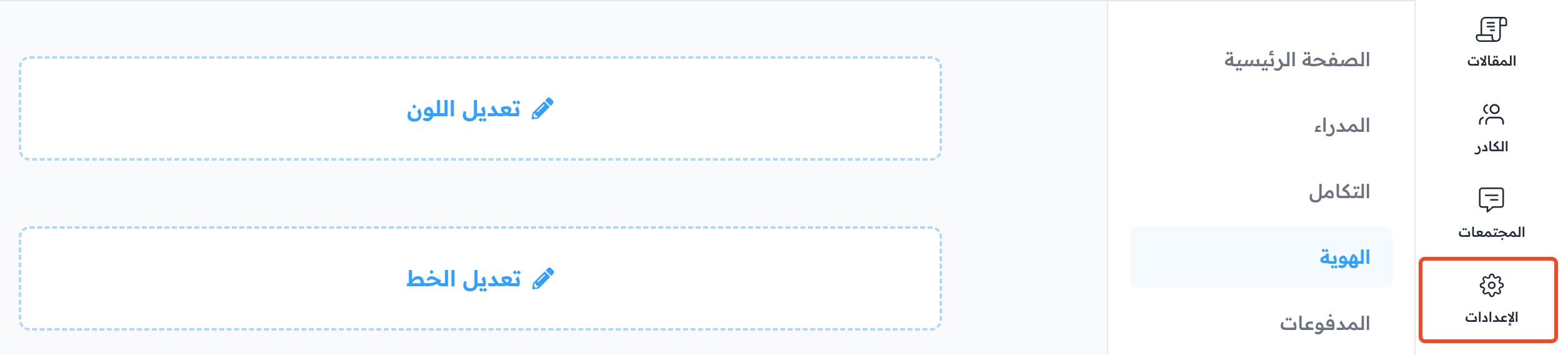
Branding: change the colors and font of your platform.
-
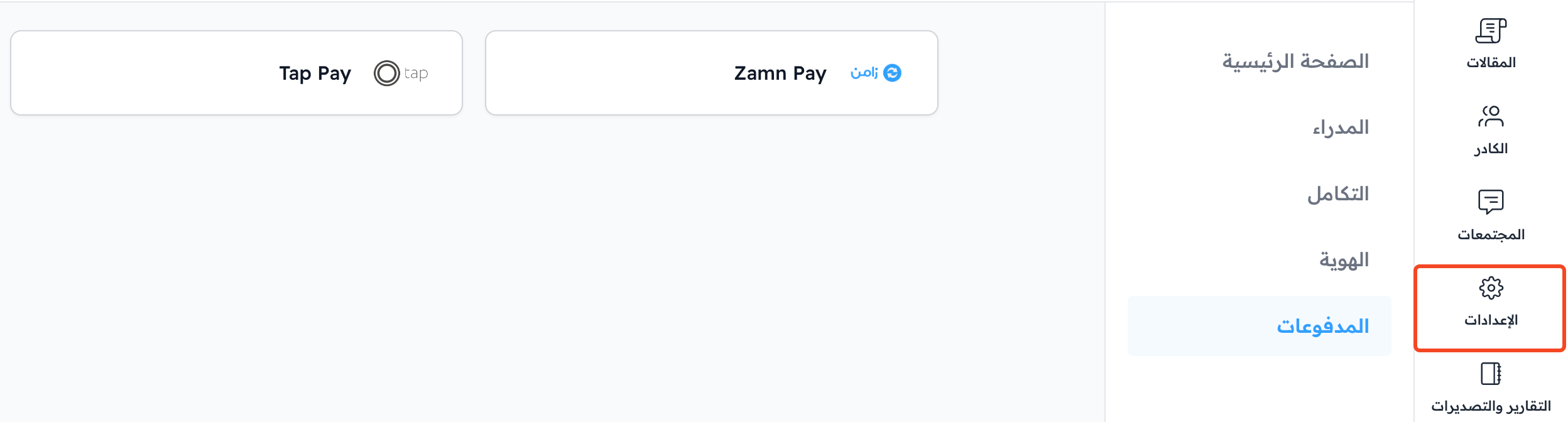
Payment Methods: turn on online payments to sell digital products.
-
Help
Click Support in your account menu at the top of the dashboard to open the help options Zamn offers, like technical support and the help center.