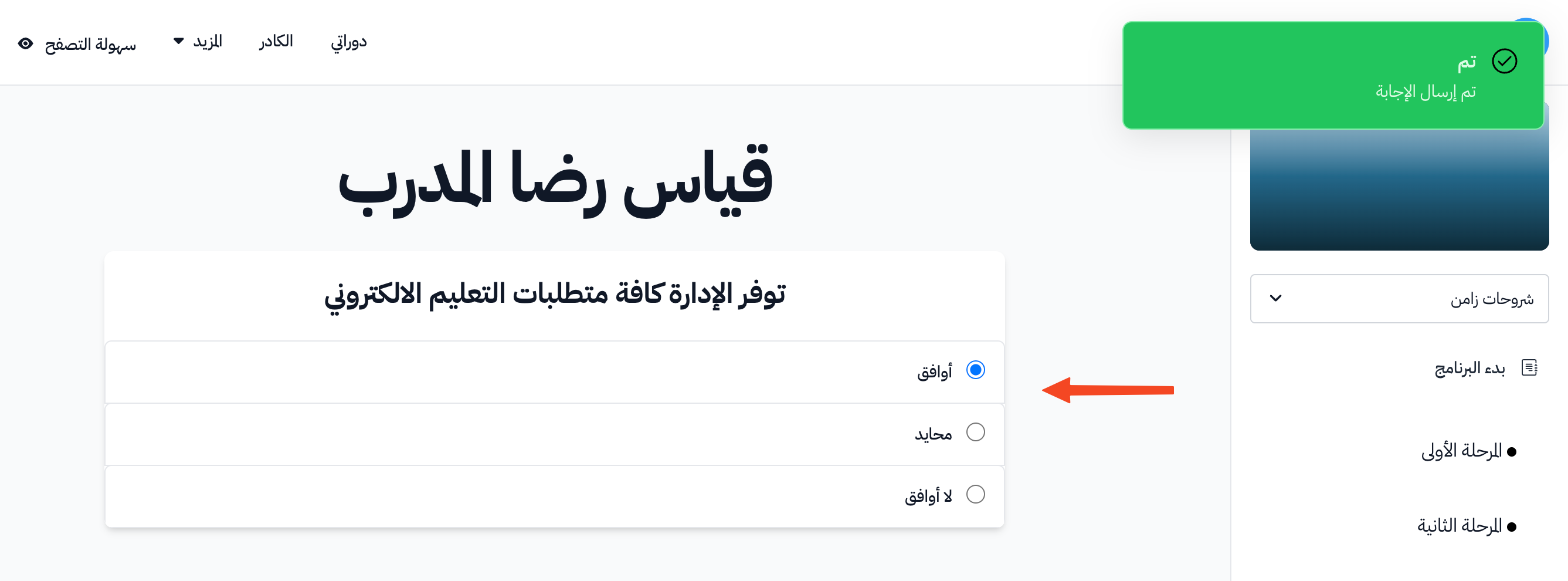
Coach satisfaction survey
The coaches inquiry helps you learn what the coaches of a course think. You create the inquiry and add questions with set answers, then the coaches answer it from their courses page.
Steps to create a coach satisfaction survey
-
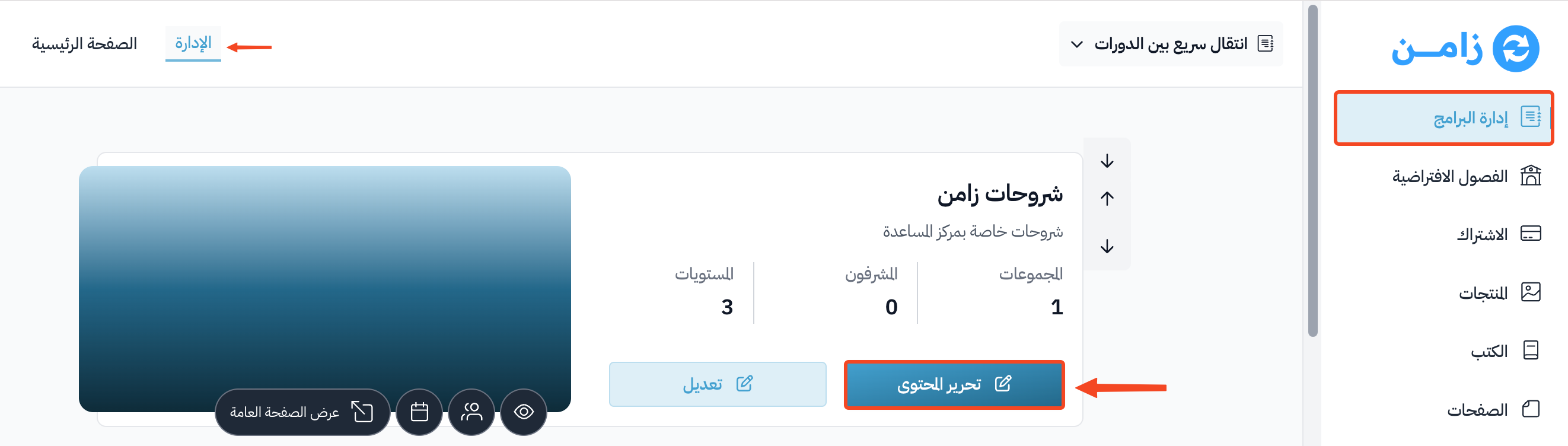
Go to the Courses page from the dashboard.
-
Click Edit Curriculum on the course card.
-
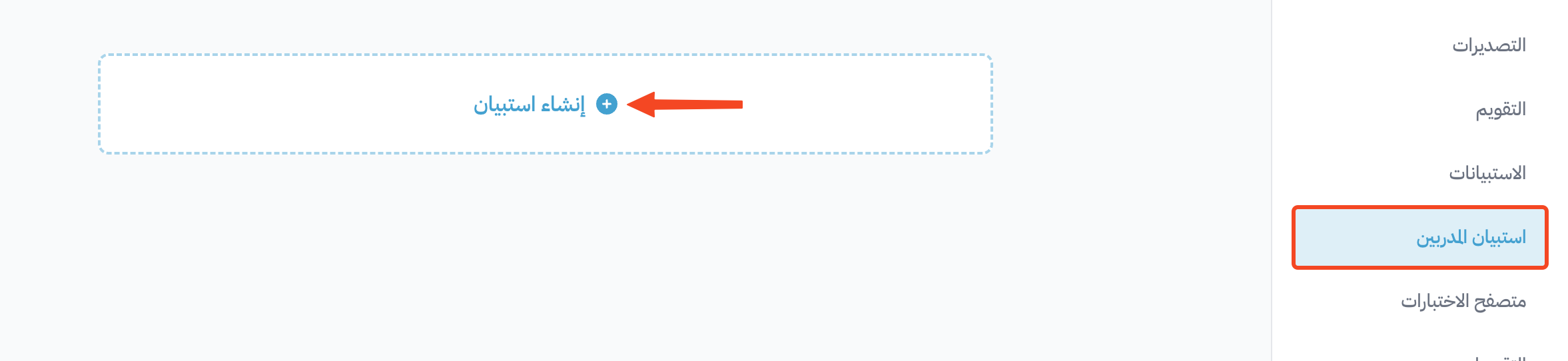
From the course menu, go to the Coaches Inquiries page.
-
Click Create Inquiry.
-
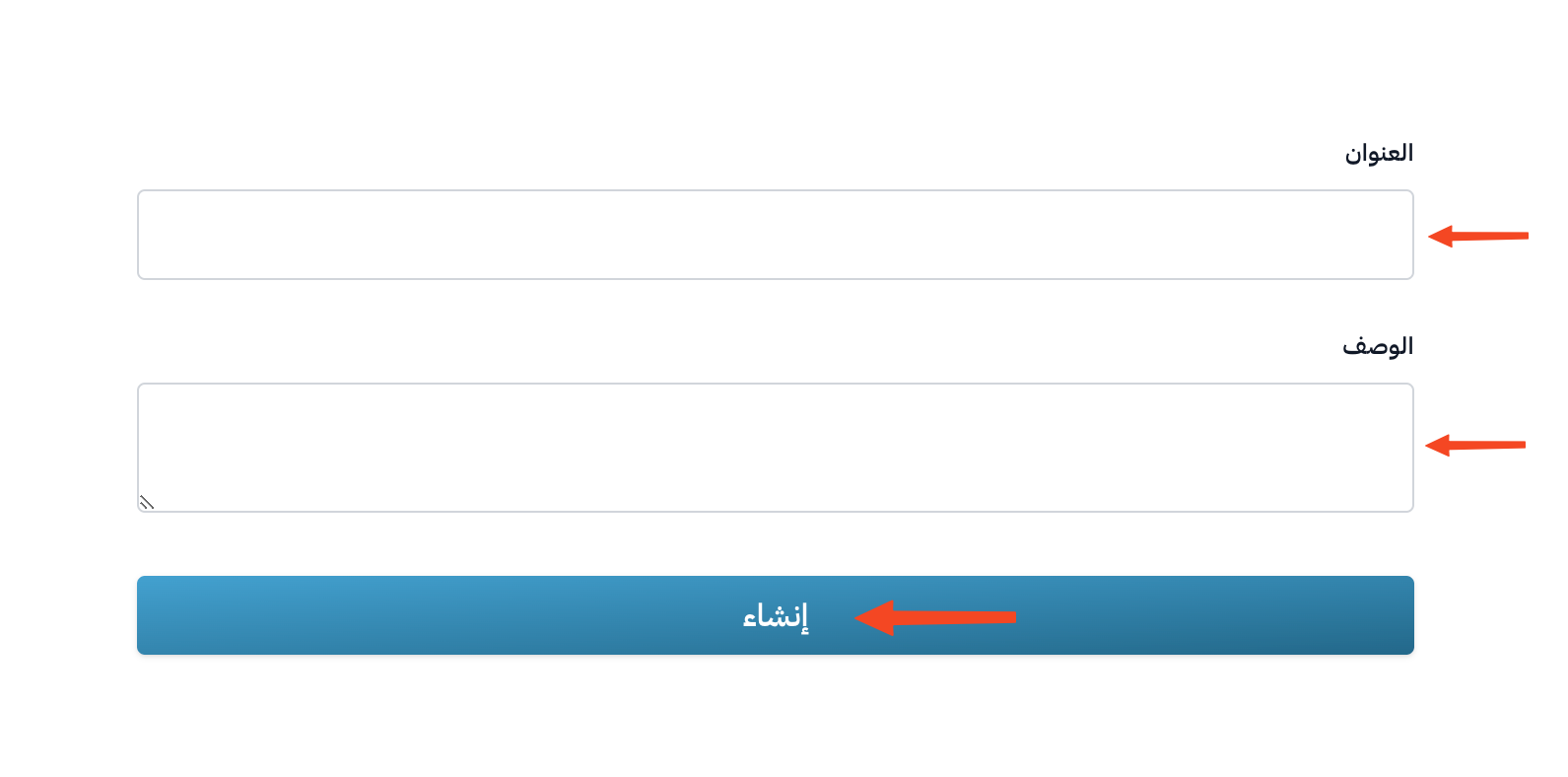
Type a Title and a Description for the inquiry, then click Create.
Add questions to the inquiry
-
Click the inquiry name.
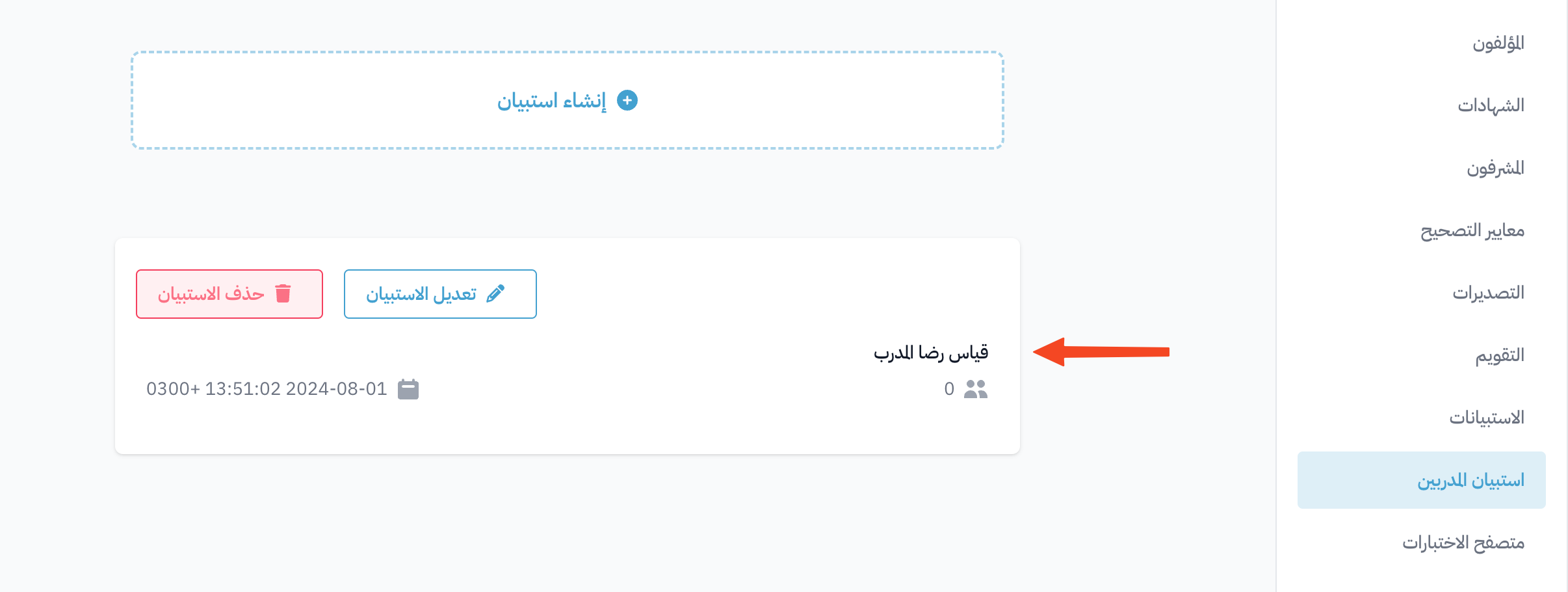
-
Click Add Question.
-
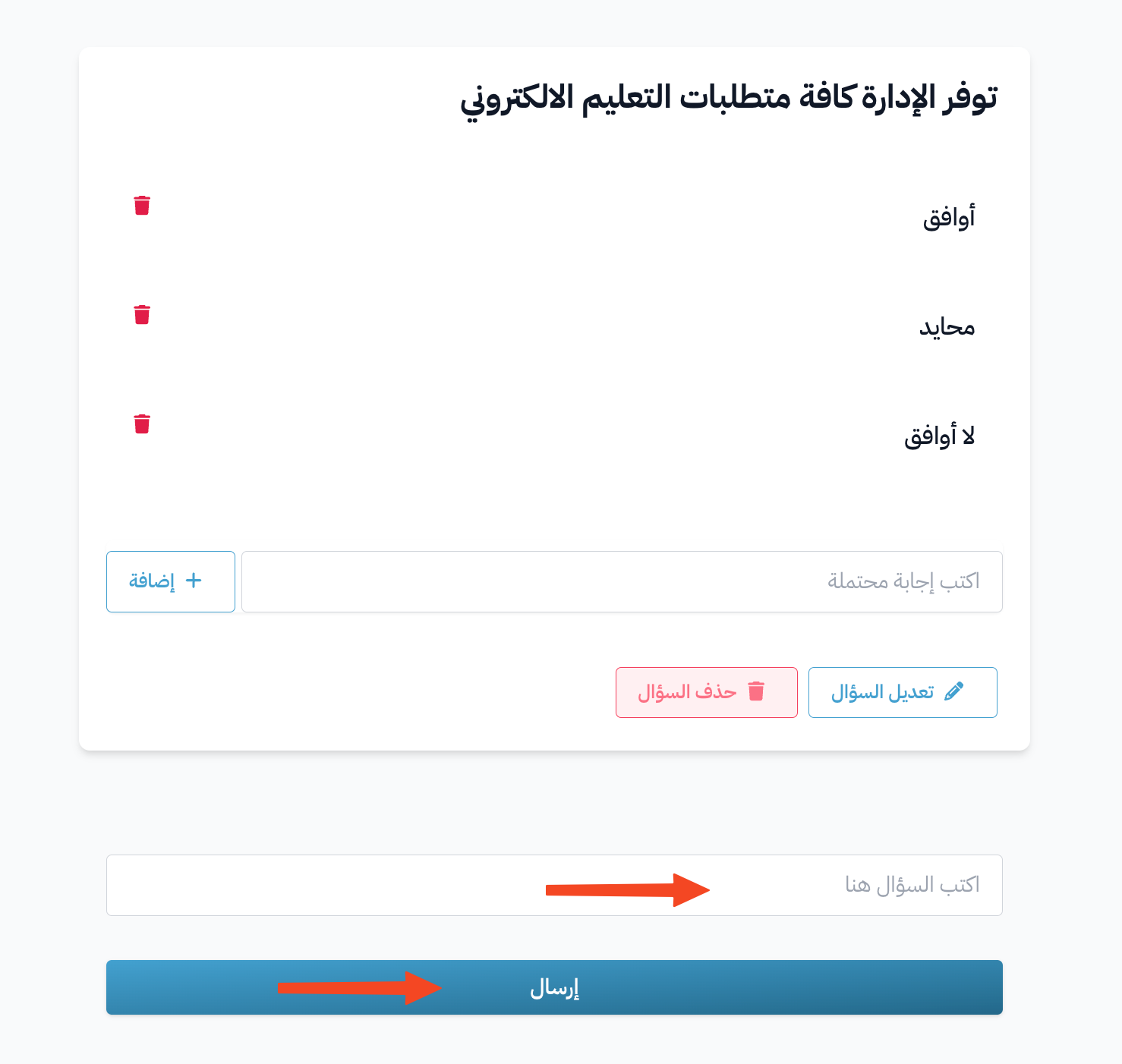
Type the question in the Write Your Question field, then click Submit.
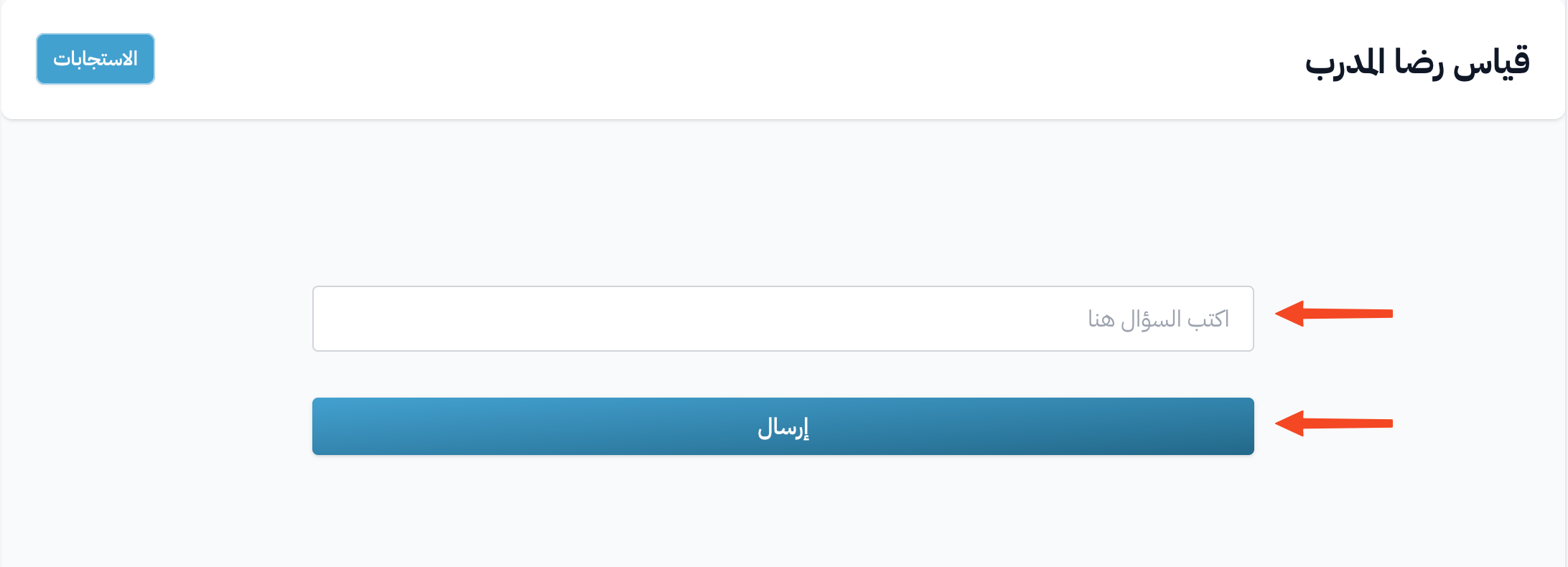
-
Type a possible answer in the Write a choice field, then click Add.
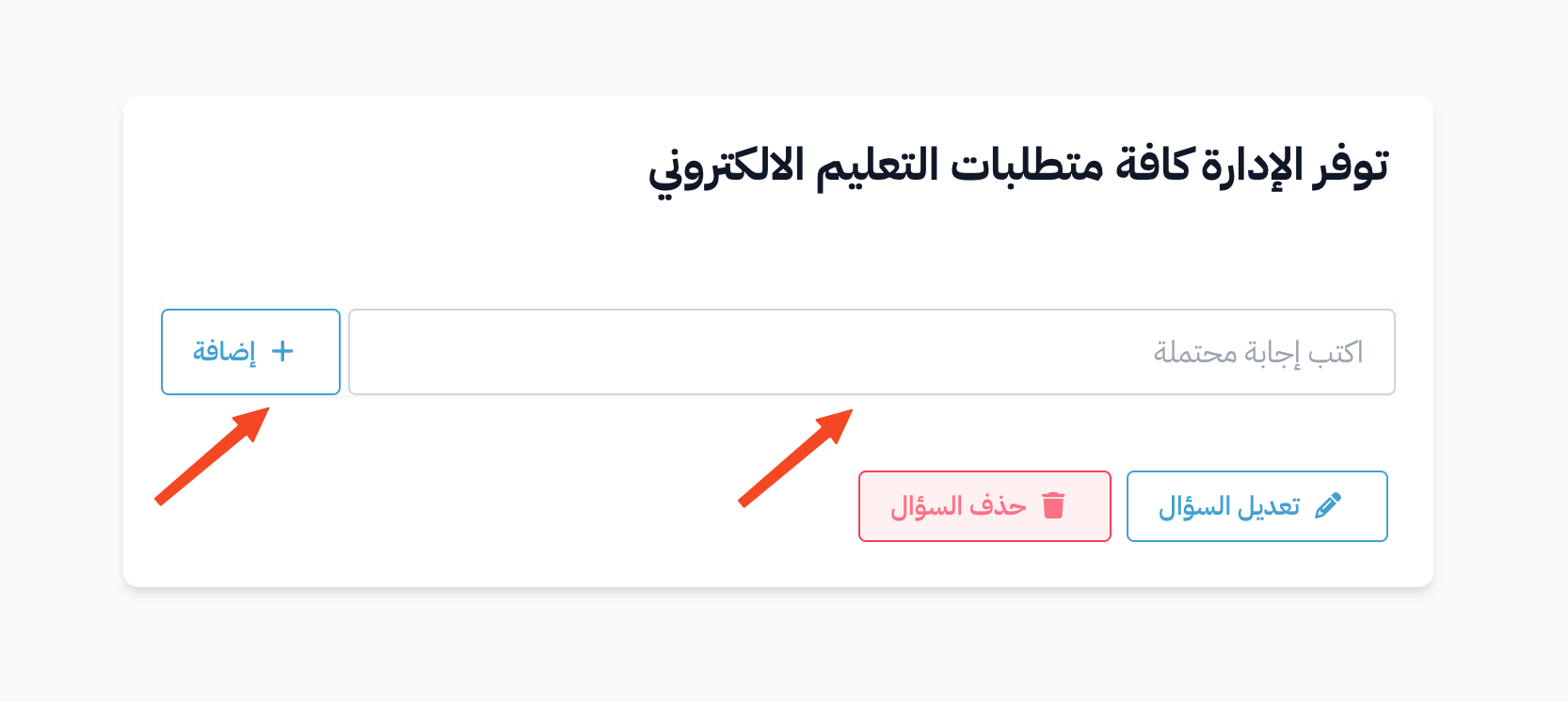
- You can add more than one answer to a question.
- You can delete an answer with the delete button next to it, as long as no coach has picked it yet.
- To edit or delete the question, click the ⋯ (Actions) button on the question card, then click Edit or Delete.
- Coaches see a question only if it has at least one answer.
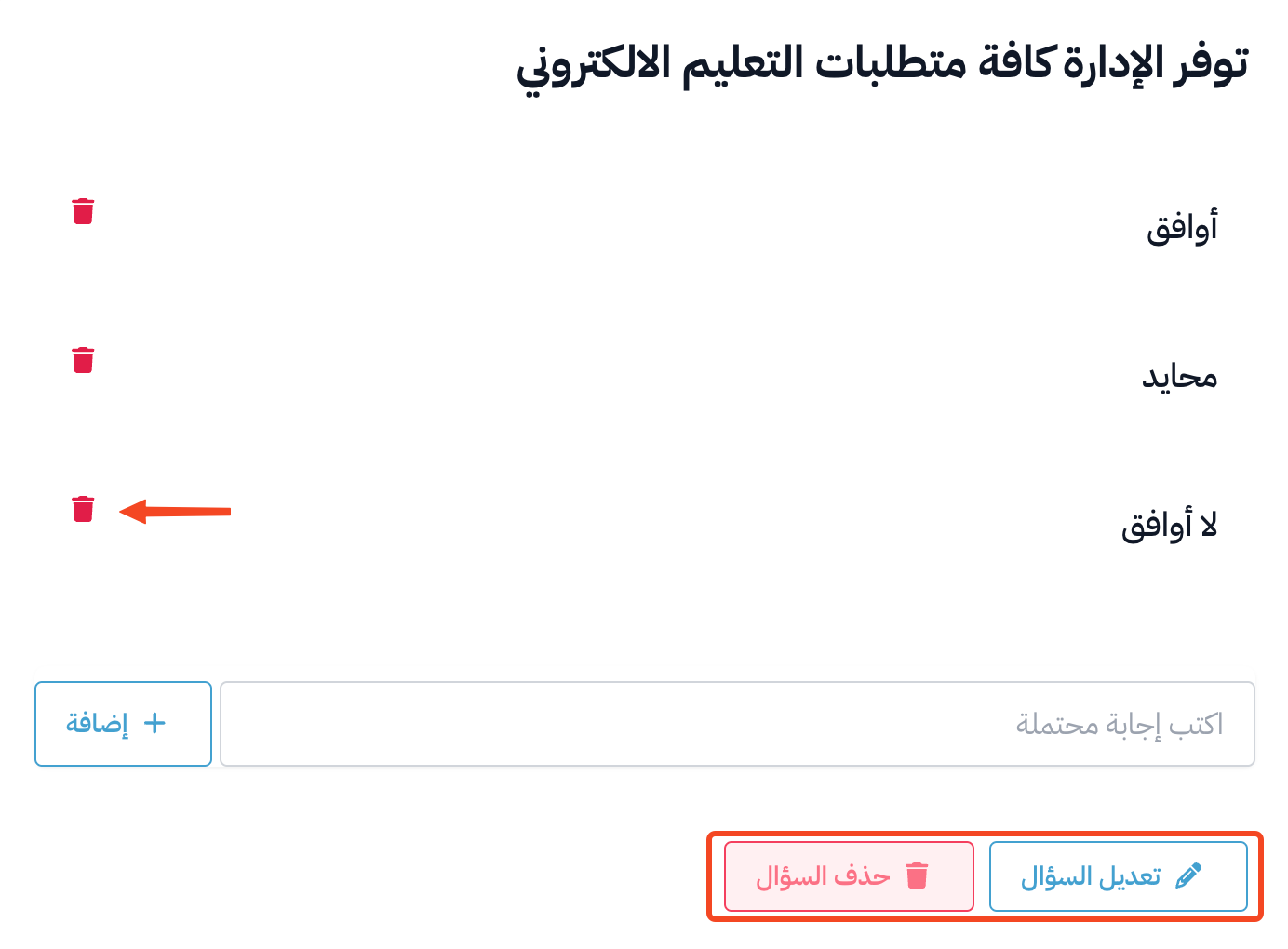
To add another question, click Add Question again, then repeat the steps above.
See the inquiry responses
-
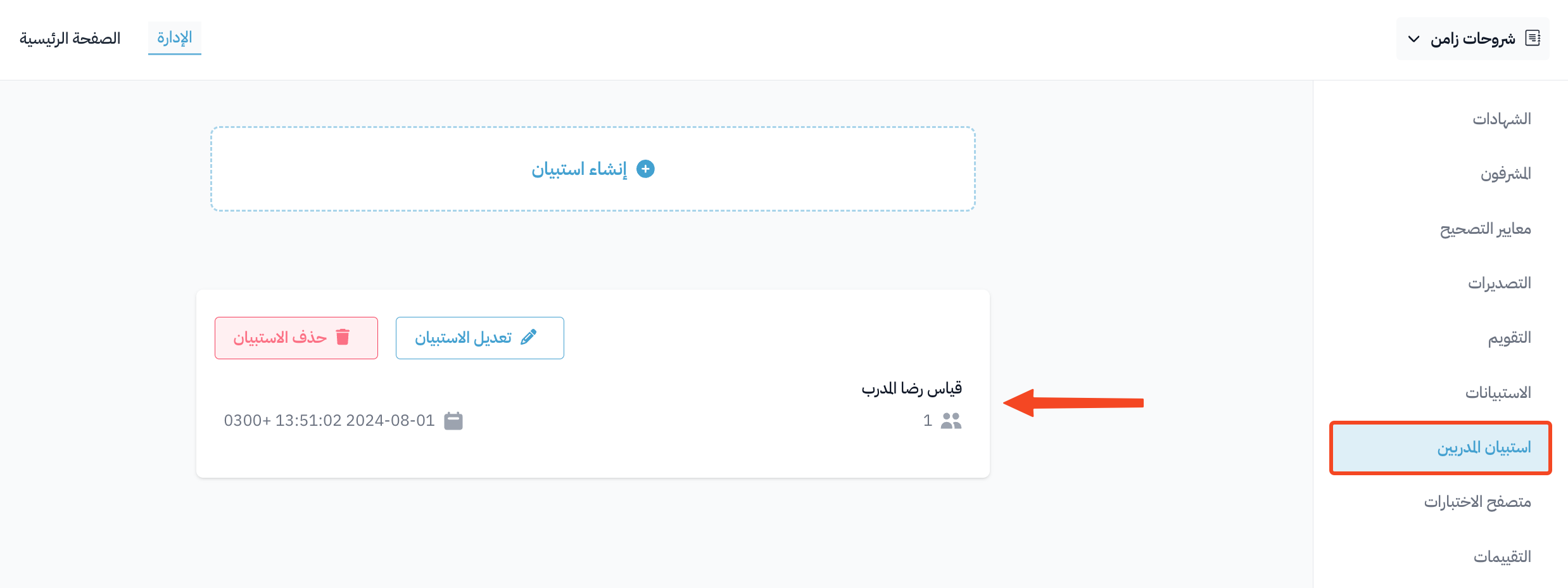
From the course menu, go to the Coaches Inquiries page.
-
Click the inquiry whose responses you want to see.
-
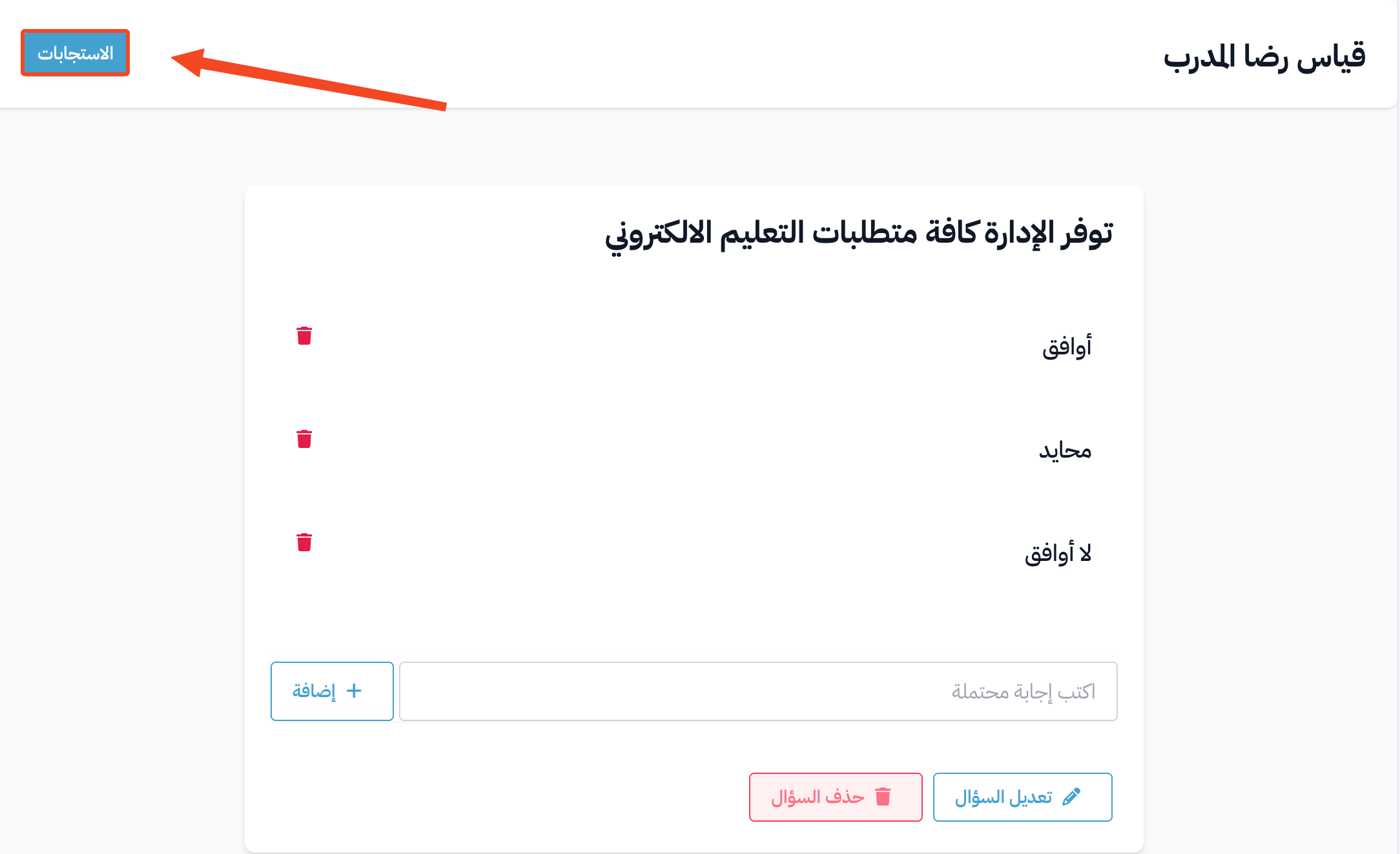
Click the Responses button at the top of the page. The button also shows the number of responses.

The inquiry from the coach's side
-
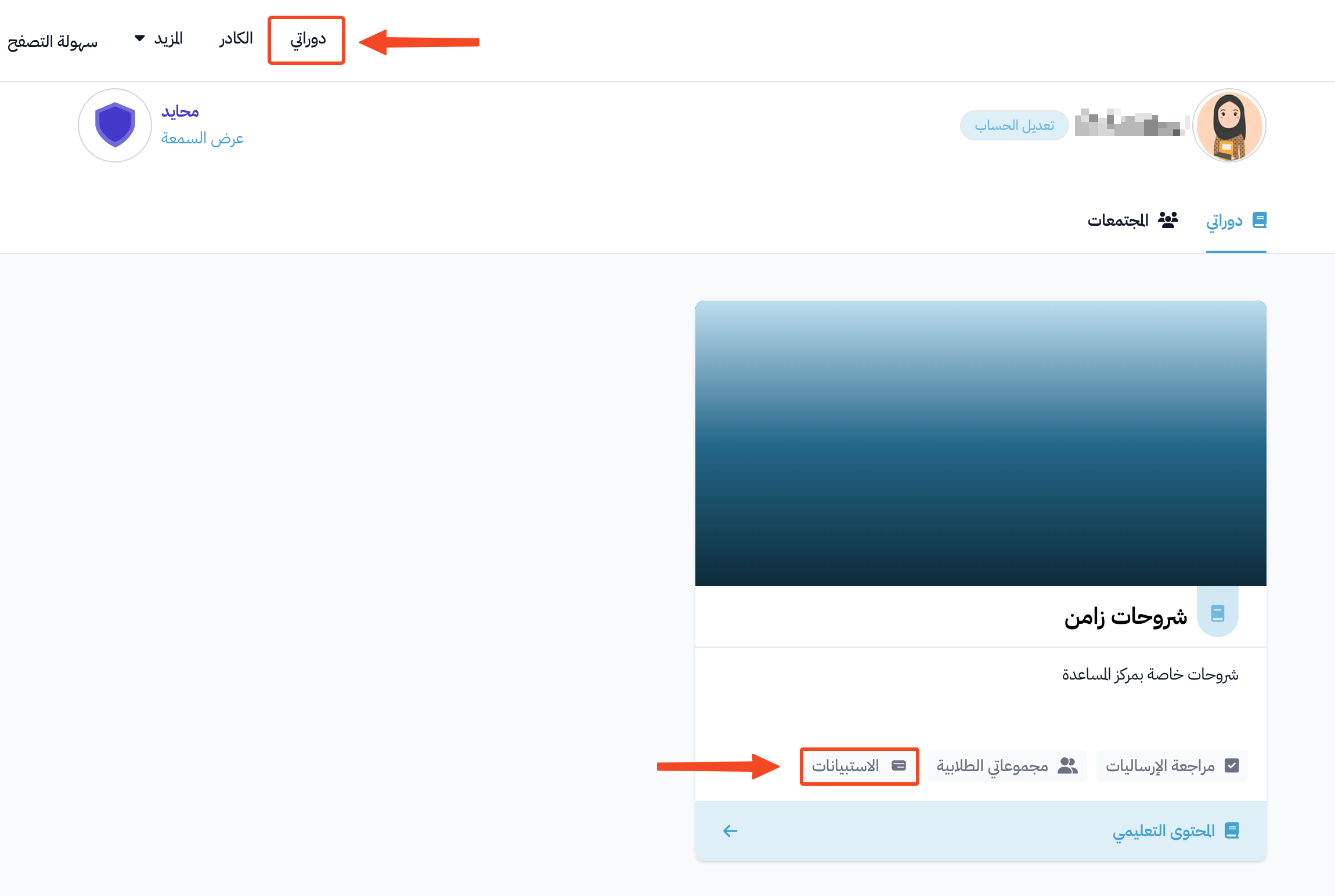
The coach clicks Dashboard in the top bar, then clicks Inquiries on the course card.
-
The coach clicks Complete.

-
The coach chooses an answer for each question. Each answer is sent as soon as it is chosen.