Connect a custom domain with Cloudflare
If your domain is registered in Cloudflare, follow these steps to open your platform on a custom domain (such as online.class.app). These steps are for the platform admin.
Steps to add a CNAME record in Cloudflare
-
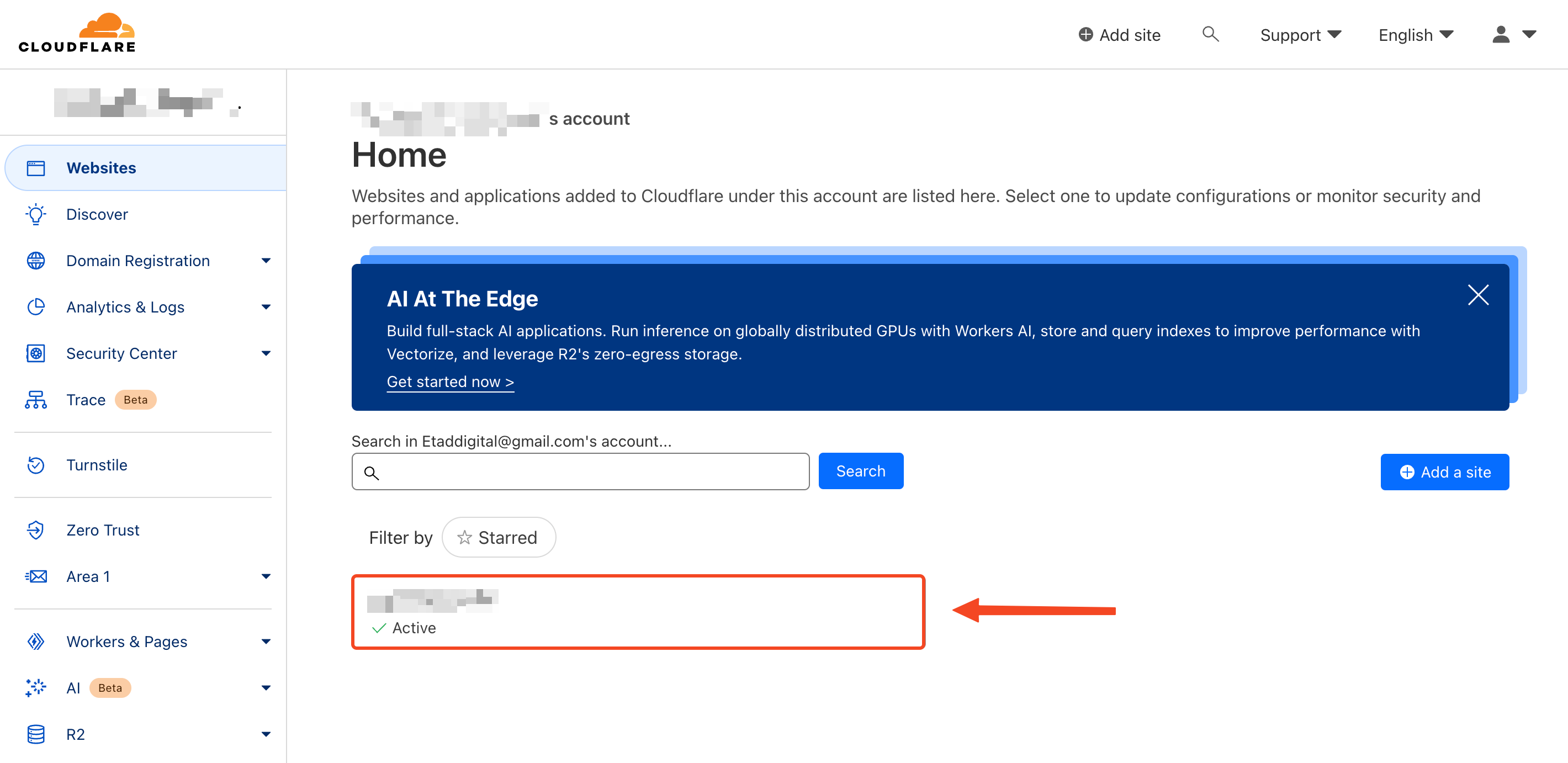
Sign in to your cloudflare dashboard, then click the domain you want to connect to your platform.
-
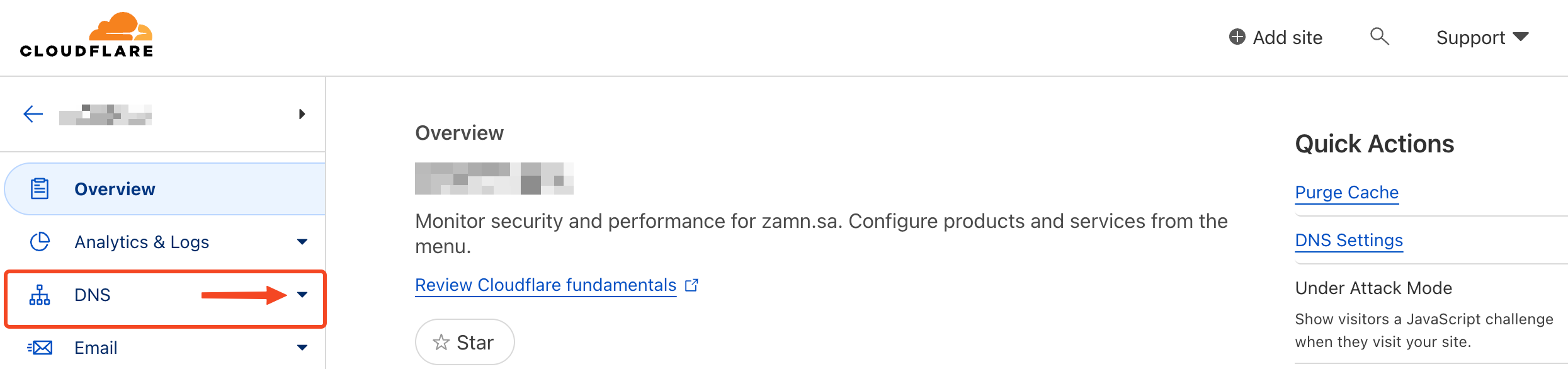
Click DNS in the side bar.
-
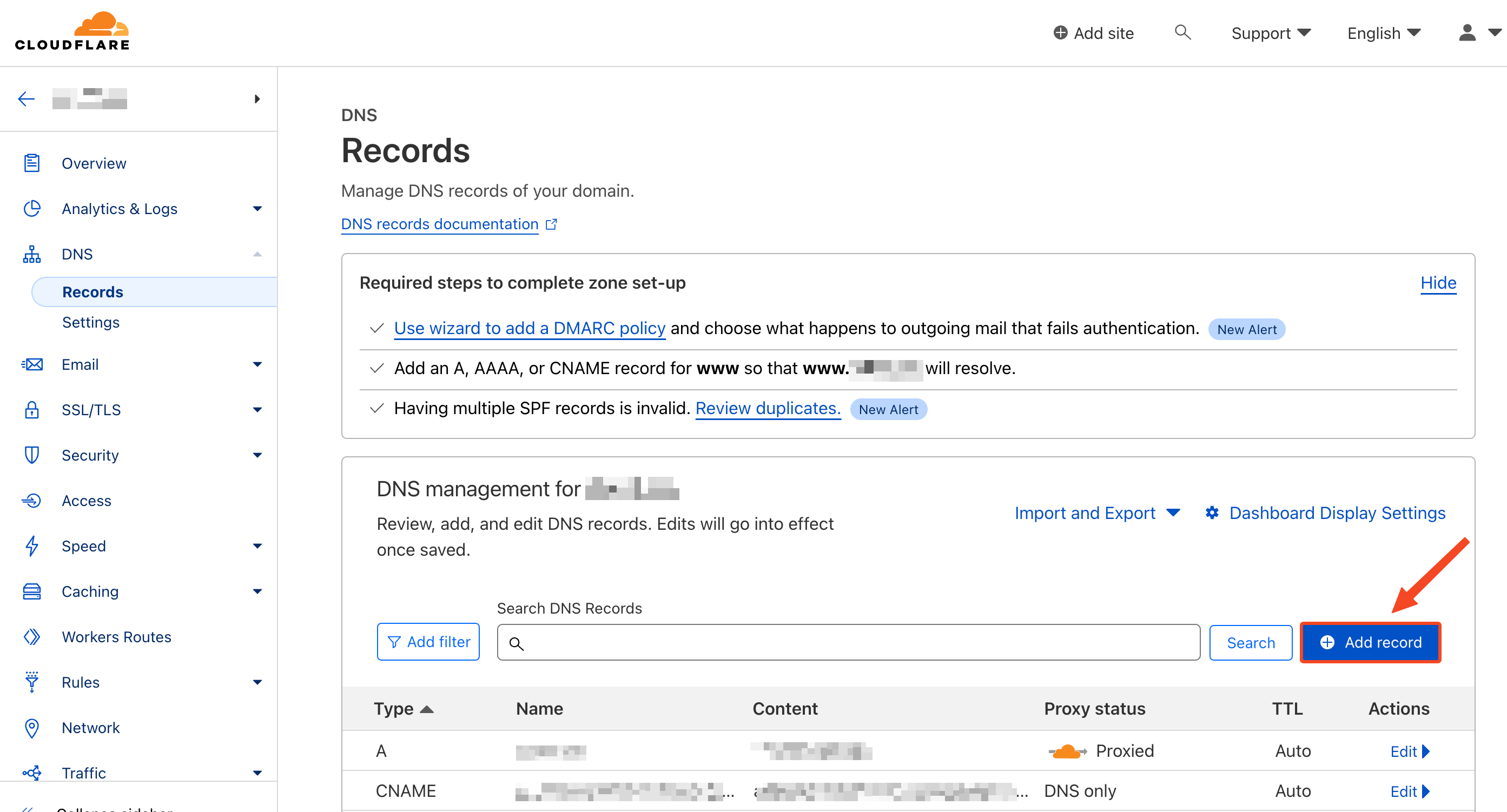
Scroll down and click Add record.
-
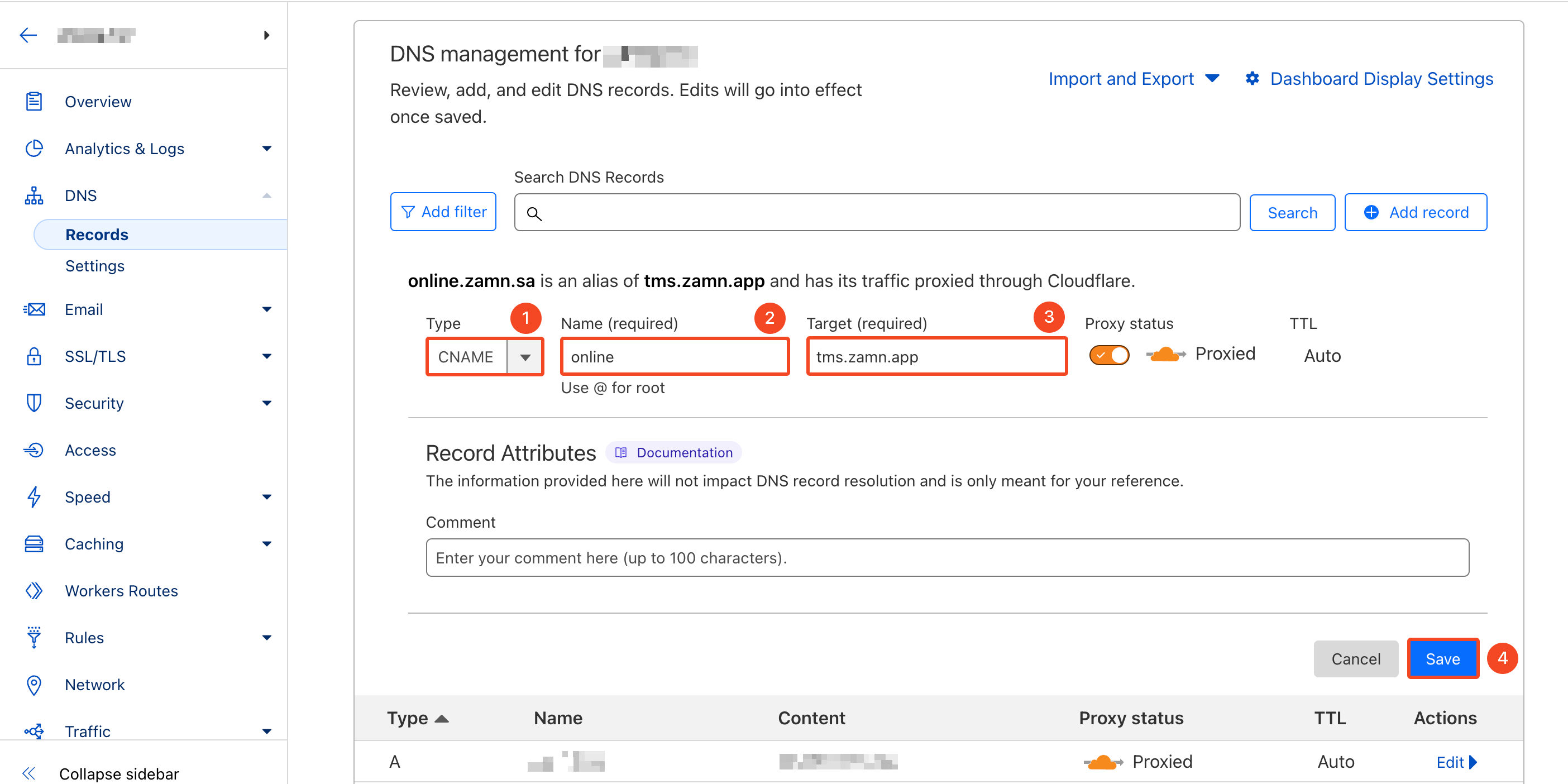
Choose CNAME from the Type drop-down list.
-
Type your subdomain in the Name field, such as
online. -
Type the value
tms.zamn.appin the Target field to connect with Zamn. -
Click Save.
Connect the domain to your platform
-
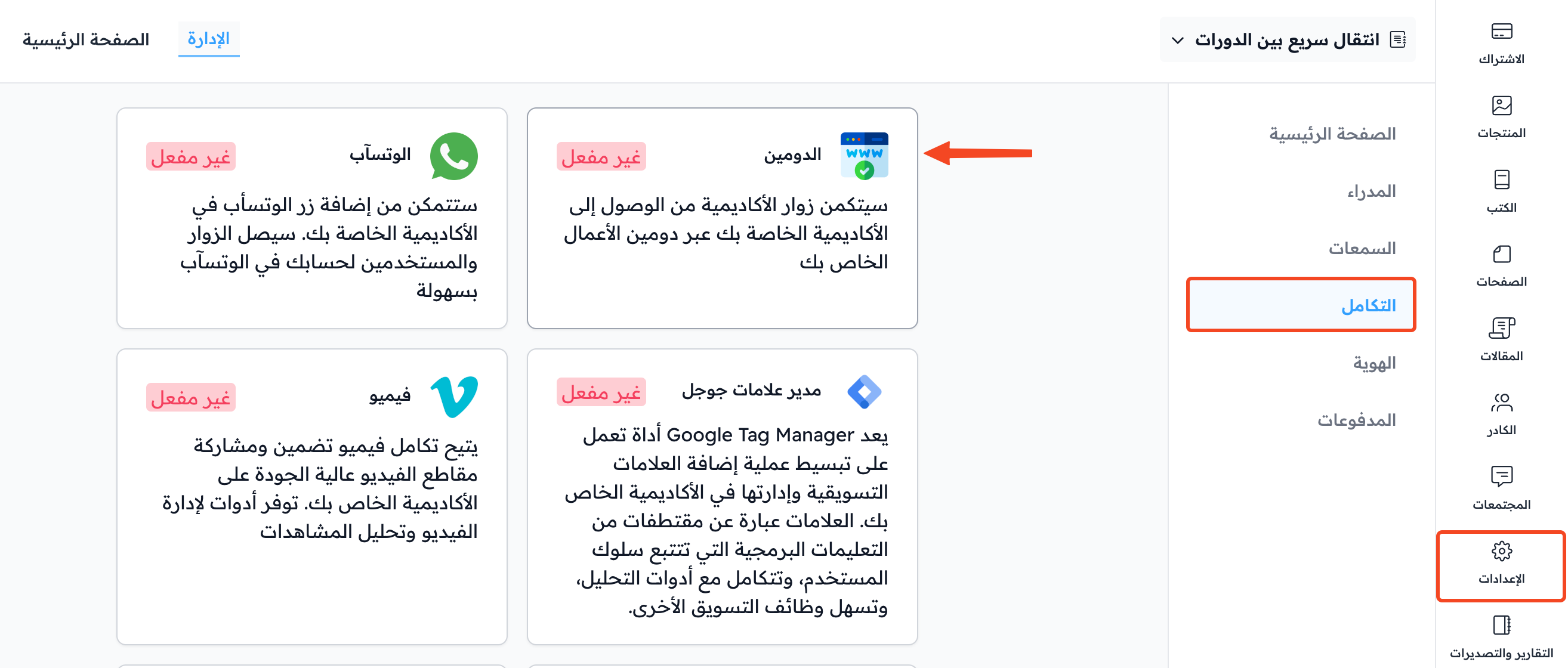
From the dashboard, click Settings, then go to the Integrations page and click Domain.
-
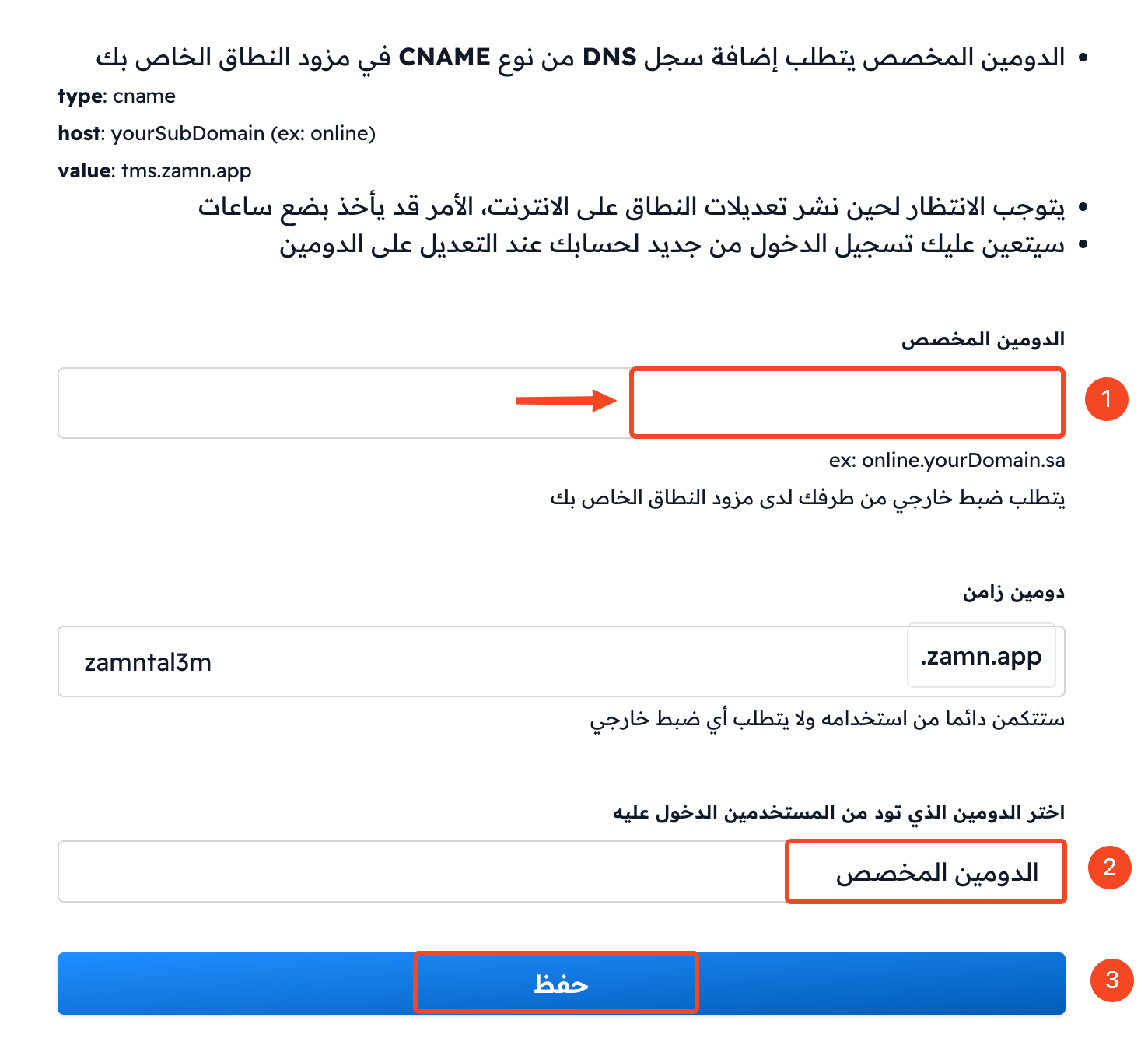
Type your custom domain in the Domain field, such as
online.class.app. -
Click Submit.
-
Wait until the domain change spreads on the internet. When it is ready, a green check mark shows next to the waiting message in the Domain window.
-
Open the Domain window again, and choose Domain in the Primary Domain field.
-
Click Submit.
The domain may work right away, or it may take up to 24 hours.
Your custom domain is now connected, and everyone can reach your platform through it.
If this time has passed and you still cannot open your platform on the custom domain, contact technical support on WhatsApp.
Redirect
A redirect is needed only if you want to open the platform on your main domain. For example, if you want visitors to type class.app to open your platform, you must create a redirect from class.app to www.class.app.
Otherwise, you do not need a redirect. For example, if you want the platform to open on:
online.class.applms.class.app
the platform opens on a subdomain of your main domain, as shown in the steps above. In this example, the subdomain is online or lms.