How to copy a course
You can make a copy of an existing course with all its content, instead of building it from the start. Cohorts and students do not move to the copy, so you need to add a cohort to it before it becomes active.
Steps to copy a course
-
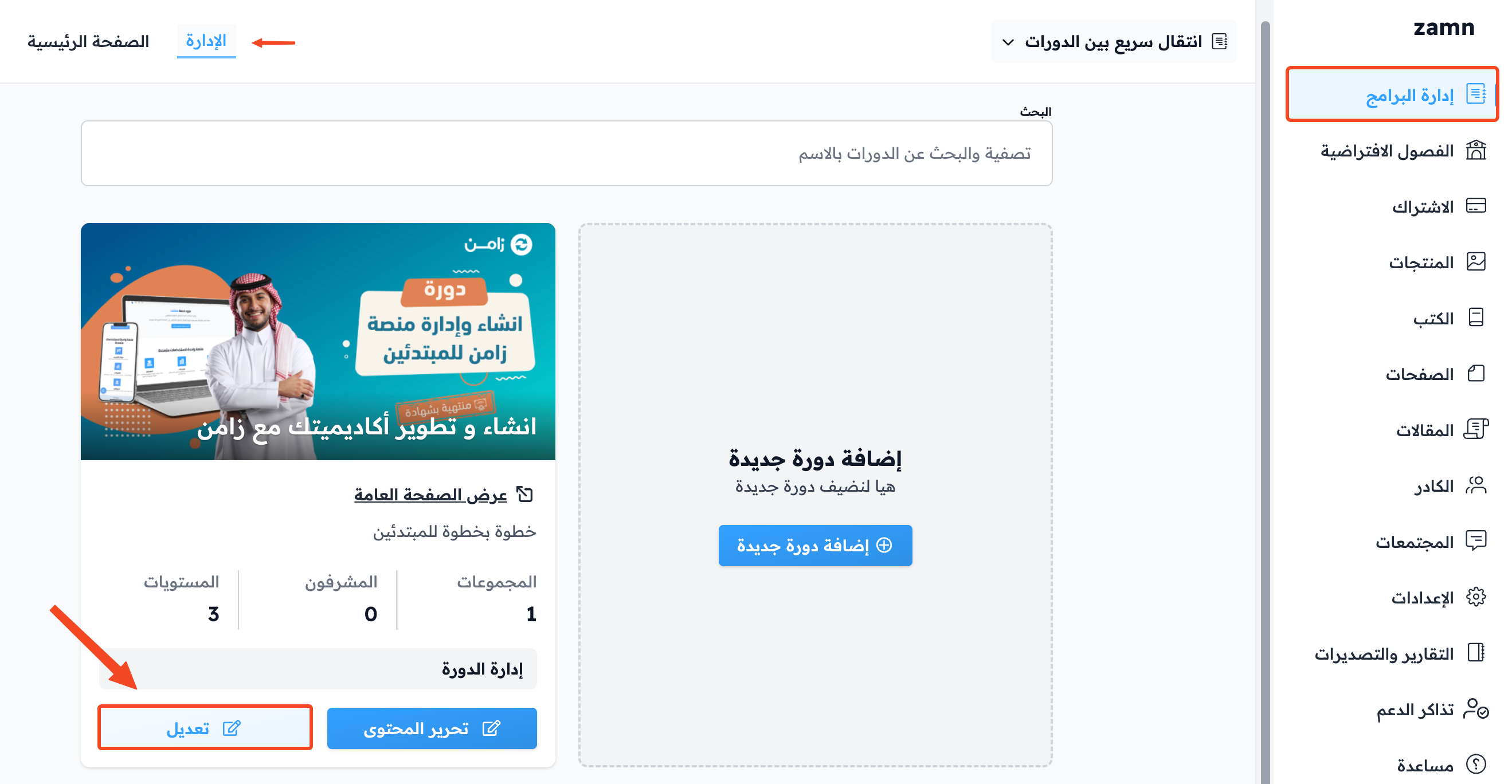
On the Courses page, click Edit Course Details on the card of the course you want to copy.
-
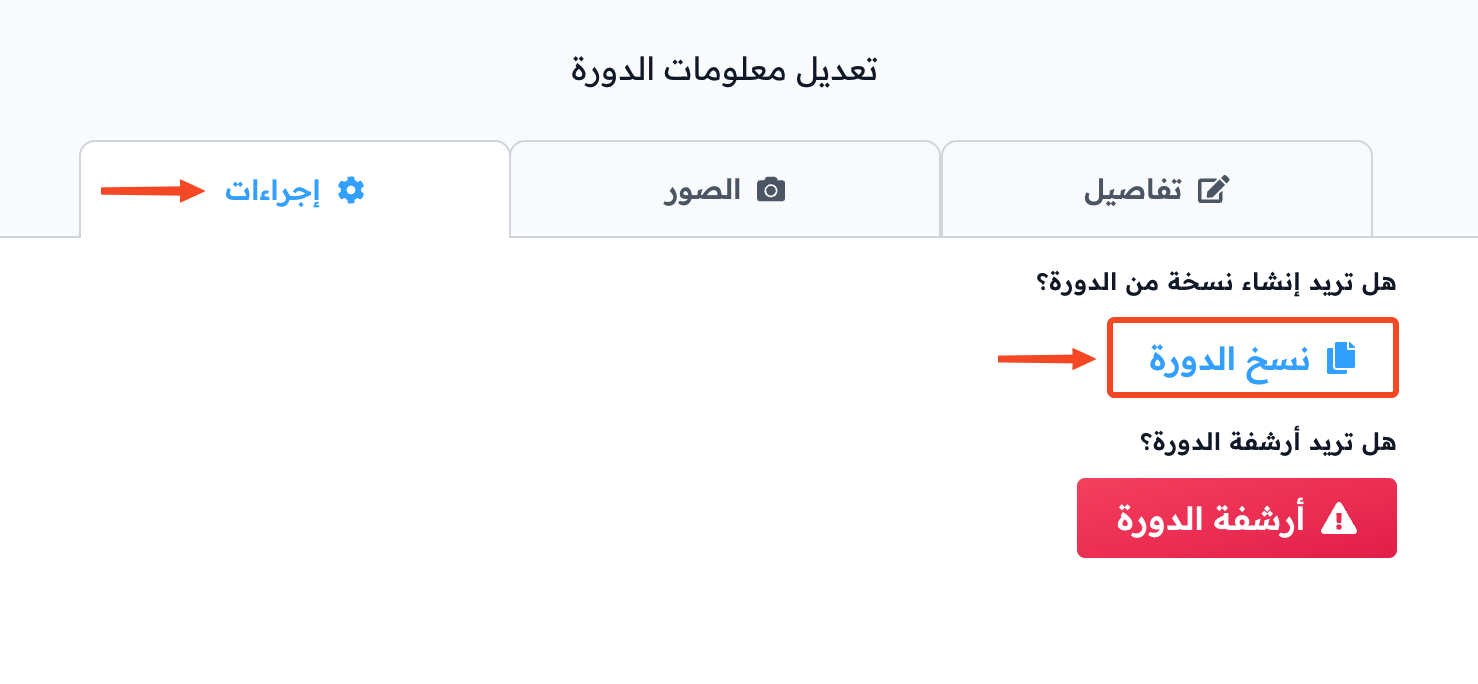
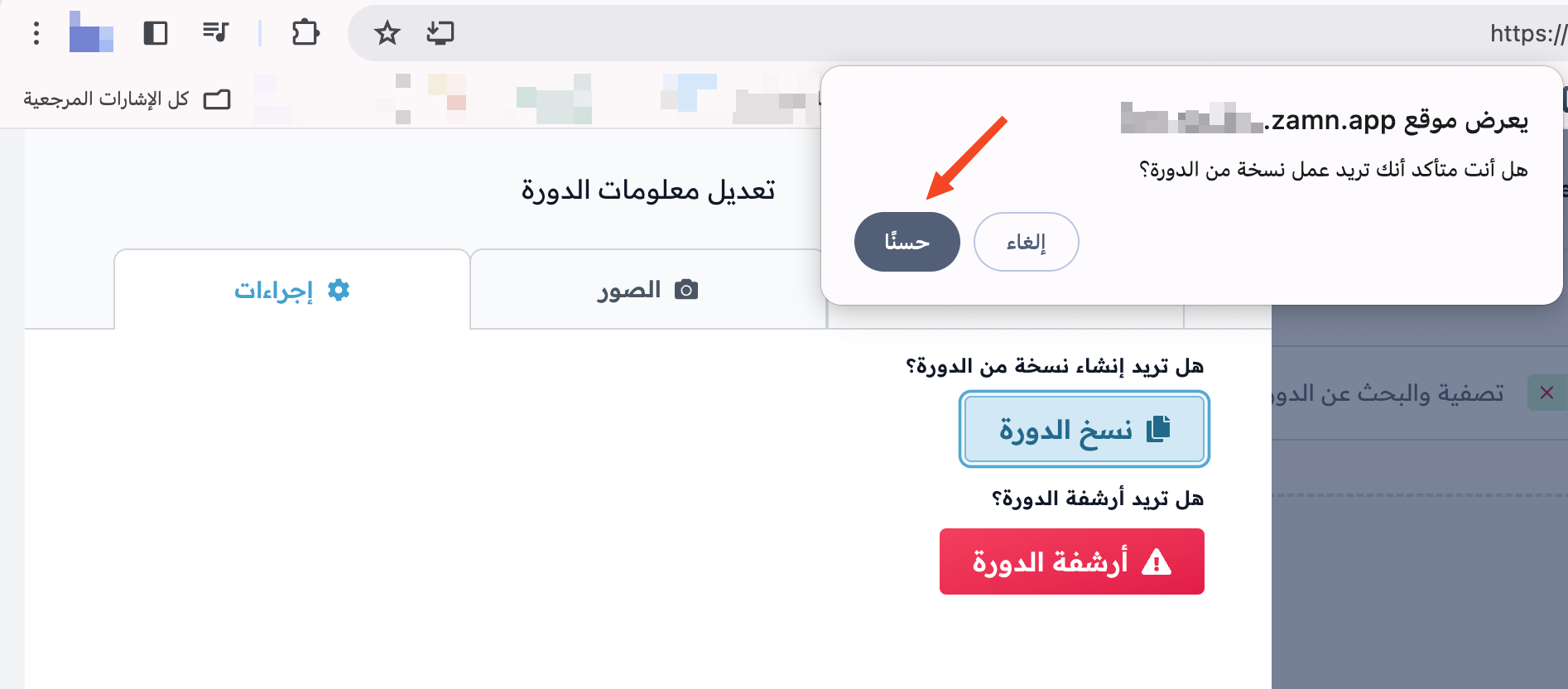
Go to the Actions tab, then click Clone Course.
-
A confirmation message shows. Click OK to agree.
-
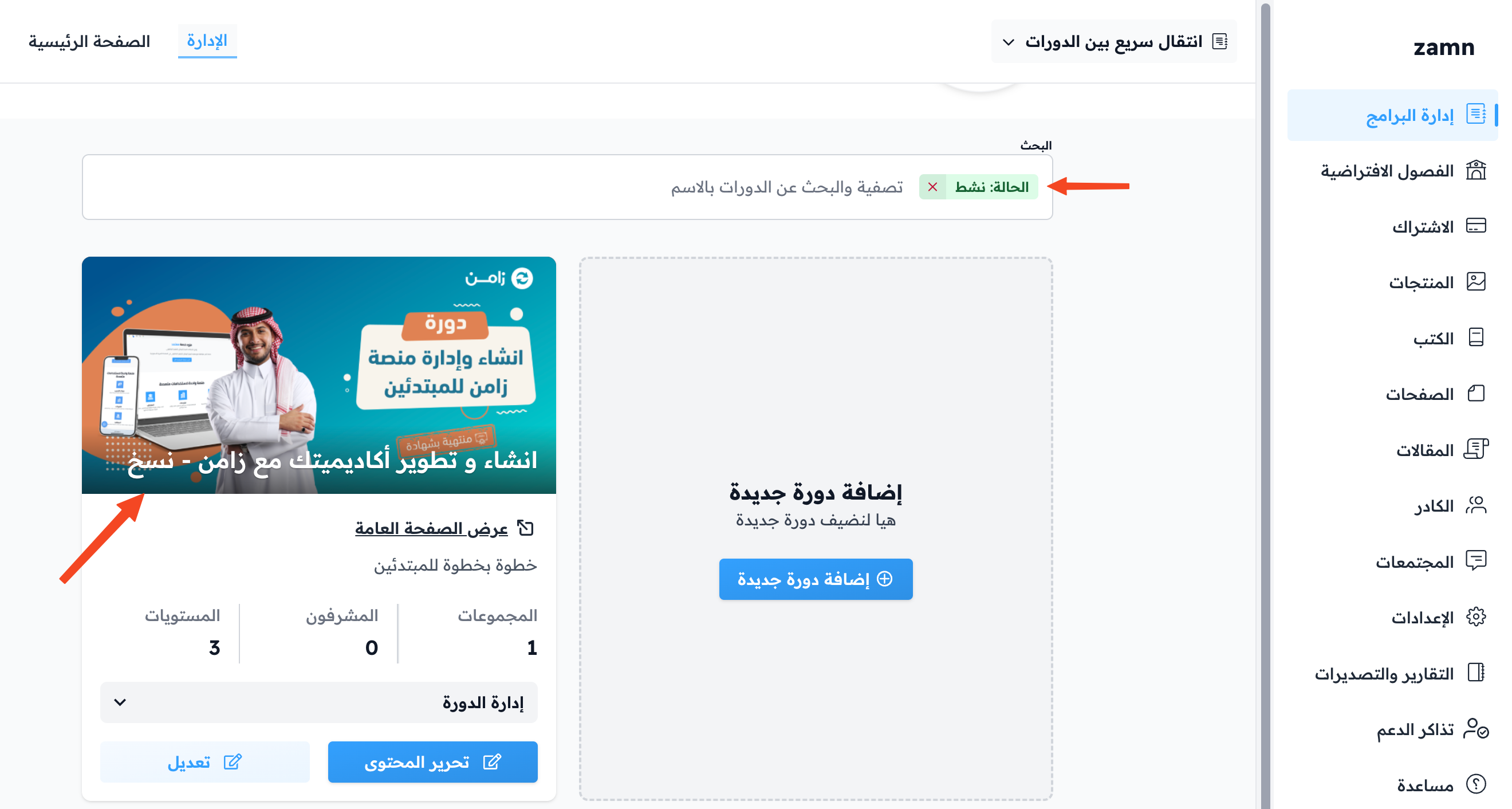
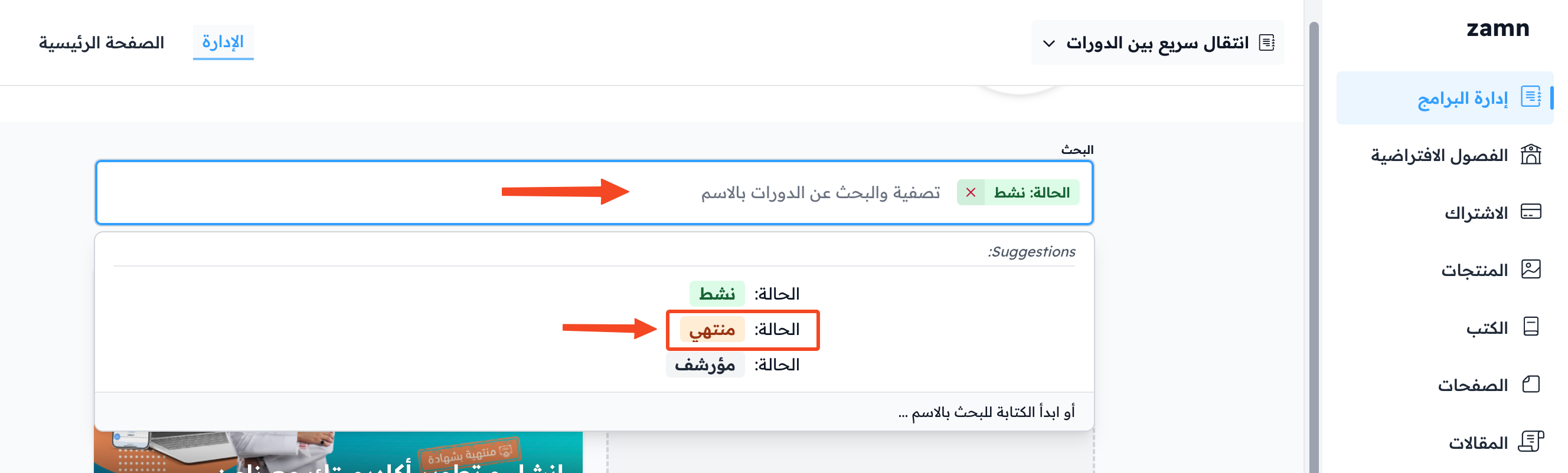
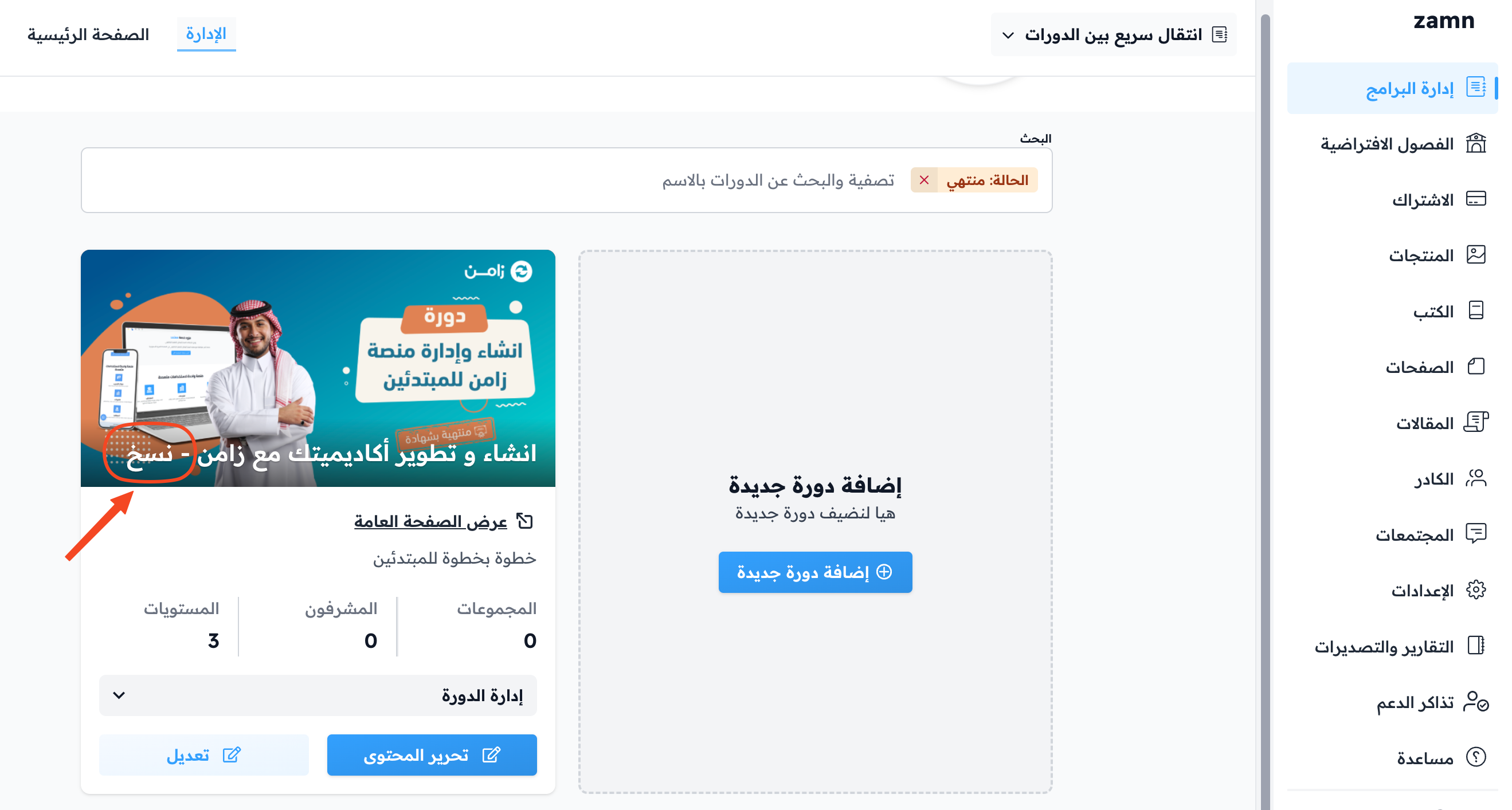
Wait a few moments for the copy to appear, then choose the Ended status in the search bar to see the copied course.
Steps to activate the copied course
-
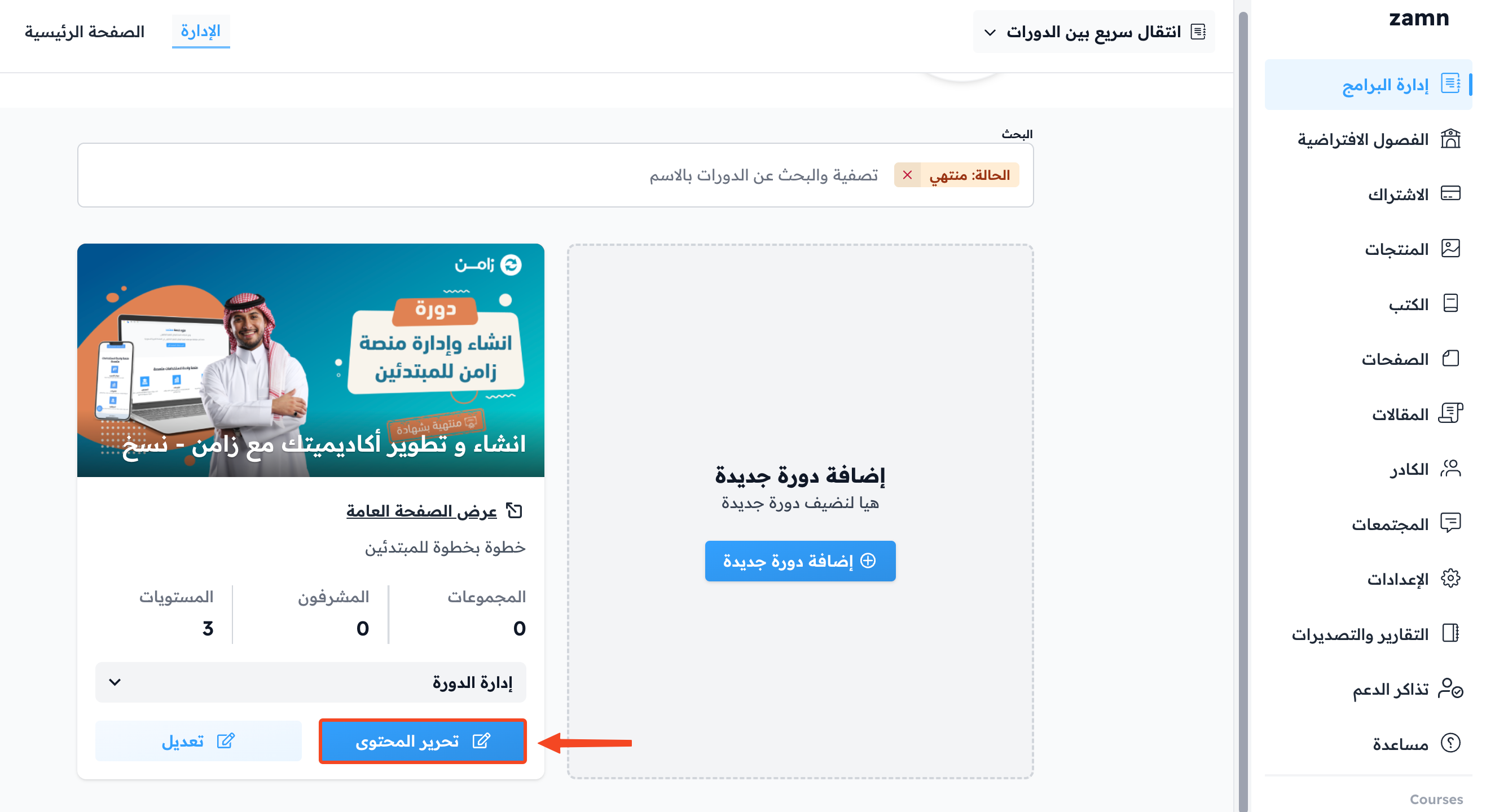
Click Edit Curriculum on the card of the copied course.
-
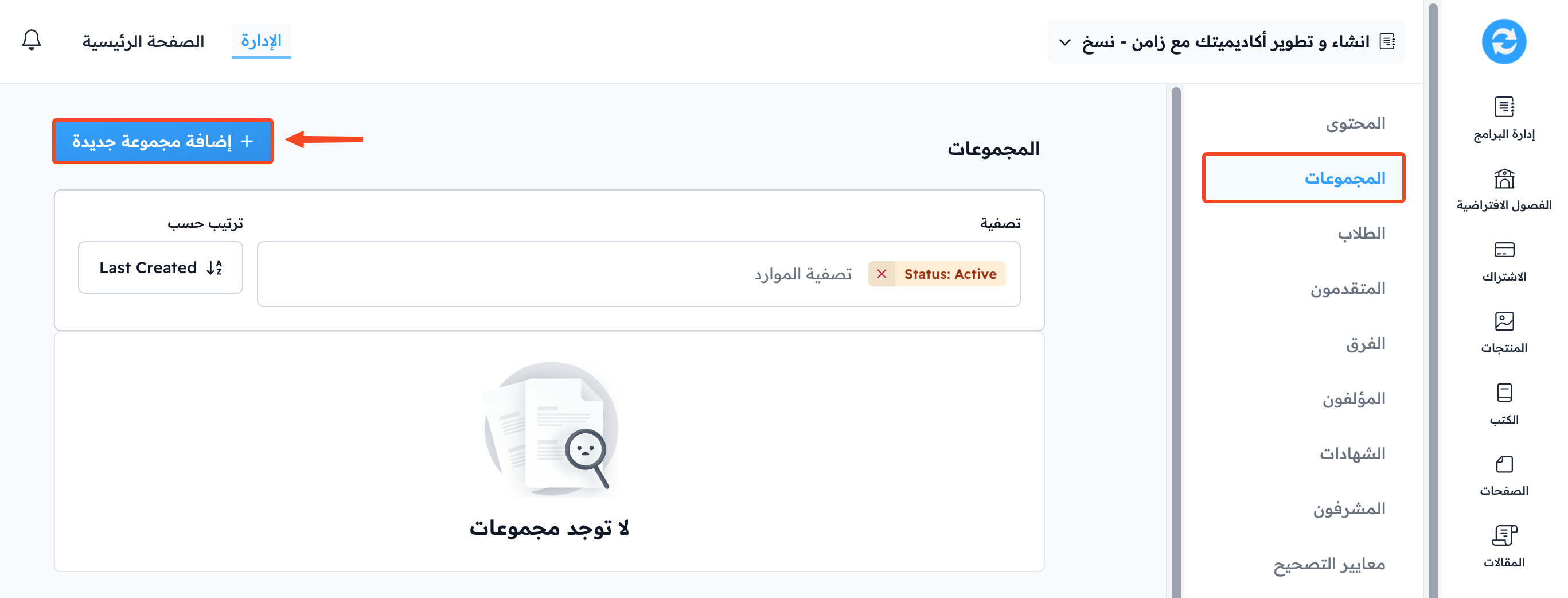
From the course menu, go to the Cohorts page, then click Add Cohort. A side panel opens.
-
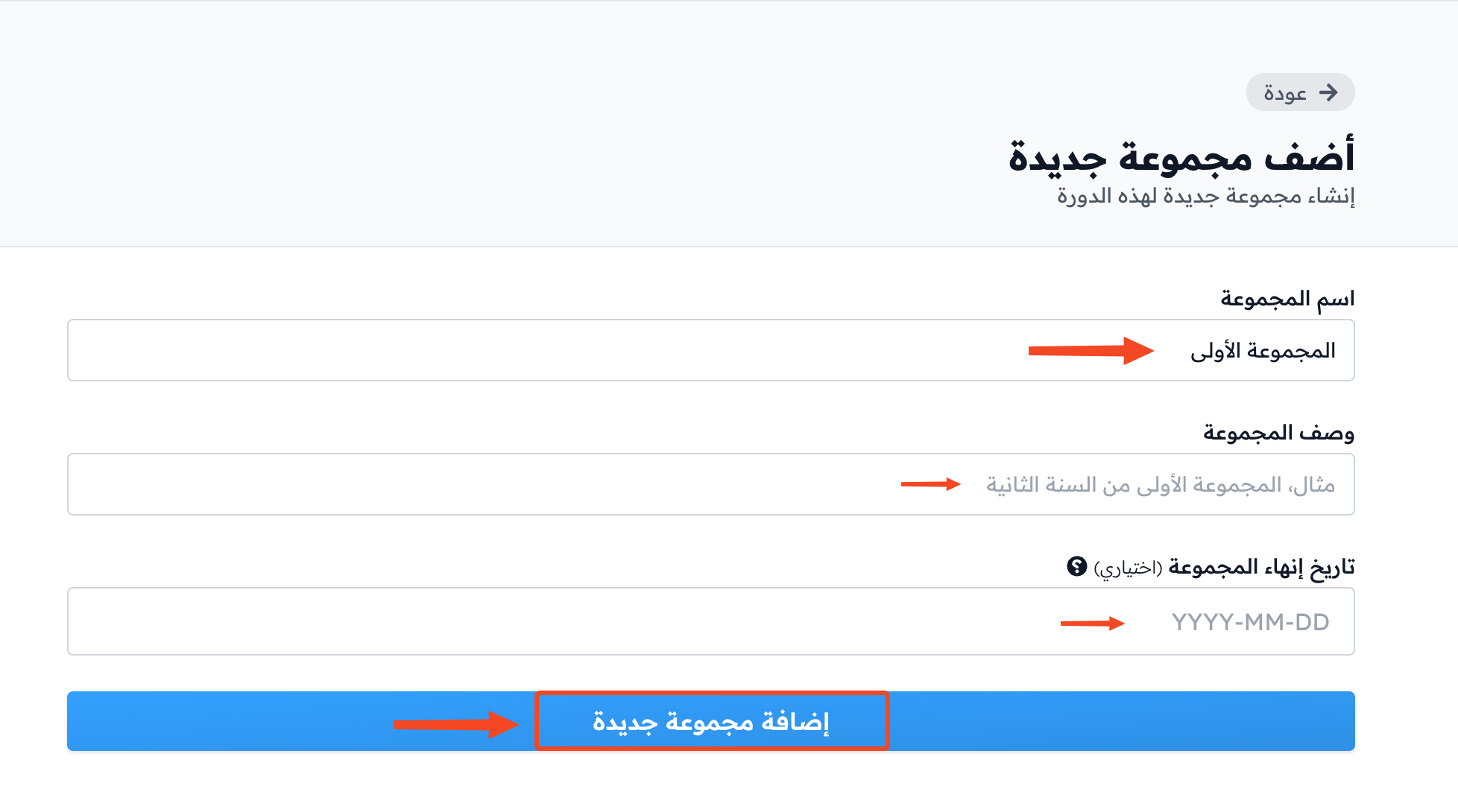
Type a name for the cohort, then click Add Cohort. The course then moves to the Active status.
tipAdding a cohort description and a cohort end date is optional.