Change your account email
You can change your account email from the Edit Profile page, and then confirm the new email from a message sent to it.
Steps to change your account email
-
Click your profile icon, then choose Edit Profile.
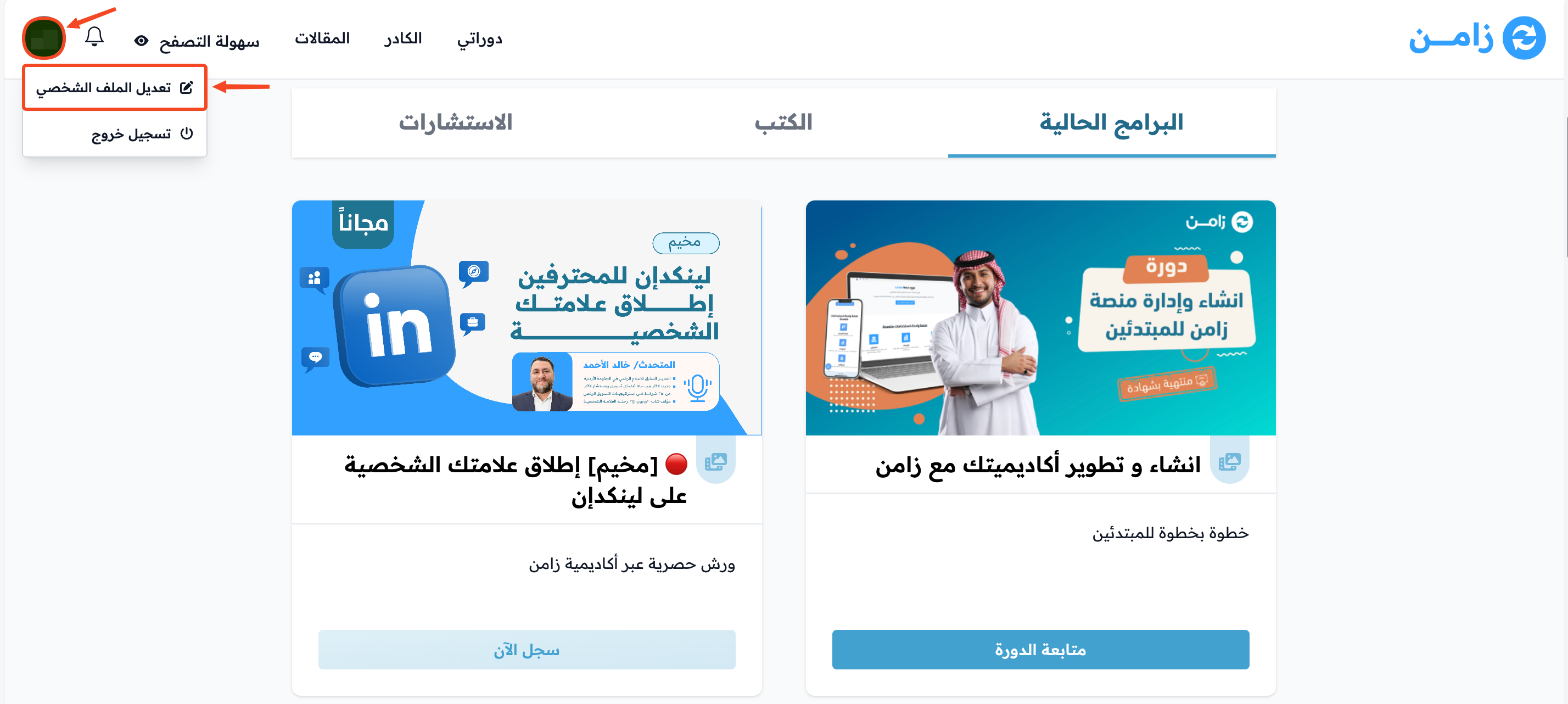
-
Go to the Email field and click Edit.
NoteYou must set a password before you can edit your account email address.
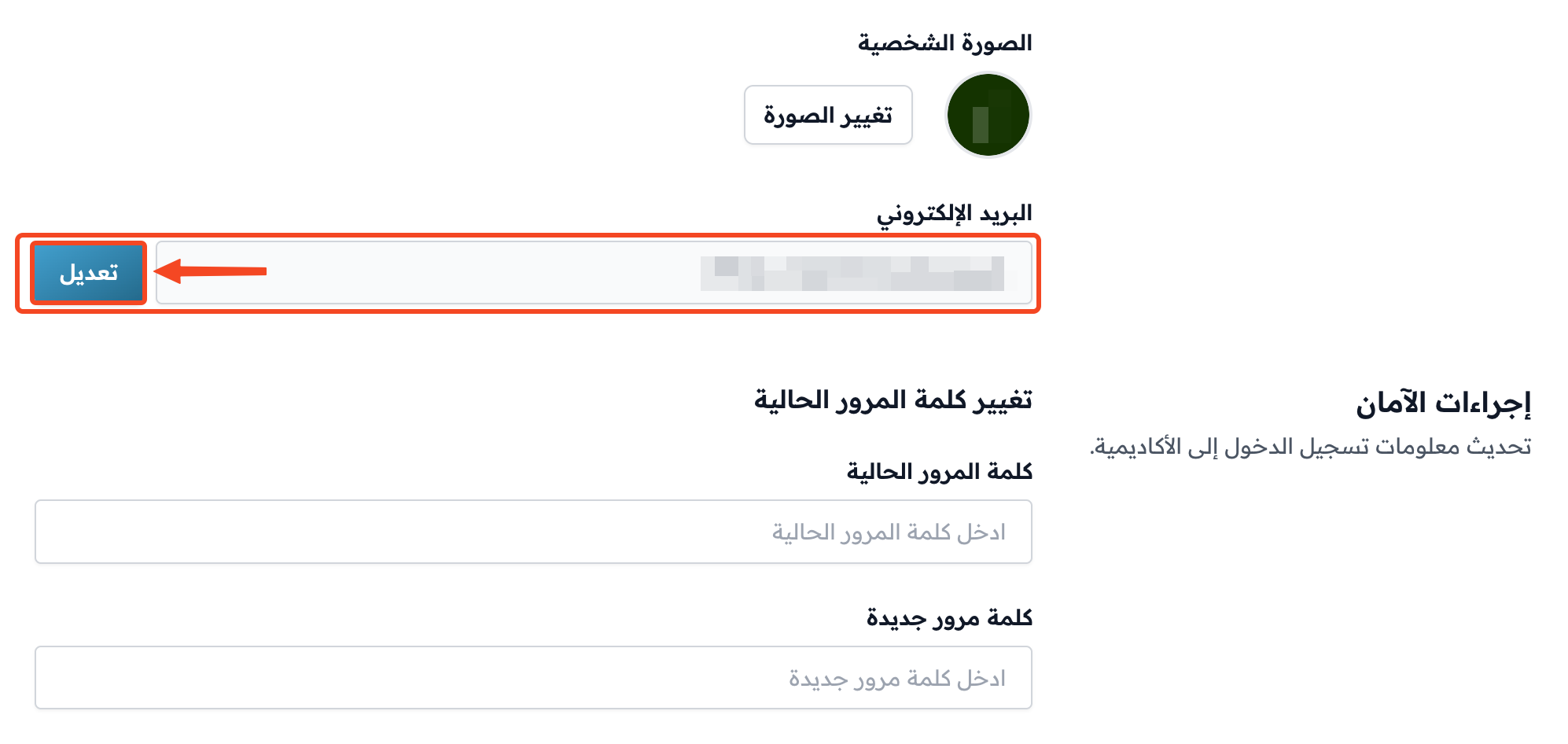
-
Enter the new email, then click Update.
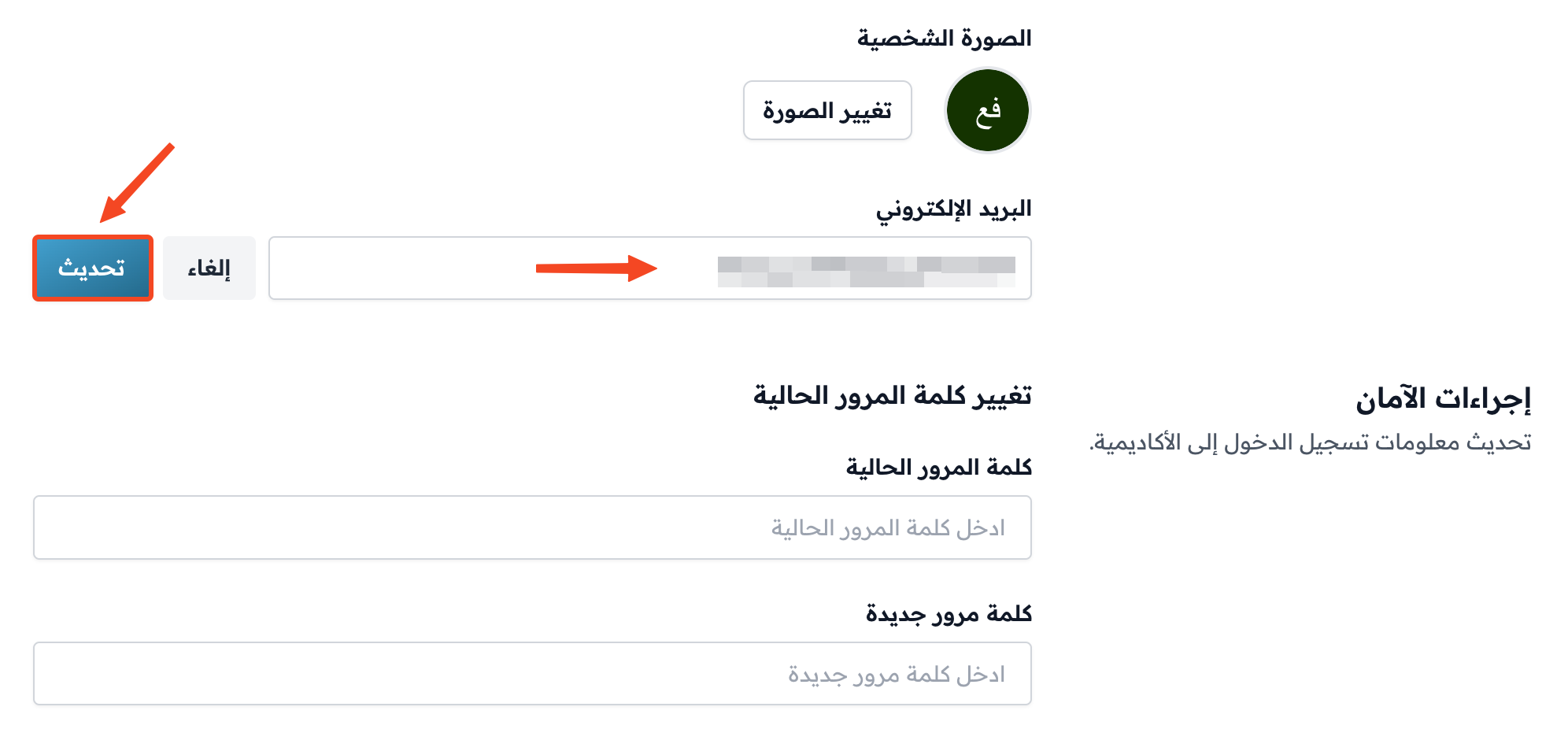
-
Enter your account password, then click Update email.
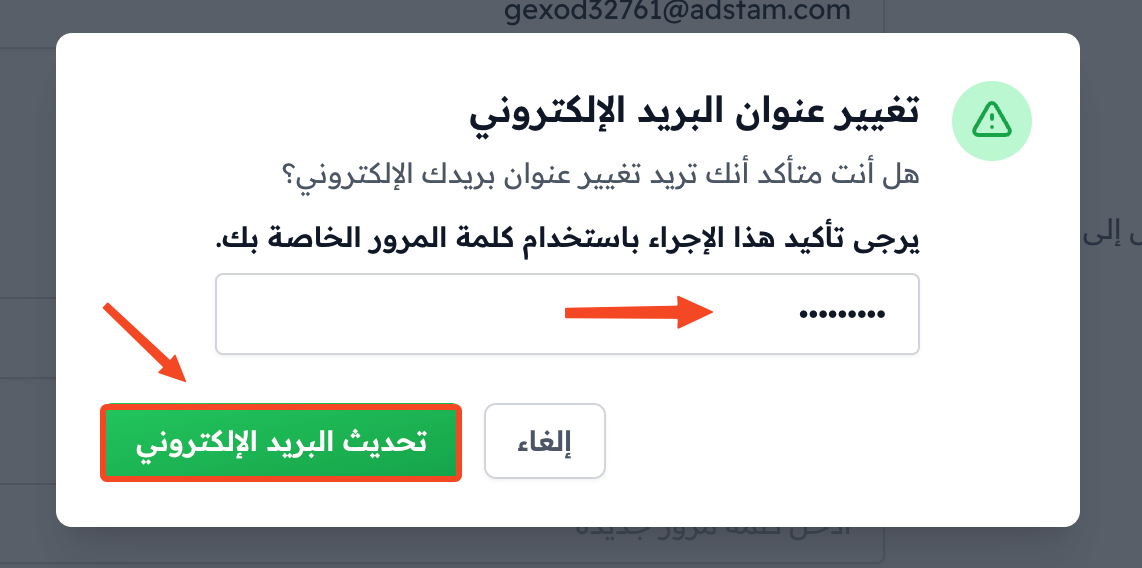
A confirmation message is sent to the new email.

-
Open the email update message, and click the word link to confirm the new email. The link is valid for 30 minutes only.
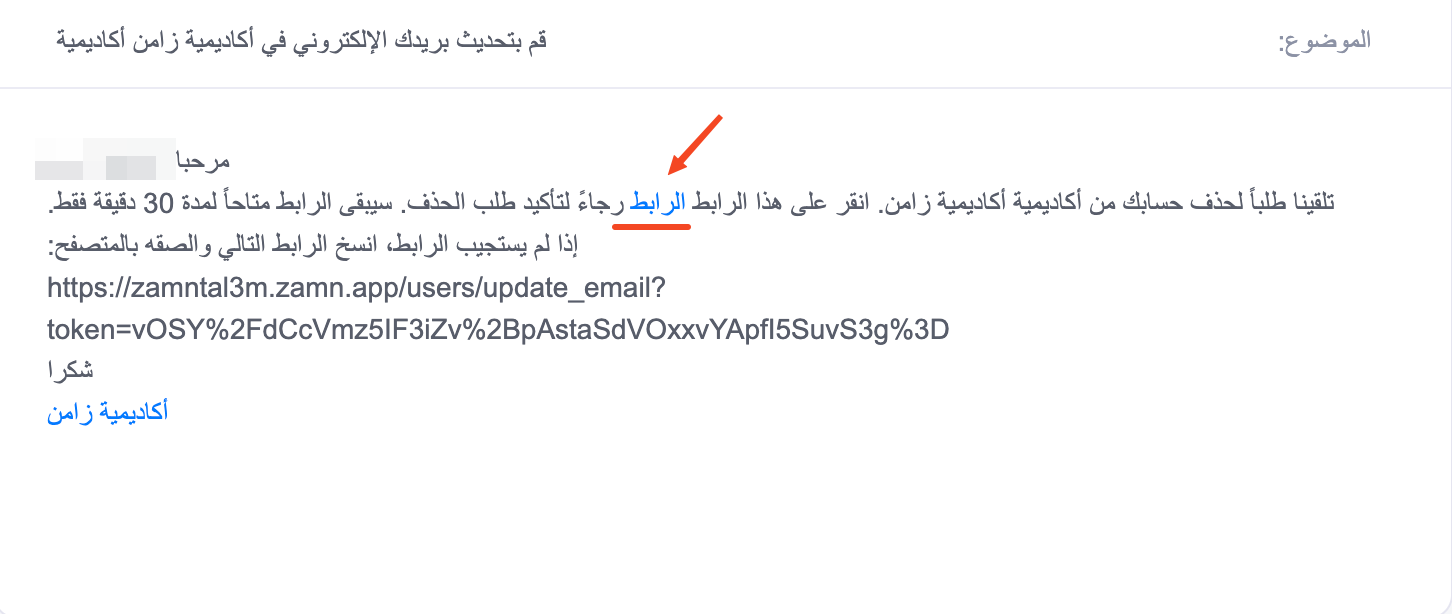
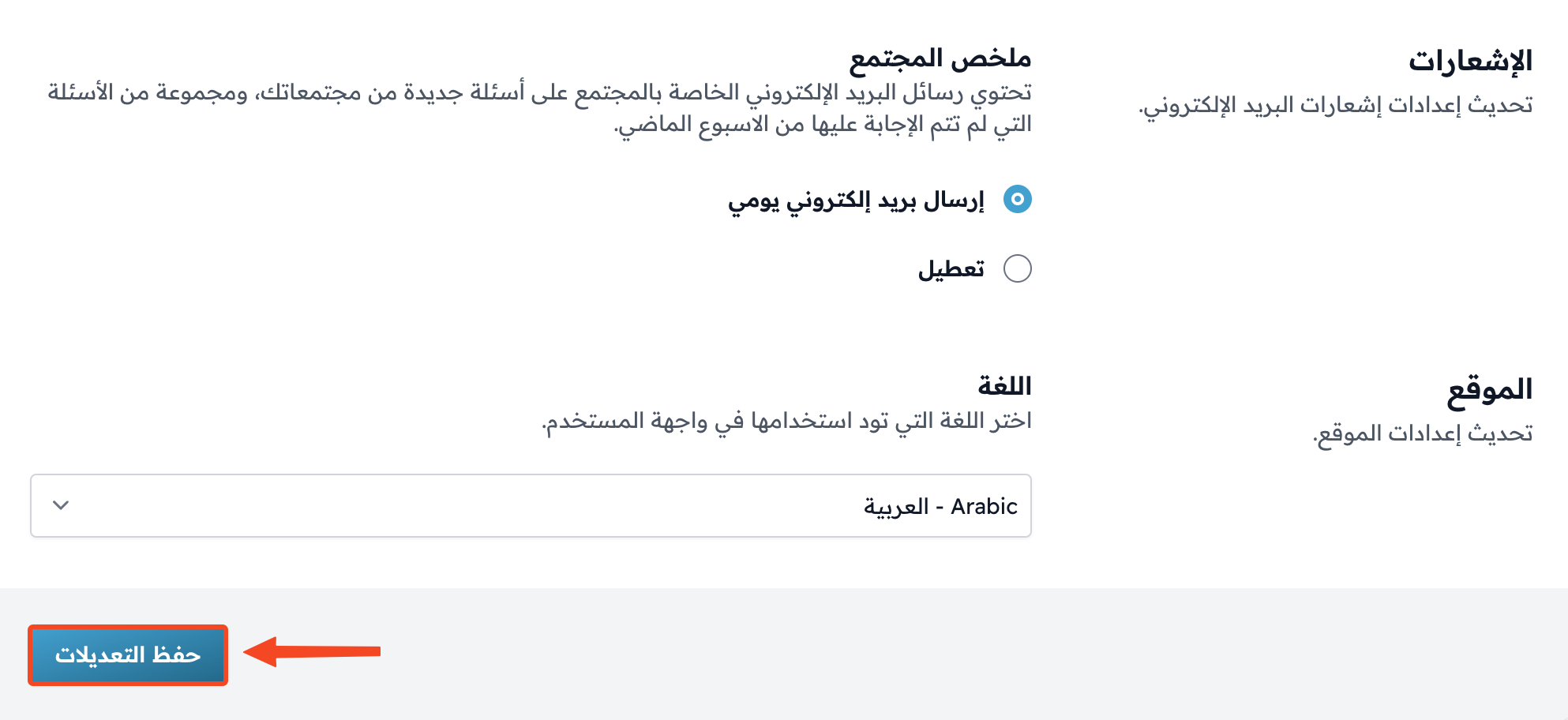
After you click the link, your email changes right away and you go back to the Edit Profile page. You don't need to click Save Changes.
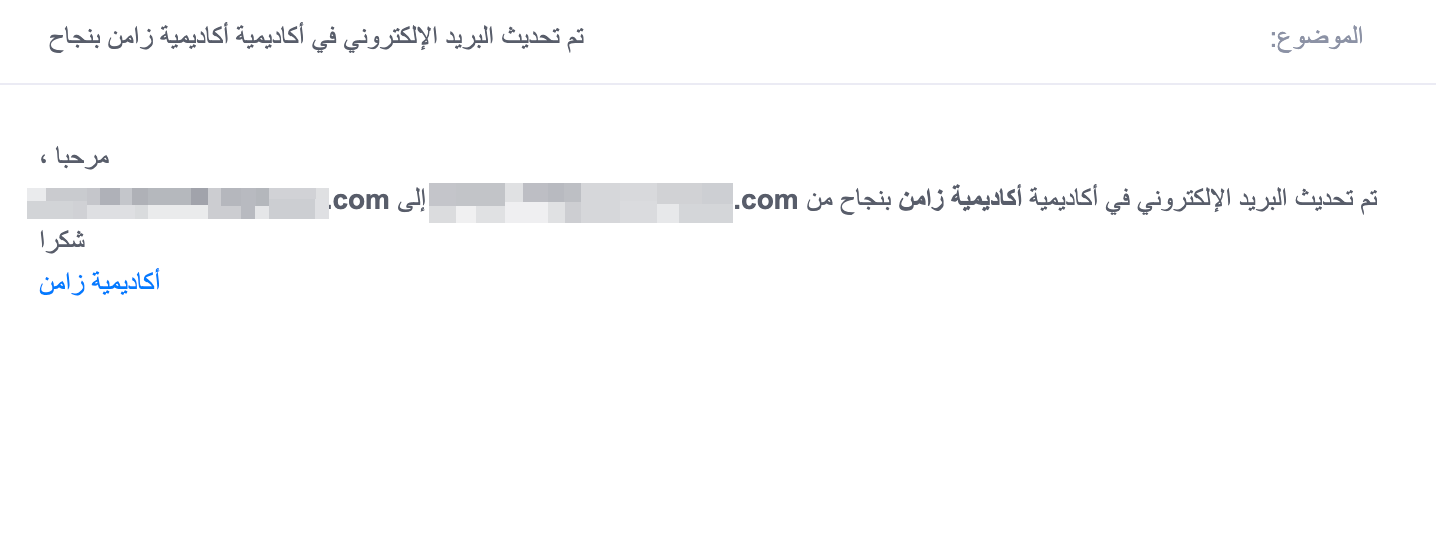
You will get a message confirming that your email changed from the old email to the new one, on both emails.
If you signed up with your phone number only, the Email field is empty. Click Edit to add your email, then click Send code, and enter the code you get by email to confirm it.