Connect Calendly to your platform on Zamn
Connect your Calendly account to your platform on Zamn, so you can create consultations that students book through Calendly.
Steps to connect Calendly to your platform:
- Create a Calendly account.
- Copy the access token from Calendly.
- Turn on the connection between Calendly and your platform on Zamn.
1. Create a Calendly account
-
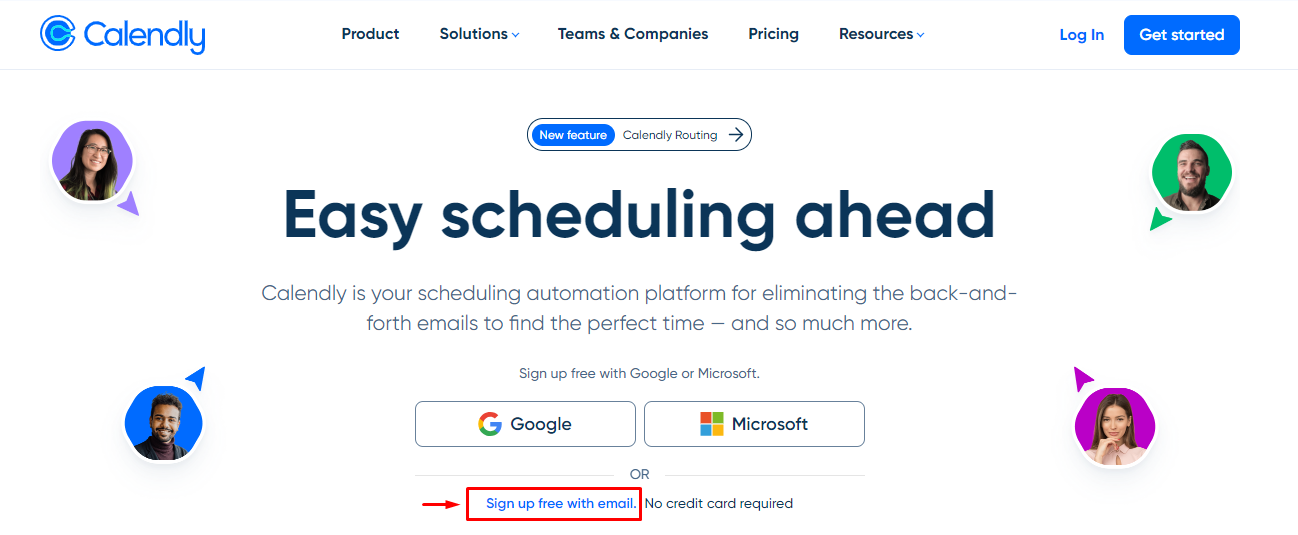
On the Calendly website, click Sign up free with email.
-
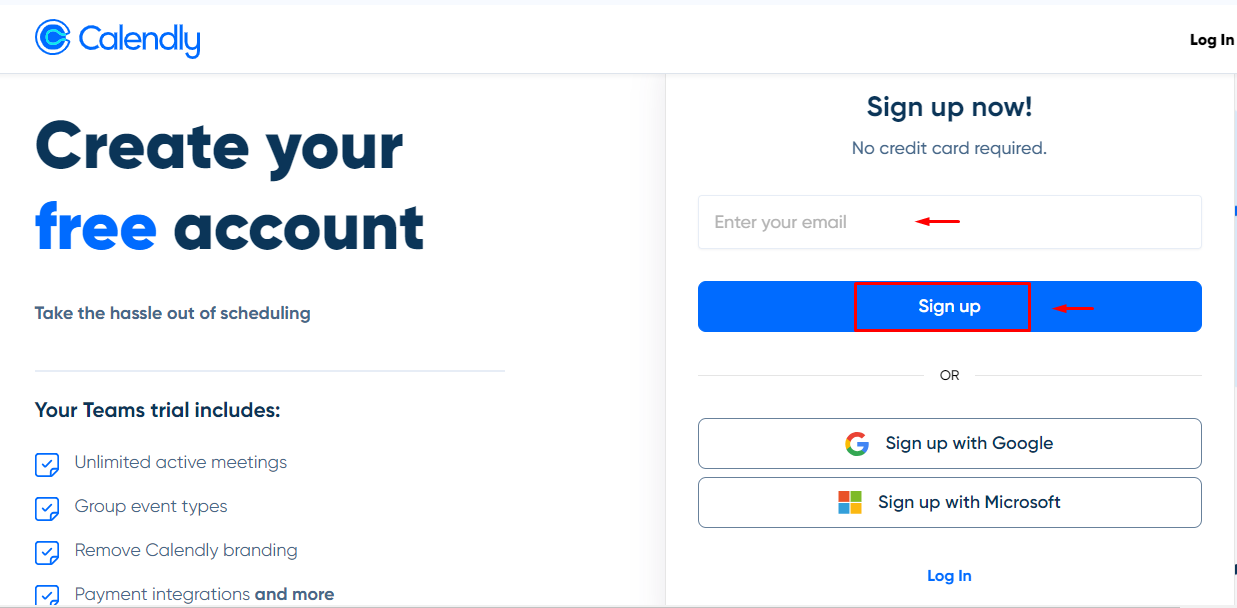
Enter your email (the email that gets notifications when someone books a consultation), then click Sign up.
-
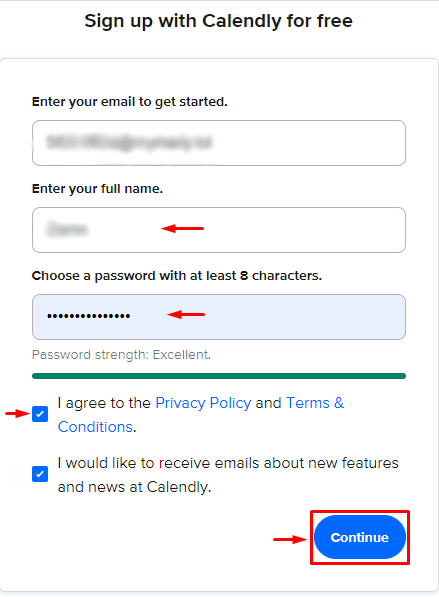
Enter the required details (name, password, and agreeing to the terms of use), then click Continue.
-
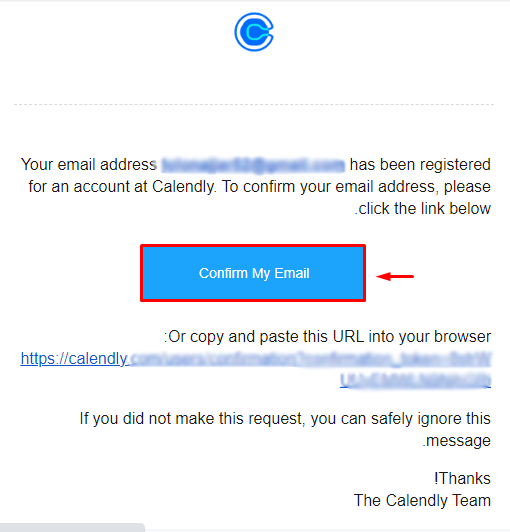
You will get an email to activate your account. Click Confirm My Email to confirm the account.
-
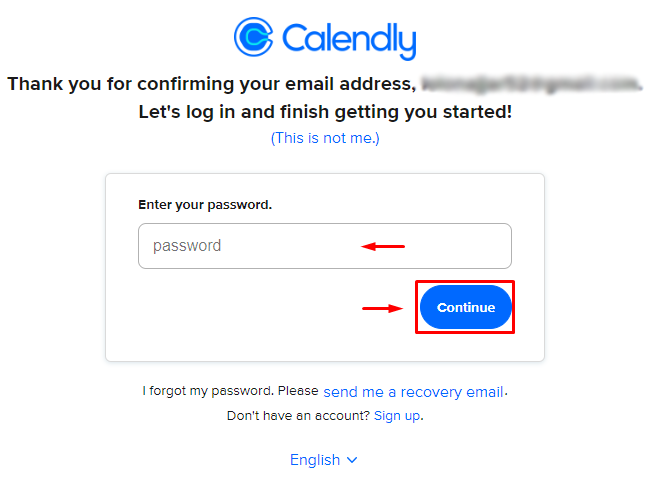
Enter the password you chose for the account, then click Continue.
-
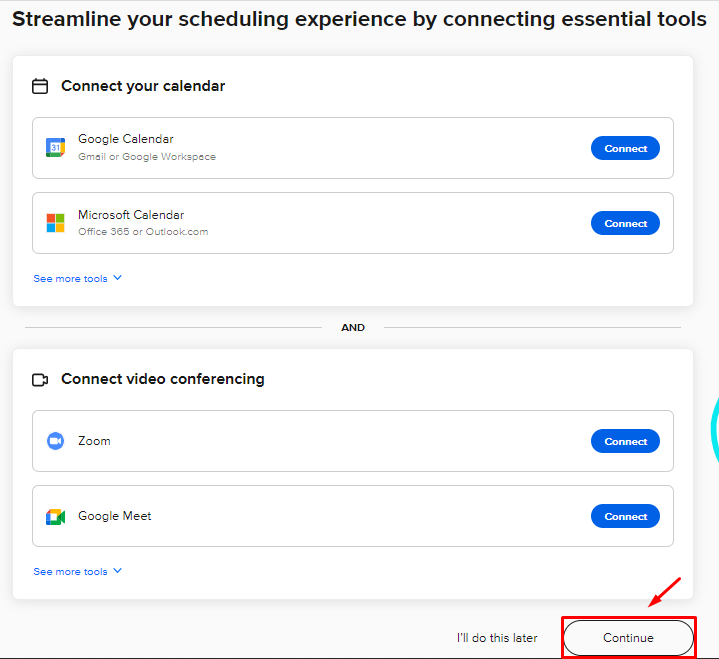
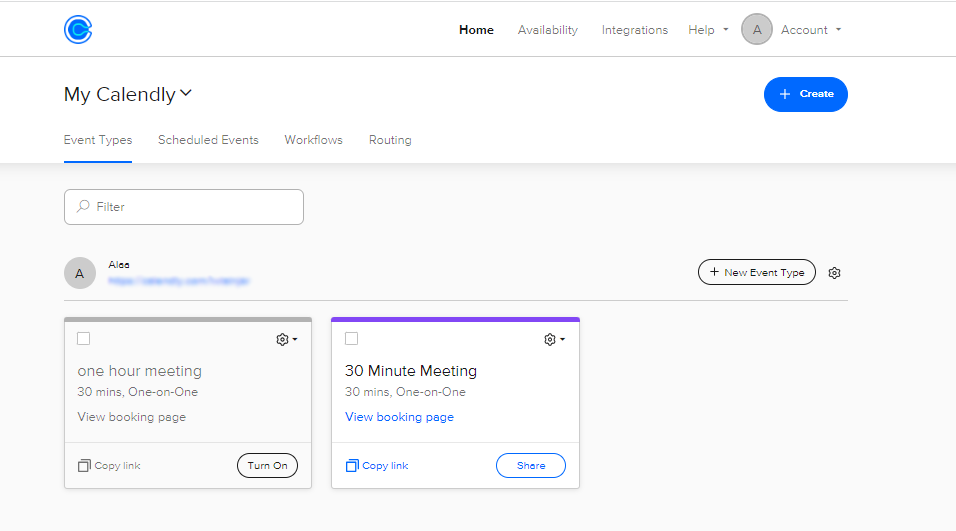
You will be asked to connect some tools to your account, such as your calendar and meeting tools. Choose what suits you, then click Continue.
2. Copy the access token from Calendly
-
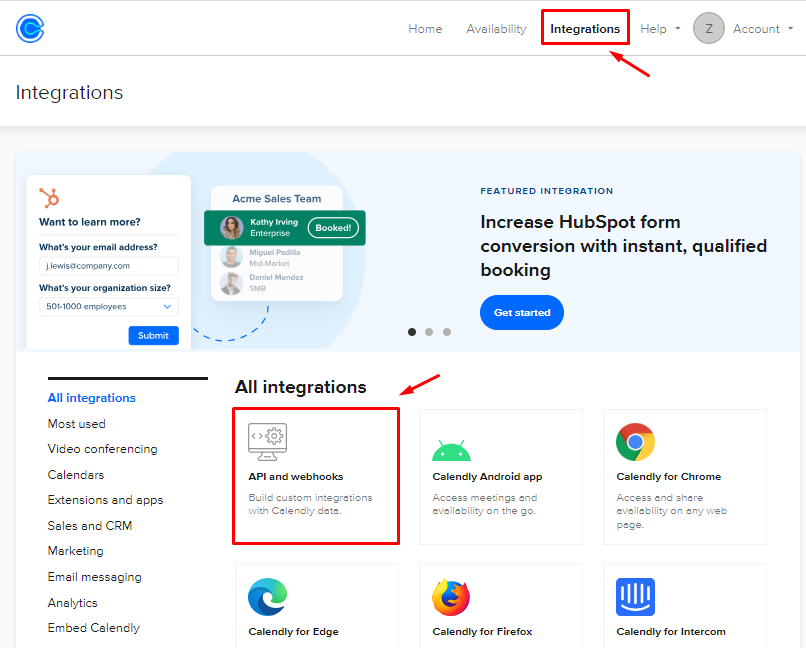
From the top bar, click Integrations.
-
Choose API and webhooks.
-
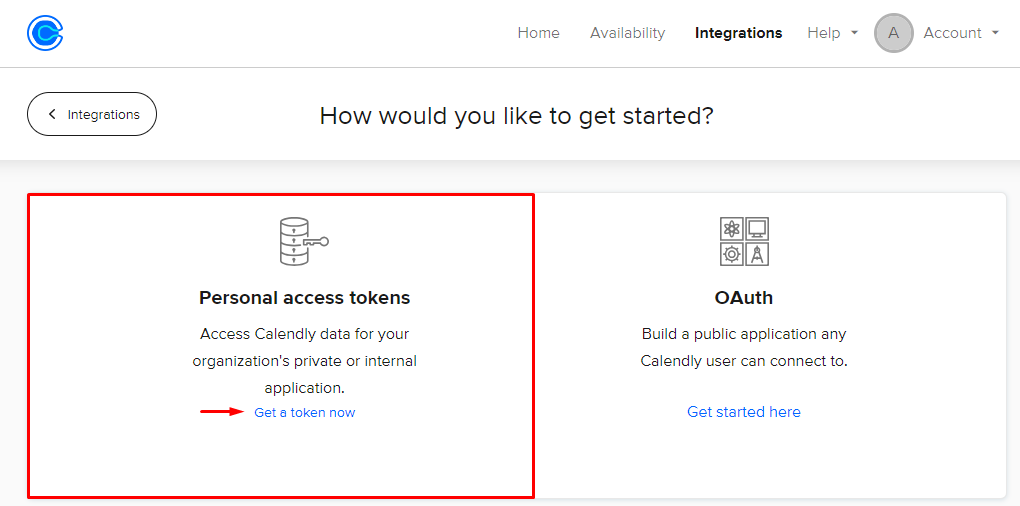
In the Personal access tokens section, click Get a token now.
-
A pop-up window shows. Click Continue.

-
Type a name for the token, then click Create token.

-
The access token shows. Click Copy token to copy it, then go to your platform.

3. Turn on the connection between Calendly and your platform on Zamn
-
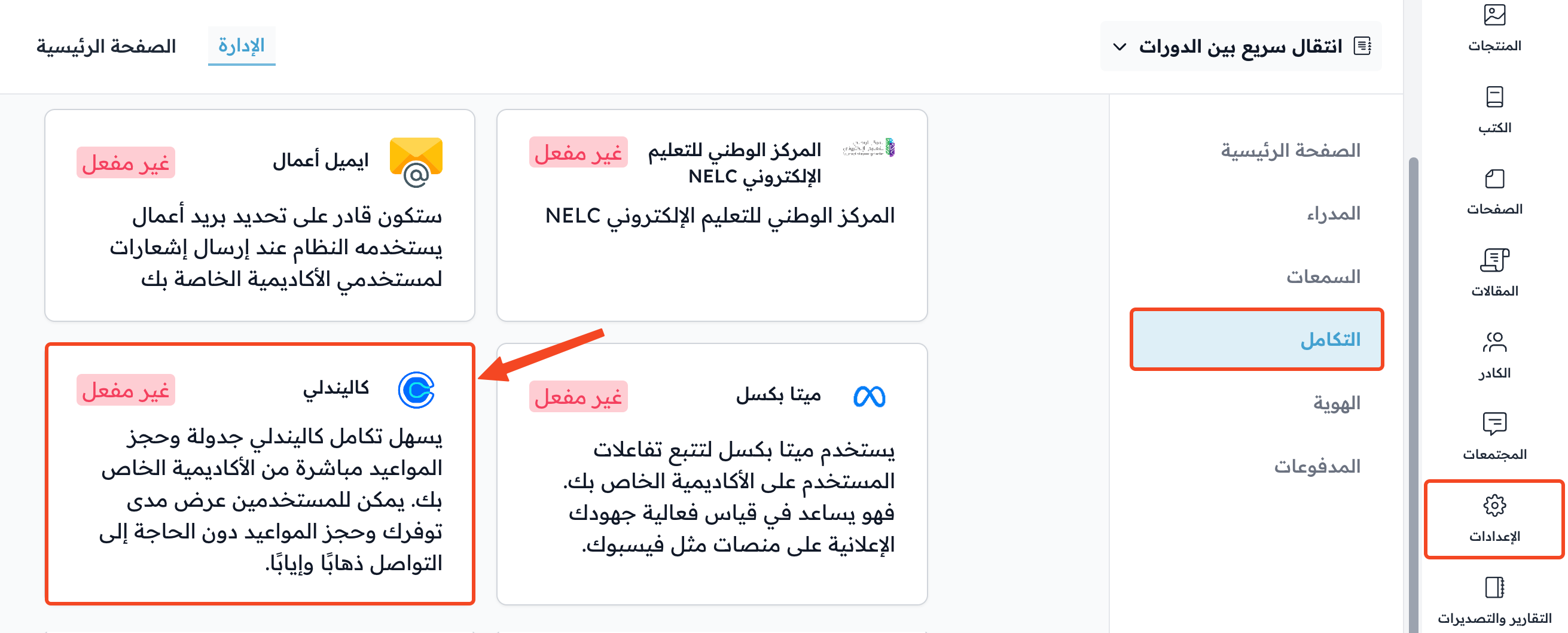
From the dashboard, choose Settings.
-
Click Integrations.
-
Choose Calendly.
-
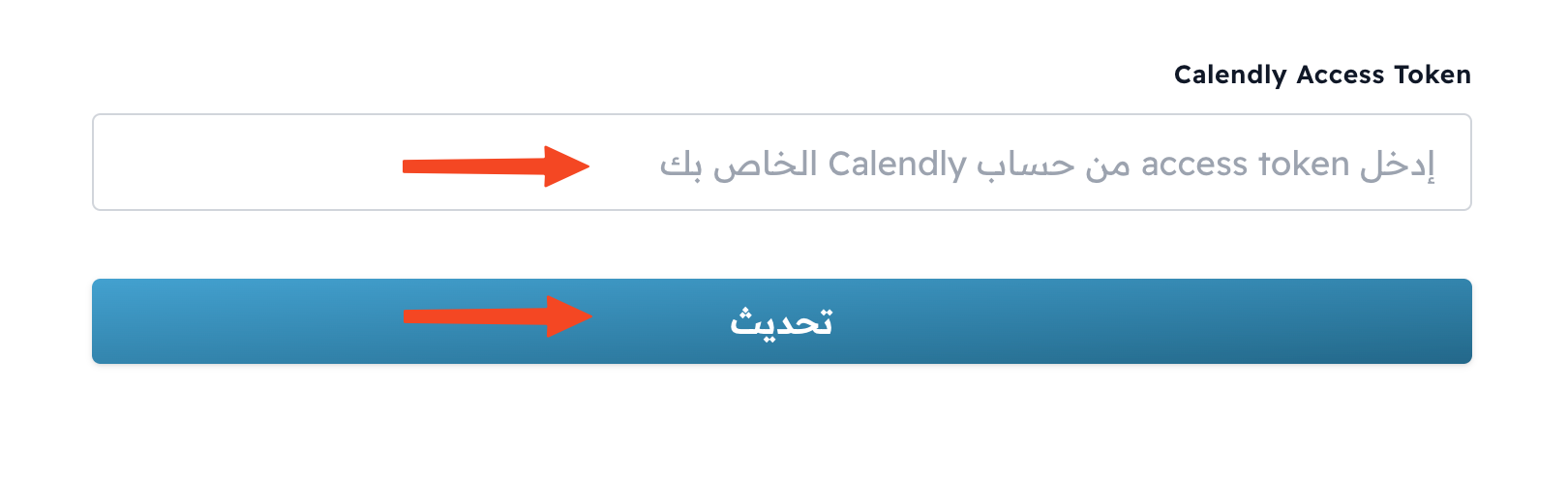
Paste the access token you copied from Calendly into the Calendly Access Token field.
-
Click Update to finish the connection.
You can now create consultations on your platform on Zamn.