Native booking system for consultation appointments
The Native Booking System lets you take consultation bookings inside your platform. The trainer sets their available times, and students book an appointment from these times.
To see the steps to create a new consultation, go to the article: How to create an appointment.
Set up a consultation with the native booking system
In the consultation form, choose Native Booking System (Beta) from Booking Type. More fields show up that you must set:
- Assign Faculty: a list of your staff members. Choose the trainer who runs the consultation.
- Duration (minutes): how long the consultation lasts.
- Buffer Time (minutes): the time between one consultation and the next.
- Max Bookings per Day: how many consultations are allowed each day.
- Meeting Link: the meeting link for the consultation. If you leave it empty, the platform uses a default link.
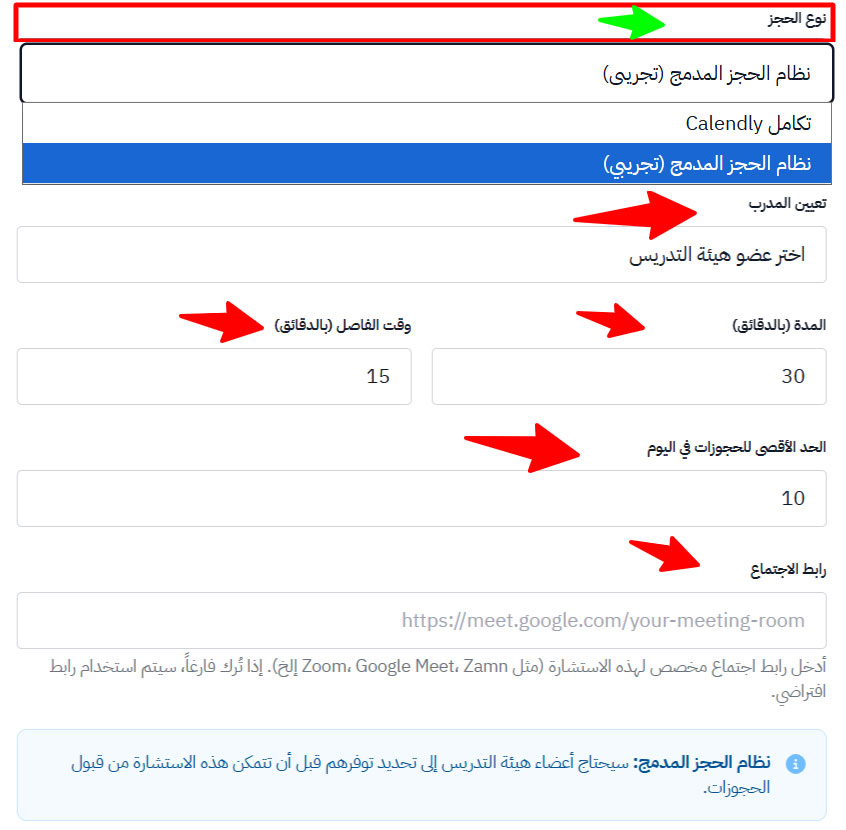
With the native booking system, the trainer must set their availability first, before the consultation can accept any booking.
Set availability for consultations (for trainers)
-
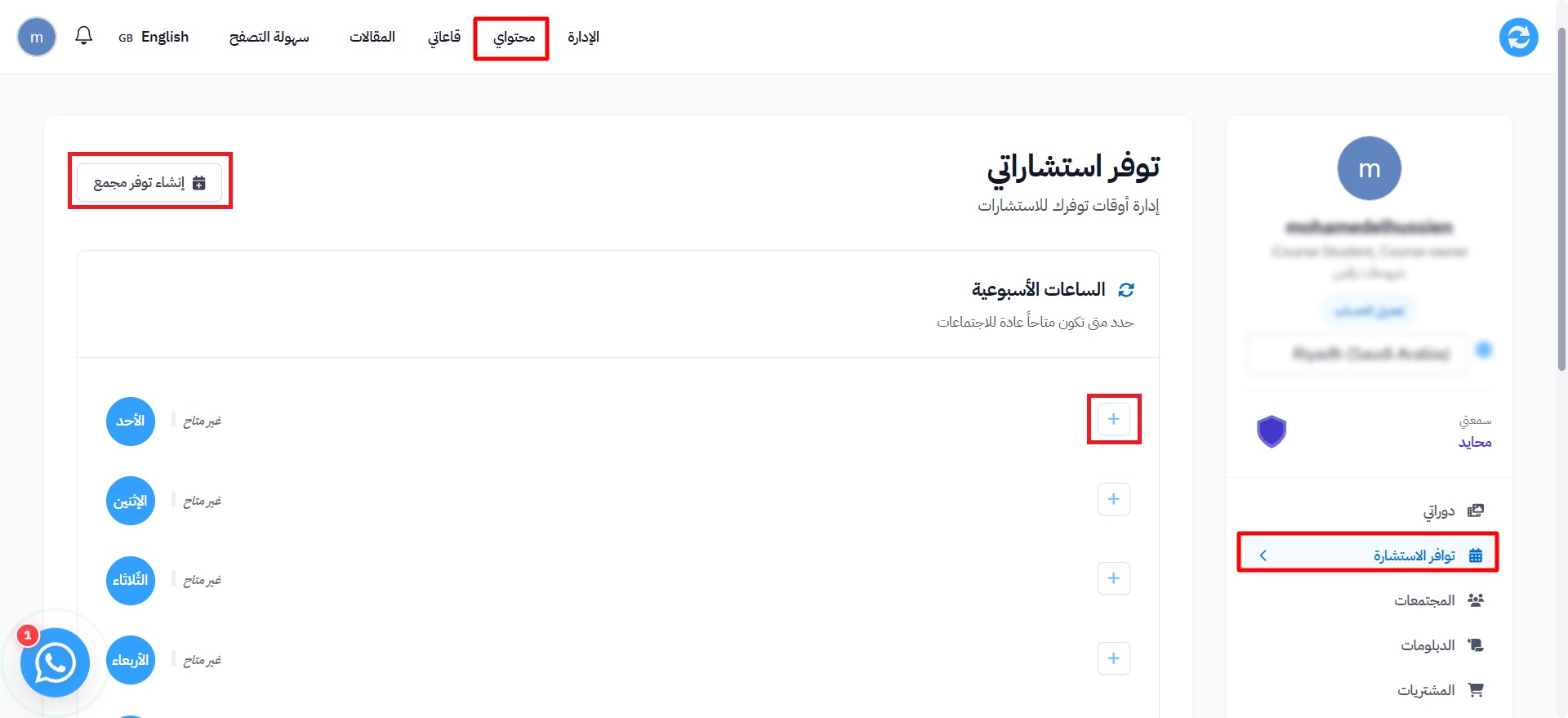
On the platform, choose Dashboard from the top menu.
-
From the side menu, choose Consultation Availability.
-
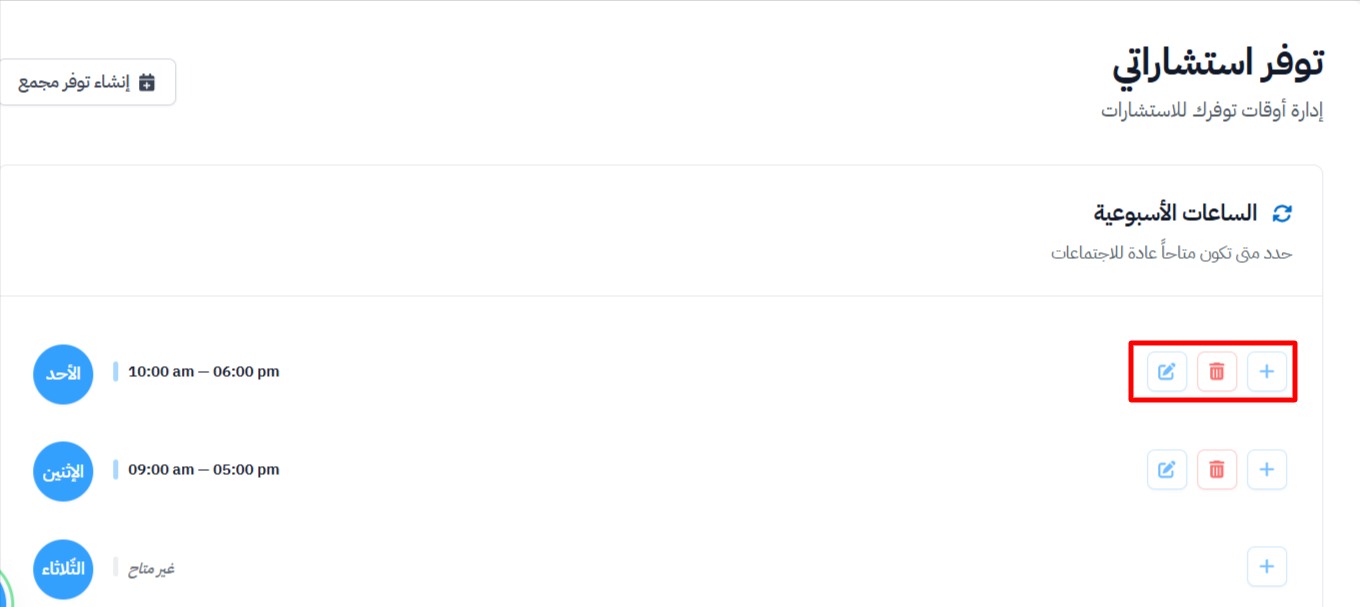
In the Weekly hours section, click the ( + ) icon next to the day you want to add a time to.
-
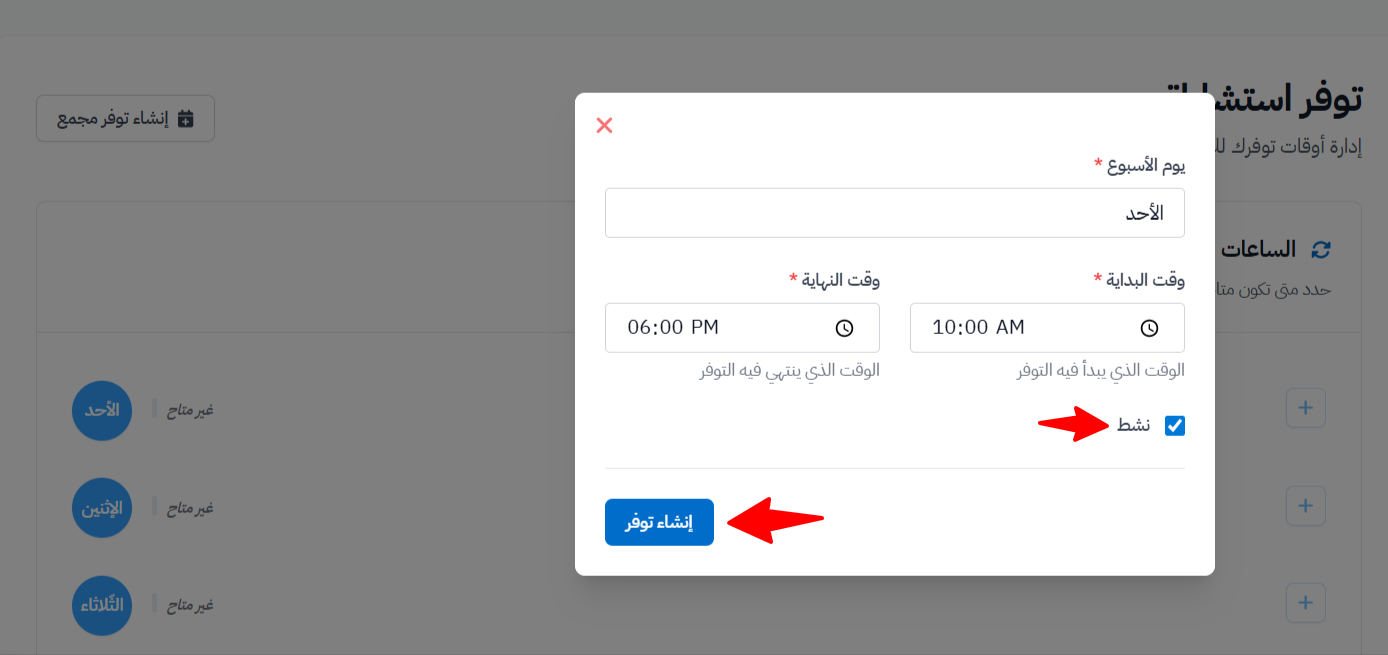
Choose the Start Time and End Time.
-
Turn on the Active option.
-
Click Create Availability to save the time.
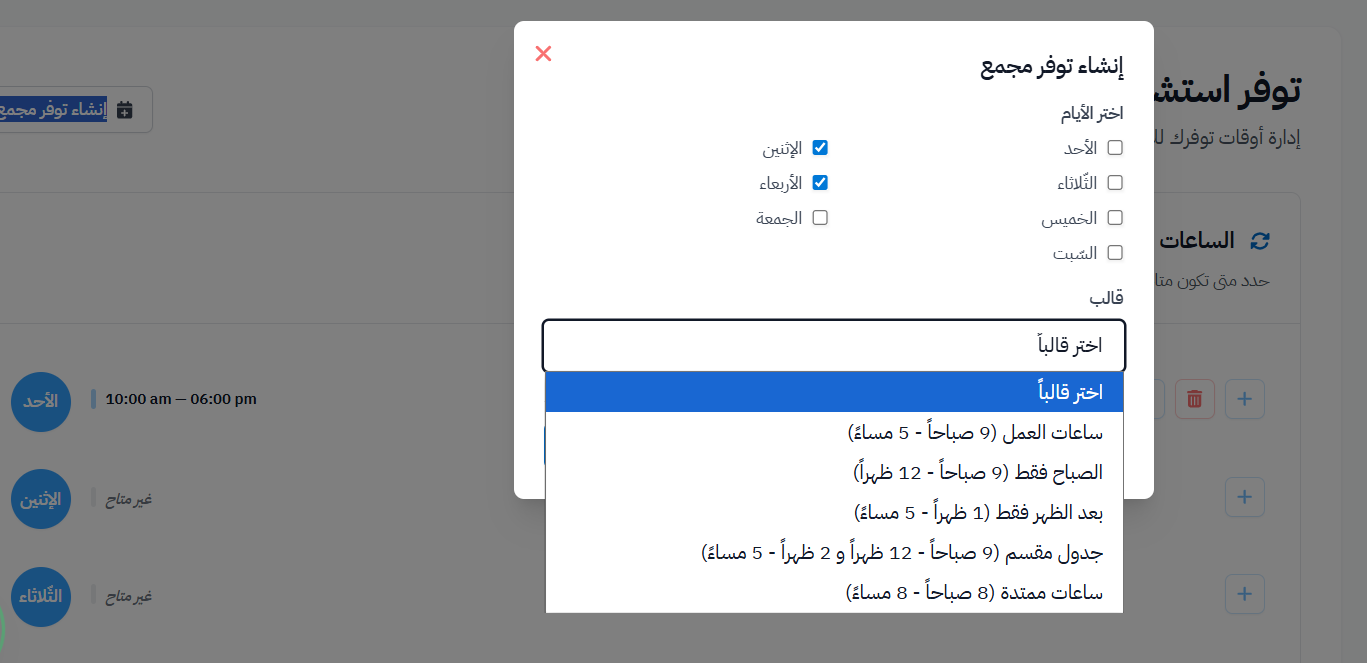
You can also use the Create Bulk Availability button to set many days at once, and choose a ready-made time template.
Edit or delete availability
- To edit an available time: click the pen icon, then click Update Availability.
- To delete an available time: click the trash icon. You can't delete a time that has upcoming bookings.
Follow bookings
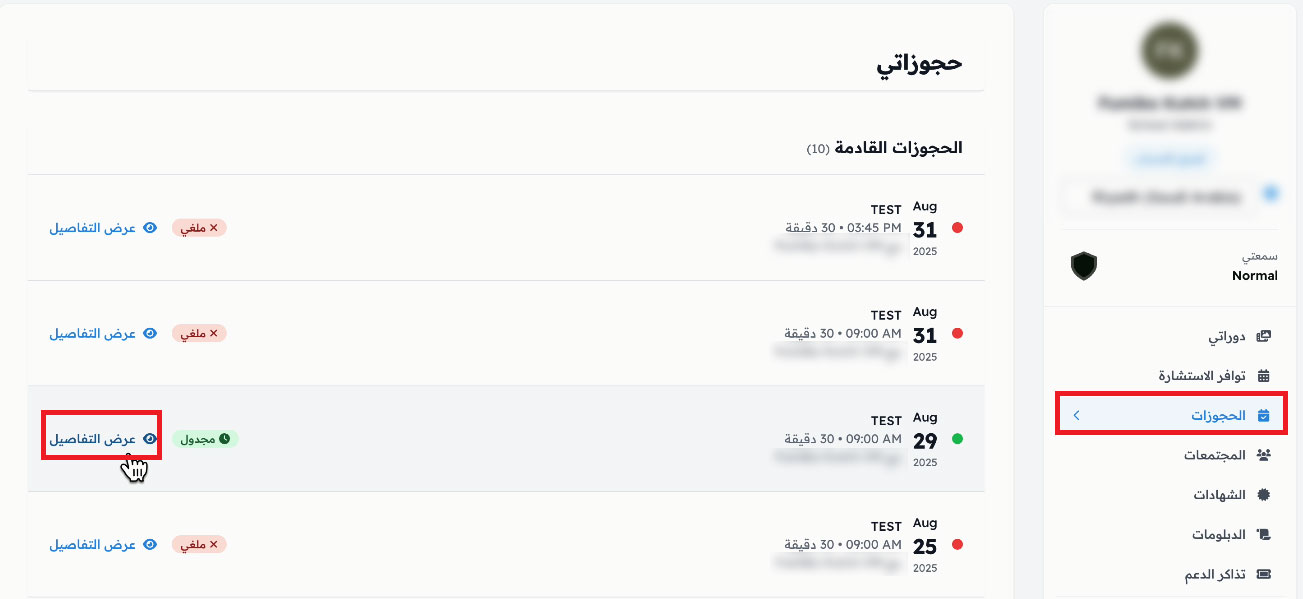
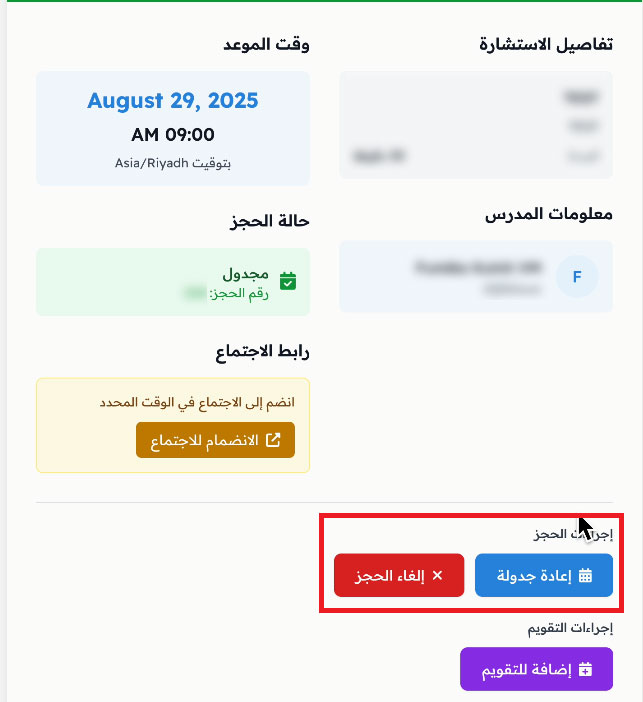
The trainer can open the Bookings page from the side menu to see the booked appointments. With the View Details button, they can:
- Reschedule the appointment.
- Cancel Booking.
Notifications when a booking is made
When a student books a consultation appointment, the platform automatically sends:
- An email with the booking details.
- A notification inside the platform about the new booking.