Purchase cases for a paid course on your platform
When a student signs up for a paid course, the purchase is in one of two cases:
- The student signed up for the course and finished the payment.
- The student signed up for the course, but did not finish the payment.
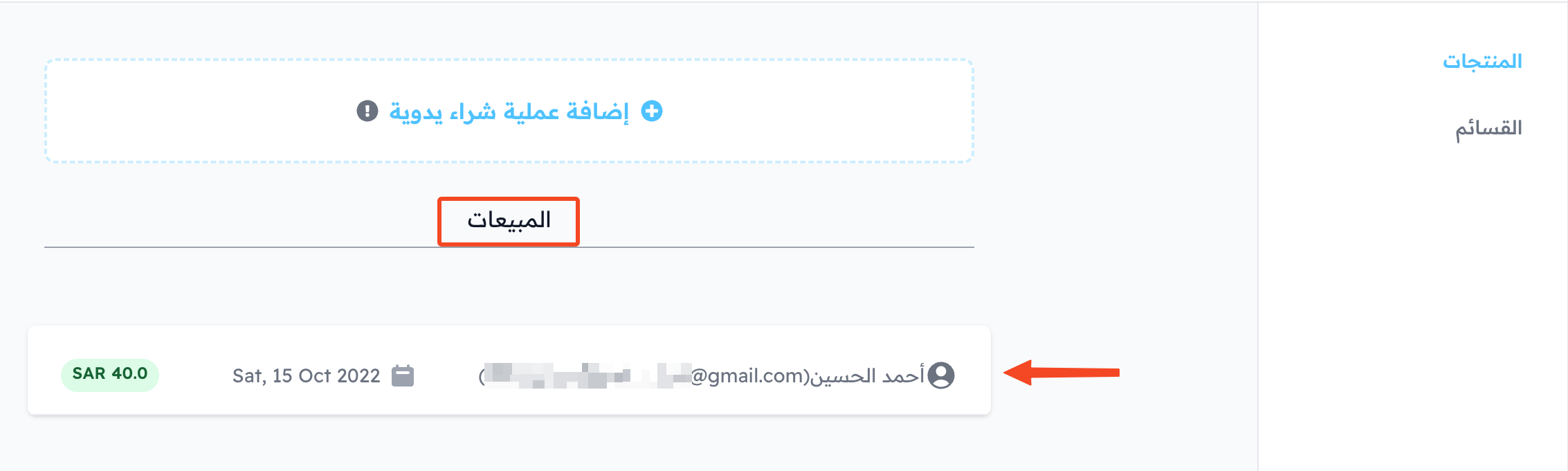
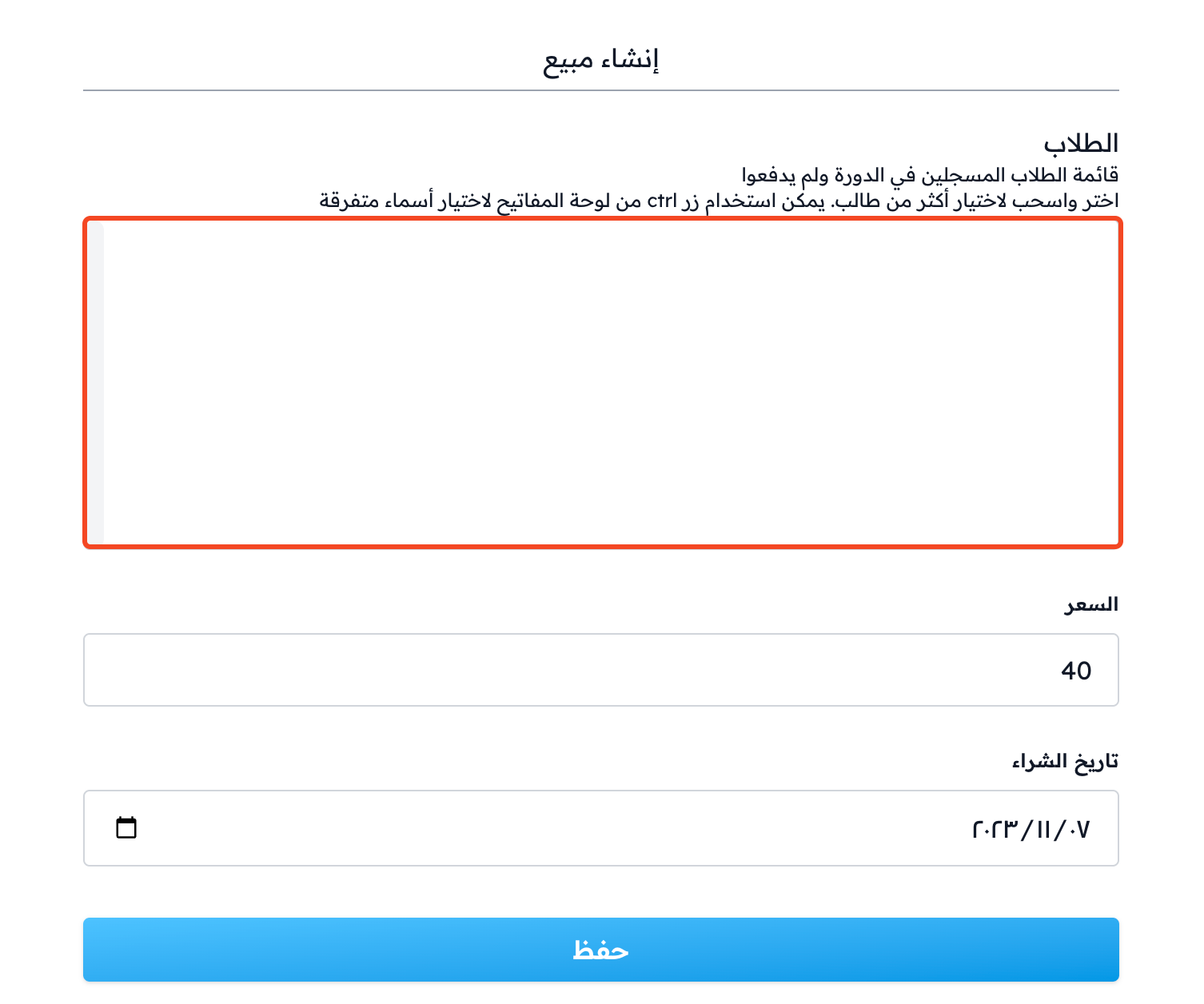
You find the sales list from Product Management, then Sales. To see only the sales of the course, click Filter, then choose the course in Product. From the same page you can click Create manual sale, then choose the course in Course to see the Students list.
Below is an explanation of each case and how to handle it.
The student signed up for the course and finished the payment
-
The student is added to the students list.

-
The student shows in the sales list. This means the sale was successful.
-
The student does not show in the students list of the Creating Sale form.
-
The student can open the course content.
The student signed up for the course but did not finish the payment
-
The student is added to the students list.

-
The student cannot open the course content.
-
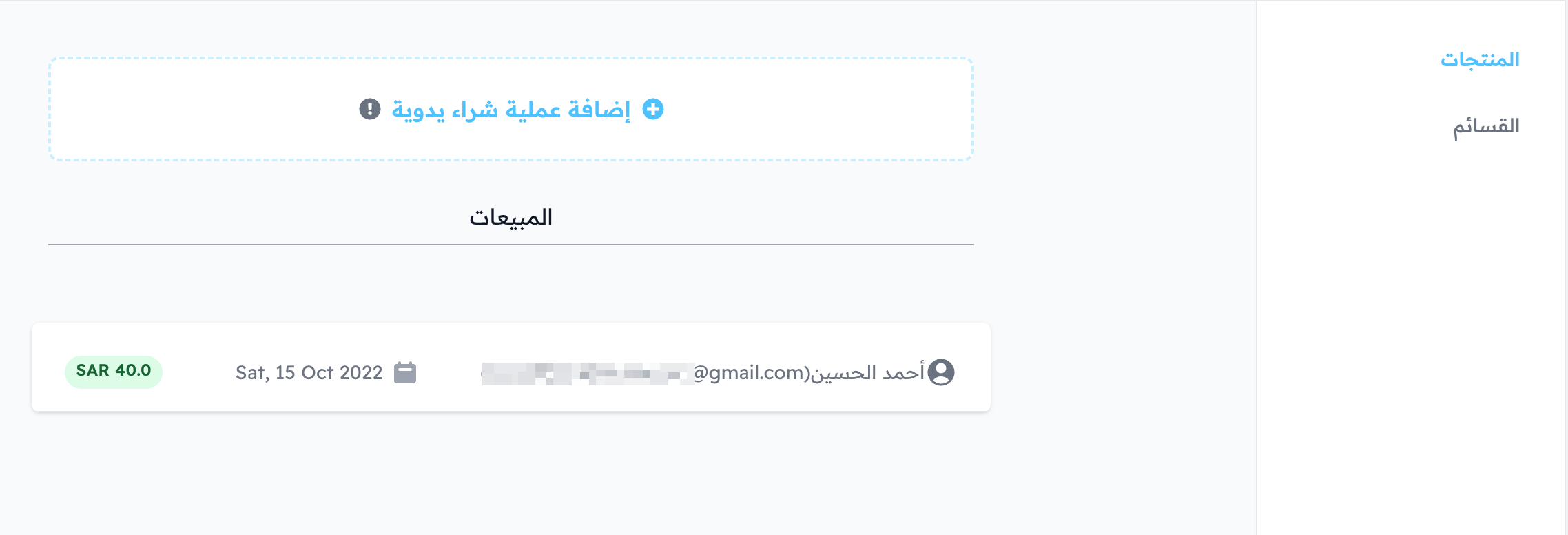
The student does not show in the sales list.
-
The student shows in the students list of the Creating Sale form.
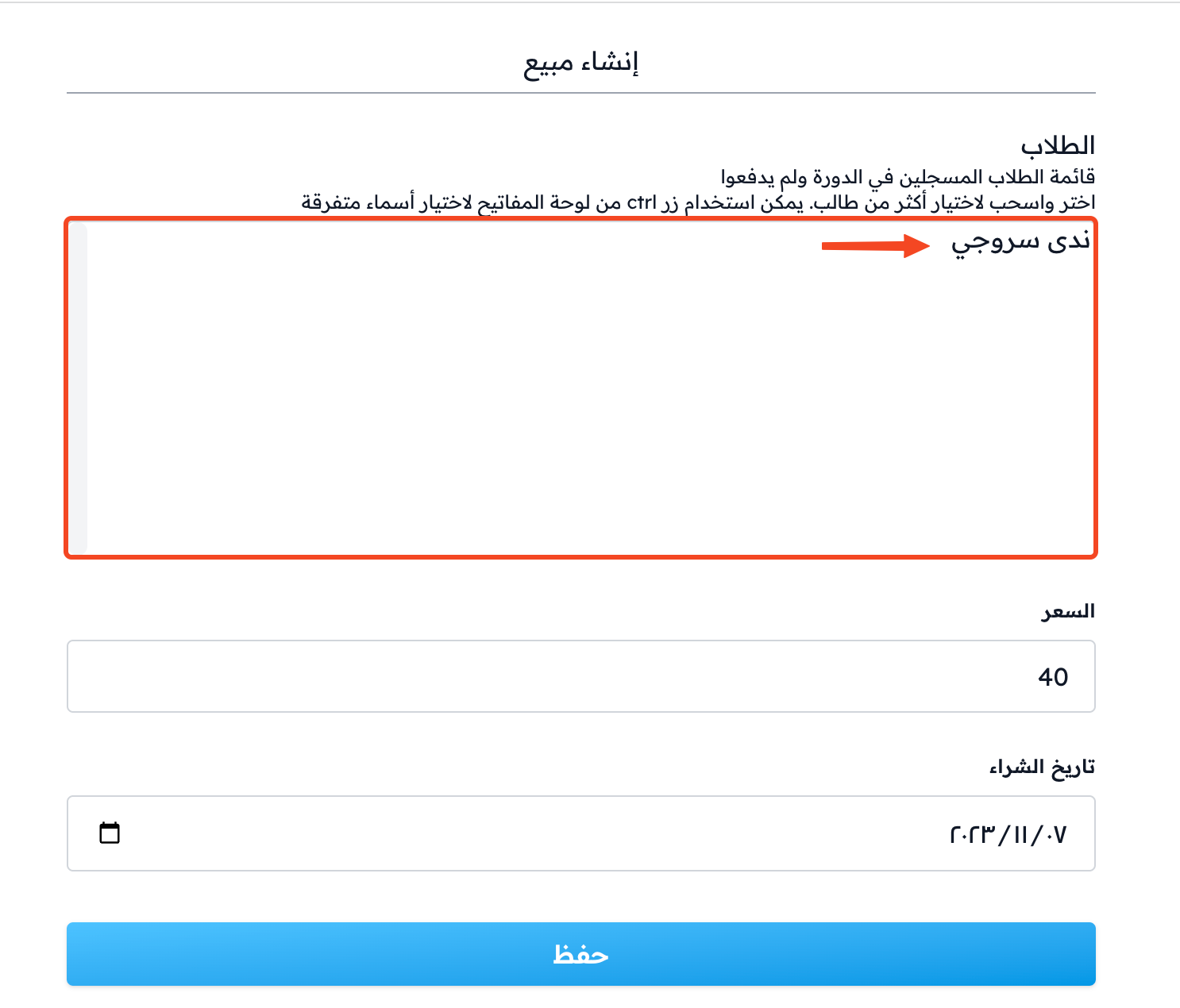
Here the student has two choices:
- Pay through the platform.
- Pay another way, such as a bank transfer, and then the admin adds them as a manual sale.
If you turn on Bank Transfer in Payment Methods, the student can send a payment request from the platform. You then approve it from the Pending Transactions page, so you don't need to add them by hand.
After the student pays, or is added as a manual sale
-
The student stays in the students list.
-
The student can open the course content.
-
The student shows in the sales list.
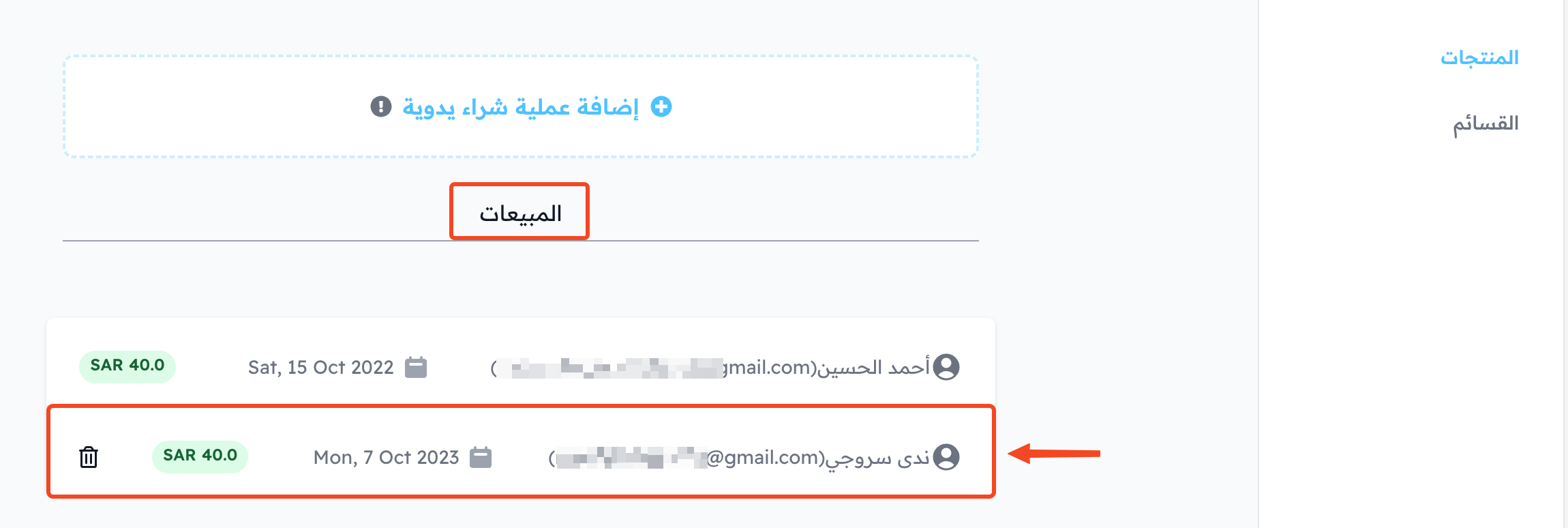
-
The student does not show in the students list of the Creating Sale form.
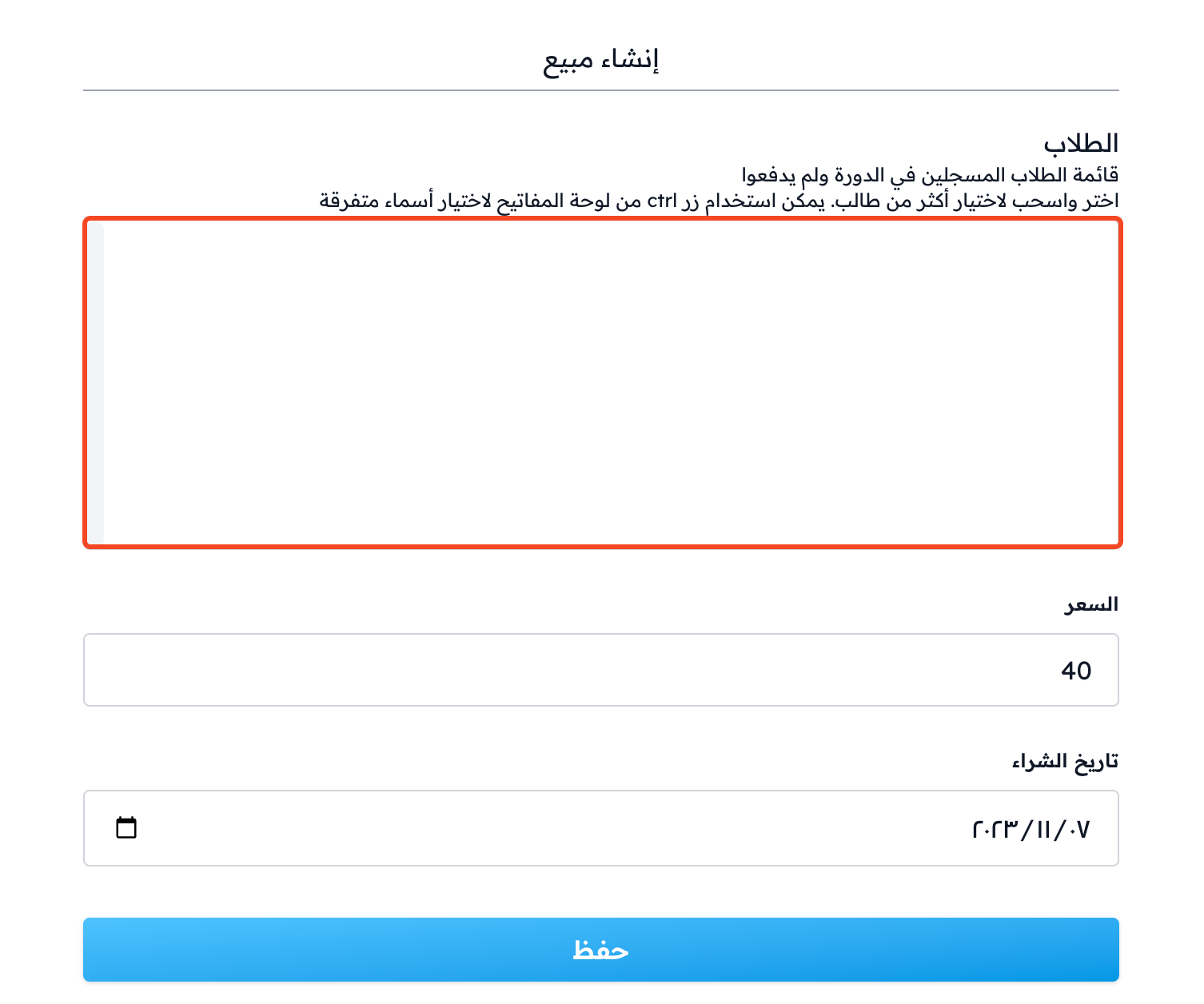
You can delete a sale that you added by hand. Click the ⋯ (Actions) button at the end of its row on the Sales page, then click Delete.
Steps to solve the case of a student who says they paid but the course did not open
- Ask the student which email they signed up with. Always remind students to use one email.
- Make sure the student is in the course students list.
- Search for the student's name in the sales list.
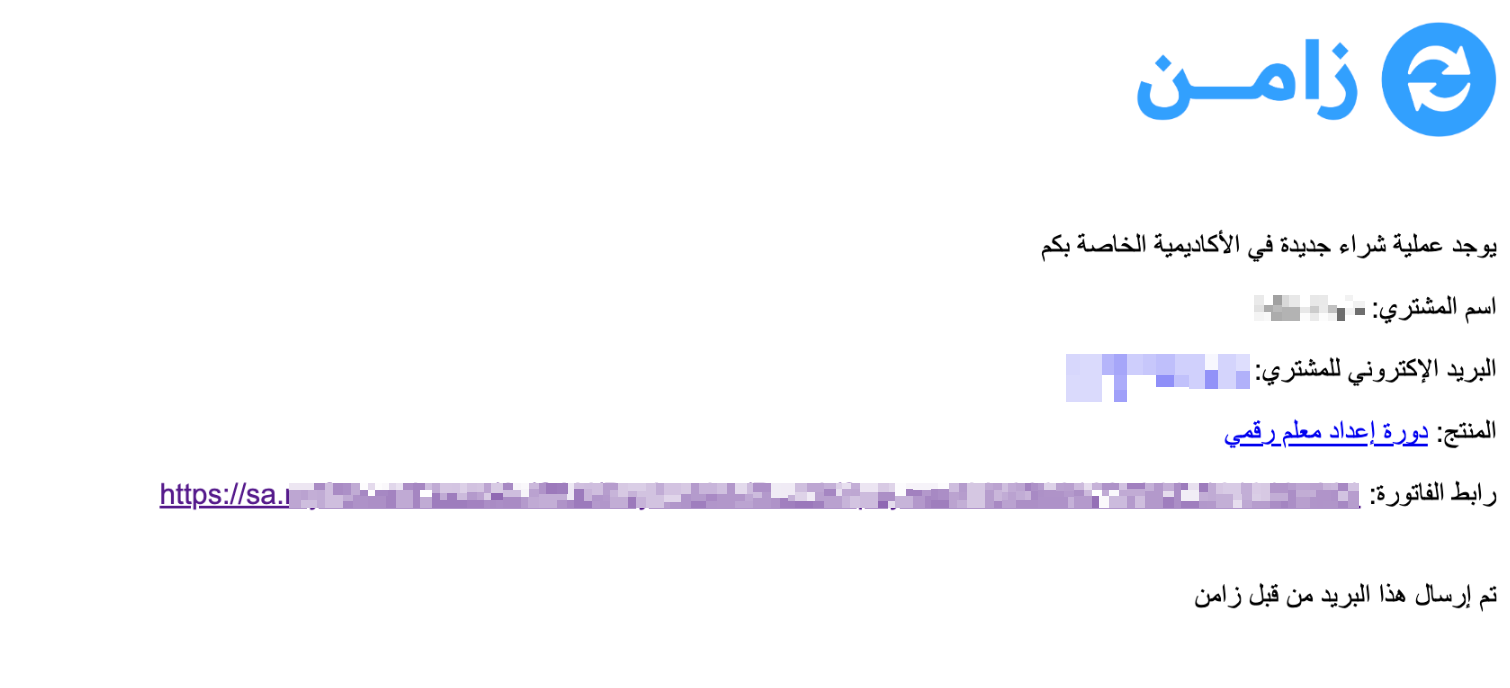
- Make sure the student really paid by checking your email. The platform owner gets an email for every payment, with the buyer's email in it.
- If the email is not in the sales list, contact Zamn technical support.
Example of the email the platform owner gets
If you did not get this email, it means the student did not buy the course.