Create an article or blog post on your platform
You can write articles (blog posts) and publish them on your platform. Visitors can read them and leave comments.
Steps to create a blog post
-
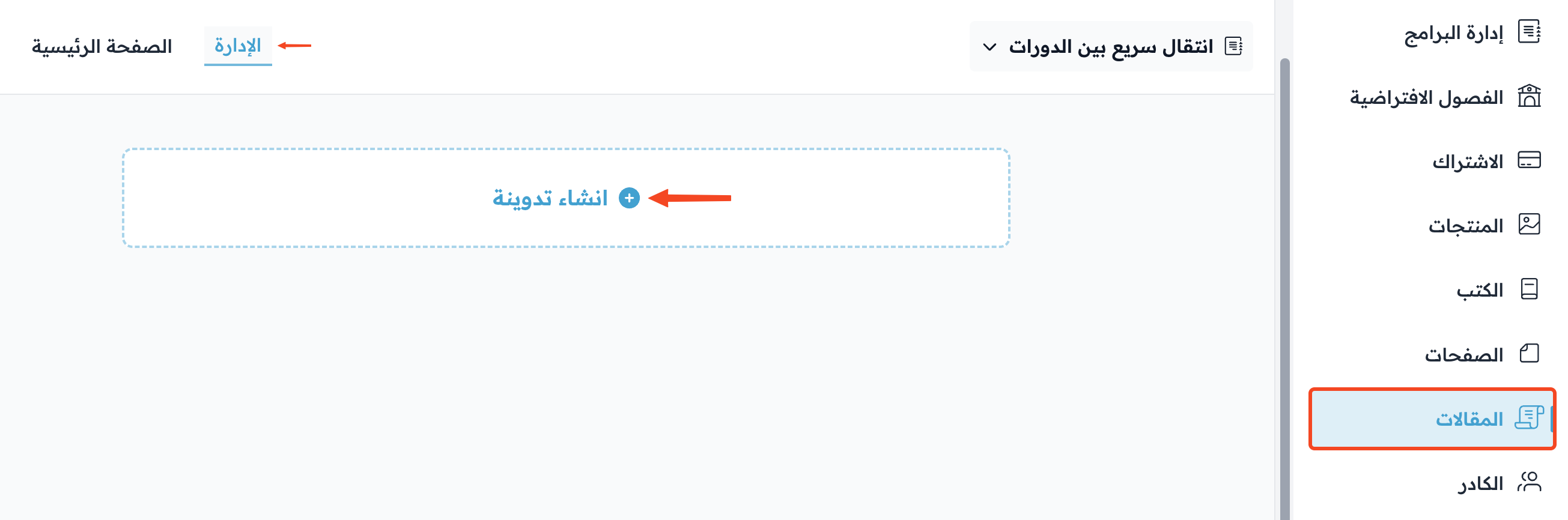
From the dashboard, go to the Posts page.
-
Click Create Post.
-
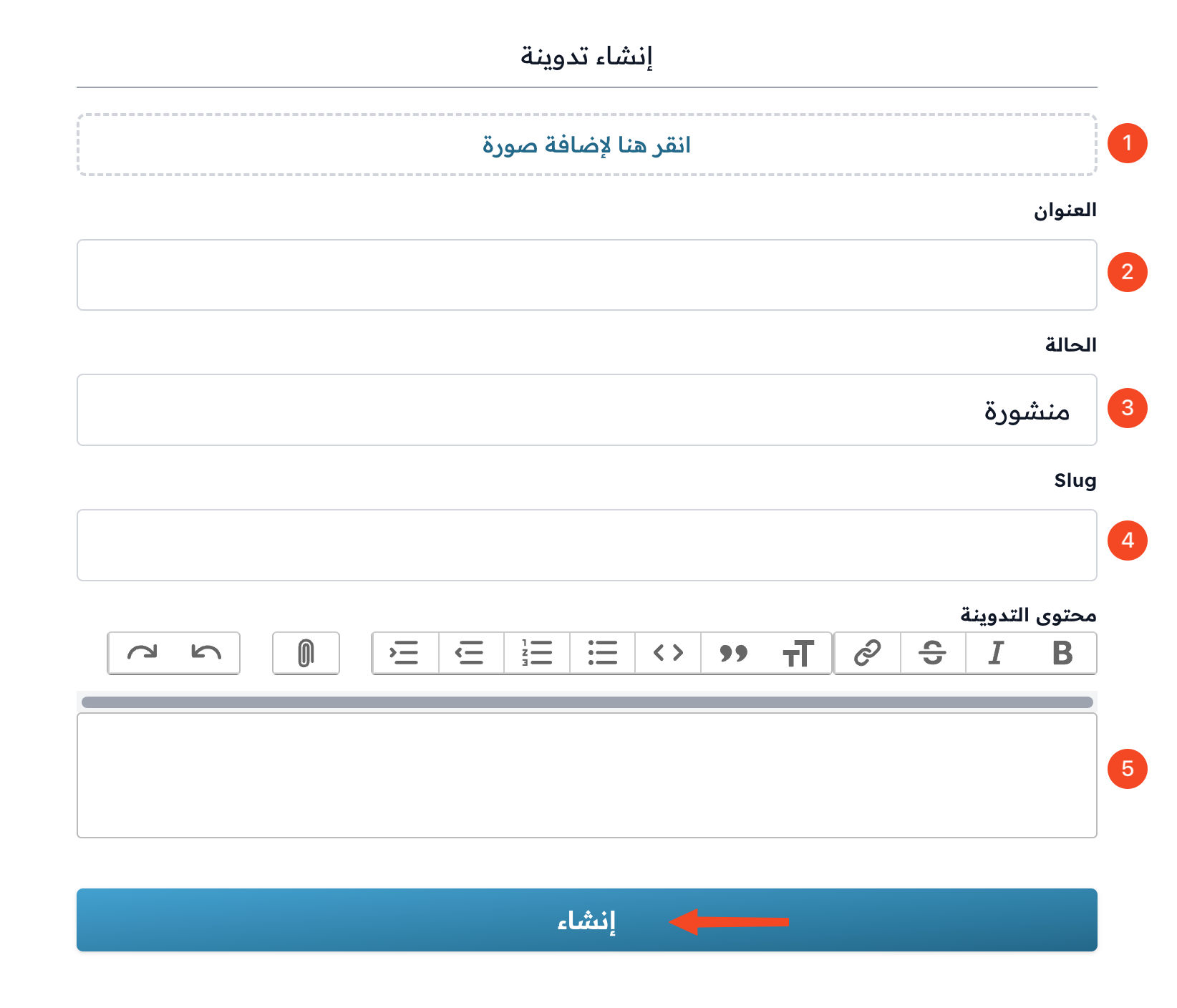
Add an image for the post by clicking Add Image. The image is required.
-
Type the Title.
-
Choose the Status: Published.
-
Write the post Content.
-
Click Create to publish the post.
Note
You don't need to type the post link (slug). The platform creates it for you.
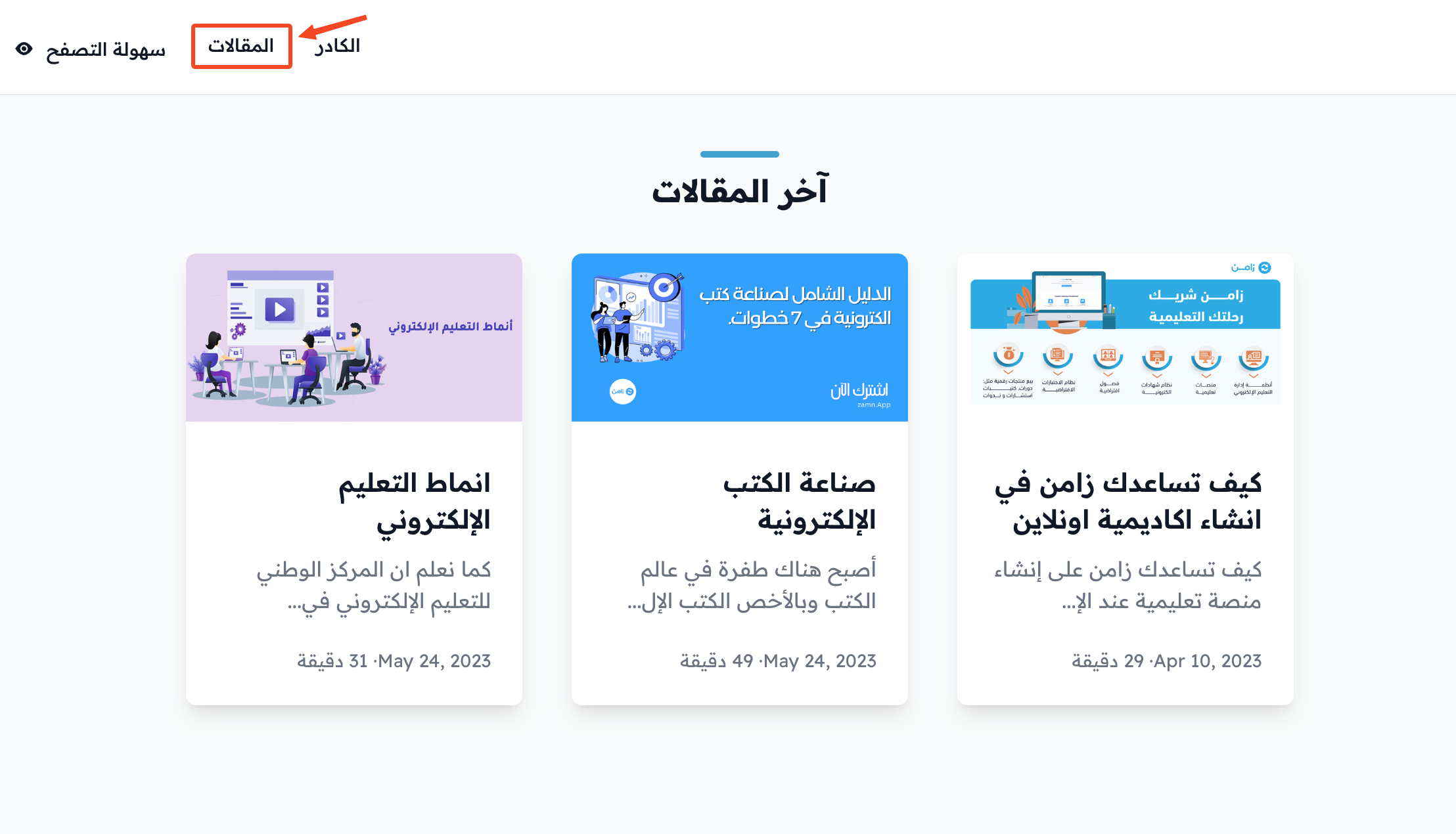
The latest posts show on your platform's home page. When readers click Posts in the top bar, they go to a page with all the posts.
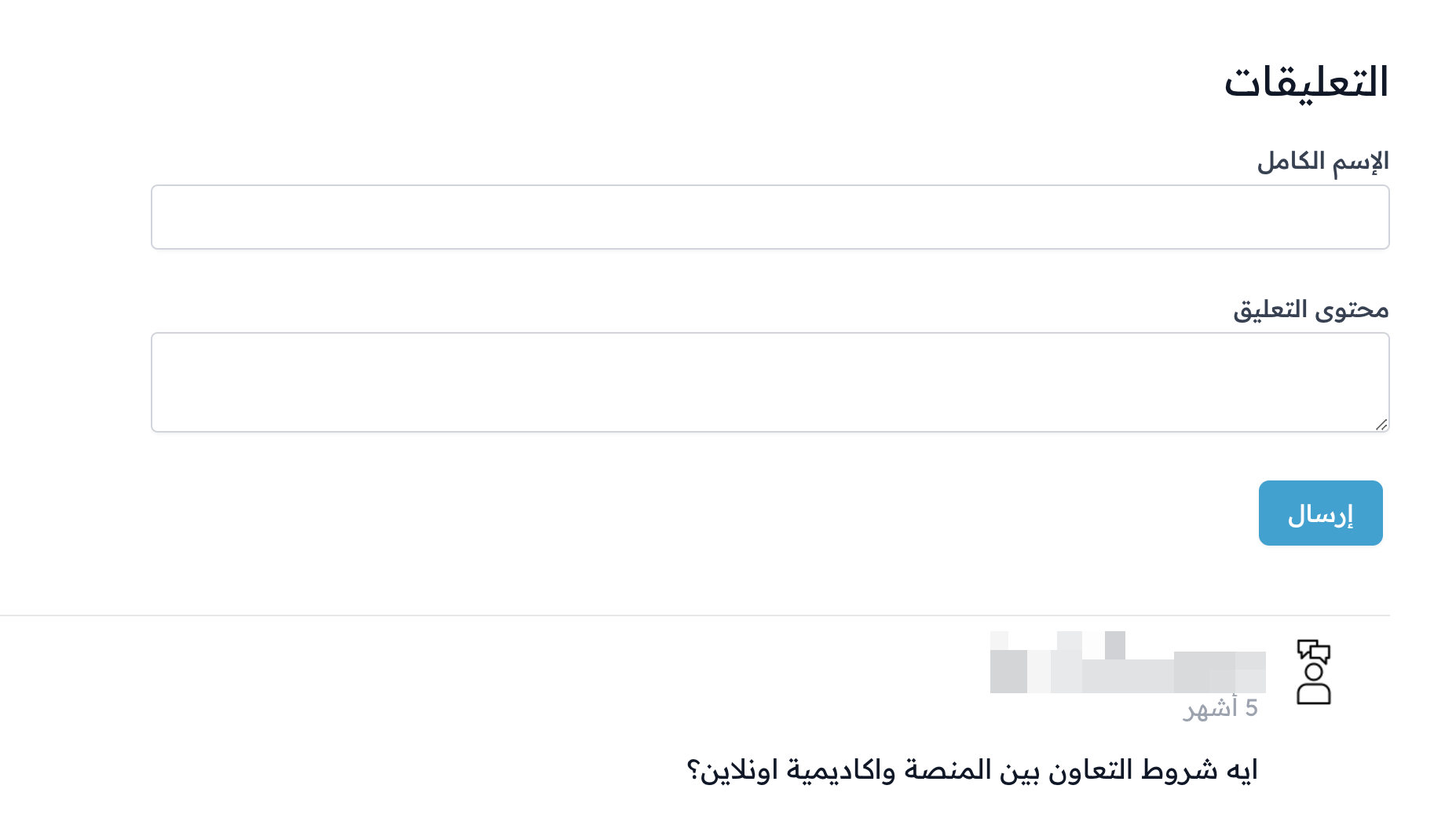
At the end of each post, readers can write a comment. Comments show under the post.
Edit a blog post
-
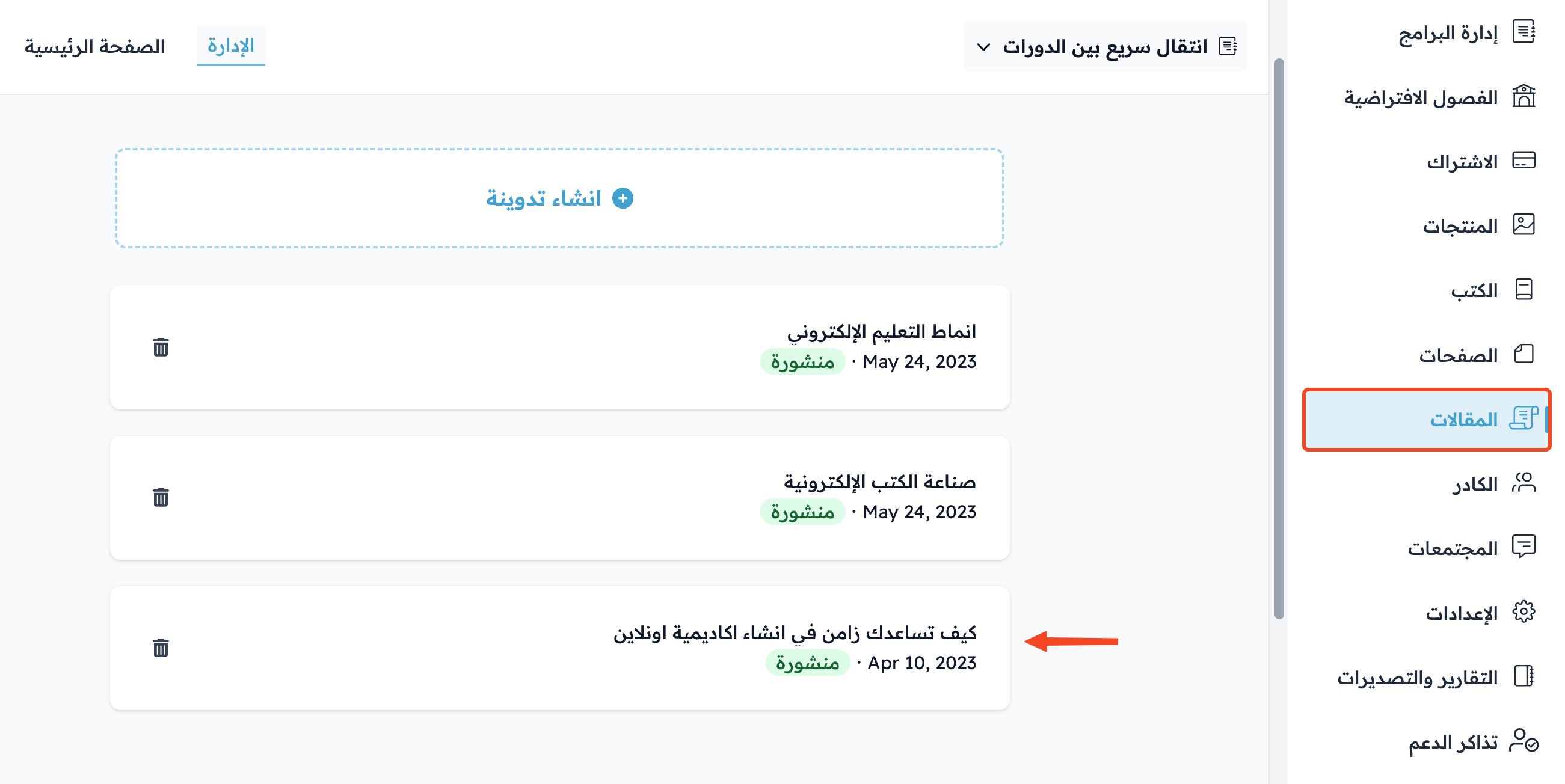
From the dashboard, go to the Posts page.
-
Click the post you want to edit.
The post page opens. Here you can:
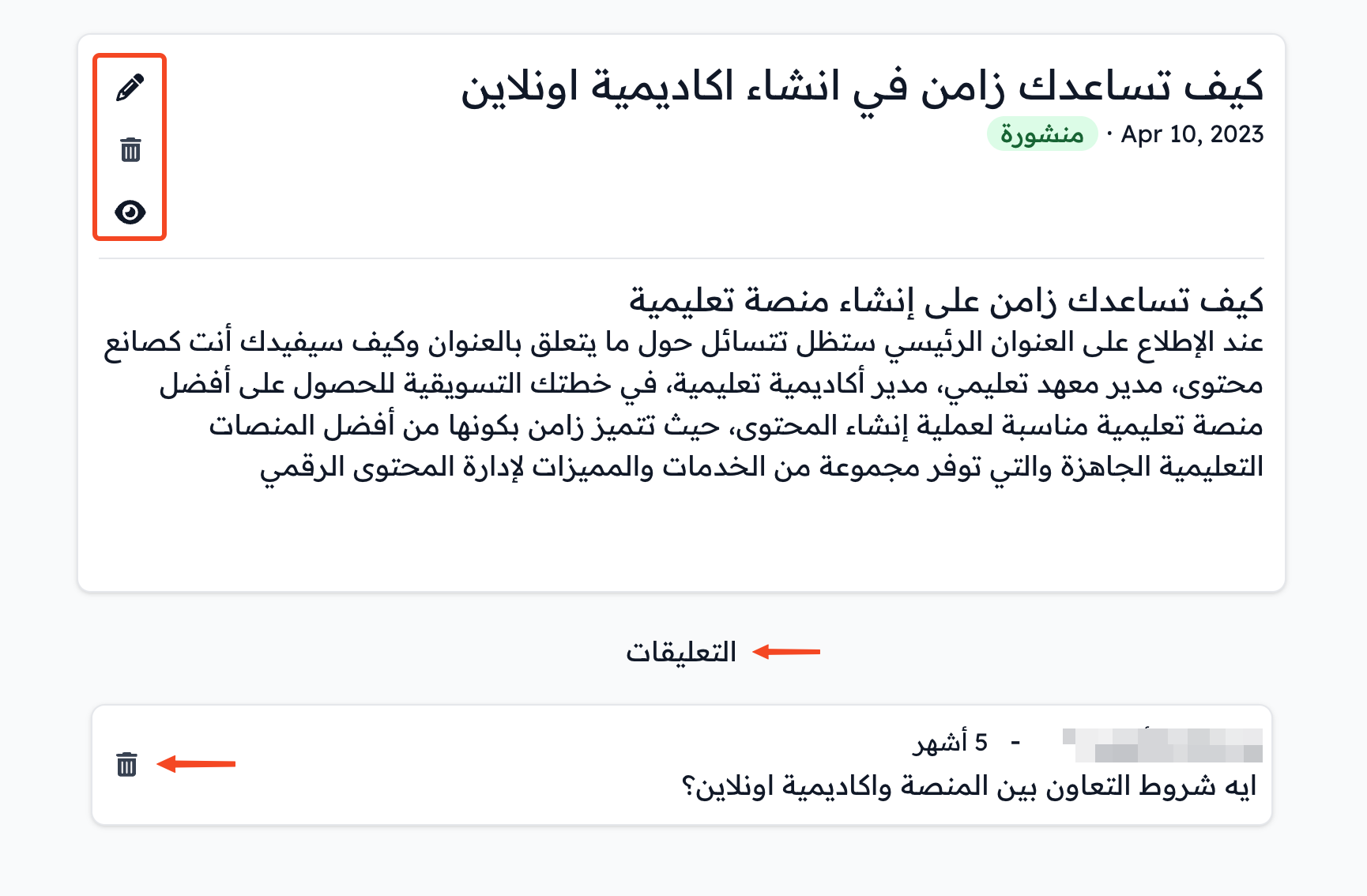
- Edit the post content directly, then click Save Changes.
- Change the image, title and status from Post Settings, and write the description and keywords from SEO Settings, then click Save Changes.
- Open the post as visitors see it with View Public, or delete it with Delete Post.
- Delete any comment from the Comments section.