Author permissions and how to add an author to a course
An author is a person you add to a course so they can add, edit and preview its content. On the platform, an author is shown as a trainer.
Steps to add an author
-
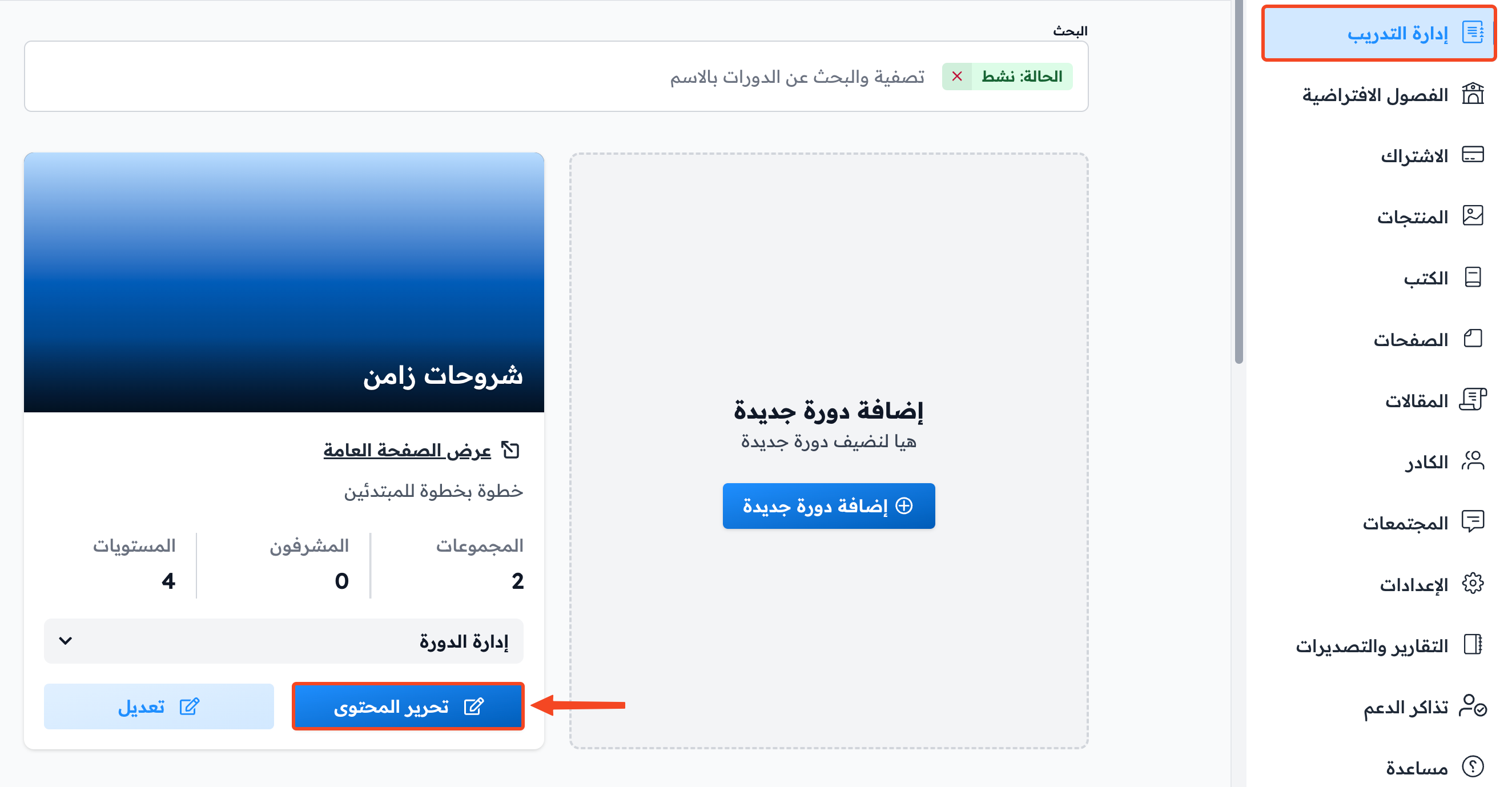
From the Courses page in the dashboard, choose the course you want to add the author to, then click Edit Curriculum.
-
From the Trainers page in the course dashboard, click Add New Trainer.
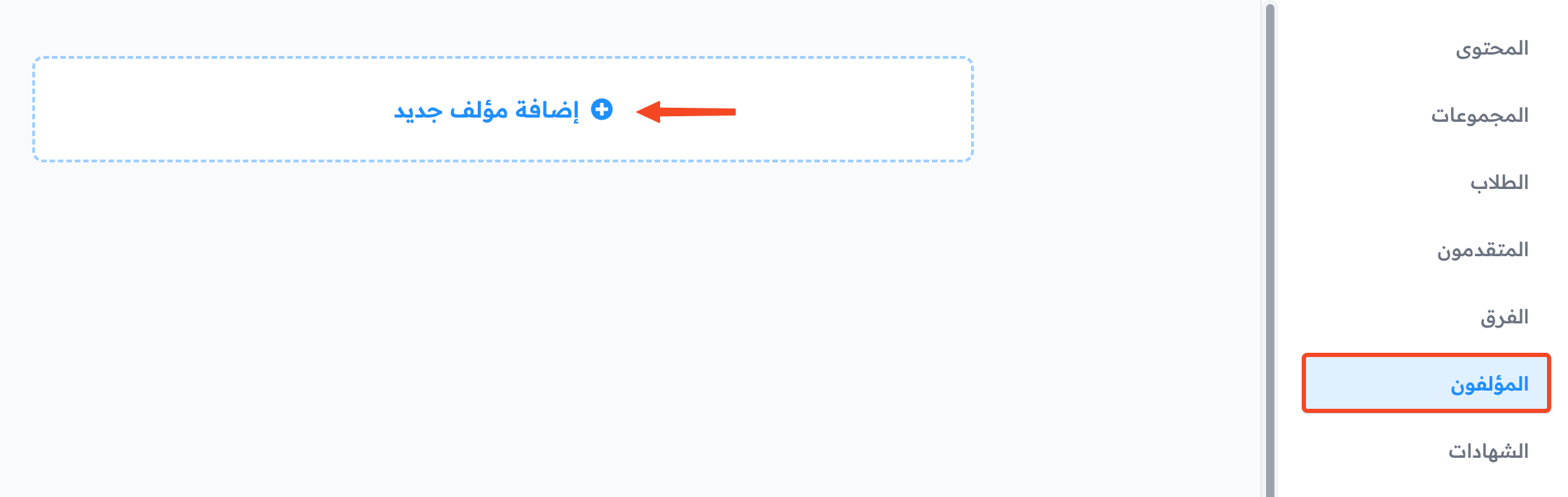
-
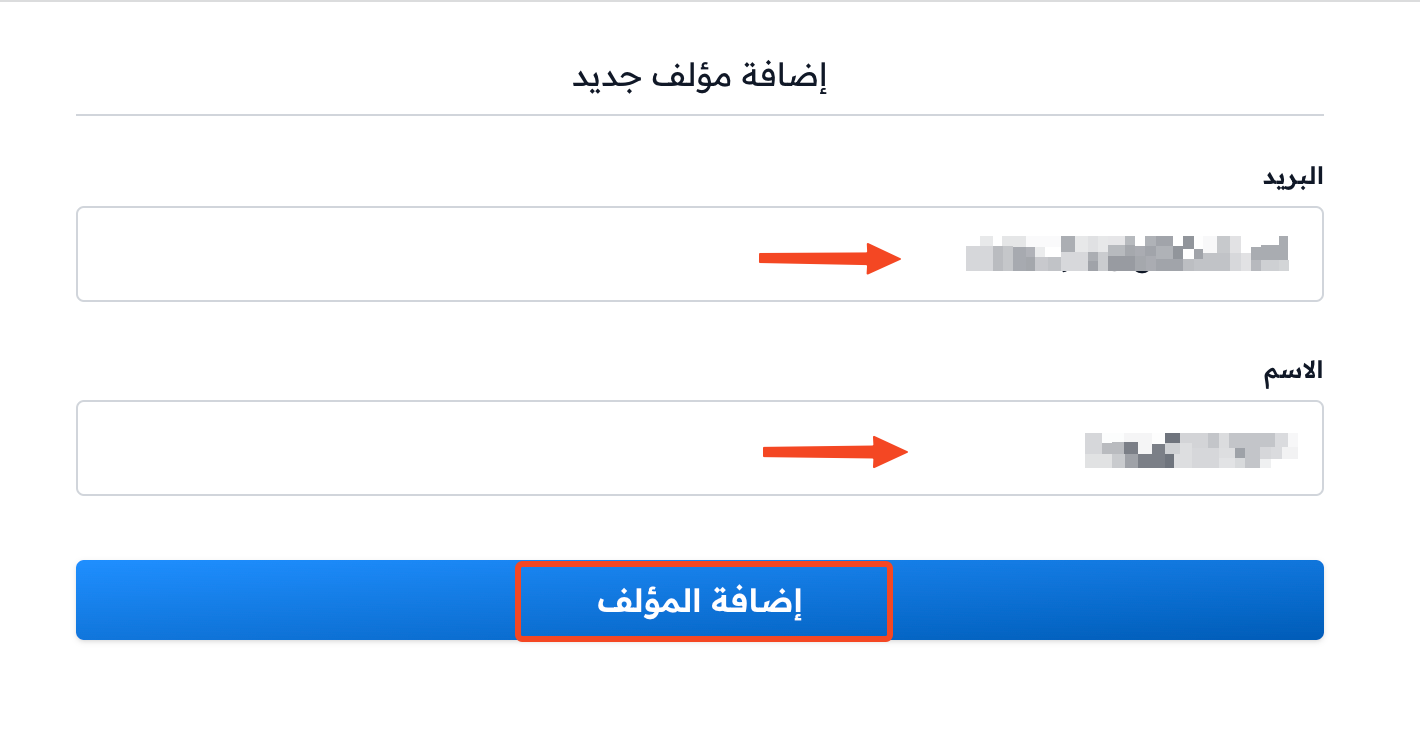
Enter the author's Email and full Name, then click Add Trainer.
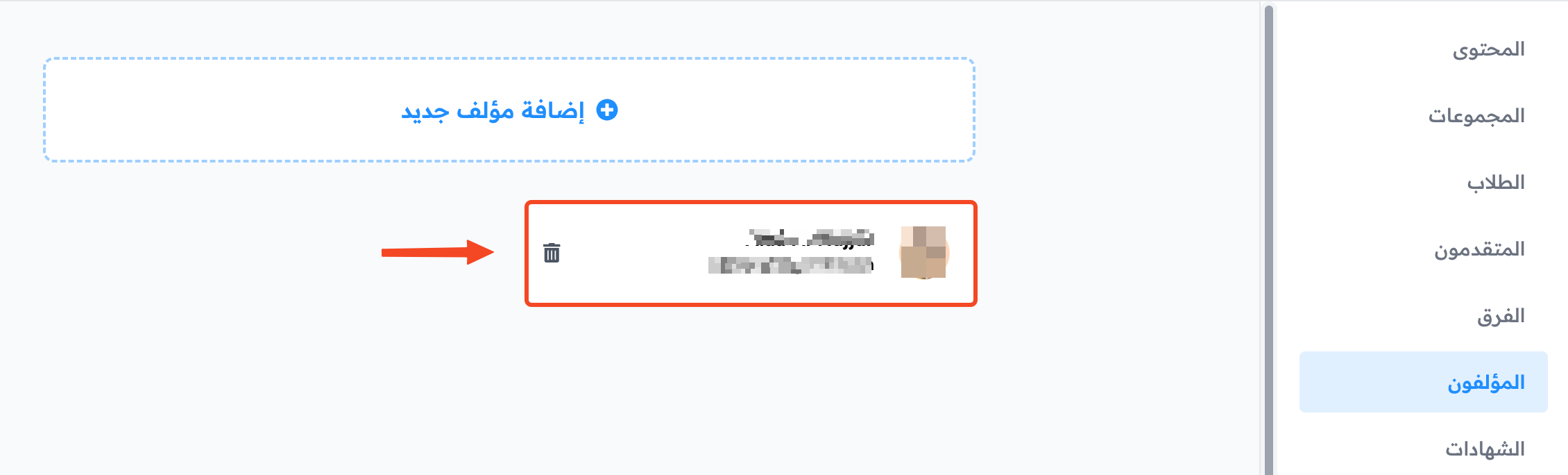
The author shows in the list, and you can remove them from it at any time: click the ⋯ (Actions) button at the end of their row, then click Remove from course.
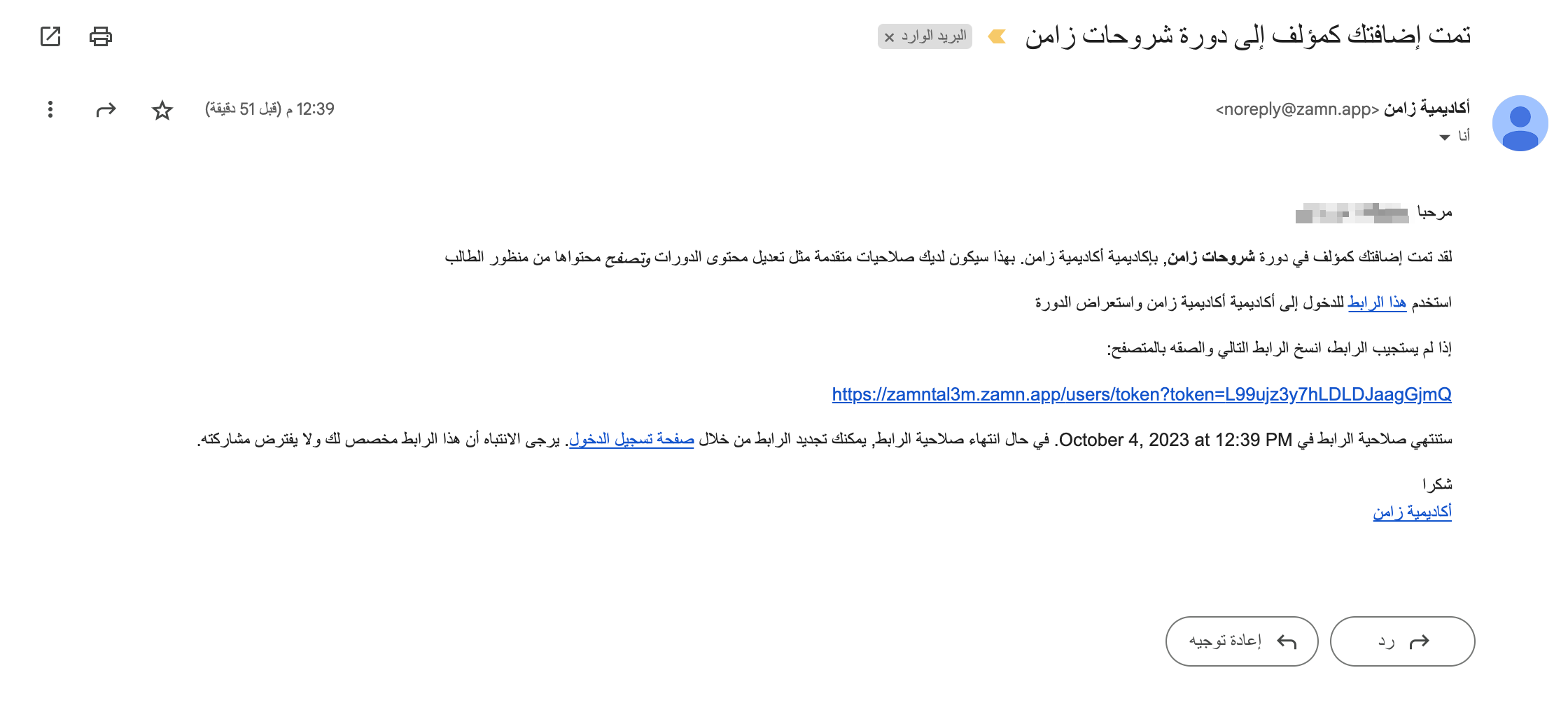
An email is sent to the added address to tell them they were added as a trainer in the course, with a link to sign in to the platform.
Author permissions
The author sees the course on the My Courses page. Their permissions are:
- Preview the content.
- Edit the content:
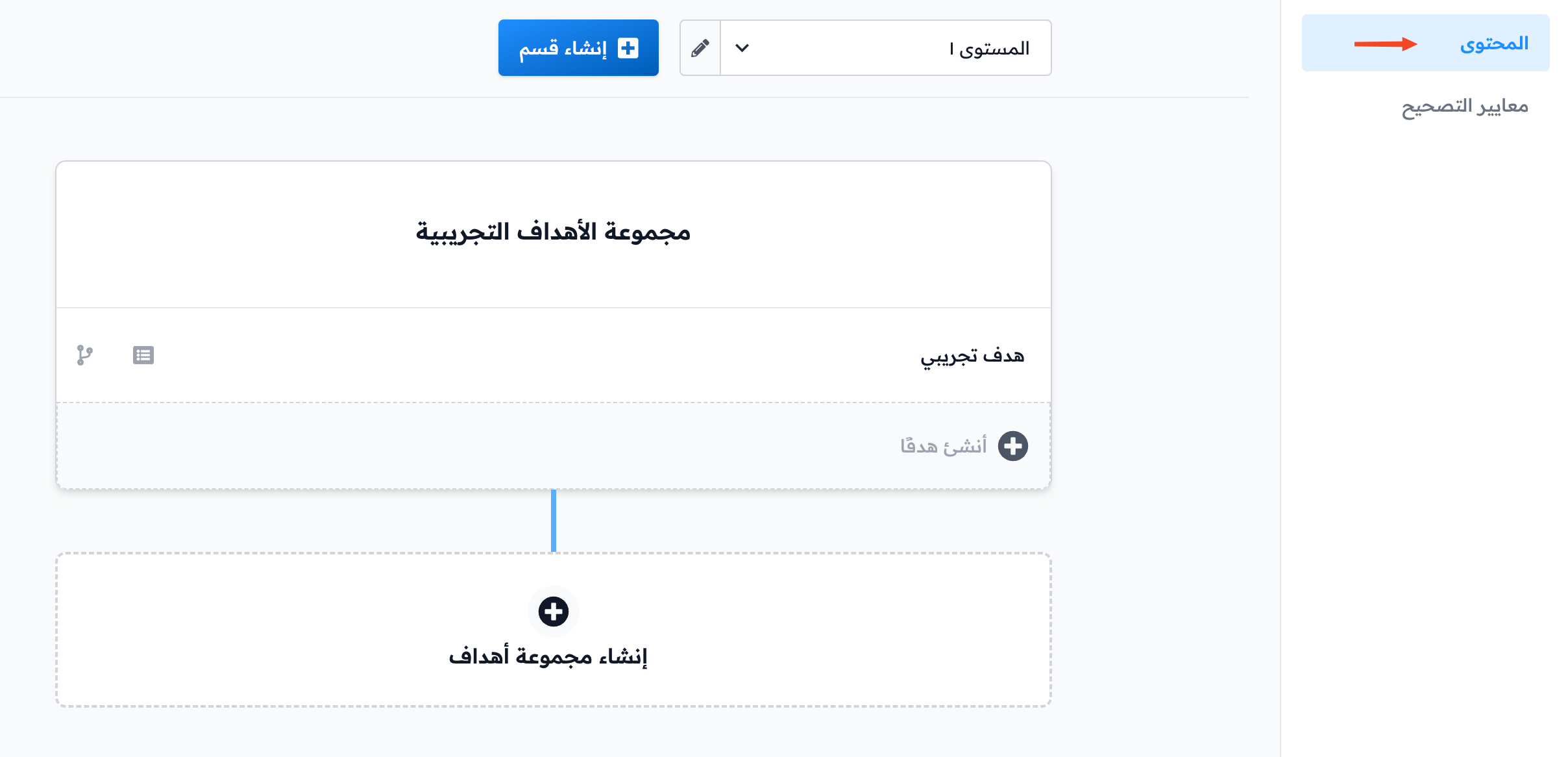
- Add content to the course.
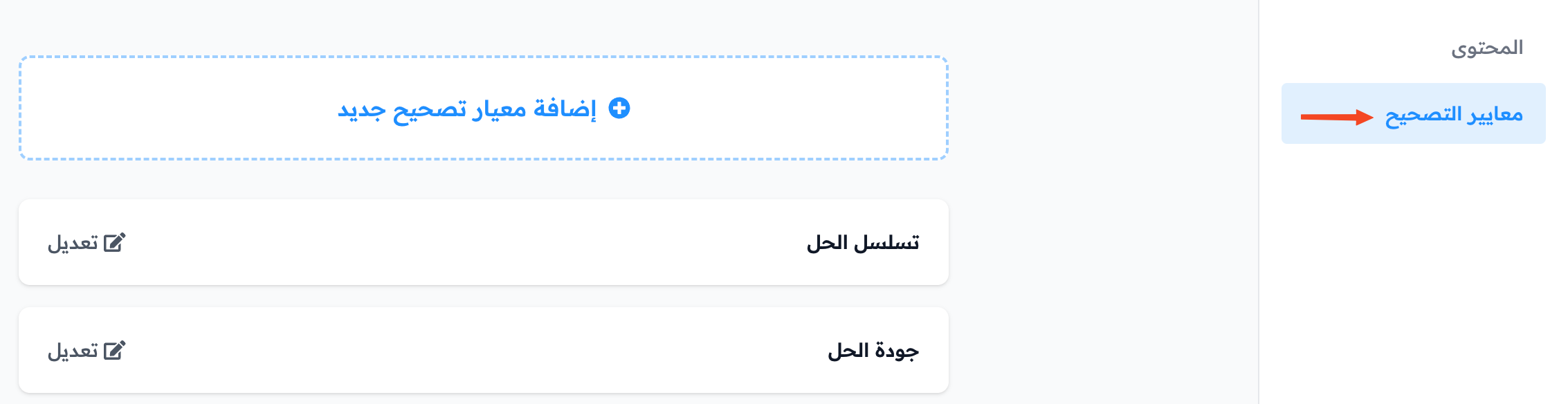
- Add evaluation criteria.
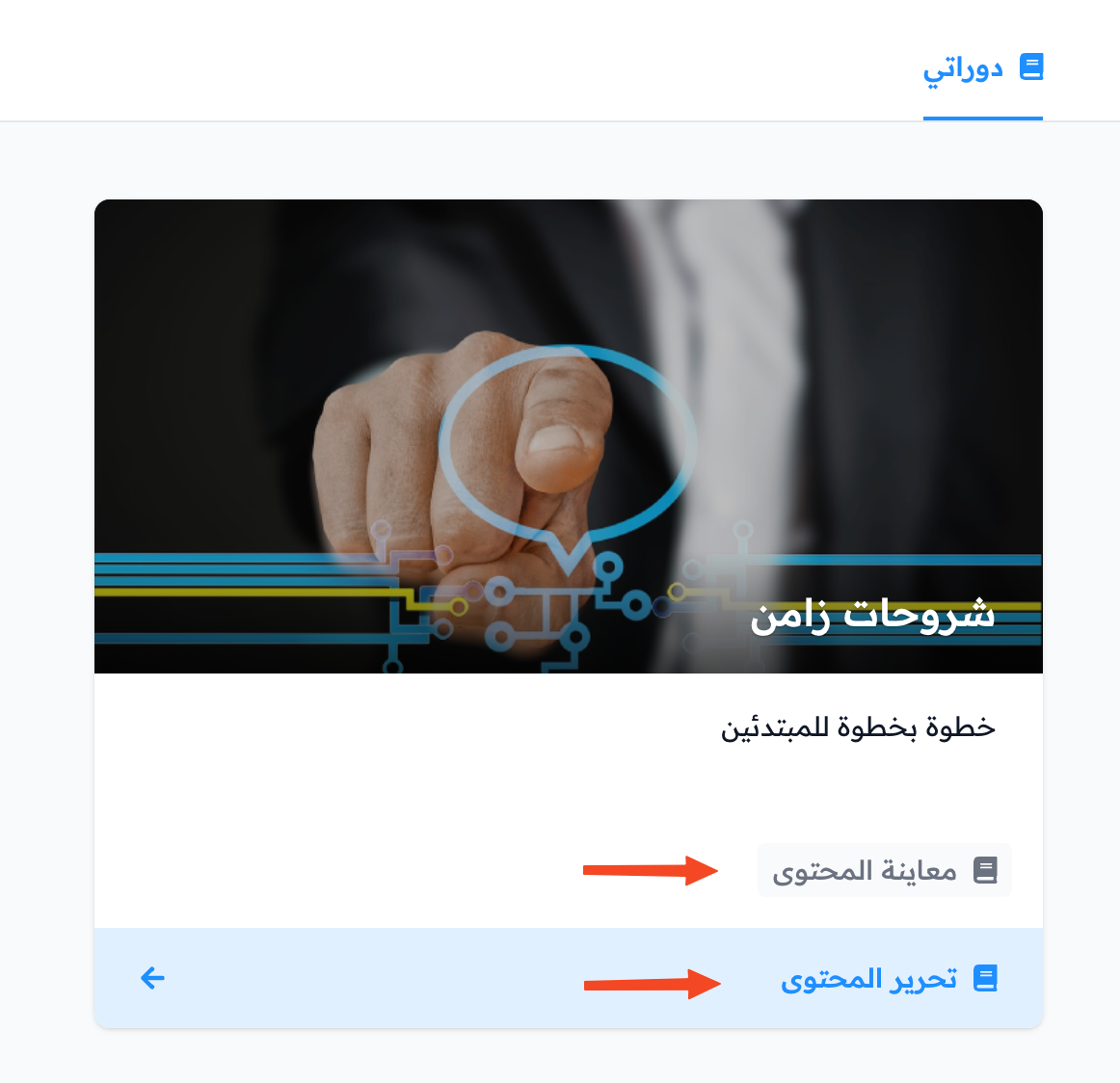
Preview the content
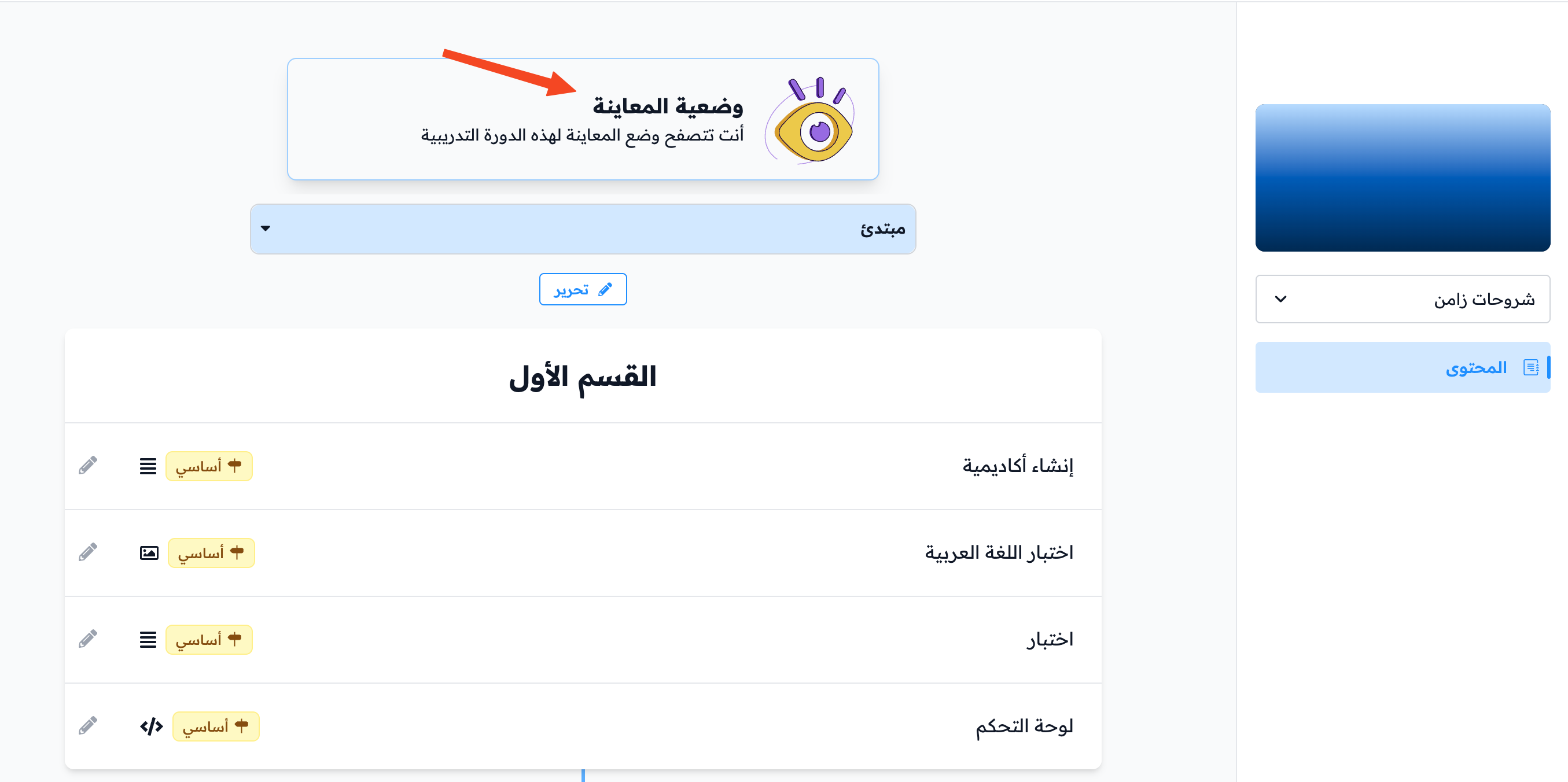
The author sees the course content the same way a student sees it, in Preview Mode.