Add content to a course and its types
Zamn lets you add different types of content to a course, such as text, images, videos and files. This article shows you how.
Steps to add content to a course
-
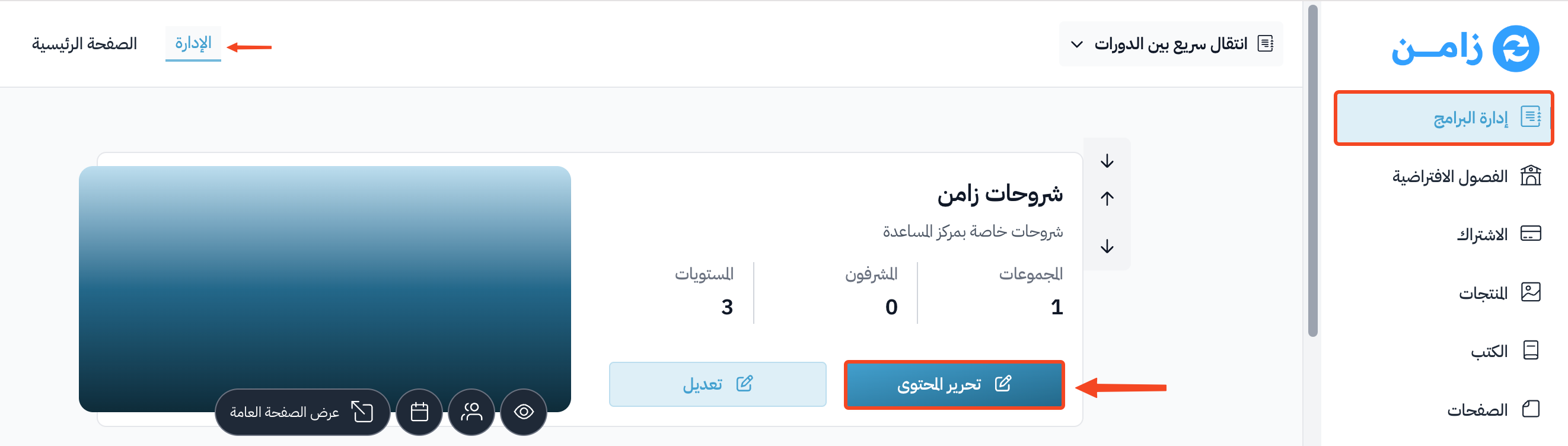
Go to the Courses page, then click Edit Curriculum on the course.
-
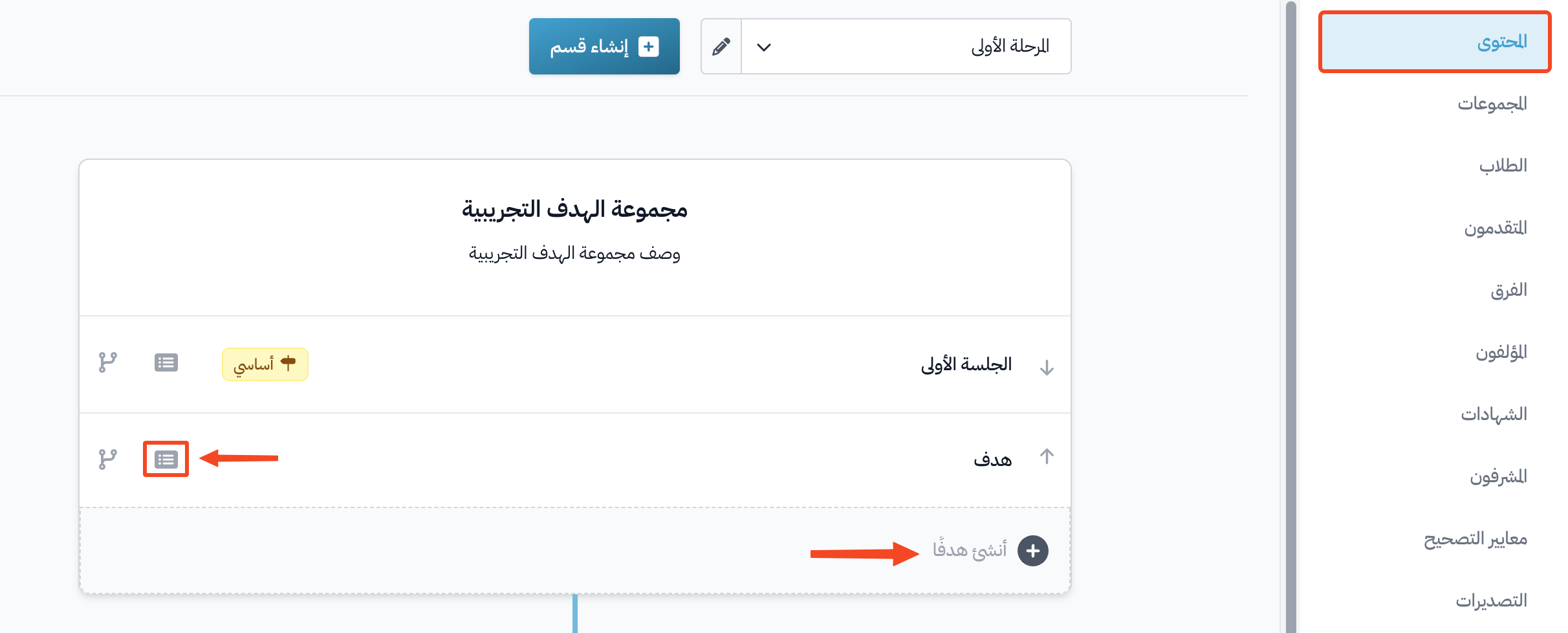
On the Curriculum page, click an existing target to edit it, or click Create target to make a new one.
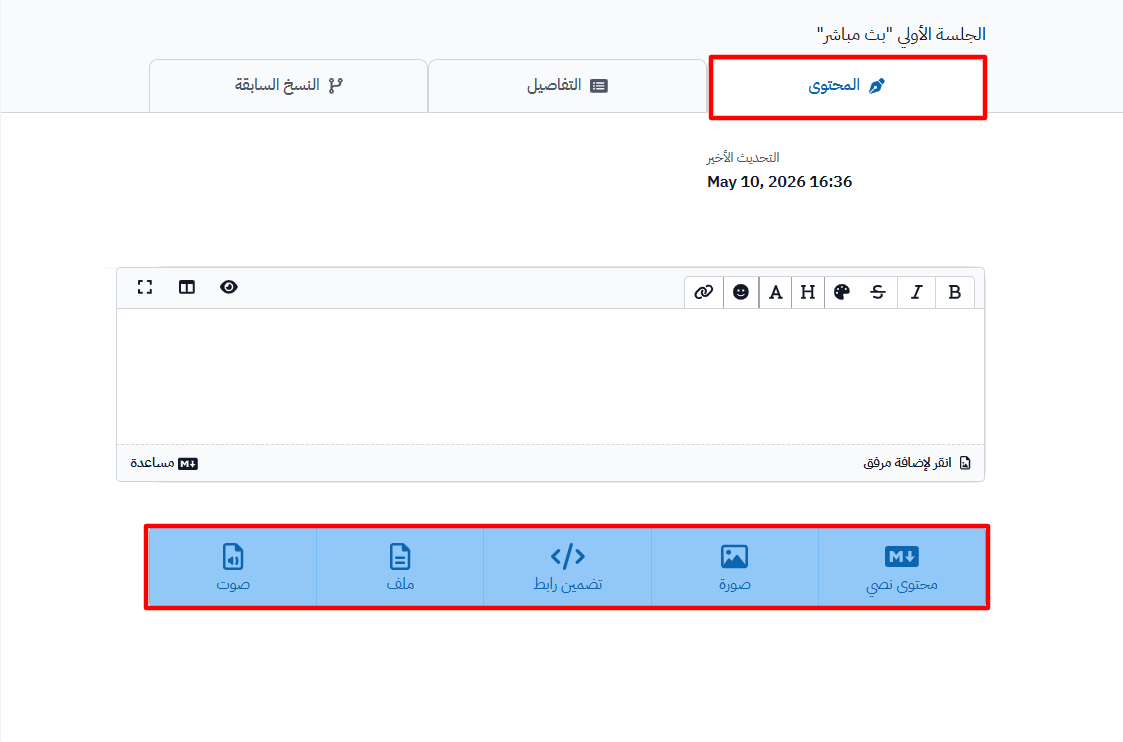
From the Content tab of the target, you can add different types of content.
Content types you can add
- Markdown: add new text.
- Image: add images.
- Embeded Link: add links from YouTube, SlideShare, Google Drive and Microsoft 365.
- Upload Video: upload a video with Zamn Stream. The largest video size is 2 GB.
- File: add different kinds of files. The largest file size is 100 MB.
- Audio: upload an audio clip. The largest audio file size is 100 MB.
Target details
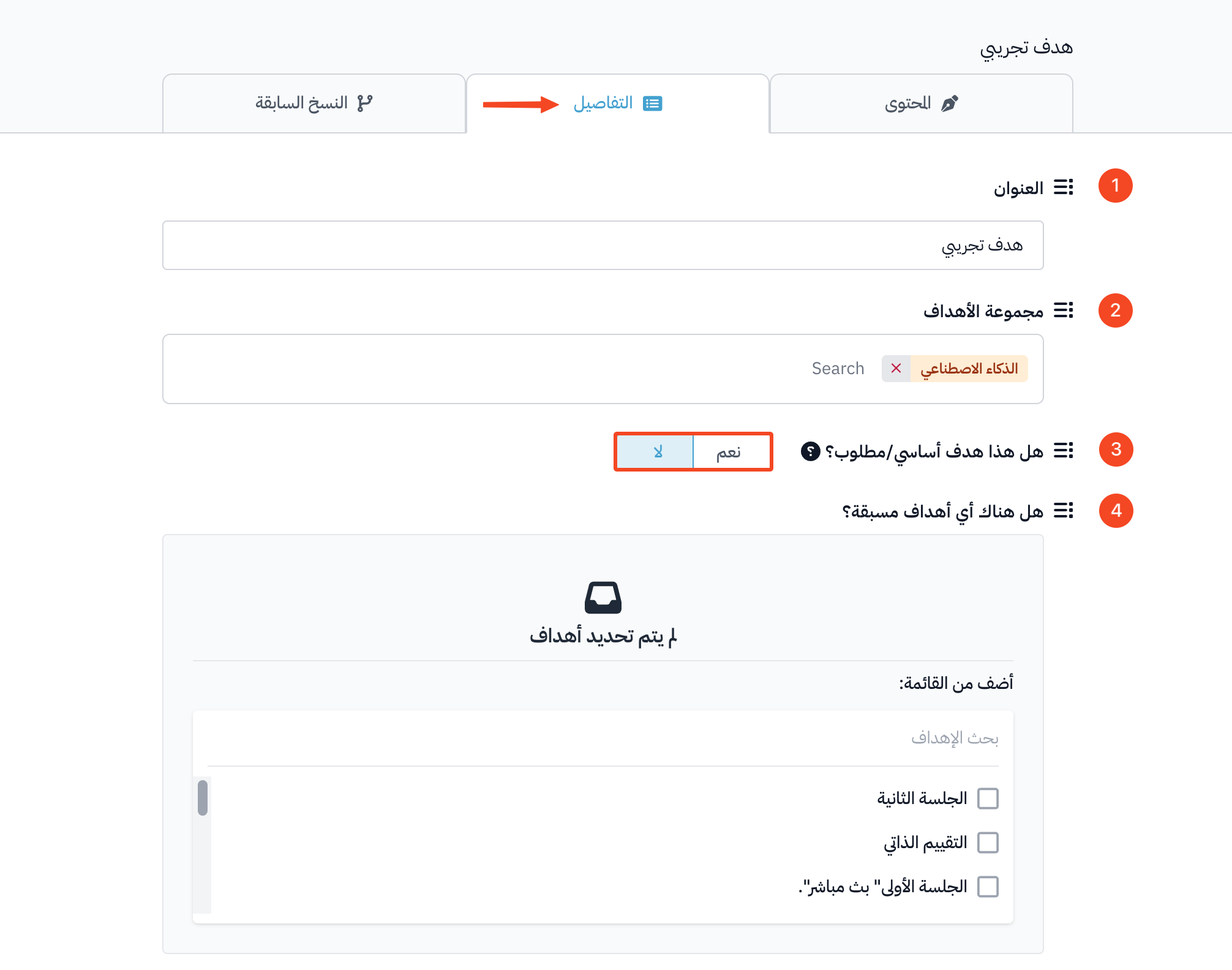
From the Details tab of the target:
-
Edit the target name in the Title field.
-
Change the Target Group if you want to move the target to another group.
-
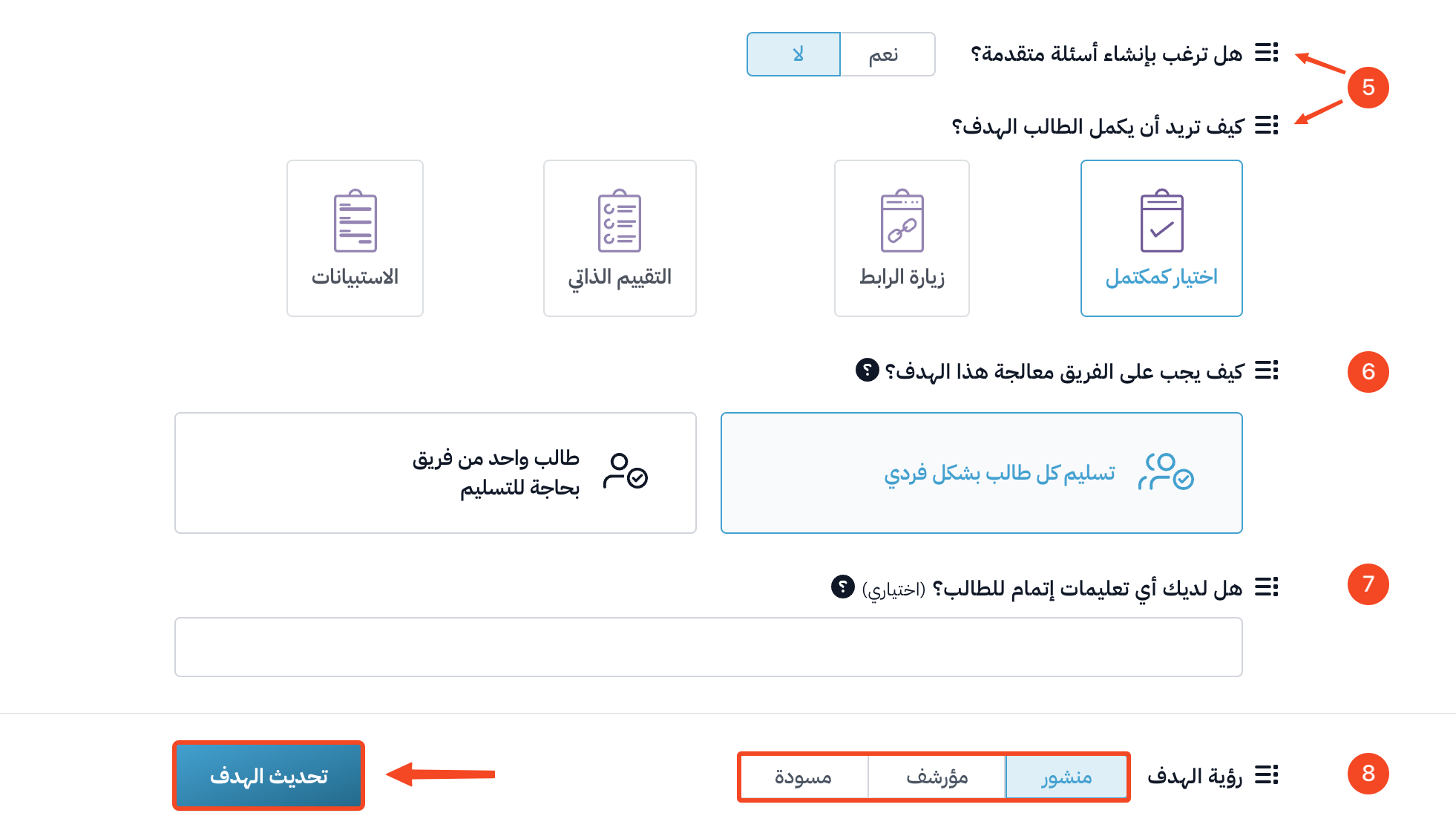
Turn on Milestone target if the target is a milestone. Students cannot finish the course until they complete the milestone target.
tipYou can also turn on Free preview, so visitors to your platform can preview this target for free before they sign up.
-
Choose the targets the student must complete before this target, under Are there any prerequisite targets?.
-
Choose how the student completes the target, under How do you want the student to complete the target?.
-
Choose how teams handle the target, under How should teams tackle this target?.
-
Add completion instructions for the student if you want, under Do you have any completion instructions for the student?.
-
Choose the Target Visibility: Live, Archived or Draft.
-
Click Update Target to save your changes.