Safe Exam Browser
What is the Safe Exam Browser?
The Safe Exam Browser is a web browser for taking tests online safely. It turns any computer into a secure workstation, controls access to apps and websites, and stops students from using resources that are not allowed.
This feature is not part of every plan. If you see a message asking you to upgrade your plan, you need to upgrade to use it.
How to turn on the Safe Exam Browser
-
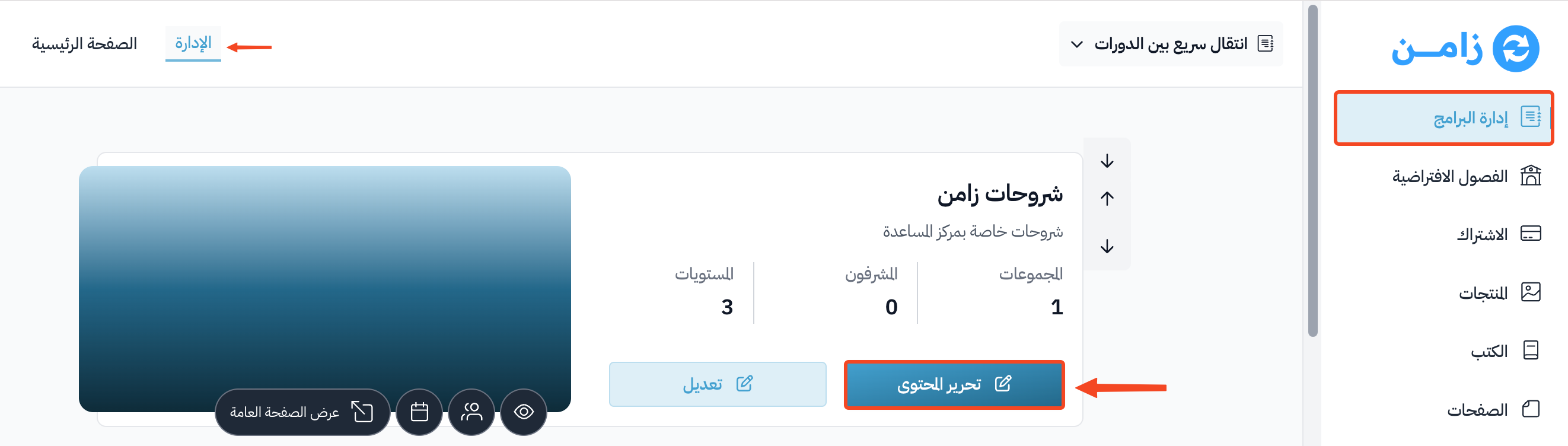
Go to the Courses page, and click Edit Curriculum on the course.
-
From the course dashboard, choose Exam Browser.
-
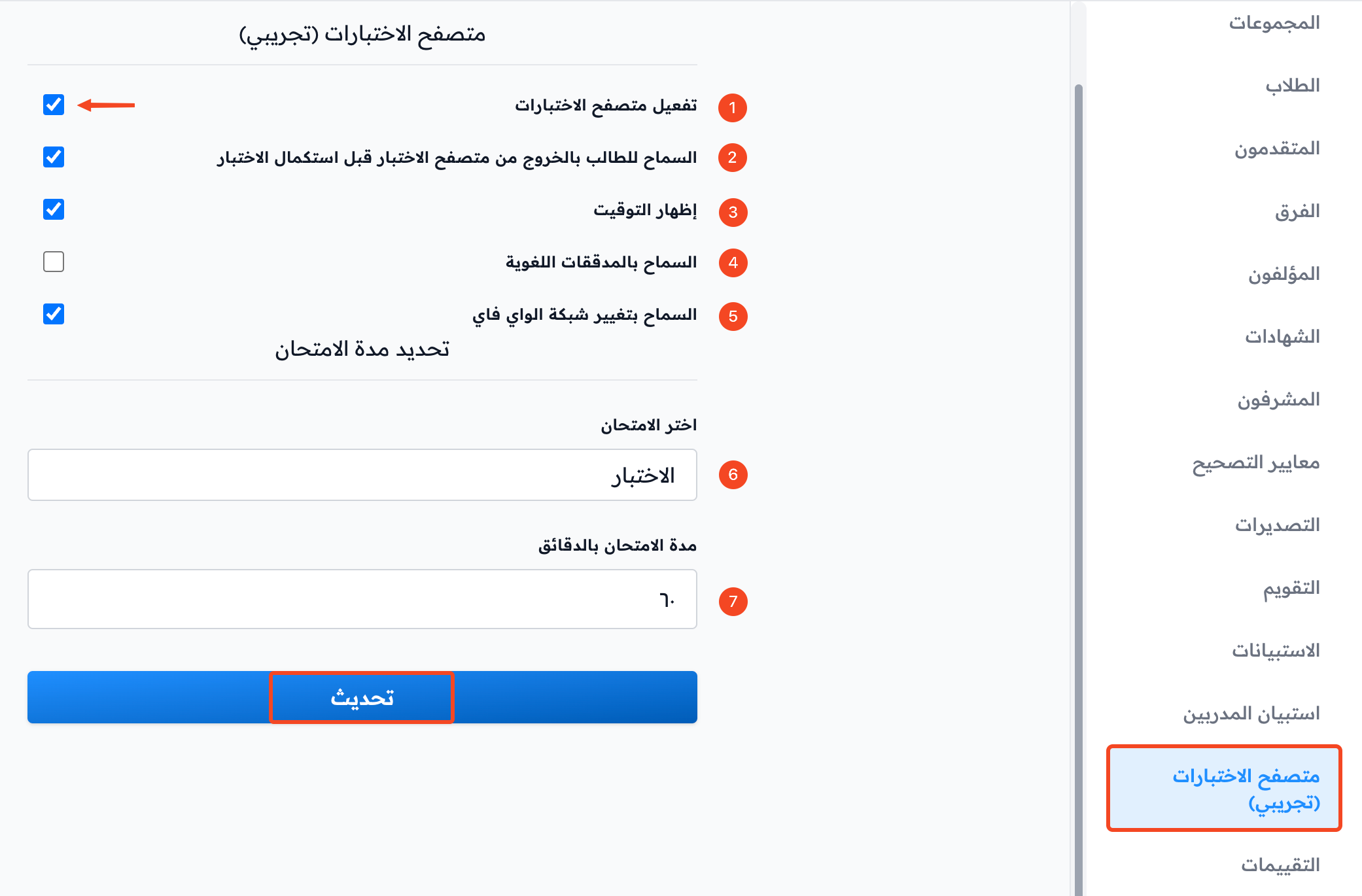
Turn on Enable Exam Browser. After you turn it on, you can set these options:
- Allow students to exit from Exam Browser before ending the Exam.
- Allow Showing Time.
- Allow Spell Checkers.
- Allow changing WiFi Networks.
-
From the Choose Test list, pick the test. The list shows only targets that have advanced questions.
-
Enter the Test Time Limit in minutes.
-
Click Update to save.
When the set test time ends, the student cannot take the test again until 24 hours have passed. The test time resets automatically after that.
The test from the student's side
The student must follow these instructions to take the test in the Safe Exam Browser:
-
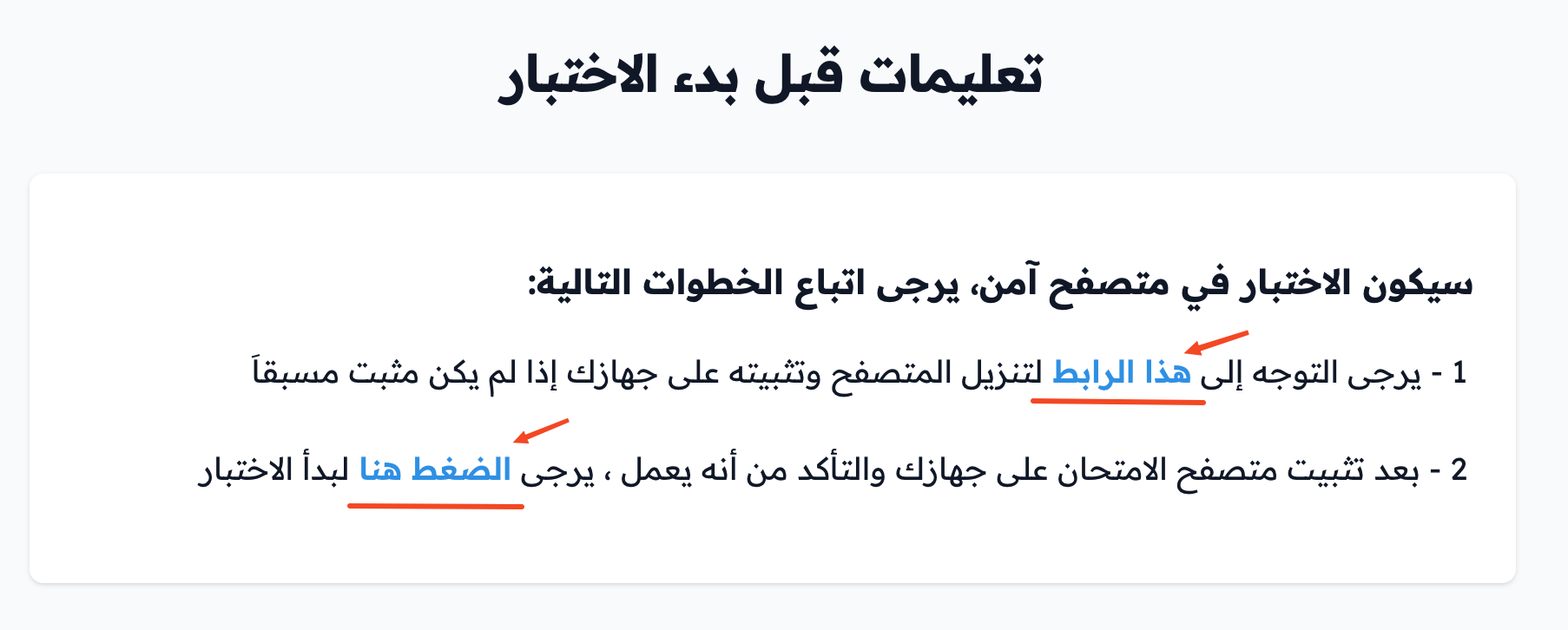
Download and install the secure browser on their device from This link, if it is not installed yet.
-
Click Click This Link to start the test.