Reactivate an ended course
When all the cohorts of a course have ended, the course shows the Ended status. This article shows you how to make it active again.
How to reactivate an ended course
-
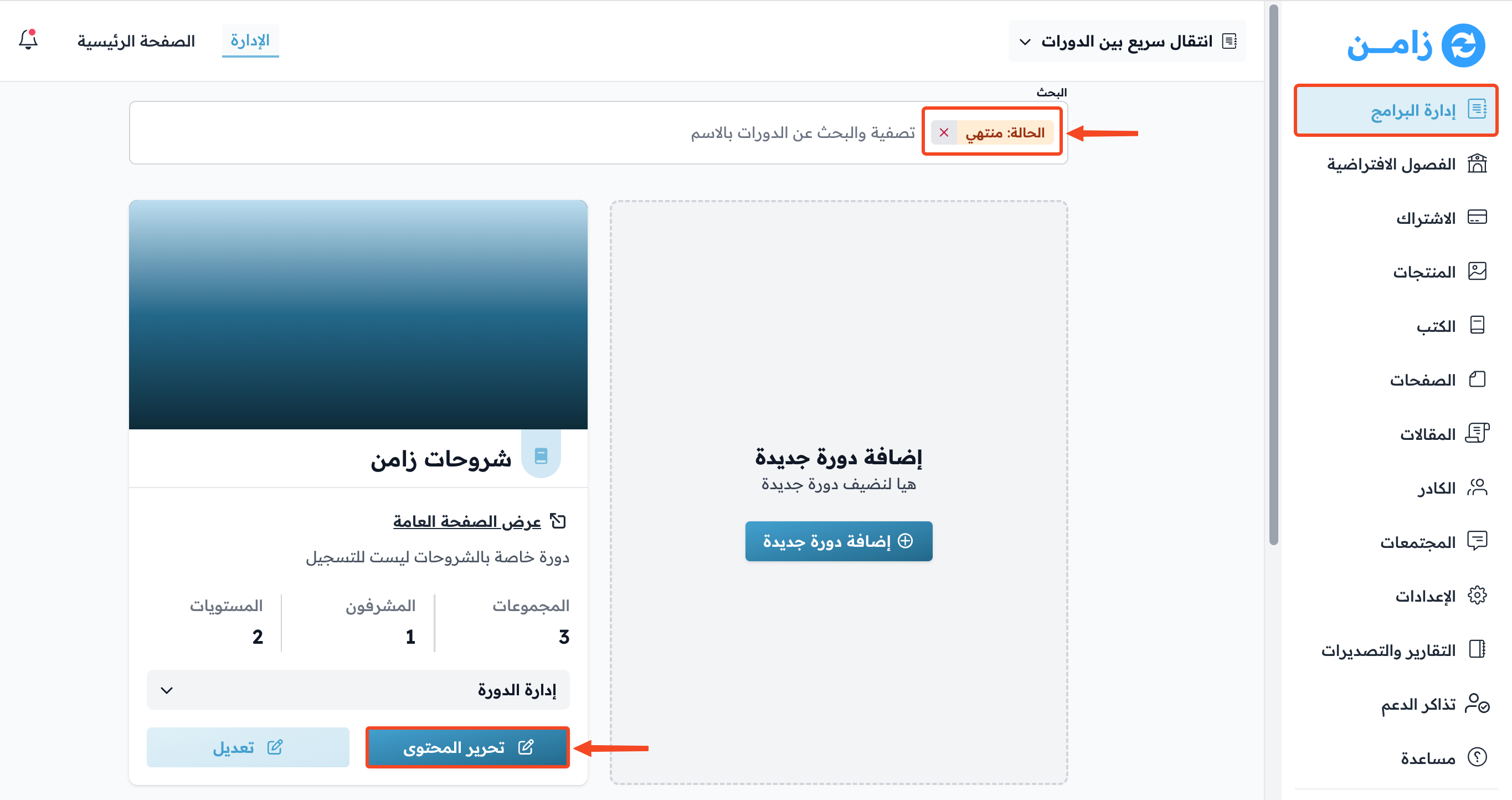
Go to the Courses page.
-
Choose the Ended status filter to see all ended courses.
-
Click Edit Curriculum on the course you want to reactivate.
You can reactivate the course in two ways:
- Add a new cohort to the course.
- Change the end date of one of the ended cohorts.
Add a new cohort
-
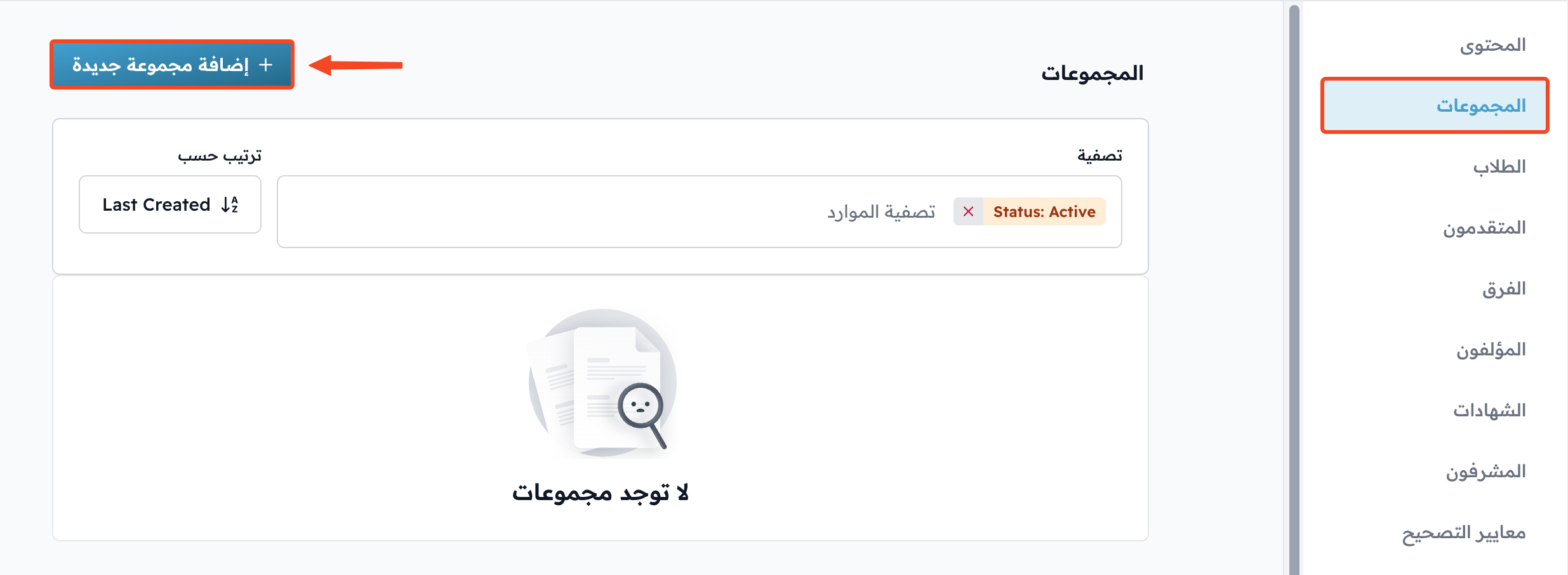
From the course dashboard, go to the Cohorts page.
-
Click Add Cohort. A side panel opens.
-
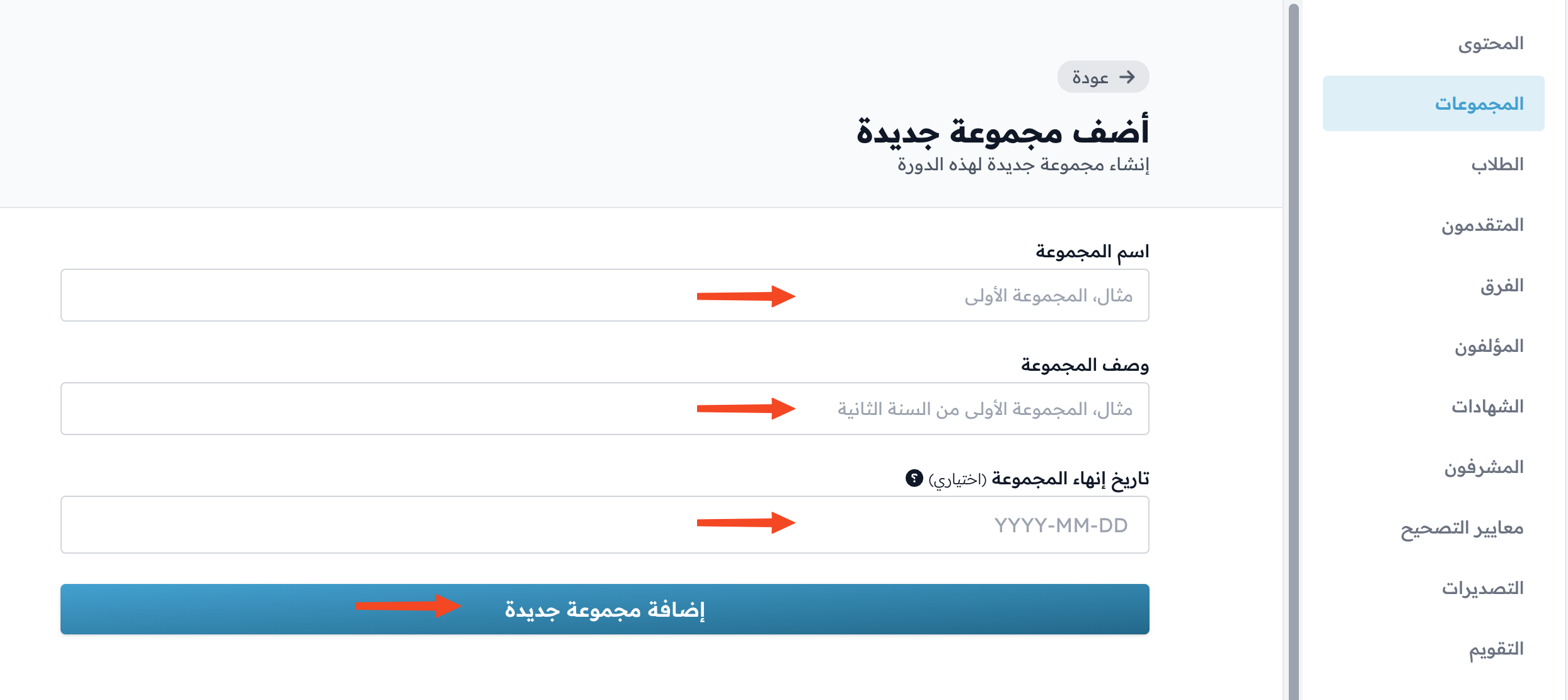
Enter the required details:
- Cohort name.
- Cohort description.
- End date. You can also create the cohort without an end date.
-
Click Add Cohort.
Change the end date of an ended cohort
-
On the Cohorts page, find the cohort you want to reactivate. Ended cohorts show Ended in the Status column.
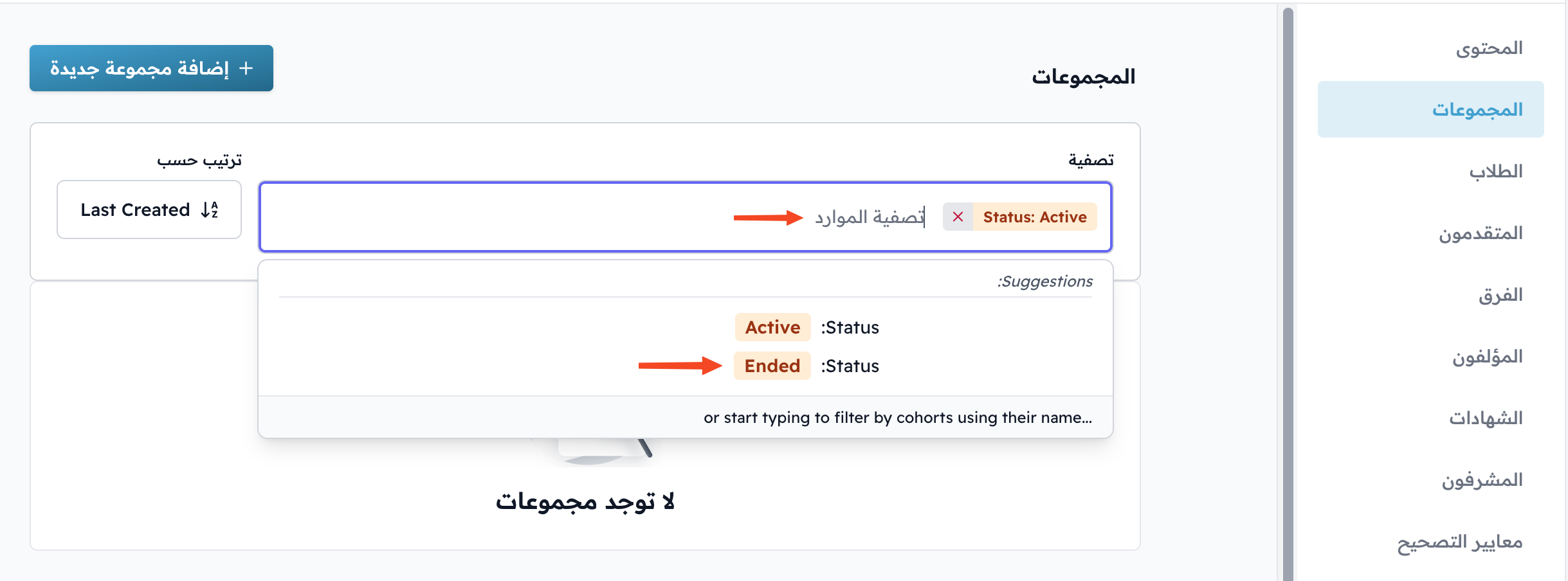
-
Click the cohort name, or click the ⋯ (Actions) button at the end of its row, then click Edit. A side panel opens.
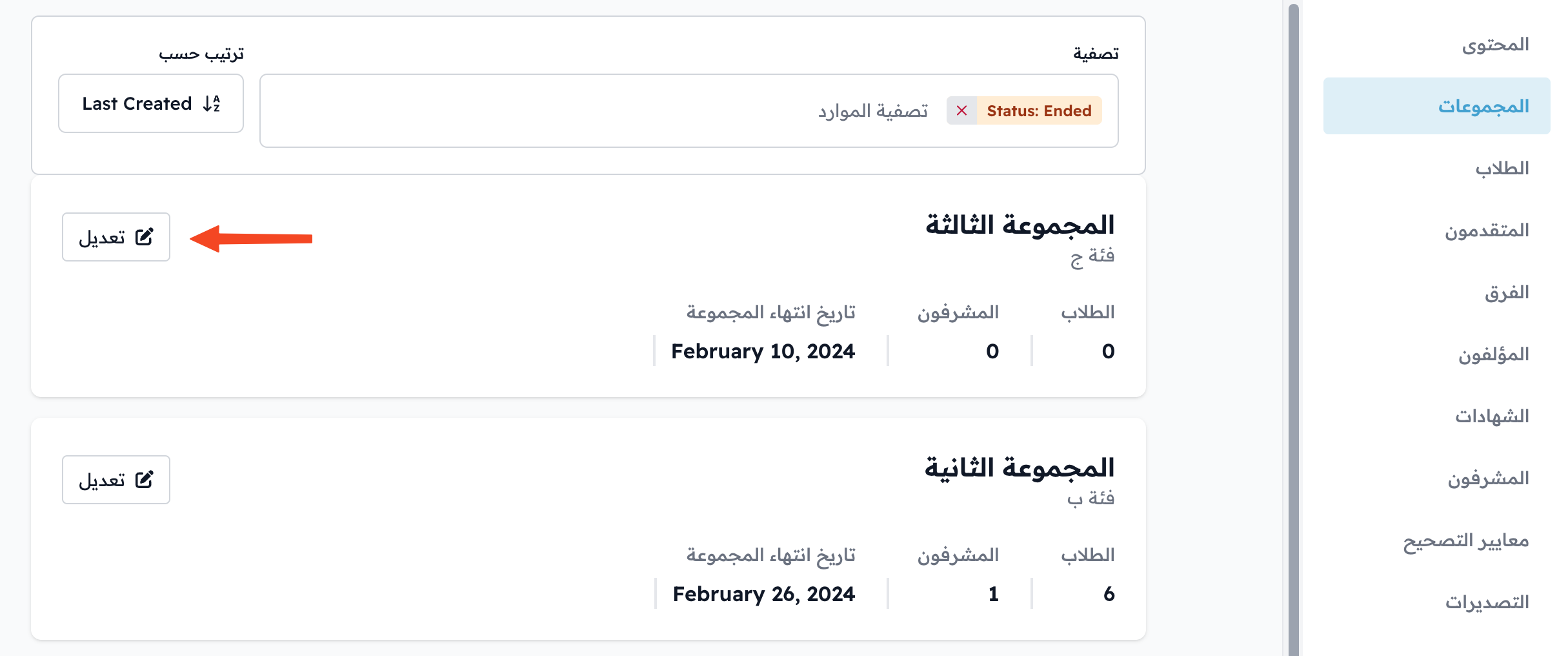
-
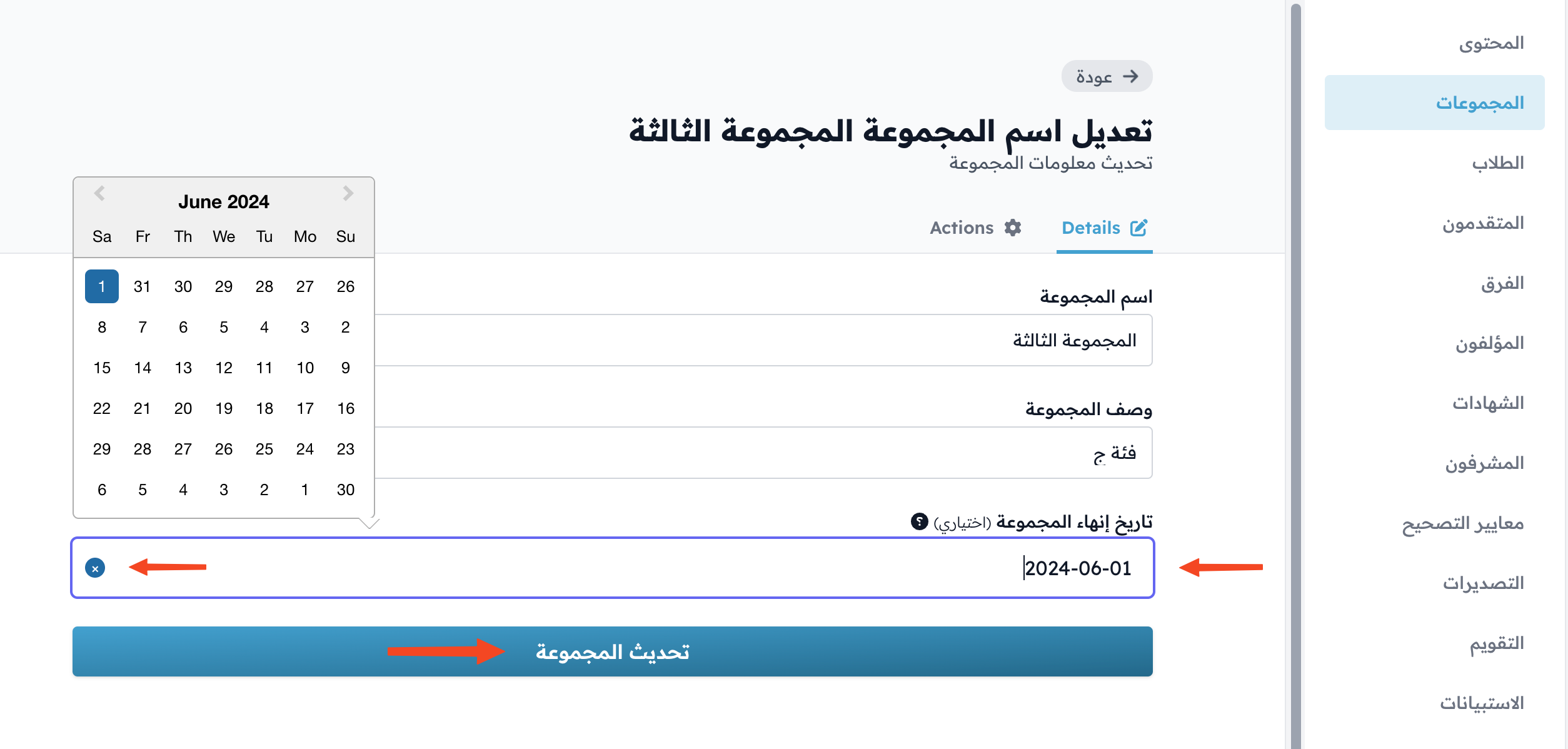
Change the End date, or remove it completely.
-
Click Update Cohort.