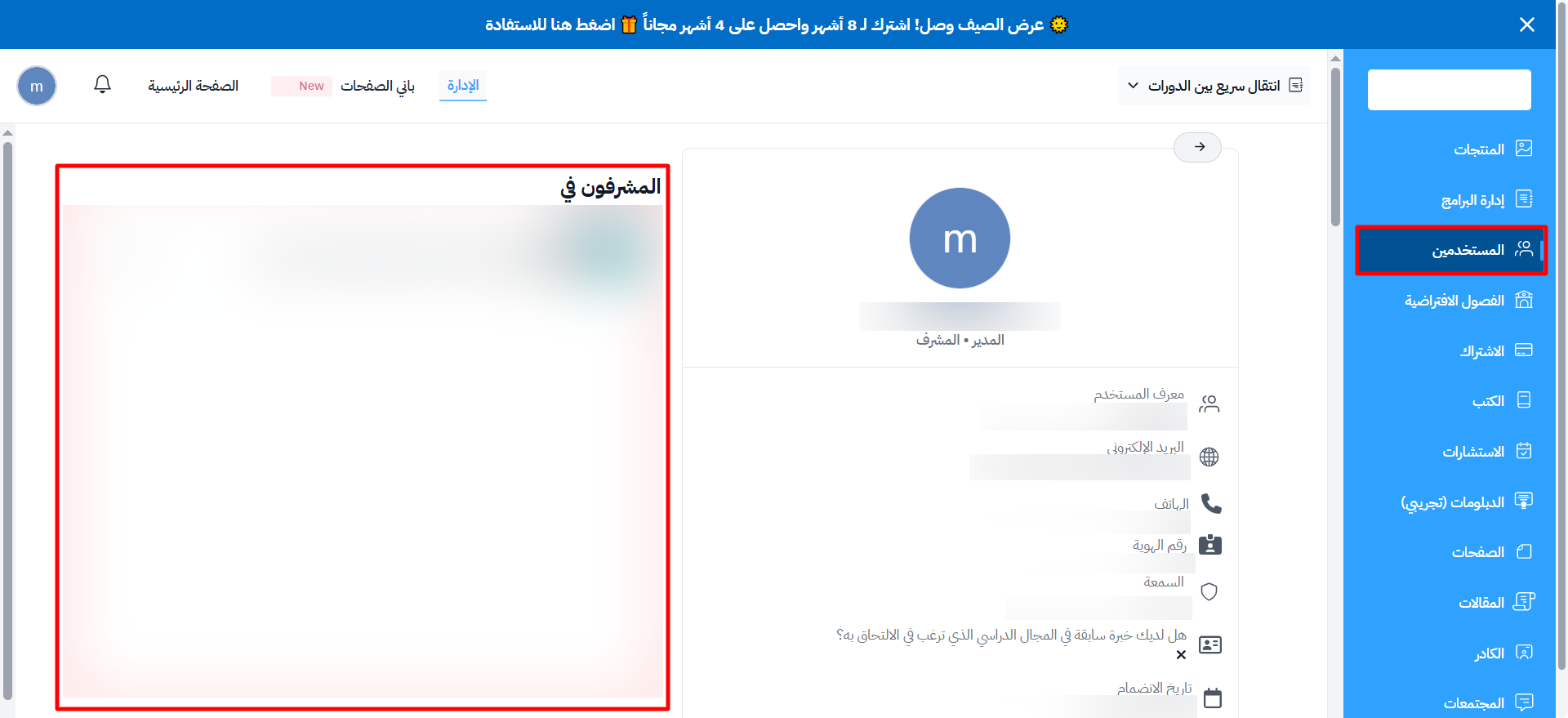
How to access users
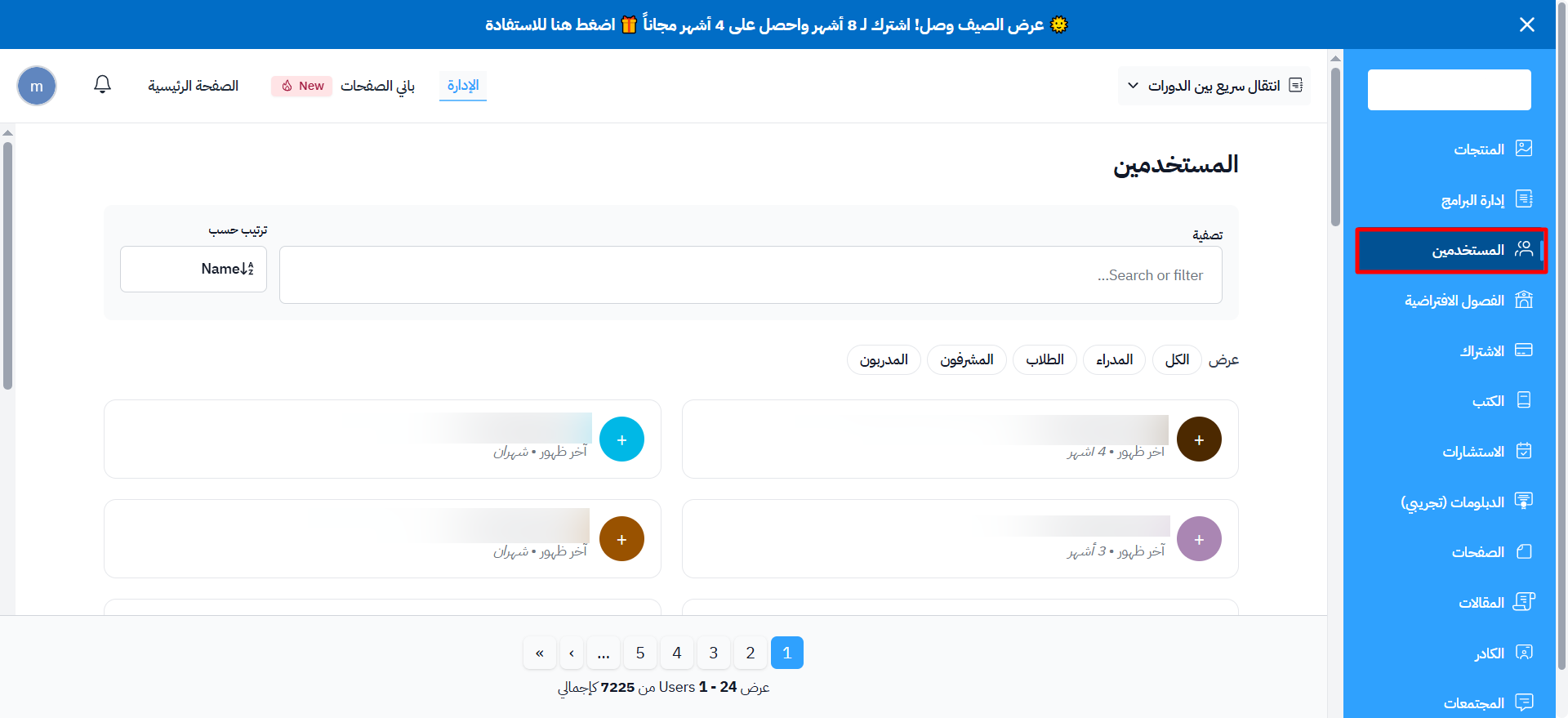
The Users page shows everyone who signed up on your platform, by type. It makes it easy to manage users and find them quickly.
The page lists all users on the platform in a table, with each user's name and the last time they signed in (Last seen).
-
Go to the Users page from the side menu of the dashboard.
-
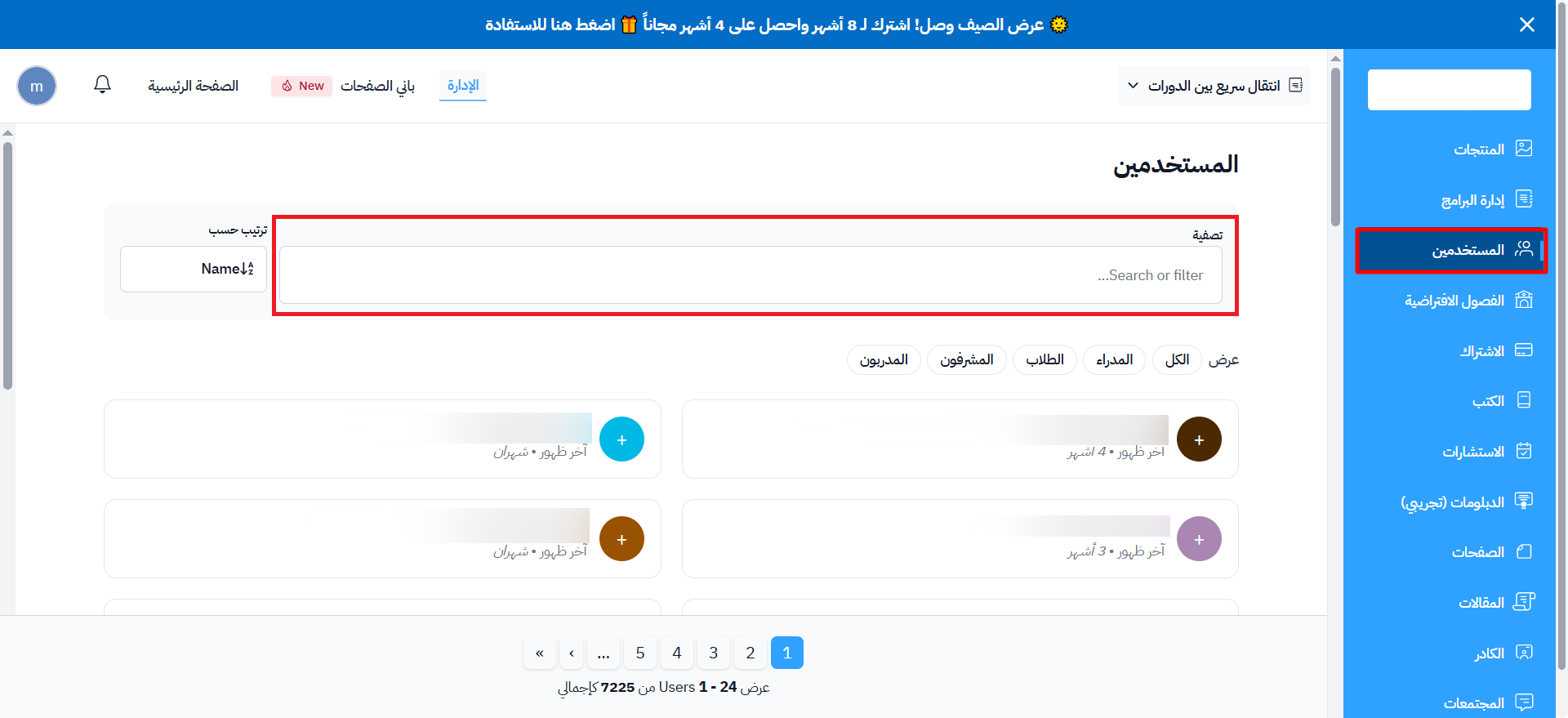
Use the search box at the top of the page to find a user by name or email.
-
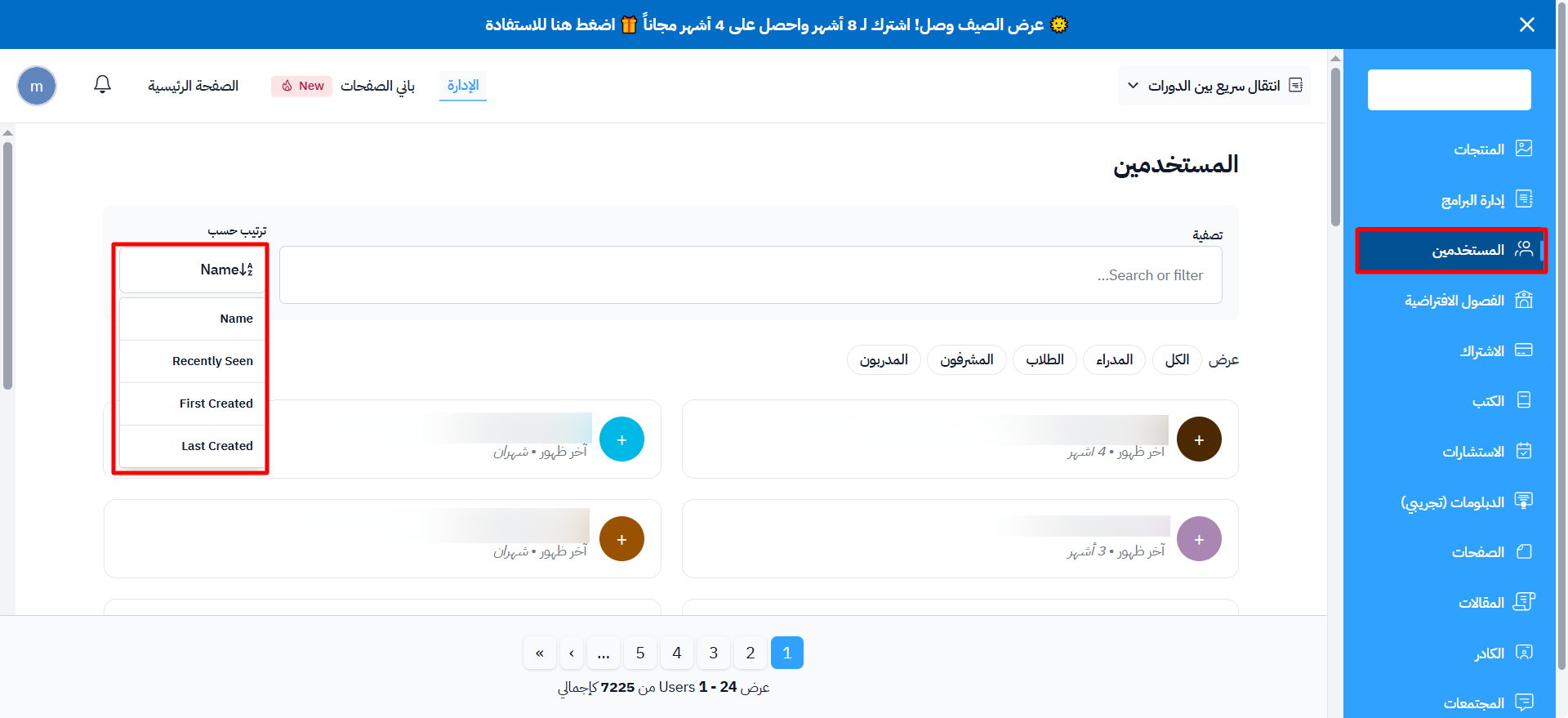
Sort users by Name, Recently Seen, First Created or Last Created.
-
Use the tabs to show users by type: All, Admins, Students, Coaches and Trainers.
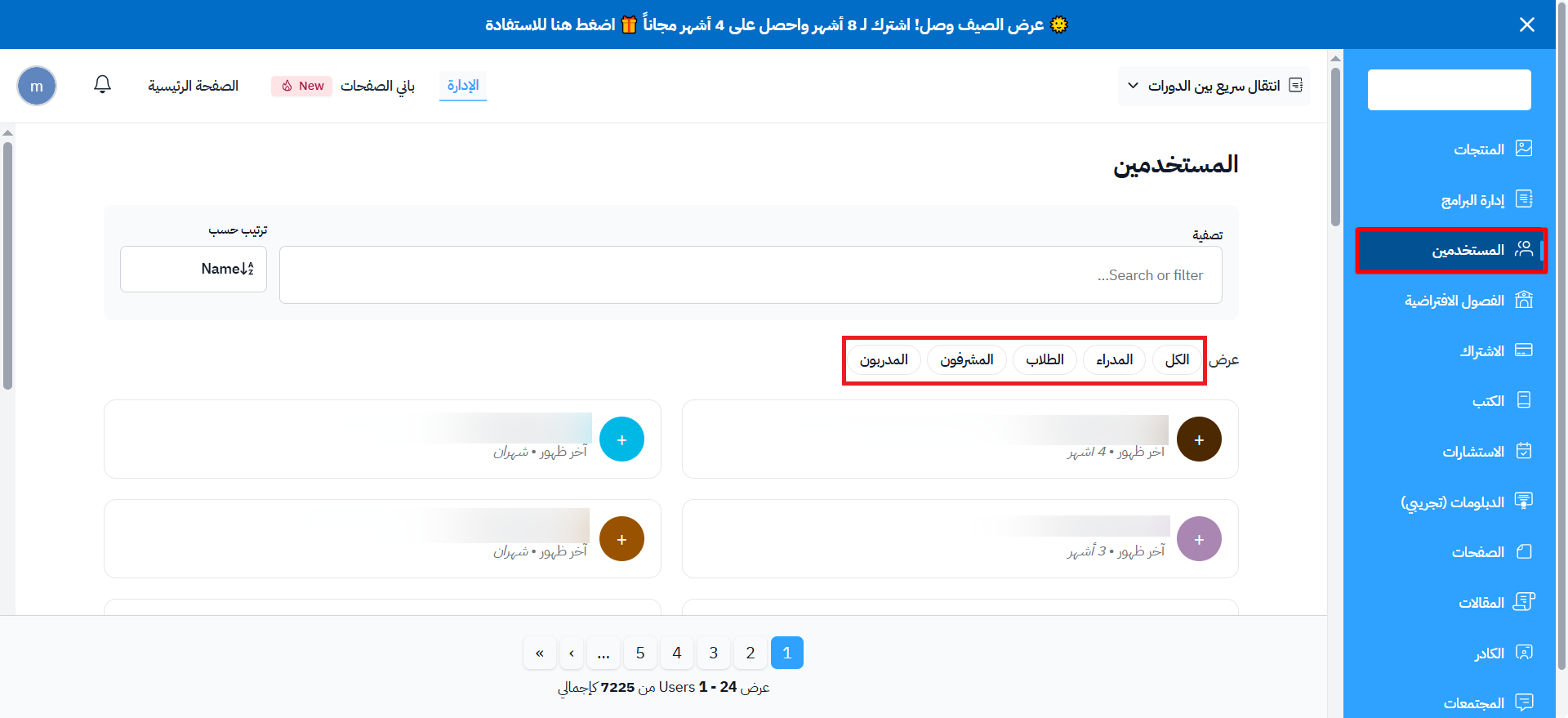
-
To open a user's page, click their name, or click the ⋯ (Actions) button at the end of their row, then click View.
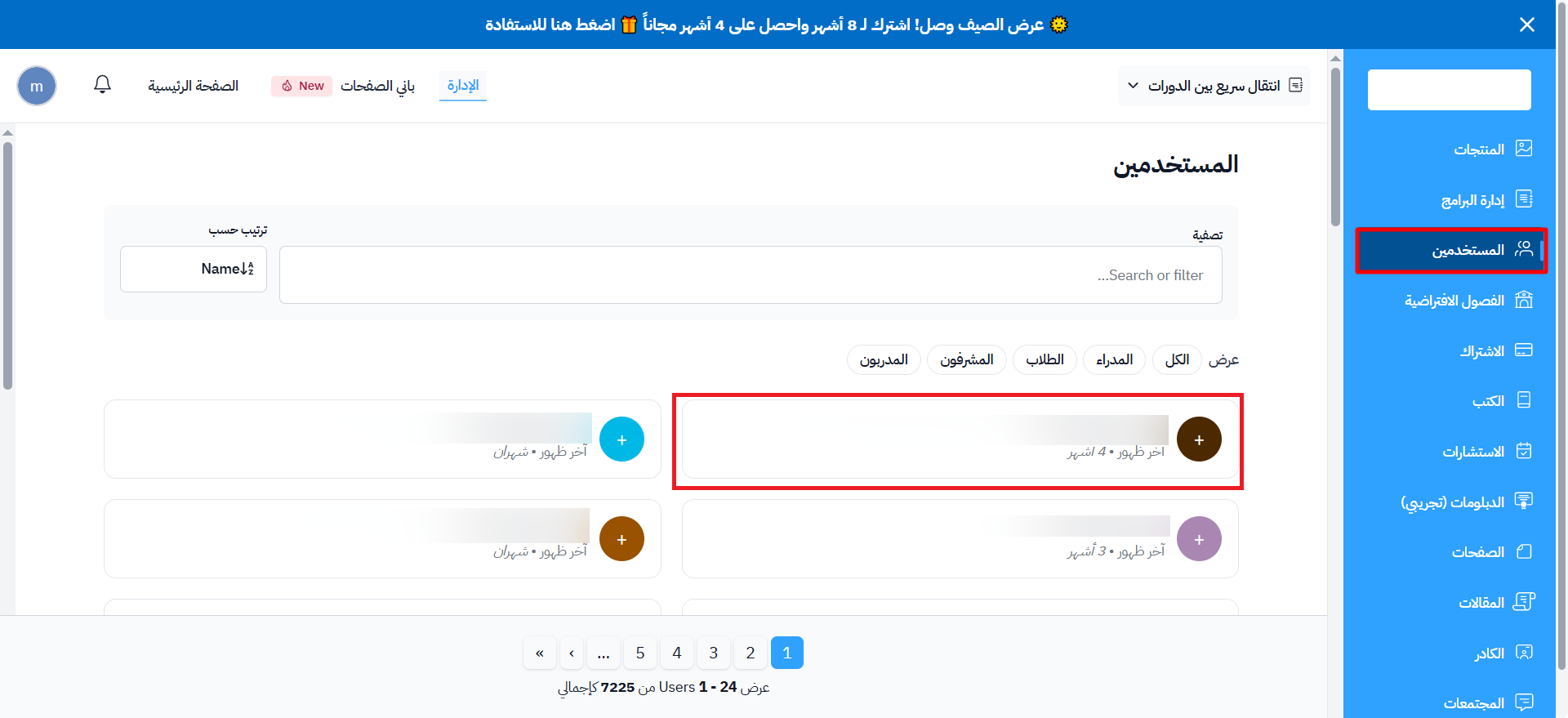
The user page shows the user's details at the top. Under them, the Courses taken section shows the courses the user is taking, and the Coaching and training section shows the courses they coach or train.