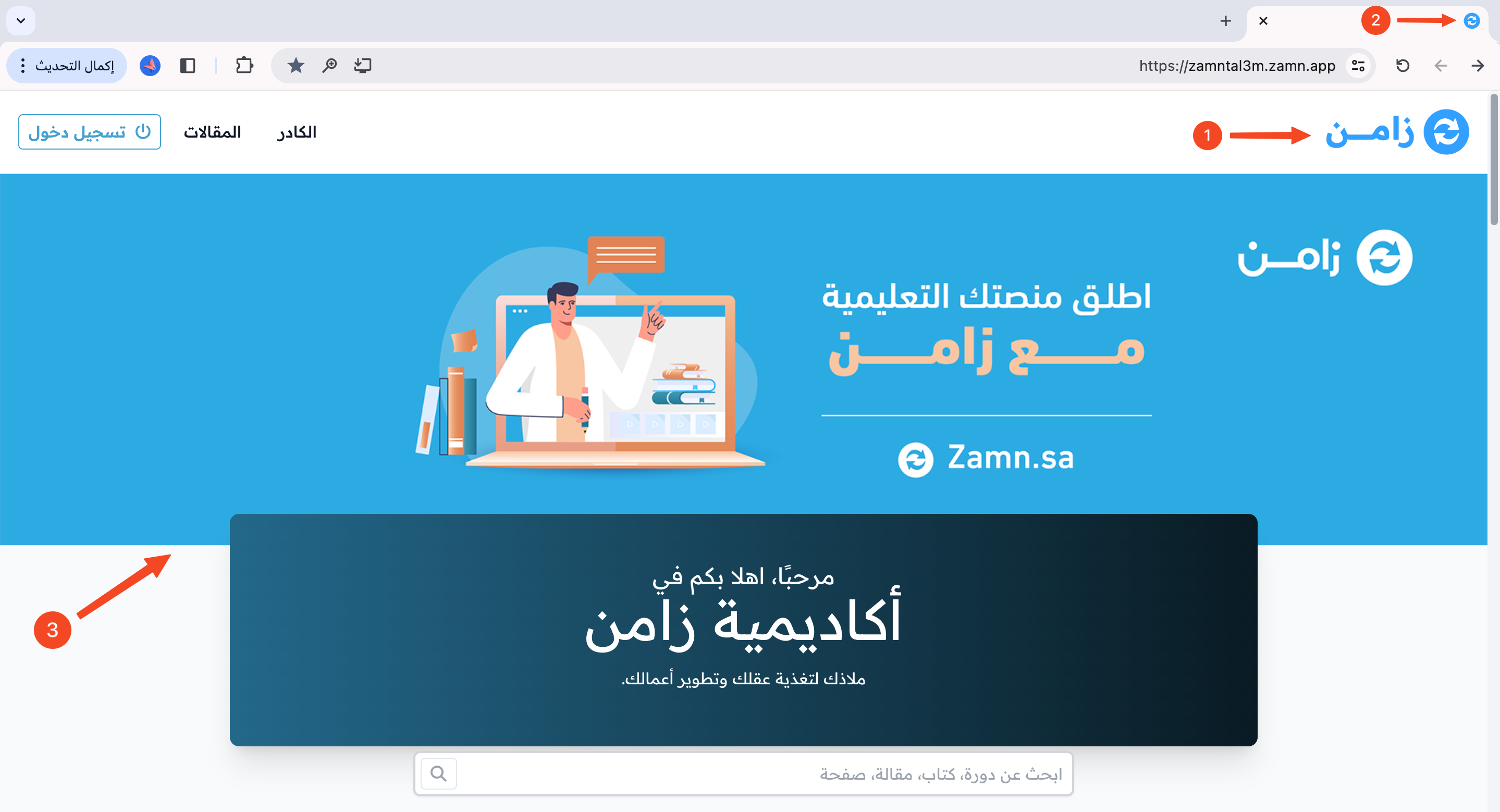
The best look for your platform (branding)
Your platform's home page is the page people visit most, so its content and look matter a lot.
In this article we show you, step by step, the best ways to improve your platform's home page on Zamn.
This article covers:
- The look of the home page.
- The content of the home page.
- Footer links and contact details.
- Other additions.
The look of the home page
To get the best look for your platform's home page, follow these steps.
Add the logo and cover image
-
From the dashboard, click Settings, then Customization.
-
Click Edit next to the logo.
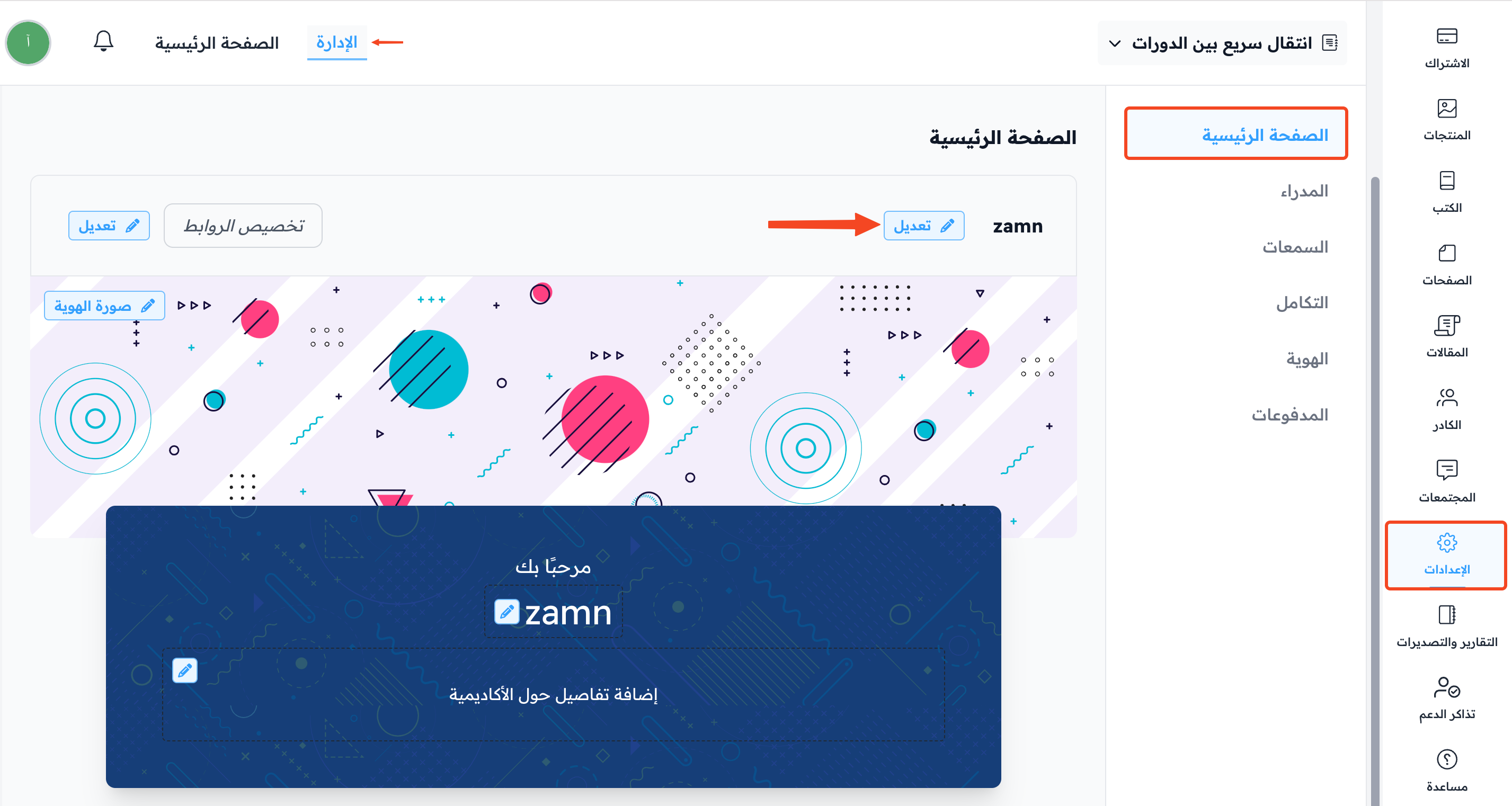
-
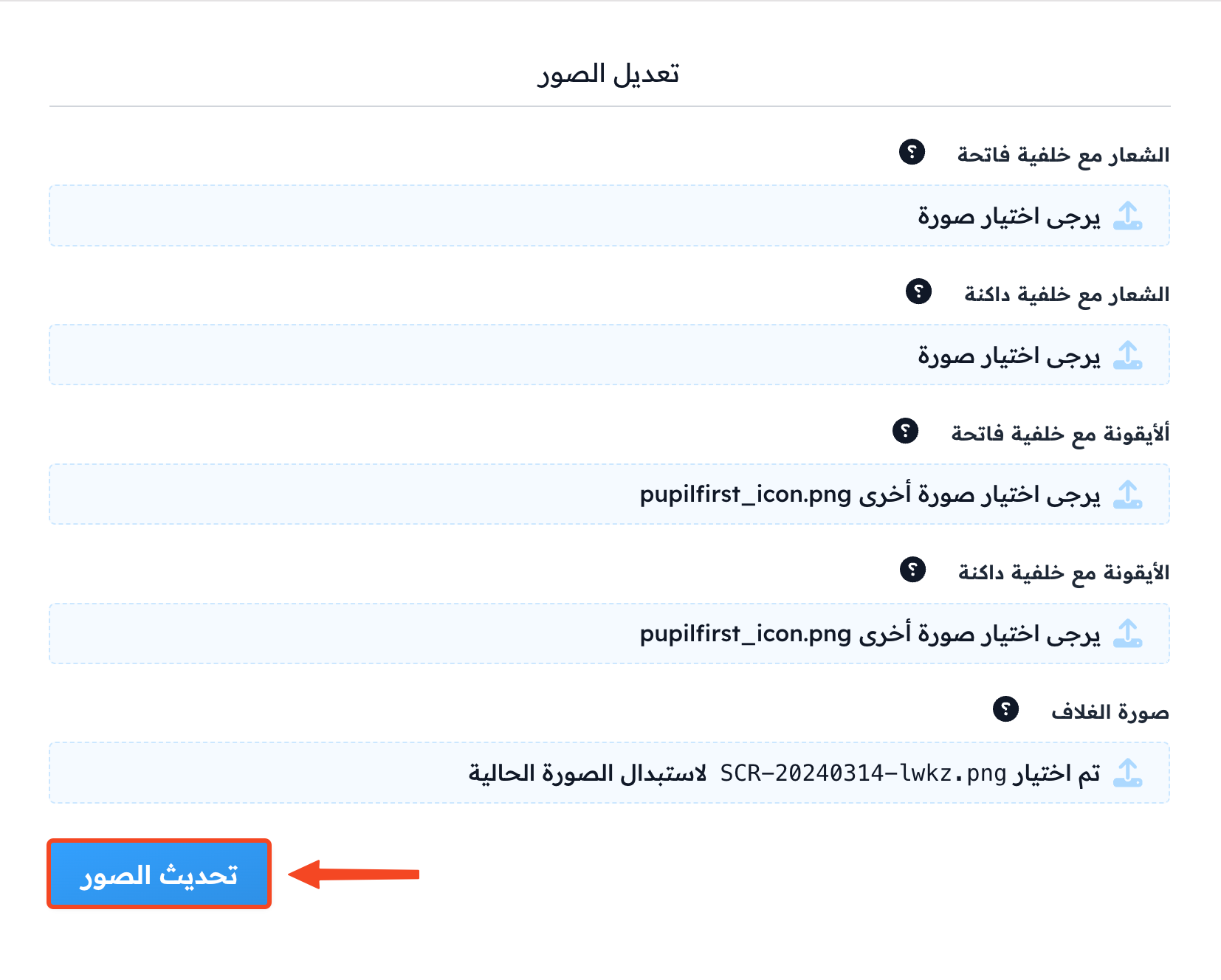
Upload your platform's logo in the Logo on a light background and Logo on a dark background fields.
-
Upload the browser icon in the Icon on a light background and Icon on a dark background fields.
-
Choose your platform's Cover image.
-
Click Update Images to save.
Click here to see the recommended image sizes.
Add details about your platform
-
From the dashboard, click Settings, then Customization.
-
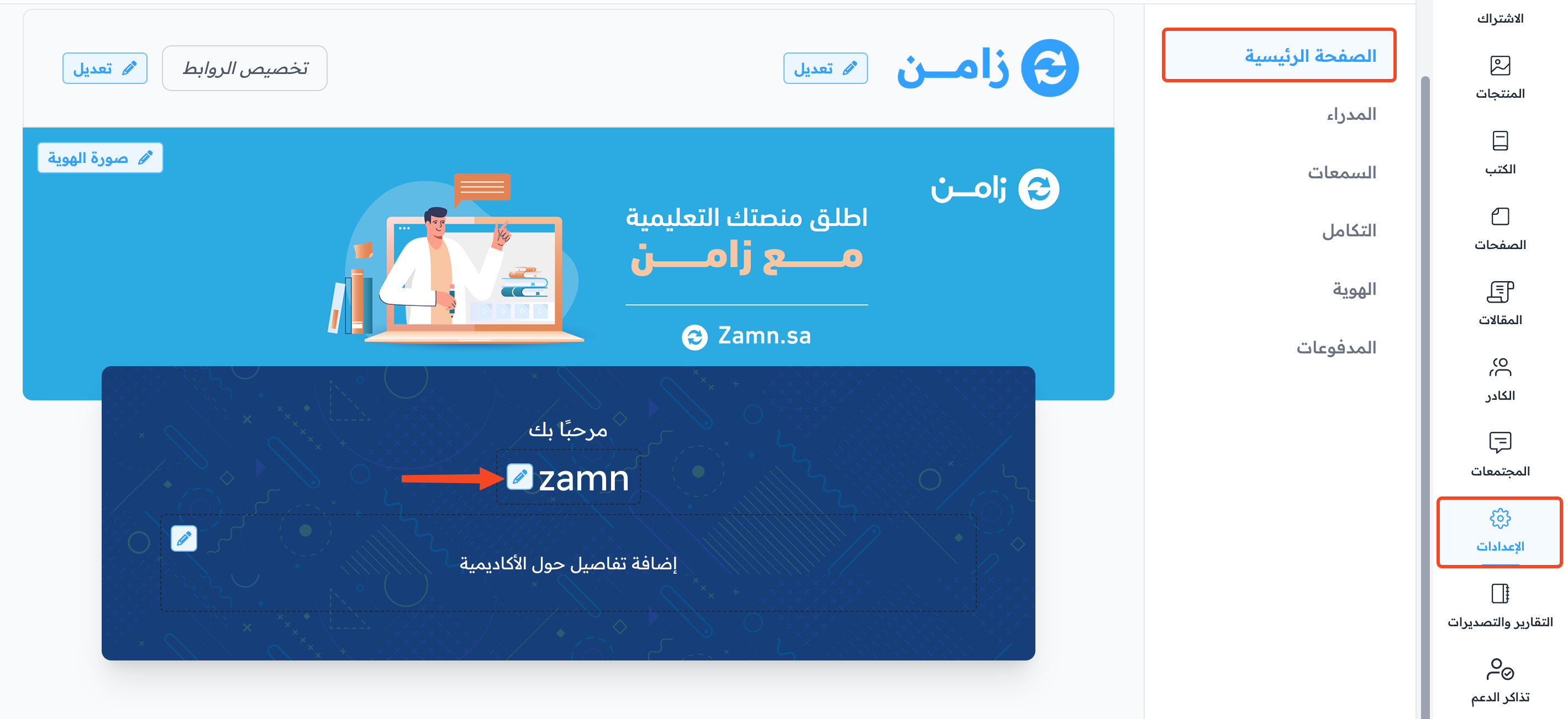
Click the edit button next to the platform name.
-
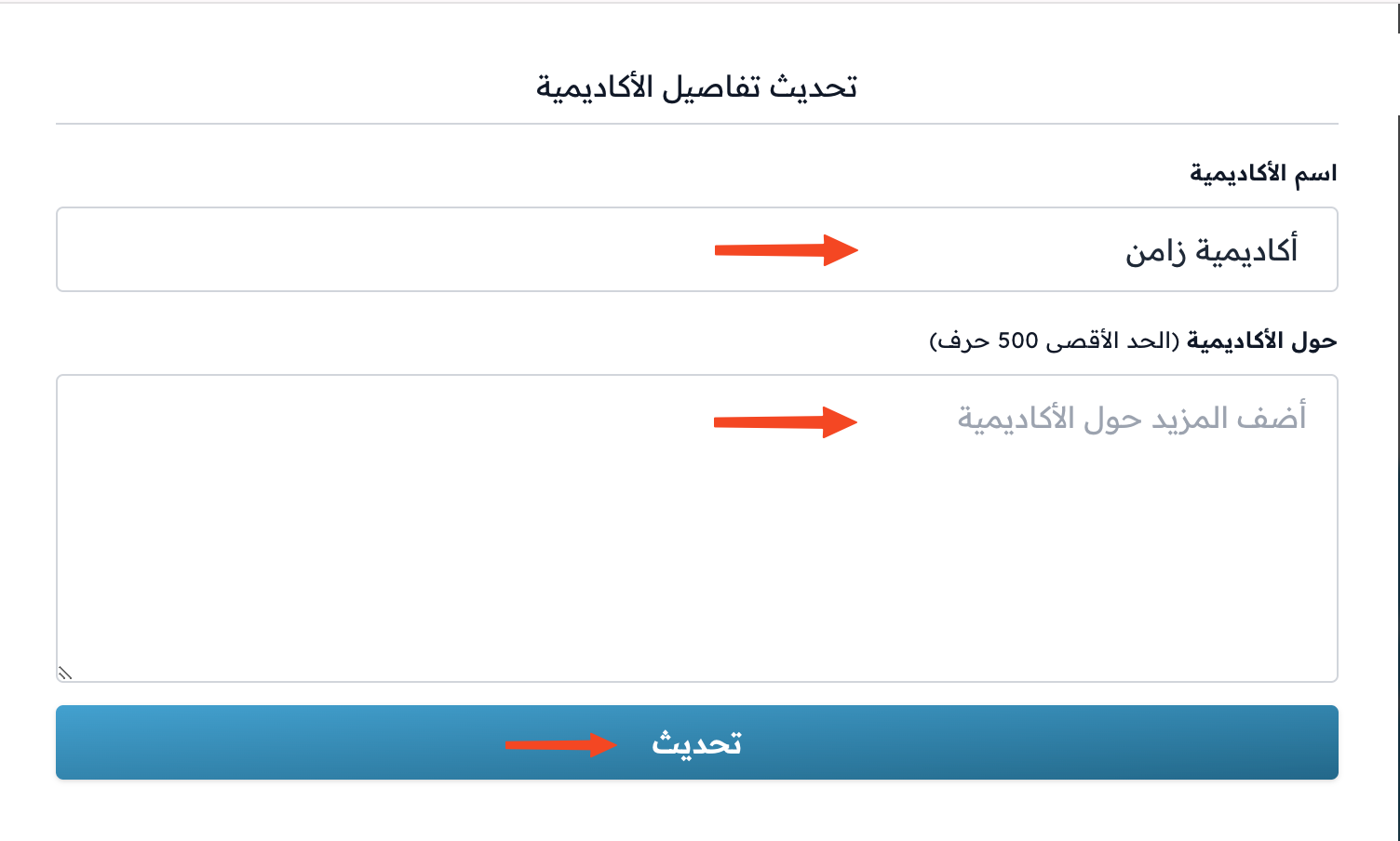
Change your platform's name in the Platform Name field if you want.
-
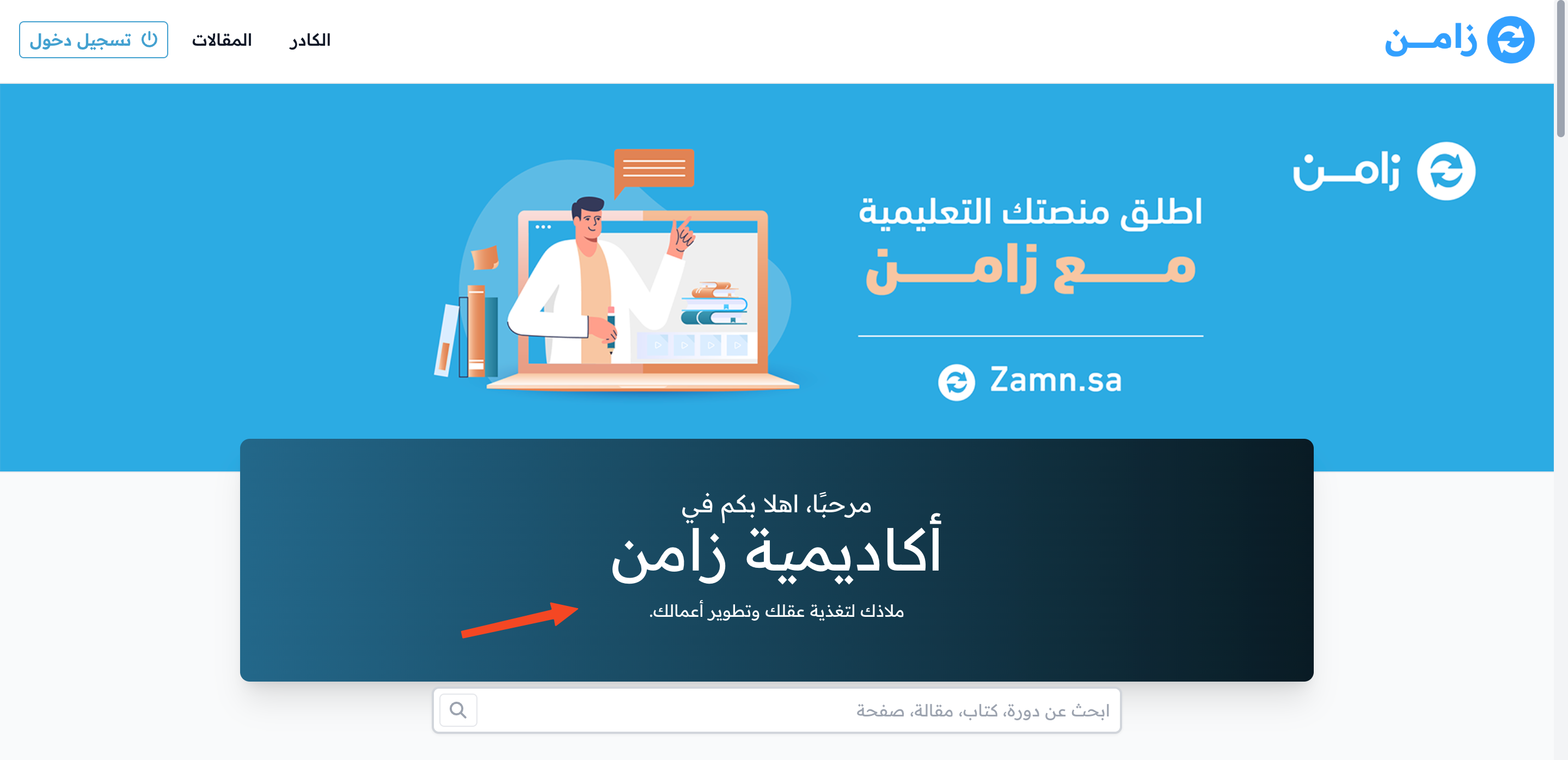
Write a short description or some information about your platform in the About field.
-
Click Update to save.
Change the platform language, color and font
-
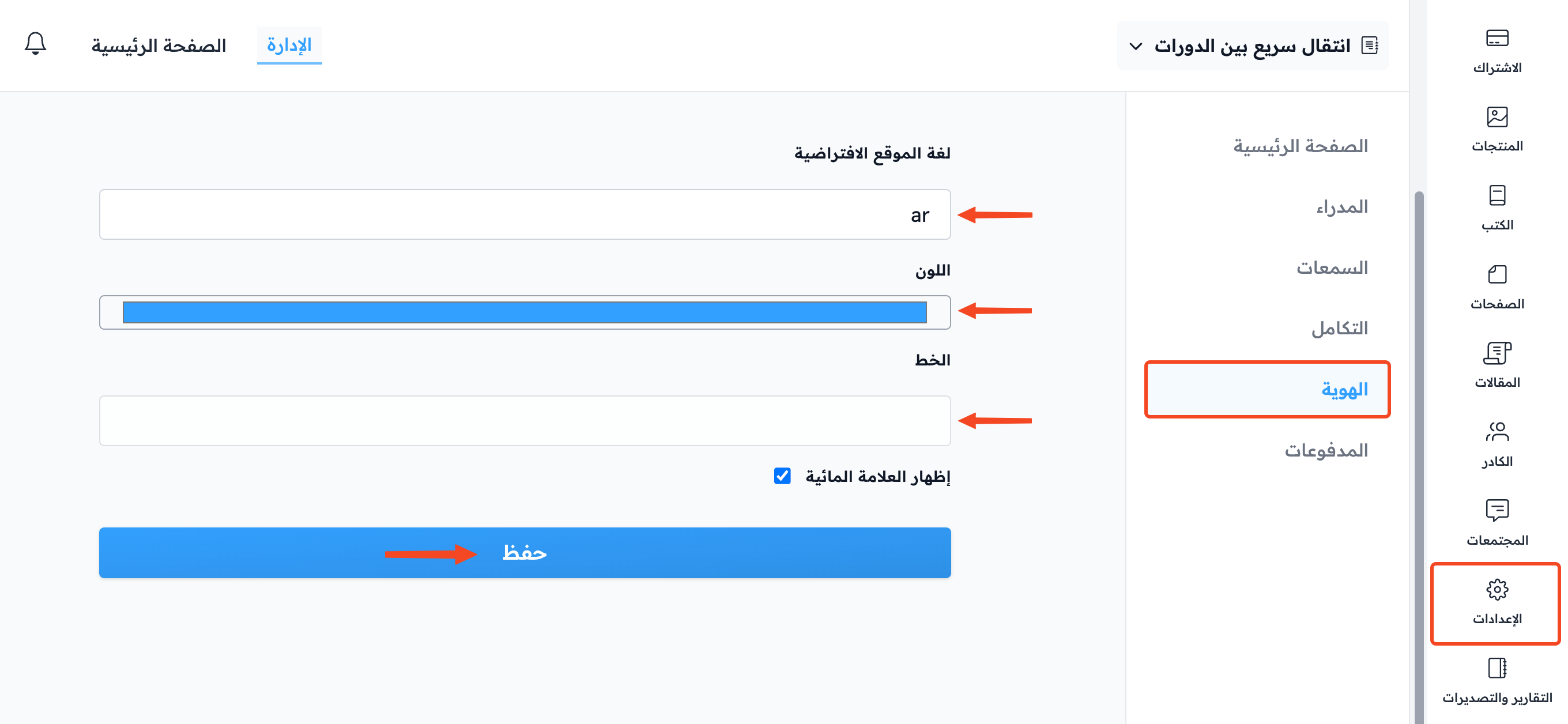
From the dashboard, click Settings.
-
Go to the Branding page.
-
Change the Site default language, Color and Font to fit your platform's identity.
-
Click Save.
- Click here to learn how to change the platform language for visitors.
- Click here to learn how to change the platform color.
- Click here to learn how to change the platform font.
The content of the home page
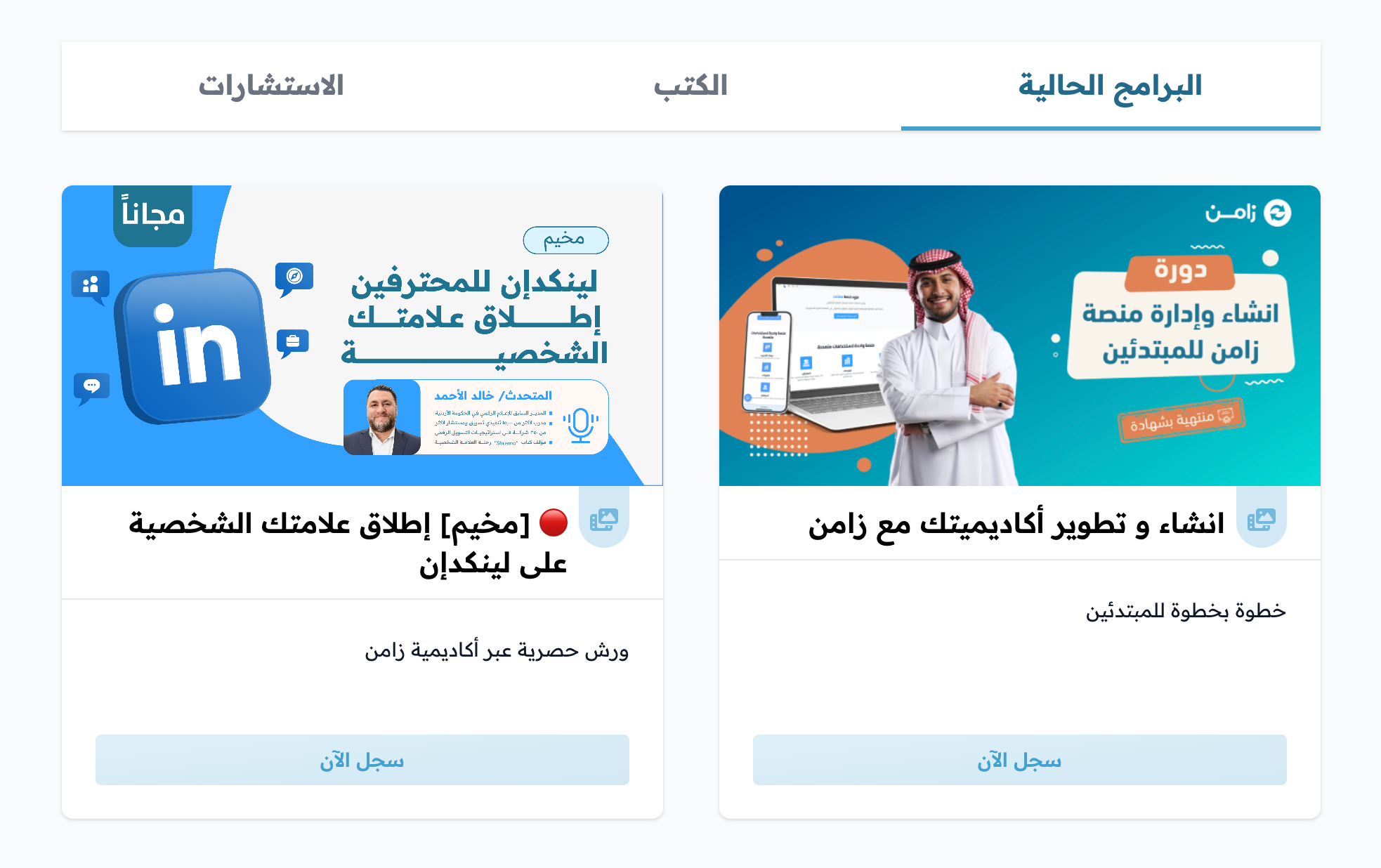
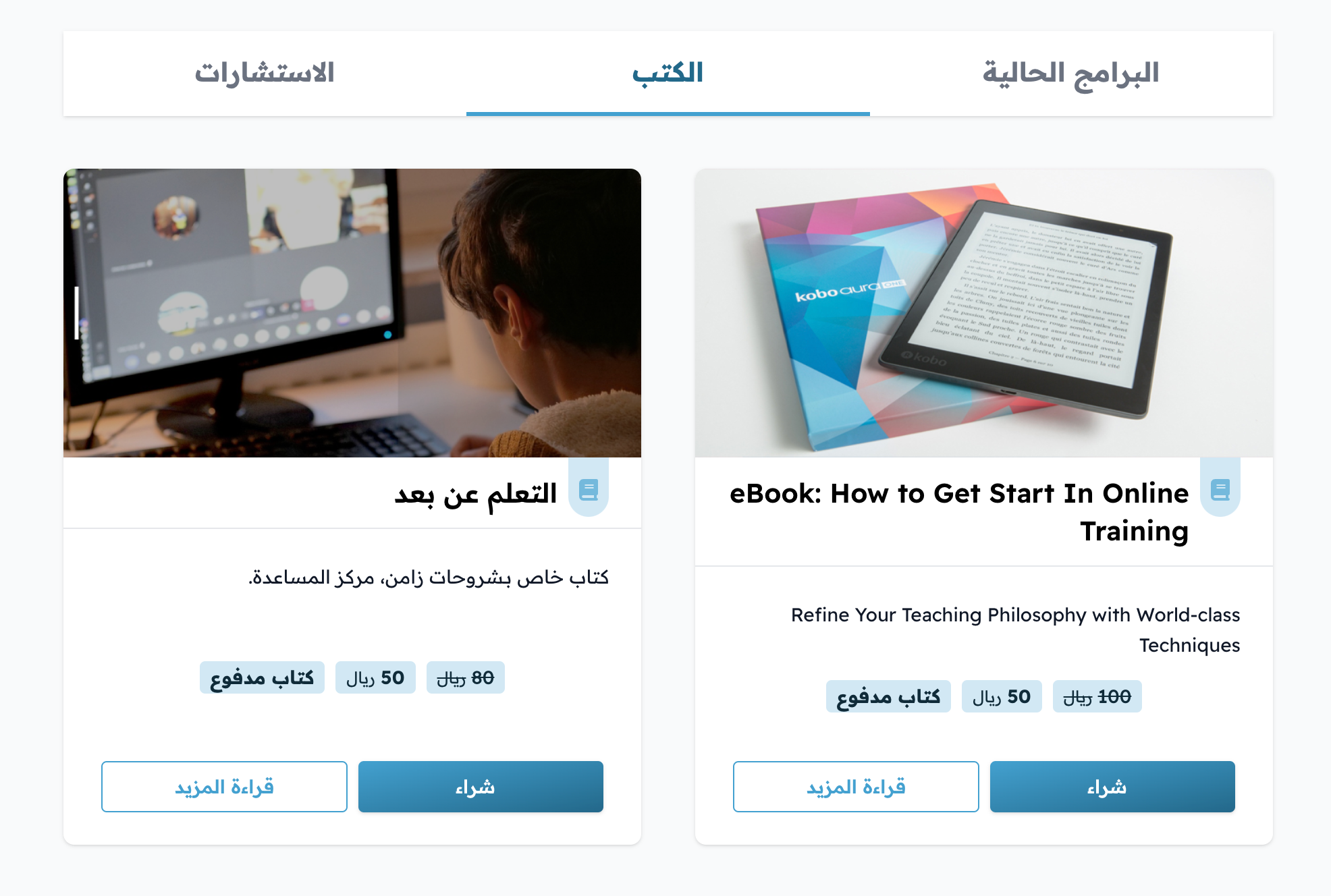
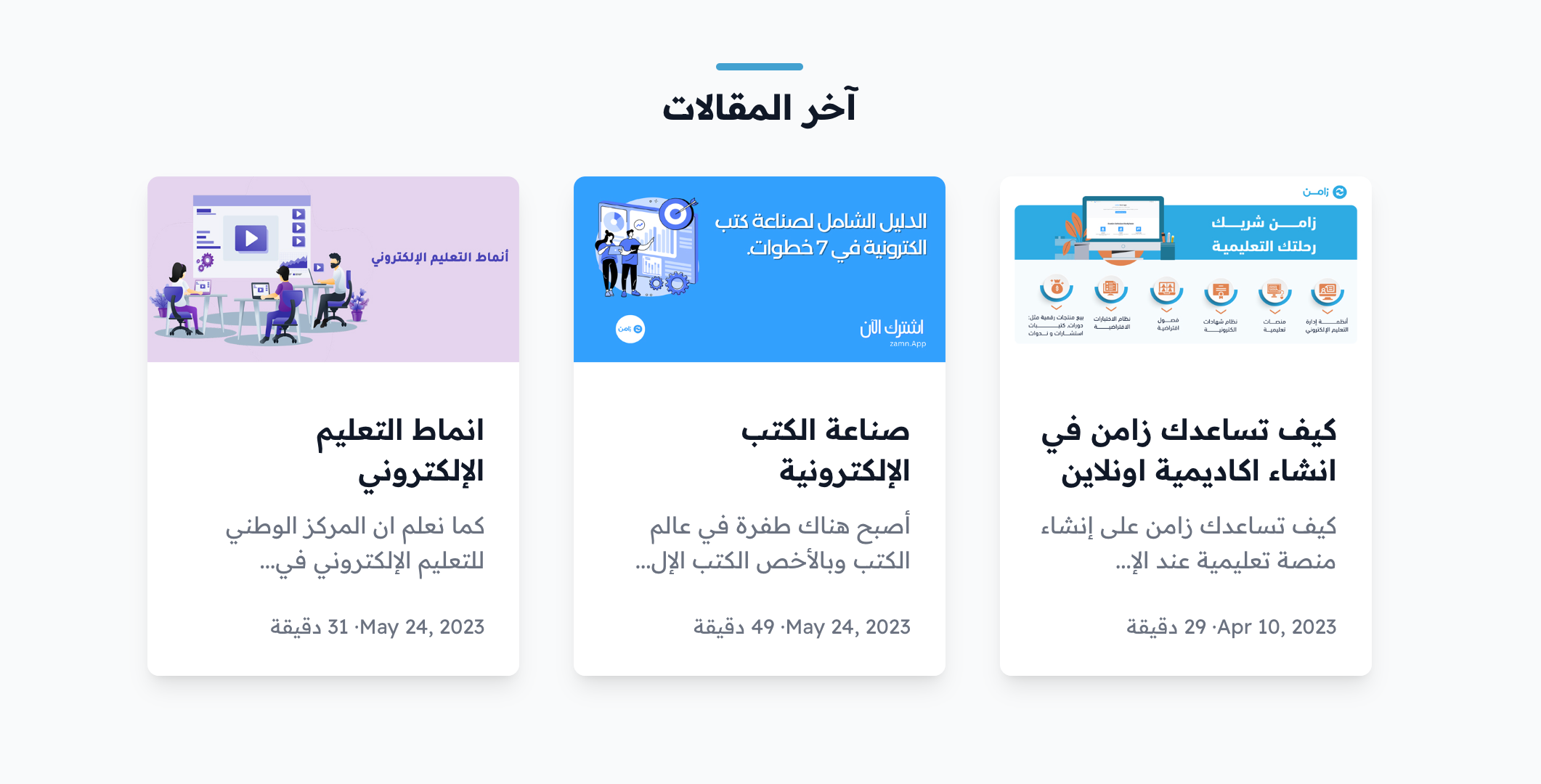
When you add a course, a book or a blog post:
- Choose an image that shows what the content is about.
- Write an attractive title.
- Write a short description that makes people curious.
Click here to learn how to create a course.
Click here to learn how to create a book.
Click here to learn how to create a blog post.
Footer links and contact details
-
From the dashboard, click Settings, then Customization.
-
Scroll to the bottom of the page, and click Edit next to Sitemap, Social or Contact to add footer links, social media links and contact details.
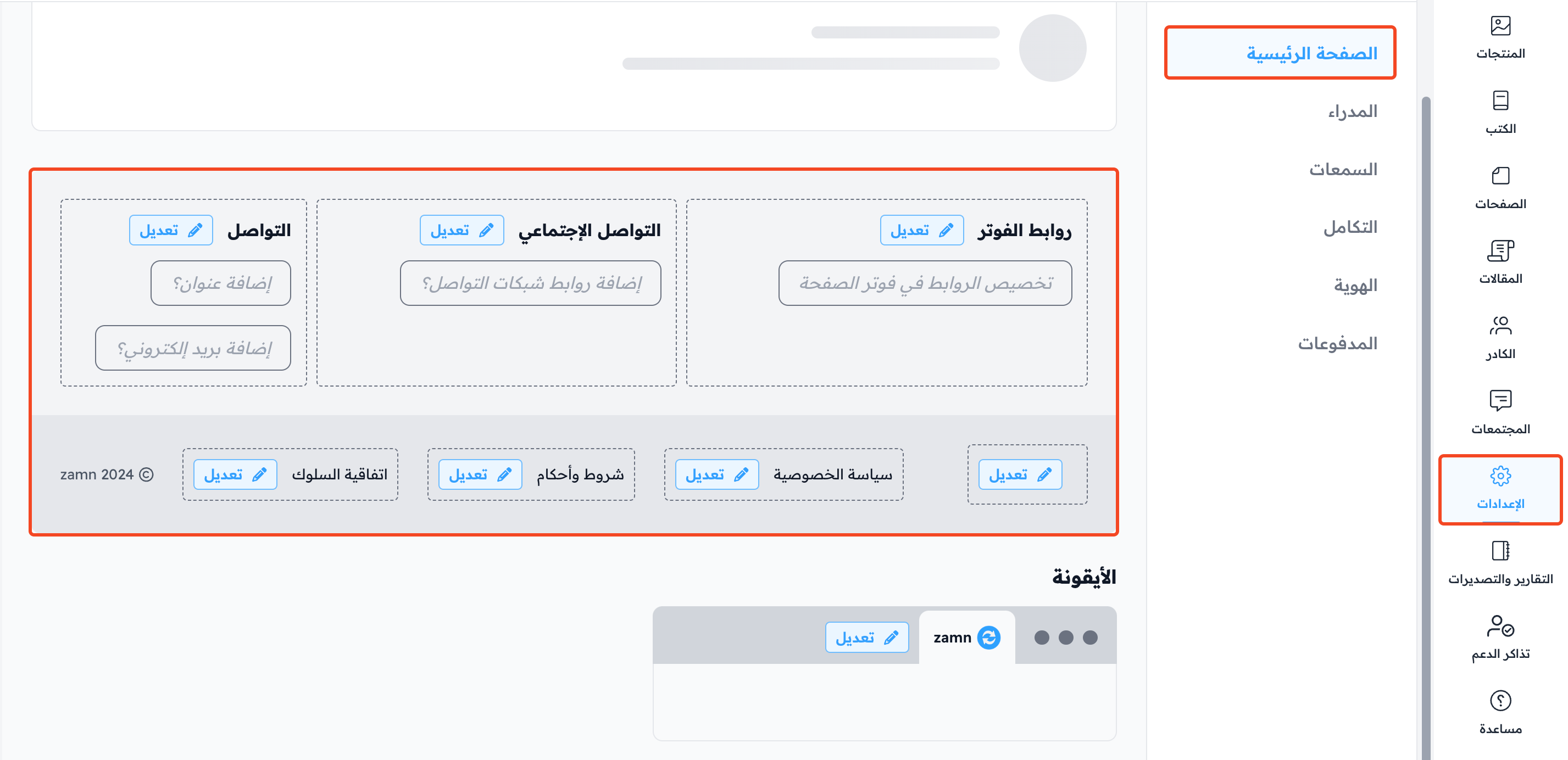
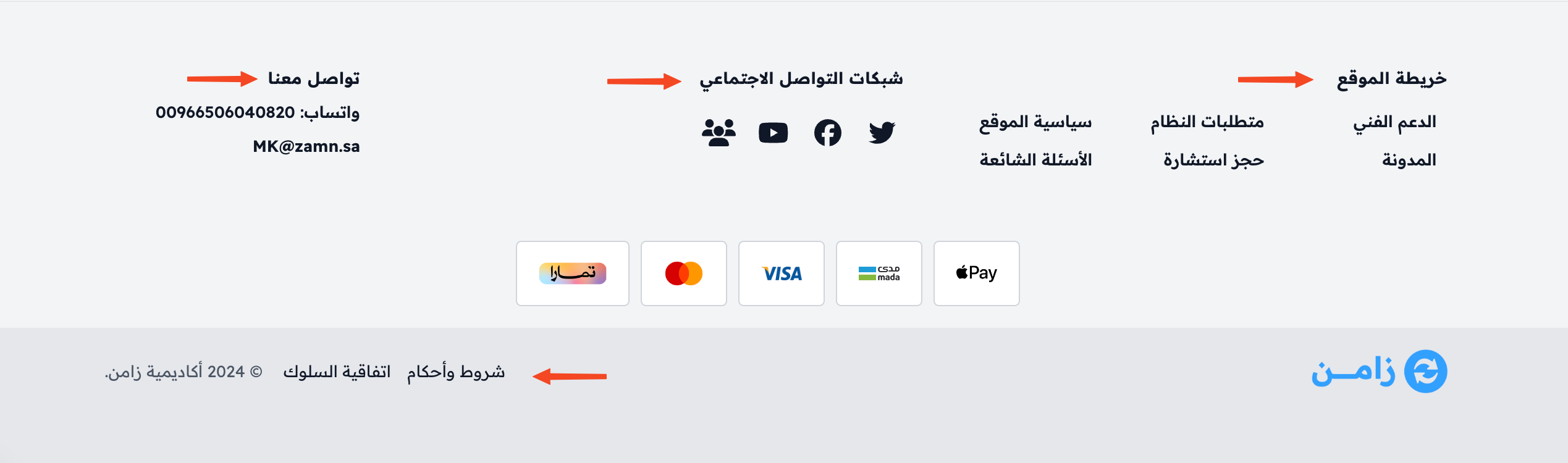
The privacy policy and the terms and conditions are not added from this page. Create them as pages from the Pages menu, and choose the right page type in the Type field. Their links then show in the footer.
Click here to learn more about adding the footer and social media links
Other additions
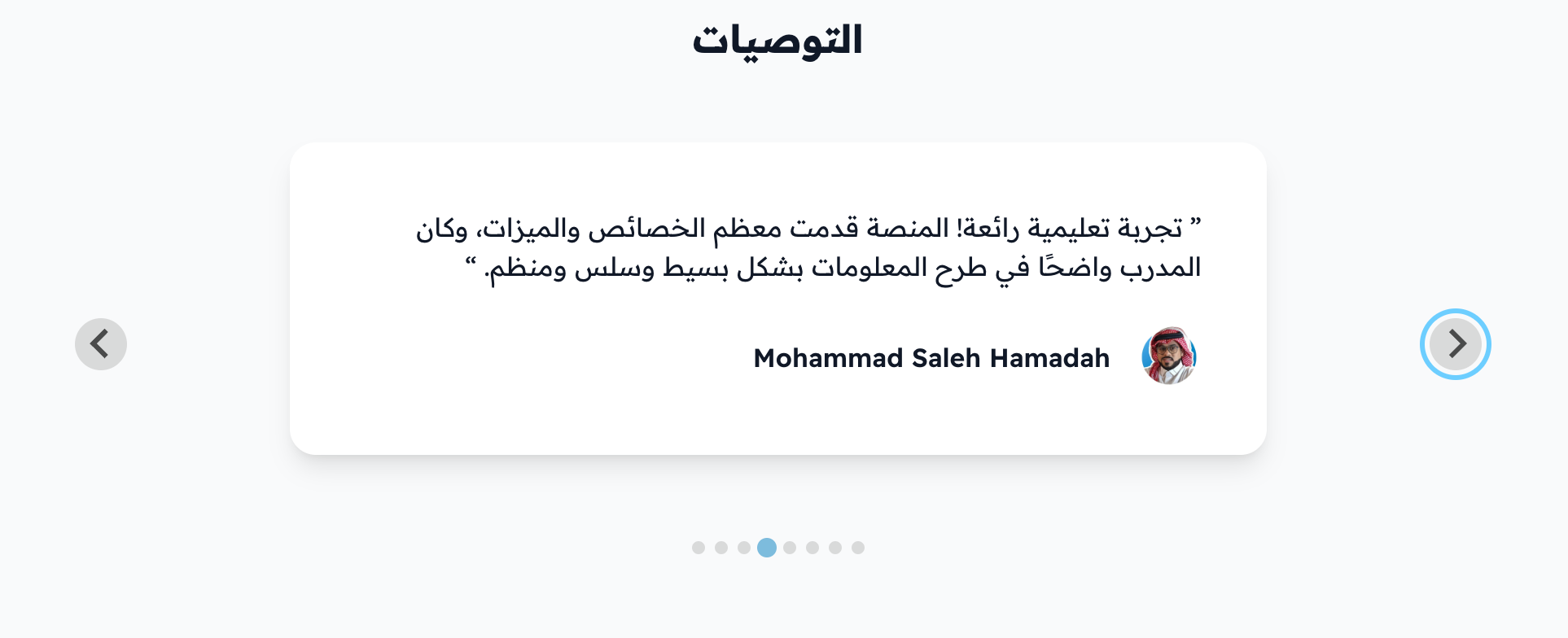
Testimonials
Add reviews and testimonials about your platform:
-
From the dashboard, click Settings, then Customization.
-
In the Testimonials section, click Update.
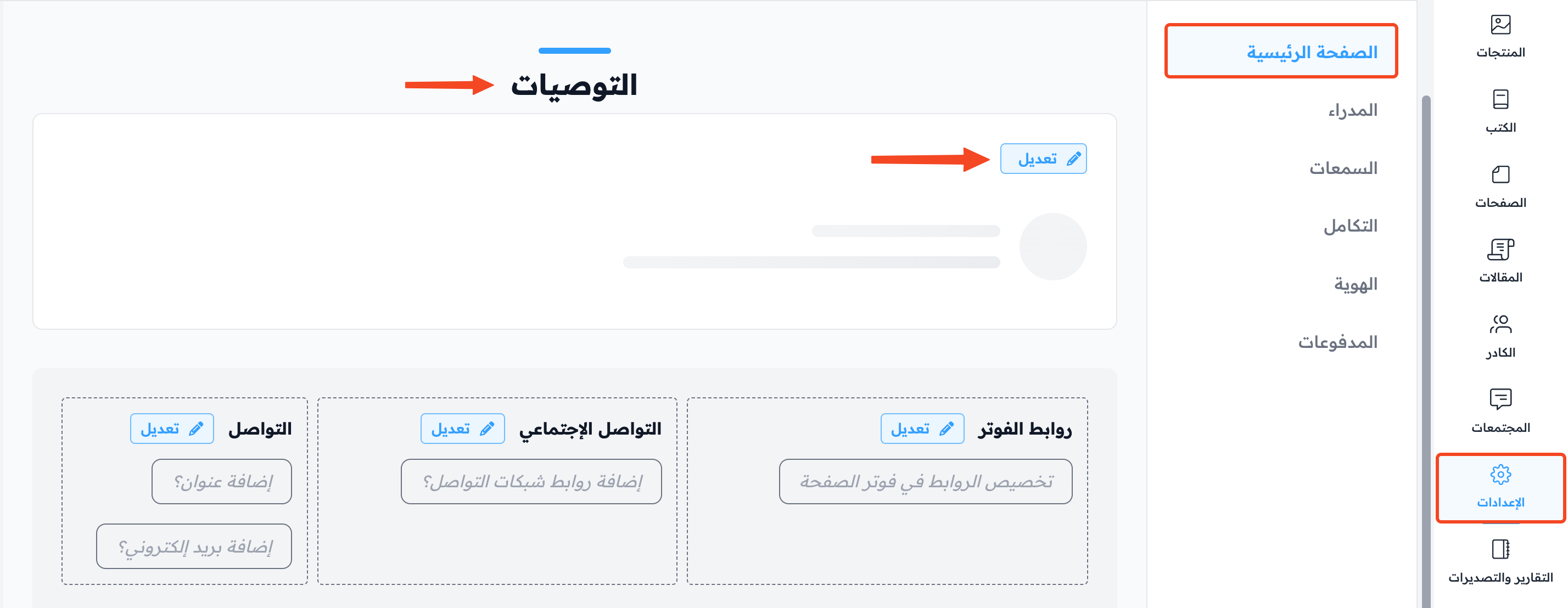
Click here to learn more about adding testimonials.