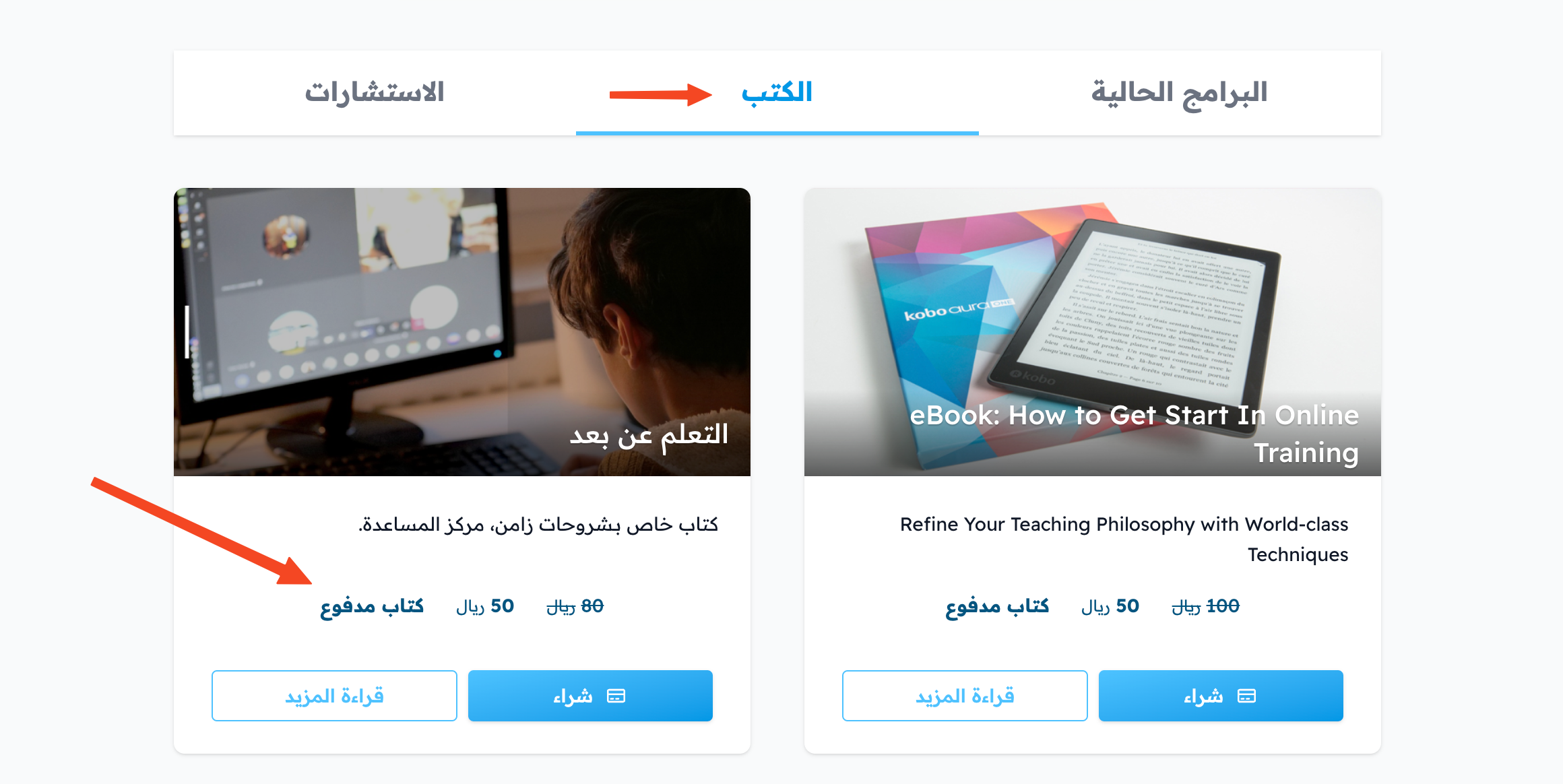
Add a book as a product for sale
After you create the book, follow these steps to add it as a product for sale. These steps are for the platform admin.
Steps to add the book as a product for sale
-
From the main menu in the dashboard, go to Product Management, then choose Products.
-
Click Create Product.

-
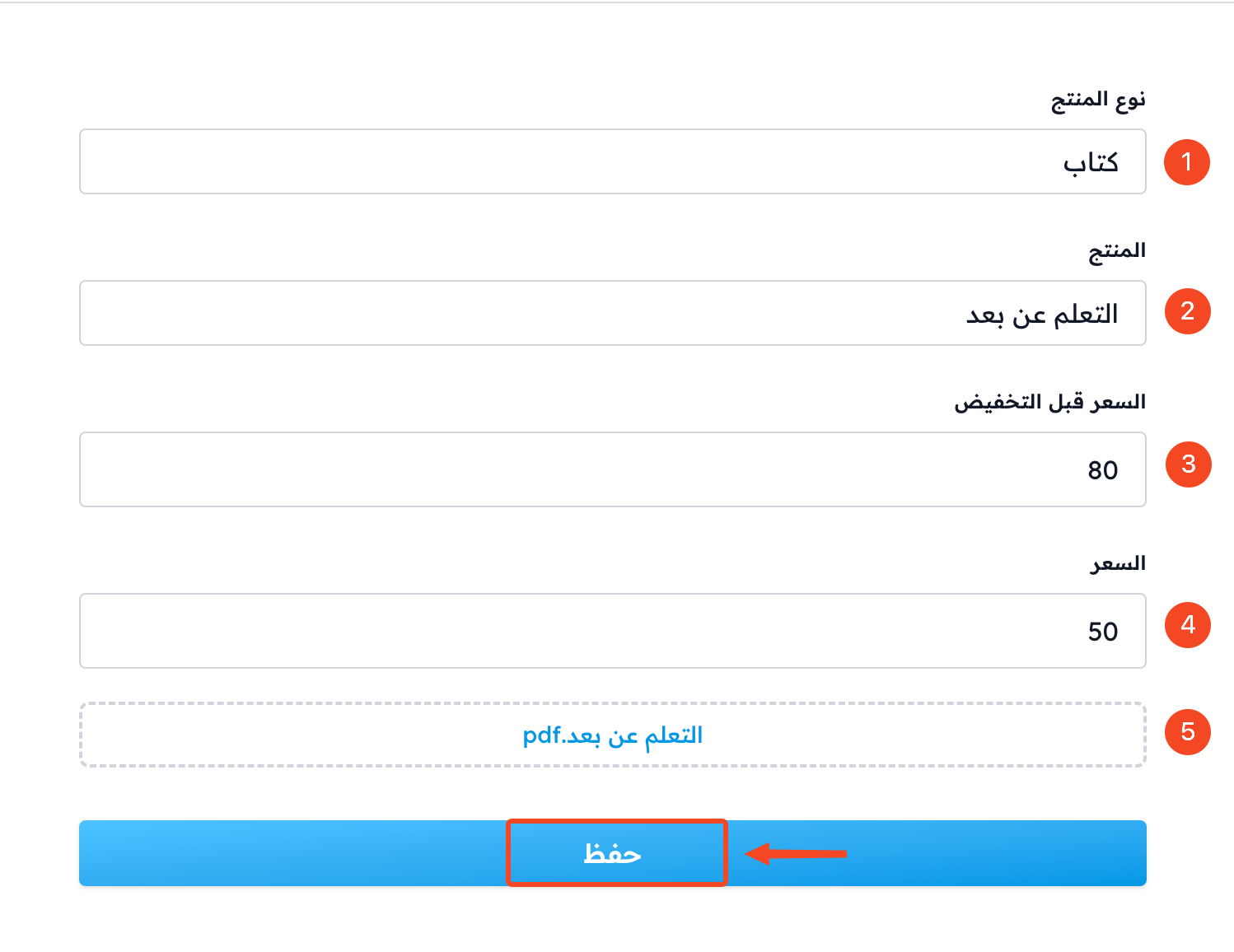
In Product Type, choose Book.
-
In Product, choose the book from the list.
-
Enter the current price of the product in the Price field.
-
You can add a Price before reduction.
-
Click Click to add a preview and add a PDF file with a sample of the book.
-
Click Submit.
You can see an example of a paid book in the Books section of the Zamn platform home page.